

In Profit.co, you can create a task-tracked Key Result (KR) that automatically updates its progress based on task completion status. You can link existing Workspaces or Boards, assign progress percentages to task statuses, and track KR progress in real time without manual check-ins.
Table of Contents
What is a task-tracked Key Result in Profit.co?
A task-tracked Key Result measures progress based on tasks linked to a Workspace or Board. As tasks move through different statuses, the KR progress updates automatically using predefined percentage values.
This helps teams track execution-level work while staying aligned with OKRs.
Why use a task-tracked Key Result?
Using task-tracked KRs helps you:
- Automatically update KR progress based on task status
- Eliminate manual KR check-ins
- Maintain real-time visibility into execution progress
- Align daily tasks directly with strategic Key Results
- Make faster, data-driven decisions
How to create a task-tracked Key Result in Profit.co
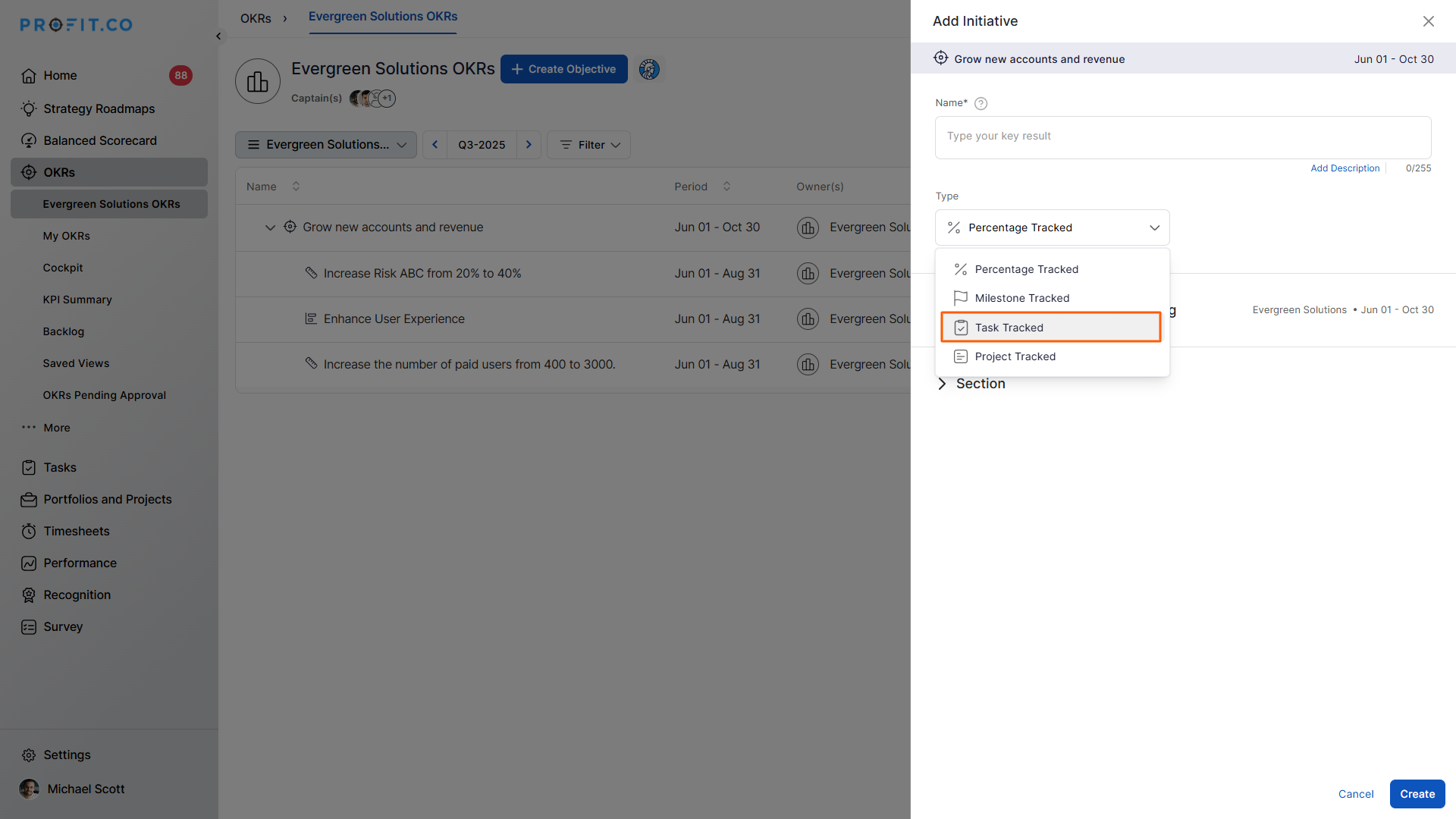
Step 1: Select the Task-Tracked KR type
While creating a Key Result, choose Task Tracked as the Key Result type.
Step 2: Link a Workspace or Board
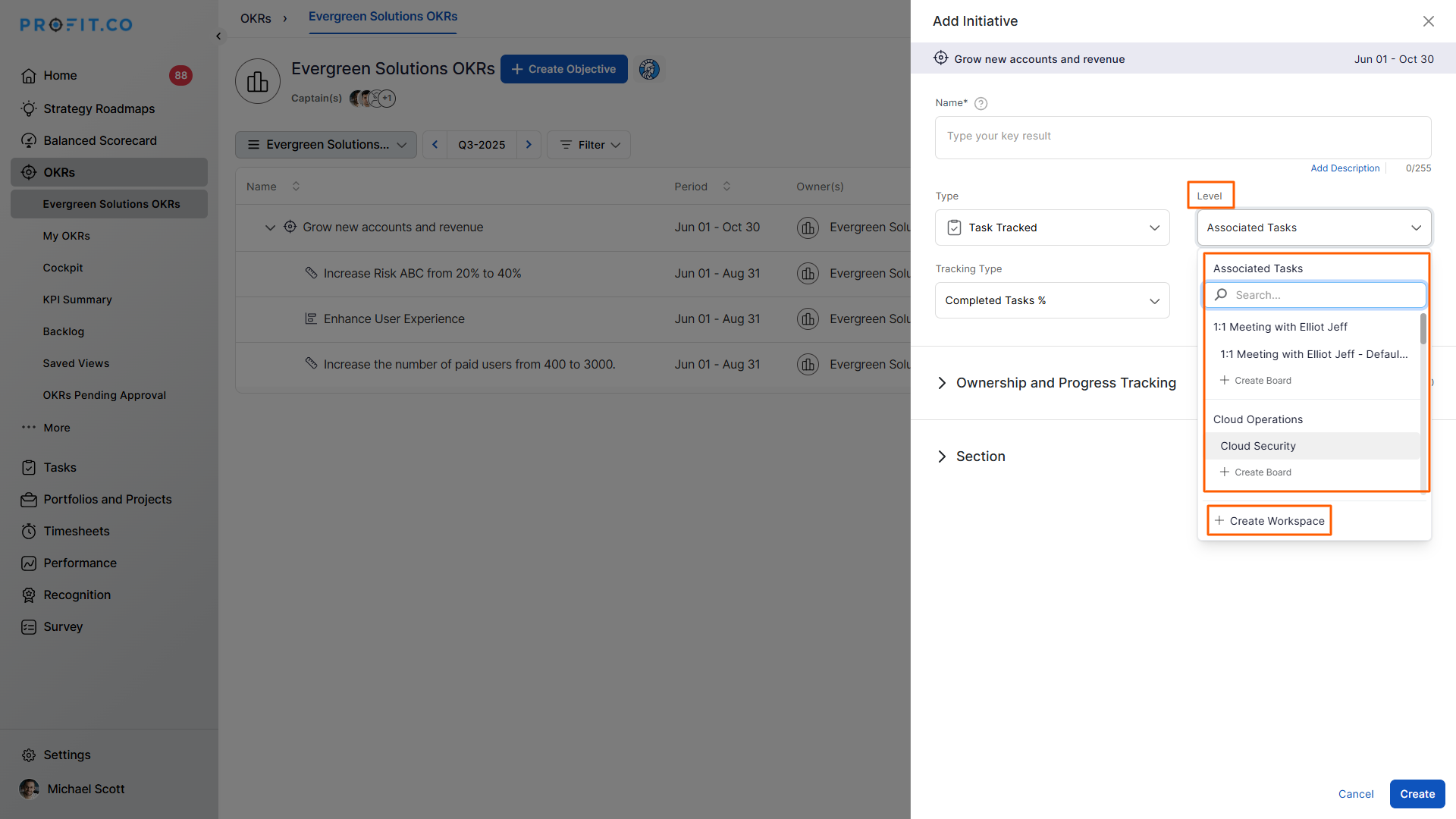
From the Levels dropdown, select an existing Workspace or Board.
Note:
You can also create a new Workspace or Board directly from this screen and add tasks later.
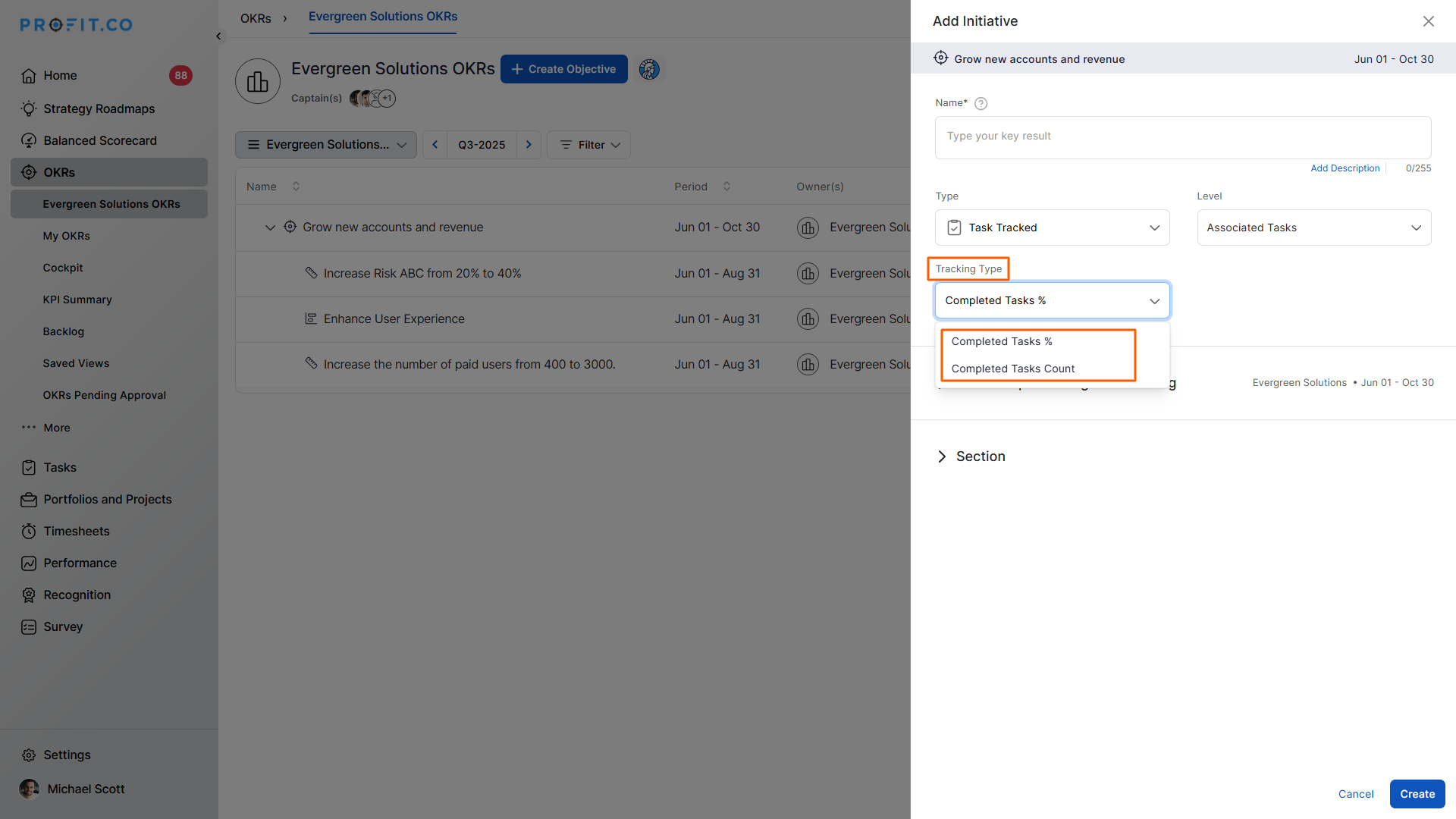
You can choose how progress is tracked:
- Percentage-based
- Count-based
Step 3: Track progress through task completion
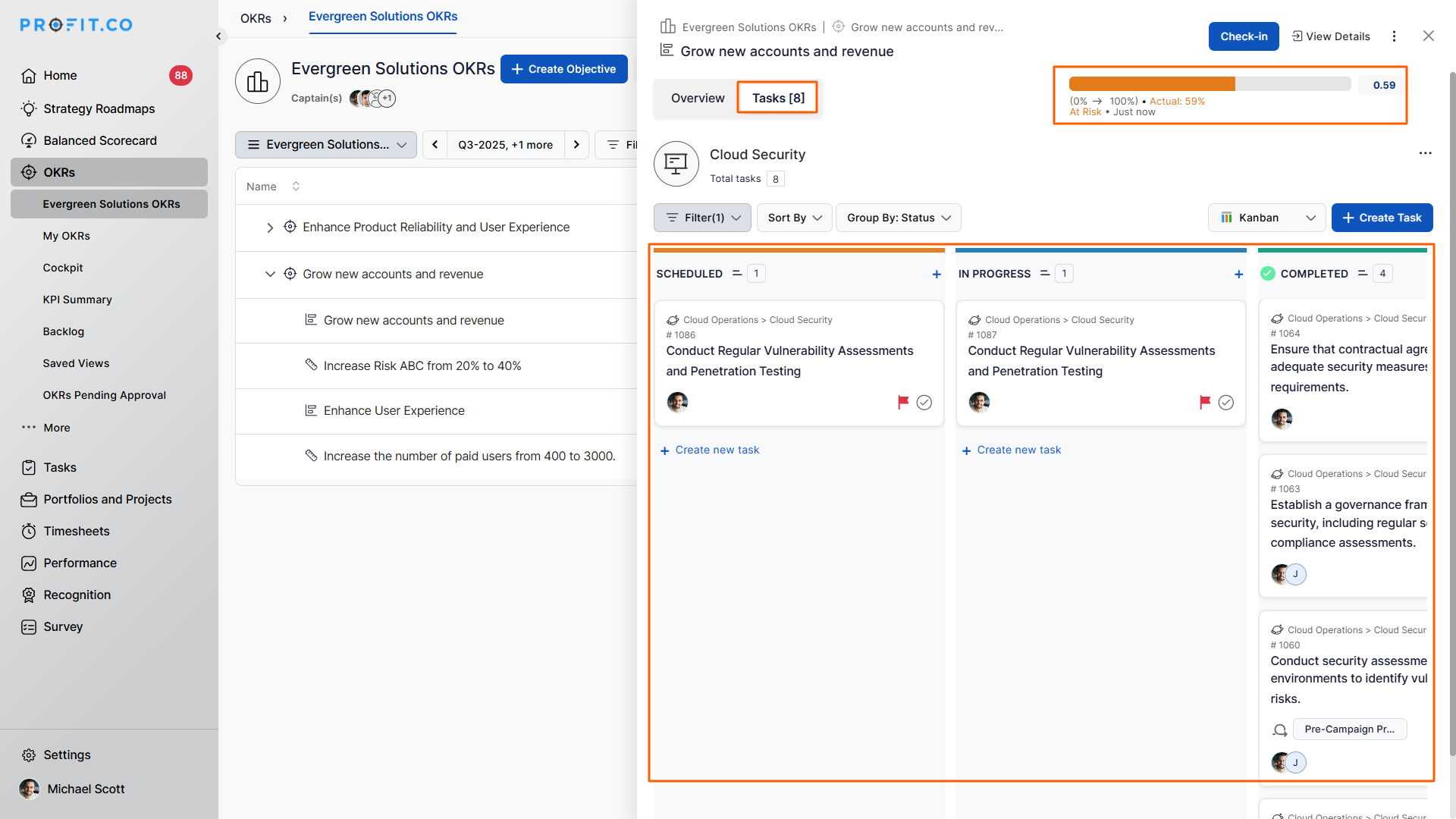
The Key Result progresses automatically as tasks are completed or moved through different statuses.
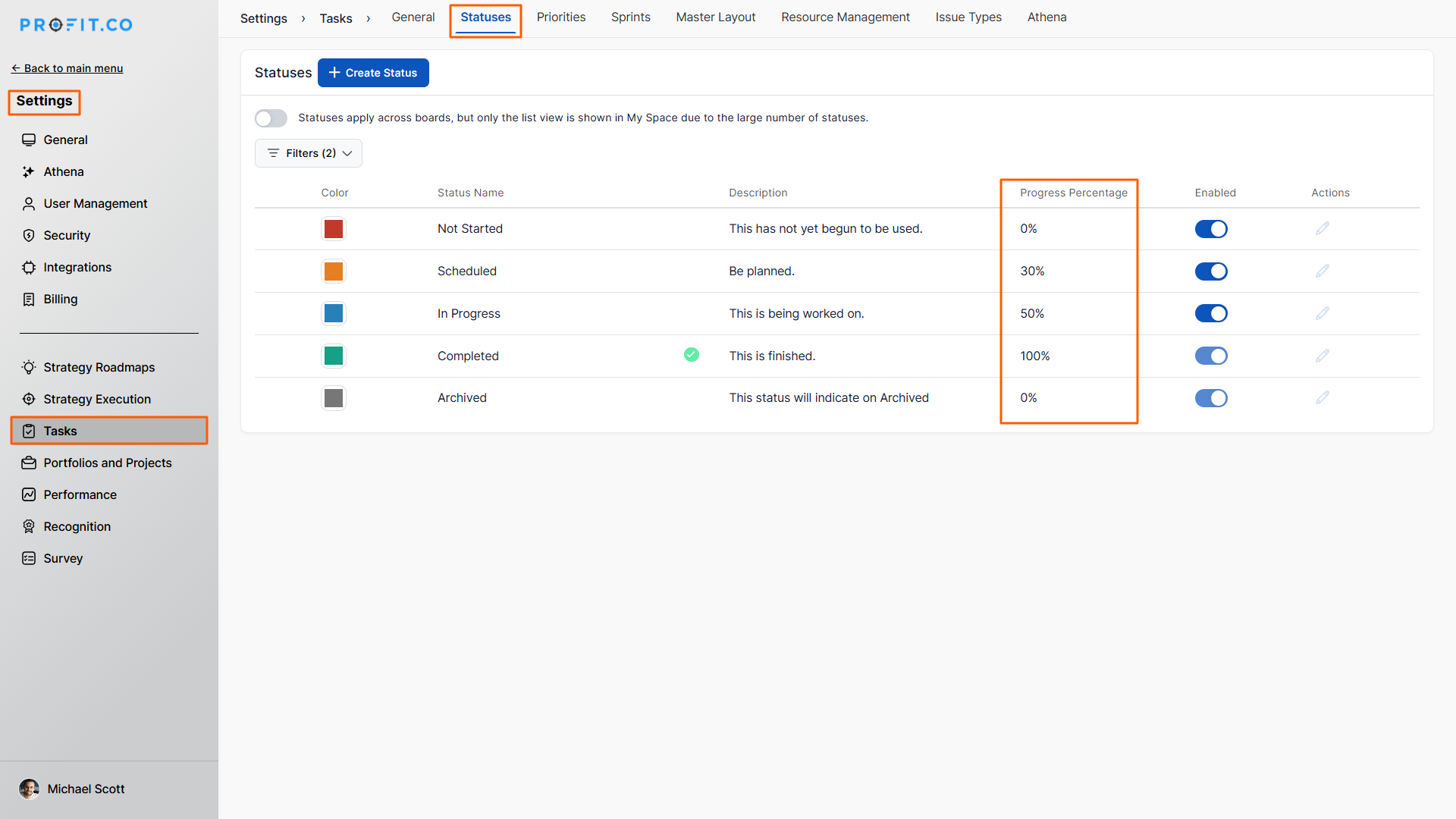
Step 4: Configure progress percentage for task statuses
In Settings, assign a specific progress percentage to each task status.
Example:
Scheduled status → 30%
When a task is marked as Scheduled, the KR check-in updates automatically to 30%.
Important:
If multiple tasks exist, Profit.co calculates the average progress of all tasks and displays it as the KR progress.
Step 5: Delete options for task-tracked Key Results
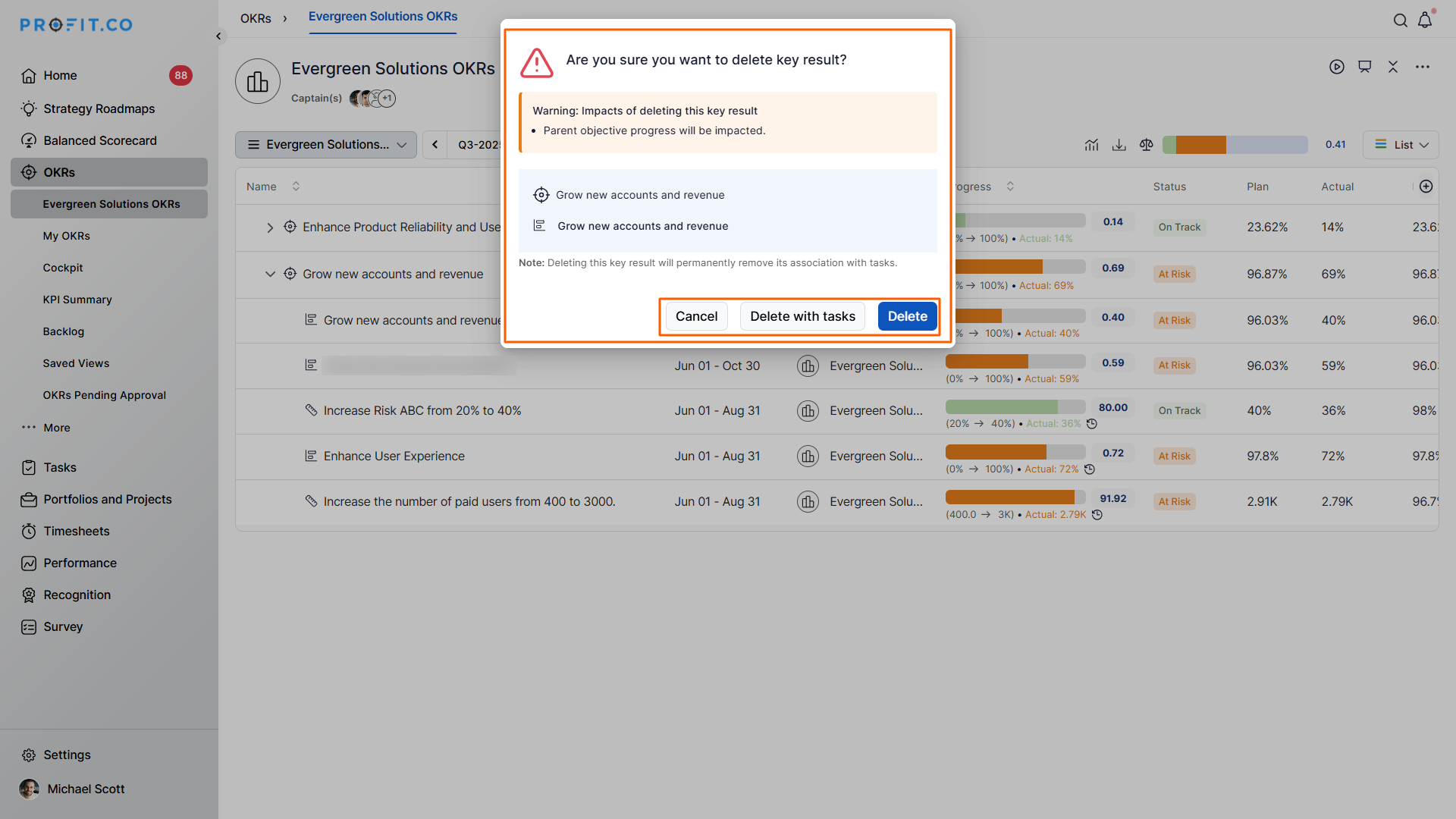
When deleting a task-tracked KR, you’ll see two options:
- Simple Delete: Deletes only the Key Result
- Delete with Task: Deletes the Key Result while retaining tasks on the board
Best practices for task-tracked Key Results
- Link one KR to a clearly scoped Workspace or Board
- Use consistent task statuses across teams
- Assign realistic percentage values to each status
- Avoid mixing unrelated tasks in a single KR
- Review task status rules before starting the cycle
Related Questions
To learn more about the process of task-tracked key results using the count of completed tasks, click here.
To learn more about the process of showing the completed task count, click here.
Frequently Asked Questions
Yes. KR progress updates automatically based on task status and assigned percentage values.
Yes. You can choose between percentage-based tracking or count-based tracking when configuring the KR.
Profit.co recalculates the KR progress by averaging all task progress percentages, including newly added tasks.
