



How do I manage tollgate compliance across projects in Profit.co?
Category: PPM
In Profit.co, you can Manage tollgate compliance across projects by associating tollgate sequences with projects, linking milestones to tollgate stages, managing checklists, and monitoring approval status, ensuring projects meet governance requirements before advancing to the next phase.
Table of Contents
- Tollgate Compliance Management in Profit.co
- How do I assign a Tollgate Sequence to a project?
- How do I access Tollgate in a project?
- How do I associate milestones with tollgate stages?
- How do I submit a tollgate stage for approval?
- Best Practices to Manage Tollgate Compliance
- Related Questions
- Frequently Asked Questions
Tollgate Compliance Management in Profit.co
Tollgate Compliance Management is the process of monitoring how projects meet stage-gate requirements through milestone completion, checklist fulfillment, and approval workflows. It provides visibility into whether projects are ready to advance to the next phase based on predefined governance criteria.
How do I assign a Tollgate Sequence to a project?
Associate a tollgate sequence with a new or existing project:
- Click Create a New Project button.
- In the project creation form, locate the Tollgate Sequence field.
- Click on the Tollgate Sequence dropdown.
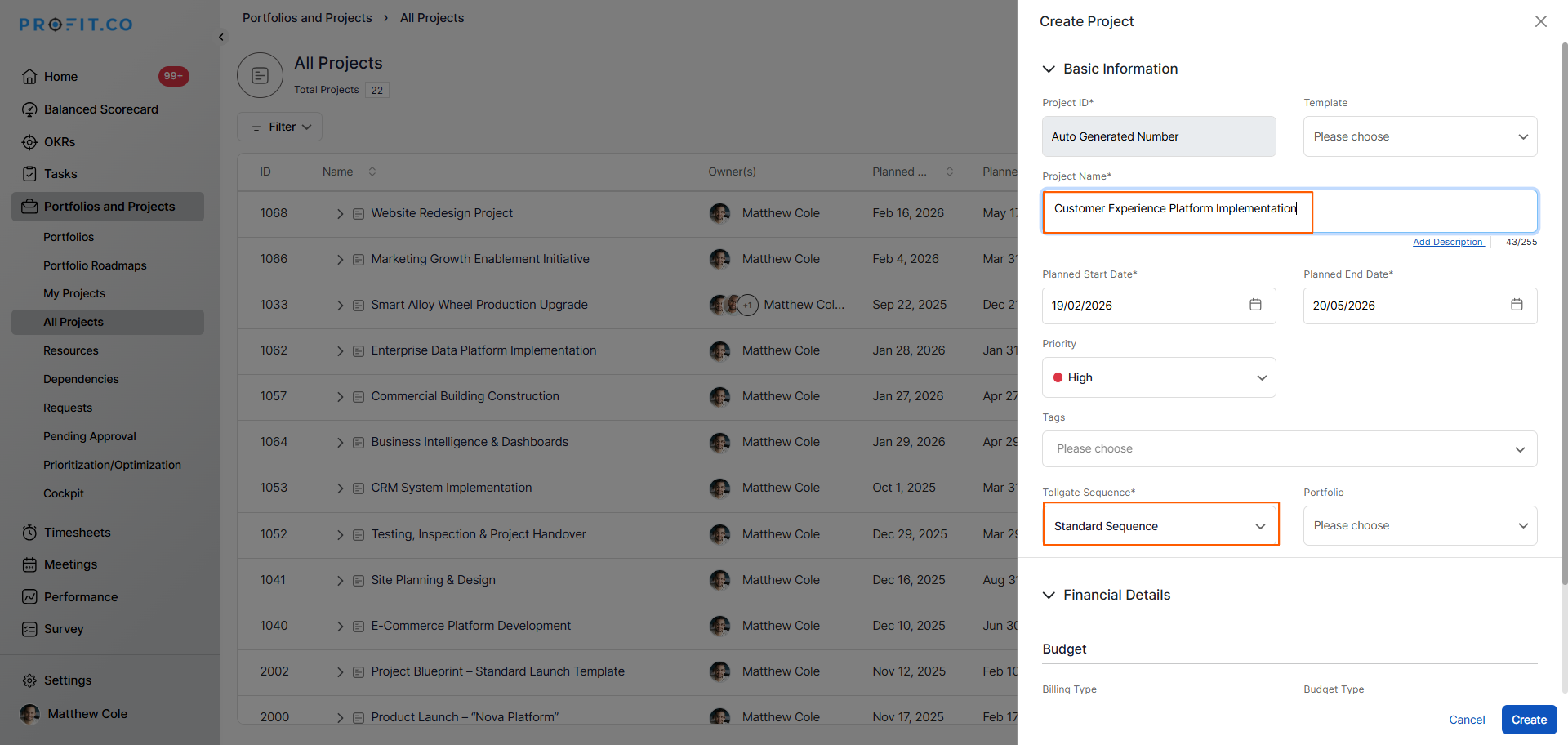
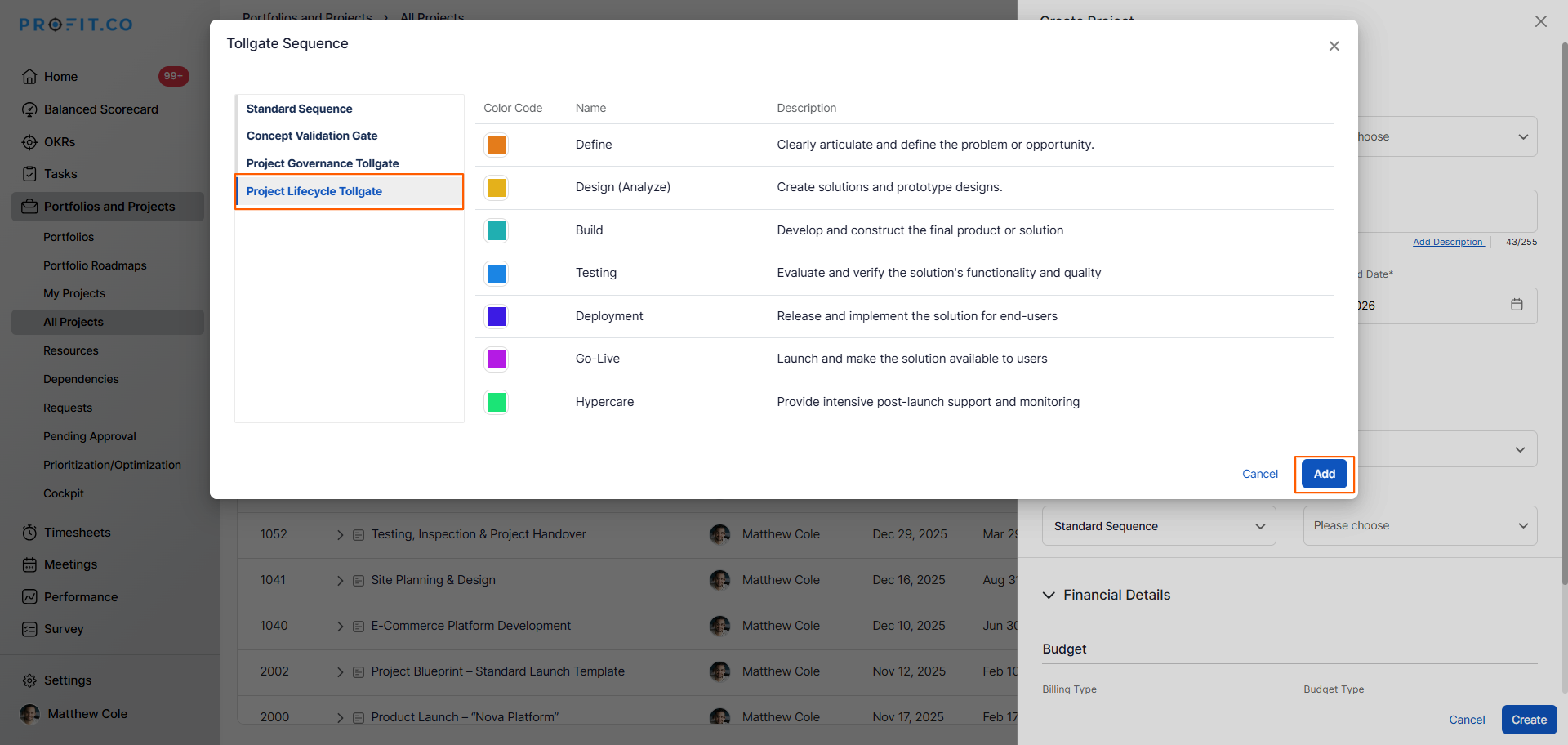
- A pop-up will appear showing available tollgate sequences.
- Choose the tollgate sequence you want to apply to this project.
- Click the Add button to associate the sequence.
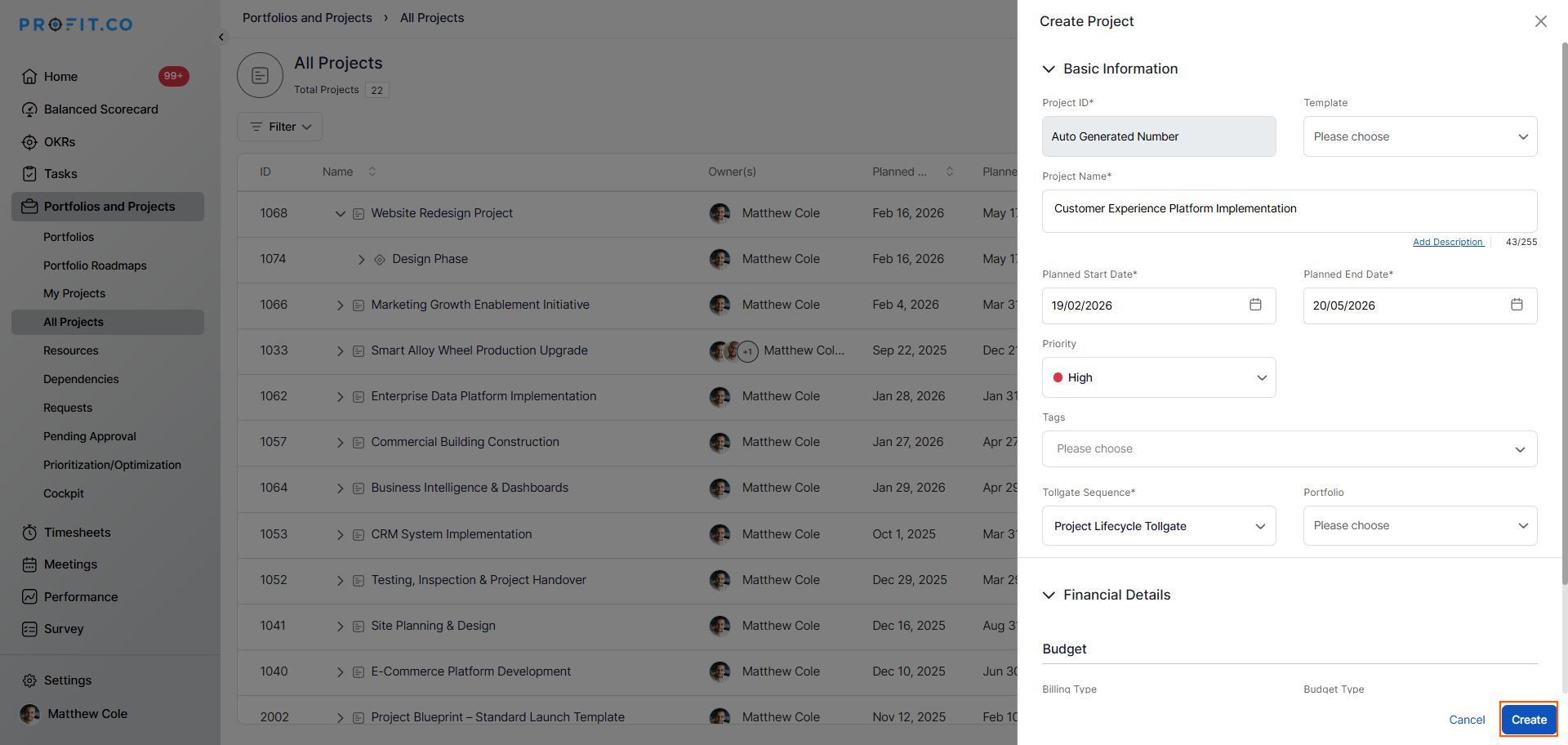
- Fill in the remaining project details (name, owner, dates, etc.).
- Click the Create button to create the project with the tollgate sequence.
How do I access Tollgate in a project?
View tollgate compliance information for your project:
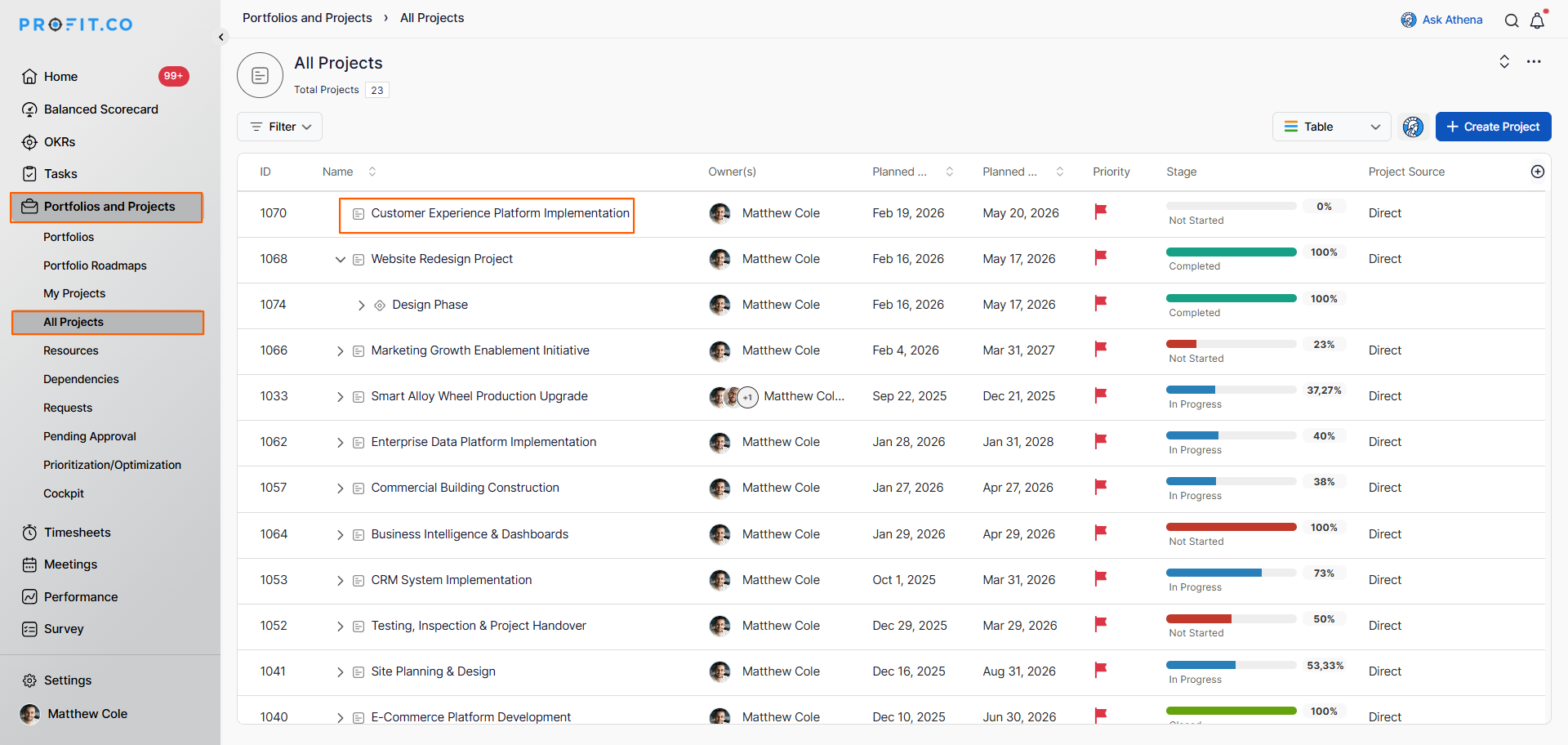
- Navigate to Portfolios and Projects from the left navigation panel.
- Click on the project name you want to monitor.
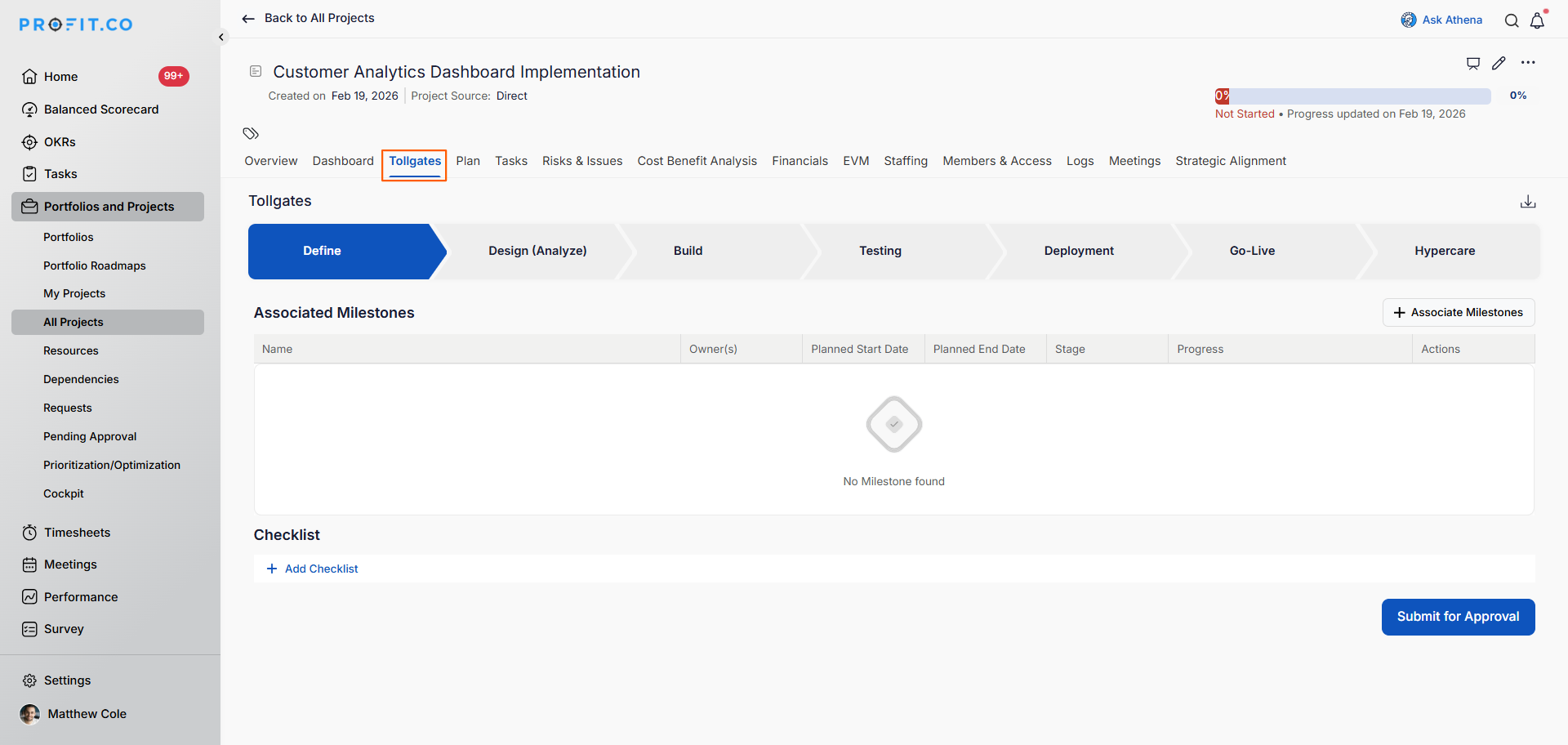
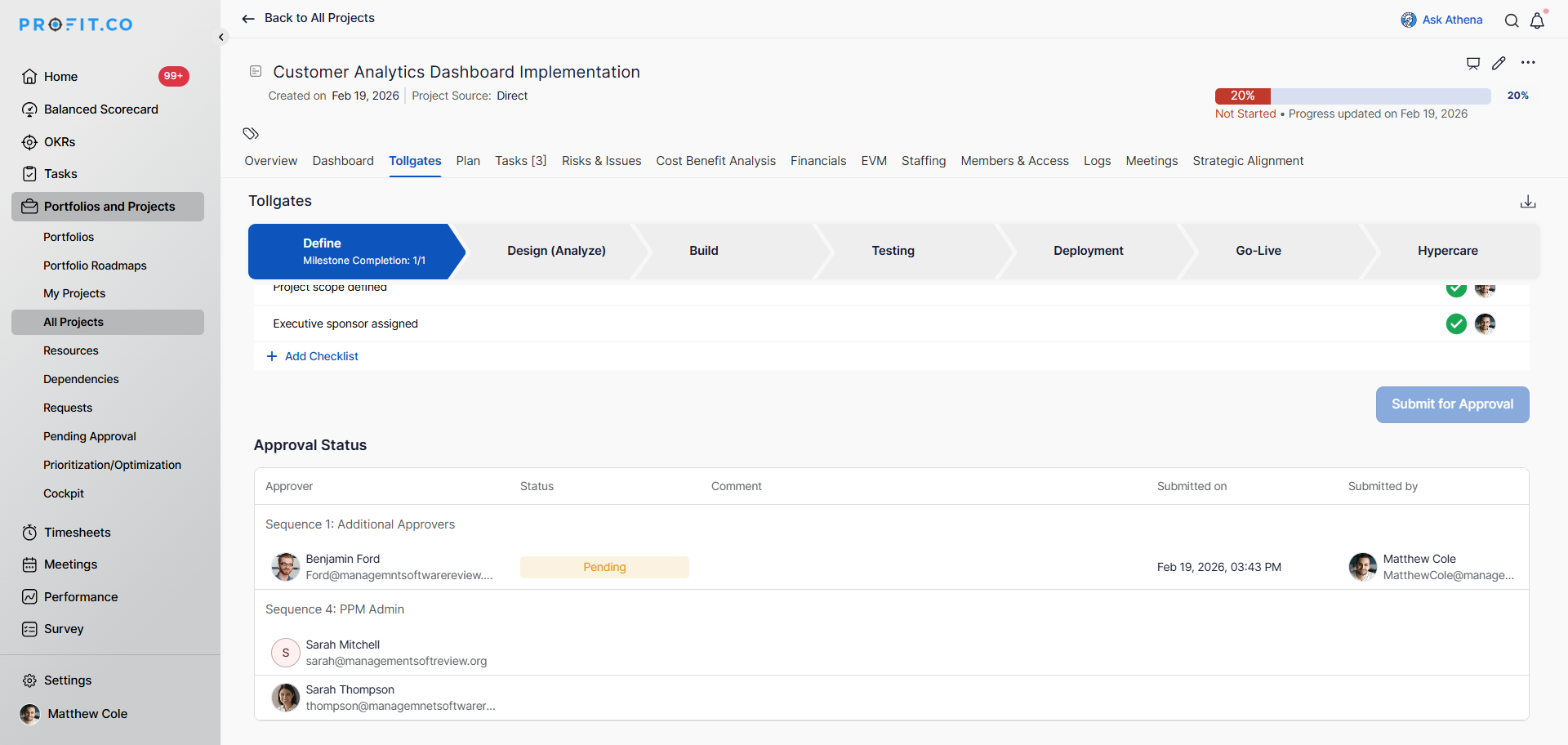
- In the project detail page, locate the tabs at the top (Overview, Dashboard, Plan, Tasks, Tollgate, etc.).
- Click on the Tollgate tab.
How do I associate milestones with tollgate stages?
Associating milestones links actual project work to governance gates. Without this, tollgates become administrative checkboxes with no connection to real progress. This ensures stage approval is based on tangible work completion, not just paperwork.:
- In the project Tollgate tab, locate the current tollgate stage.
- Click on the + Associate Milestone option.
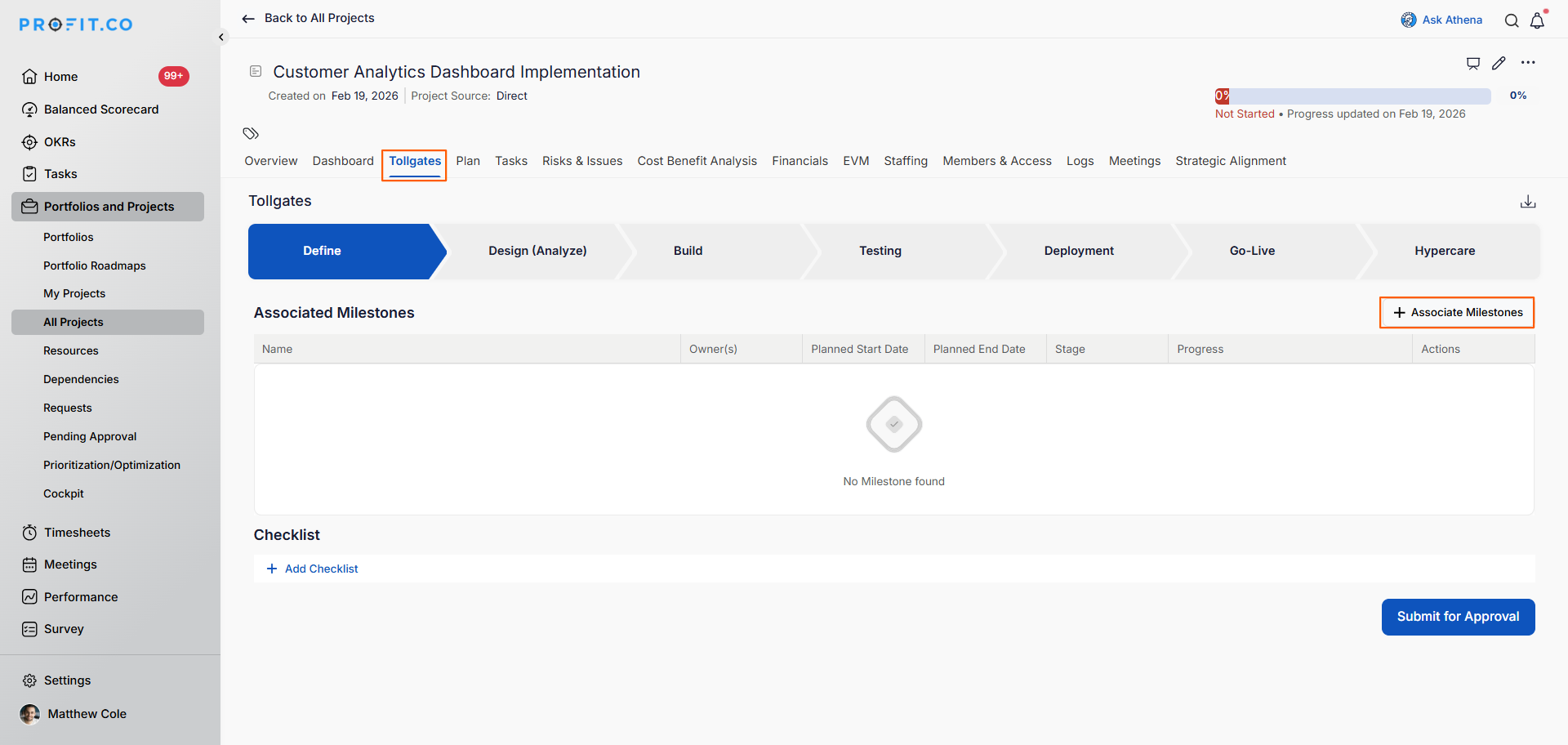
- A dialog or panel will appear showing available project milestones.
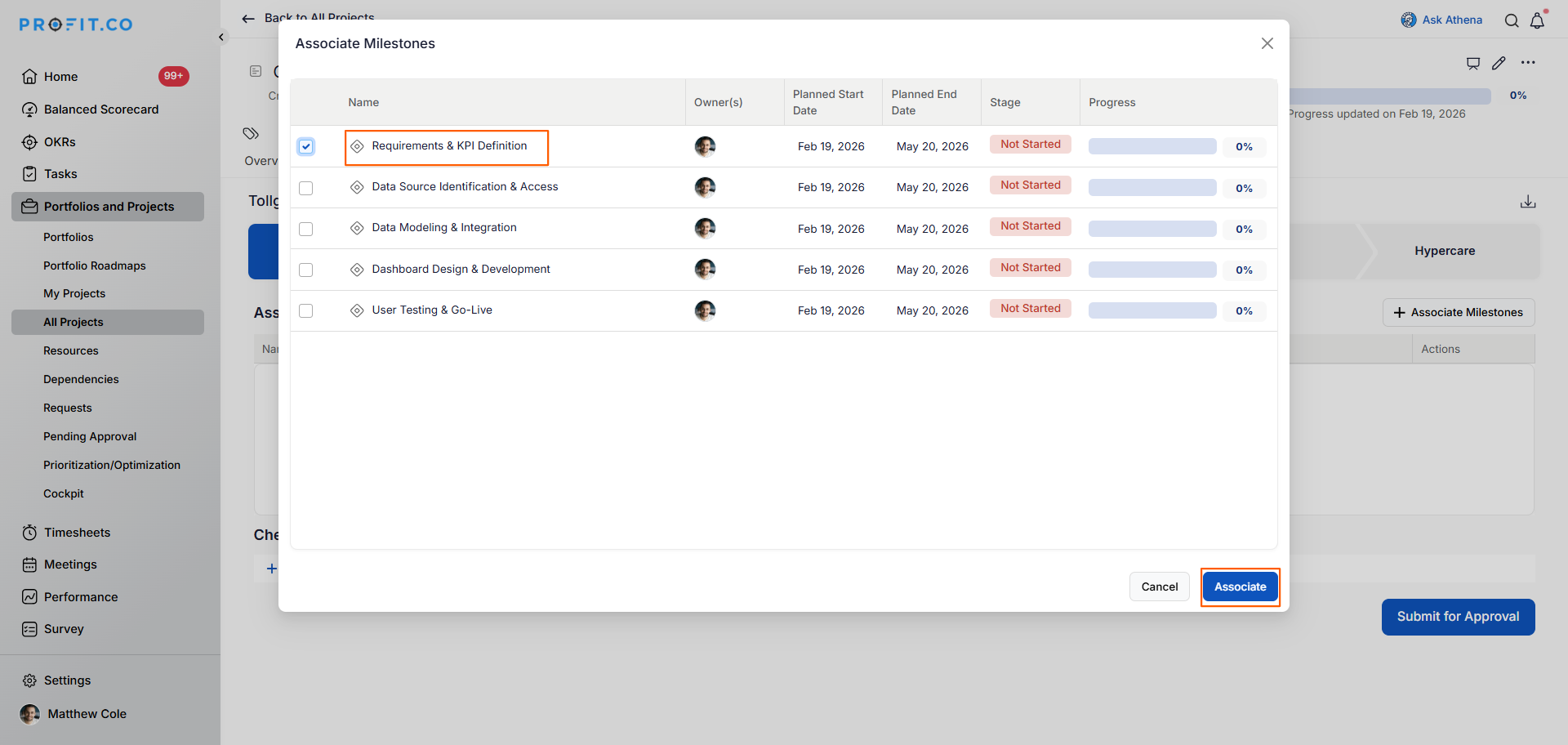
- Choose the milestone(s) you want to associate with this tollgate stage.
- You can select one or multiple milestones.
- Click the Associate button.
- The selected milestones are now linked to the tollgate stage.
- Associated milestones appear in the tollgate stage view.
Milestone Creation Reminder:
- To create milestones, tasks, and subtasks, refer to the WBS creation.
- Milestones must exist before they can be associated with tollgates.
- Monitor milestone completion by clicking the milestone name in the Tollgate tab, updating task statuses and completion percentages, which automatically roll up to show milestone and stage progress.
Note: Create checklist items by clicking + Add Checklist in the Tollgate tab, entering specific requirement descriptions, and assigning owners via the user profile icon to ensure accountability.
How do I submit a tollgate stage for approval?
Initiate the approval workflow once stage requirements are met:
Before submission, ensure:
- All checklist items are completed (checked off)
- Associated milestones are achieved
- All deliverables are prepared
Submission Process:
- Review all checklist items - all should be marked complete.
- Check milestone progress indicators.
- Verify all stage requirements are met.
- Click the Submit for Approval button in the Tollgate tab.
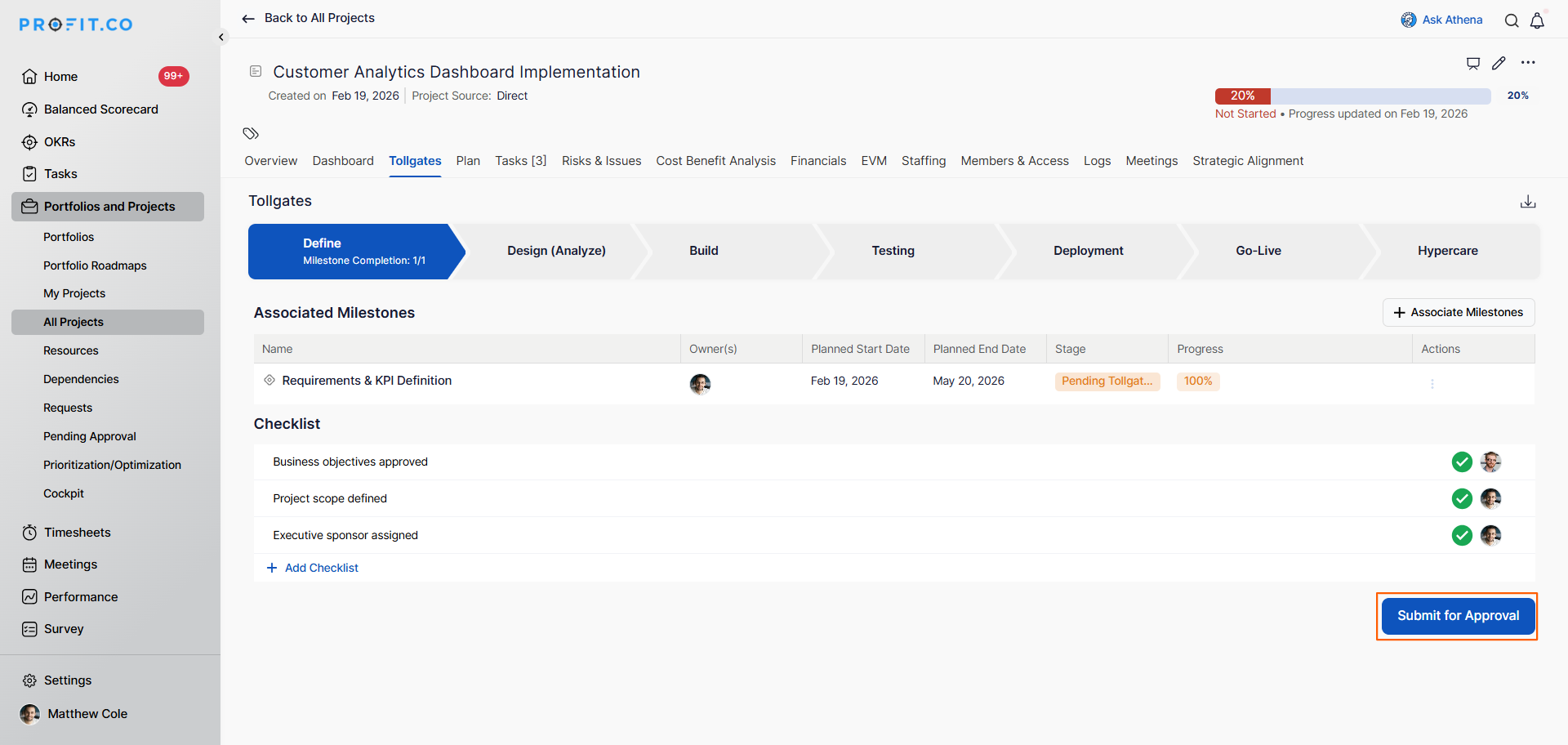
- Once you enable the approval flow, the status shows "Pending Tollgate Approval".
- The project enters the approval workflow.
- Refer to the approval flow to learn about the stage approval process.
- The approval request routes through configured approver sequences.
- Users can see the approval flow in the tollgate overview page.
- The view shows:
- Current approval stage
- Approvers in the sequence
- Who has approved
- Who is pending approval
- Approval status (Pending, Approved, Rejected)
Best Practices to Manage Tollgate Compliance
- Define clear, specific checklist items that leave no ambiguity about what constitutes completion.
- Associate milestones with tollgate stages at project kickoff to establish clear gate criteria from the start.
- Assign checklist owners immediately when adding items to ensure accountability and prevent orphaned tasks.
- Review tollgate compliance weekly during project status meetings to identify issues early.
- Update task and milestone progress in real-time rather than batch updates before gate reviews.
Related Questions
Click here to learn more about creating milestones, tasks, and subtasks in Profit.co
Click here to learn more about tollgate approval flows in Profit.co
Frequently Asked Questions
Yes, you can associate multiple milestones with a single tollgate stage. All associated milestones contribute to the stage's overall progress.
Generally, checklists are locked during approval. If rejected, you can edit before resubmitting.
Yes, you can add checklist items at any time. However, it's best to define comprehensive checklists at the beginning of each stage.
Related Questions
-
How to create a Project in the PPM module?
Profit.co provides an option for users to create a project within the Project Portfolio Management (PPM) module. This ...Read more
-
How do I track tollgate approval status in Profit.co?
In Profit.co, you can track tollgate approval status by viewing the Tollgate tab (for submitters) or the Pending ...Read more
-
How do I set up resource rate cards and cost allocation in Profit.co?
In Profit.co, you can set up resource rate cards by creating Resource Types with specific hourly cost rates, assigning ...Read more
-
How to View Critical Tasks of a Project in Profit.co?
Profit.co's Critical Path Method (CPM) feature helps project managers identify the most essential sequence of tasks ...Read more