

Profit.co's Baseline Tracking feature lets you capture the original project plan and monitor every change made to projects, milestones, and tasks from that point forward. The Re-baseline approval workflow gives teams a controlled, version-tracked way to revise baselines when the original plan no longer reflects reality.
Table of Contents
What is baseline tracking in Profit.co?
Baseline Tracking is a PPM feature that records the original state of a project and continuously captures deviations from that plan. It monitors additions and deletions across projects, milestones, and project-level tasks, tagging each change so teams can see exactly how execution has diverged from the original scope.
The feature also includes re-baseline capability, which lets teams formally revise the baseline through a structured approval workflow. All changes are reviewed, approved, and version-controlled before they take effect.
Why Baseline Tracking Matters
| Capability | Business Value |
|---|---|
| Deviation Tracking | Clearly highlights what has changed from the original plan |
| Change Visibility | Helps stakeholders understand how a project has evolved over time |
| Scope Control | Enables teams to monitor scope creep and additions in real time |
| Flexible Recovery | Allows restoration of deleted tasks when reversals are needed |
| Governance | Ensures accountability for all structural changes made during execution |
How to Enable Baseline Tracking
Step 1
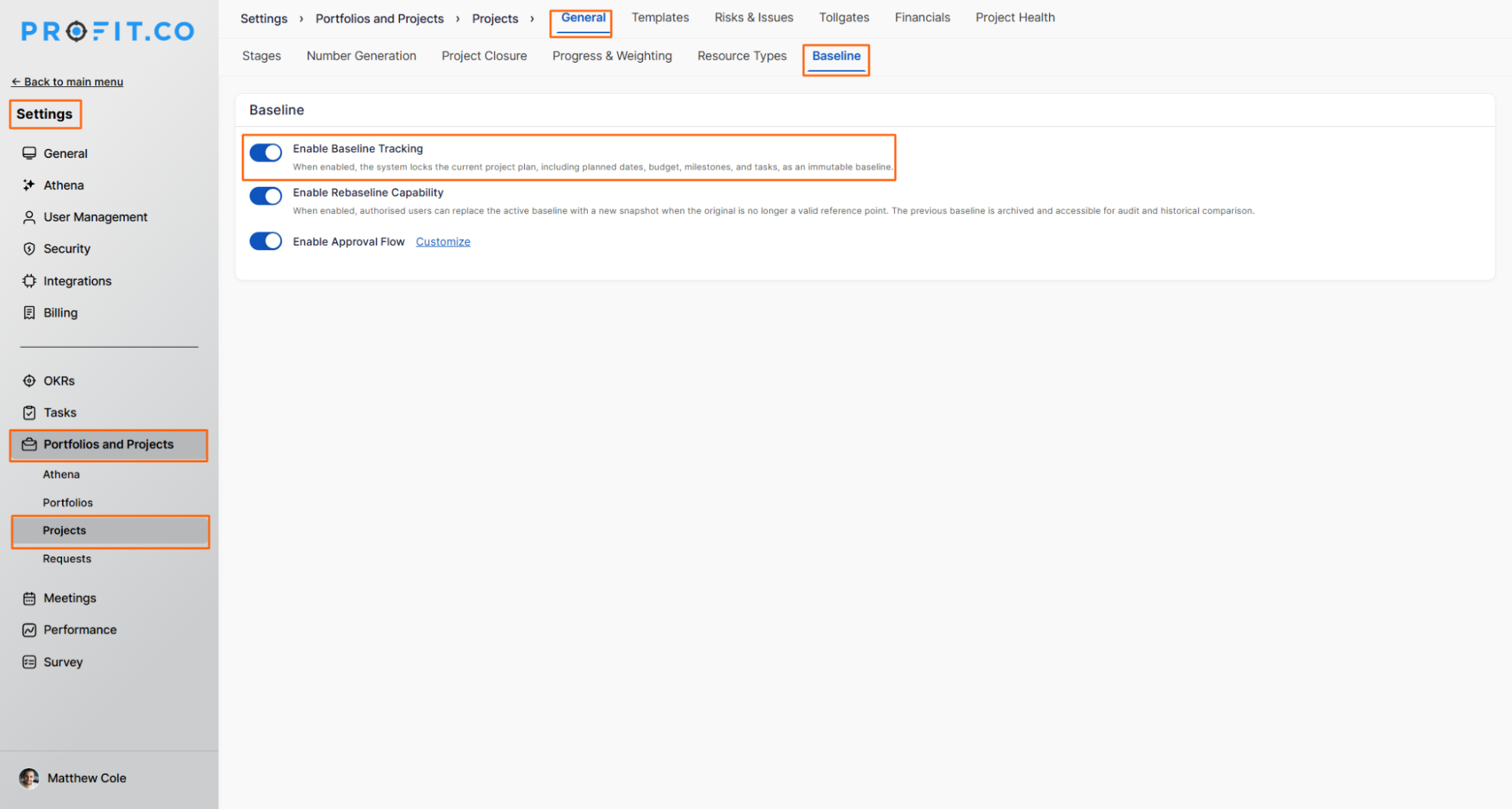
- Navigate to Portfolios & Projects → Projects → Baseline tab from the left navigation panel.
- Enable the "Enable Baseline Tracking" toggle.
- Once enabled, baseline tracking will be applied across projects, milestones, and project-level tasks.
How Baseline Tracking Works
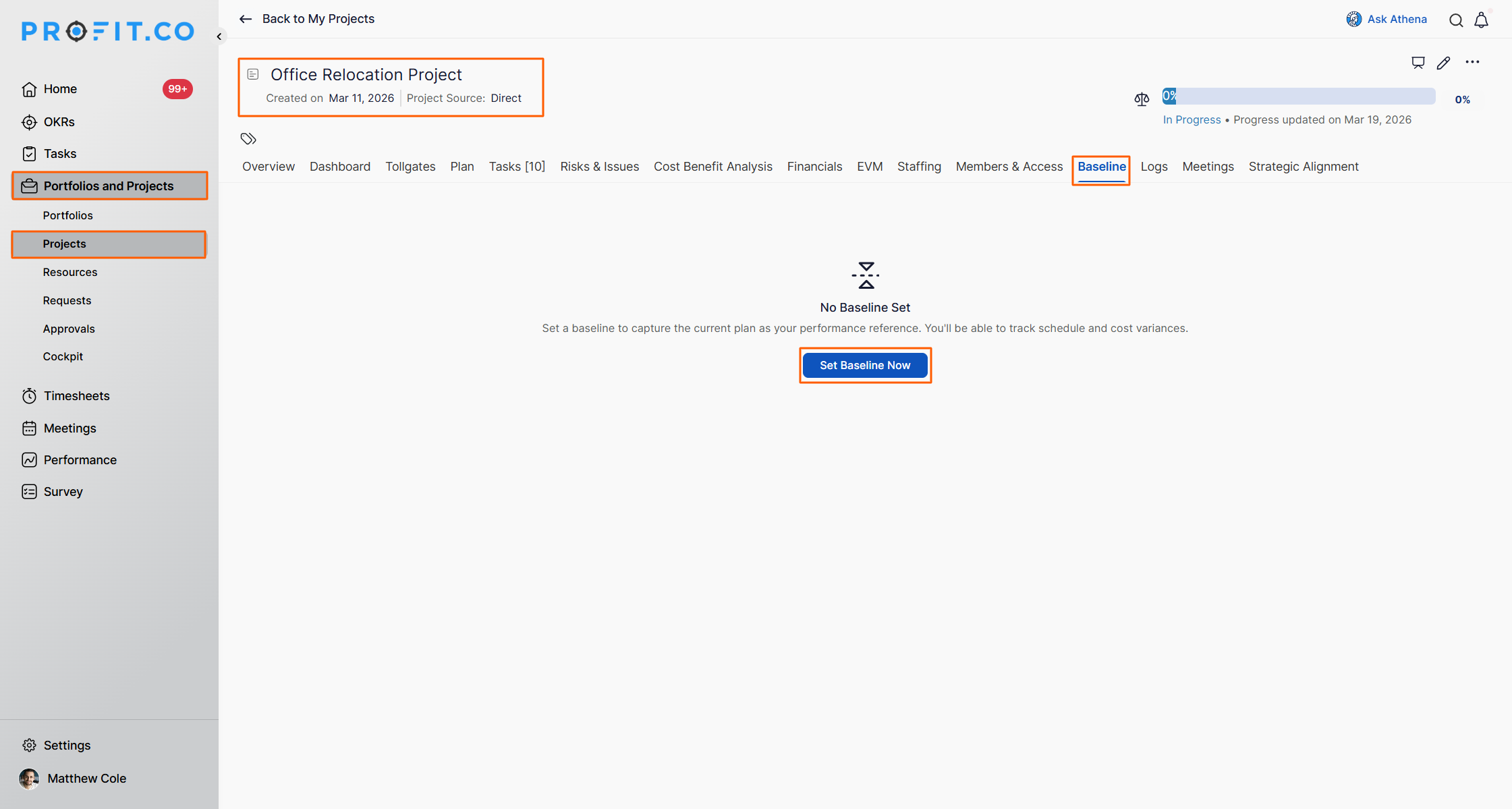
Navigate to Portfolios and Projects → Projects from the left navigation panel.
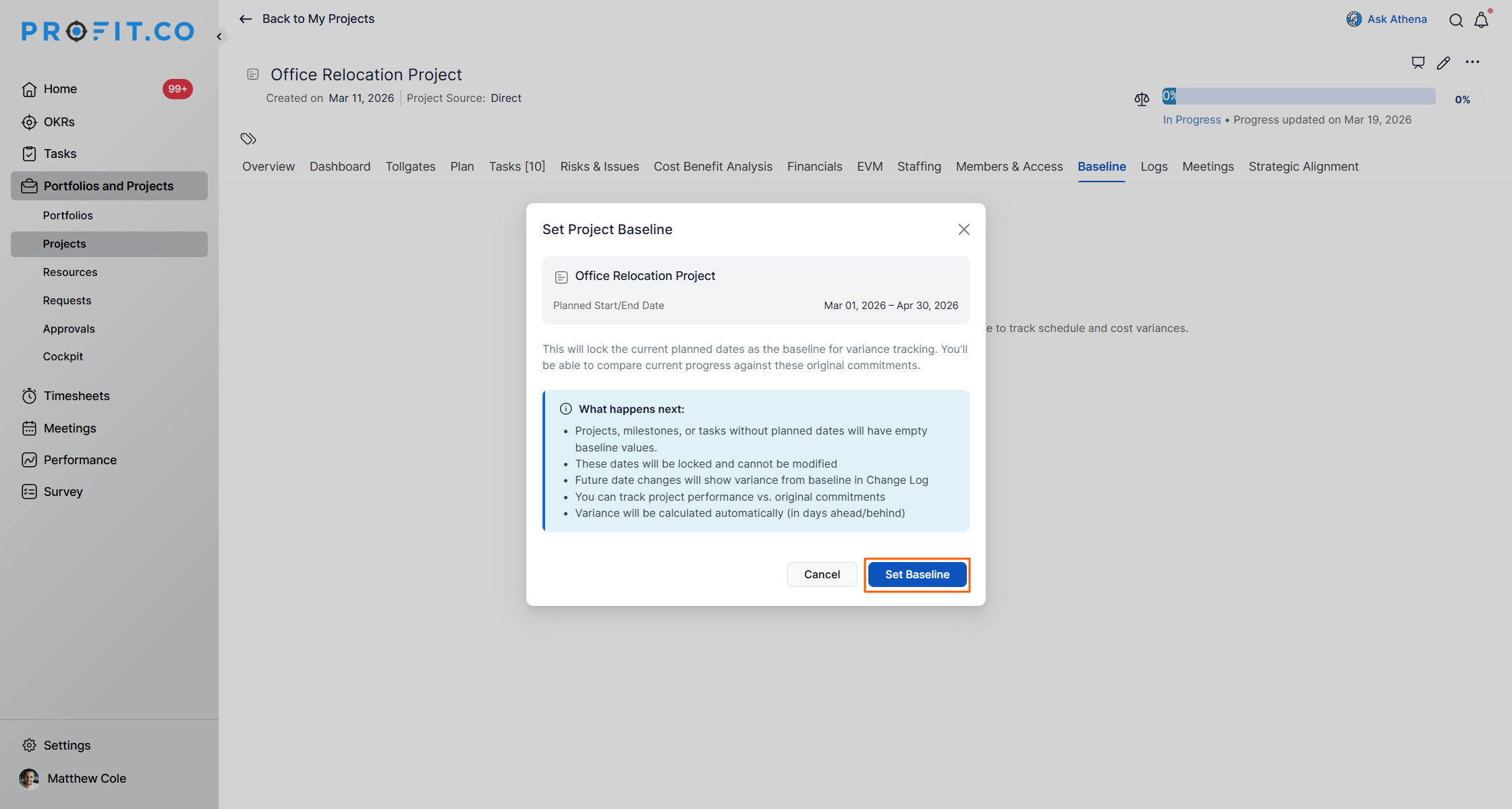
Choose the project you want, then switch to the Baseline tab and click the Set Baseline Now button.
.png "Set_baseline.png")
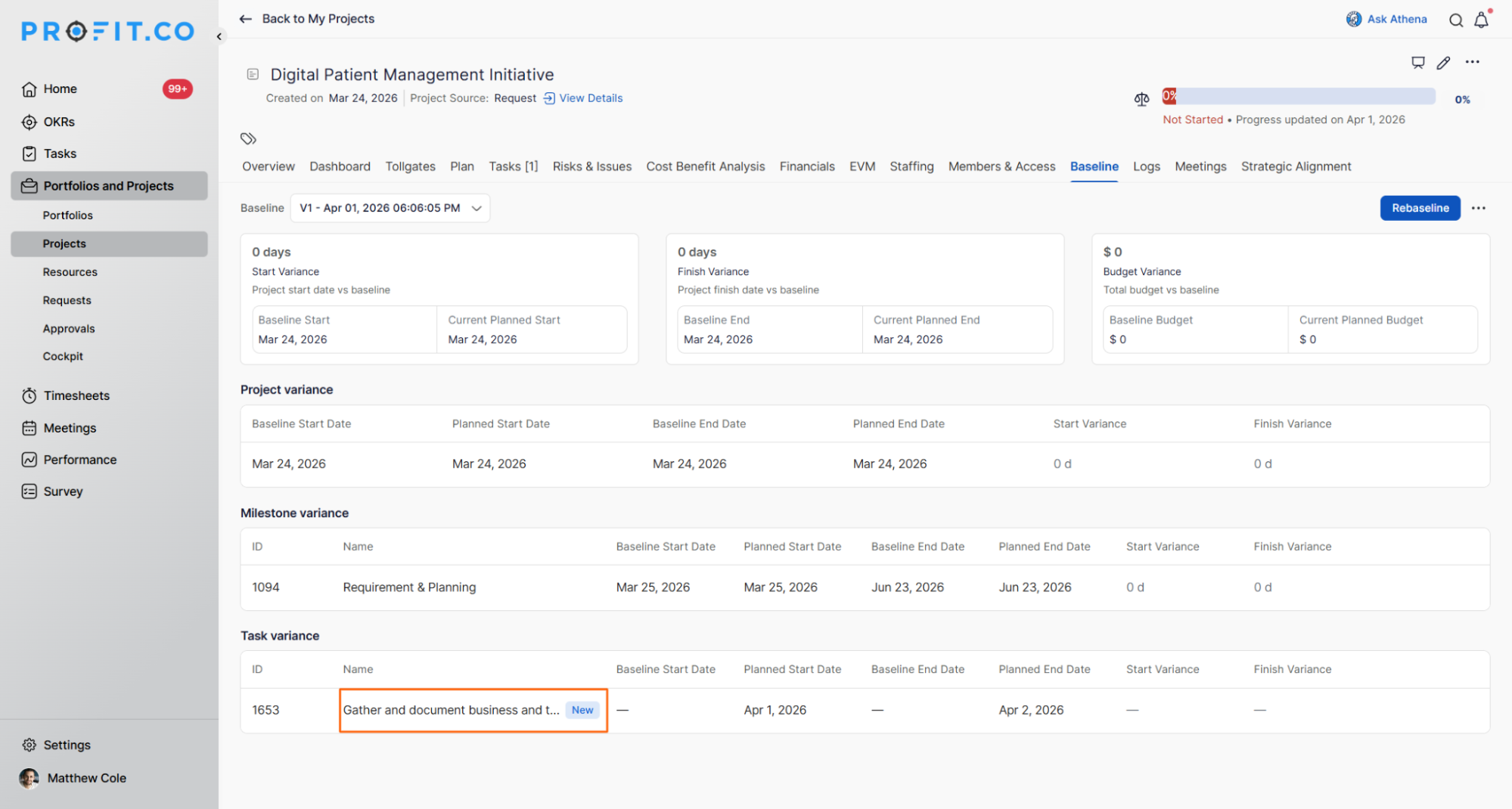
Once baseline tracking is enabled, the system begins monitoring all structural changes against the original project plan. Every addition or deletion is surfaced with a visual tag directly on the affected item.
| Change Type | Tag Applied | Restorable? |
|---|---|---|
| New item added (task or milestone) | New | N/A |
| Milestone deleted | Delete | No (deleted milestones cannot be restored) |
| Task deleted | Delete | Yes (deleted tasks can be restored) |
Example
Consider a project with a predefined set of milestones and tasks:
- A new task is added during execution → Tagged as New
- An existing milestone is deleted → Marked with a Delete tag; cannot be restored
- A task is deleted → Marked with a Delete tag; can be restored if needed
What is Re-baseline with an approval workflow?
Re-baselining is an extension of baseline tracking that allows teams to formally reset the project baseline when the original plan is no longer representative of the current scope or timelines. Unlike a direct edit, every re-baseline request goes through a configured approval workflow before taking effect.
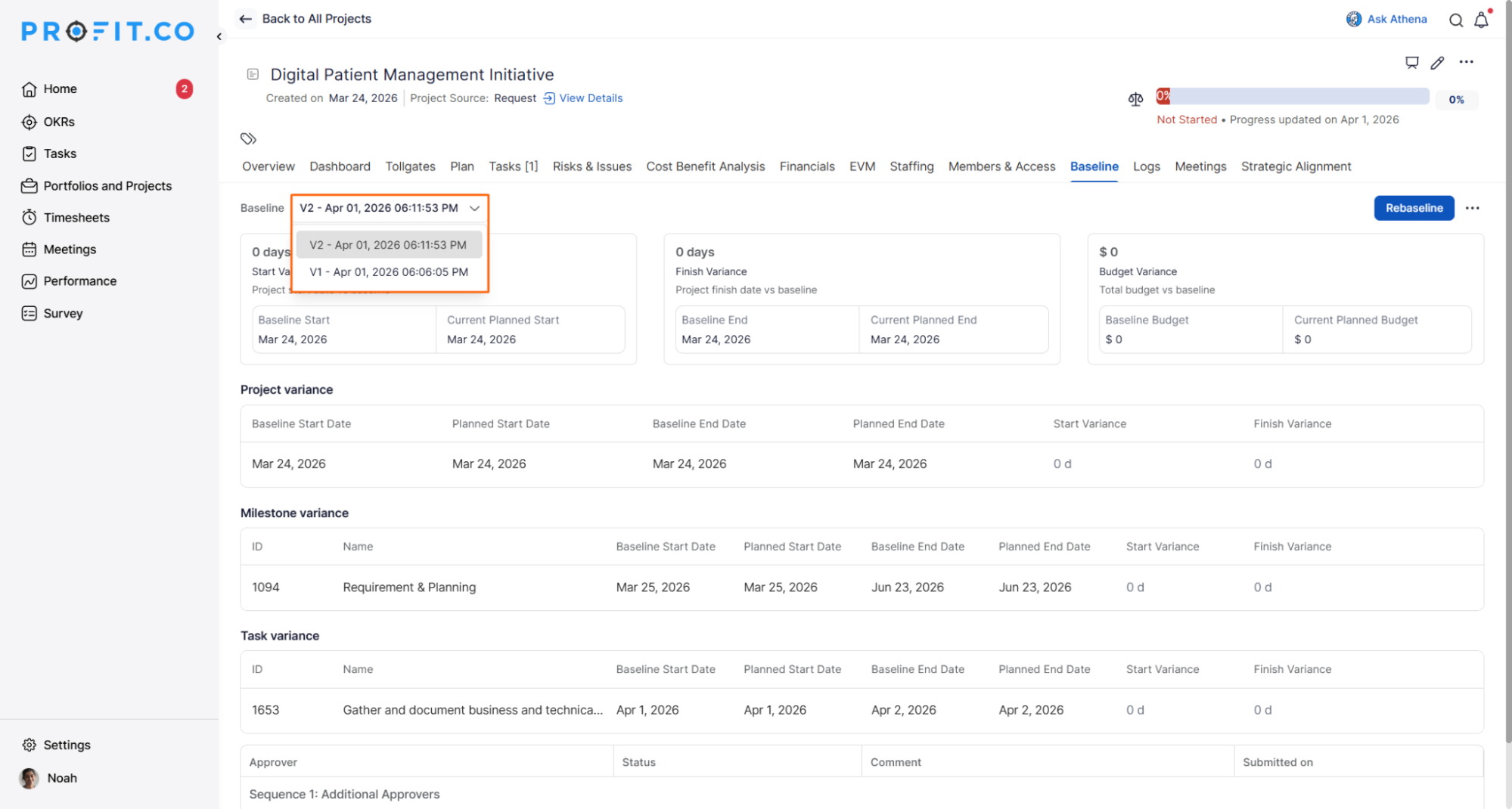
All approved baselines are saved as versioned snapshots under the Versions section, giving teams a complete history of how the project baseline has changed over time.
How to Enable and Use Re-baseline
Step 1
- Navigate to Portfolios & Projects → Projects → Baseline tab.
- Enable both the "Enable Baseline Tracking" toggle and the Approval Flow toggle.
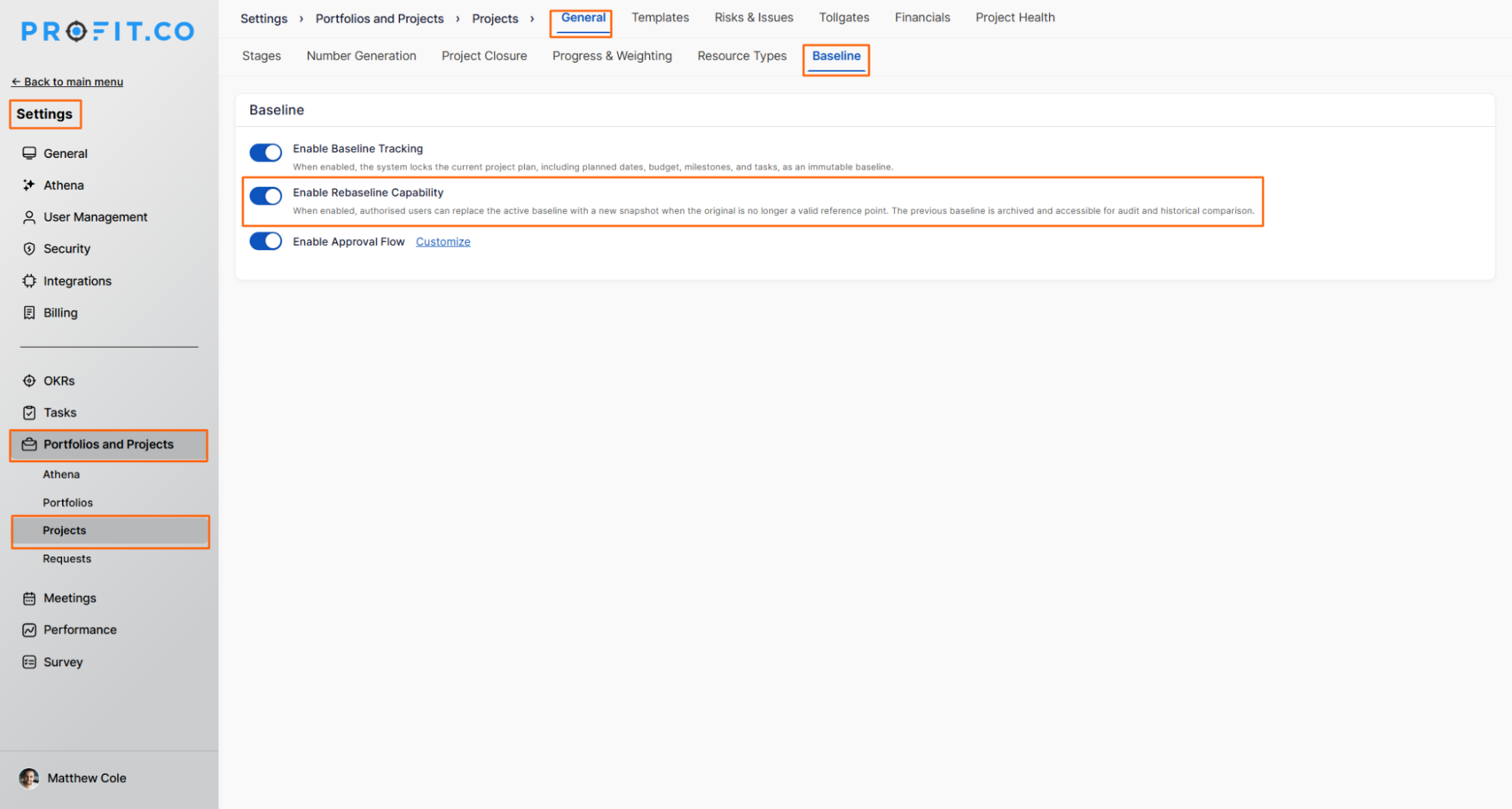
Note: To learn how to customize the approval flow, click here.
Step 2
- Once enabled, users can initiate a re-baseline request from within the project.
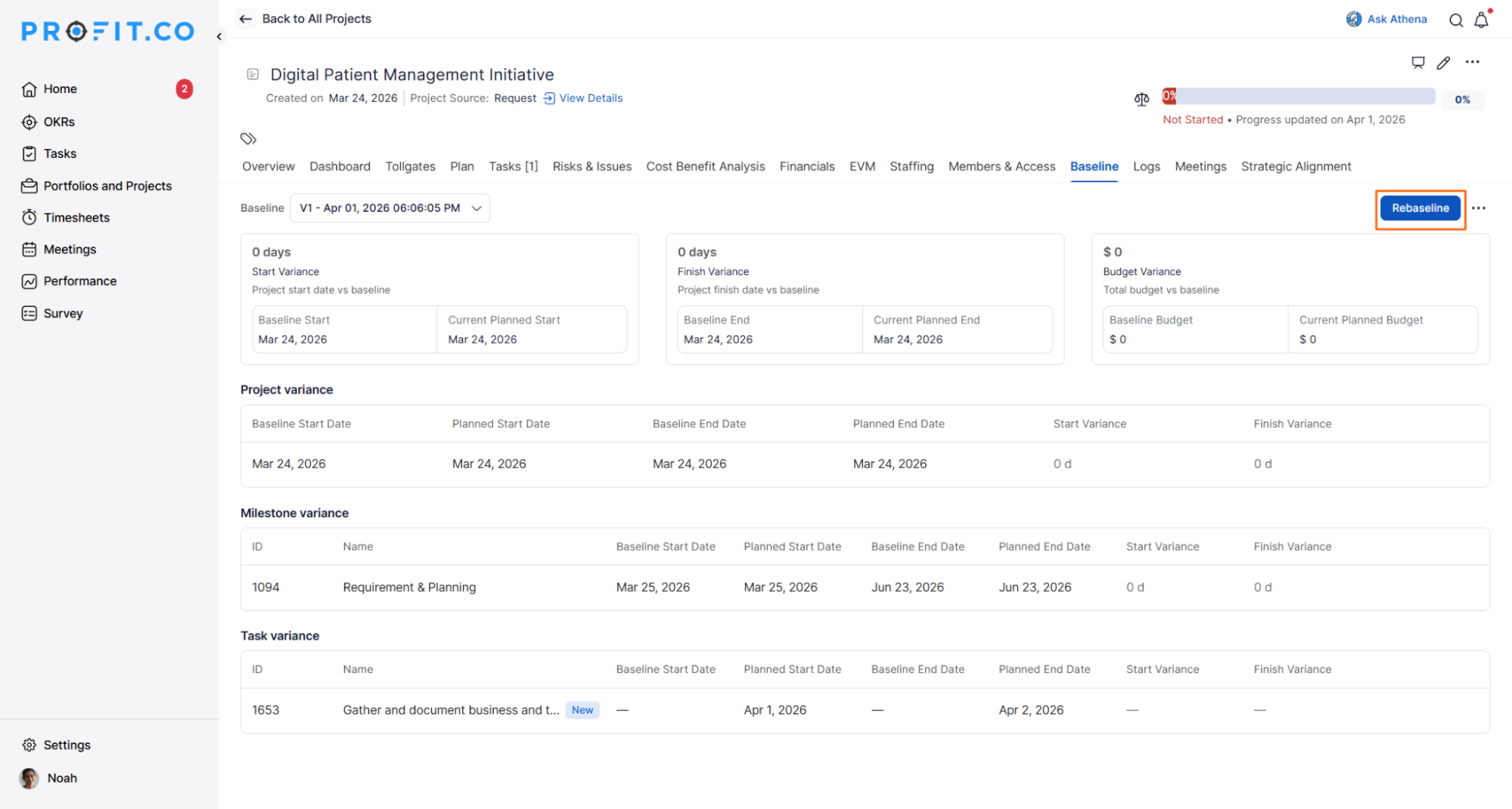
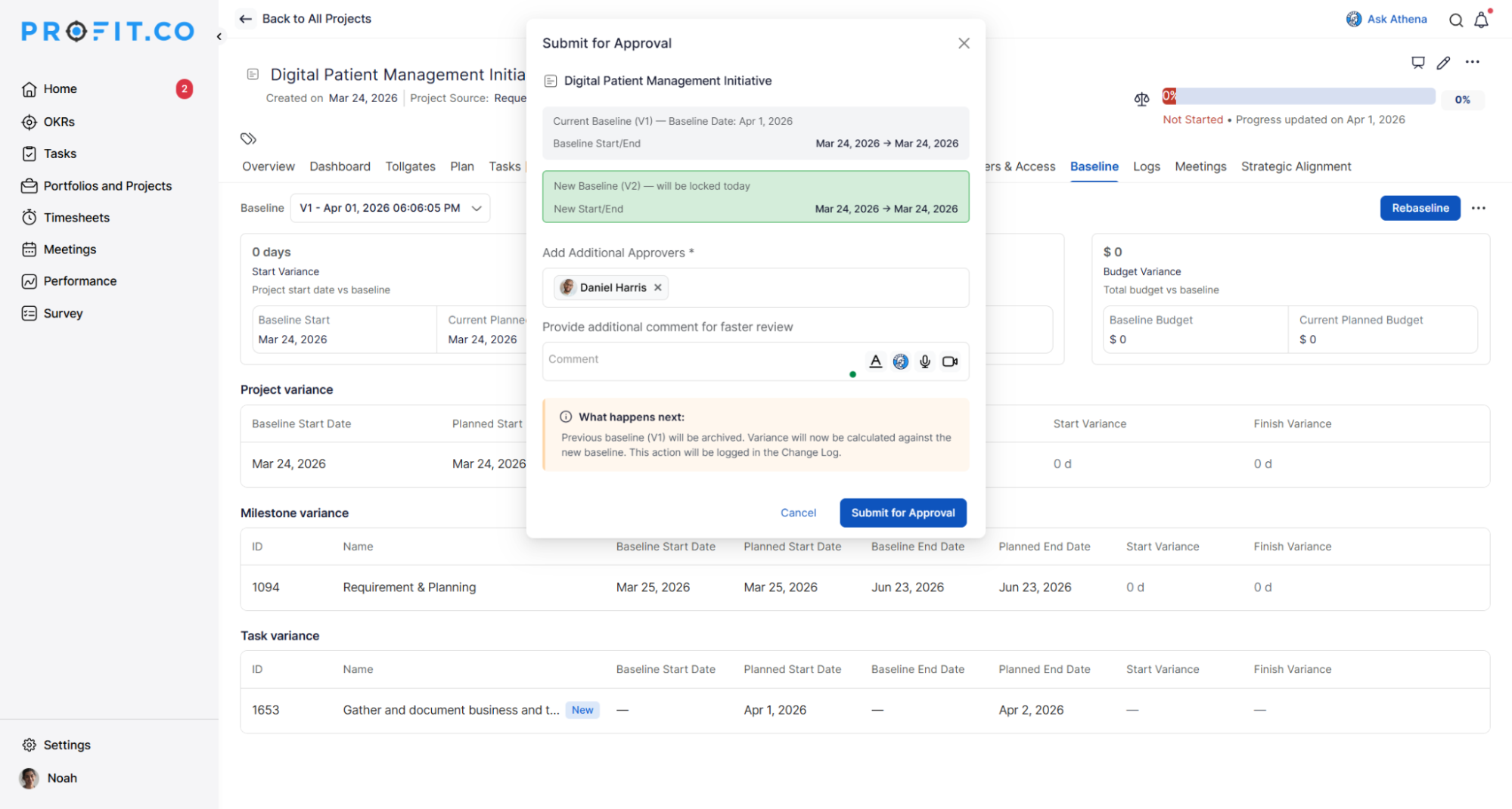
- The request is sent to the configured approvers for review.
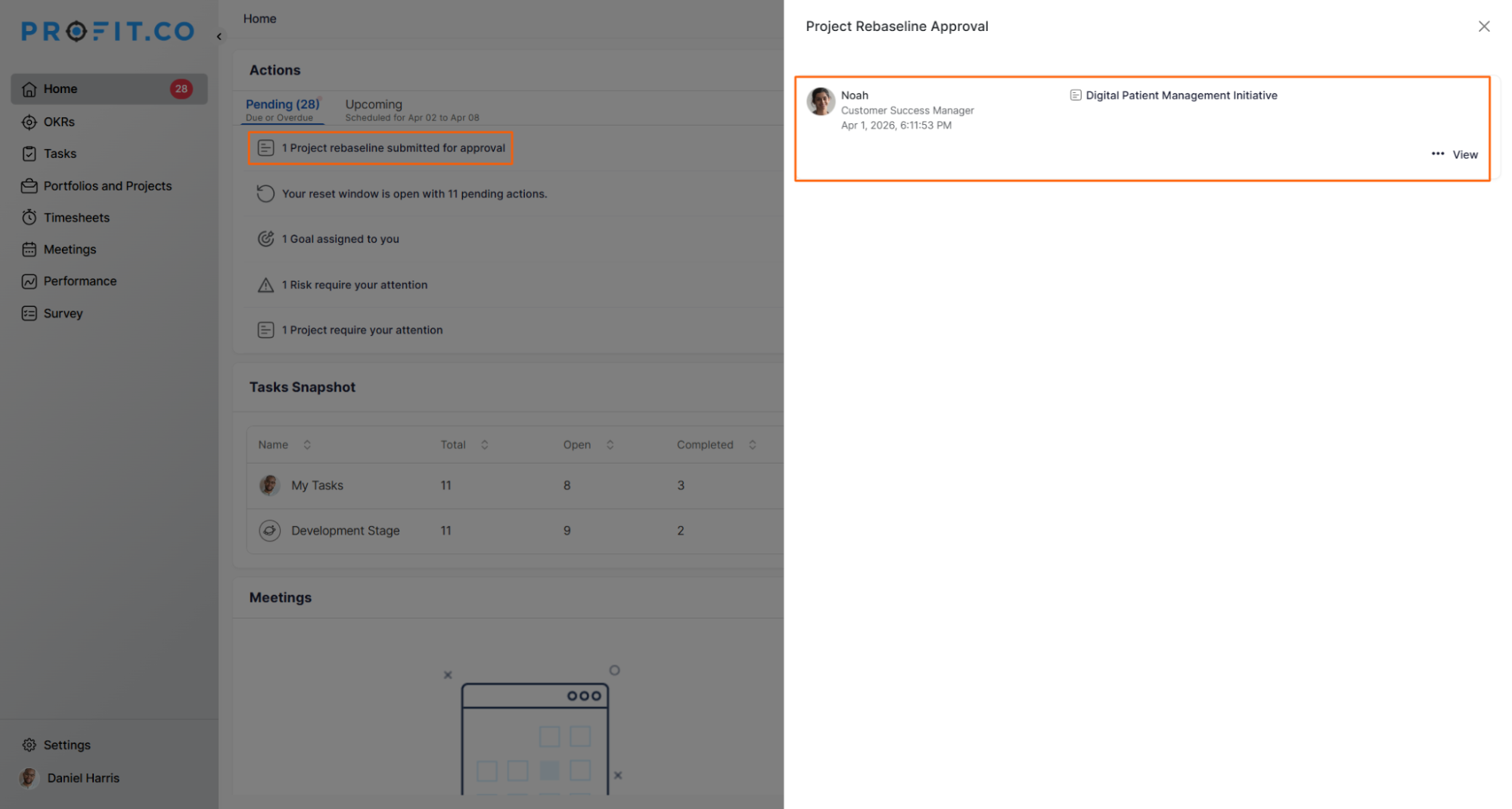
- Approvers receive an in-app notification for the pending request.
Step 3
- Approvers review the re-baseline request and either approve or reject it.
- If approved, the updated baseline is finalized and saved under the Versions section.
- Teams can refer back to any previous baseline version for comparison at any time.
Best Practices for Baseline Tracking
- Treat the Delete tag on milestones as a permanent record. Since deleted milestones cannot be restored, confirm milestone removals carefully before executing them.
- Use the re-baseline workflow for significant scope or timeline revisions; minor task-level changes do not warrant a full re-baseline and are better tracked as tagged deviations.
- Configure approvers for the Re-baseline workflow before the project goes live, so the approval chain is in place when revision requests are raised during execution.
- Review the Versions section at each major project milestone or phase gate to compare the current baseline against earlier versions and assess cumulative scope drift.
Related Questions
- Click here to learn more about How to create a Project in the PPM module?
- Click here to learn more about What is the Project Health Score in Profit.co?
Frequently Asked Questions
No. Baseline Tracking only captures changes made after the toggle is enabled. Any additions or deletions that occurred before activation will not appear as tagged deviations. The system treats the project state at the time of enabling as the original baseline.
Yes. Each approved Re-baseline creates a new version that is saved and stored in the Versions section. This gives teams a complete chronological record of all approved baseline revisions, which can be referenced individually for comparison against the current plan.
In-app notifications are sent to the configured approvers for the Re-baseline workflow. Approvers must be set up in advance through the Approval Flow configuration within the Baseline tab settings. Users not designated as approvers will not receive these notifications.
