
Profit.co lets administrators and end users create named User Groups and assign them as the owner of an OKR, Task, or PPM item instead of a single person. A group's membership updates apply everywhere that group is already assigned as owner, and the owner field reveals the individual members whenever you hover over the group name.
Table of Contents
What Is a User Group and What Can It Own?
A User Group is a named set of users that administrators or end users create in User Management, then assign as the owner of an OKR, Task, or PPM item in place of an individual. Group names must be unique across the organization, and once a group appears in an owner field, hovering over it reveals the individual members inside it.
Groups can be created at two levels: the organization-wide Settings level by administrators, and the personal Preferences level by end users. Every group carries exactly one privilege level, which controls who else in the organization can reuse it.
| Privilege Level | Who Can Use the Group |
|---|---|
| Private | Only the user who created the group |
| Public | Every user in the organization |
| Access List | Only the specific users and departments named on the list |
Why Does User Group Ownership Matter?
Before User Groups, assigning a team to an OKR, Task, or PPM item meant adding each member individually and repeating that work every time the team's composition changed. A single group assignment now represents the whole team on any record, and updating the group's membership once propagates the change everywhere the group is already assigned as owner.
Privilege levels close a governance gap that existed without them. Private, Public, and Access List settings let you decide exactly who can reuse a group for ownership, rather than leaving every group open to the entire organization by default.
How Does User Group Ownership Work?
Method 1: Create a Group as an Administrator
Step 1
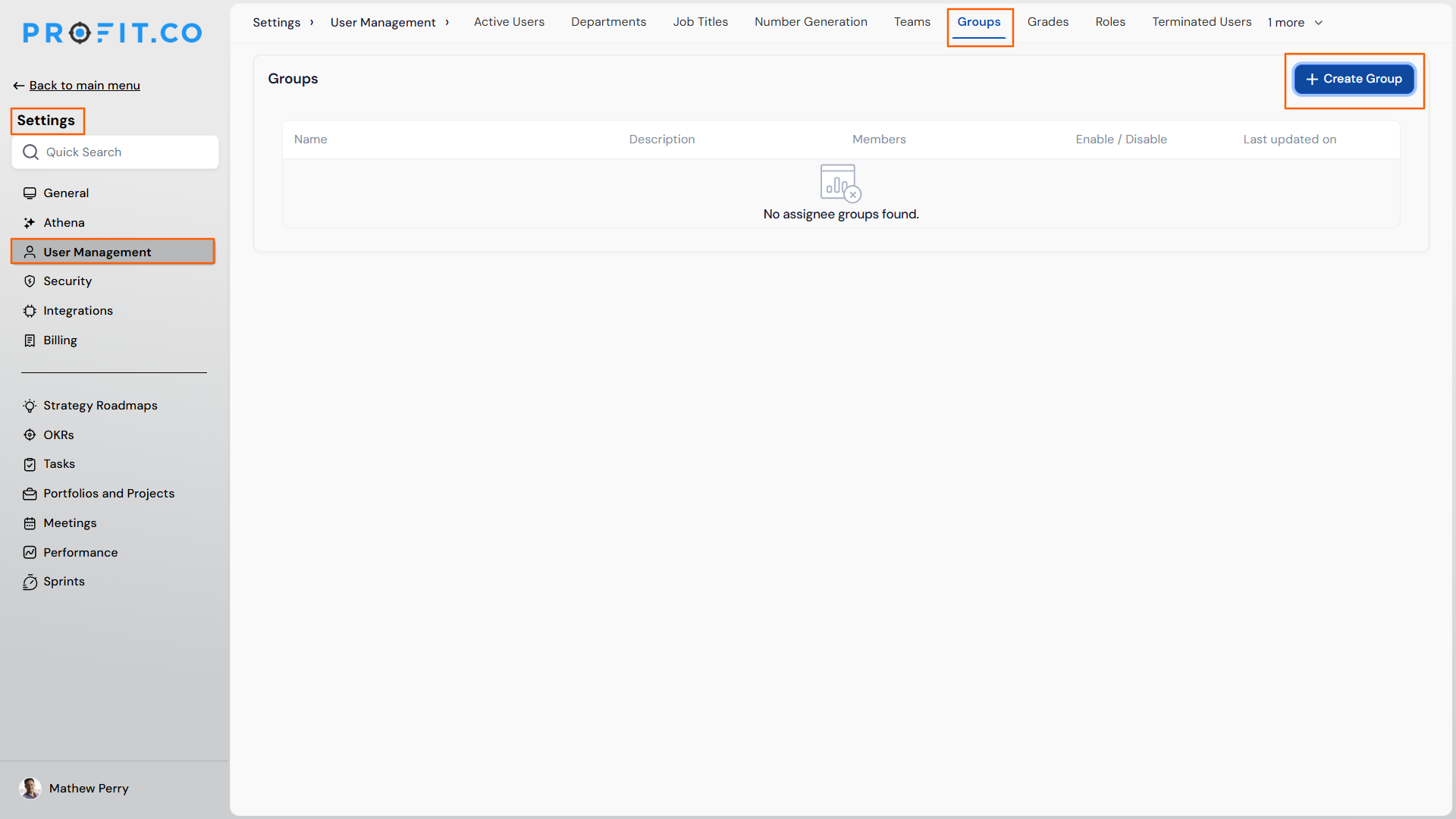
- Navigate to Settings → User Management → Groups.
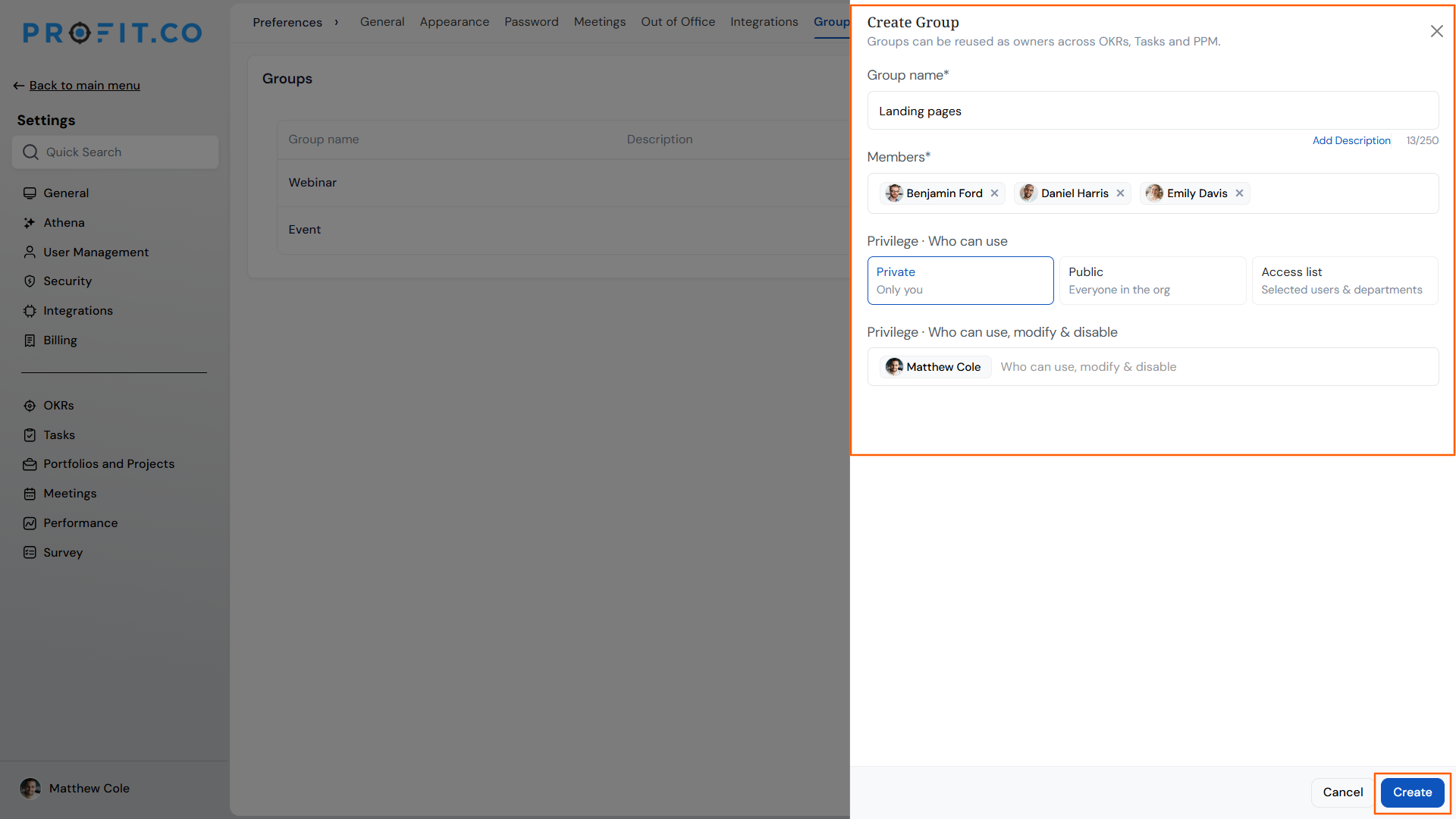
- Click Create Group.
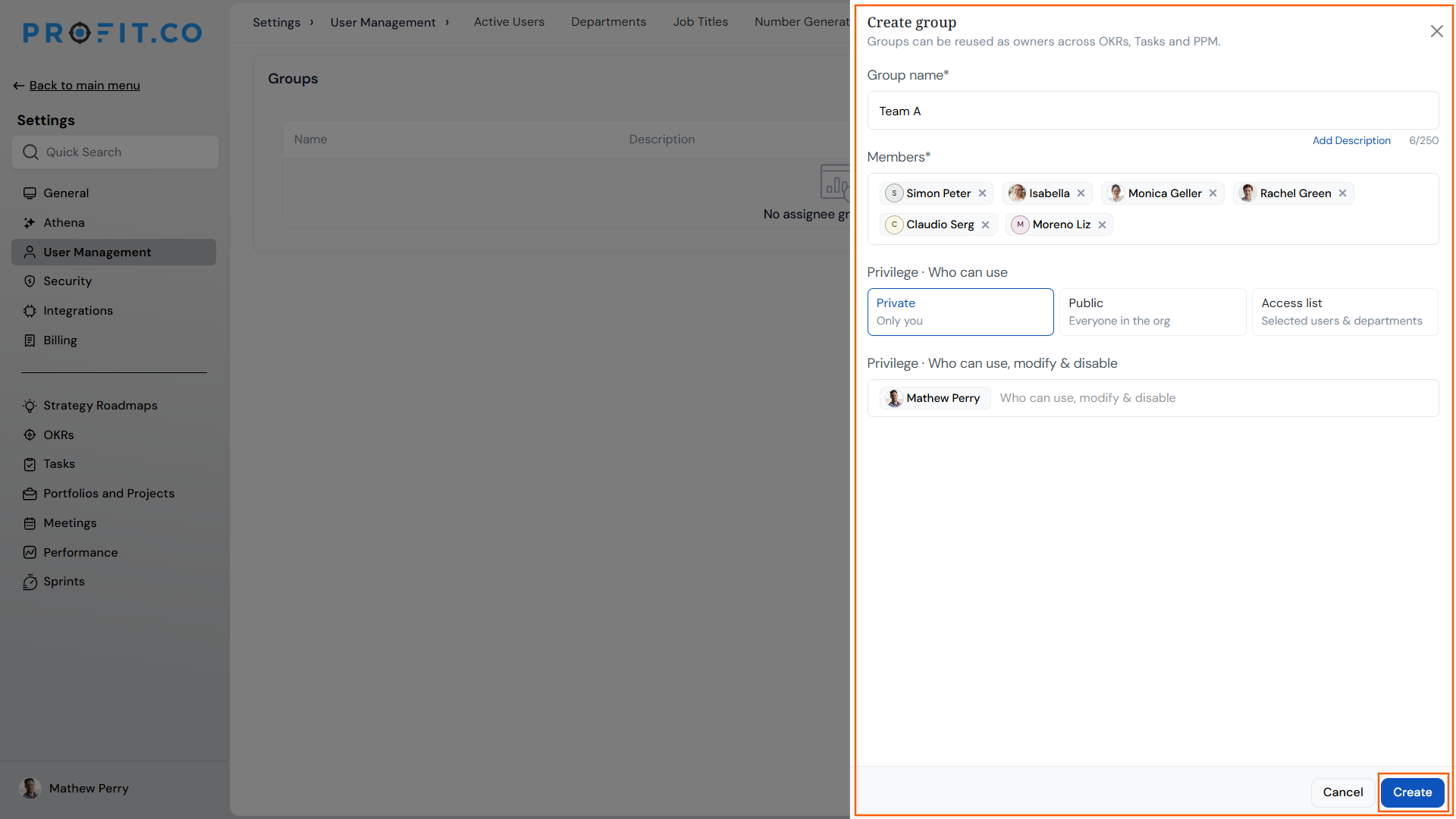
- Enter a group name (duplicate names are not allowed).
- Add members to the group.
- Choose Private, Public, or Access List as the privilege level.
- Define who can use, modify, and disable the group.
- Click Create.
Method 2: Create a Group as an End User
Step 1
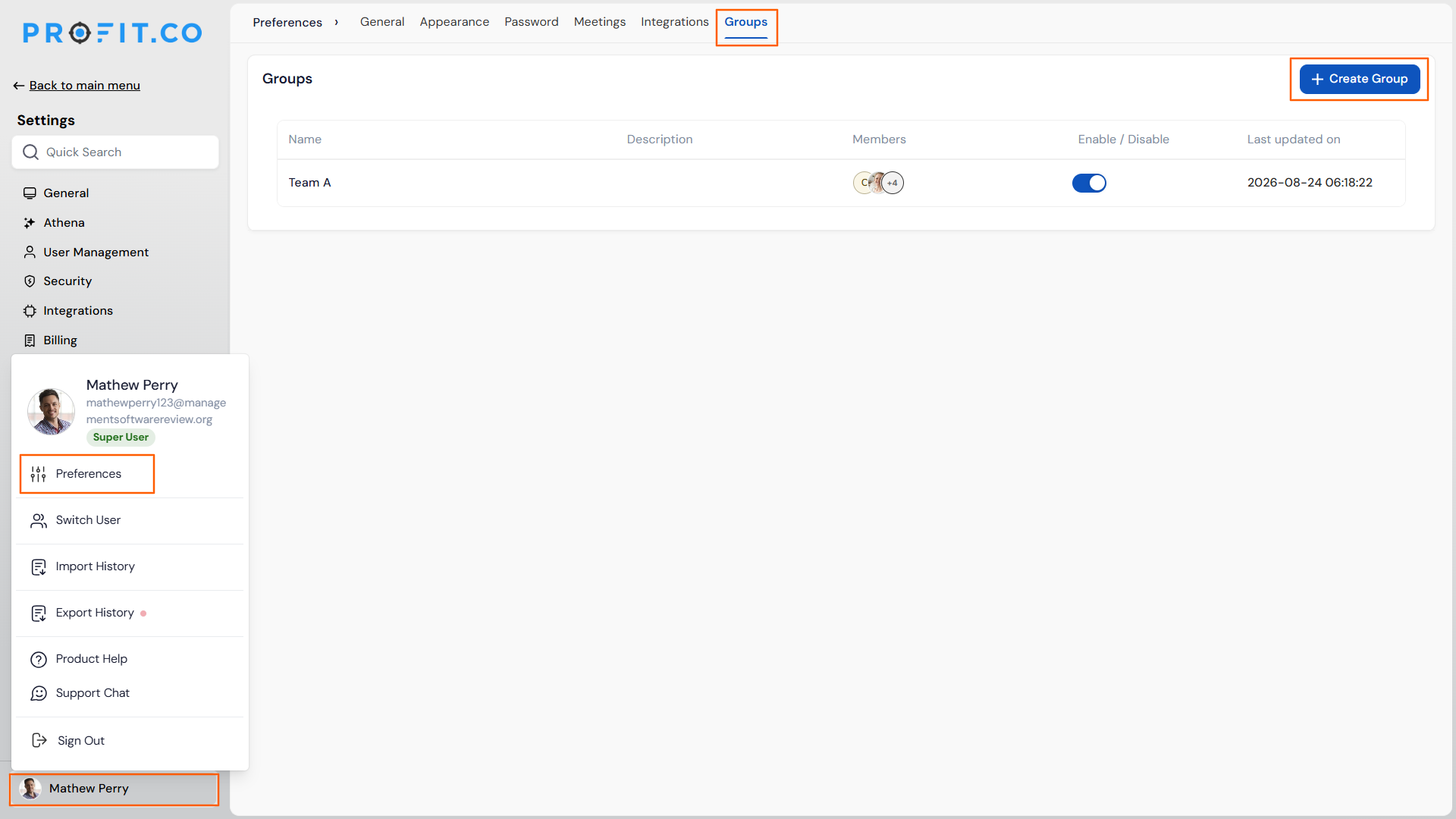
- Navigate to Preferences → Groups.
- Click Create Group.
Step 2
- Enter a group name, add members, and set the privilege level.
- Click Create.
Method 3: Assign a Group as an Owner
Step 1
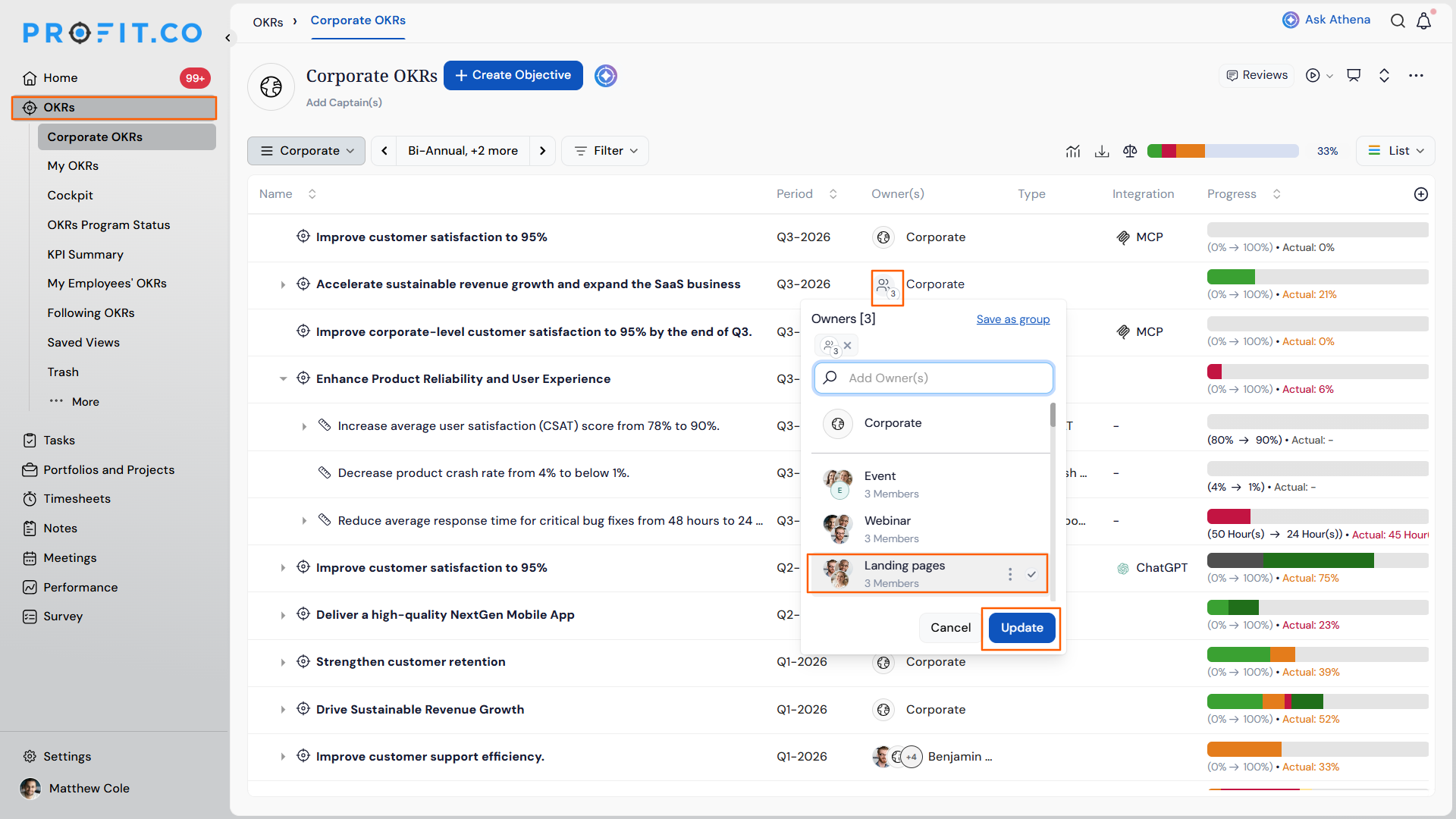
- Open the owner dropdown on any OKR, Task, or PPM item.
- Choose the group from the list, which shows both individual users and available groups.
What Happens When You Use User Groups for Ownership?
| Scenario | What Happens |
|---|---|
| You remove an individual member from the owner field while a group is still assigned. | Profit.co unselects the group, assigns the remaining group members individually as direct assignees, and shows a confirmation prompt before applying the change. |
| You manually select and save every individual member of a group as separate owners. | Profit.co displays a prompt suggesting you assign the group itself instead of the individual members. |
| You modify an existing group's membership or settings. | Profit.co shows an impact summary listing every OKR, Task, and PPM record the change will affect before the update is saved. |
| You add a member to a group who lacks access to the module where the group is used. | Profit.co alerts the administrator and blocks the change from being saved. |
| You disable a group that is currently assigned as an owner. | Profit.co removes the group from every affected record and assigns its former members individually in its place. |
Caution
Disabling a group is not scoped to one record. It reassigns members individually across every OKR, Task, and PPM item where the group is currently the owner.
What Are the Best Practices for User Groups?
- Review the impact summary before saving changes to group membership, since edits propagate to every OKR, Task, and PPM item where that group is currently assigned as owner.
- Set the privilege level to Access List rather than Public when a group should only represent one department's ownership, since Public groups can be reused by every user in the organization.
- Avoid manually adding every individual member of a team as separate owners once a group for that team exists, since Profit.co will prompt you to consolidate them into the group anyway.
- Confirm a new member's module access before adding them to a group used for ownership, since Profit.co blocks the addition and alerts the administrator if access is missing.
- Check which records currently list a group as owner before disabling it, since disabling reassigns members individually across every one of those records.
Related Articles
- What are the various roles available for users in Profit.co?
- How do I assign Tasks to multiple assignees in Profit.co?
What Are Some Frequently Asked Questions About User Groups?
No. Administrators create groups from Settings → User Management → Groups, while end users create them from Preferences → Groups.
No. Profit.co rejects duplicate group names during creation, regardless of privilege level or who created the group.
No. Private, Public, and Access List are set explicitly during creation and only change if someone with modify rights updates the group afterward.
Yes. The same group can be selected from the owner dropdown on any OKR, Task, or PPM item, independent of where else it is already assigned.
Execute your strategy with confidence
Connect OKRs, tasks, and teams in one place with Profit.co
