
Profit.co's integration with Microsoft Copilot Studio lets you create, update, and check in on OKRs, tasks, and projects through a conversational agent inside your Microsoft 365 environment. You can also ask the agent real-time questions about ownership, progress, and risk across your organization without opening Profit.co in a separate tab.
Table of Contents
- What Is Profit.co in Microsoft Copilot Studio?
- Why Does Profit.co in Microsoft Copilot Studio Matter?
- How Do I Set Up Profit.co in Microsoft Copilot Studio?
- What Happens When You Use Profit.co in Microsoft Copilot Studio?
- What Actions Can I Perform with Profit.co in Copilot Studio?
- What Insights Can I Ask Profit.co in Copilot Studio For?
- How Does Authentication and Data Security Work for This Integration?
- What Are the Best Practices for Profit.co in Microsoft Copilot Studio?
- Related Articles
- Frequently Asked Questions
What Is Profit.co in Microsoft Copilot Studio?
Profit.co in Microsoft Copilot Studio is a Model Context Protocol (MCP) connection that exposes Profit.co's OKR, task, and check-in tools inside a Copilot Studio agent. The agent authenticates with your Profit.co account through OAuth 2.0, so every action it takes runs under your own permissions.
The integration works with every Profit.co plan, Free, Pro, and Enterprise, and covers company, department, team, and individual-level OKRs alongside portfolio, project, and milestone work items.
Why Does Profit.co in Microsoft Copilot Studio Matter?
Before this integration, updating an OKR meant opening a new browser tab, finding the objective in Profit.co, and entering the update there, a context switch that cost about three minutes and broke your focus every time. With the Copilot agent, you create objectives, check in on key results, and update tasks from inside the same Microsoft 365 window you already work in.
For managers, this also ends the need to chase status updates, since contributors check in the moment progress happens using tools they already have open. Distributed teams across time zones can check in whenever it suits them, using an agent built on your organization's own Microsoft infrastructure.
How Do I Set Up Profit.co in Microsoft Copilot Studio?
Prerequisite
You need a Microsoft Copilot Studio license or Power Platform access to create and publish agents in your organization.
Connect Profit.co to Your Copilot Agent
Step 1
- Go to copilotstudio.microsoft.com and sign in
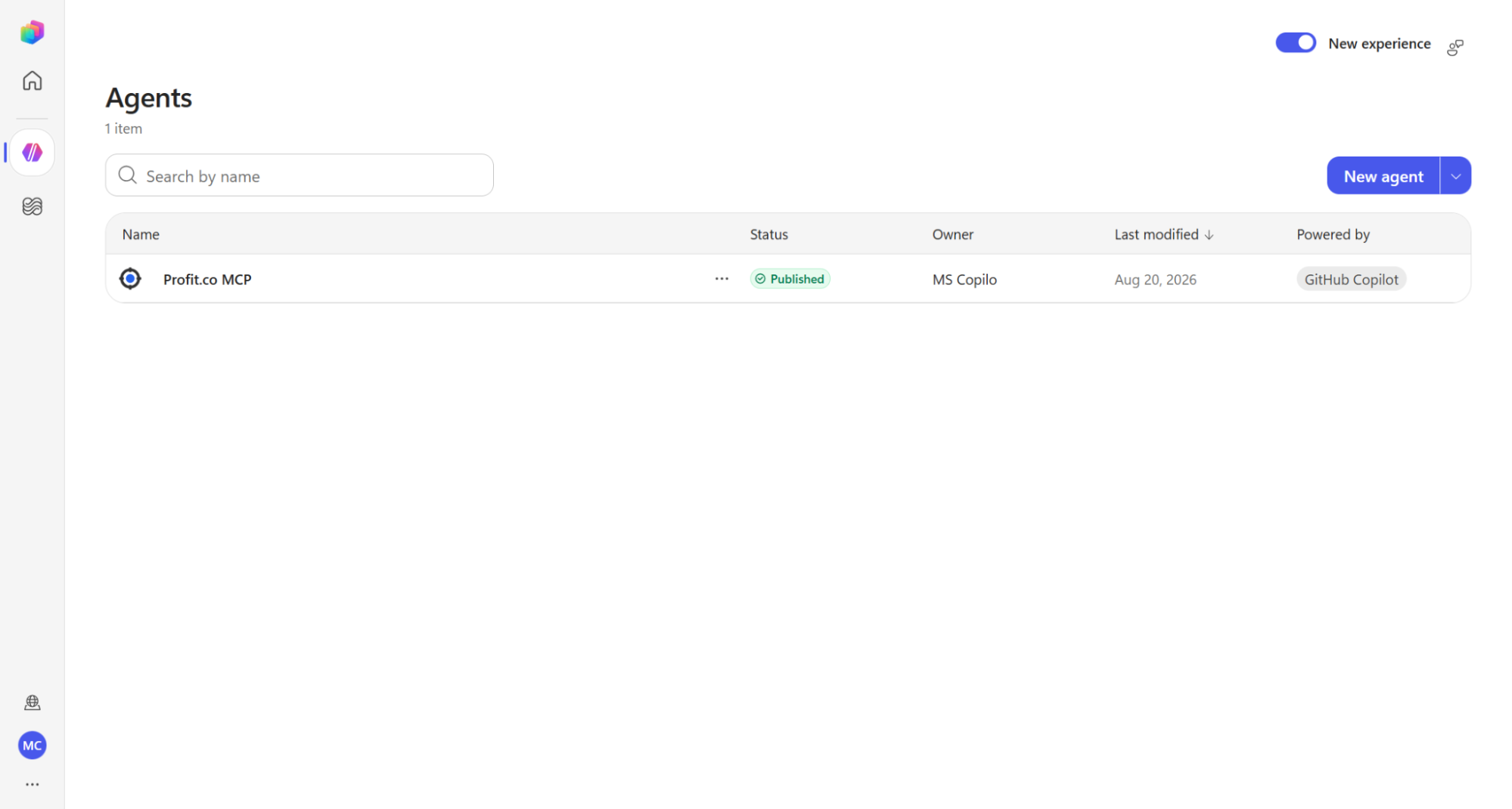
- Click the dropdown arrow next to New Agent and select Agent | Standard
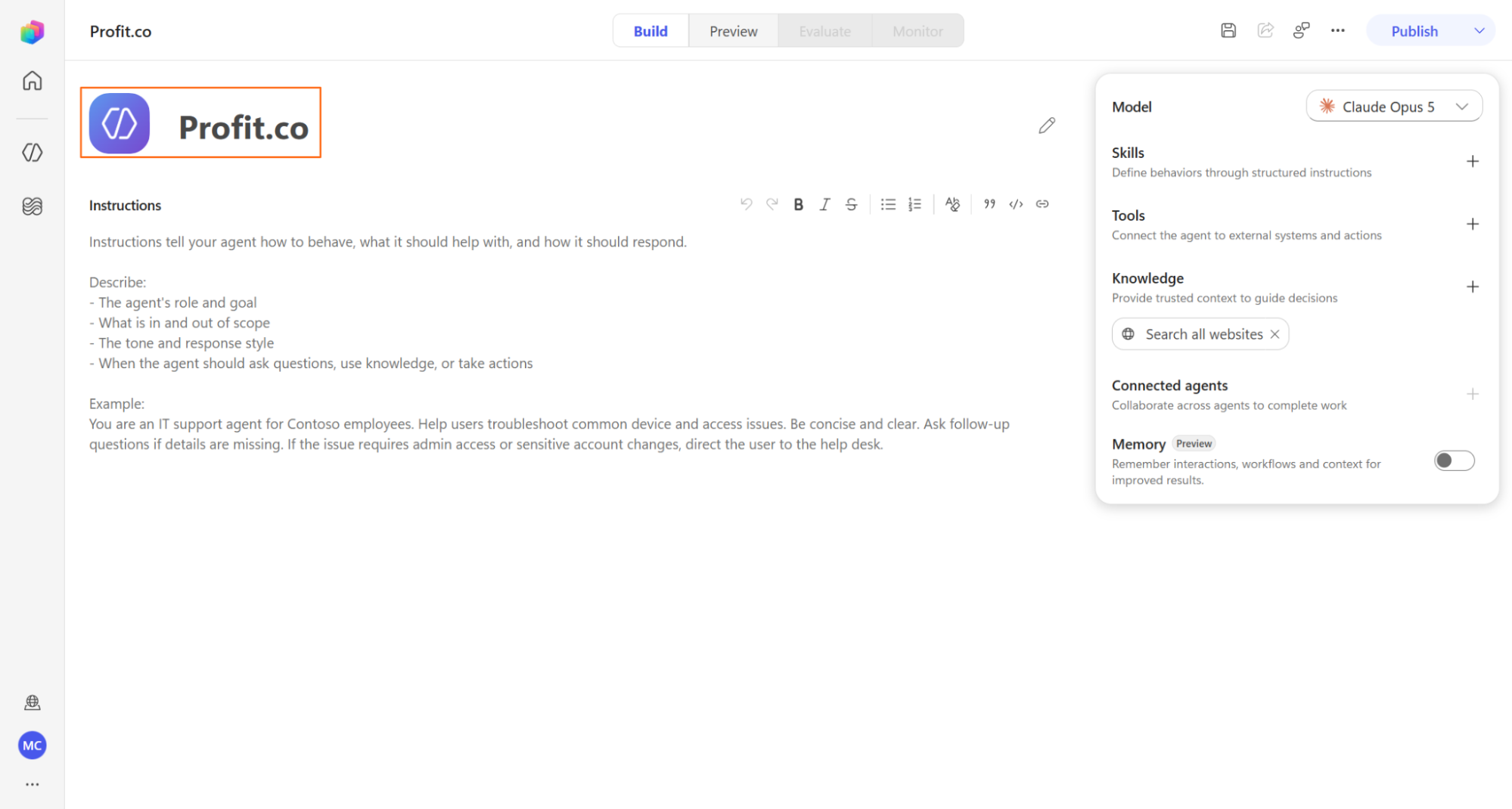
- Name your agent, for example Profit.co
Step 2
- Navigate to the Tools tab inside your new agent
- Click + Add to open the tool selection panel
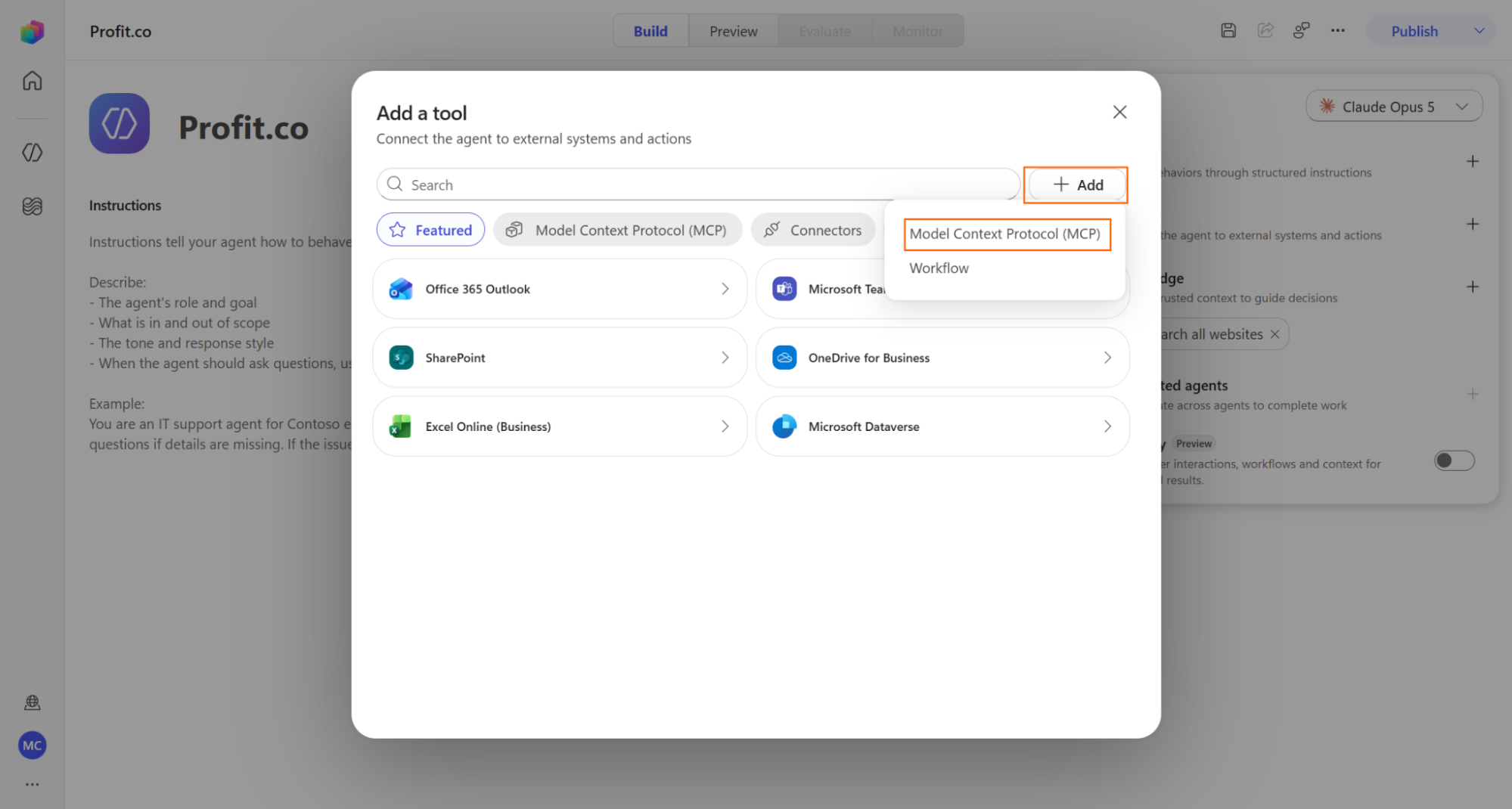
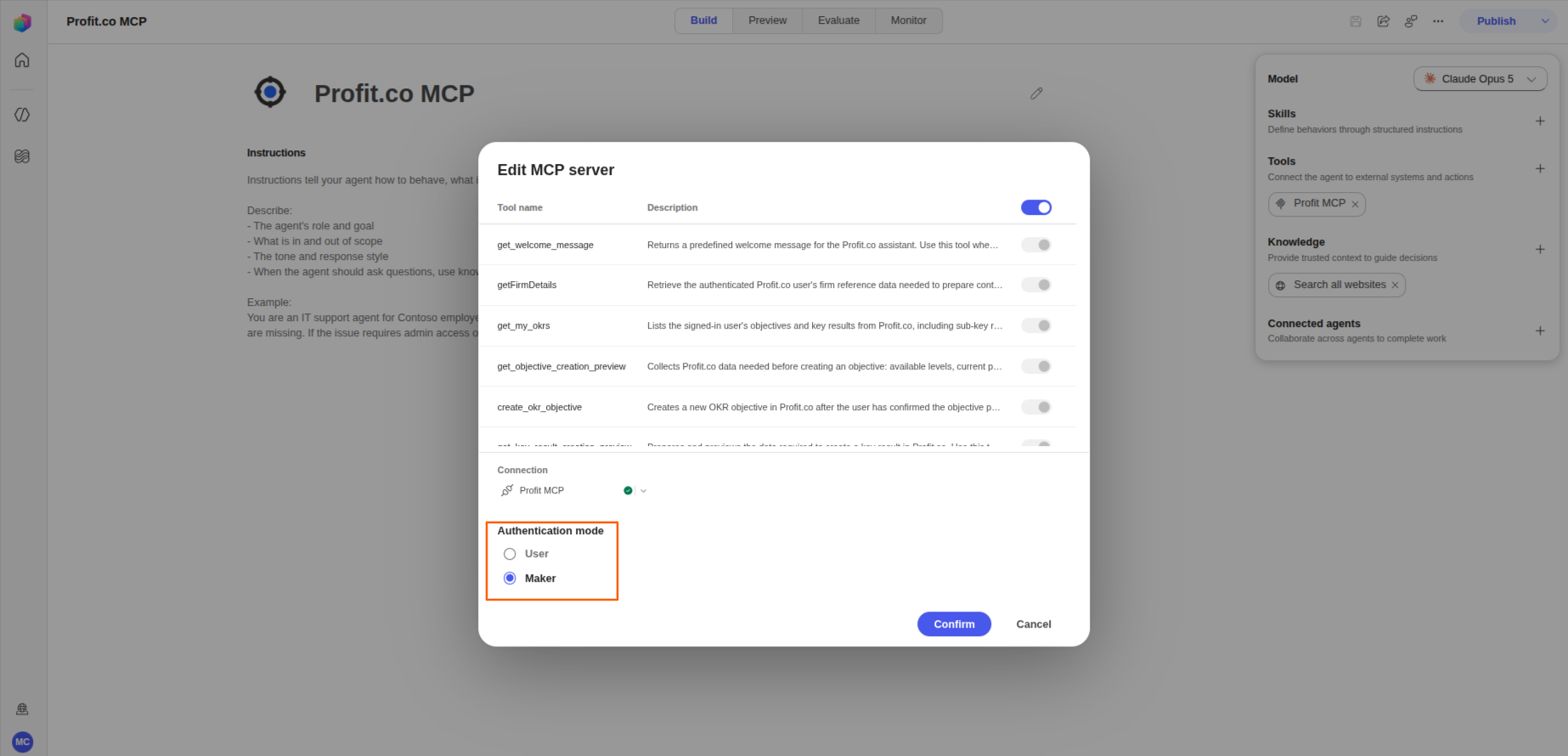
- Select Model Context Protocol (MCP) and set Authentication Mode to Maker before clicking Add
Step 3
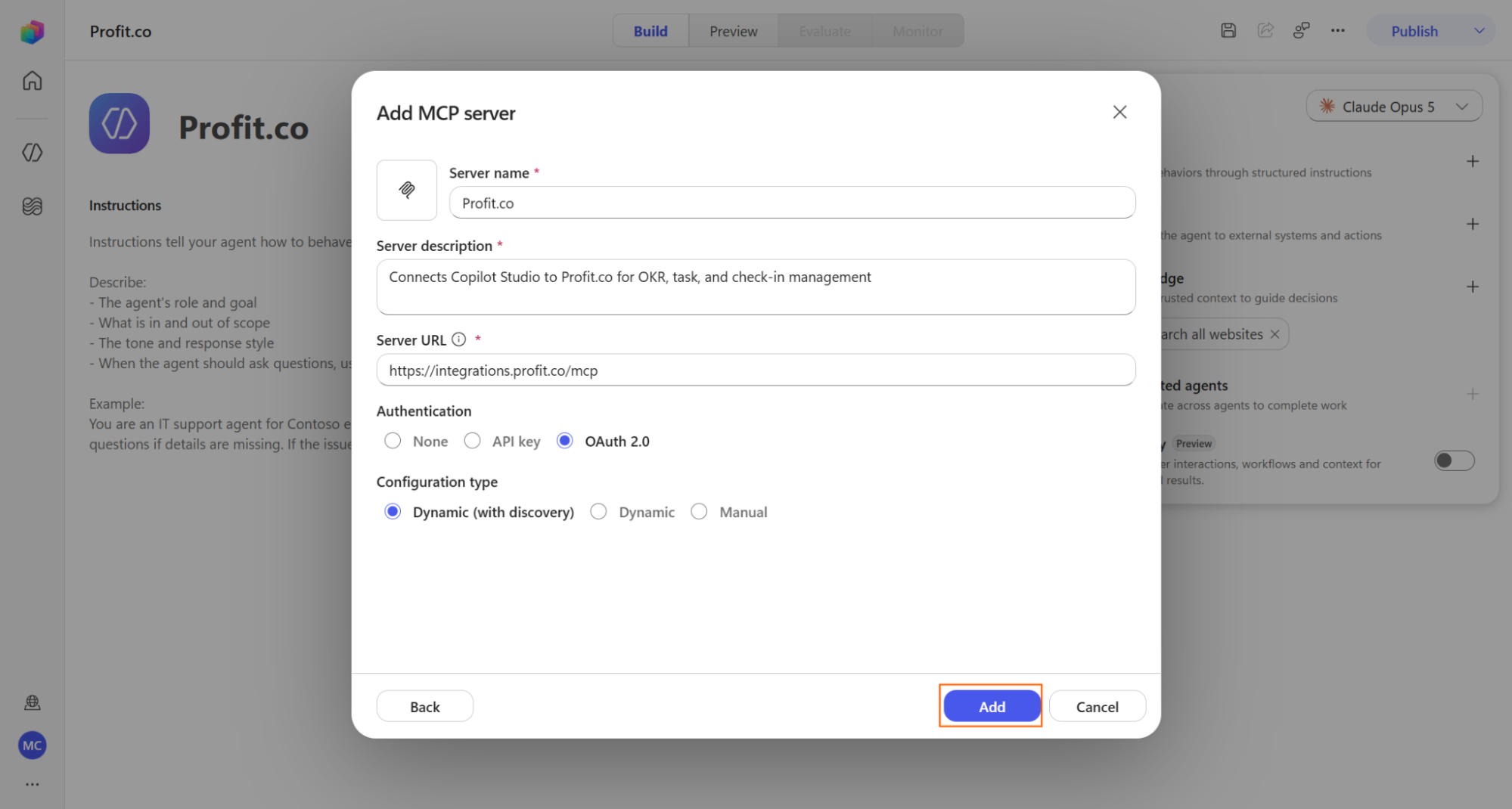
- Set Server Name to Profit.co MCP (or your preferred name) and Server Description to "Connects Copilot Studio to Profit.co for OKR, task, and check-in management"
- Set Server URL to https://integrations.profit.co/mcp
- Set Authentication to OAuth 2.0 and Type to Dynamic Discovery, then click Add
Step 4
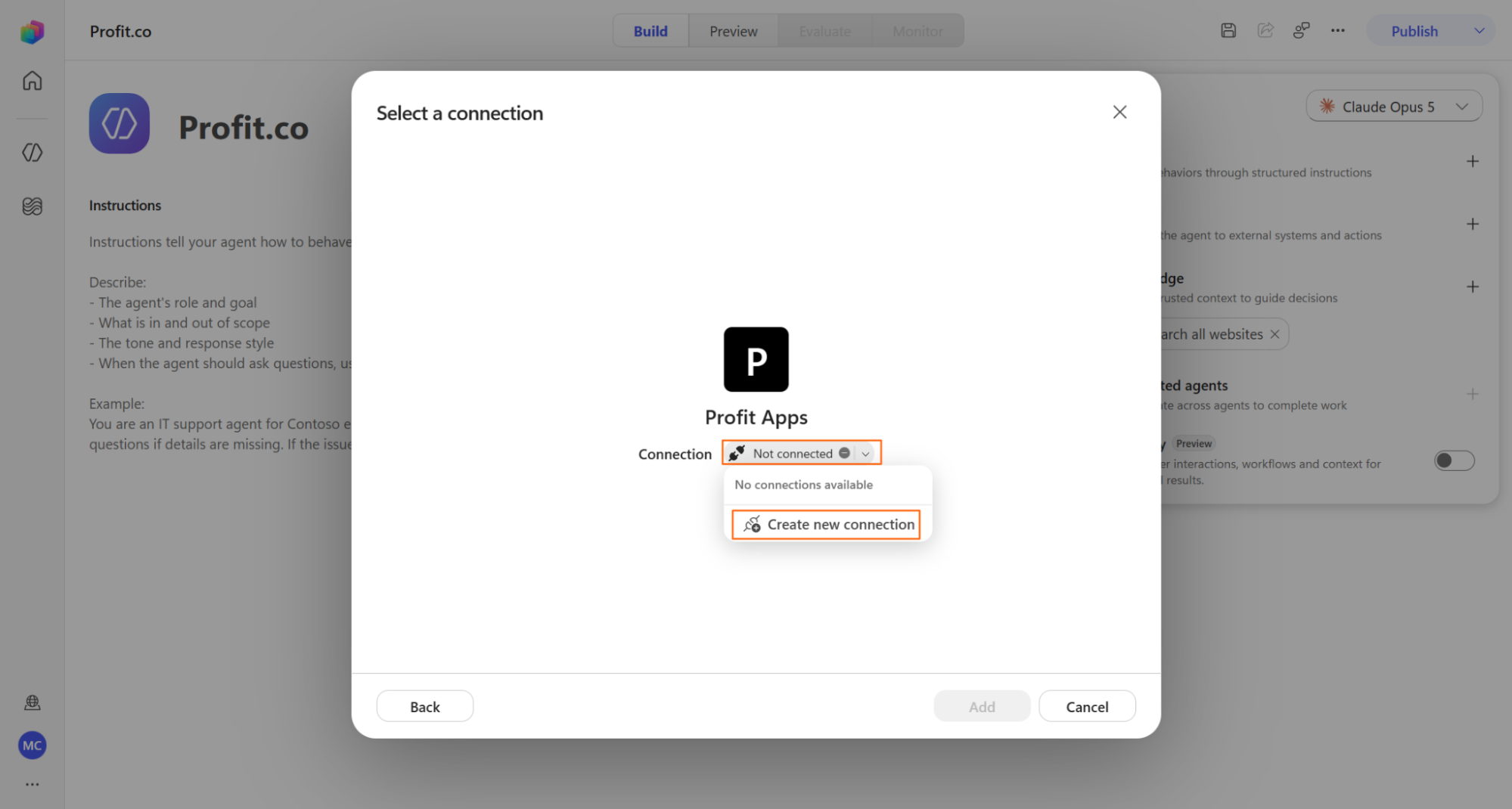
- Click Not Connected next to your new tool
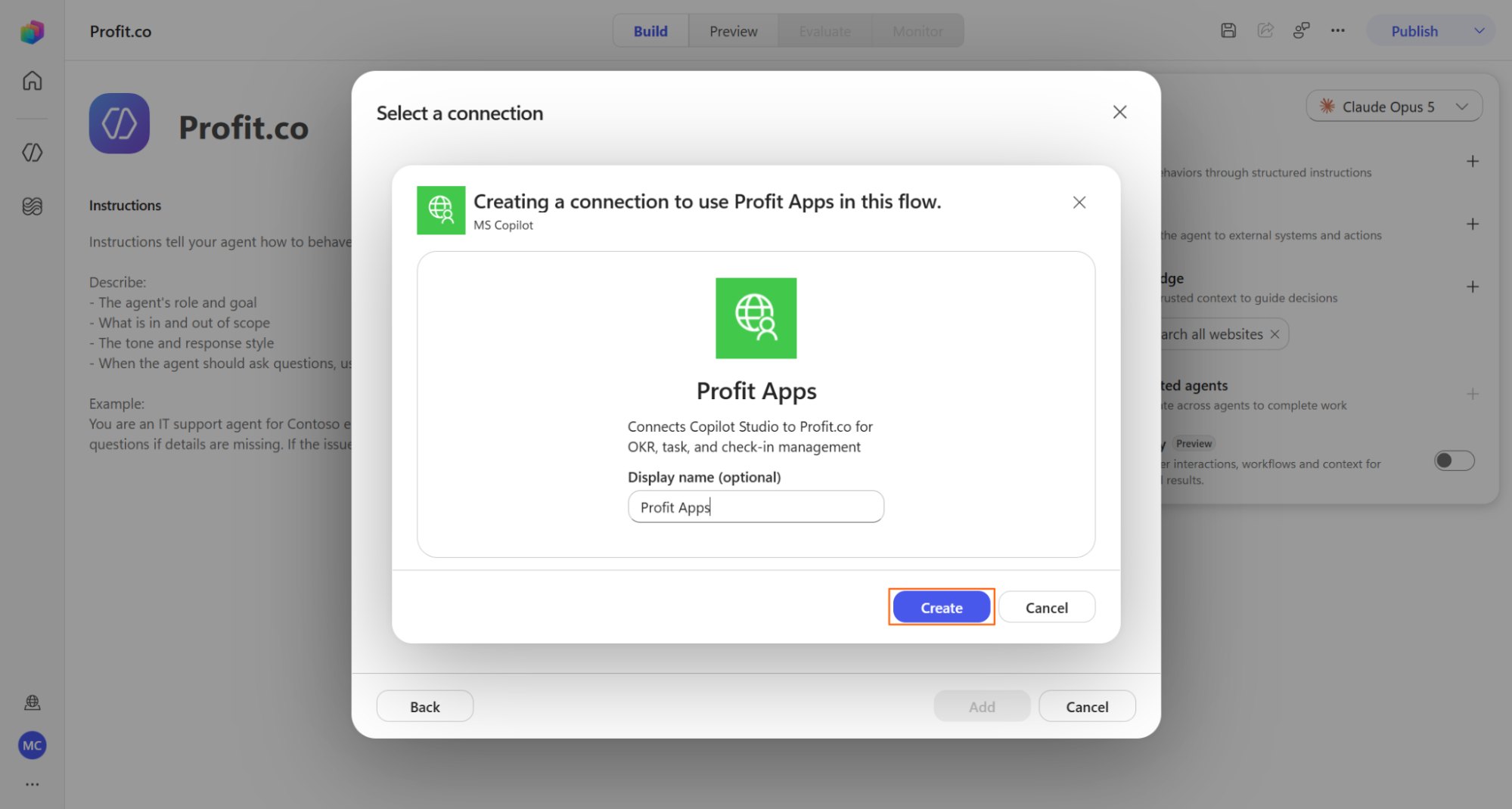
- Click Create New Connection to open the connection dialog
- Confirm the redirect to the Profit.co login page
Step 5
- Enter your Profit.co credentials, or sign in with Google, Apple, Microsoft, or Slack
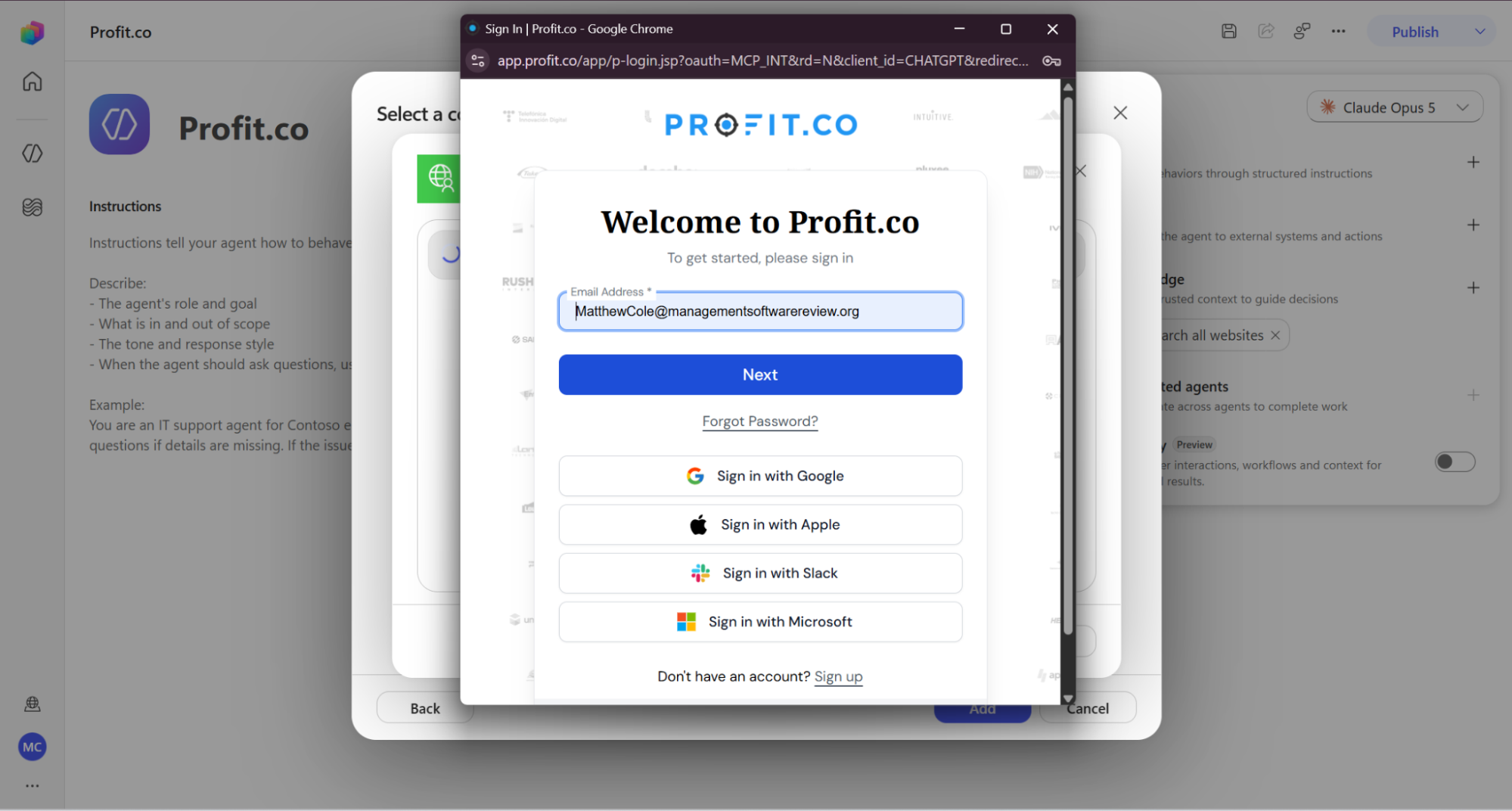
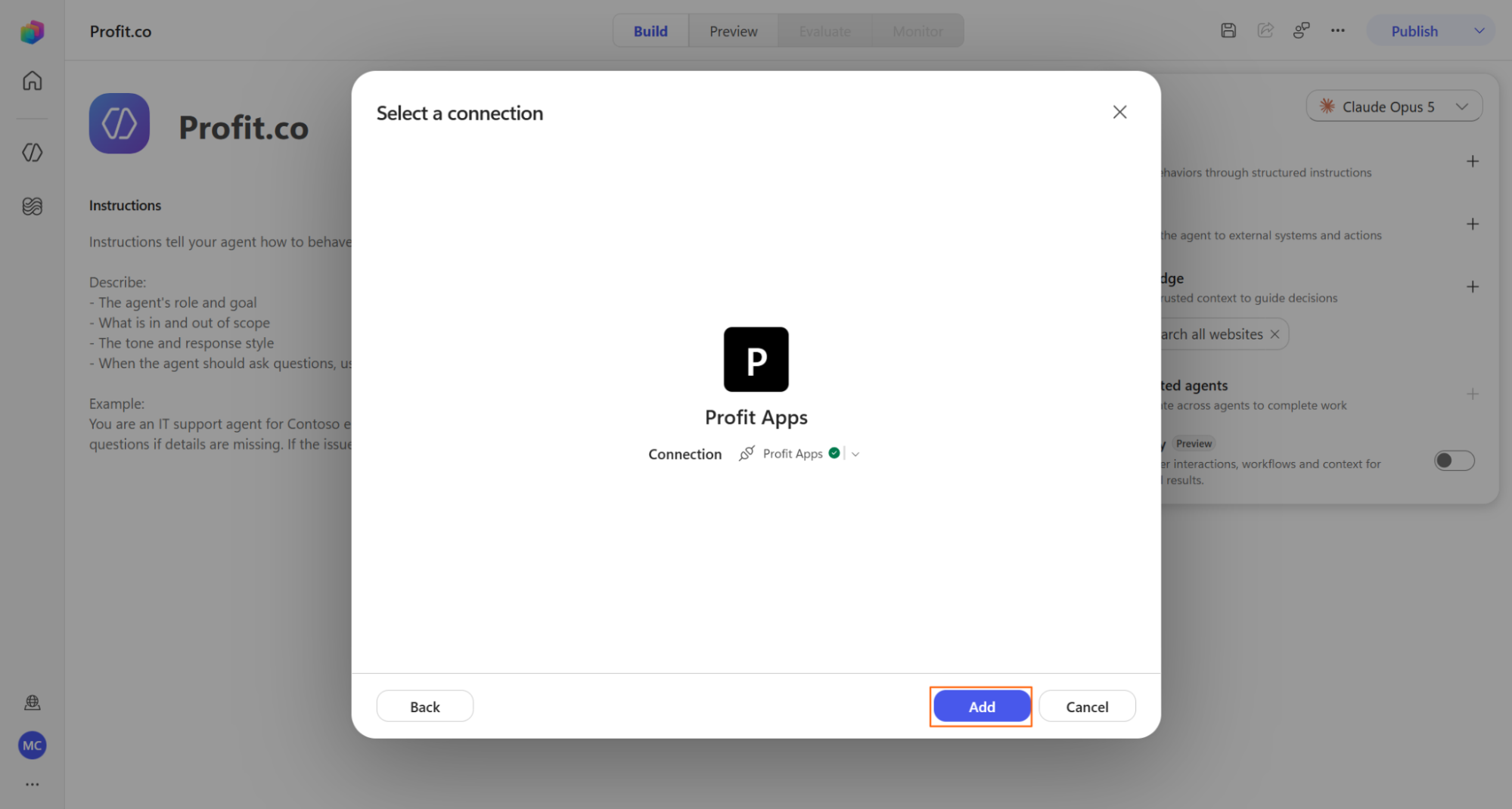
- Confirm your connection shows as active in the Add Tool dialog
- Click Add, select your connection, then click Submit
Run Profit.co Commands in Copilot Studio
Step 1
- Open your agent in Copilot Studio and switch to Preview mode
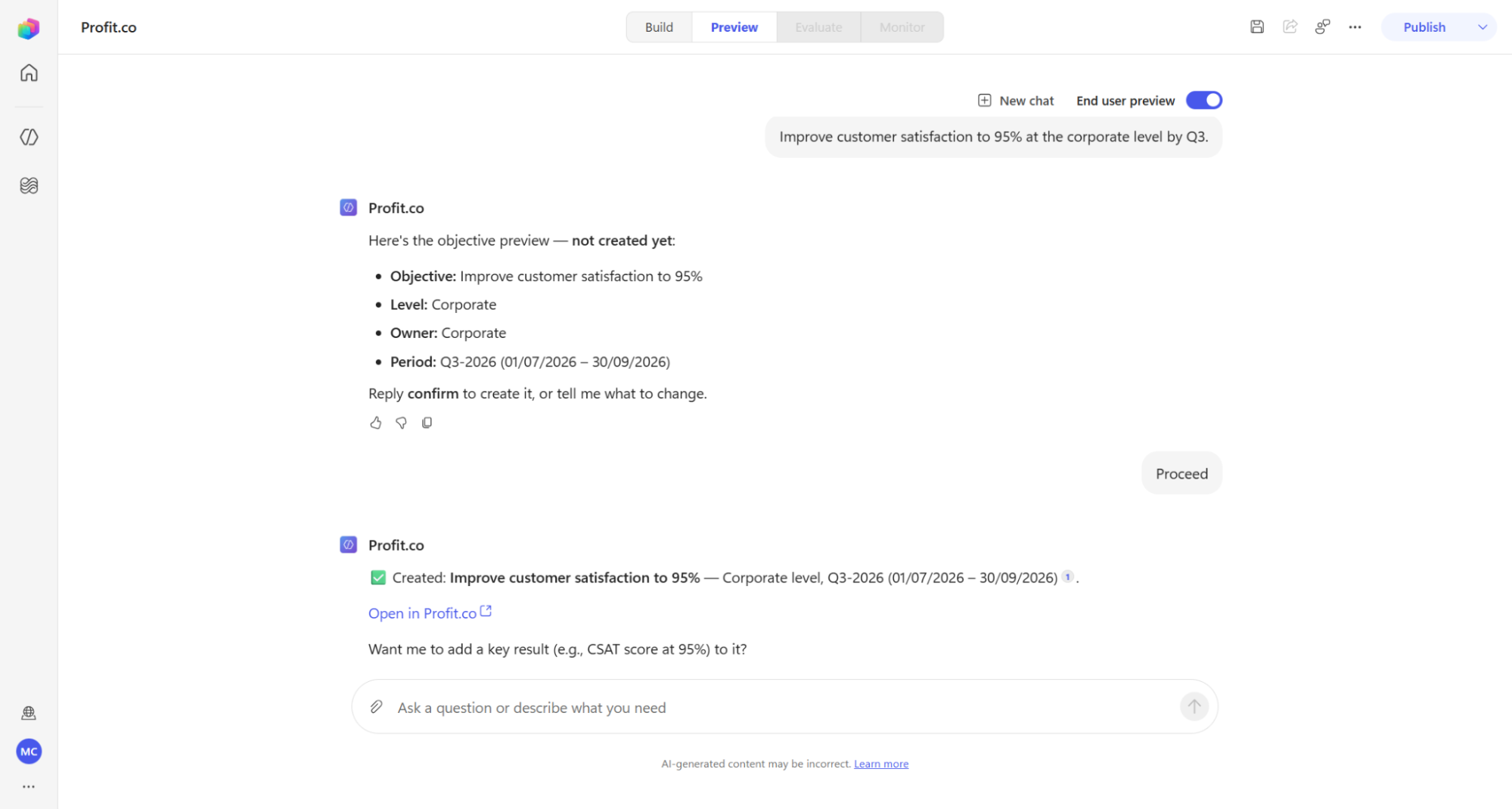
- Type a natural-language command, such as "Create an objective: Improve customer satisfaction to 95% at the corporate level by Q3"
- Read the preview the agent returns before it writes anything to Profit.co
- Answer any clarification questions the agent asks, such as which level to use or which objective to link a key result to
- Reply confirm, or click Proceed, to apply the change
- Open the link the agent returns to view the record directly in Profit.co
What Happens When You Use Profit.co in Microsoft Copilot Studio?
| Scenario | What Happens |
|---|---|
| You create an objective, key result, task, or project through the Copilot agent. | Profit.co keeps the record unsaved and shows a preview until you reply confirm to create it. |
| You create a project and set its status to something other than Not Started. | Profit.co saves the project as Not Started at the first tollgate stage regardless of the status you specified. |
| You create a task through the Copilot agent. | Profit.co adds the task immediately and makes it visible to every team member who has access to it. |
| You submit a check-in without a progress value or status. | Profit.co discards the check-in and does not record it until both fields are provided. |
| You remove or disable the Profit.co MCP tool from your Copilot agent. | Profit.co keeps every OKR, task, and check-in history record untouched in your account. |
| You access an OKR that is marked private to you in Profit.co. | Profit.co keeps the OKR hidden from teammates through the Copilot agent the same way it does in the main platform. |
What Actions Can I Perform with Profit.co in Copilot Studio?
These are the conversational actions the agent can take on your behalf, each writing directly to Profit.co once you confirm it.
| Action | What It Does |
|---|---|
| Create Objectives | Sets up a new objective at the company, department, team, or individual level. |
| Create Key Results | Adds a measurable key result to an existing objective, with a starting value, target, and unit. |
| Perform Check-Ins | Submits a progress update, including value and status, for a key result or objective. |
| Create Tasks | Adds a task with a name, due date, status, and priority. |
| Update Tasks | Changes a task's name, due date, status, priority, description, or comments in one message. |
| List My OKRs | Displays your individual objectives and key results with current progress. |
| Pending Actions | Surfaces overdue tasks, milestones, risks, issues, and other items needing attention. |
| Create Projects, Milestones and Tasks | Sets up new work items anywhere in your project hierarchy, from a portfolio-level project down to a subtask. |
What Insights Can I Ask Profit.co in Copilot Studio For?
Beyond taking action, you can ask the agent natural-language questions and get an answer grounded in your live Profit.co data.
| Category | Example Question |
|---|---|
| OKR Ownership | "What objectives do I own?" |
| Individual and Department Progress | "How is Benjamin Ford performing on his objectives?" |
| On Track and Ahead of Schedule | "Which of our KPIs are currently on track?" |
| At Risk and Behind Schedule | "What objectives are currently at risk?" |
| Data Health and Anomalies | "Are there any anomalies in our OKR data?" |
| Project and Portfolio Ownership | "What project portfolios do I own?" |
| Lifecycle Stages | "Which projects are currently on hold?" |
| Priority Levels | "What are our highest-priority projects right now?" |
| Overdue Items | "Which projects are past their deadline?" |
| Targeted Searches | "What is the progress on the 'Q3 Marketing Refresh' objective?" |
How Does Authentication and Data Security Work for This Integration?
Copilot Studio initiates the connection to Profit.co's MCP server, then redirects you to the Profit.co login page to authenticate. Profit.co issues an authorization token that Copilot Studio stores for the session, so every later interaction reuses that token instead of asking you to log in again. If you are already signed in to Profit.co in your browser, OAuth reuses that active session immediately.
Copilot Studio processes your commands and sends them to Profit.co's MCP server, which executes the action. Your OKR, task, and check-in data stays entirely in Profit.co's infrastructure.
Note
Microsoft Copilot Studio does not store your Profit.co data. It only relays your commands to Profit.co's servers, which process and hold the results.
What Are the Best Practices for Profit.co in Microsoft Copilot Studio?
- Set the Authentication Mode to Maker, not User, when you add the MCP tool, since the Edit MCP Server dialog defaults away from the mode this integration needs to run.
- Confirm the parent project or milestone before the agent creates a new task or subtask, since Profit.co nests the work item exactly where you point it in your hierarchy.
- Ask the agent "What's pending for me?" at the start of your day, since it consolidates overdue tasks, milestones, risks, and issues into one response instead of separate checks across Profit.co.
- Give the MCP server a recognizable name during setup rather than leaving the default, since your organization's Tools tab lists every connected server by whatever name you enter.
- Double-check any date the agent fills in from your command, since it can roll a stated date forward to the next valid occurrence instead of rejecting it outright.
Related Articles
Frequently Asked Questions
Yes. Any Profit.co user can connect their account, but building and publishing the agent requires a Microsoft Copilot Studio license or Power Platform access.
No. It works with Free, Pro, and Enterprise plans.
The agent asks for clarification before executing anything, so it never guesses at an ambiguous instruction.
No. The connection persists across sessions until you explicitly disconnect it.
Yes. You can publish it within your Microsoft 365 environment, and each teammate authenticates with their own Profit.co credentials to keep individual access controls intact.
Execute your strategy with confidence
Connect OKRs, tasks, and teams in one place with Profit.co
