

Setting up a billable project in Profit.co requires two steps: a Super User enables billable project tracking at the organization level in Settings, and the project team then selects a billing type on the project's Financials tab. Both steps are needed before financial features like CBA and EVM become available on a project.
Table of Contents
- What Are Billable Projects in Profit.co?
- Why Do Billable Projects Matter?
- How Do I Set Up Billable Projects in Profit.co?
- What Happens When You Set Up a Billable Project?
- What Are the Three Billing Types in Profit.co?
- What Are the Best Practices for Billable Projects?
- Related Articles
- What Are Some Frequently Asked Questions About Billable Projects?
What Are Billable Projects in Profit.co?
Billable Projects in Profit.co are projects with financial tracking activated. When a project is set as billable, it gains access to the Financials tab, which contains the Budget, Expenses, Variance, Cost-Benefit Analysis (CBA), and Earned Value Management (EVM) sections. These sections allow teams to define how costs are structured, track actual spend against plan, and evaluate whether the project is delivering its expected financial returns.
A billable project carries one of three billing types: Fixed Price, Time and Material, or Mixed. The billing type determines how costs and budgets are structured within the project and drives how Profit.co calculates actuals, variance, and financial performance indicators.
Why Do Billable Projects Matter?
Without the billable project configuration, all financial tabs are hidden across every project in the organization. A project manager cannot set a budget, track expenses, run a Cost-Benefit Analysis, or use Earned Value Management. Those sections simply do not appear in project navigation until the feature is enabled.
Once enabled, billable projects give teams a structured financial baseline: actual costs calculate automatically for Time and Material projects as team members log hours against their resource type rates, variance tables compare allocated to actual spend per milestone, and CBA surfaces ROI metrics including IRR, NPV, and Payback Period. This moves financial oversight from spreadsheets into the same workspace where the project is executed.
How Do I Set Up Billable Projects in Profit.co?
Note
Only a Super User can enable the Allow Billable Projects toggle in Settings. This is an organization-wide setting. Once enabled, any project team member with the appropriate project access can then set a billing type on an individual project.
Method 1: Enable Billable Projects at the Organization Level (Super User)
Step 1: Open Financials Settings
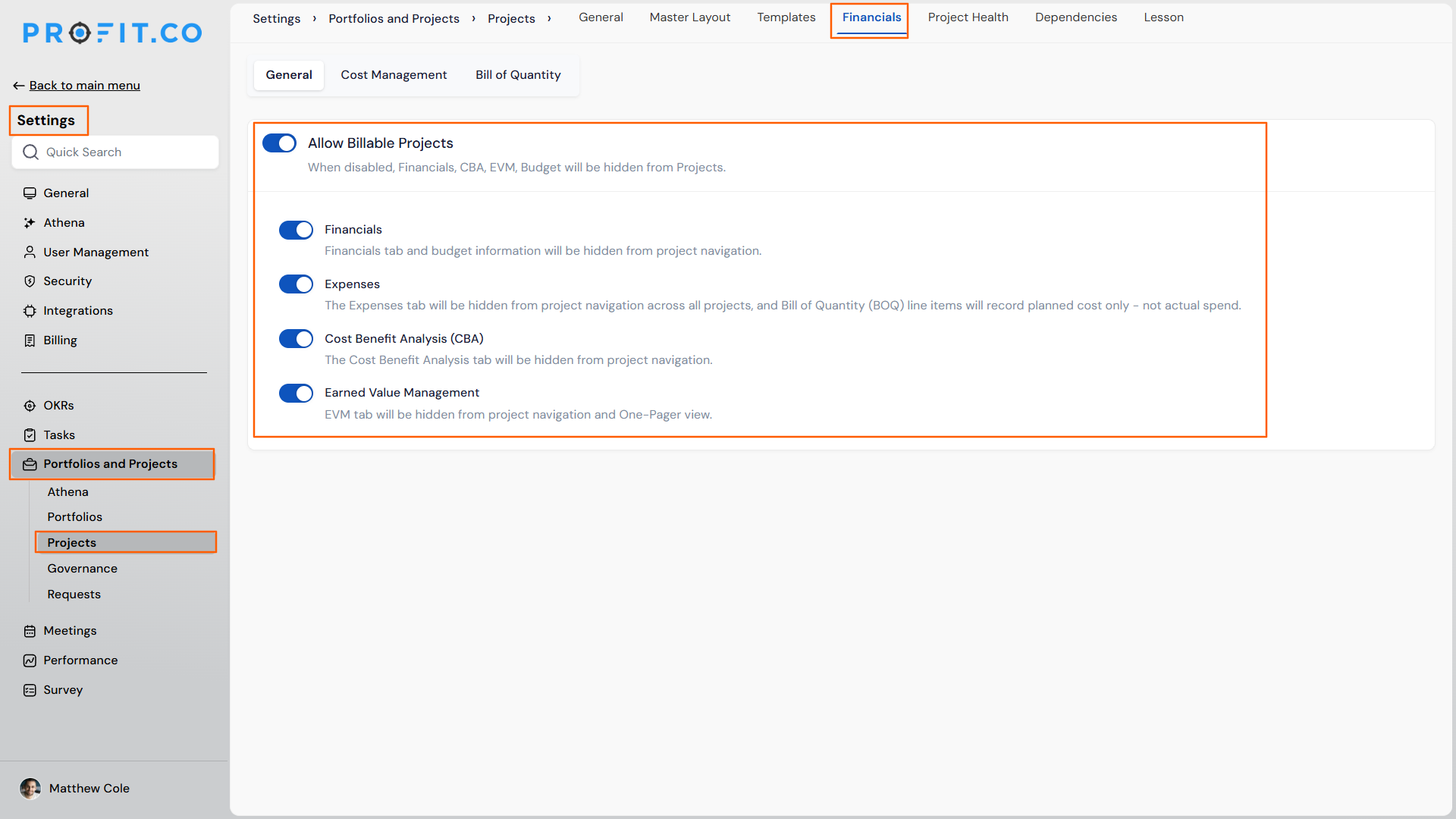
- Navigate to Settings → Portfolios and Projects → Projects from the left navigation panel.
- On the Projects settings page, locate the Financials section under the General tab.
Step 2: Enable the Allow Billable Projects Toggle
- Toggle on Allow Billable Projects. This activates financial tracking for all projects in the organization.
- Optionally, enable or disable the individual financial modules: Financials, Cost Benefit Analysis (CBA), and Earned Value Management (EVM), based on which tabs should be visible across projects.
Note
When Allow Billable Projects is disabled, the Financials tab, CBA tab, EVM tab, and all Budget information are hidden from every project in the organization, regardless of individual project settings.
Method 2: Set the Billing Type on an Individual Project
Step 1: Open the Project's Financials Tab
- Navigate to Portfolios and Projects → All Projects from the left navigation panel.
- Click on the project you want to configure.
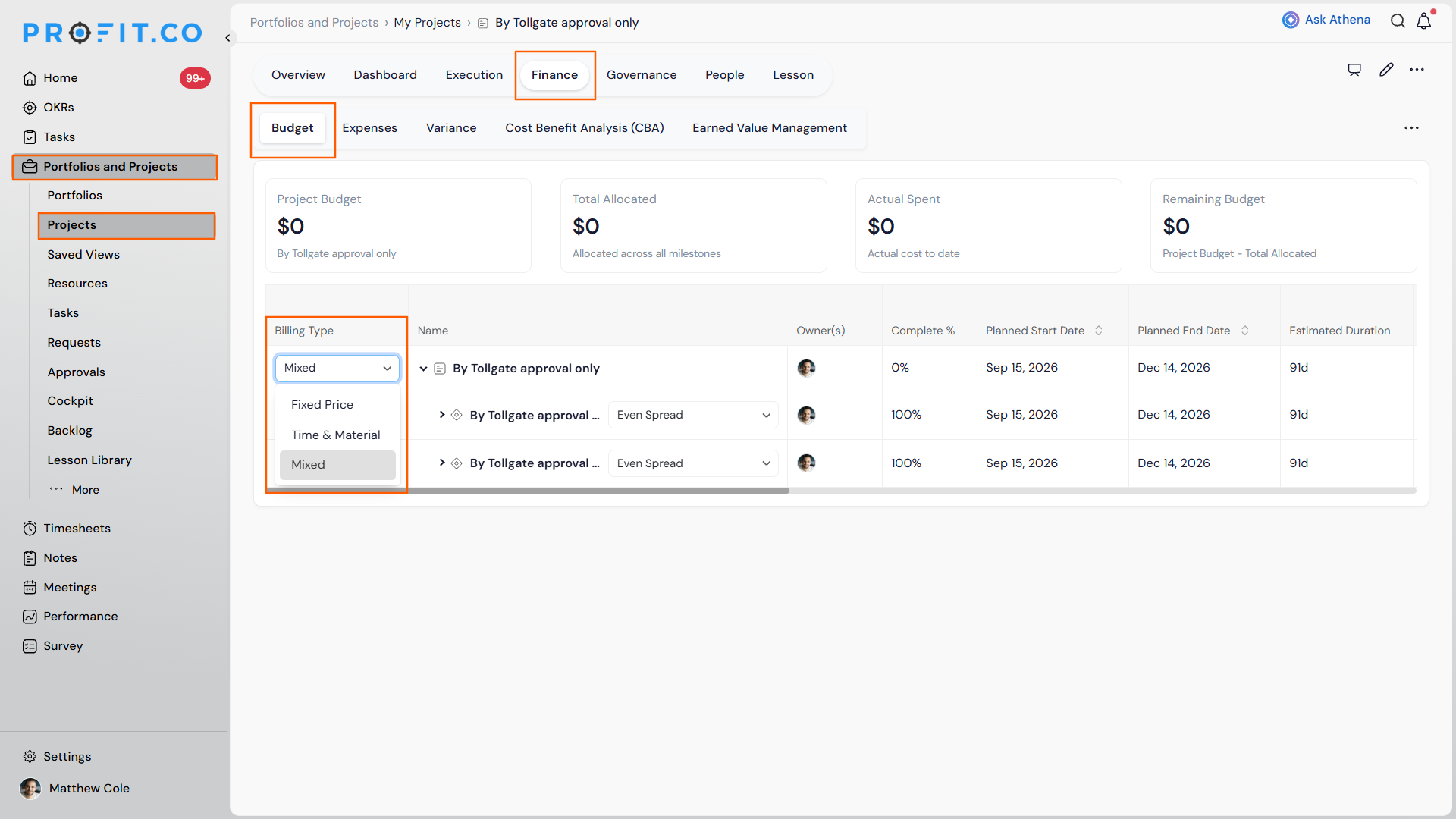
- On the project overview page, switch to the Financials tab.
Step 2: Select a Billing Type in the Budget Section
- Inside the Financials tab, click the Budget section.
- Choose one of the three billing options: Fixed Price, Time and Material, or Mixed.
- Select the billing type that matches how costs and delivery commitments are structured for this project.
Step 3: Define the Budget
- With the billing type selected, enter the budget parameters for the project. The Financials tab now shows Budget, Expenses, Variance, CBA, and EVM sections for tracking throughout the project lifecycle.
Note
The CBA tab becomes available only after the project has budget values defined.
What Happens When You Set Up a Billable Project?
| Scenario | What Happens |
|---|---|
| You enable the Allow Billable Projects toggle in Settings. | The Financials, CBA, and EVM tabs become available on all projects in the organization. Individual financial modules (Financials, CBA, EVM) can still be independently disabled to hide specific tabs across all projects. |
| You disable the Allow Billable Projects toggle. | The Financials tab, CBA tab, EVM tab, and all Budget information are hidden from every project in the organization immediately. Existing financial data is not deleted but becomes inaccessible while the toggle is off. |
| You select Fixed Price as the billing type on a project. | The Budget section records a predetermined total cost for the project. Profit.co tracks actual spend against this fixed amount, regardless of the hours or resources consumed. Variance calculations compare the fixed budget to actual expenditure at the milestone level. |
| You select Time and Material as the billing type. | Actual costs calculate automatically as team members log hours against tasks. The cost is derived from hours logged multiplied by the resource type's hourly rate, so the financial tab reflects real-time spend without manual cost entry. Variance tracks planned versus actual resource consumption. |
| You select Mixed as the billing type. | The project supports both Fixed Price and Time and Material components simultaneously. Fixed-price elements apply to predictable deliverables, while Time and Material billing applies to flexible or evolving areas of the same project. |
| You define budget values after setting a billing type. | The CBA tab activates for the project. The project team can then configure the CBA framework (Hurdle Rate, Capitalization Percentage, Cost Plan Period, and Benefit Plan Period) and begin building time-phased cost and benefit plans. |
⚠ Caution
Disabling Allow Billable Projects at the organization level hides financial data across every project for all users immediately. Confirm with project teams before disabling this setting mid-cycle, as active projects will lose visibility into their budgets and financial tracking until the toggle is re-enabled.
What Are the Three Billing Types in Profit.co?
Choosing the right billing type at the start determines how Profit.co calculates costs, tracks actuals, and surfaces variance across the project's life. The table below summarizes when to use each.
| Billing Type | How Costs Are Structured | Best For |
|---|---|---|
| Fixed Price | A predetermined total is agreed before the project starts. The same amount applies regardless of actual time or resources consumed. | Projects with well-defined scope, requirements, and minimal expected changes where cost certainty matters most. |
| Time and Material | Costs are calculated from actual hours worked multiplied by resource type hourly rates. Profit.co computes actuals automatically as team members log time. | Projects where requirements may evolve, scope is flexible, or delivery effort is difficult to estimate precisely at the start. |
| Mixed | Combines Fixed Price and Time and Material within one project. Fixed-price components cover predictable deliverables; Time and Material applies to variable or adaptable areas. | Projects that have both a defined core deliverable and evolving or discovery-based components running in parallel. |
What Are the Best Practices for Billable Projects?
- Choose Fixed Price only when scope is locked before the project starts. If requirements are likely to change during execution, a Fixed Price billing type will produce misleading variance figures. The budget stays fixed while actual effort expands, creating a growing gap that does not reflect deliberate scope additions. Use Time and Material or Mixed when any meaningful flexibility exists.
- Configure resource type hourly rates before enabling Time and Material projects. Actual costs on Time and Material projects calculate as hours logged multiplied by the resource type rate. If rates are not defined when team members begin logging time, those hours record with no cost, and the financial tab will underreport actual spend. Set rates in Settings before the project begins.
- Define budget values immediately after selecting a billing type. The CBA tab activates only once budget values are present on the project. Teams that defer entering budget figures lose access to time-phased cost planning and ROI metrics until that data is entered. Entering even an initial budget estimate at project creation keeps the full financial toolkit available from the start.
- Enable only the financial modules your organization uses. Profit.co lets Super Users independently toggle Financials, CBA, and EVM on or off. If your organization does not use EVM, disabling that toggle removes it from project navigation organization-wide, reducing visual complexity for project teams without affecting budget or CBA functionality.
- Align the billing type decision with how the project will be reported externally. A project presented to a client or board as a fixed-cost commitment should use Fixed Price so that the financial tab reflects the agreed figure. Mixing billing types in the system with the reporting model creates reconciliation work at close.
Related Articles
- What is Budget Management in the PPM module?
- How do I build a time-phased budget cost plan in Profit.co Projects?
What Are Some Frequently Asked Questions About Billable Projects?
Yes. The billing type can be modified in the Budget section of the Financials tab after the project is created. If the project already has logged hours or entered budget data, review the financial impact before switching types, as the cost calculation method changes with the billing type.
Yes. The Allow Billable Projects toggle is an organization-wide setting. Enabling it makes the Financials, CBA, and EVM tabs available on all projects immediately. Disabling it hides those tabs across all projects immediately, regardless of which projects previously had financial data configured.
The CBA tab appears only for billable projects that have budget values defined. Two conditions must both be true: the CBA module must be enabled in Settings, and the project must have a billing type selected with budget data entered. If either condition is not met, the CBA tab does not appear in project navigation.
The source documentation describes Allow Billable Projects as an organization-level toggle that controls whether financial tracking is available across all projects. The source files do not describe a per-project non-billable toggle that would hide financial tabs on individual projects while the org-level setting remains on. Contact Profit.co support to confirm per-project visibility controls for your setup.
For Time and Material projects, Profit.co multiplies the hours a team member logs on tasks by the hourly rate assigned to their resource type in Settings. This produces the actual cost figure automatically. No manual cost entry is needed as long as resource type rates are configured and team members log time against the correct tasks.
Execute your strategy with confidence
Connect OKRs, tasks, and teams in one place with Profit.co
