

The Tasks by Assignee widget on the Project Dashboard gives you a live breakdown of how many tasks each team member holds across every task status, so you can spot workload concentration and delivery gaps without leaving the project view.
Table of Contents
- What Is the Tasks by Assignee Widget?
- Why Does the Tasks by Assignee Widget Matter?
- How Does the Tasks by Assignee Widget Work?
- What Happens When You Use the Tasks by Assignee Widget?
- What Do the Status Columns in the Tasks by Assignee Table Mean?
- What Are the Best Practices for the Tasks by Assignee Widget?
- Related Articles
- What Are Some Frequently Asked Questions About the Tasks by Assignee Widget?
What Is the Tasks by Assignee Widget?
The Tasks by Assignee widget is a table on the Project Dashboard that lists every team member assigned to the project, their department, and a count of their tasks in each status: Not Started, Scheduled, In Progress, Completed, Archived, and Aborted. The header row shows the total number of employees in scope, for example Employees [17], so you can see at a glance how many people are carrying tasks on the project.
It sits on the Task sub-tab of the Dashboard and is one of several widgets available alongside Milestones Progress, Tasks Completion Rate, Risk Matrix, Risk Status, Issue Status, and Strategically Aligned Objectives. The widget updates in real time as task statuses change and supports fullscreen expansion and download directly from its header.
Why Does the Tasks by Assignee Widget Matter?
Without per-assignee visibility, a project manager reviewing overall task progress sees totals (7 of 24 tasks completed, for example) but has no way to know whether work is evenly distributed or whether one person is carrying the entire In Progress workload while others have nothing assigned. The Tasks by Assignee widget makes that invisible distribution visible in one place.
It is particularly useful in weekly reviews and standups: instead of asking each team member for a status update, a project manager can scan the widget to see who has tasks in Not Started that should have moved to In Progress, who has a disproportionate number of open tasks, and who is clear and available for new work. All of this is visible before the meeting starts.
How Does the Tasks by Assignee Widget Work?
Note
The Tasks by Assignee widget appears on the Task sub-tab of the Project Dashboard. If you land on the Project sub-tab by default, click Task in the sub-tab row to see it.
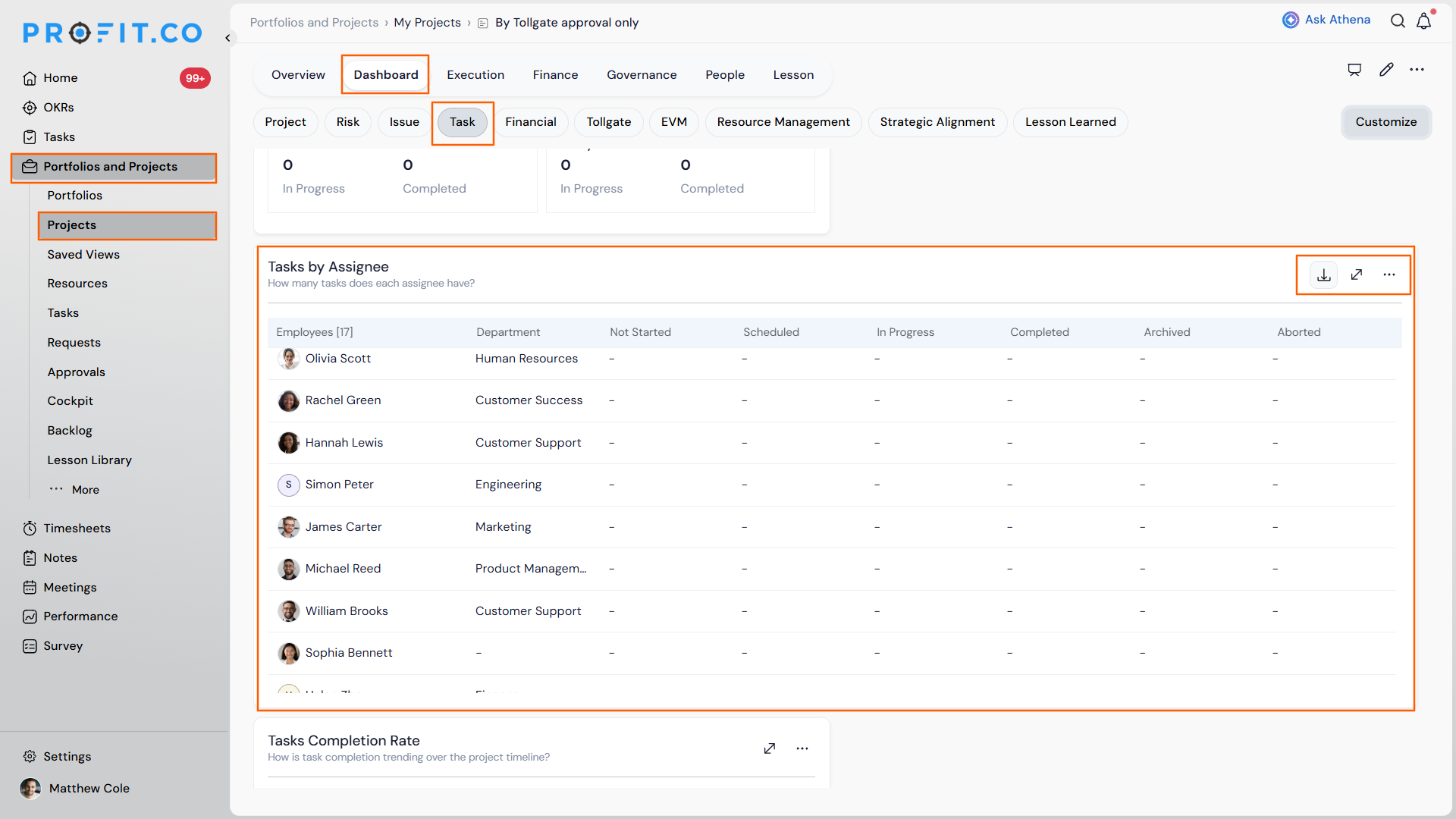
Step 1: Navigate to the Project Dashboard
- Go to Portfolios and Projects → My Projects (or All Projects) from the left navigation panel.
- Click the project you want to review.
- On the project detail page, click the Dashboard tab in the top navigation bar.
Step 2: Open the Task Sub-Tab
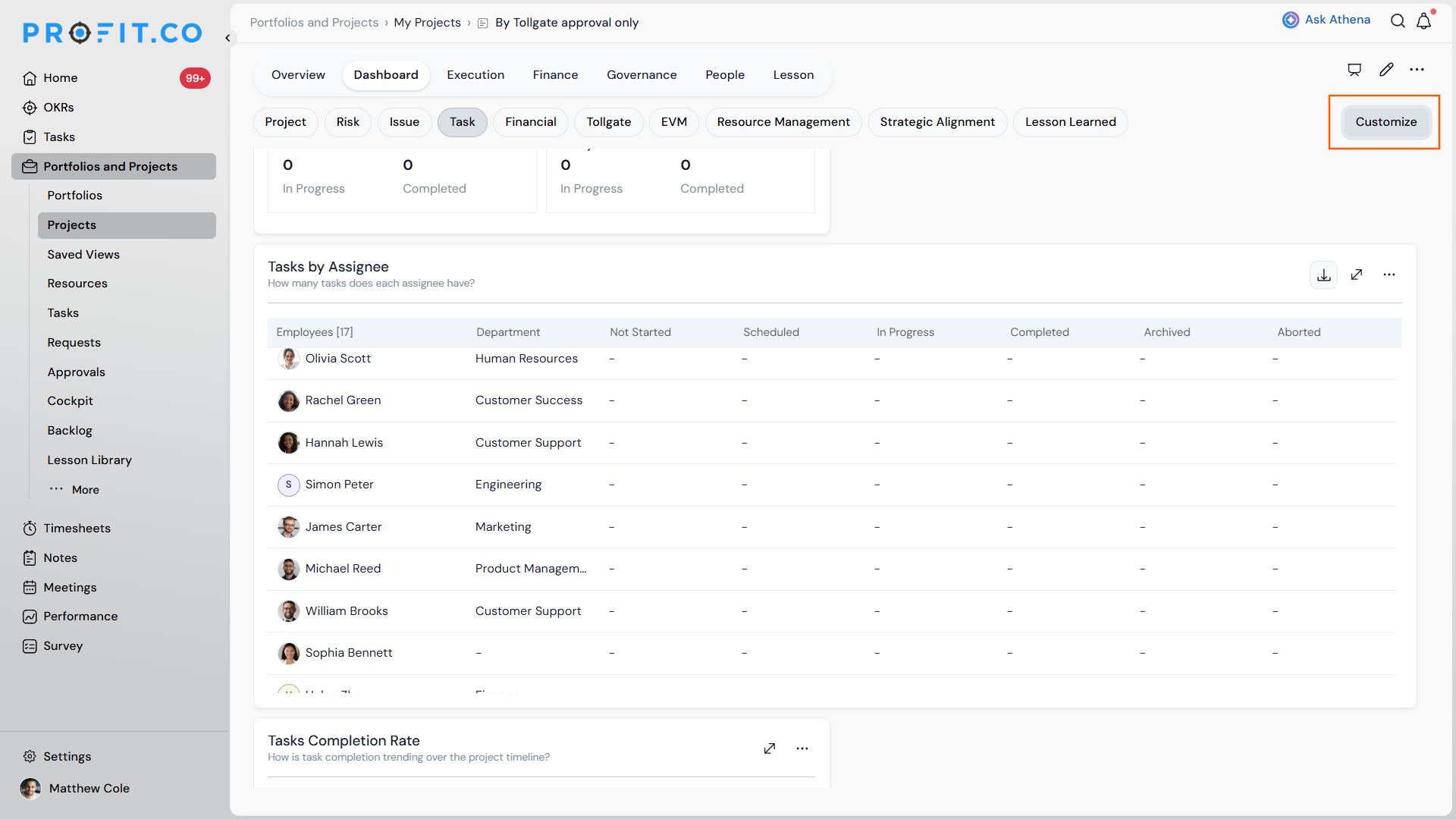
- Below the top navigation tabs, locate the dashboard sub-tab row: Project, Risk, Issue, Task, Financial, Tollgate, EVM, Resource Management, Strategic Alignment, Lesson Learned, Customize.
- Click Task. The Tasks by Assignee widget appears below the summary cards.
Step 3: Read the Assignee Table
- Each row shows one team member's avatar, name, department, and their task count in each status column.
- A dash (–) in a status column means the assignee has no tasks in that status, not that data is missing.
- The Employees [17] count in the header shows how many people have tasks assigned in this project.
Step 4: Use the Widget Actions
- Click the download icon in the widget header to export the Tasks by Assignee table.
- Click the expand icon to open the widget in fullscreen, which is useful for standups and team reviews.
- To export the entire Dashboard as a PDF, click the three-dot menu (More Options) at the top right of the Dashboard page and select Project summary. Profit.co generates a PDF of all dashboard widgets, which you can share with stakeholders.
Tip
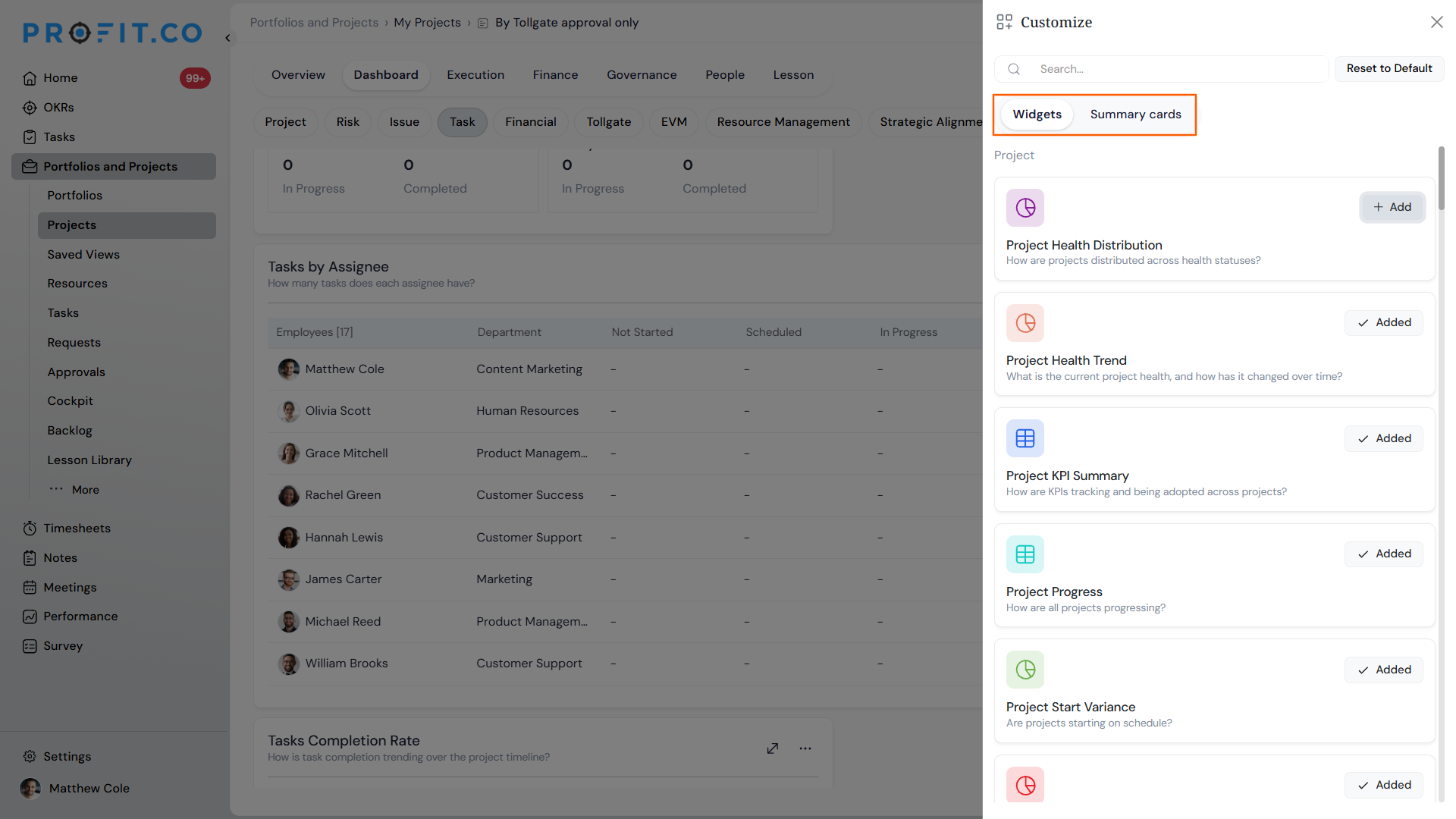
Use the Customize sub-tab to control which widgets appear on your Project Dashboard and in what order, so the Tasks by Assignee widget is always in the first visible position during reviews.
What Happens When You Use the Tasks by Assignee Widget?
| Scenario | What Happens |
|---|---|
| A team member completes a task. | Their count in the In Progress column decreases and their Completed count increases in real time. No manual refresh is needed. |
| A new task is assigned to a team member. | That person's row updates immediately to reflect the new task in the relevant status column. If they had no tasks before, a new row appears for them in the table with their avatar, name, and department. |
| You click the expand icon on the widget. | The Tasks by Assignee table opens in fullscreen mode within the Dashboard view, showing all columns and all assignee rows at full resolution without horizontal scrolling. |
| You click the download icon on the widget. | Profit.co exports the Tasks by Assignee table for offline review or inclusion in stakeholder reports. |
| You select Project summary from the three-dot menu. | Profit.co generates a comprehensive PDF of the entire Project Dashboard, including all widgets across all sub-tabs, which you can download and share externally. |
| An assignee has no tasks in a given status. | Their row shows a dash in that status column. This is a display convention, not an error. Dashes confirm the absence of tasks in that status for that person. |
What Do the Status Columns in the Tasks by Assignee Table Mean?
Each column in the widget represents a task lifecycle state. The table below defines what each status means in the context of task tracking on a project.
| Status Column | What It Represents |
|---|---|
| Not Started | Tasks assigned to this person that have not yet been picked up. A high Not Started count relative to In Progress may indicate blocked or deprioritized work. |
| Scheduled | Tasks that have a planned start date but have not yet begun. These are queued for future execution within the project timeline. |
| In Progress | Tasks actively being worked on by this assignee. A disproportionately high In Progress count across one person may signal a workload imbalance. |
| Completed | Tasks this person has finished. Comparing Completed counts across the team gives a quick read of individual delivery velocity over the project's life. |
| Archived | Tasks that have been removed from active tracking but preserved in the project record for audit and historical reference. |
| Aborted | Tasks that were discontinued before completion. A count in this column indicates work that was formally stopped, not just deprioritized. |
What Are the Best Practices for the Tasks by Assignee Widget?
- Check the Not Started column before assigning new tasks. If a team member already has several Not Started tasks, adding more increases their backlog without increasing their capacity. Resolve the existing Not Started tasks first by reassigning them or confirming the assignee's availability, before stacking more work on the same person.
- Use the widget alongside the Tasks Completion Rate trend chart, not instead of it. Tasks by Assignee shows the current distribution snapshot. The Tasks Completion Rate widget shows velocity over time. A person with a low Completed count might simply be assigned to longer-running tasks. The trend chart confirms whether that is the case.
- Expand to fullscreen during standups rather than sharing screenshots. The fullscreen view keeps data live, so if a task is marked complete during the standup it updates immediately. A screenshot taken before the meeting would already be stale.
- Review the Aborted column at project close. A non-zero Aborted count per person documents which team members had tasks formally discontinued. This is useful input for post-project retrospectives when reviewing scope changes and workload decisions made during execution.
- Export the full Dashboard PDF for stakeholder reporting, not the widget download alone. The Project summary PDF from the three-dot menu captures all dashboard data including budget, milestones, risks, and strategic alignment alongside the assignee table. Sending the per-widget download gives a narrower view than stakeholders typically need.
Related Articles
- How do I view portfolio health metrics and heatmaps in Profit.co?
- How to create a Project in the PPM module?
What Are Some Frequently Asked Questions About the Tasks by Assignee Widget?
The source documentation describes the widget as showing task distribution by team member for the project it is accessed from. Whether sub-project tasks roll up into the parent project's widget is not confirmed in the available documentation. Confirm this behavior with your project setup or Profit.co support before relying on it for sub-project workload reviews.
The widget displays all statuses and all assigned team members by default. Status-level filtering within the widget is not described in the source documentation. For filtered views by assignee, the Execution tab's Tasks view supports an Assignees filter alongside Sort By and Group By controls.
The Project Dashboard and its widgets are accessible to anyone who can open the project. Role-based visibility controls for specific dashboard widgets are configurable separately. If your organization has restricted widget access by role, contact your PPM Admin to confirm which widgets are visible to which roles.
It shows the total number of distinct team members who have at least one task assigned to them in the project. It is not the total number of project members. A person added to the project but not yet assigned any tasks would not appear in this count or in the table rows.
Yes. The Portfolio Dashboard includes a Tasks by Assignee Distribution widget that shows task counts by team member organized by department across all projects in the portfolio. Navigate to Portfolios and Projects → Portfolios, select the portfolio, and open its Dashboard tab.
Execute your strategy with confidence
Connect OKRs, tasks, and teams in one place with Profit.co
