

Cloning a project template in Profit.co creates an independent copy of an existing template (milestones, tasks, subtasks, structure, and field layout) so you can adapt it into a new variation without modifying the original.
Table of Contents
- What Is Template Cloning in Profit.co?
- Why Does Cloning a Project Template Matter?
- How Do I Clone a Project Template in Profit.co?
- What Happens When You Clone a Project Template?
- What Is the Difference Between Clone and Save as Template?
- What Are the Best Practices for Cloning Project Templates?
- Related Articles
- What Are Some Frequently Asked Questions About Cloning Project Templates?
What Is Template Cloning in Profit.co?
Template cloning is the action of duplicating an existing project template from the Templates settings page to produce a new, independent copy. The clone carries forward the source template's full structure (name, duration, milestones, tasks, subtasks, and custom field layout) but exists as a completely separate template that can be edited, renamed, enabled or disabled, and deleted without affecting the original.
The Templates page also offers a distinct action called Save as Template, which creates a template from an existing project rather than from another template. Clone and Save as Template serve different starting points: Clone copies a template from a template; Save as Template creates a template from a live project.
Why Does Cloning a Project Template Matter?
Building a well-structured project template takes time. Once a template is working well for a specific project type (say, a 90-day software launch), an adjacent team may need a similar structure but with different stages, milestone names, or custom fields. Rebuilding from scratch replicates the effort and risks inconsistency.
Cloning solves this by letting teams use a proven template as a starting point. The clone inherits everything from the source, so the new template owner only needs to adjust the parts that differ, rather than constructing the entire framework again. This is how organizations build a library of related template variants (product launch, customer implementation, process improvement) without diverging from a common structural foundation.
How Do I Clone a Project Template in Profit.co?
Note
Only Super Users or users with appropriate portfolio-level permissions can clone project templates. The Templates tab is accessible under Settings → Portfolios and Projects → Projects.
Step 1: Navigate to the Templates Settings Page
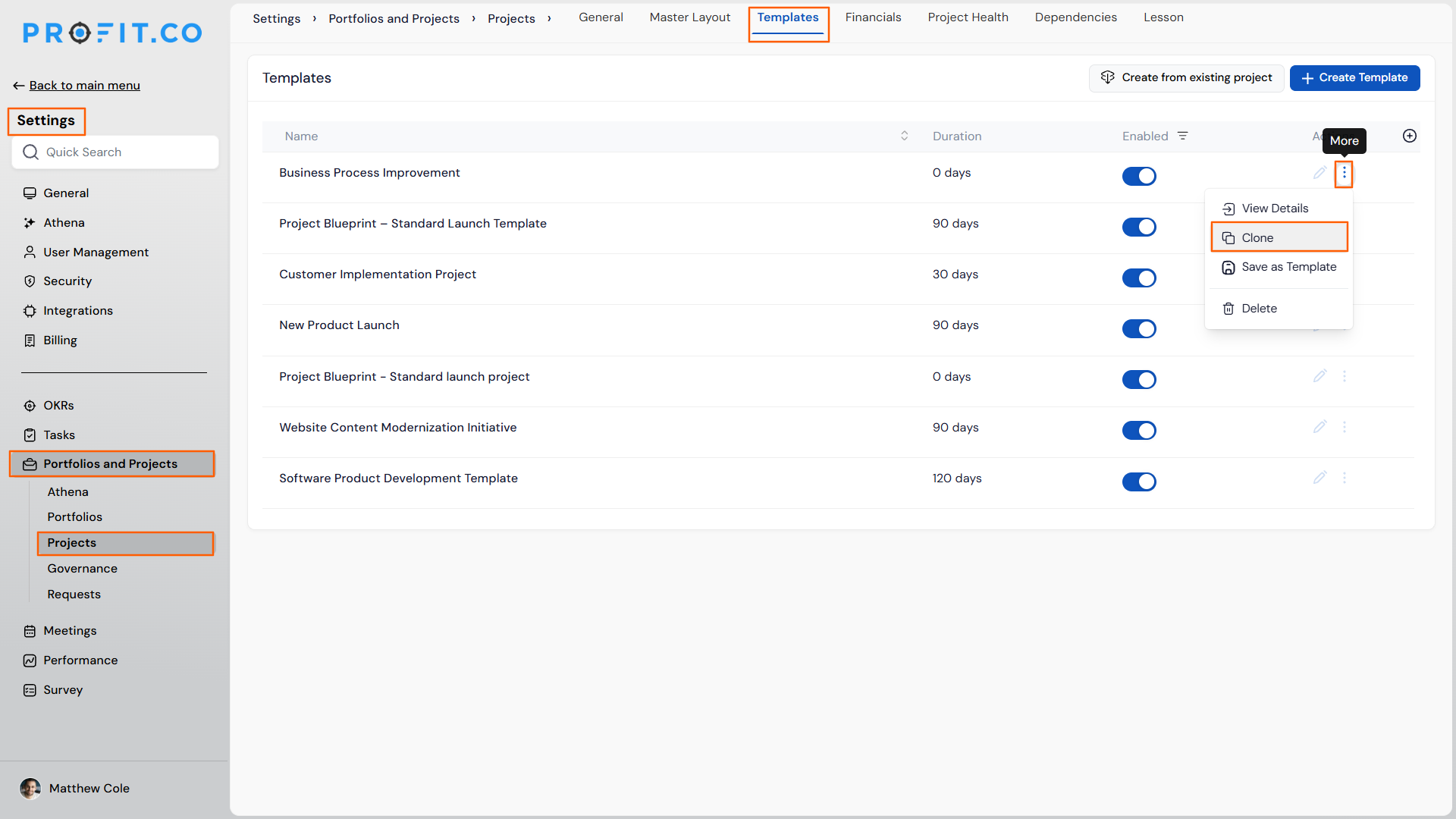
- Go to Settings → Portfolios and Projects → Projects from the left navigation panel.
- Click the Templates tab in the top navigation bar. The Templates list appears, showing each template's Name, Duration, Enabled toggle, and Actions column.
Step 2: Open the More Menu on the Target Template
- Locate the template you want to clone in the list.
- Click the three-dot icon (labelled More) in the Actions column for that template. A dropdown appears with four options: View Details, Clone, Save as Template, and Delete.
Step 3: Select Clone
- Click Clone. Profit.co immediately creates a copy of the template and adds it to the Templates list.
- The cloned template is independent of the original. Changes made to the clone do not affect the source template, and changes to the source do not update the clone.
Step 4: Rename and Configure the Clone
- Click the pencil icon (edit) on the cloned template's row, or click View Details from its three-dot menu, to open the template for editing.
- Update the template name, description, duration, milestones, tasks, and any custom field layout changes to reflect the new variant's purpose.
- Toggle Enabled on when the template is ready for use. Until enabled, it will not appear as an option when creating new projects from a template.
Tip
You can also create a template from an existing live project by clicking Create from existing project at the top right of the Templates page. This is useful when a completed project's structure should be captured as a reusable template for future work.
What Happens When You Clone a Project Template?
| Scenario | What Happens |
|---|---|
| You click Clone on a template. | Profit.co creates a new independent template in the Templates list, copying the source template's structure including milestones, tasks, subtasks, duration, and custom field layout. The clone appears immediately without a confirmation dialog. |
| You edit the cloned template after cloning. | All changes to name, milestones, tasks, field layout, and duration apply only to the clone. The original source template remains unchanged. |
| You edit the original source template after a clone has been made. | Changes to the source template do not propagate to the clone. The two templates are fully independent from the moment cloning completes. |
| The cloned template has its Enabled toggle off. | The template is visible on the Templates settings page but does not appear as a selectable option when creating new projects from a template. Toggle it on when the clone is ready for use. |
| You delete the source template after cloning. | The clone is not affected. Because the clone is an independent copy, deleting the original leaves the clone fully intact and usable. |
What Is the Difference Between Clone and Save as Template?
Both actions appear in the same three-dot menu but serve different starting points. Understanding the distinction prevents creating the wrong type of template for the situation.
| Action | Starting Point | Result | When to Use |
|---|---|---|---|
| Clone | An existing project template on the Templates settings page. | A new independent template that mirrors the source template's structure. | You want a variation of a template that already exists, using the same foundation with different details. |
| Save as Template | An existing project template (saved as a new template) or a live project (via the Create from existing project button). | A new template capturing the selected project or template structure for future reuse. | You want to formalize a project's structure as a reusable template, or save a template variant under a new name without cloning the fields. |
Note
The + Create Template button at the top right of the Templates page builds a template from scratch. Use Clone when an existing template provides the right structural foundation, to avoid rebuilding milestones and task hierarchies manually.
What Are the Best Practices for Cloning Project Templates?
- Rename the clone immediately after creating it. Profit.co adds the cloned template to the list without prompting for a new name. If you navigate away before renaming, a list with multiple unnamed or similarly-named templates becomes difficult to manage. Open the edit panel as soon as the clone appears and give it a distinct, descriptive name.
- Disable the clone until customization is complete. A template that appears in the project creation flow before it is properly configured can be selected by mistake. Keep the Enabled toggle off on the clone until milestones, tasks, and field layout are adjusted for the new variant's intended use.
- Use clone to build template families, not to duplicate identical templates. If a clone ends up identical to its source with no meaningful differences, it creates confusion for users selecting a template. Clone only when you have a concrete reason to diverge (different stages, different duration, different custom fields) and document that reason in the template description.
- Keep a clean source template as the organizational standard. Designate one master template per project type as the official baseline. Clone from that master when variations are needed. This keeps the origin of each variant traceable and makes it easier to propagate improvements. If the master template is updated, teams know which clones need to be updated in parallel.
- Use the Enabled filter to manage the Templates list as it grows. The Templates page supports filtering. As the number of templates and clones increases, filtering by Enabled status lets you separate templates in active use from drafts or archived variants that should not appear in project creation.
Related Articles
What Are Some Frequently Asked Questions About Cloning Project Templates?
Yes. The clone inherits the source template's full structure, including milestones, tasks, subtasks, and custom field layout. You can modify any of these elements in the clone without affecting the original.
The Clone option appears in the three-dot menu for all templates on the Templates settings page regardless of their Enabled status. A disabled template can be cloned, and the clone will also start as disabled by default until you explicitly toggle it on.
No. Cloning templates requires Super User access or appropriate portfolio-level permissions. End users with the PPM User role do not have access to the Settings menu and cannot access the Templates settings page.
The source documentation does not describe a cap on cloning. The Templates page supports filtering and sorting, so managing a large number of clones is practical as long as naming and Enabled status are kept organized.
No. The clone is fully independent from the moment it is created. Updates to the source template do not propagate to any existing clones. If you need clones to reflect an updated standard, each clone must be updated separately.
Execute your strategy with confidence
Connect OKRs, tasks, and teams in one place with Profit.co
