

Project Requests give teams a structured way to submit and evaluate project ideas in the PPM module before they become active projects. Requests move through configurable stages with checklists, and can be converted into a project once approved.
Table of Contents
- What is a Project Request in PPM?
- Why Project Requests Matter
- How It Works
- Project Request Scenarios and Their Outcomes
- How Do I Customize Request Stages?
- What Are the Different Ways to Create a Project?
- CSV Export for Project Requests
- Best Practices for Project Requests
- Related Articles
- Frequently Asked Questions
What is a Project Request in PPM?
A Project Request is a preliminary submission for a potential project that needs to be evaluated, approved, and refined before it becomes an active project. It gives every project idea a structured entry point instead of an informal proposal.
Why Project Requests Matter
Without a standardized intake point, project proposals arrive as scattered emails or informal conversations that are easy to lose track of. Routing every proposal through the Requests page gives leadership one place to evaluate ideas against organizational goals before committing resources.
How It Works
Step 1
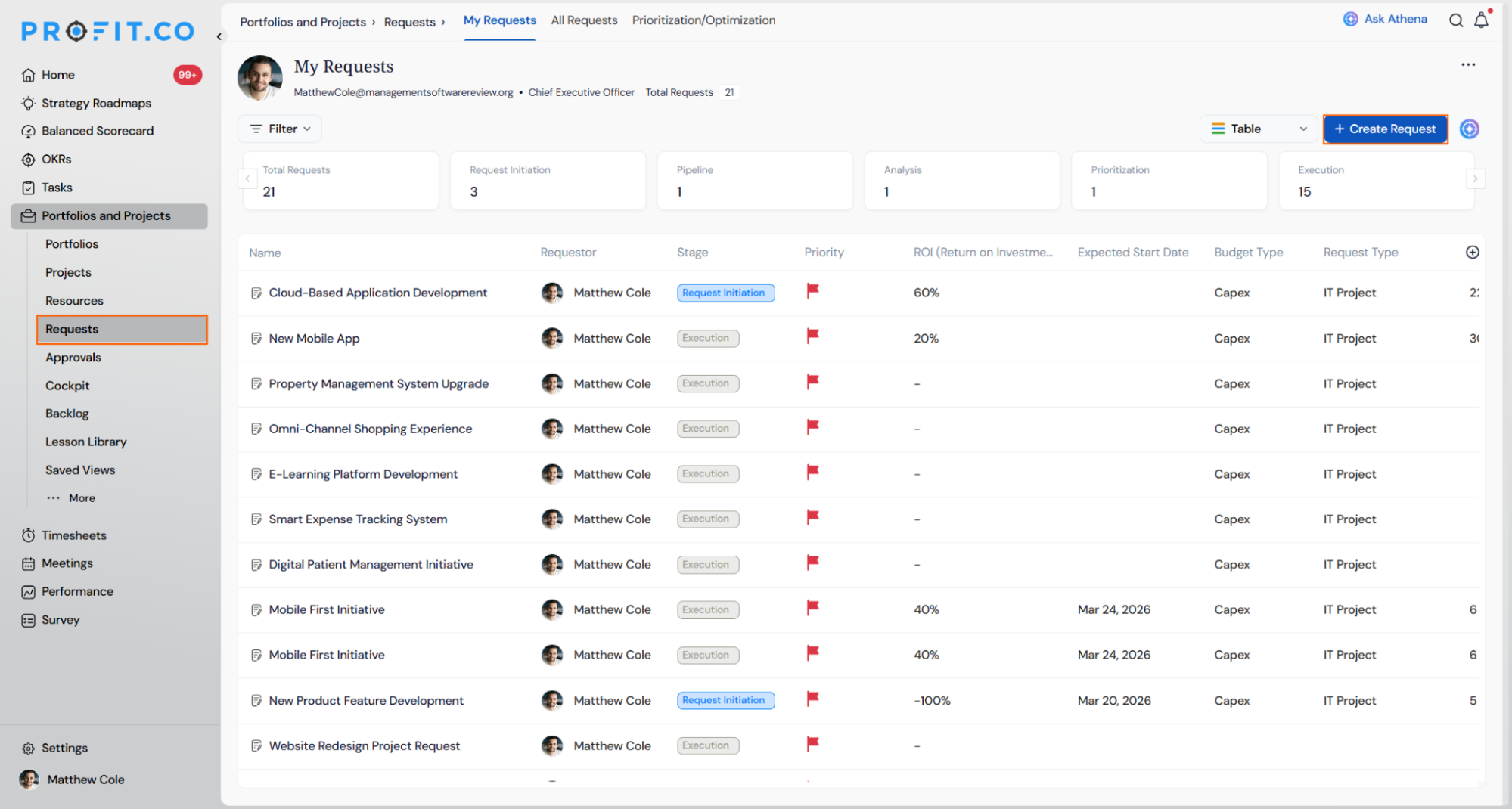
- Go to Portfolios and Projects → Requests from the left navigation panel.
- Click + Create Request.
Note
Summary cards are available in the list view and give a quick overview of request information.
Step 2
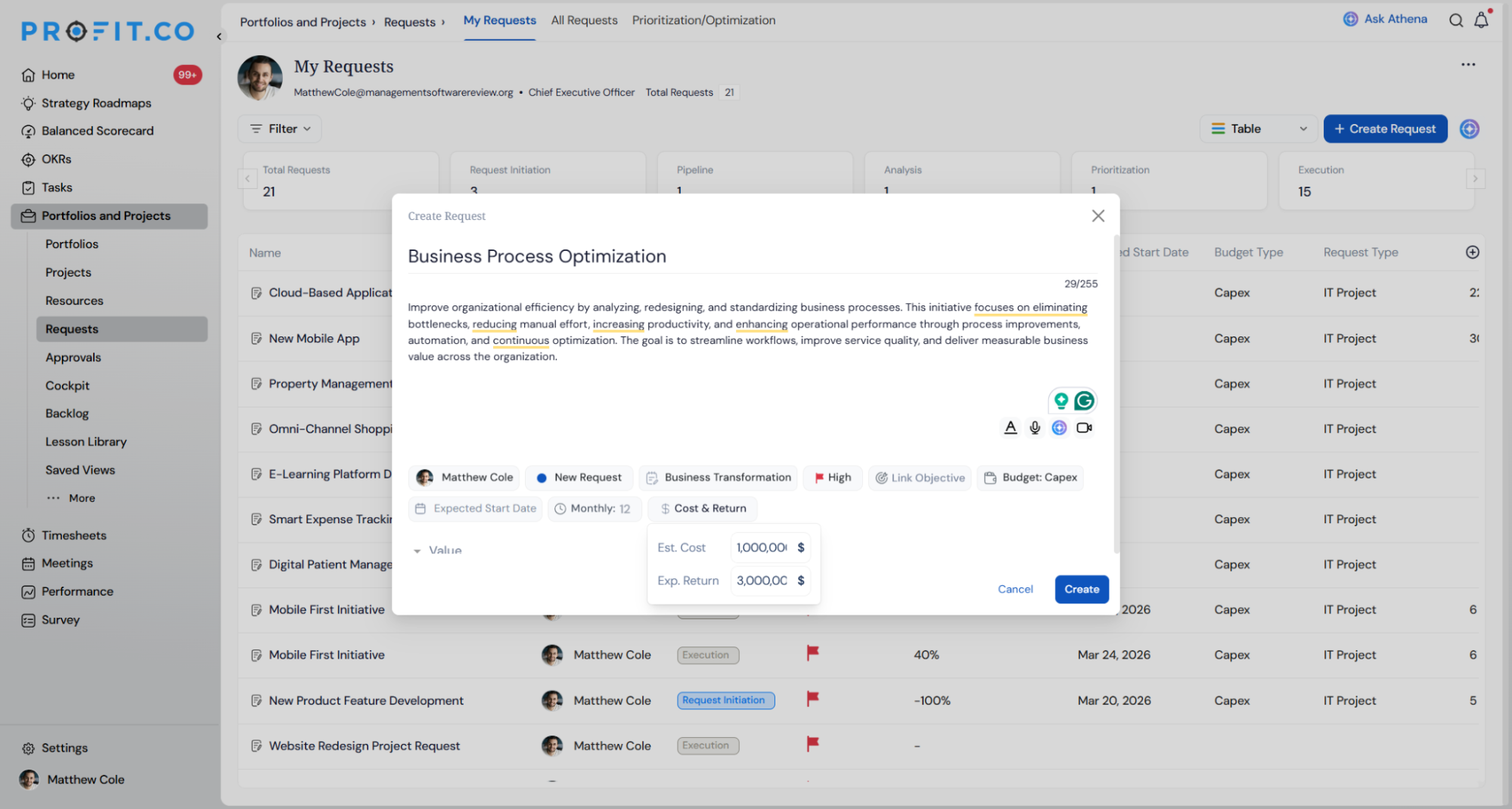
- Set Requestor, Status, Request Type, and Priority from the top row of the dialog.
- Add Link Objective and Budget Type if applicable.
- Set the Expected Start Date, duration, and Cost & Return.
Step 3
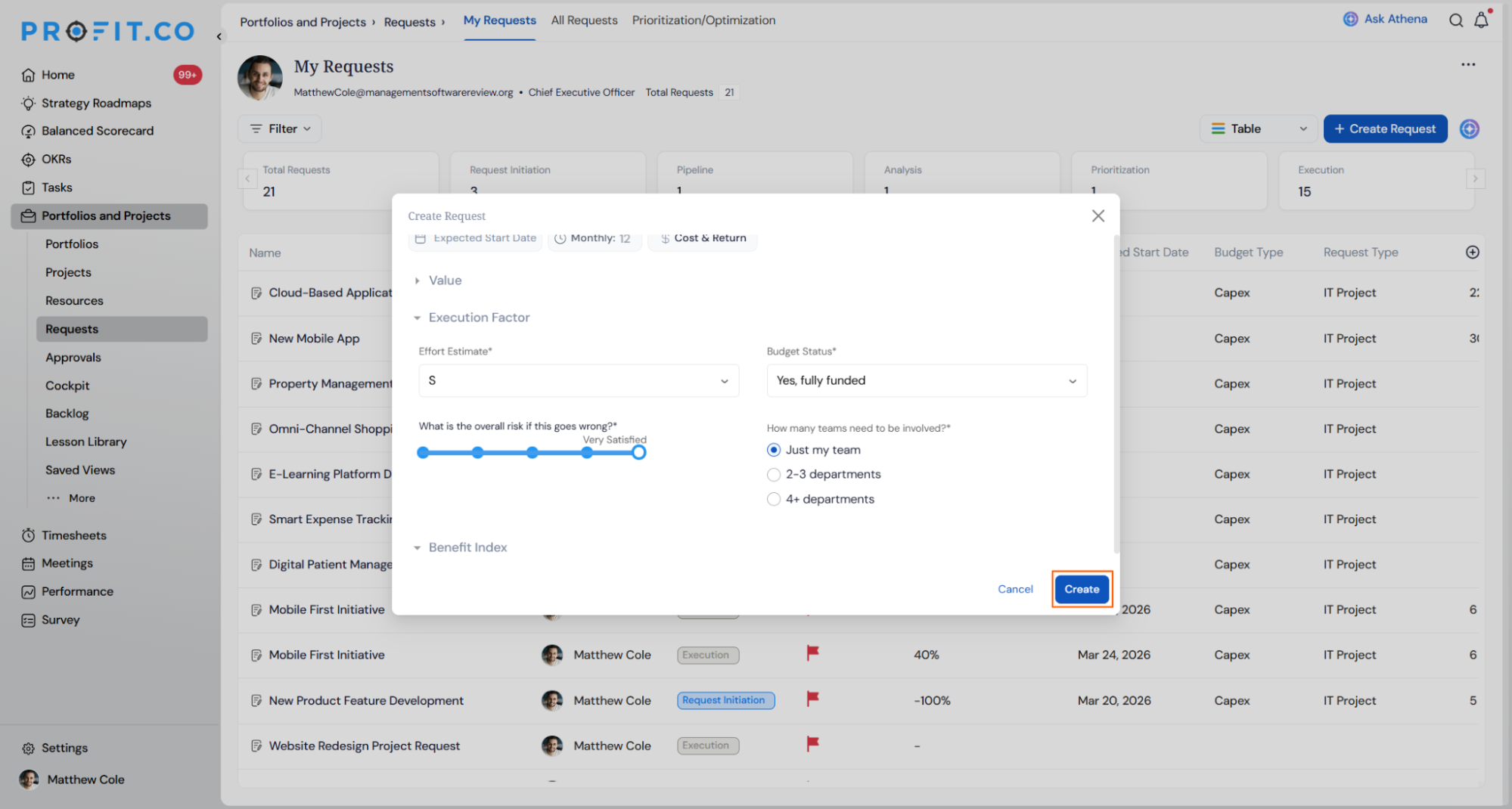
- Expand Value to fill in who benefits, the beneficiary departments, and how significant the financial upside is.
- Expand Resource & Compliance to set the Effort Estimate and flag the overall risk, then expand Benefit Index and Complexity Index to score strategic alignment, dependency, and risk level.
- Expand Scope & Deliverables to list the Key Deliverables.
- Click Create to submit the request.
Step 5
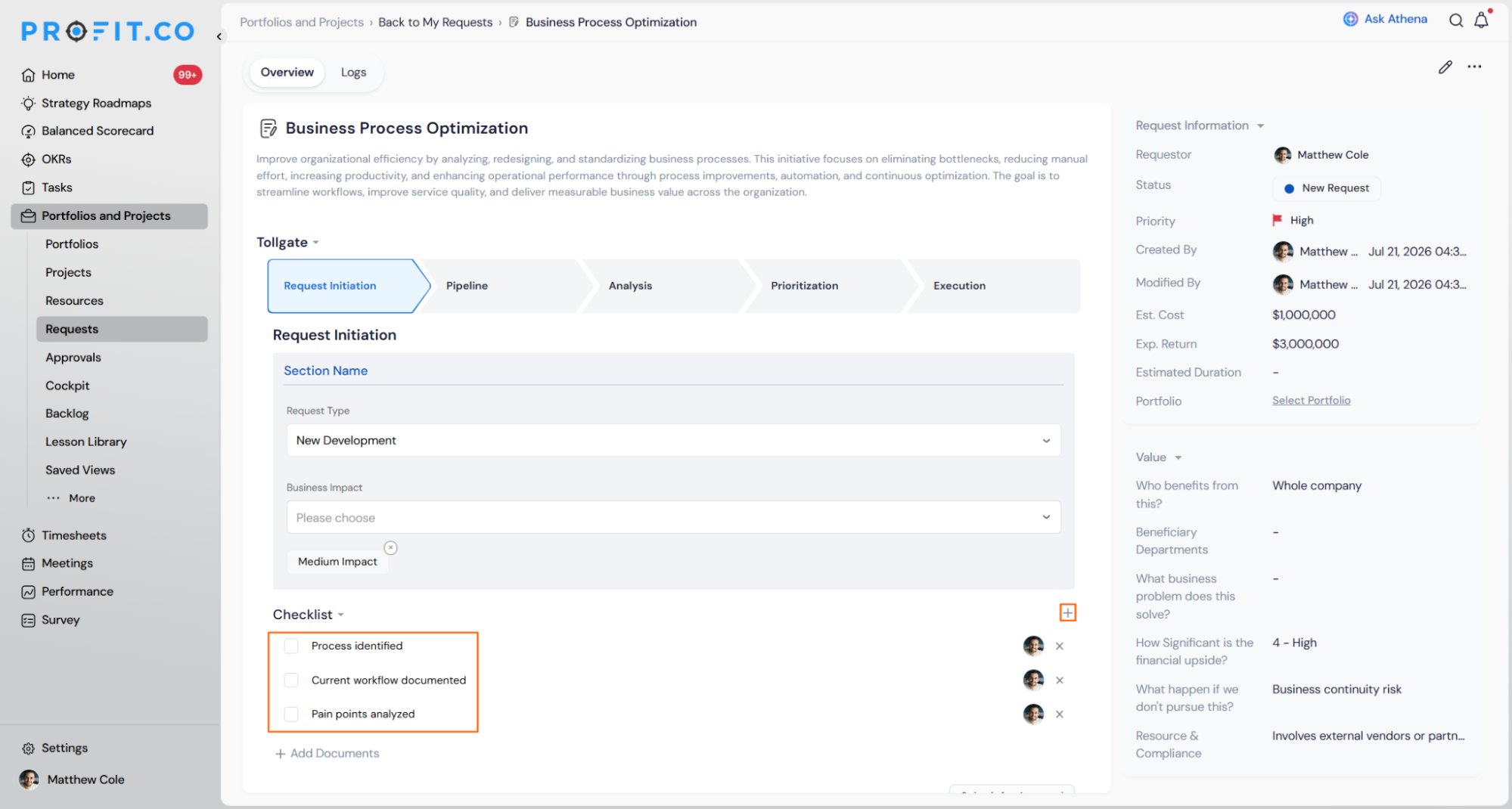
- Click the request name to open it and move through the Tollgate stages: Request Initiation, Pipeline, Analysis, Prioritization, and Execution.
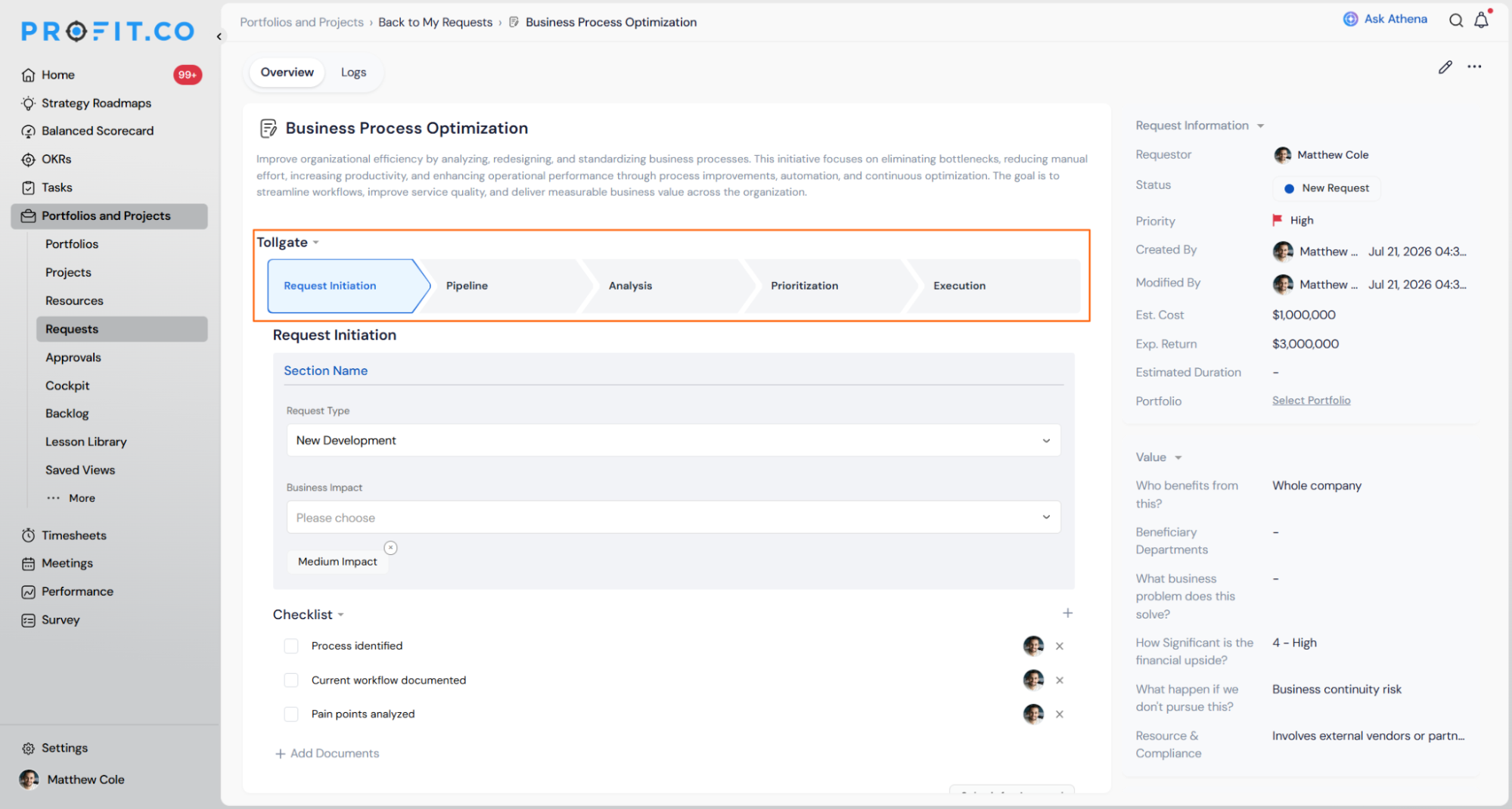
- Complete any stage-specific fields, such as Request Type and Business Impact, under that stage's section.
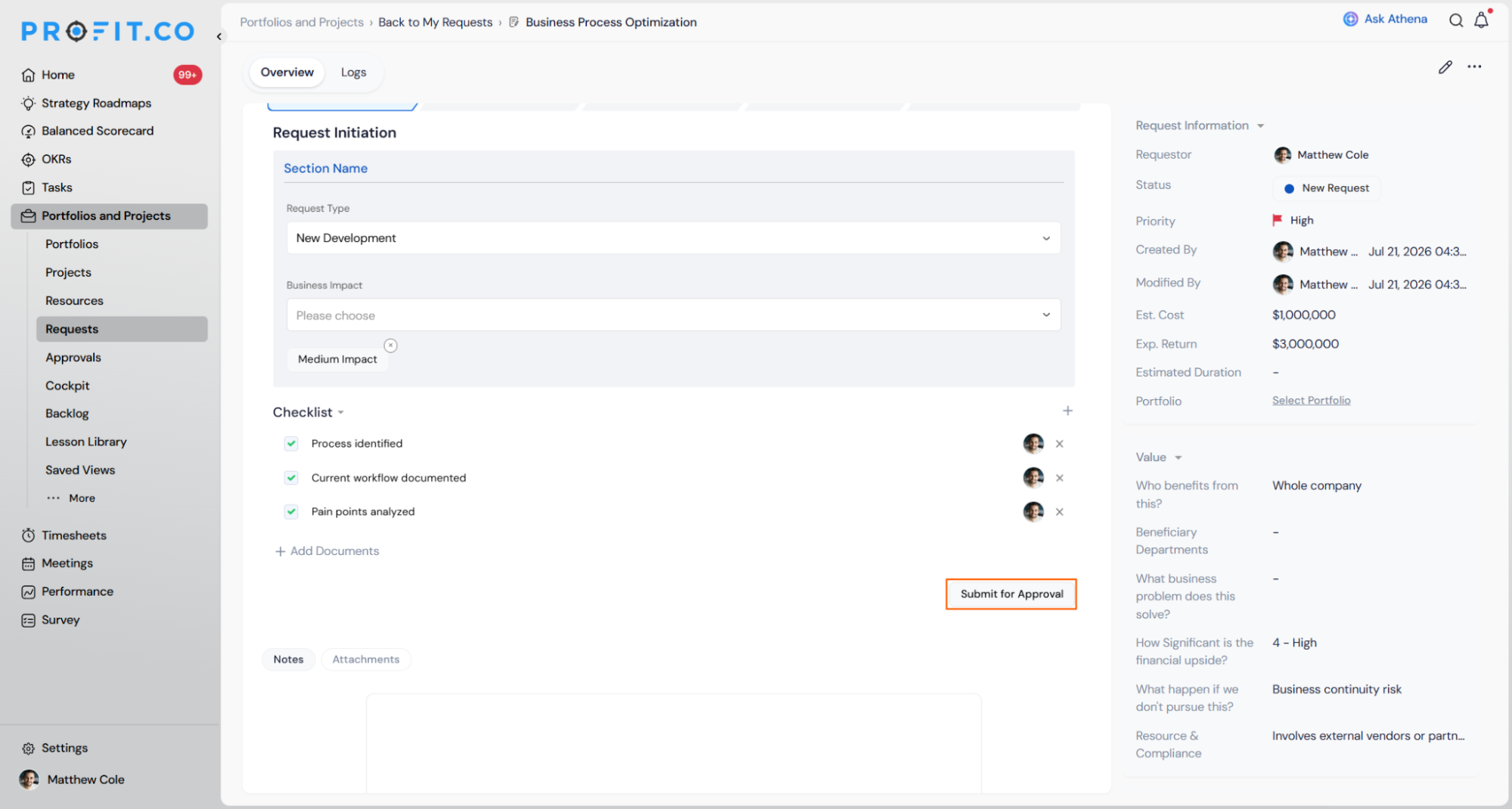
- Add checklist items for the stage using Add Checklist, and assign a different owner if needed.
Note
The approval workflow is not enabled by default. If your organization has not configured an approval workflow, simply click Move to Next Stage to advance the request to the next stage without requiring approval. To enable or configure the approval workflow, contact your system administrator or super user.
Step 6
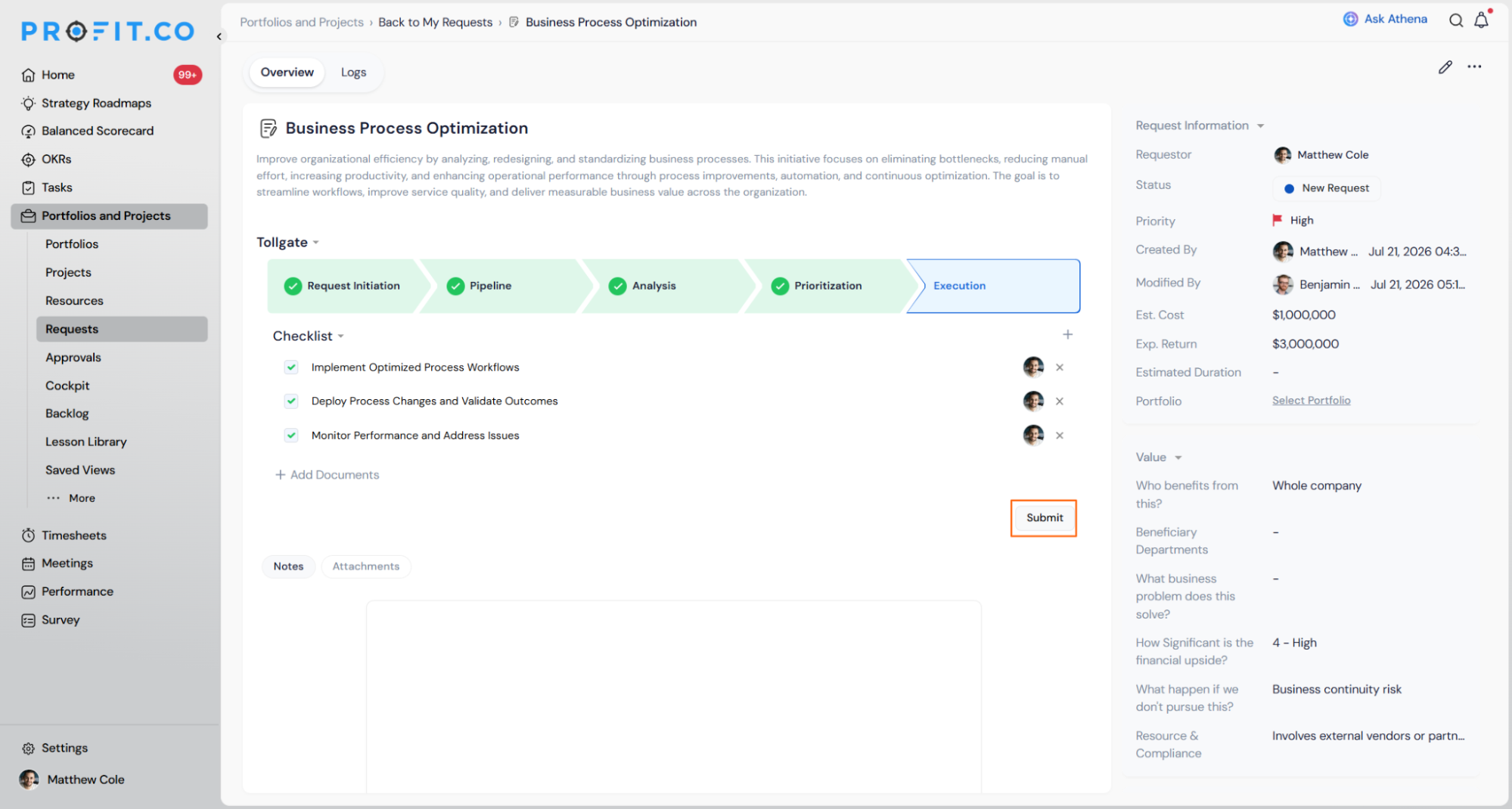
- Once the checklist in the final stage is complete, click Submit.
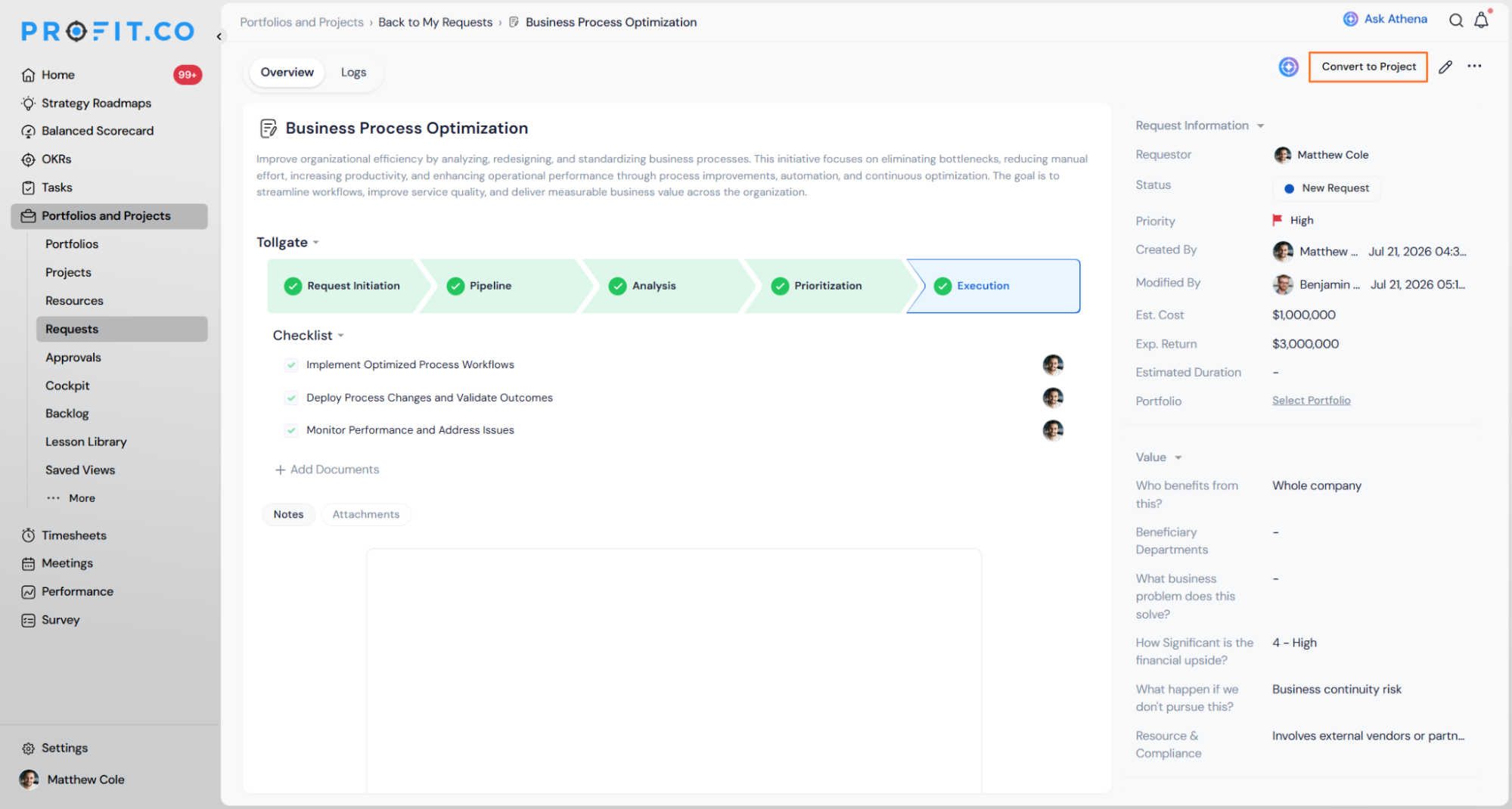
- Now the request is ready to be converted into a new project. Simply click the "Convert to Project" button.
How Do I Customize Request Stages?
[This section is listed in the source document's Table of Contents, but its content was not included in the source. Please add the request-stage customization steps before publishing.]
What Are the Different Ways to Create a Project?
Besides converting an approved request, Profit.co supports two other paths for getting a project into your portfolio.
From Project Requests
- Follow the request workflow described above, so the project has gone through evaluation and approval before it starts.
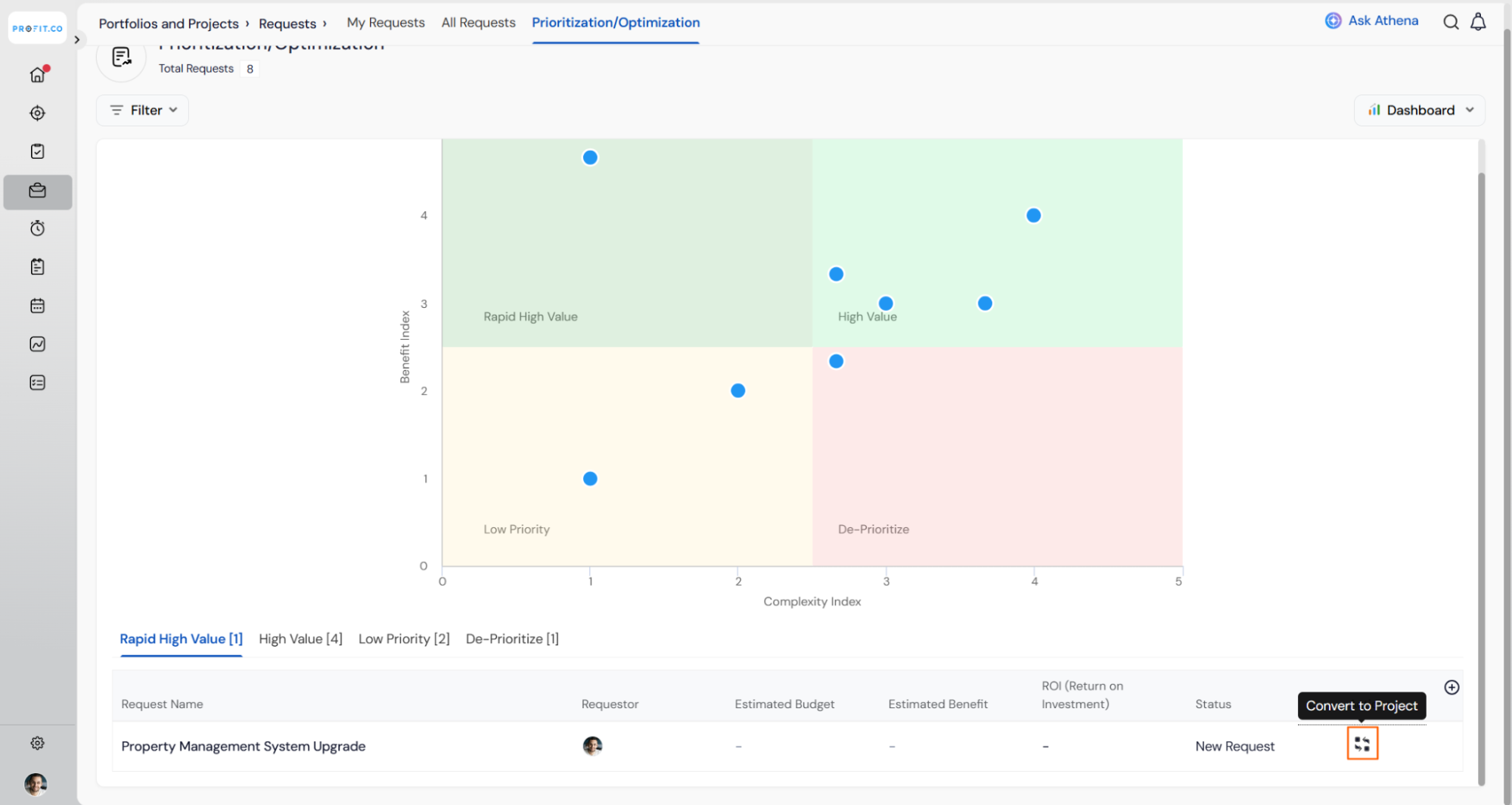
From Prioritization
- Review requests against prioritization criteria on the Prioritization/Optimization grid.
- Click Convert to Project on a request identified as valuable.
Direct Project Creation
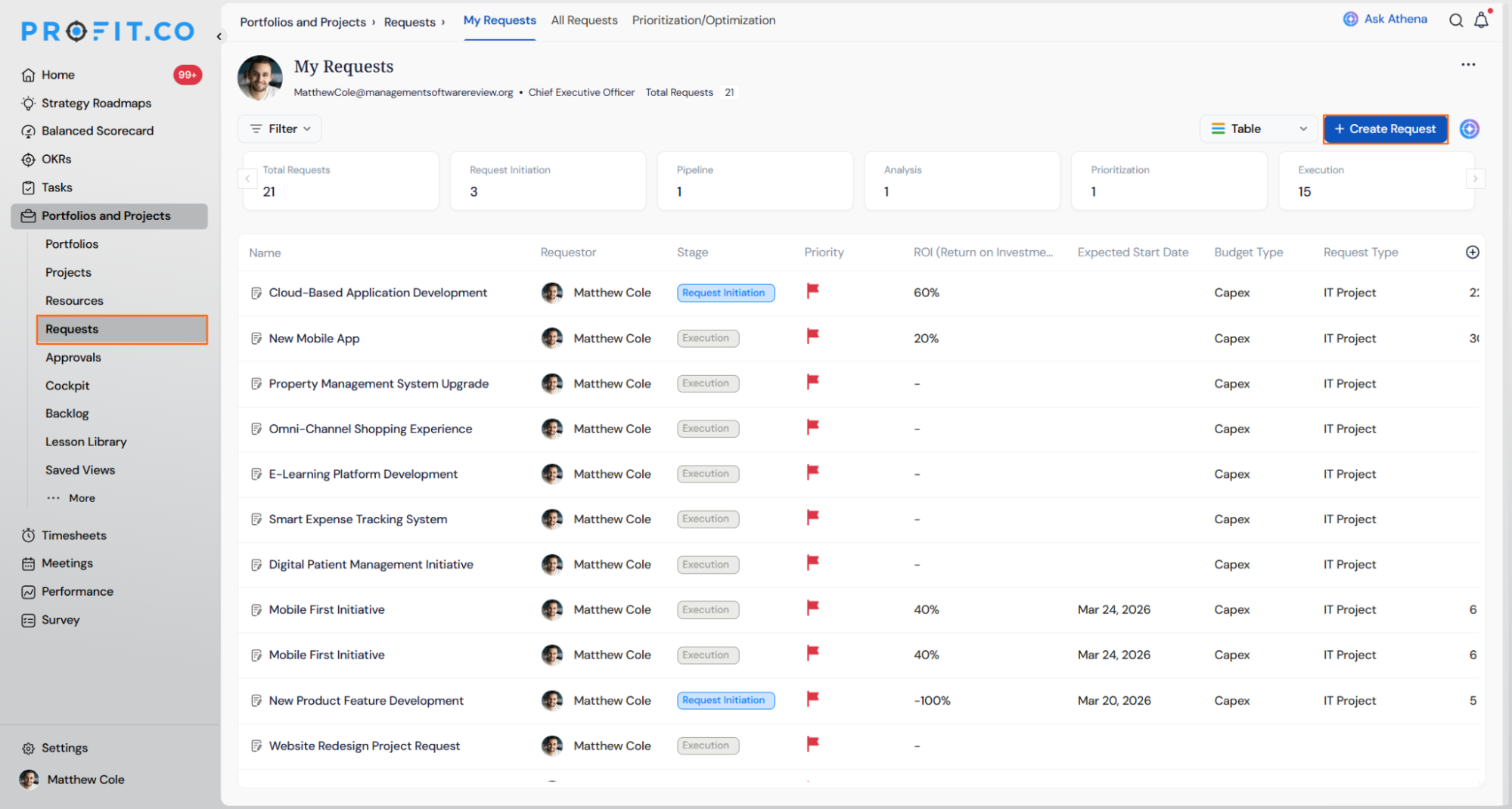
- Navigate to My Projects from the left panel.
- Click Create Project, enter the required details, and click Create.
CSV Export for Project Requests
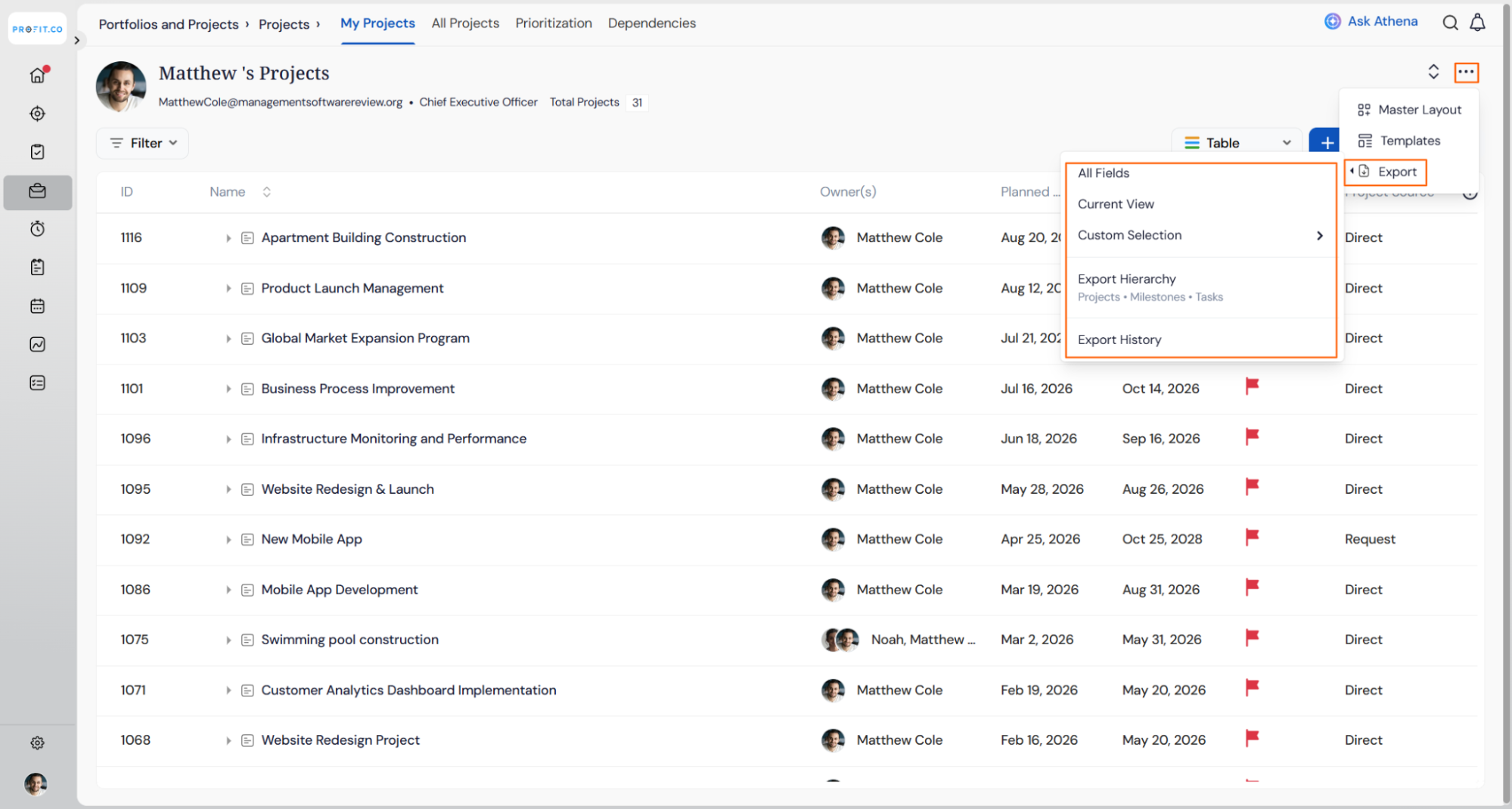
Users can export the project requests list to CSV directly from the Requests page, with options covering all fields, the current view, or a custom selection.
- Navigate to Portfolios and Projects → Requests.
- Click the ... menu at the top right of the requests list to open the more options panel.
- Select Export and choose All Fields, Current View, or Custom Selection depending on what data is needed.
- Access Export History from the same menu to view past exports.
Project Request Scenarios and Their Outcomes
The table below covers what happens as a request moves through the workflow and when its data is exported, not the mechanics of filling in the dialog.
| Scenario | What Happens |
|---|---|
| You submit a Project Request through the Create Request dialog. | Profit.co adds it to the My Requests list at the Request Initiation stage, where it appears in both the Kanban and list views. |
| You choose Create From Template instead of the blank dialog. | Profit.co pre-fills the create request fields from the selected template, so you only need to adjust the values specific to that request. |
| You complete the checklist in a request's final stage. | Profit.co makes the Convert to Project button available on that request. |
| You click Convert to Project. | Profit.co transitions the request into an active project in your portfolio. |
| You export the requests list using All Fields, Current View, or Custom Selection. | Profit.co downloads a CSV file containing only the request records and fields that match the option you selected. |
| You want to see a previous export. | Profit.co keeps it accessible under Export History in the same menu you used to export. |
Best Practices for Project Requests
- Use Create From Template for recurring request types, so the standard fields are pre-filled and you only need to adjust what's different for that request.
- Define clear completion criteria for each stage's checklist, since Convert to Project only becomes available once the final stage's checklist is fully complete.
- Assign a checklist owner for each stage instead of leaving items unowned, so progress doesn't stall on an unclear point of responsibility.
- Use Custom Selection when exporting for recurring reports, so the CSV only contains the fields your stakeholders actually need.
- Check Export History before re-running a report, since previous exports remain accessible from the same menu.
Related Articles
- How to create a Project in the PPM module?
- What is the Prioritization and Optimization grid in the PPM module?
Frequently Asked Questions
Permissions can be configured by administrators, so who can submit requests depends on your organization's settings.
Yes, requests can typically be edited during the workflow stages, though permissions may vary by stage and organization.
It depends on your organization's workflow configuration, the number of stages, and how quickly checklist items are completed at each stage.
Execute your strategy with confidence
Connect OKRs, tasks, and teams in one place with Profit.co
