

Profit.co provides an option to set up automated request routing rules that direct project requests to appropriate approvers based on criteria such as budget, priority, or project type.
Table of Contents
- What are automated request routing rules?
- Why are automated routing rules important?
- How do I set up automated routing rules?
- How do automated routing rules work in practice?
- How does the approval process work for requestors?
- How do approvers review and approve requests?
- Best Practices for Automated Routing Rules
- Related Questions
- Frequently Asked Questions
What are automated request routing rules?
Automated request routing rules are conditional workflows that automatically direct project requests to the appropriate approvers based on predefined criteria, eliminating manual routing decisions and ensuring consistent governance.
Why are automated routing rules important?
Automated request routing ensures appropriate oversight while reducing administrative burden. Here's why this feature matters:
- Consistent Governance: Ensures all requests follow the same routing logic based on objective criteria, eliminating subjective routing decisions
- Appropriate Oversight: Routes high-value or high-risk requests to senior leaders while allowing routine requests to flow more quickly
- Time Savings: Eliminates manual routing decisions and ensures requests immediately reach the right approvers
- Reduced Errors: Prevents requests from being sent to the wrong approvers or missing required approvals
- Scalability: Handles growing request volumes without additional administrative overhead
How do I set up automated routing rules?
Follow these steps to configure automated request routing:
Step 1: Navigate to Request Stages
Navigate to Settings → Portfolios and Projects → Requests from the left navigation panel
On the Request page, switch to the Stages tab
Under this tab, you can create different stages for your request workflow
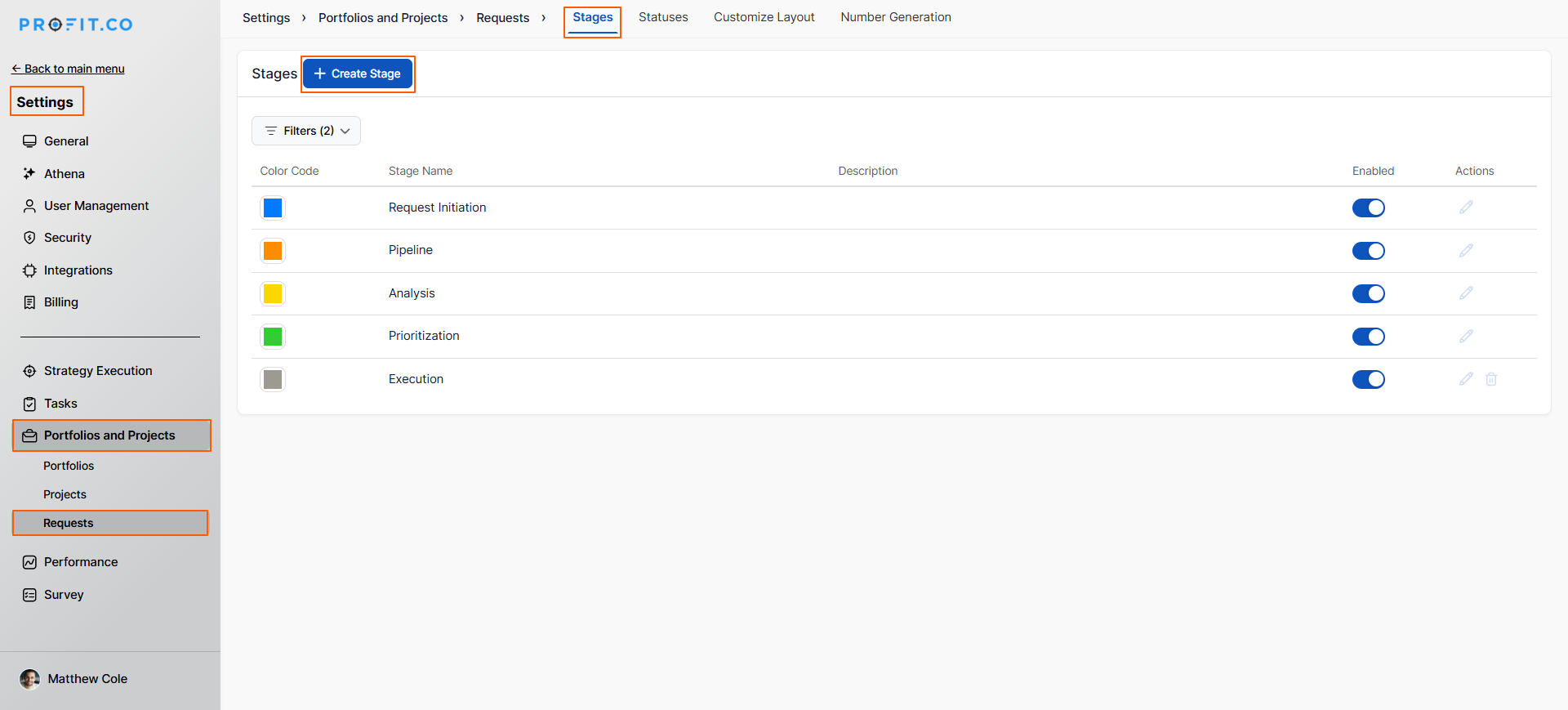
Step 2: Enable Approval Flow for a Stage
- To enable the Approval Flow, click on the pencil icon (Edit) next to the stage you want to configure
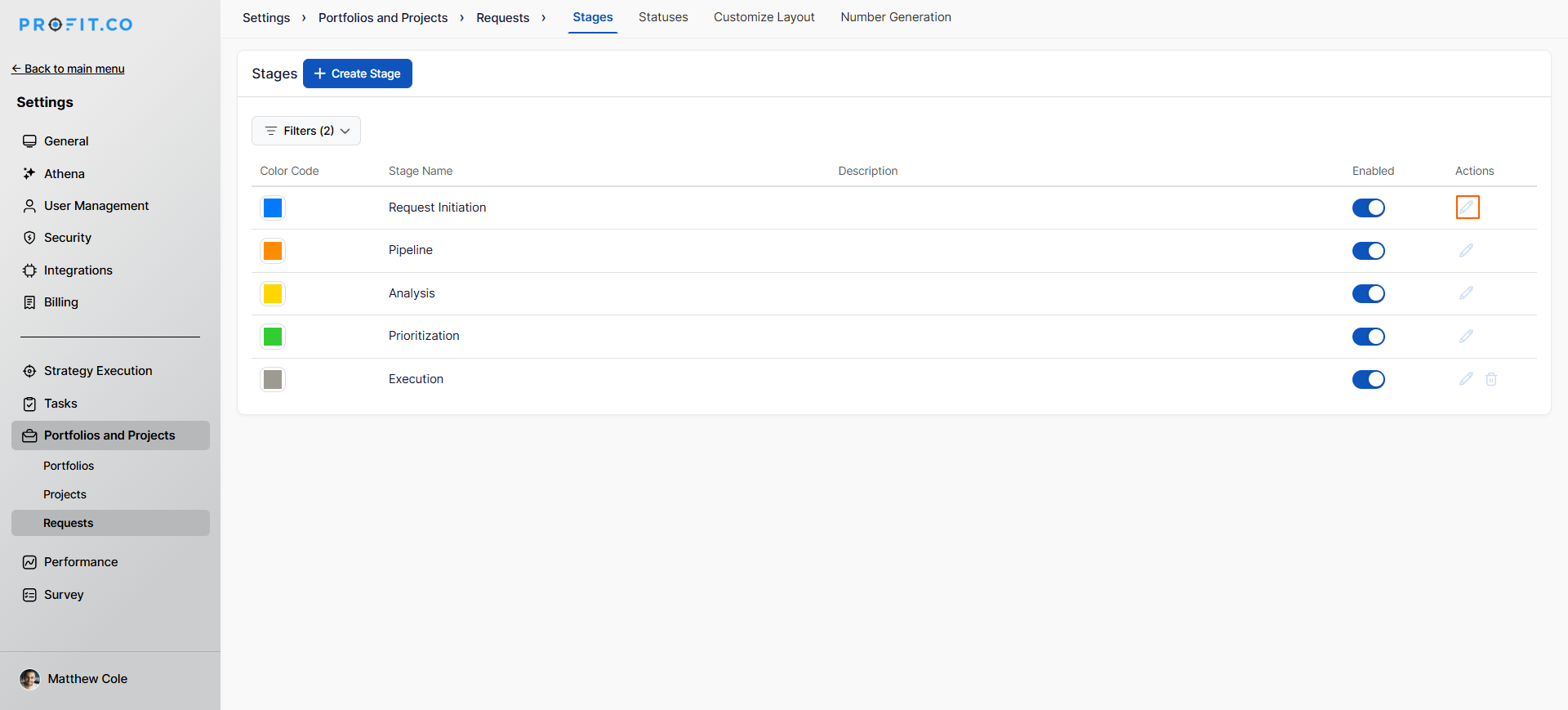
In this example, we enable the approval flow for the Request Initiation stage.
- The Overview right panel will open
- Switch to the Approval Flow tab
- Enable the Approval toggle
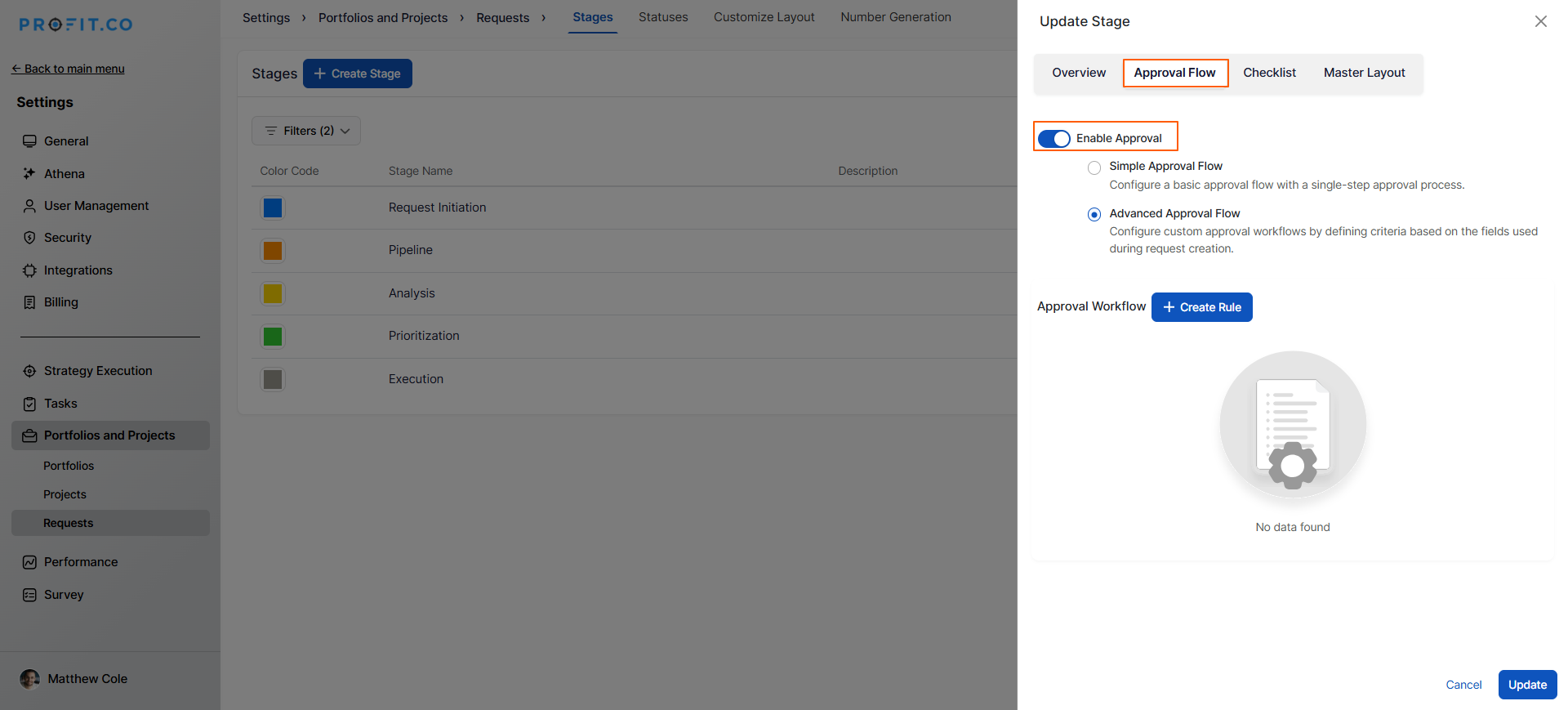
Step 3: Select Advanced Approval Flow
- Select the Advanced Approval Flow option
- This enables conditional routing based on request criteria
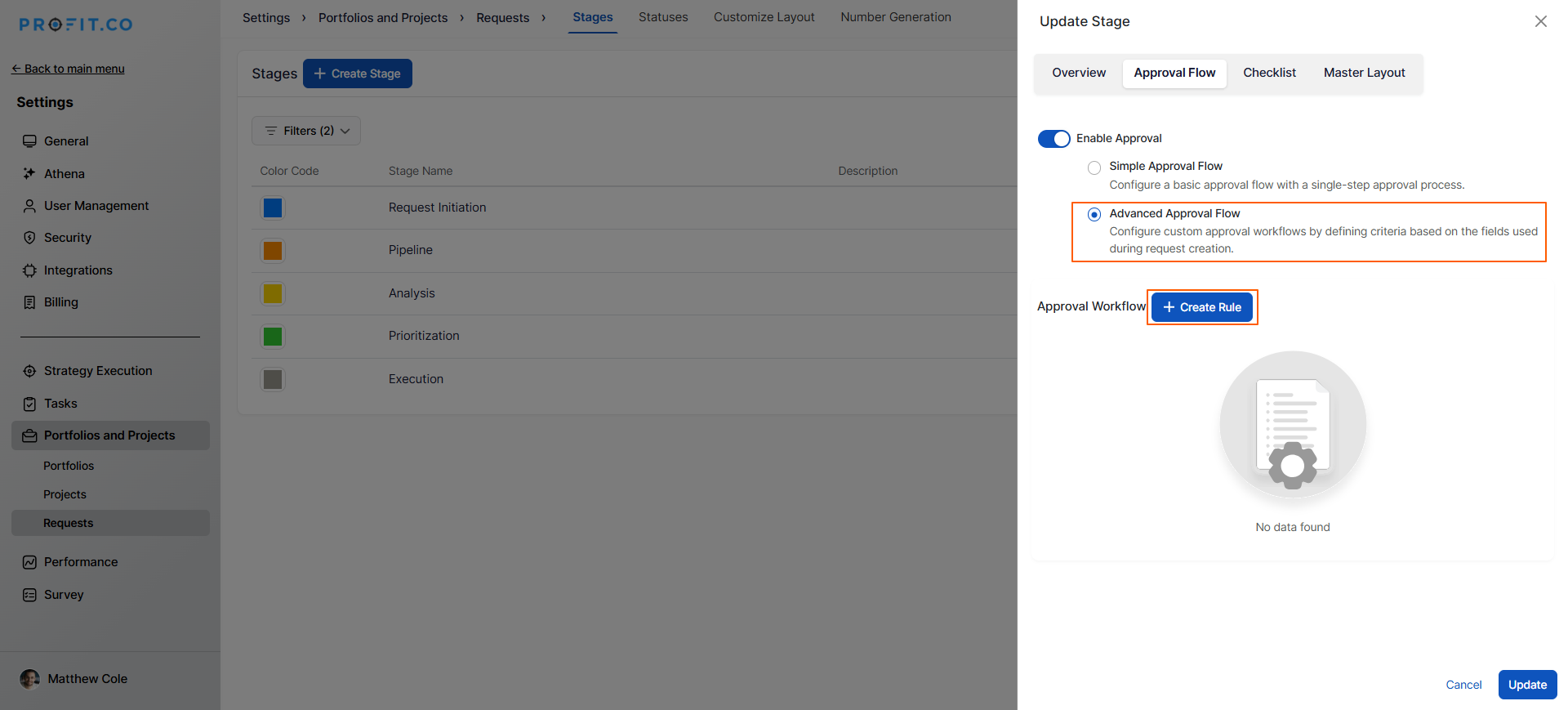
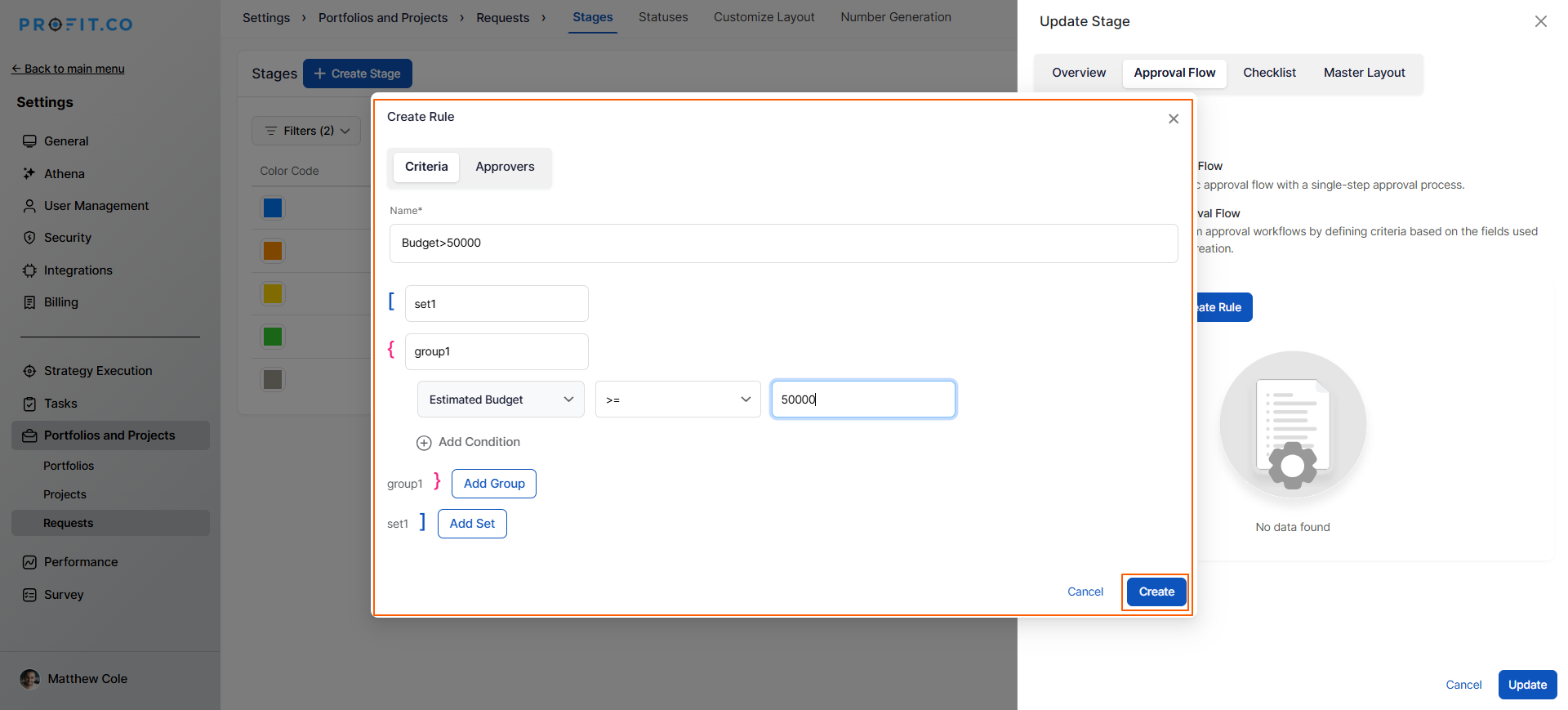
Step 4: Create Routing Rule with Criteria
- Click on the Create Rule option
- Configure the routing rule:
- Criteria: Set the condition that triggers this routing path
- Name: Give the rule a descriptive name
- Rule: Define when this routing applies
- If the Estimated Budget is >= $50,000, this approval routing applies
- Requests meeting this criteria will follow this specific approval path
Step 5: Configure Approver Assignment
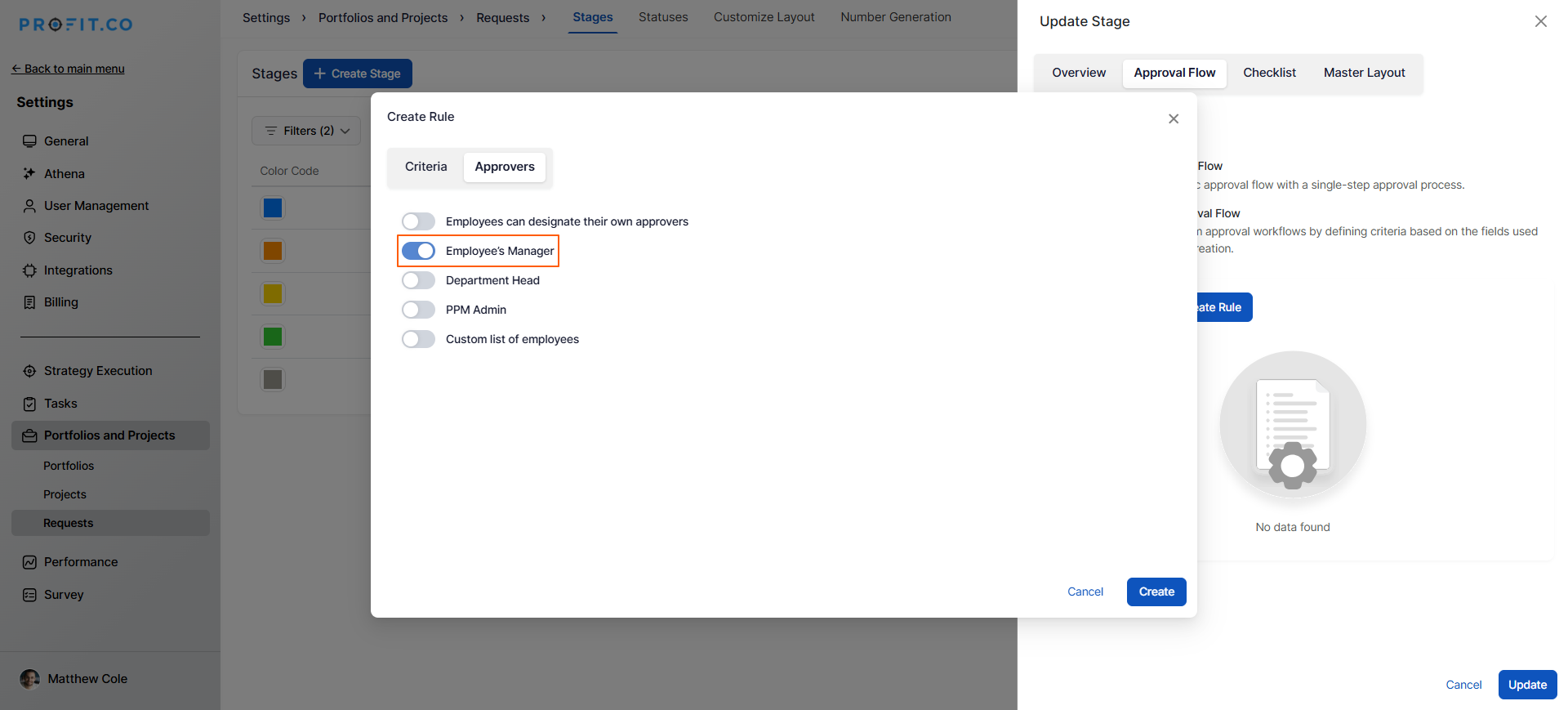
- Switch to the Approvers tab
- Enable the toggle for the Approval process
- Choose how approvers are assigned for requests matching this rule:
- Employees can designate their own approvers
- Employee's Manager
- Department Head
- PPM Admin
- Custom list of employees
- In this case, we're choosing "Employee’s Manager."
- Click on the Create option
- The automated routing rule is now active
Note: To create different routing rules for other scenarios, repeat these steps with different criteria.
How do automated routing rules work in practice?
Step 6: Submit Request with Automated Routing
Now, to see automated routing in action:
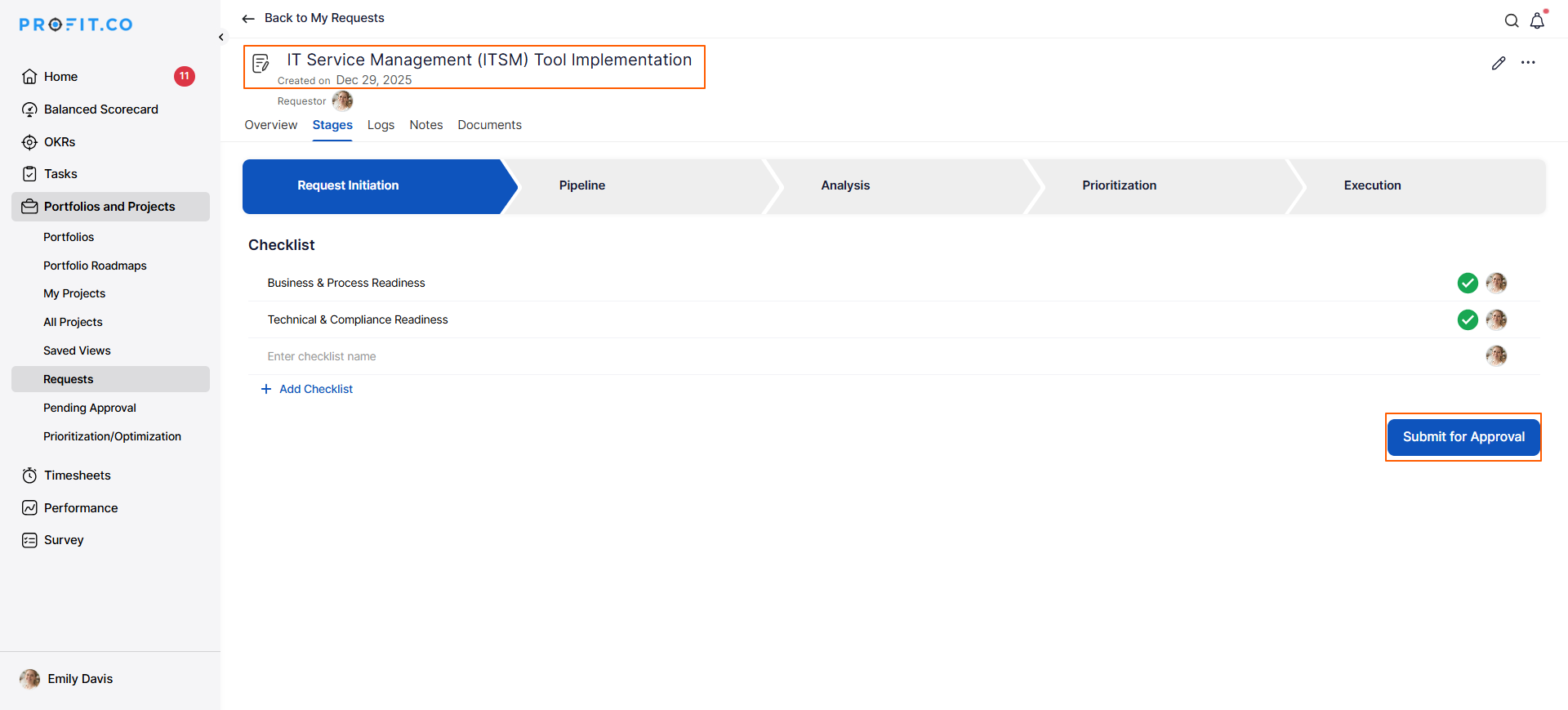
- Navigate to Portfolios and Projects → Requests from the left navigation panel
- Click on the request name you want to submit
- The detailed Overview page will open
- Click on the Submit for approval button
Step 7: Automated Routing and Approver Selection
The system automatically evaluates the request against defined rules:
If criteria are met (e.g., Budget >= $50,000):
The routing rule is triggered automatically, and the approval request is sent to the employee’s manager.
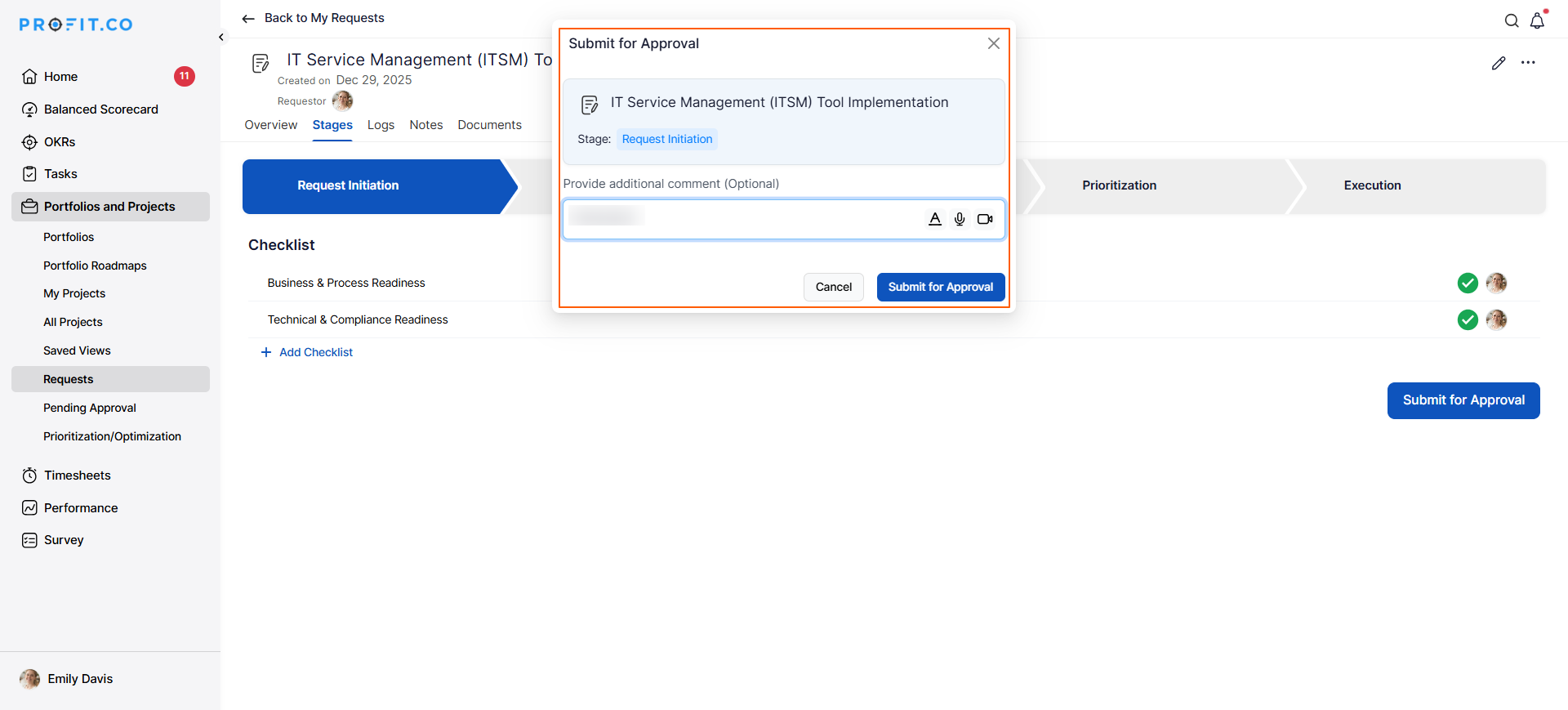
Click on the Submit for approval option
If criteria are not met (e.g., Budget < $50,000):
- This routing rule does not trigger
- Request follows the default workflow or a different routing rule
- May proceed without approval or trigger the alternative rule
How does the approval process work for requestors?
Step 8
Now, to use this approval workflow in practice:
- Navigate to Portfolios and Projects → Requests from the left navigation panel
Note: To learn how to create a request, click here.
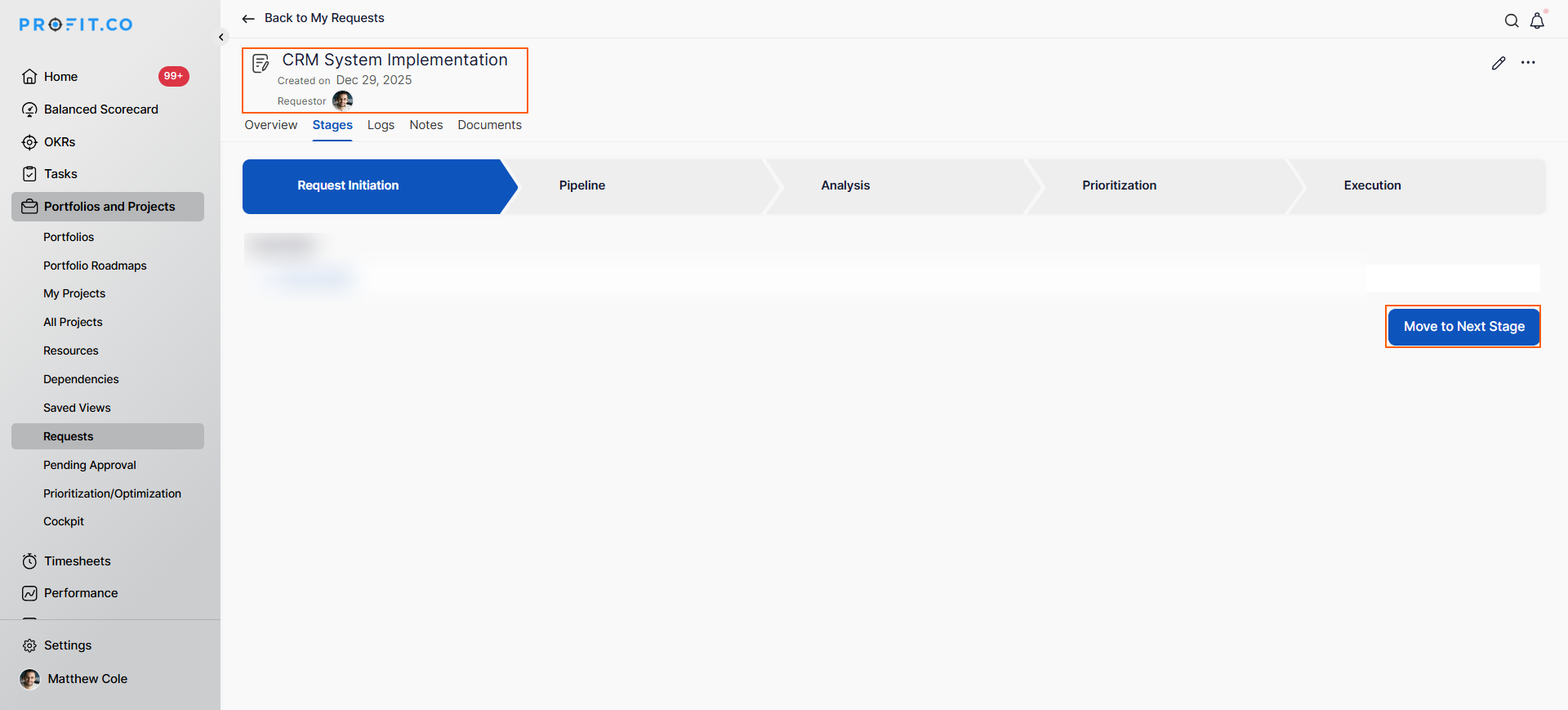
- Click on the request name you want to submit for approval
- The detailed Overview page will open
- Click on the Move to next stage button
Step 9
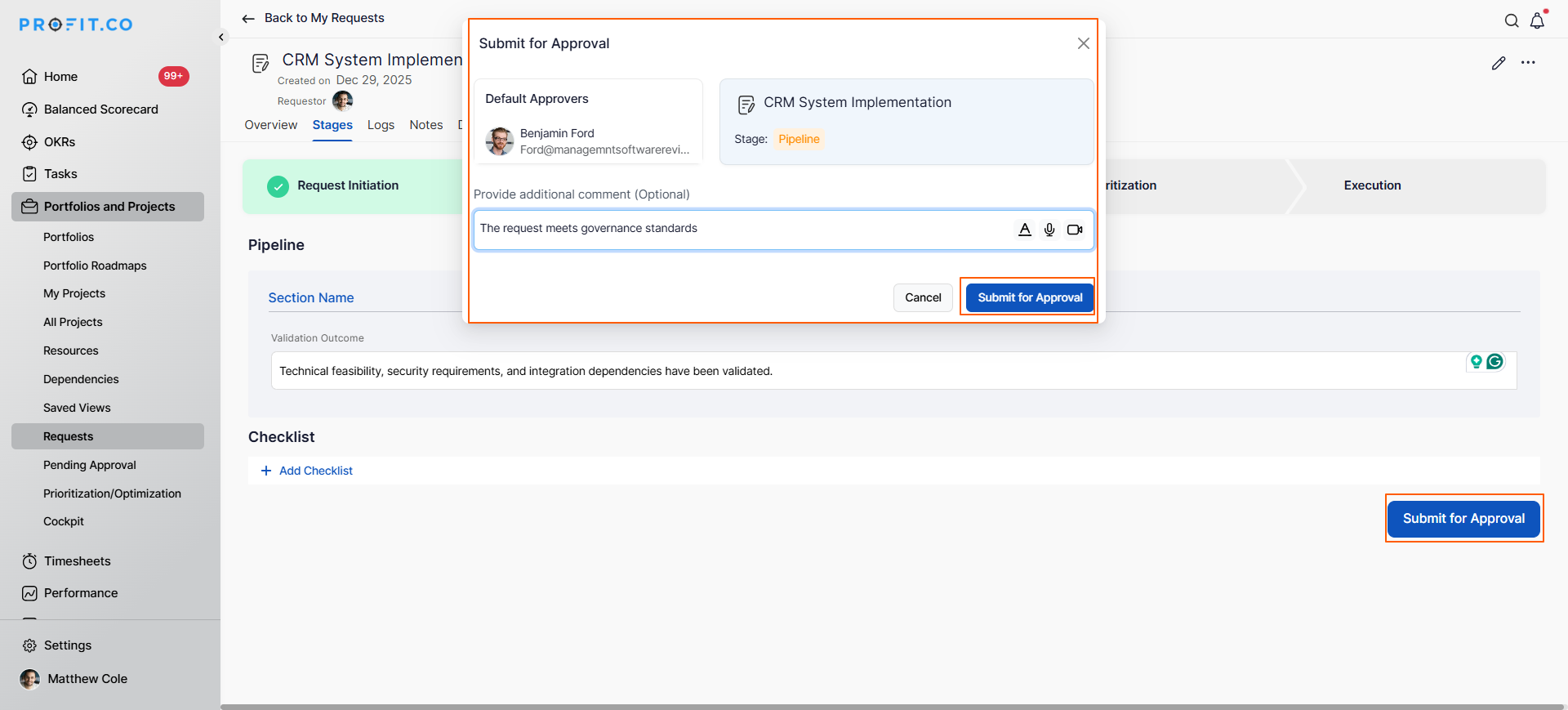
Since we enabled the Approval flow for the Pipeline stage:
- Click on the Submit for approval option
- A pop-up will appear titled "Submit for approval"
- Provide Comments explaining the request or any relevant context
- Click on Submit for approval
- The request is now sent to the designated approver(s)
How do approvers review and approve requests?
Step 10
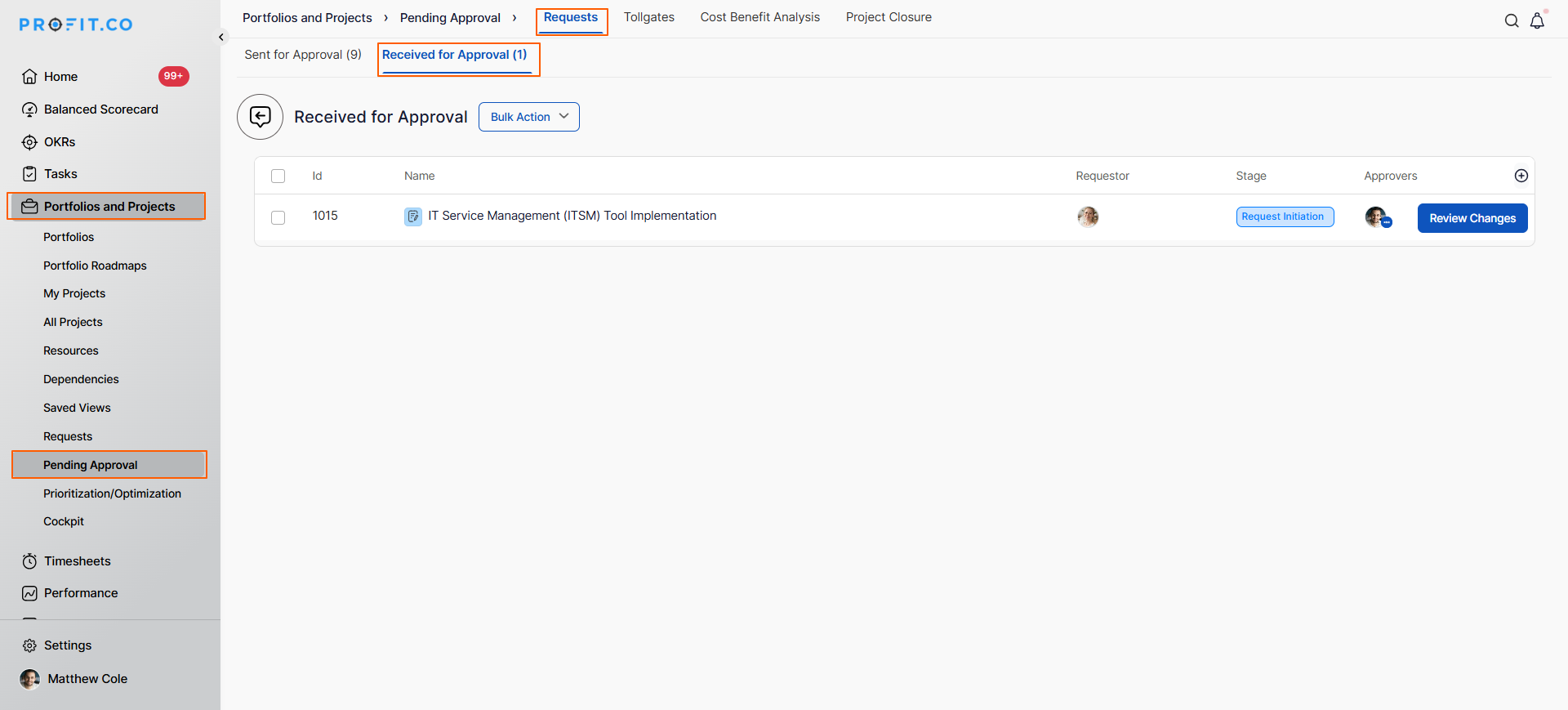
To approve the request, the approver should:
- Switch to the Pending Approvals section
- Navigate to Requests → Received for Approval
Step 11
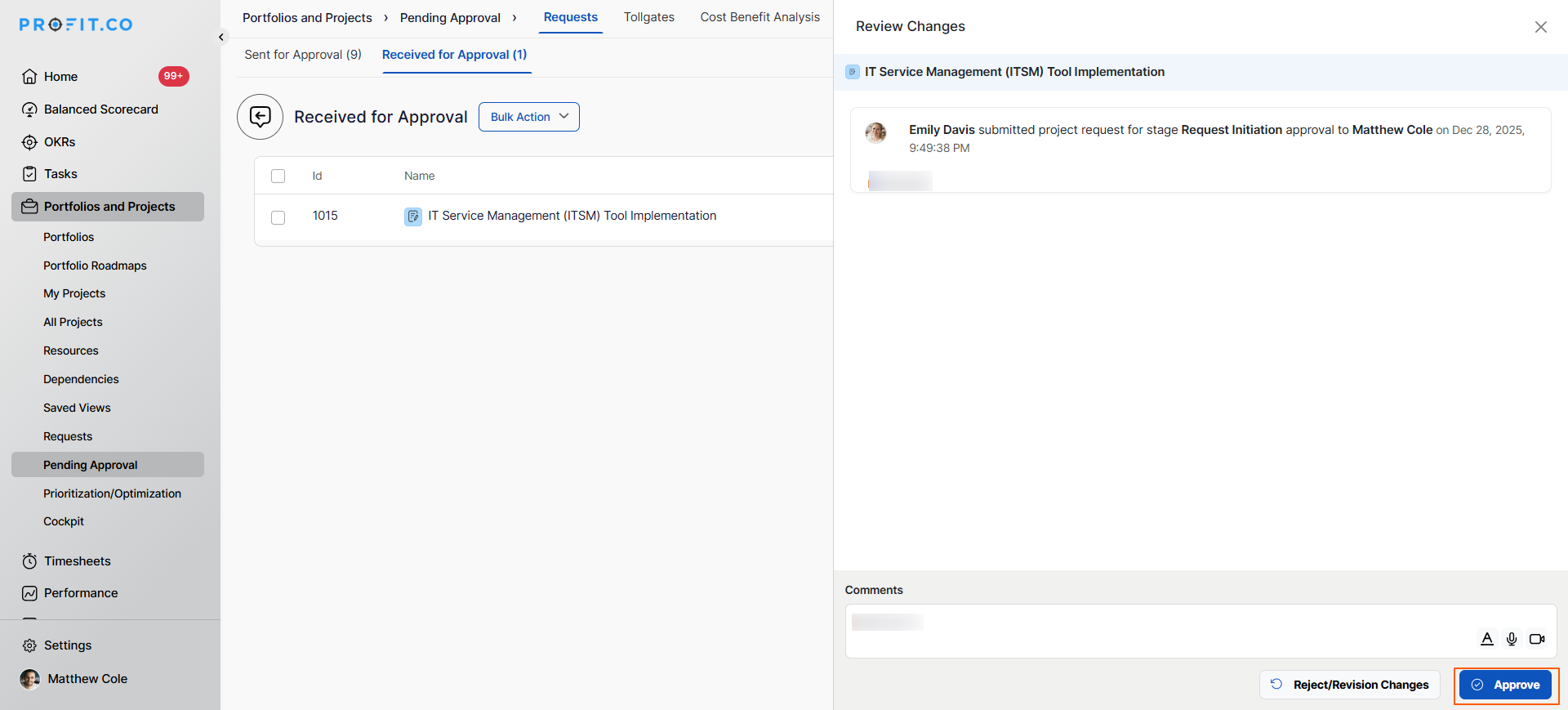
- Click on Review changes to examine the request details
- Review all request information, business case, and context
- Enter Comments with approval rationale or feedback
- Click on Approve to authorize the request
Best practices for uploading profile pictures in Profit.co
To maximize the effectiveness of automated request routing:
- Start with Clear Thresholds: Define objective, measurable criteria such as specific budget amounts or priority levels, and avoid vague or subjective routing criteria that confuse.
- Test Rules Thoroughly: Create test requests at different values to verify rules trigger correctly and route to intended approvers before activating in production.
- Document Rule Logic: Clearly document why each rule exists and what it's intended to catch, which helps with maintenance, training, and future rule modifications.
- Review Rules Regularly: Assess routing rules quarterly to ensure thresholds and approvers remain appropriate as organizational needs and structure evolve.
- Keep Rules Simple: Avoid overly complex rules with multiple conditions; simpler rules are easier to understand, maintain, and troubleshoot when issues arise.
Related Questions
How to create a project request in the PPM module: Click Here
Frequently Asked Questions
Q1.Can I create routing rules based on multiple criteria?
Yes, Advanced Approval Flow supports complex rules combining multiple conditions (e.g., Budget >= $50K AND Priority = High). Use logical operators to create sophisticated routing logic.
Depending on system configuration, all matching rules may trigger (requiring multiple approvals), or rules may be prioritized with only the first match applying. Check your system's rule evaluation logic.
