

Profit.co provides an option to enable automatic milestone stage propagation based on progress percentage in the PPM module.
Table of Contents
- What is milestone stage propagation?
- Why is automatic milestone stage propagation important?
- How do I enable automatic milestone stage propagation?
- How do automatic stages work?
- Can I switch back to manual propagation?
- Best Practices for Milestone Stage Propagation
- Related Questions
- Frequently Asked Questions
What is milestone stage propagation?
Milestone stage propagation is an automated system that updates milestone stages based on their progress percentage.
Stage Types:
Manual Stage Propagation (Default):
- Users manually select the milestone stage regardless of progress
- The stage can be set independently of actual completion
- Requires manual intervention to update the status
- May result in inconsistent or outdated stage information
Automatic Stage Propagation:
- System automatically sets milestone stage based on progress
- Stage updates in real-time as progress changes
- No manual intervention required
- Ensures stages always match actual progress
Automatic Stage Rules:
- The system applies these rules when automatic propagation is enabled:
- Progress = 0% → Not Started
- Progress > 0% and < 100% → In Progress
- Progress = 100% → Completed
Why is automatic milestone stage propagation important?
Automatic milestone stage propagation eliminates manual status updates and ensures accurate, real-time milestone tracking. Here's why this feature matters:
- Eliminates Manual Updates: Removes the need to manually update milestone stages when progress changes, saving time and reducing administrative burden
- Real-Time Accuracy: Milestone stages automatically reflect current progress, providing accurate project status at all times
- Consistency: Ensures uniform stage classification across all milestones based on objective progress criteria
- Reduced Errors: Prevents human error or oversight in updating milestone statuses
How do I enable automatic milestone stage propagation?
Follow these steps to activate automatic stage propagation:
Step 1
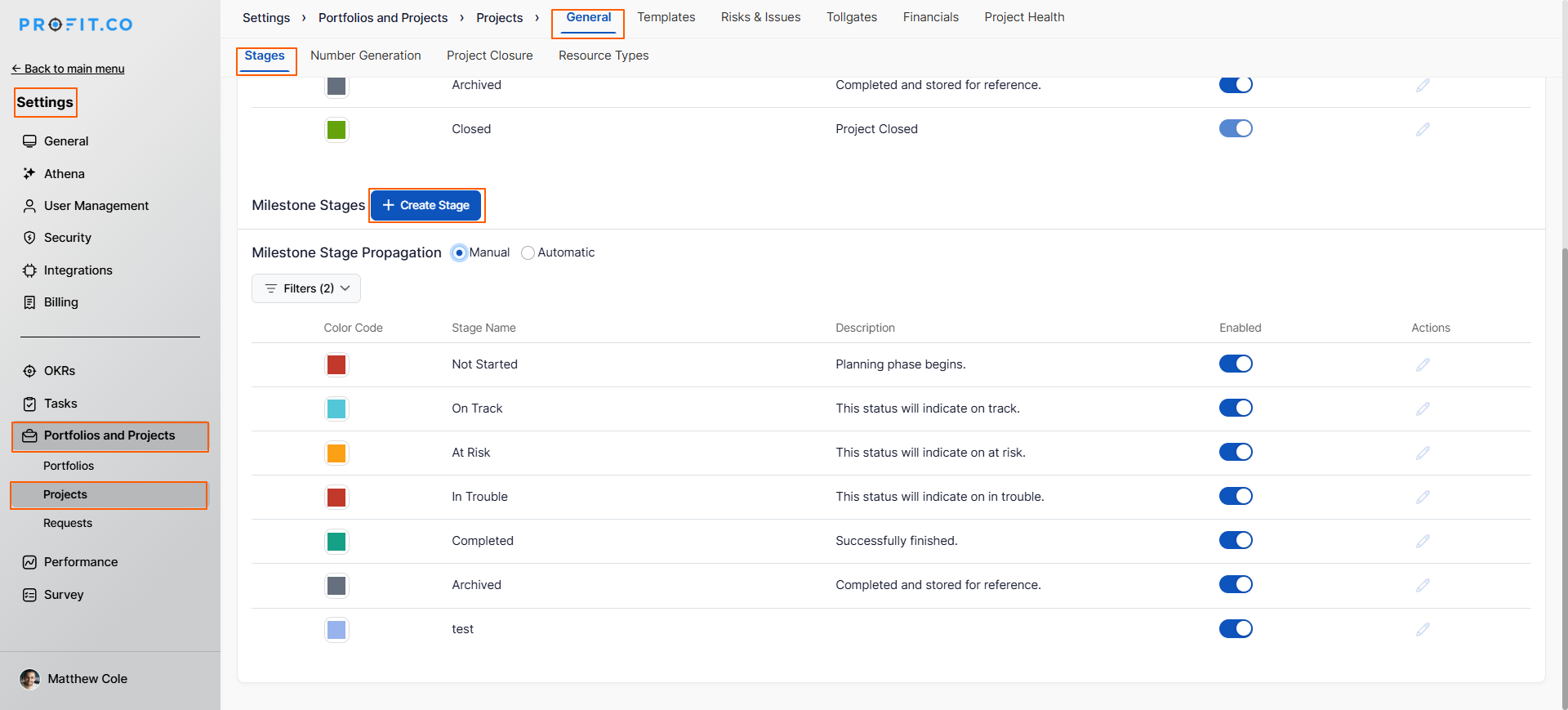
- Navigate to Settings → Portfolios and Projects → Projects from the left navigation panel
- On the Projects page, click on the Stages tab
- Scroll down to find the Milestone Stage Propagation settings
Step 2
- Initially, the Milestone stages are in Manual mode to allow manual progress updates
- Click on the Automatic option to enable automatic stage propagation
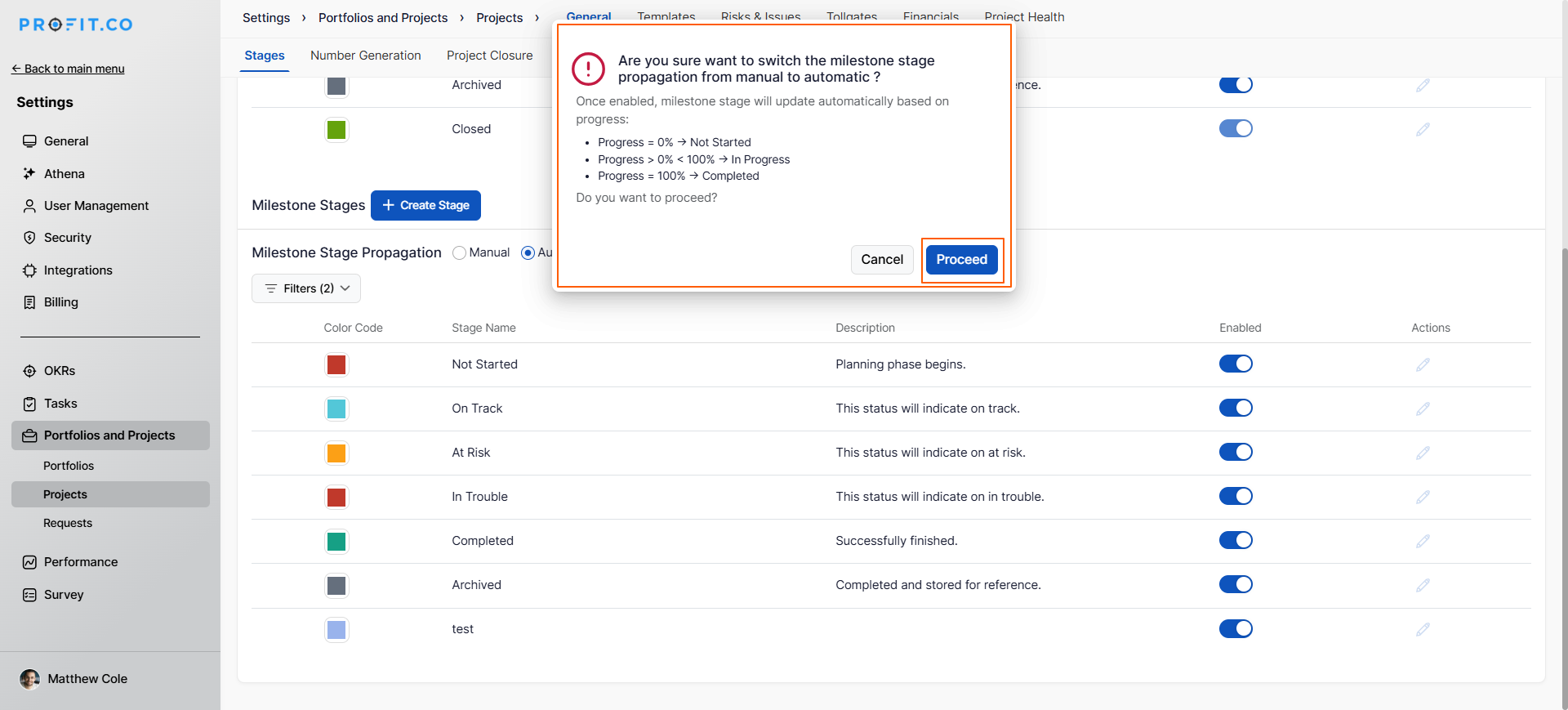
- A pop-up will appear to confirm the change
- Click on the Process button in the pop-up to confirm and enable the feature
Step 3
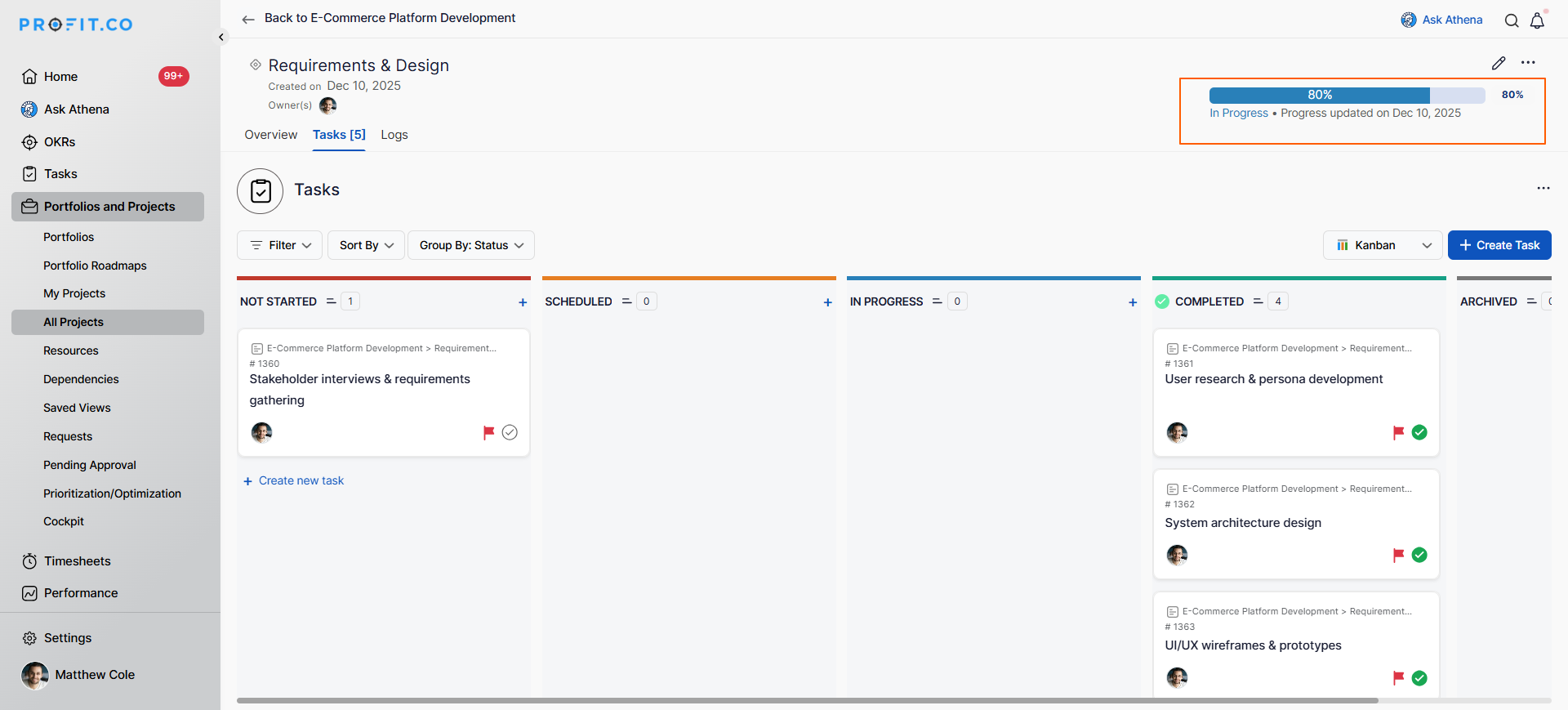
Once enabled, the milestone stage will update automatically based on progress:
- Progress = 0% → Stage updates to Not Started
- Progress > 0% and < 100% → Stage updates to In Progress
- Progress = 100% → Stage updates to Completed
How do automatic stages work?
Once you enable automatic propagation:
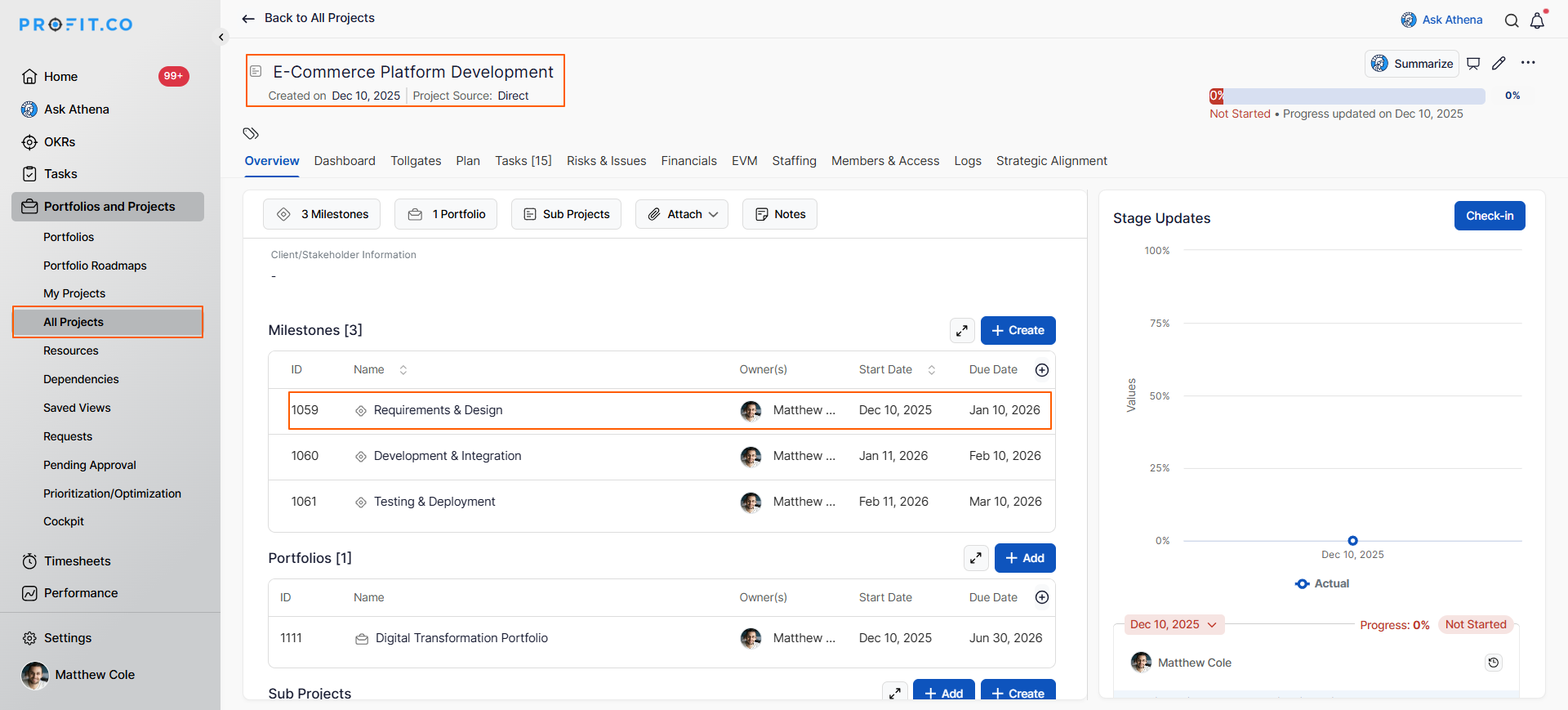
Go to the Project page
Click on a Milestone
Update the task progress.
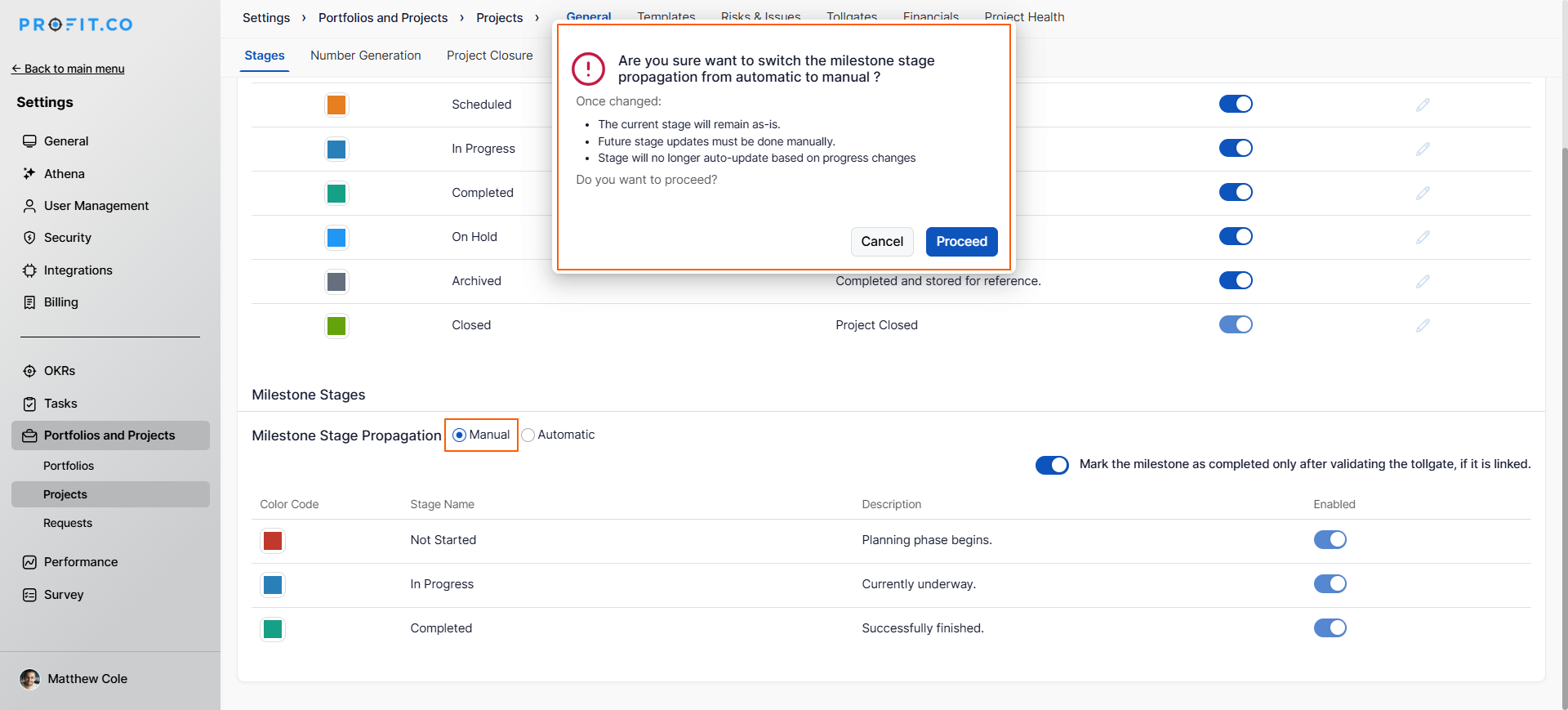
Can I switch back to manual propagation?
If You Need to Disable Automatic Propagation:
Navigate to Settings → Portfolios and Projects → Projects
Click on the Stages tab
Scroll to Milestone Stage Propagation settings
Click on the Manual option
Confirm the change in the pop-up
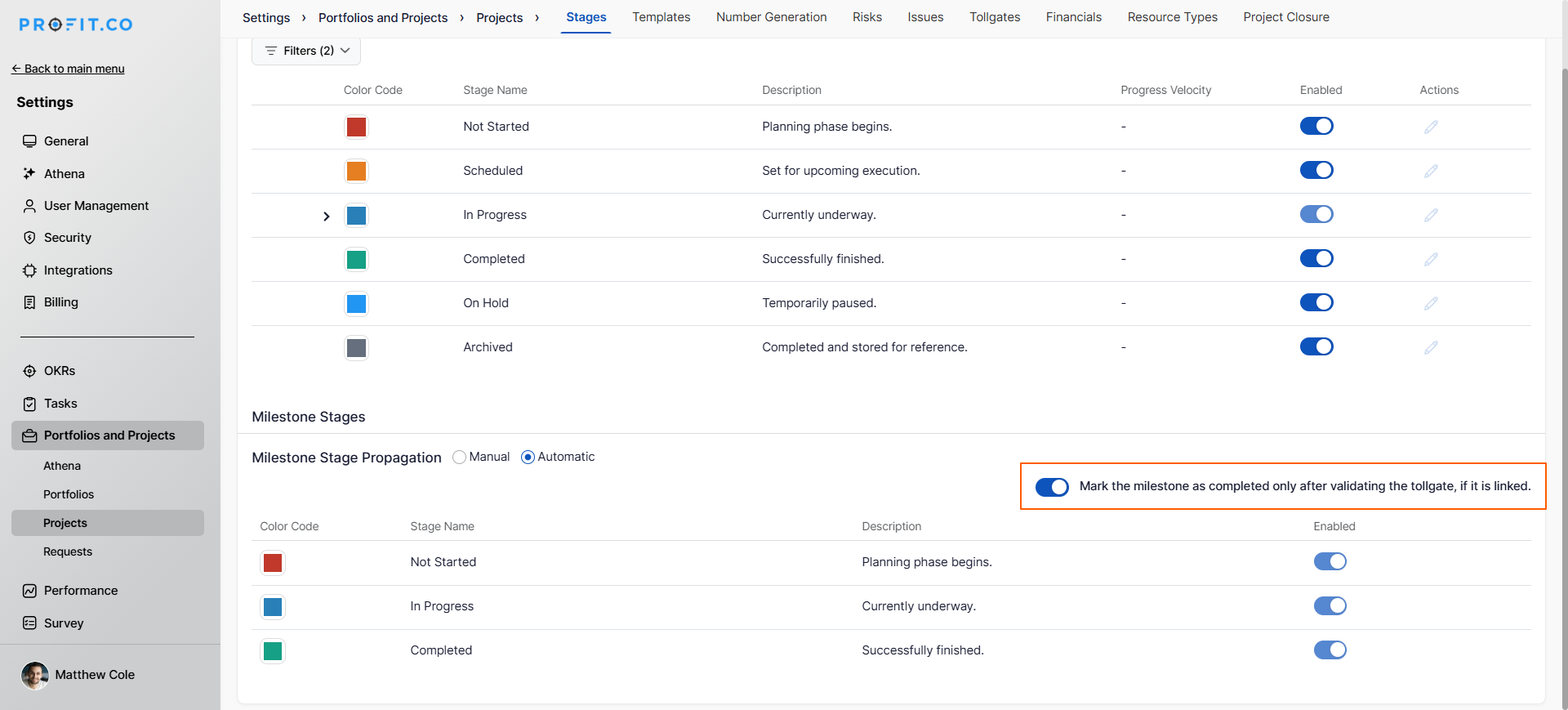
How Tollgate Validation Works:
When you enable automatic milestone stages and allow the toggle 'Mark the milestone as completed only after validating the tollgate, if it is linked':
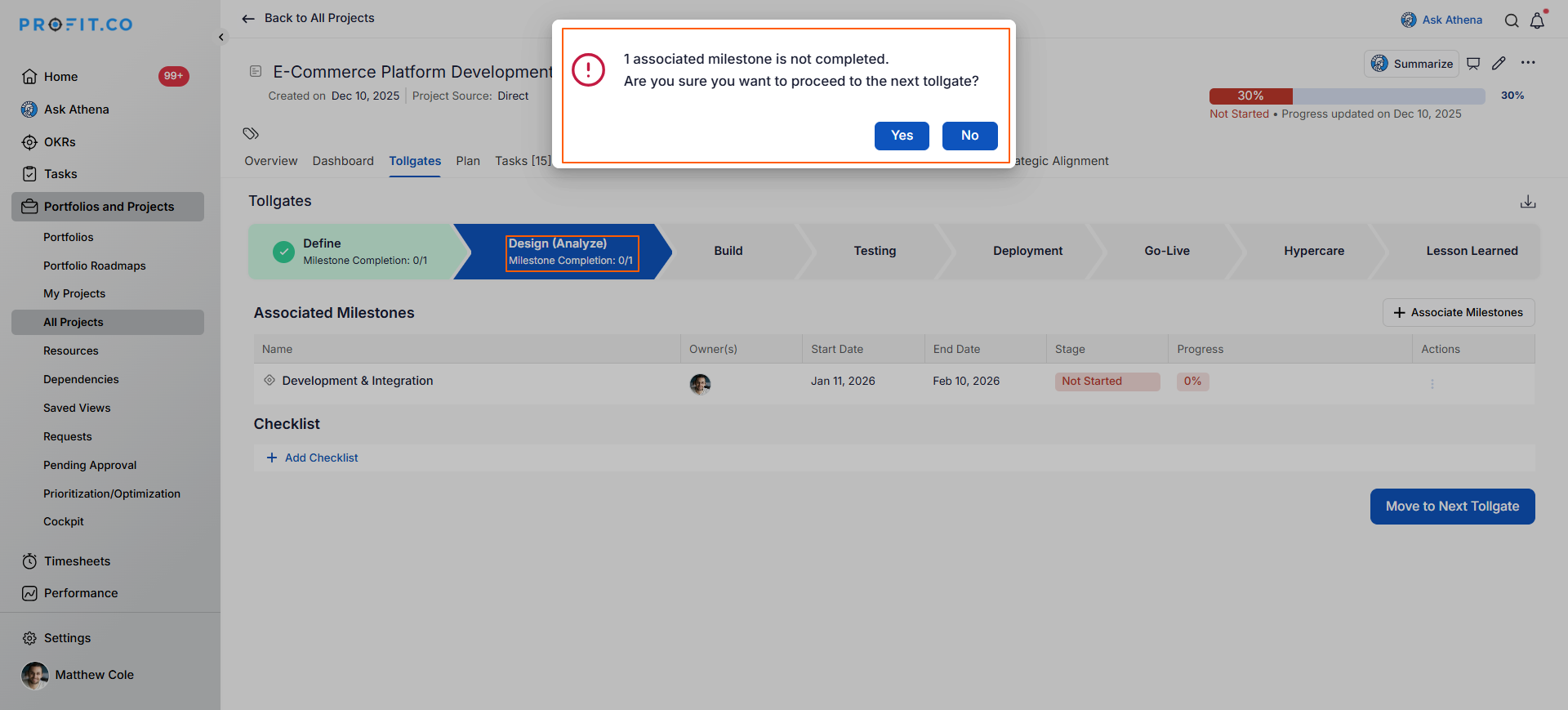
If you associate any milestone with a tollgate and then attempt to move the tollgate to the next stage:
A pop-up will appear with the message: '1 associated milestone is not completed. Are you sure you want to proceed to the next tollgate?'
If you click OK to proceed anyway:
- The tollgate moves to the next stage
- However, the current stage milestone completion count still shows 0
- This is because you have not actually completed the milestone
Best Practices for Milestone Stage Propagation
- Communicate the Change: Inform all project managers and team members that milestone stages will now update automatically based on progress to avoid confusion.
- Train on Progress Updates: Ensure teams understand that updating milestone progress will automatically change the stage, emphasize accurate progress reporting.
- Focus on Progress Accuracy: With automatic stages, ensure progress percentages are accurate and current
- Update Progress Regularly: Establish regular cadence for progress updates (daily/weekly)
Related Questions
How to create a Project in the PPM module. Click Here
How to create a Project Request in the PPM module. Click Here
Frequently Asked Questions
Yes, when you enable automatic propagation, all existing milestones will immediately have their stages updated based on their current progress percentages.
Yes, once enabled at the system level, automatic stage propagation applies to all projects and milestones in your Profi.co instance.
Yes, all milestones, both existing and new, will use automatic stage propagation once enabled.
