

In Profit.co, users can add checklists individually to any task to define specific completion criteria, track step-by-step progress, and ensure consistency and completeness in how tasks are carried out.
Table of Contents
- What is a task checklist in Profit.co?
- What is the difference between a task checklist and a stage checklist in Profit.co?
- How to enable the Task Checklist feature in Profit.co?
- How to add a checklist to a task in Profit.co?
- Best practices for using Task Checklists in Profit.co
- Related Questions
- Frequently Asked Questions
What is a task checklist in Profit.co?
A Task Checklist in Profit.co is an individual to-do list that can be added directly to a specific task to define the smaller steps or completion criteria required to finish that task. Each checklist item can be independently checked off as it is completed, giving users granular visibility into how much of the task's required work has been done. Unlike stage checklists that apply globally to all tasks in a board stage, task checklists are specific to individual tasks.
What is the difference between a task checklist and a stage checklist in Profit.co?
Profit.co provides two types of checklists that serve different purposes within Task Management:
| Type | Scope | Behavior |
|---|---|---|
| Task Checklist | Applied to an individual task only | Specific to one task, can be completed without moving the task to the next stage |
| Stage Checklist | Applied to all tasks within a Board stage | Applies globally to every task in that stage; must be completed before the task can advance to the next stage |
How to enable the Task Checklist feature in Profit.co?
The Task Checklist feature must be enabled from the Settings panel before users can add checklists to individual tasks.
Step 1
- Go to Settings → Tasks from the left navigation panel.
- Click on the General tab within the Tasks settings.
- Under the Task Controls section, enable the toggle for Task Checklist.
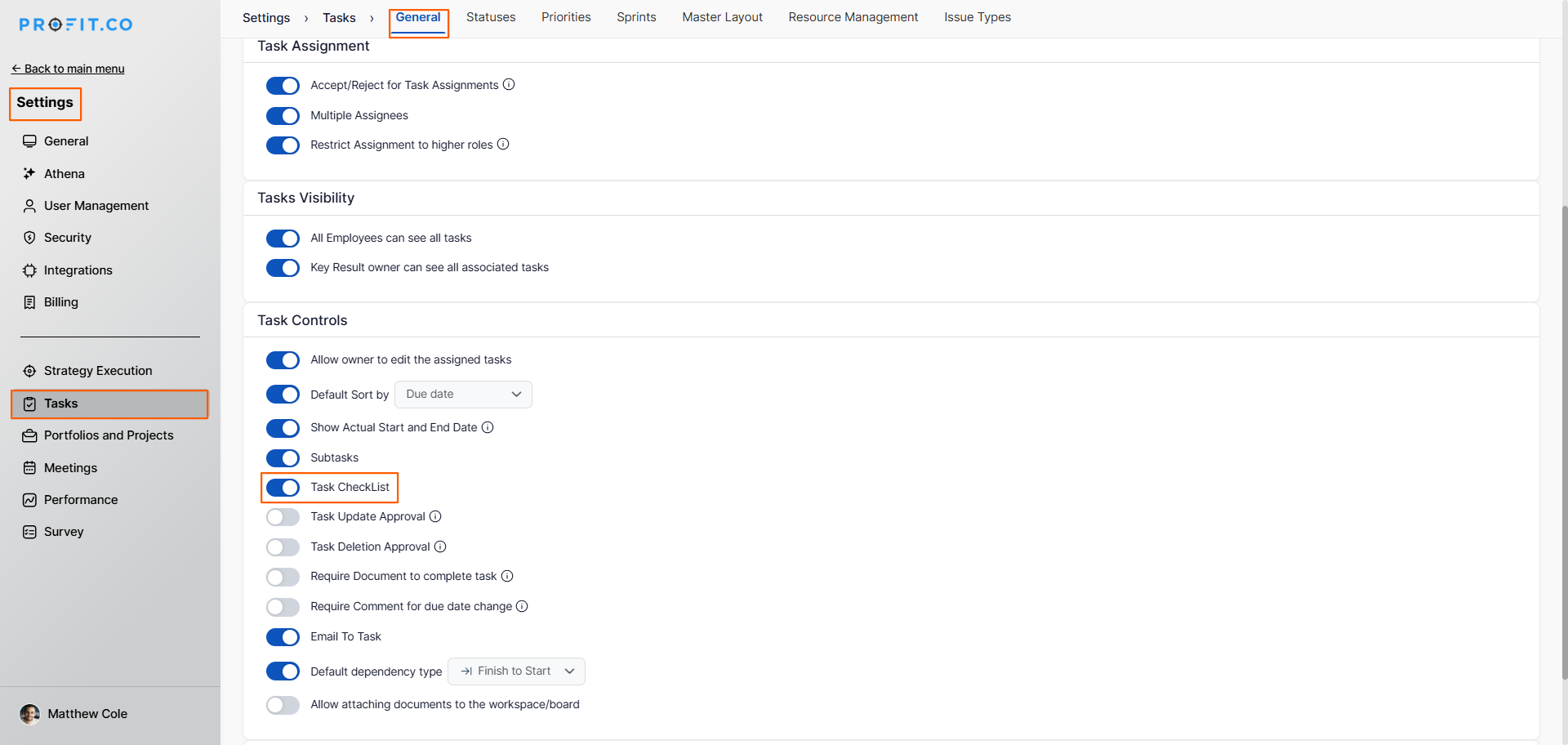
Once enabled, the checklist option will become available within the detail view of every task across your Workspaces and Boards.
How to add a checklist to a task in Profit.co?
Follow these steps to add a checklist to an individual task:
Step 1
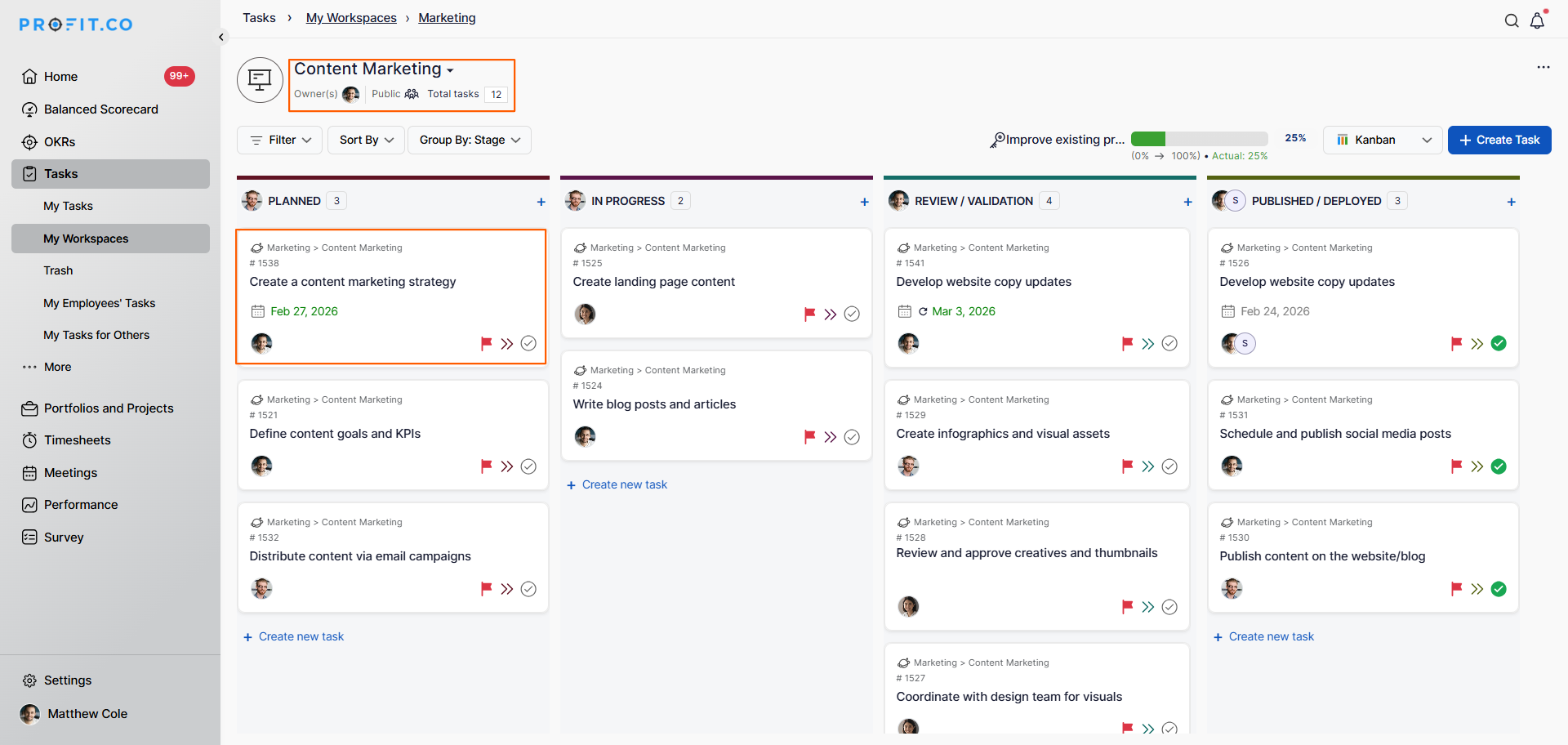
- Navigate to your Workspace or Board from the left navigation panel.
- Click on the task to which you want to add a checklist to open its detail view.
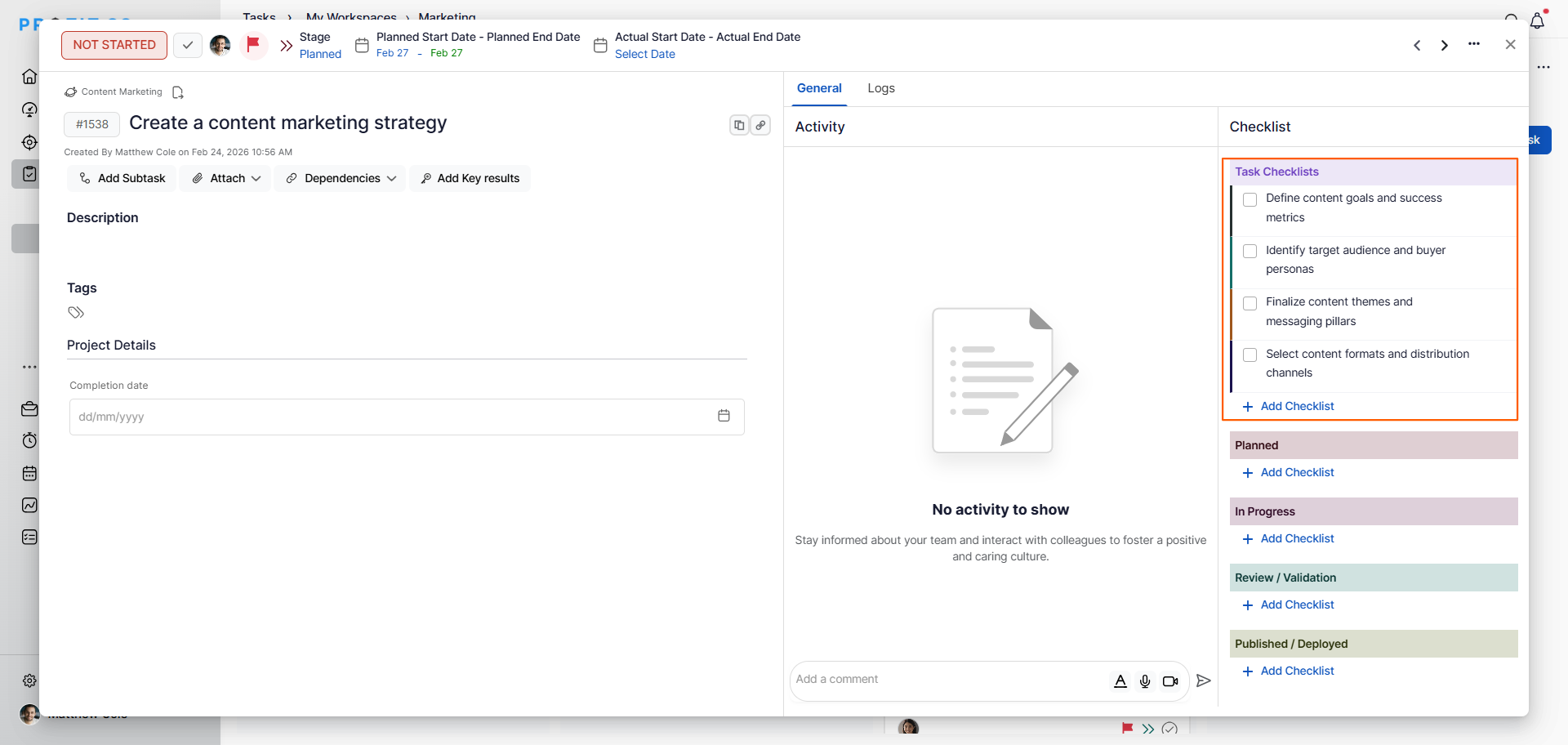
- On the task overview page, scroll down to find the Checklist section.
- Click the Add Checklist option.
- Enter each checklist item that needs to be completed for this task.
- Add as many items as required to fully cover the steps needed to complete the task.
Step 2
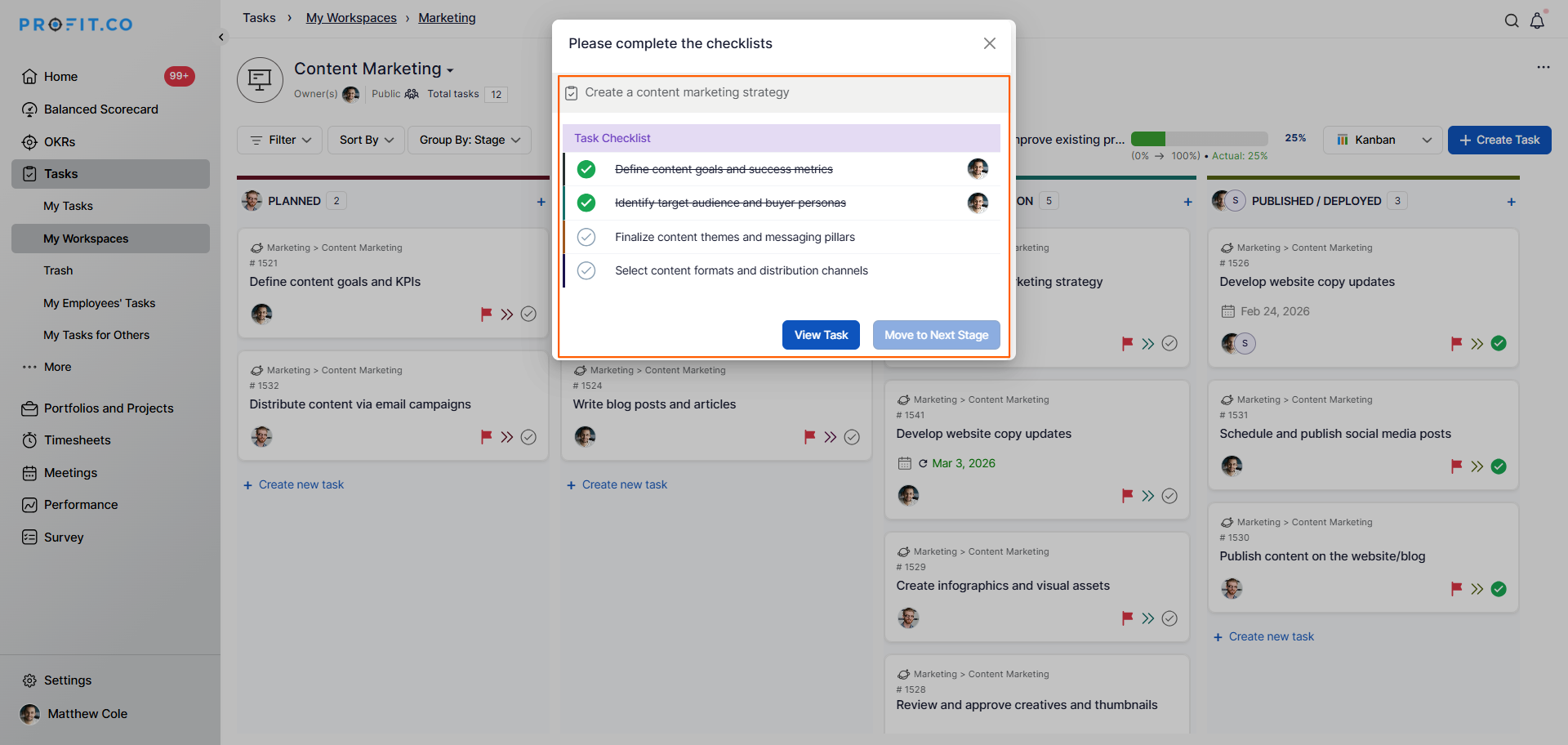
- Save the task to apply the checklist.
- Each checklist item will appear with a checkbox that can be individually checked off as it is completed.
Best practices for using Task Checklists in Profit.co
- Use task checklists for complex tasks that involve multiple sequential steps to ensure nothing is missed during execution.
- Keep checklist items short, specific, and actionable so the assignee clearly understands what each step requires.
- Use task checklists alongside stage checklists when a task needs both individual step tracking and stage-level gate requirements.
- Review checklist items when reopening a recurring task to ensure the steps are still relevant and up to date.
Related Questions
Click here to learn how to add checklists to Board Stages in Profit.co.
Frequently Asked Questions
Navigate to Settings → Tasks → General tab → Task Controls section, and enable the Task Checklist toggle.
Open the task, scroll to the Checklist section on the task overview page, click Add Checklist, enter your checklist items, and save the task.
A Task Checklist is specific to an individual task and can be completed without moving the task to the next stage. A Stage Checklist applies to all tasks within a Board stage and must be completed before the task can advance to the next stage.
