

In Profit.co, you can create and assign tasks directly through email without logging into the platform, allowing you to turn emails into trackable tasks under any Workspace or Board instantly.
Table of Contents
- What is the Email to Task feature in Profit.co?
- What information can I include when assigning a task through email?
- How to enable the Email to Task feature in Profit.co?
- How to assign a task through email in Profit.co?
- Best practices for assigning tasks through email in Profit.co
- Related Questions
- Frequently Asked Questions
What is the Email to Task feature in Profit.co?
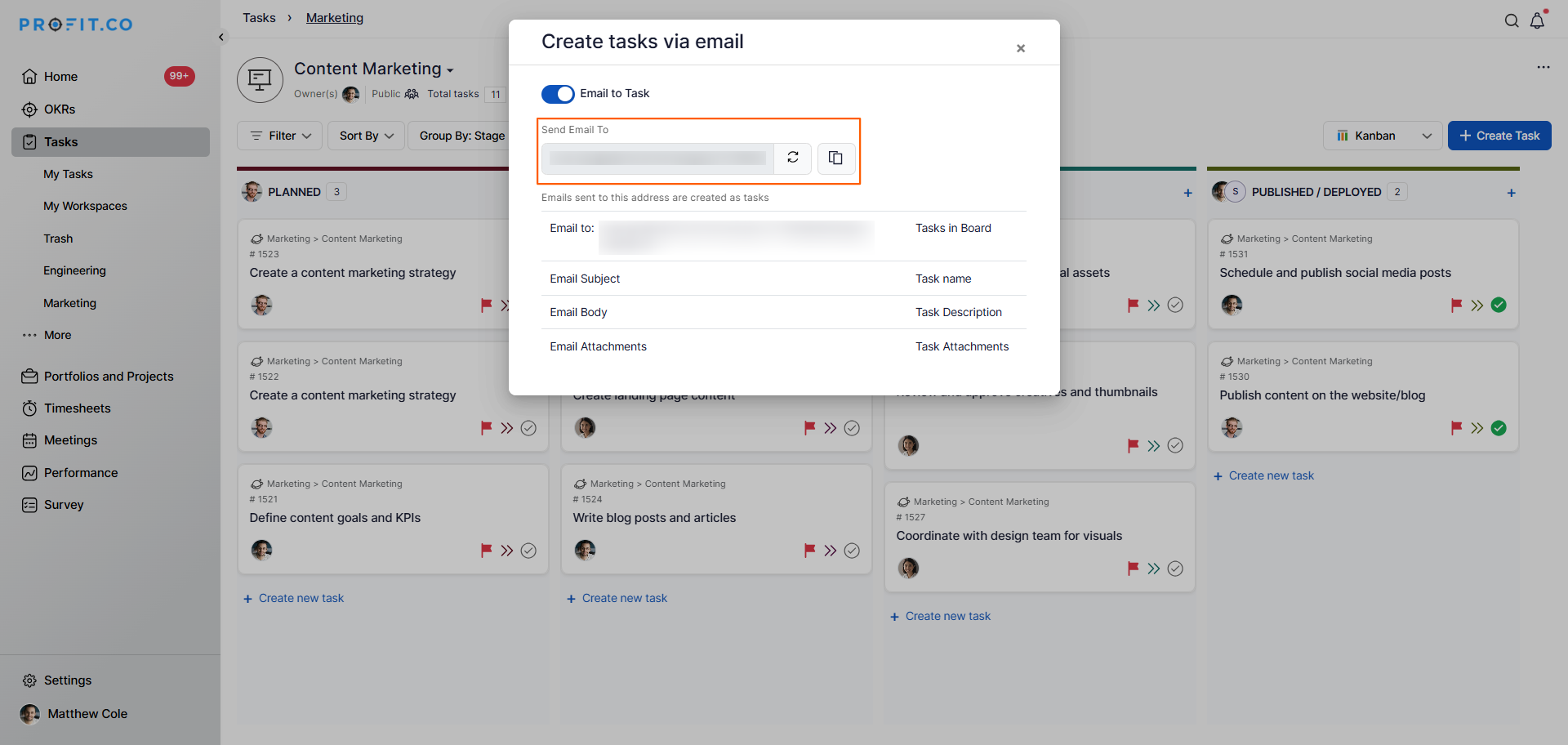
The Email to Task feature in Profit.co allows users to create tasks directly inside a specific Workspace or Board by simply sending an email to a unique task email address generated by the platform. The email subject becomes the task name, the email body becomes the task description, and any attachments are added as task attachments, all without needing to log into Profit.co.
What information can I include when assigning a task through email?
When composing an email to create a task, the following fields map directly to the task in Profit.co:
| Email Field | Maps to Task Field |
|---|---|
| To | The unique task email address for the target Workspace or Board |
| Email Subject | Task Name |
| Email Body | Task Description |
| Attachments | Task Attachments |
How to enable the Email to Task feature in Profit.co?
Before assigning tasks through email, the feature must be enabled in Settings.
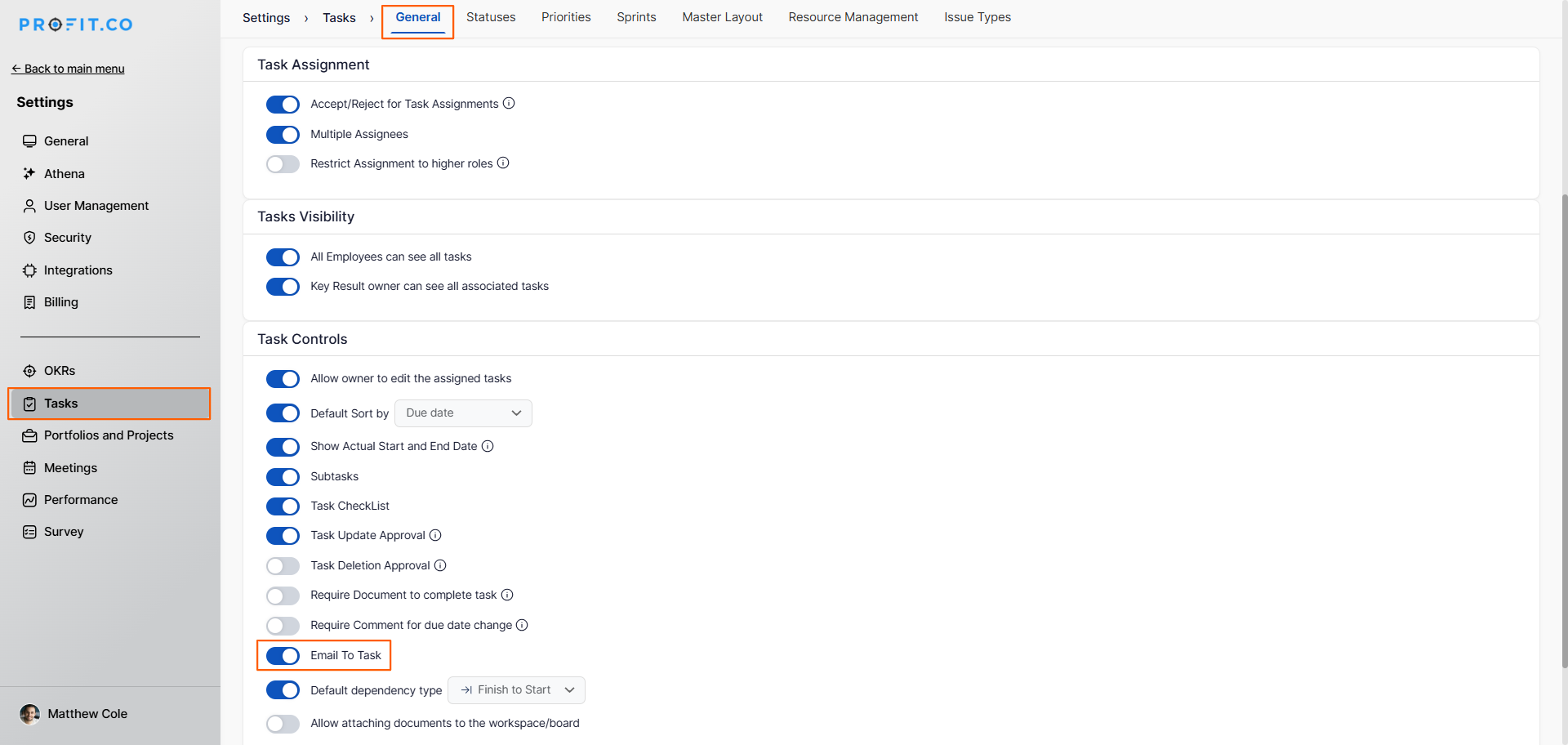
- Navigate to Settings → Tasks from the left navigation panel.
- Select the General tab.
- In the Task Controls section, enable the Email to Task toggle.
Once enabled, the Email to Task option will become available in all your Workspaces and Boards.
How to assign a task through email in Profit.co?
Follow these steps to create and assign a task through email:
Step 1
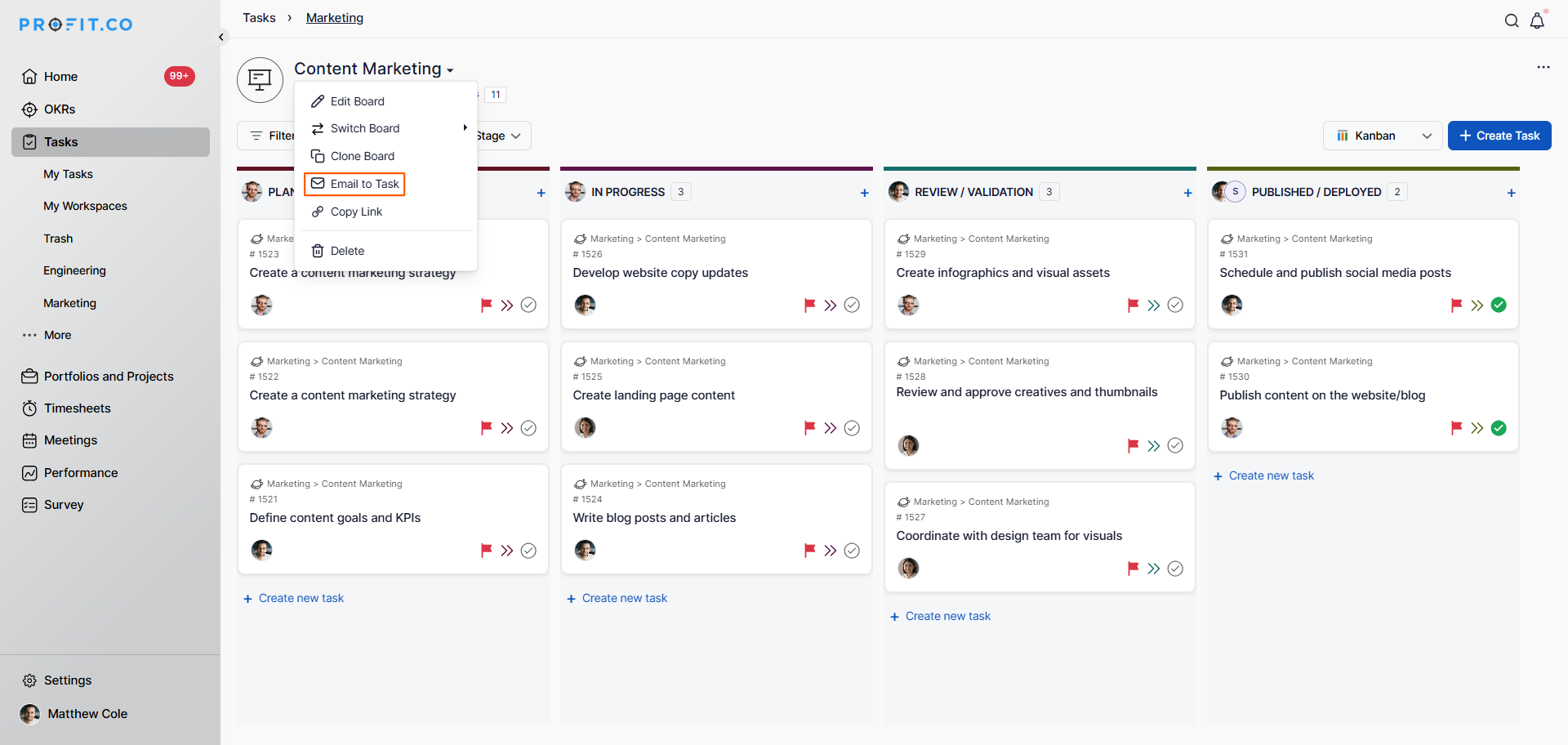
- Go to Tasks → Workspaces from the left navigation panel.
- Open the specific Workspace or Board where you want the task to be created.
- Click the drop-down icon next to the Workspace or Board name.
- Select Email to Task from the dropdown menu.
- On the Create Tasks via Email panel, copy the unique email address generated for that Workspace or Board.
Step 2
- Open your email client and compose a new email.
- Paste the copied task email address in the To field.
- Enter the Task Name in the Email Subject field.
- Enter the Task Description in the Email Body.
- Click Send.

Step 3
- Navigate back to the Workspace or Board in Profit.co.
- The newly created task will appear automatically in the task list.
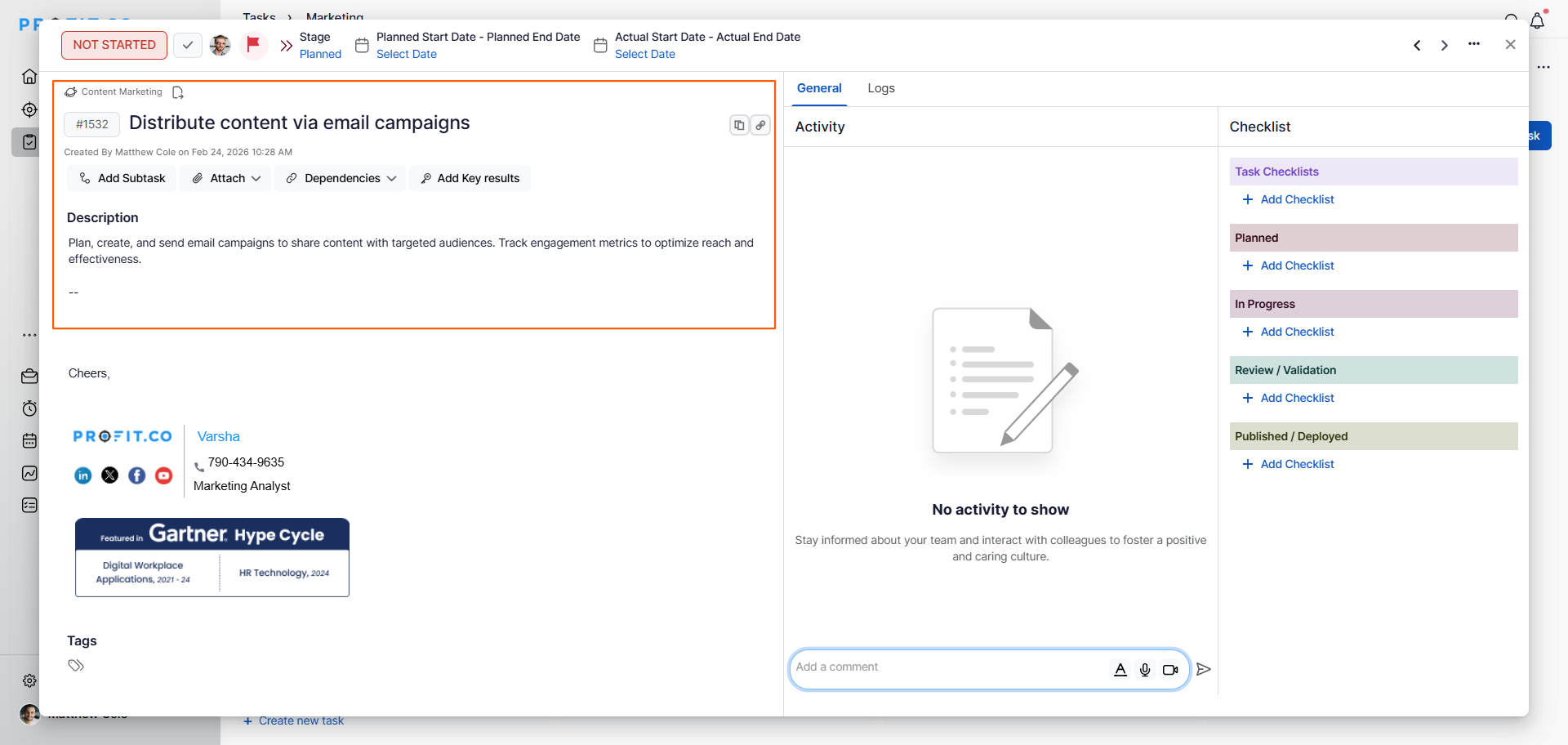
Note: Attachments added to the email will automatically be included as attachments on the created task in Profit.co.
Best practices for assigning tasks through email in Profit.co
- Keep the email subject concise and descriptive — it becomes the task name directly.
- Include all relevant context in the email body to ensure the task description is complete and actionable.
- Save the unique task email address for each Workspace or Board as a contact in your email client for quick access.
- Use this feature when you're away from the platform and need to capture tasks quickly from your mobile or desktop email.
- Verify the task in Profit.co after sending to confirm it was created correctly in the intended Workspace or Board.
Related Questions
Click here to learn how to download reports from the Task Dashboard in various formats.
Frequently Asked Questions
Go to Settings → Tasks → General tab → Task Controls section, and enable the Email to Task toggle.
Click the drop-down icon next to the Workspace or Board name, select Email to Task, and copy the unique email address shown in the Create Tasks via Email panel.
The email subject becomes the Task Name in Profit.co.
