

In Profit.co, users can edit, copy, and delete comments on any task to keep task conversations accurate, up to date, and easy to reuse across a multi-user environment.
Table of Contents
- What is the comments feature in task management in Profit.co?
- How to add a comment to a task in Profit.co?
- How to copy a comment on a task in Profit.co?
- How to edit a comment on a task in Profit.co?
- How to delete a comment on a task in Profit.co?
- Best practices for using Comments in Task Management in Profit.co
- Related Questions
- Frequently Asked Questions
What is the comments feature in task management in Profit.co?
The Comments feature in Profit.co Task Management allows users to add, manage, and interact with notes and discussion threads directly within individual tasks. Comments can be used to share updates, provide feedback, log decisions, or flag important information related to a task's progress, status, or timeline. In a multi-user environment, comments serve as the primary communication channel within the task itself, keeping all relevant context in one place.
How to add a comment to a task in Profit.co?
Step 1
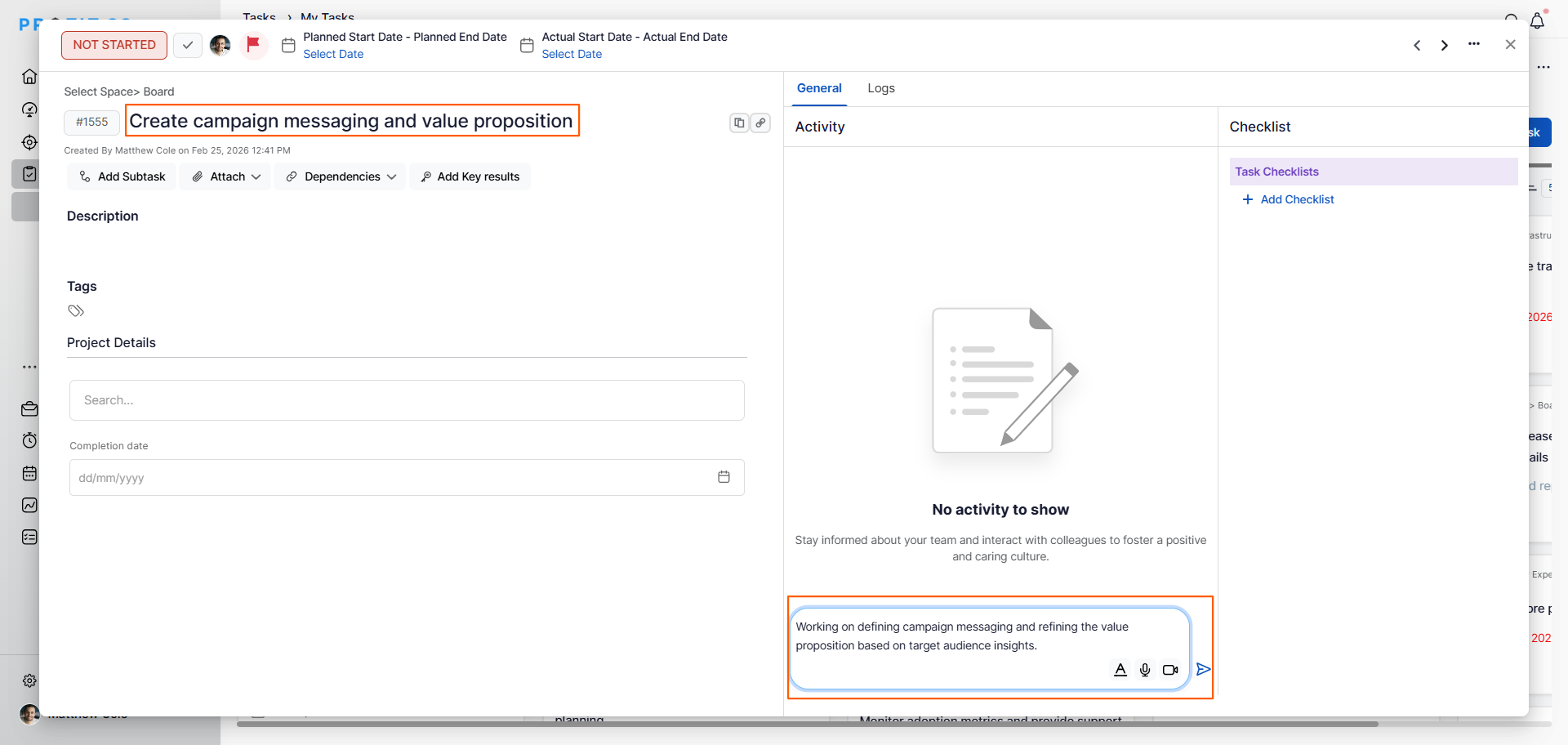
- Navigate to your Workspace or Board from the left navigation panel.
- Click on the task to open its detail view.
- Scroll down to the Comments section within the task overview page.
- Click on the comment input field and type your message, note, or update.
- Click Enter to post the comment on the task.
How to copy a comment on a task in Profit.co?
Step 1
- Open the task and scroll to the Comments section to find the comment you want to copy.
- Hover over the comment to reveal the action icons.
- Click the Copy icon next to the comment.
- A "Copied to Clipboard" confirmation message will appear, indicating the comment text has been successfully copied.
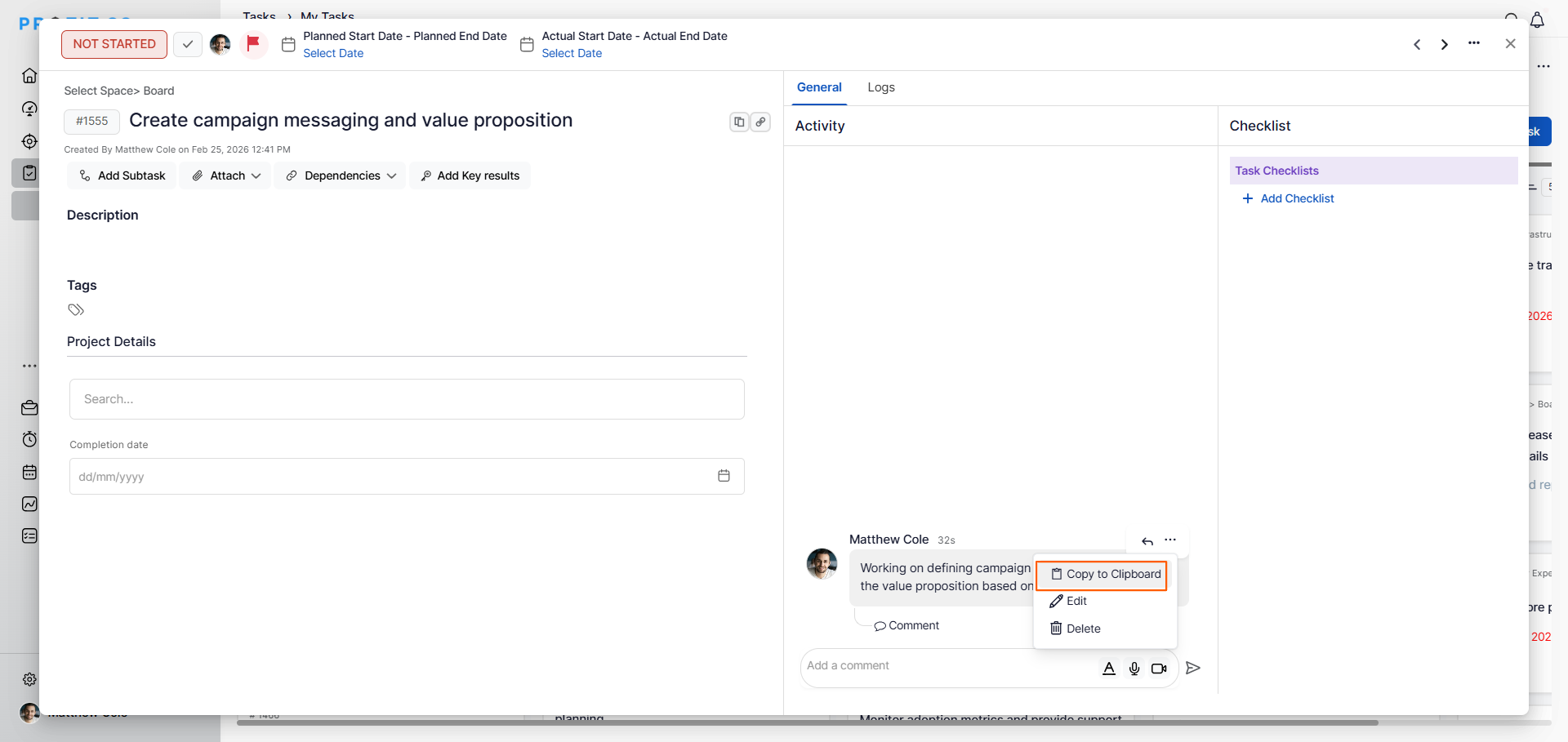
You can now paste the copied comment text anywhere into another task, a document, or a message.
How to edit a comment on a task in Profit.co?
- Open the task and scroll to the Comments section to find the comment you want to edit.
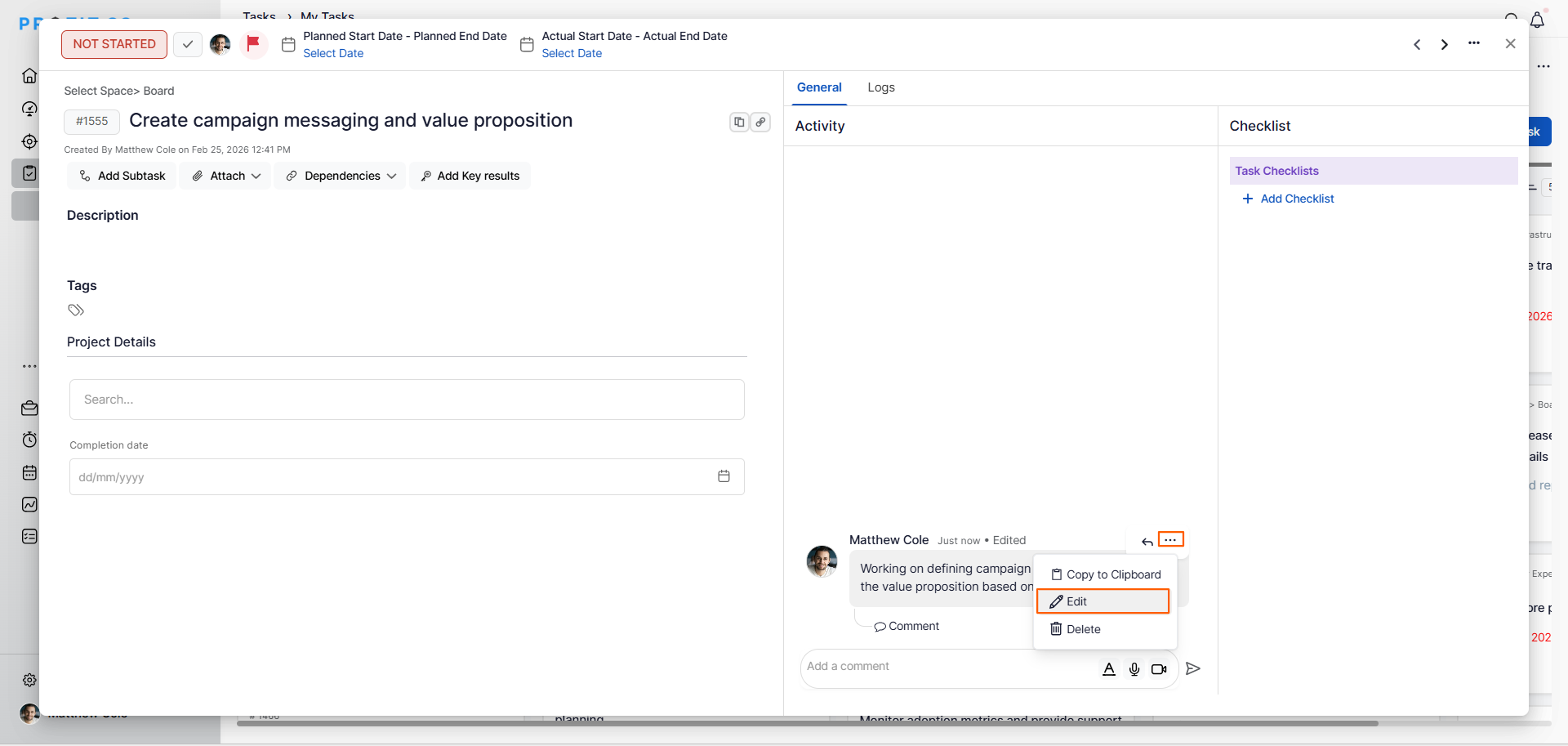
- Hover over the comment to reveal the action icons.
- Click the Edit icon next to the comment.
- A text box will appear with the existing comment content pre-filled.
- Make the required changes to the comment text.
- Click Save to apply the updated comment.
How to delete a comment on a task in Profit.co?
- Open the task and scroll to the Comments section to find the comment you want to delete.
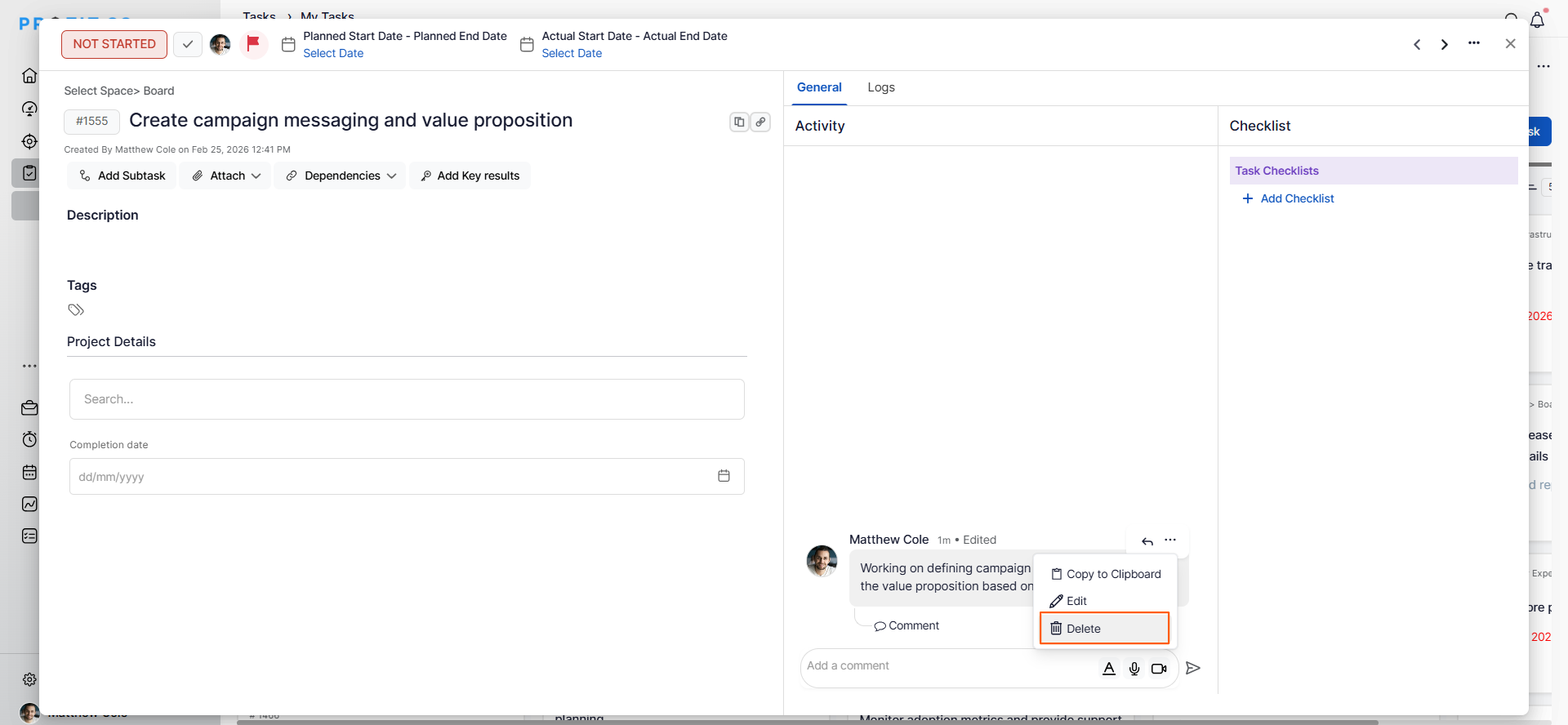
- Hover over the comment to reveal the action icons.
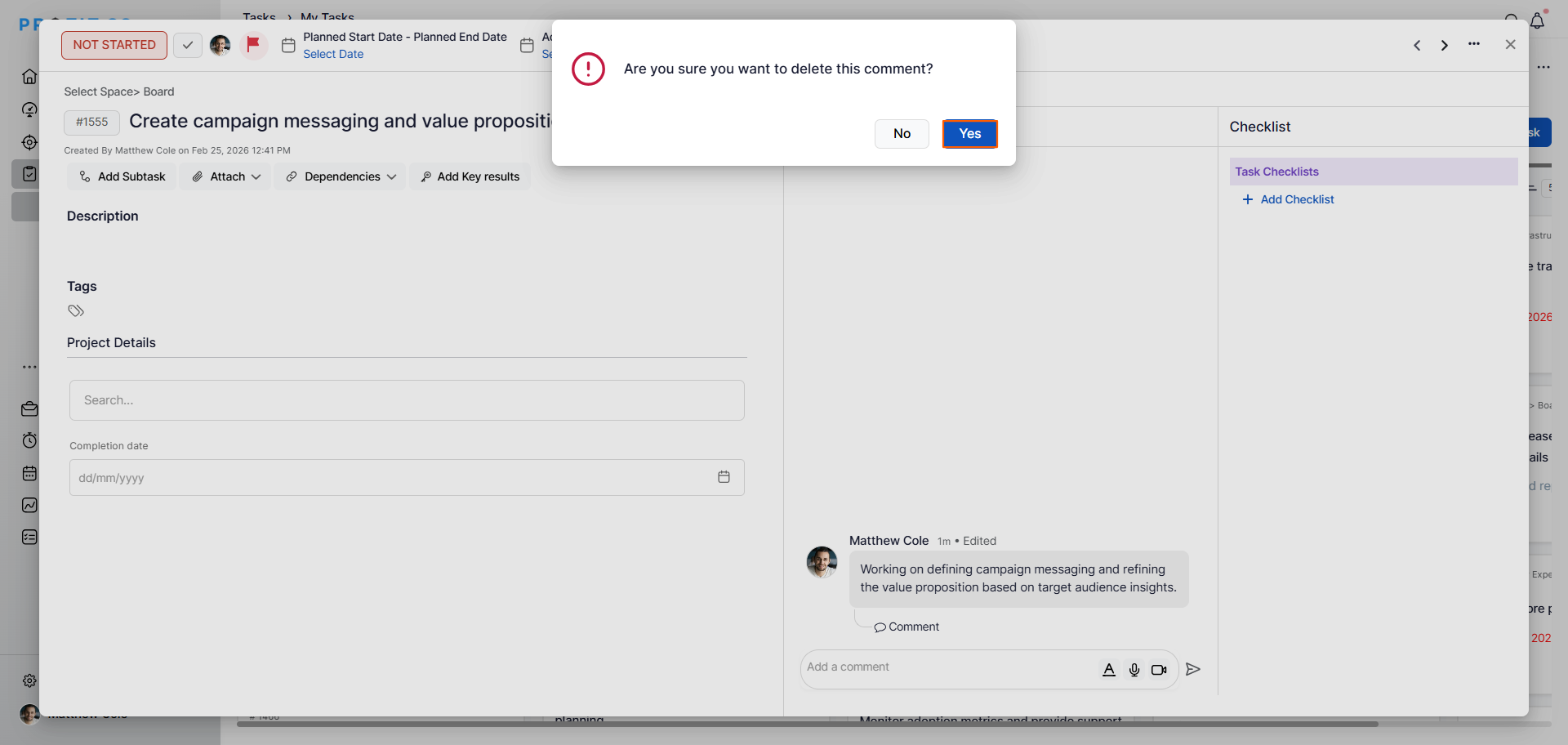
- Click the Delete icon next to the comment.
- A confirmation message will appear asking you to confirm the deletion.
- Click Yes to permanently delete the comment.
Best practices for using Comments in Task Management in Profit.co
- Use comments to log important decisions and updates directly on the task so that all stakeholders have a complete and accessible record of task discussions.
- Use the Copy feature when the same update or note needs to be shared across multiple tasks, saving time and ensuring consistency.
- Edit comments promptly when information changes rather than adding a new comment, to keep the task's comment thread clean and easy to follow.
- Delete only comments that are fully irrelevant or erroneous; retain comments that may serve as a useful audit trail for how the task evolved.
- Mention specific team members in comments using @mentions to ensure the right people are notified when action is needed.
Related Questions
Click here to learn more about how a Kanban Board can help with Task Management in Profit.co.
Frequently Asked Questions
Hover over the comment to reveal the action icons, then click the Copy icon. A "Copied to Clipboard" confirmation will appear and the comment text will be available to paste wherever needed.
Hover over the comment, click the Edit icon, update the text in the text box that appears, and click Save to apply the changes.
Hover over the comment, click the Delete icon, and confirm the deletion by clicking Yes in the confirmation message. Deleted comments cannot be recovered.
