

In Profit.co, you can edit task statuses to match your team's workflow, customizing the status name, description, and color code to accurately reflect progress at every stage of task execution.
Table of Contents
- What is task status in Profit.co?
- How to edit task status from Settings in Profit.co?
- How to rearrange task statuses in Profit.co?
- How to edit task status from the workspace or board level in Profit.co?
- Best practices for managing Task Statuses in Profit.co
- Related Questions
- Frequently Asked Questions
What is task status in Profit.co?
Task status in Profit.co represents the current state of progress of a task within a Workspace or board. Statuses allow teams to track where a task stands in the workflow, from creation through to completion. Profit.co allows organizations to customize these statuses to align with their specific processes, team terminology, and visual preferences.
How to edit task status from Settings in Profit.co?
Follow these steps to edit a task status from the Settings panel:
Step 1
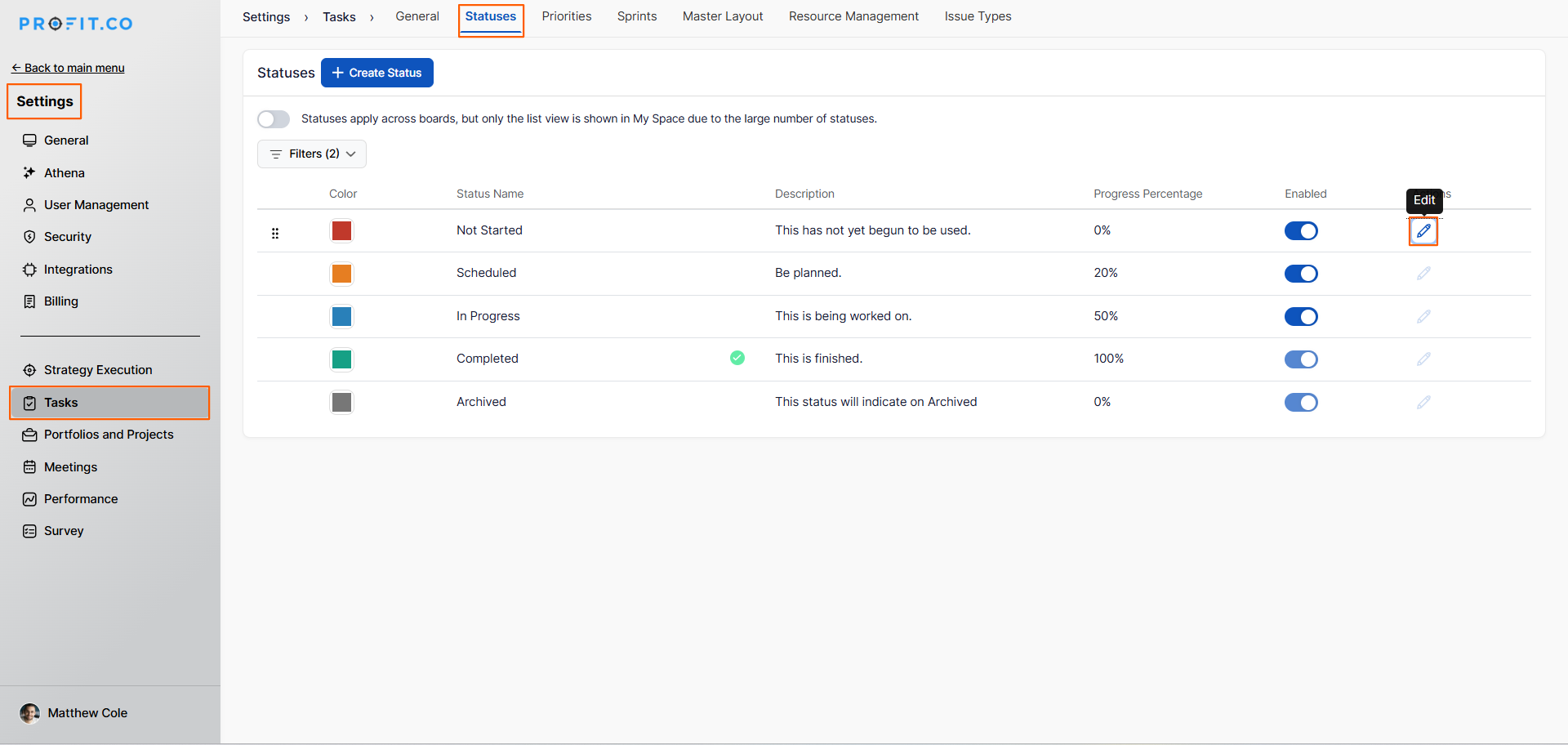
- Go to Settings → Tasks from the left navigation panel.
- Switch to the Statuses tab.
- Click the Edit icon next to the status name to open the Update Status panel.
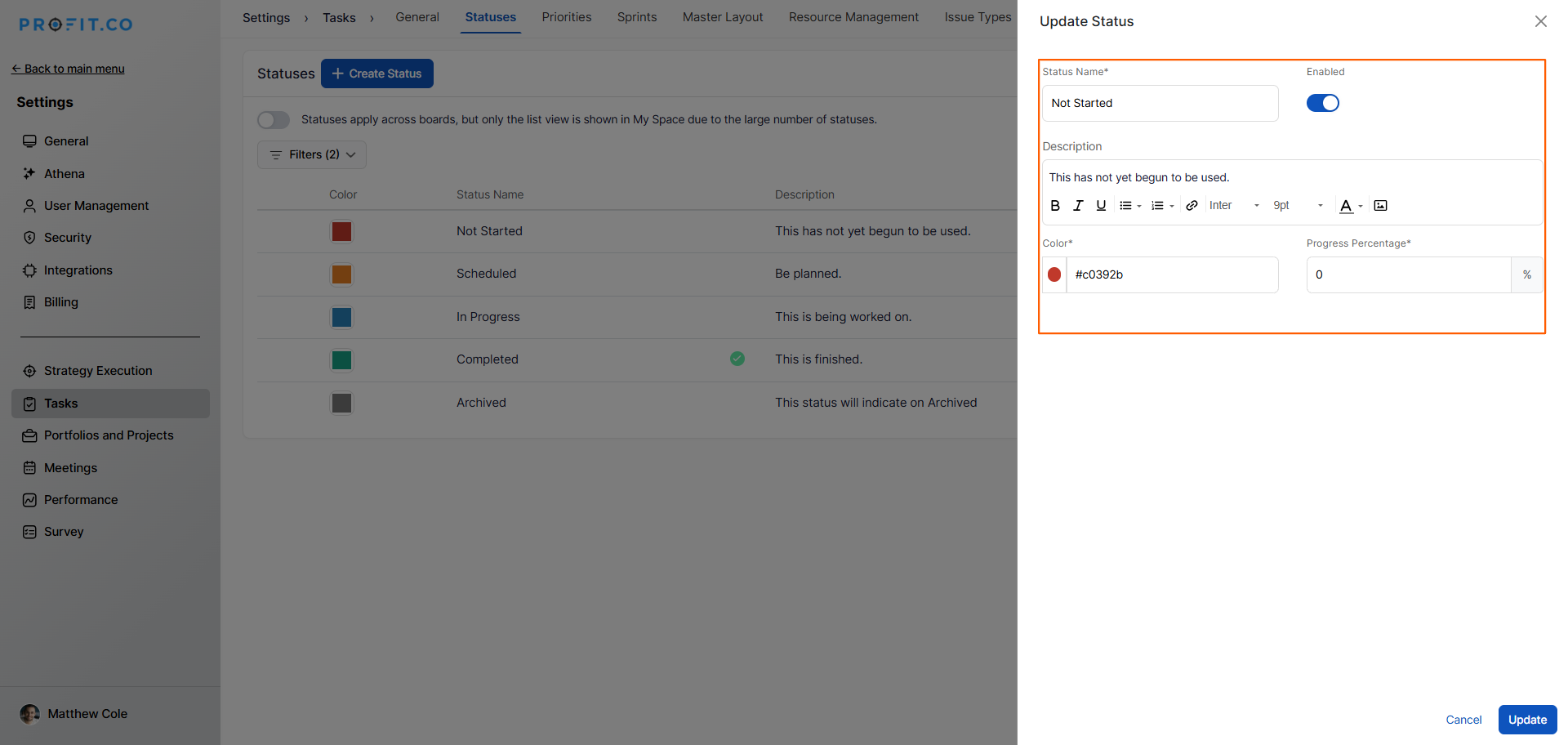
- Update the Name, Description, and Color Code as needed to reflect your team's workflow.
- Click Update to apply the changes.
- The updated status will be reflected immediately across all task views where it is used.
How to rearrange task statuses in Profit.co?
Profit.co allows you to reorder task statuses to match the logical sequence of your workflow.
Step 1
- Navigate to Settings → Tasks → Statuses from the left navigation panel.
- Click the ellipsis icon next to any status.
- Use the rearrange option to reorder the statuses according to your organizational needs.
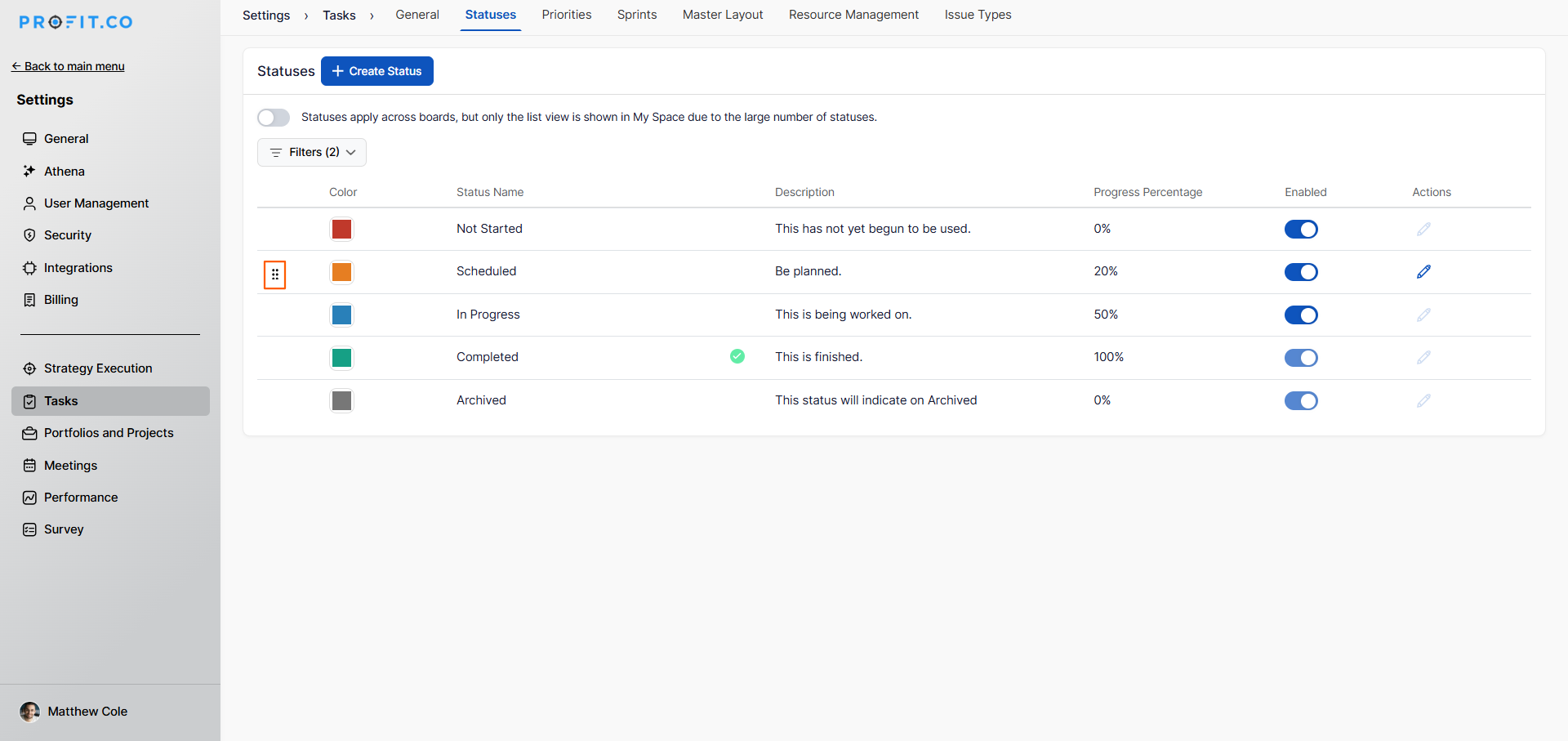
Note: Rearranging statuses updates the order in which they appear across all Workspaces and Boards, making it easier for team members to progress tasks in the correct sequence.
How to edit task status from the workspace or board level in Profit.co?
In addition to editing statuses from Settings, you can also update a task's status directly from the Workspace or Board view.
Step 1
- Go to Tasks from the left navigation panel.
- Open the relevant Workspace or Board containing the task.
- Click on the current status displayed on the task card or task row.
- Select the updated status from the dropdown.
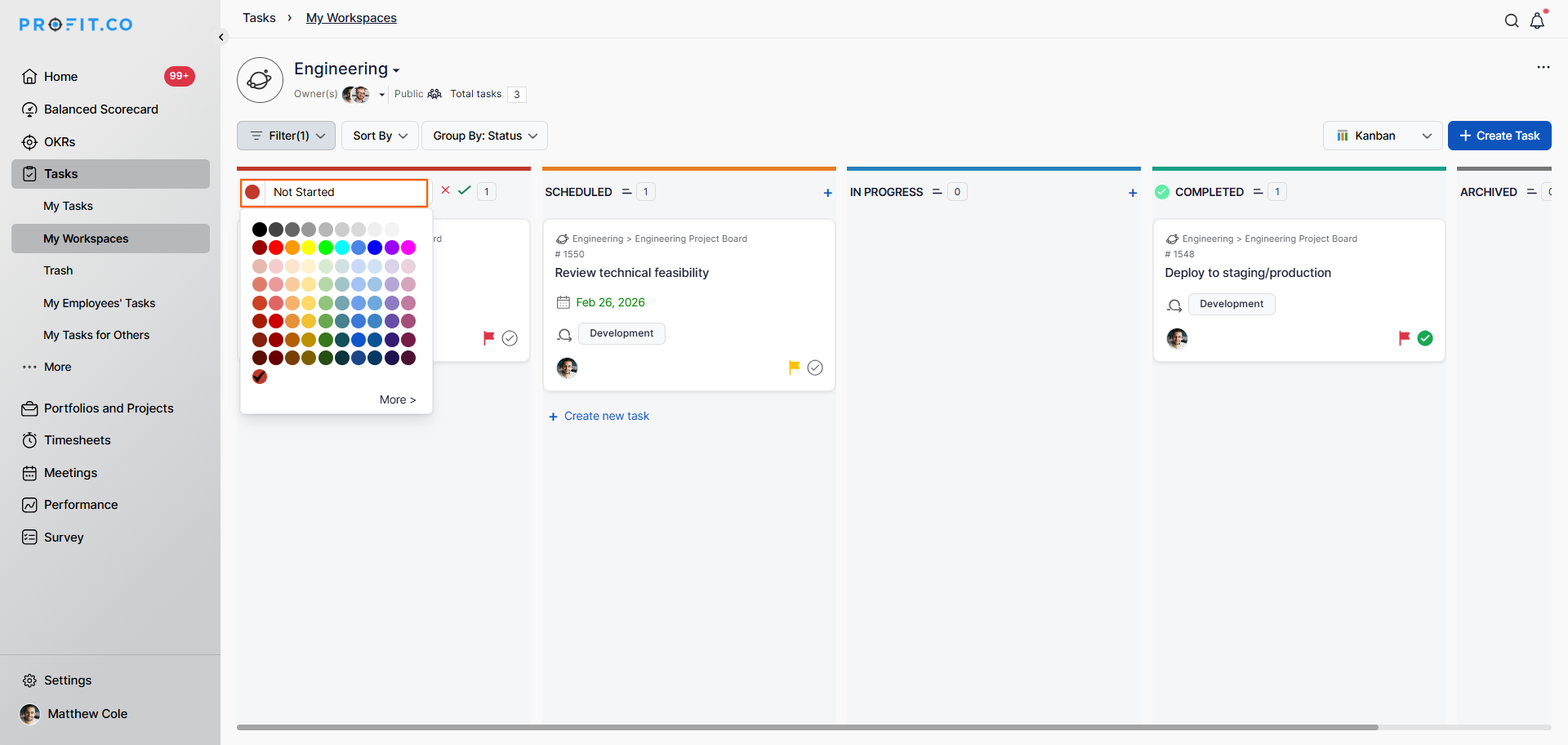
Note: Any status changes made at the workspace or board level are reflected immediately on the task view page, ensuring all team members see the most up-to-date status in real time.
Best practices for managing Task Statuses in Profit.co
- Keep status names short, clear, and action-oriented; for example, "In Review" is more informative than "Pending."
- Use distinct color codes for each status to make it easy to visually scan task progress across Kanban and List views at a glance.
- Arrange statuses in the logical order of your workflow so team members always know which status comes next.
Related Questions
Click here to learn how to create Workspaces and Boards in Profit.co.
Frequently Asked Questions
Navigate to Settings → Tasks → Statuses tab, click the Edit icon next to the status you want to modify, update the Name, Description, and Color Code, then click Update.
You can customize the status Name, Description, and Color Code to match your team's workflow and terminology.
Yes. In the Settings → Tasks → Statuses tab, click the Ellipsis icon next to any status and use the rearrange option to reorder statuses in the sequence that best reflects your workflow.
