

In Profit.co, you can enable the Accept/Reject Task Assignment feature to give assignees the ability to confirm or decline tasks assigned to them, ensuring clear ownership, accountability, and better task prioritization across your team.
Table of Contents
- What is the Accept/Reject Task Assignment feature in Profit.co?
- How to enable the Accept/Reject Task Assignment feature in Profit.co?
- Where can assignees accept or reject tasks in Profit.co?
- How to enable email notifications for task Accept/Reject actions in Profit.co?
- How to restrict task assignment to higher roles in Profit.co?
- Best practices for using the Accept/Reject Task Assignment feature in Profit.co
- Related Questions
- Frequently Asked Questions
What is the Accept/Reject Task Assignment feature in Profit.co?
The Accept/Reject Task Assignment feature in Profit.co allows task assignees to formally confirm or decline a task that has been assigned to them. When enabled, every newly assigned task appears with an Accept or Reject option for the assignee, giving them a structured way to acknowledge their responsibility or flag that they are unable to take on the task.
How to enable the Accept/Reject Task Assignment feature in Profit.co?
The feature must be enabled from the Settings panel before assignees can see the Accept/Reject options.
- Go to Settings → Tasks from the left navigation panel.
- In the General section, locate the Task Assignment area.
- Enable the toggle for "Accept/Reject Task Assignments".
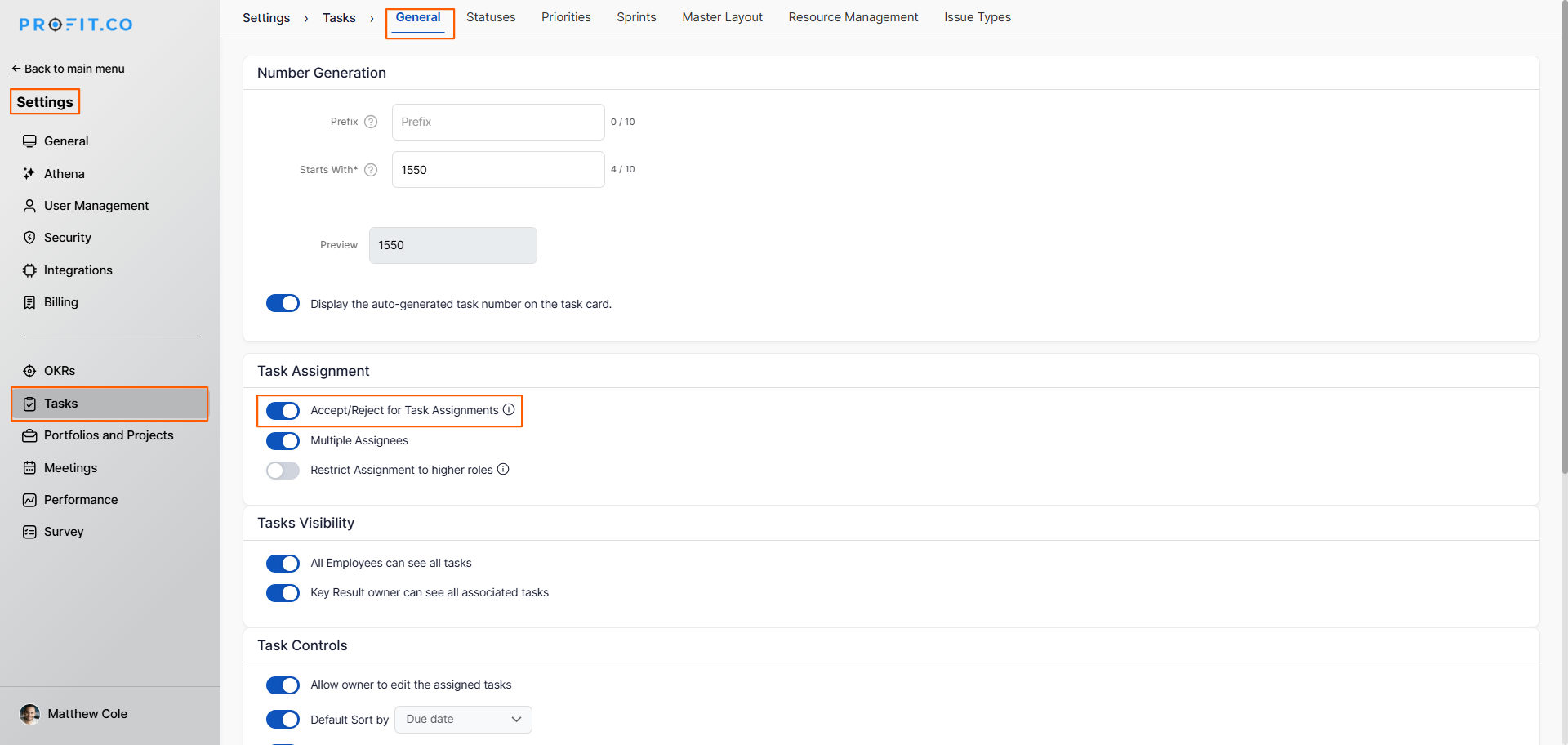
Once enabled, all newly assigned tasks will display the Accept/Reject option for the assignee.
Where can assignees accept or reject tasks in Profit.co?
Profit.co provides three locations where assignees can view and respond to pending task assignment requests:
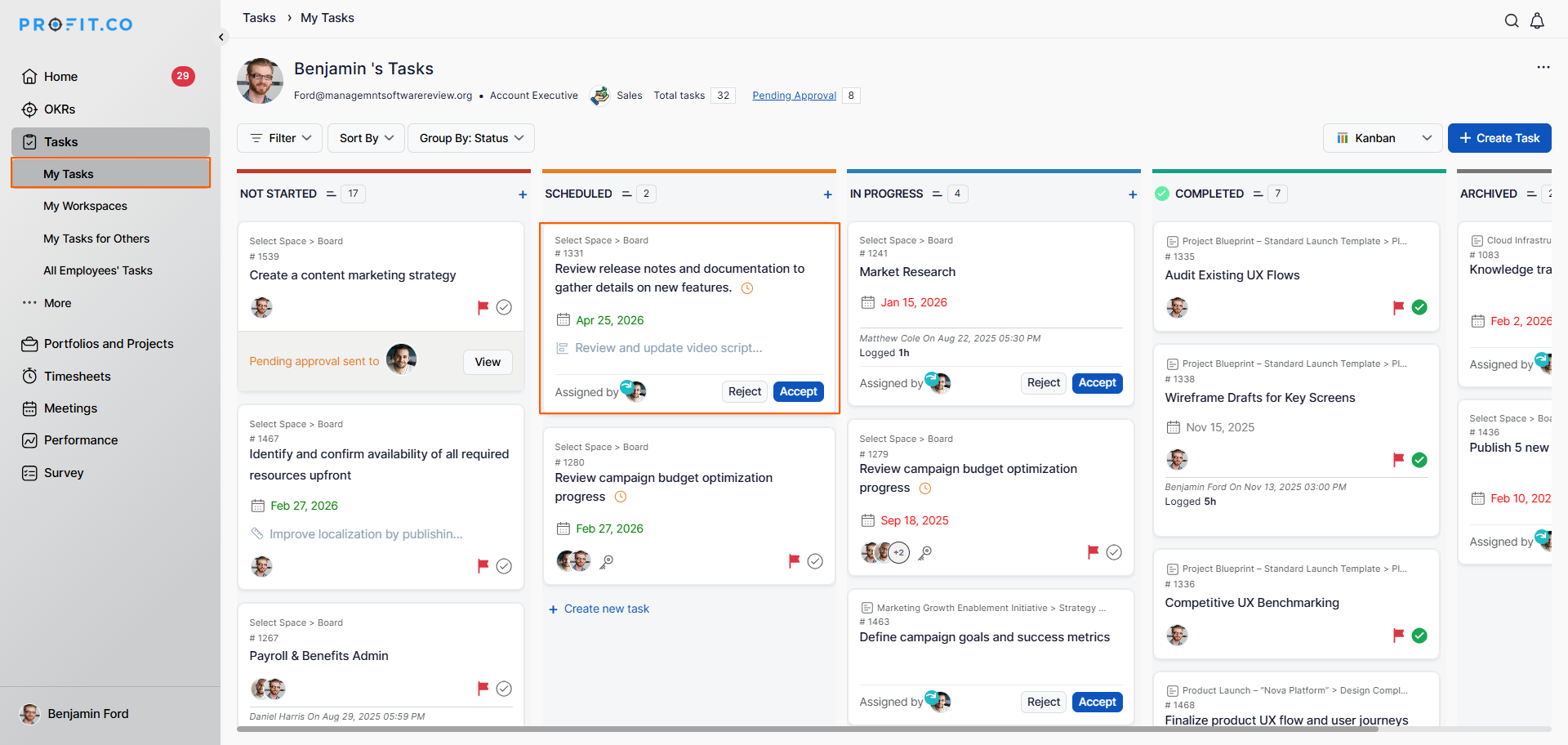
1. My Tasks Page
- When a task is assigned, the assignee will see the task appear on their My Tasks page with the Accept or Reject option displayed.
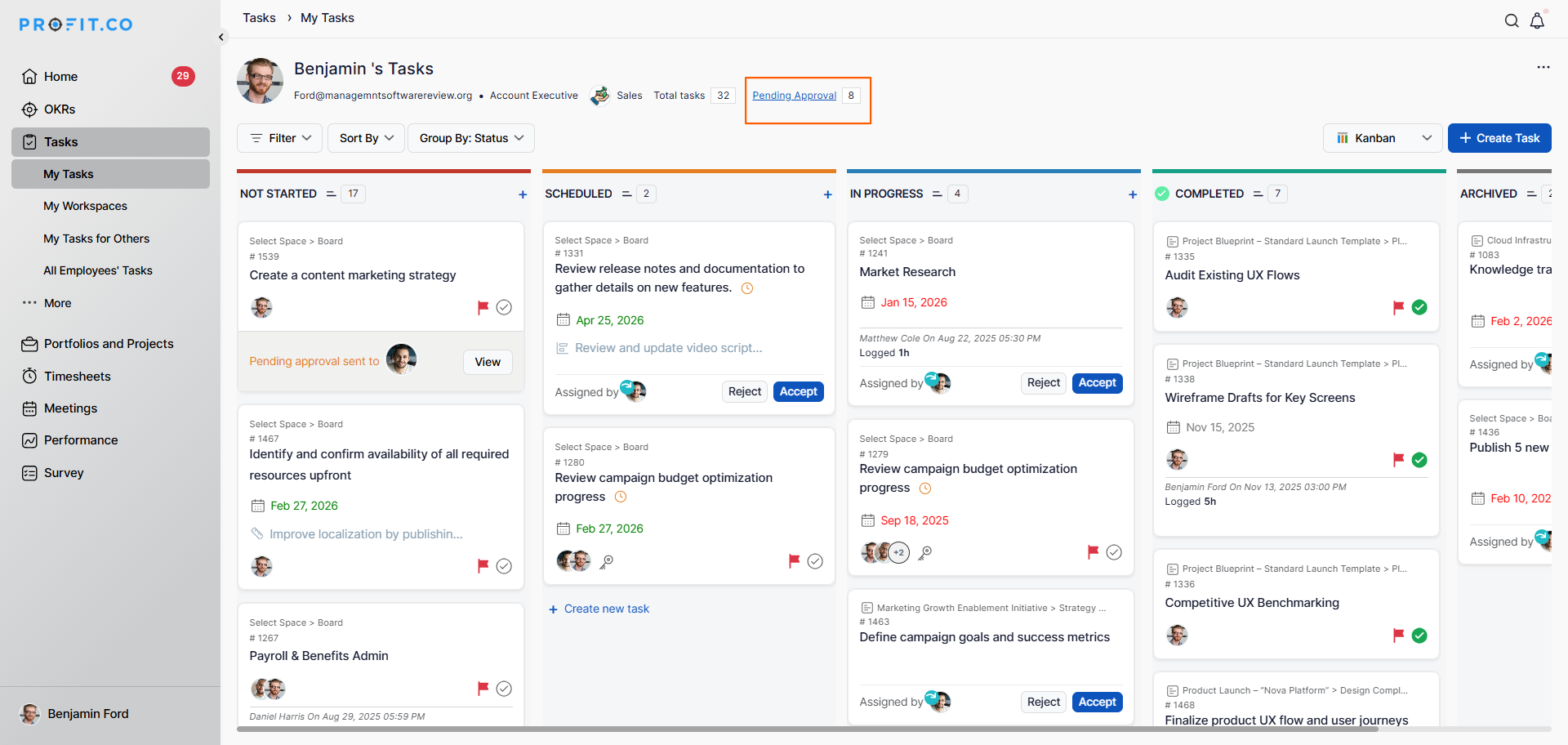
2. Pending Acceptance in the Task Menu
- In the Task menu, assignees can see the total number of tasks assigned to them.
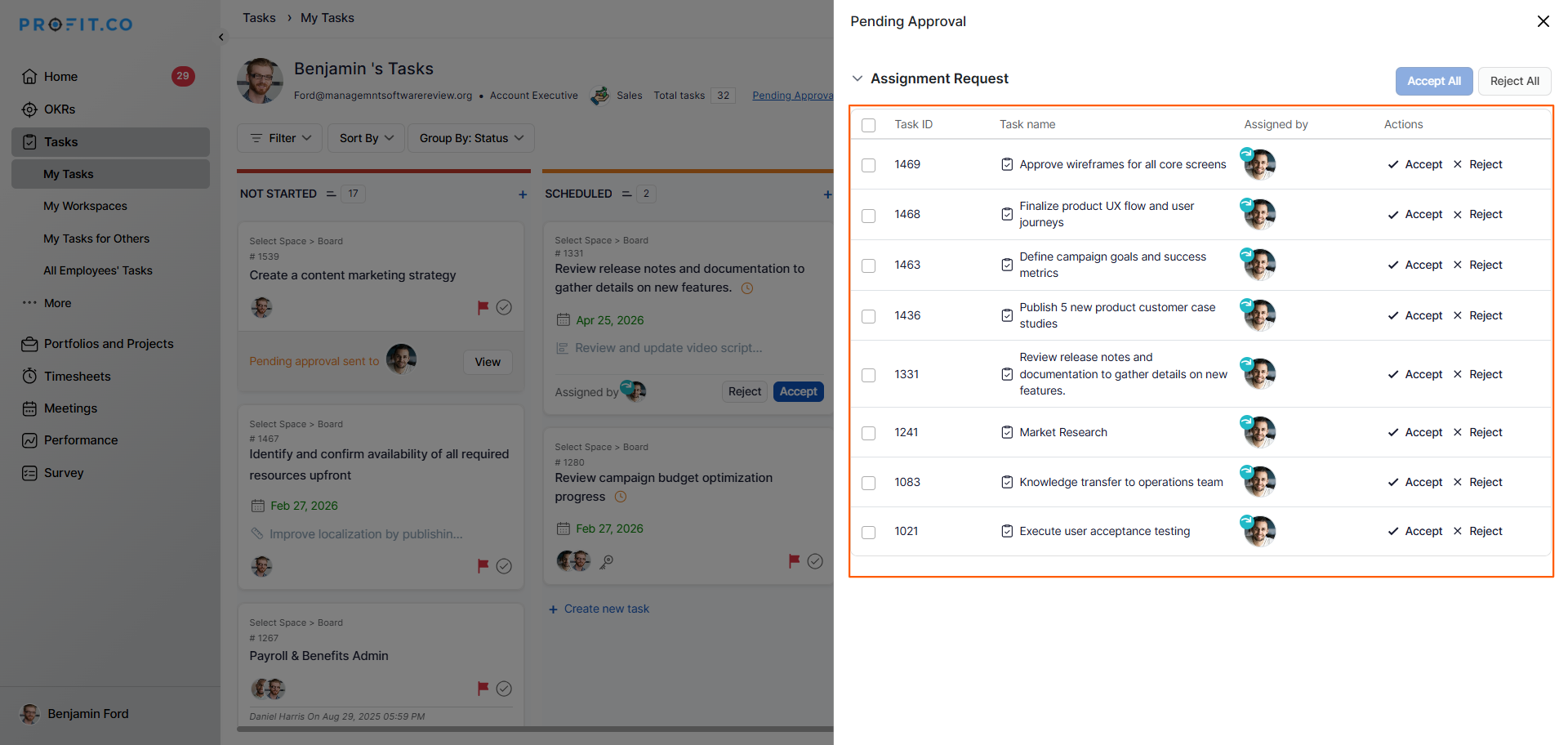
- Click on "Pending Acceptance" to view and respond to all tasks awaiting a response.
3. Home Page — Task Assignment Request
- On the Home page, under the Actions section, assignees can find the "Task Assignment Request" panel.
- Tasks can be Accepted or Rejected directly from this panel without navigating elsewhere.
How to enable email notifications for task Accept/Reject actions in Profit.co?
Profit.co can send automated email notifications whenever an assigned task is accepted or rejected. Follow these steps to enable them:
Step 1
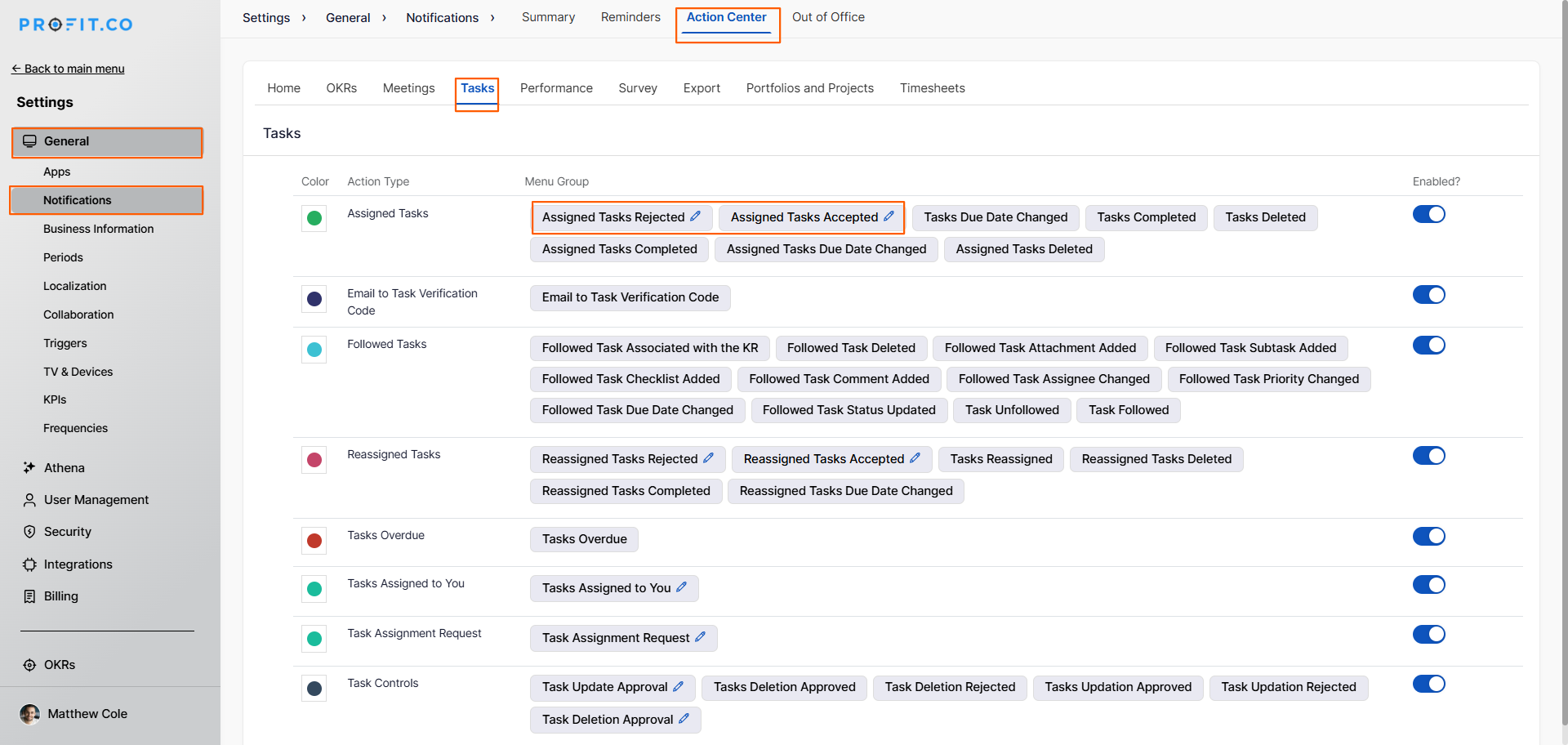
- Go to Settings → General → Notifications from the left navigation panel.
- Switch to the Action Center tab.
- Click on the Tasks tab within the Action Center settings.
- Click the Edit icon next to Assigned Tasks Accepted or Assigned Tasks Rejected.
Step 2
- On the side panel, enable the "Email Notification" toggle.
- Click Update to save the settings.
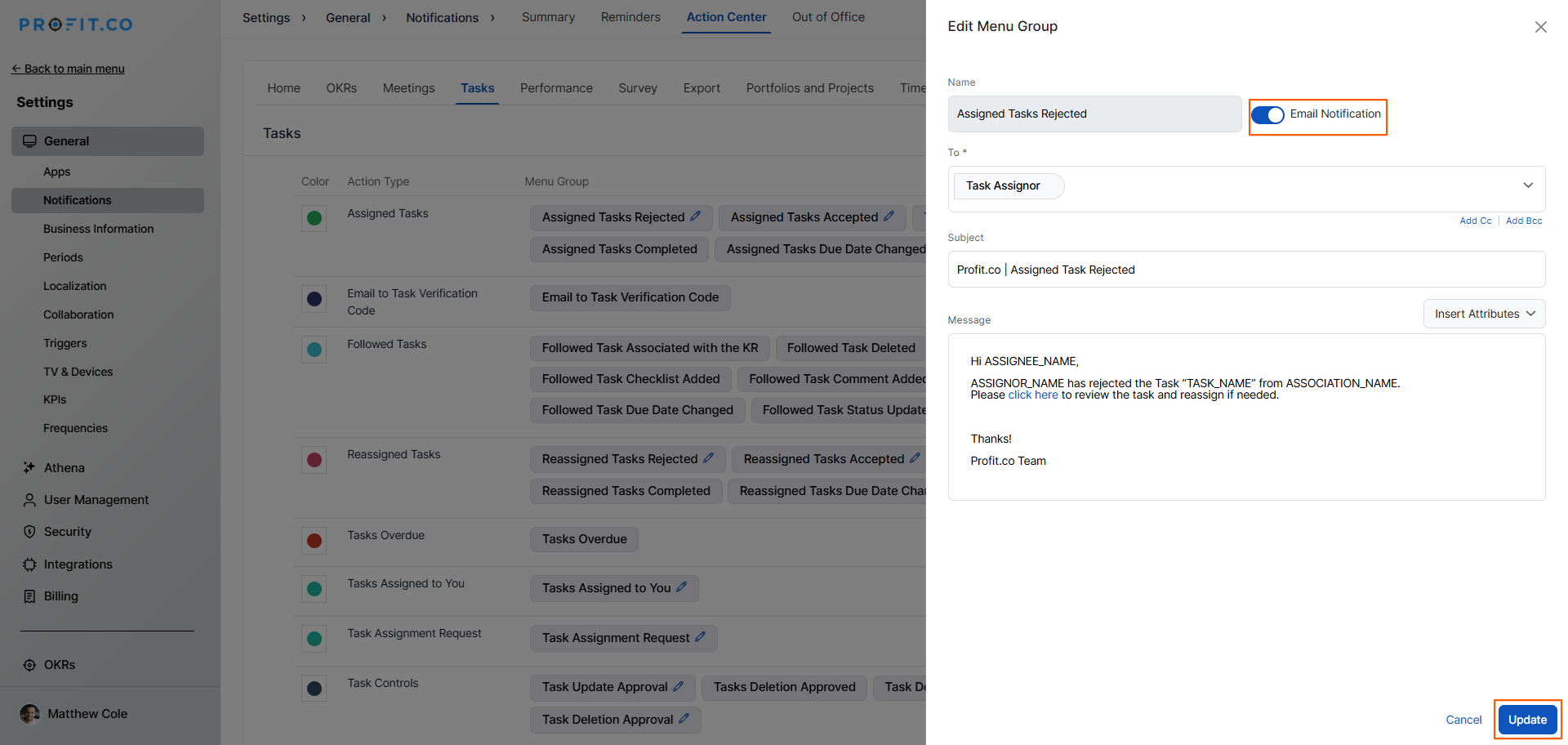
Once enabled, automated email notifications will be sent containing key details such as the task name, status, any comments, and the approver's name.
How to restrict task assignment to higher roles in Profit.co?
Profit.co allows you to restrict task assignments based on organizational hierarchy to prevent users from assigning tasks to their managers or higher-level roles.
- Go to Settings → Tasks from the left navigation panel.
- Under the Task Assignments section, enable the "Restrict Assignment to Higher Roles" toggle.
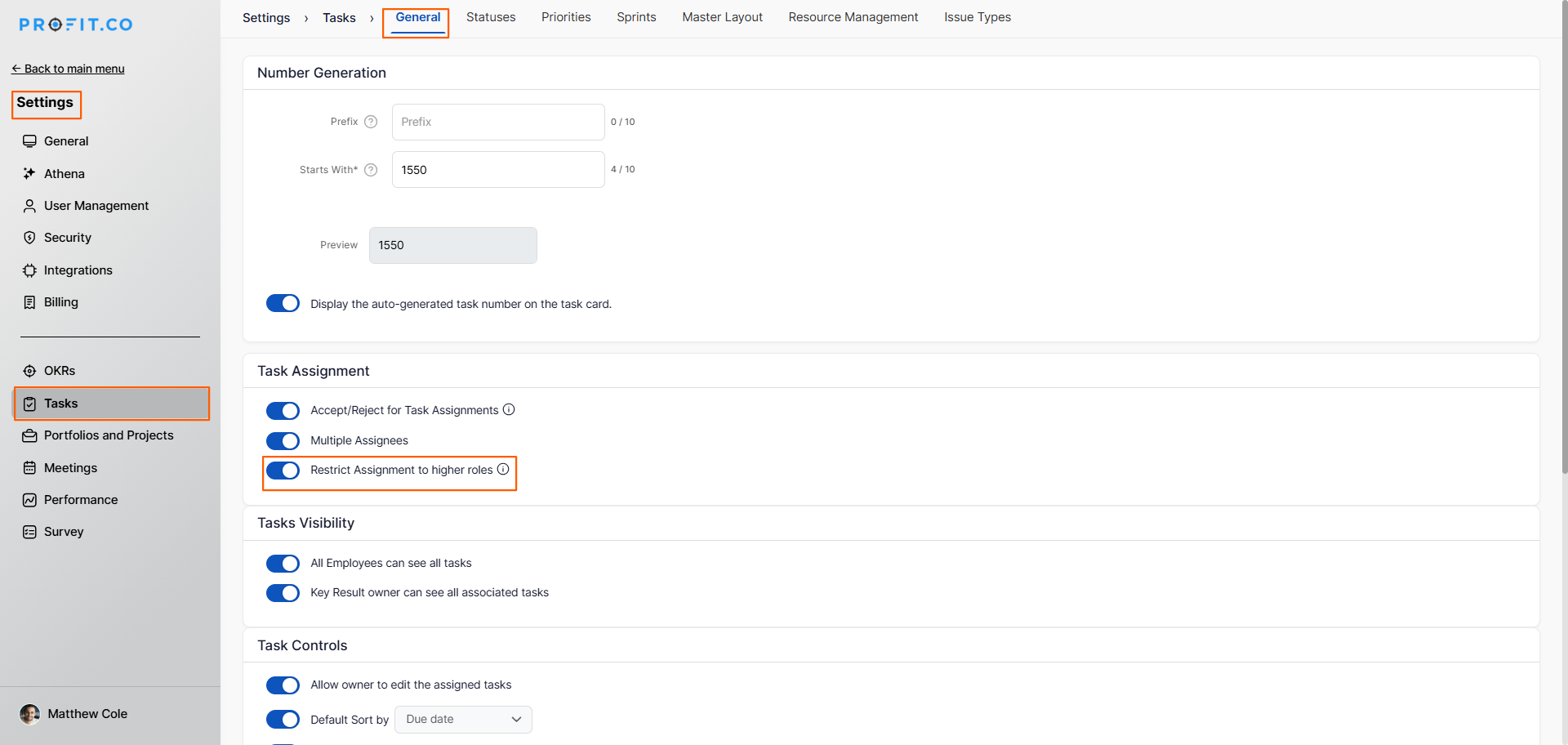
Once enabled, the following assignment rules apply based on organizational hierarchy:
| Assignment Scenario | Allowed |
|---|---|
| Assigning to a peer (same level) | ✅ Allowed |
| Assigning to a direct report | ✅ Allowed |
| Assigning to managers outside your reporting line | ❌ Not Allowed |
| Assigning to your direct manager or anyone above | ❌ Not Allowed |
Best practices for using the Accept/Reject Task Assignment feature in Profit.co
- Enable the Accept/Reject feature for teams where workload visibility and explicit ownership confirmation are critical.
- Encourage assignees to respond to pending task requests promptly to avoid bottlenecks in task execution.
- Enable email notifications for task acceptance and rejection so task owners are informed in real time without needing to log in.
- Use the Pending Acceptance view regularly to identify tasks that have not yet been acknowledged and follow up as needed.
- Enable the Restrict Assignment to Higher Roles toggle in organizations with strict reporting hierarchies to maintain proper delegation boundaries.
Related Questions
Click here to learn how to view tasks of other employees in Profit.co.
Frequently Asked Questions
Navigate to Settings → Tasks → General → Task Assignment section, and enable the Accept/Reject Task Assignments toggle.
Assignees can respond to task assignment requests from three places: the My Tasks page, the Pending Acceptance option in the Task menu, and the Task Assignment Request section on the Home page.
Yes. Navigate to Settings → General → Notifications → Action Center → Tasks tab, click the Edit icon next to Assigned Tasks Accepted or Assigned Tasks Rejected, and enable the Email Notification toggle.
