

In Profit.co, users can set a Start Date on any task to define exactly when work should begin, enabling better timeline planning and ensuring assignees know when to act.
Table of Contents
- What is the Start Date field in Profit.co Task Management?
- What is the difference between a Start Date and a Due Date in Profit.co?
- How to create a task in Profit.co?
- How to set a start date on a task in Profit.co?
- Best practices for using Start Dates in Task Management in Profit.co
- Related Questions
- Frequently Asked Questions
What is the Start Date field in Profit.co Task Management?
The Start Date field in Profit.co Task Management allows users to specify the date on which work on a task is expected to begin. It works alongside the due date to define the full timeline window for a task, giving assignees a clear picture of when they should start working and when the task must be completed.
What is the difference between a Start Date and a Due Date in Profit.co?
Both fields define the timeline of a task but serve distinct purposes:
| Field | Definition | Purpose |
|---|---|---|
| Start Date | The date on which work on the task is expected to begin | Signals to the assignee when they should start working on the task |
| Due Date | The date by which the task must be completed | Sets the deadline and is used for overdue tracking and reporting |
How to create a task in Profit.co?
Step 1
- Go to Tasks → My Tasks or any required Workspace or Board from the left navigation panel.
- Click the + New Task button or the task creation option within the Board or List view.
- Enter the task name and any required details in the task creation panel.
- Click Save to create the task.
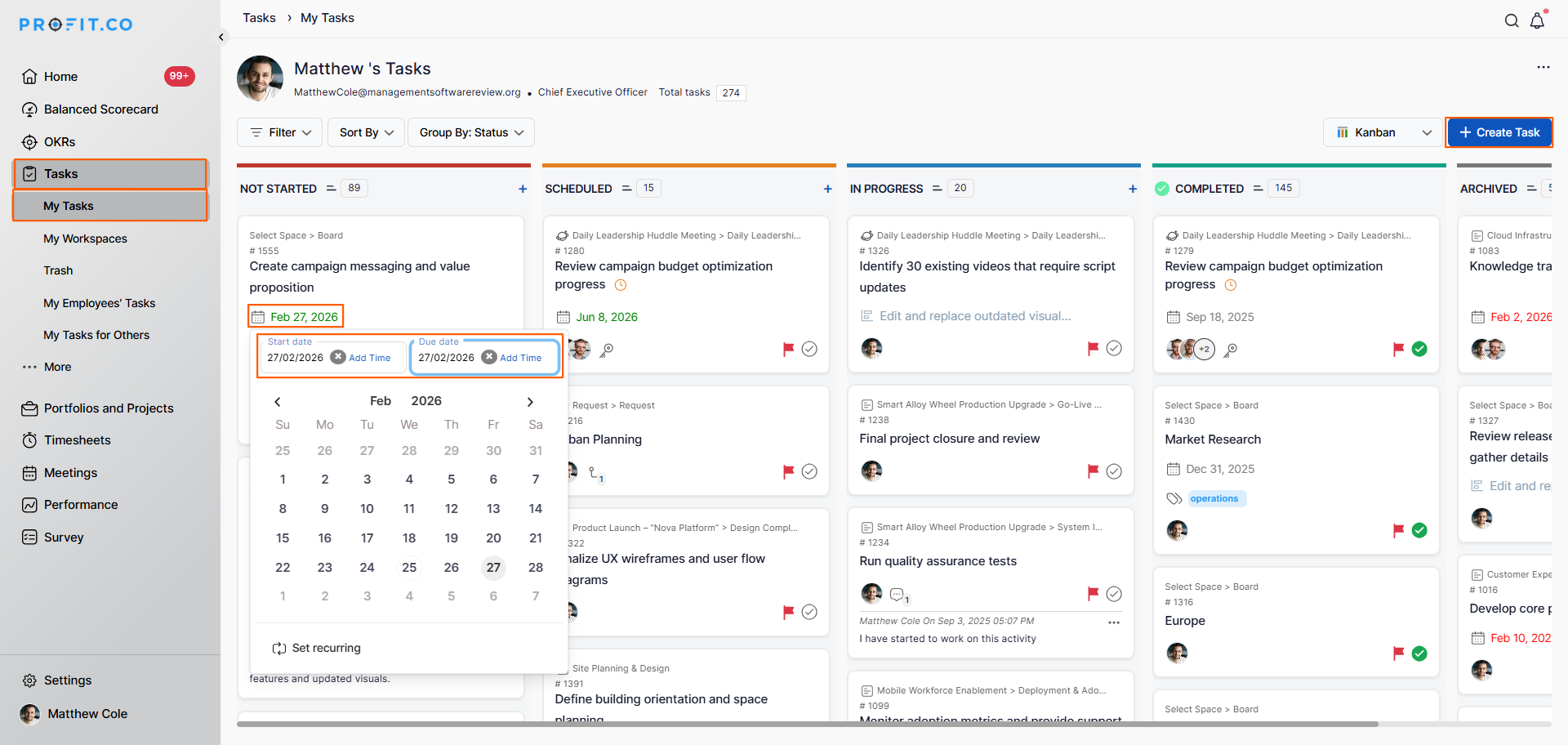
The task will now appear in your task list and is ready to have a start date assigned to it.
How to set a start date on a task in Profit.co?
Step 1
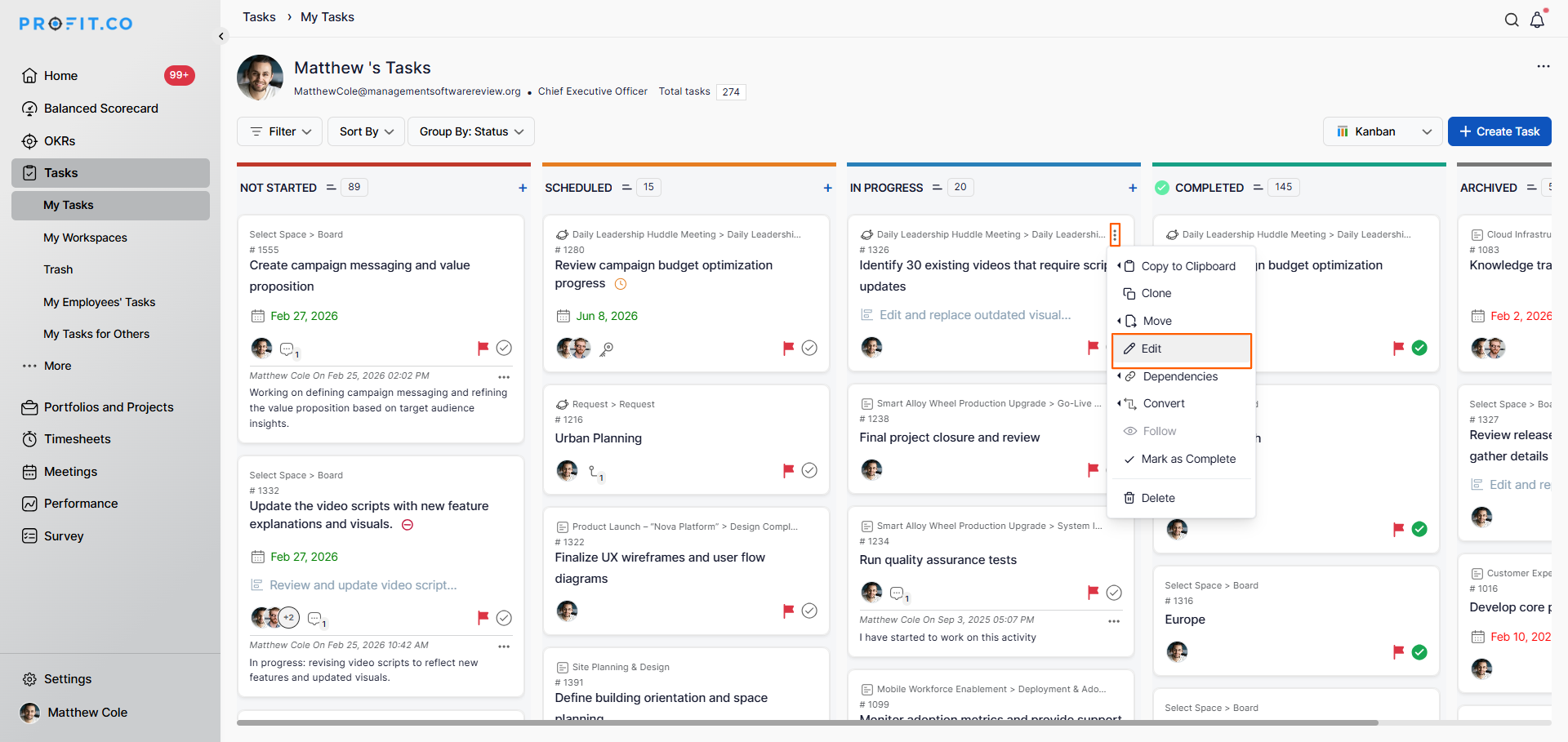
- Navigate to Tasks → My Tasks or the relevant Workspace or Board where the task exists.
- Click the Ellipsis (⋯) icon on the task card or task row.
- Select the Edit option from the dropdown menu.
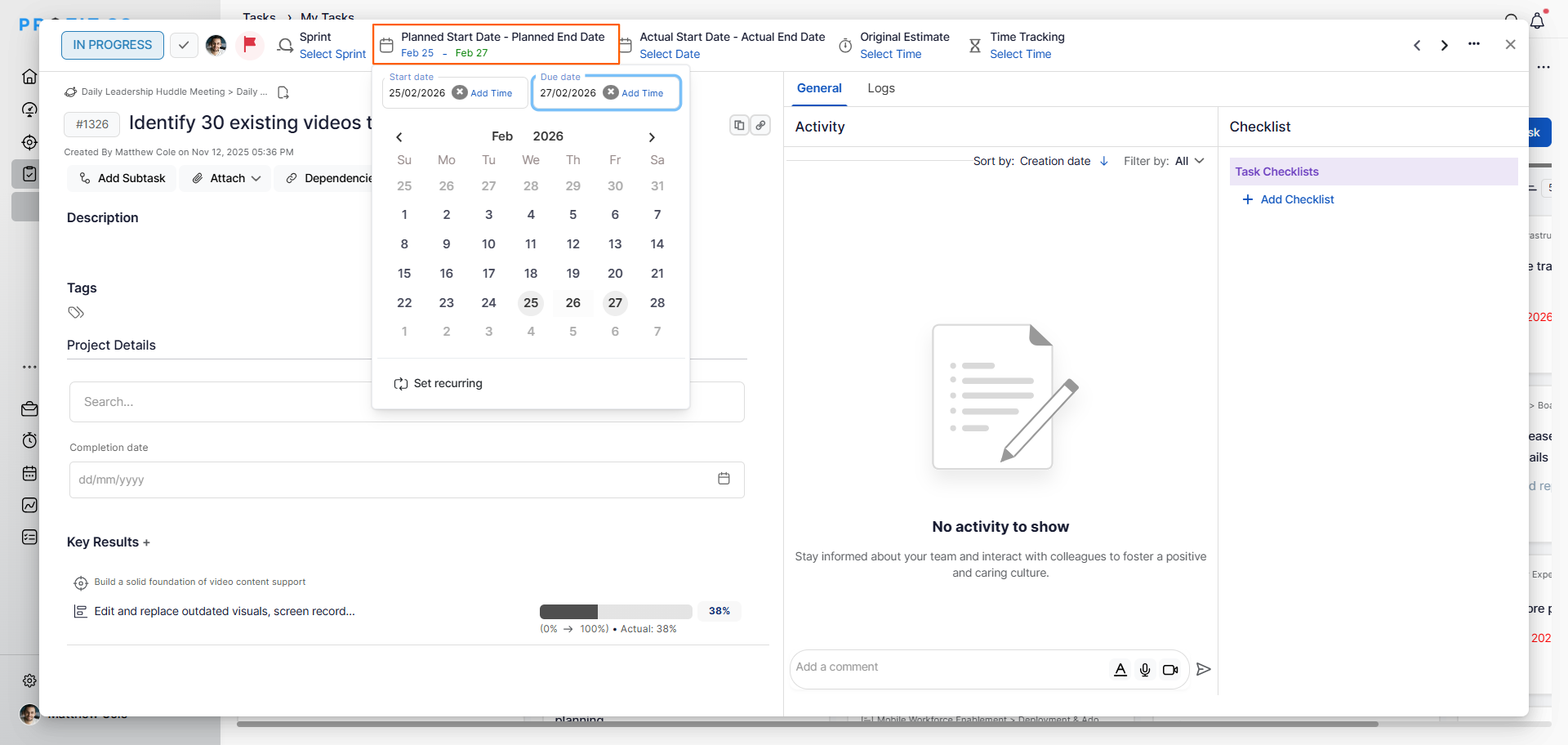
- In the task edit panel, click on the Set Start Date option.
- A date picker will appear; select the desired start date from the calendar.
Best practices for using Start Dates in Task Management in Profit.co
- Always set both a Start Date and a Due Date on tasks to give assignees a complete and unambiguous timeline for their work.
- Set the Start Date at the time of task creation rather than retroactively to ensure the task appears correctly in Gantt and timeline views from the start.
- Align Start Dates with the actual availability of the assignee; avoid setting a start date during a period when the assignee is on leave or engaged with higher-priority work.
- Use start dates in combination with the sprint planner to ensure tasks within a sprint are sequenced correctly across the sprint window.
Related Questions
Click here to learn more about how to create a new Task in Profit.co.
Frequently Asked Questions
Navigate to the task, click the Ellipsis (⋯) icon, select Edit, click on Set Start Date, choose the desired date from the calendar, and click Save.
No, the Start Date is optional. However, setting both a Start Date and a Due Date is recommended for accurate timeline planning, Gantt chart rendering, and workload management.
The Start Date defines when work on the task is expected to begin. The Due Date defines the deadline by which the task must be completed. Together they establish the full timeline window for the task.
