
In Profit.co, you can enable the Comments toggle in the Show/Hide options to display the latest comments on each task directly within the Kanban and List views, keeping your team informed without having to open individual tasks.
Table of Contents
- What is the Show/Hide option in Profit.co Task Management?
- What toggles are available in the Show/Hide option in Profit.co?
- How to show the latest comments in Kanban/List View in Profit.co?
- How to show the Parent Task for a sub-task in Profit.co?
- Best practices for using Show/Hide options in Profit.co
- Related Questions
- Frequently Asked Questions
What is the Show/Hide option in Profit.co Task Management?
The Show/Hide option in Profit.co is a display configuration feature available within the task board that allows users to control which additional information is visible on each task card directly in the Kanban or List view. By enabling or disabling specific toggles, users can customize their task view to show or hide details such as comments, tags, key results, completed tasks, and parent task information, without opening the individual task detail panel.
What toggles are available in the Show/Hide option in Profit.co?
The Show/Hide panel provides multiple toggles that control the additional information displayed on task cards in the Kanban and List views.
| Toggle | Description |
|---|---|
| Comments | Displays the latest comment added to each task directly on the task card |
| Completed Tasks | Shows or hides tasks that have already been marked as completed |
| Key Results | Displays the Key Results associated with each task |
| Tags | Shows the tags assigned to each task on the task card |
| Parent Task | Displays the parent task name for sub-tasks on the task card |
How to show the latest comments in Kanban/List View in Profit.co?
Follow these steps to enable the Comments toggle and display the latest comments on task cards in the Kanban or List view:
Step 1
- Go to Tasks from the left navigation panel.
- Open the relevant Workspace or Board to view task comments.
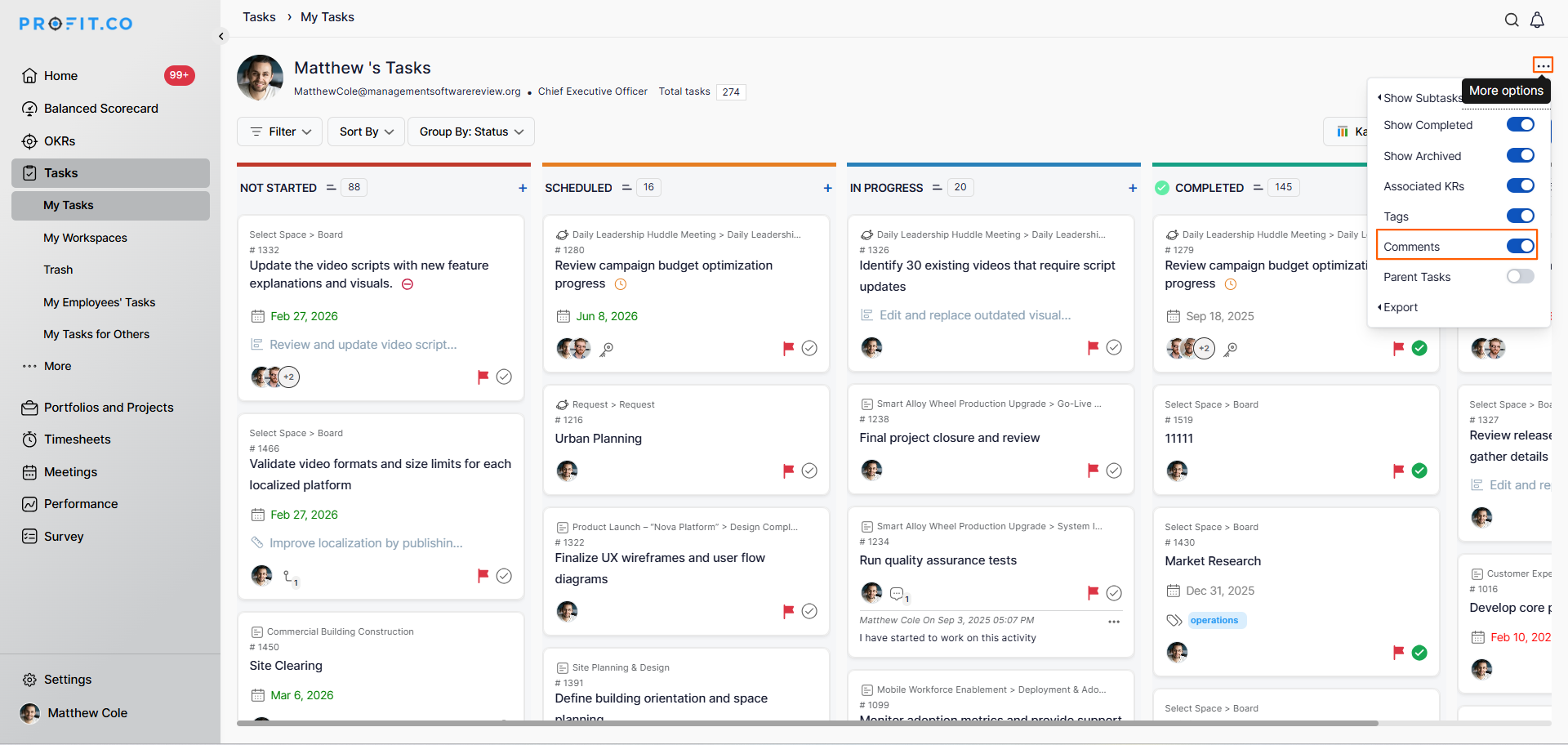
- In the task board, click the Ellipsis (...) icon located at the top right corner of the task board.
- This opens the Show/Hide options panel.
- Locate the Comments toggle in the Show/Hide panel.
- Enable the toggle to turn on comment visibility.
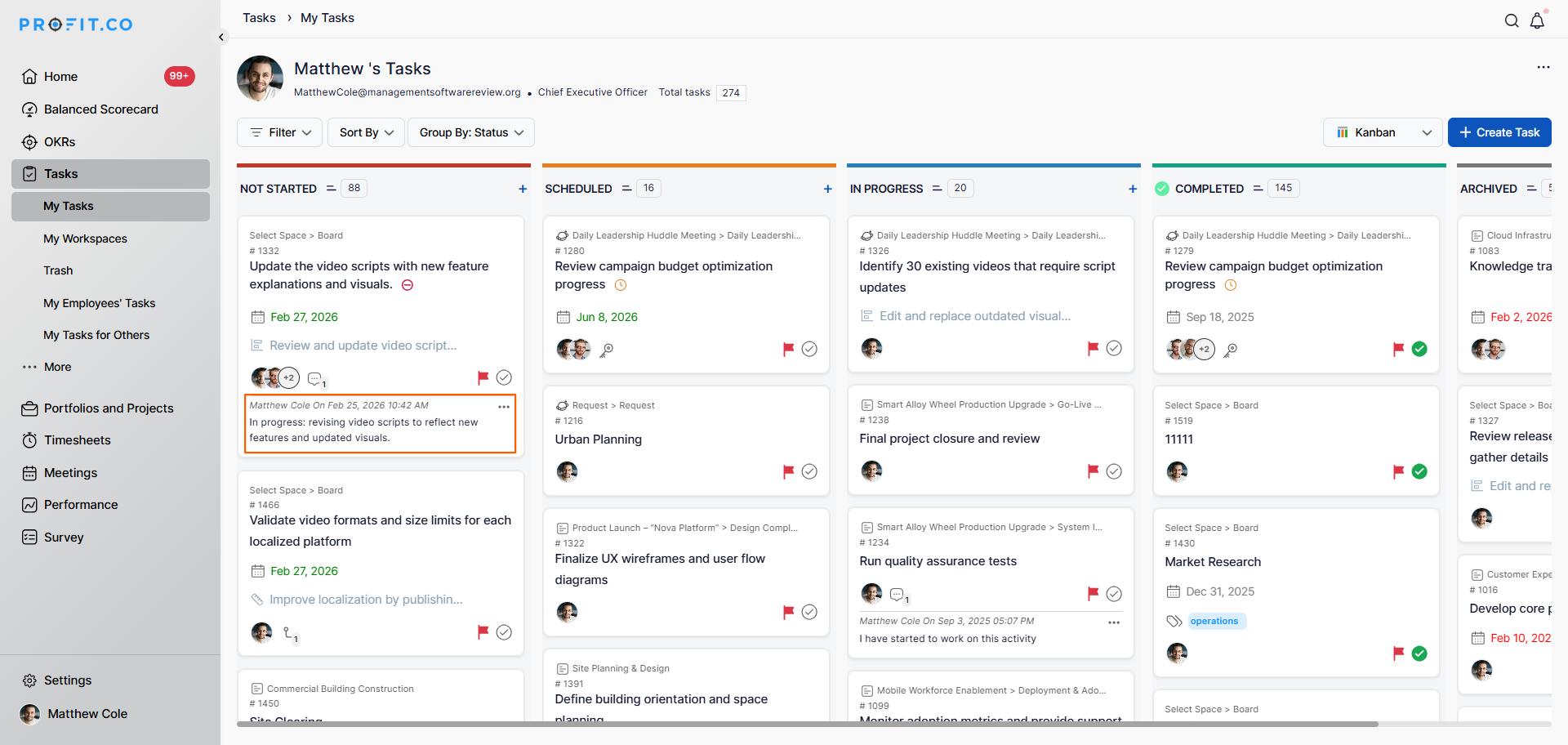
Step 2: View the latest comments on tasks
- The latest comment for each task will now appear directly on the task card within the Kanban or List view.
- You can scan all task comments without opening individual task detail panels.
How to show the Parent Task for a sub-task in Profit.co?
If sub-tasks have been assigned and you want to view the parent task they belong to directly on the task card, you can enable the Parent Task toggle from the same Show/Hide options panel.
Step 1
- Click the Ellipsis (...) icon at the top right corner of the task board.
- Locate the Parent Task toggle under the More options section.
- Enable the toggle to display the parent task name on each sub-task card.
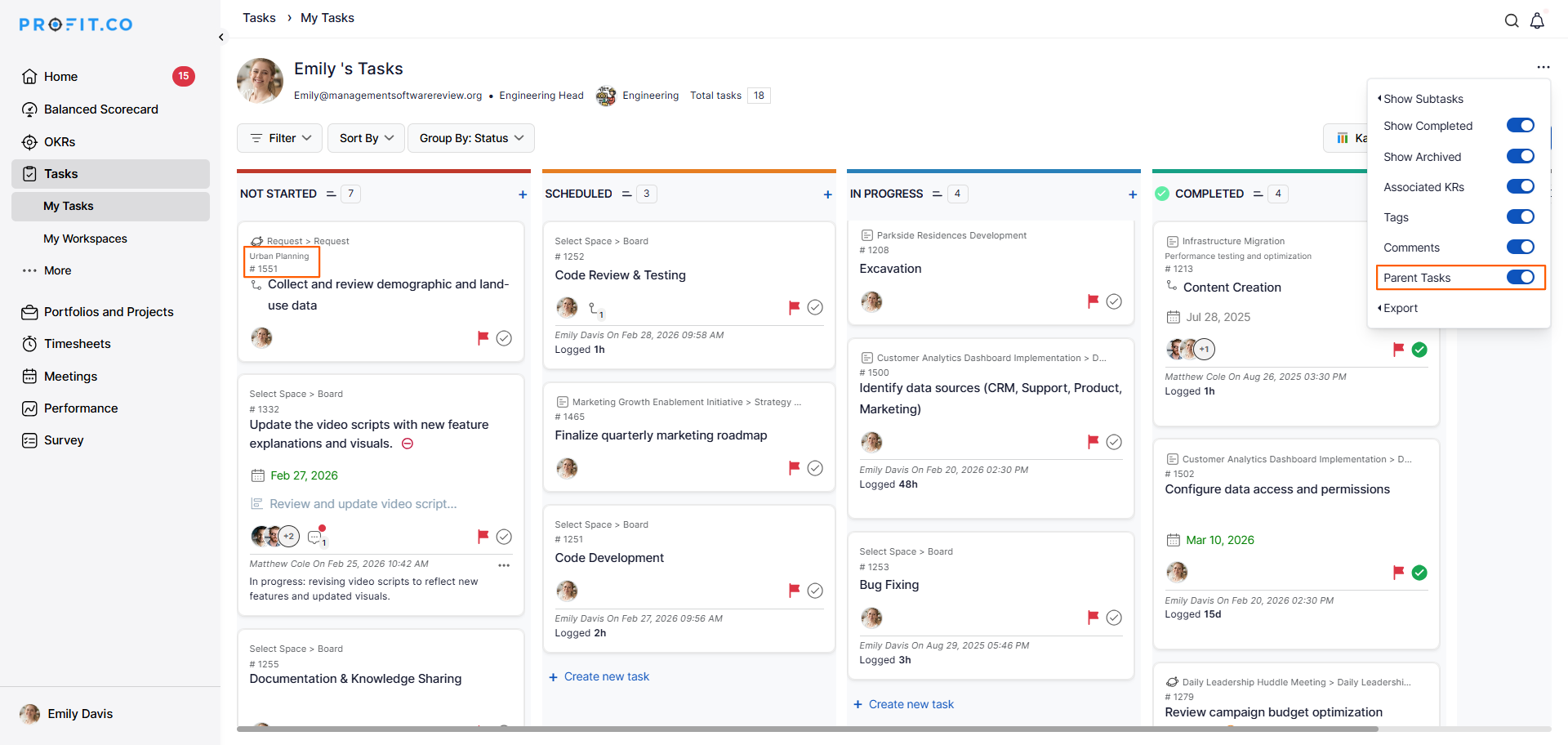
Note: The Parent Task toggle is particularly useful when working in boards that contain both parent tasks and sub-tasks, as it provides immediate context about which parent task each sub-task belongs to.
Best practices for using Show/Hide options in Profit.co
- Enable the Comments toggle during active project phases or sprint cycles when task discussions are frequent, so your team can stay updated directly from the board view.
- Use the Parent Task toggle when reviewing boards that contain sub-tasks to quickly understand the hierarchy and context of each task.
- Enable the Completed Tasks toggle during sprint retrospectives or end-of-cycle reviews to get a full picture of all work completed within the Board.
- Turn off toggles that are not actively needed to keep the task cards clean and focused during day-to-day task management.
Related Questions
Click here to learn how to create sub-tasks for an already existing task in Profit.co.
Frequently Asked Questions
Click the Ellipsis icon at the top right corner of the task board, locate the Comments toggle in the Show/Hide panel, and enable it. The latest comment for each task will then appear directly on the task card.
The Show/Hide options are accessed by clicking the Ellipsis (...) icon at the top right corner of any Workspace or Board in the Task Management module.
In addition to Comments, you can also toggle visibility for Completed Tasks, Key Results, Tags, and Parent Tasks on task cards in the Kanban and List views.
