

The Settings section in the Profit.co mobile application lets you manage your account, preferences, users, and app appearance, ensuring a secure, personalized, and efficient mobile experience.
Table of Contents
Why is the Settings section important in the Profit.co mobile app?
Mobile apps play a central role in managing work on the go. The Settings section in Profit.co helps users:
- Personalize the app experience
- Secure their account access
- Manage users and permissions
- Switch roles when acting as a proxy
- Control app appearance and device access
This ensures smooth goal tracking and management anytime, anywhere.
How do I access the Settings section in the Profit.co mobile app?
Step 1:
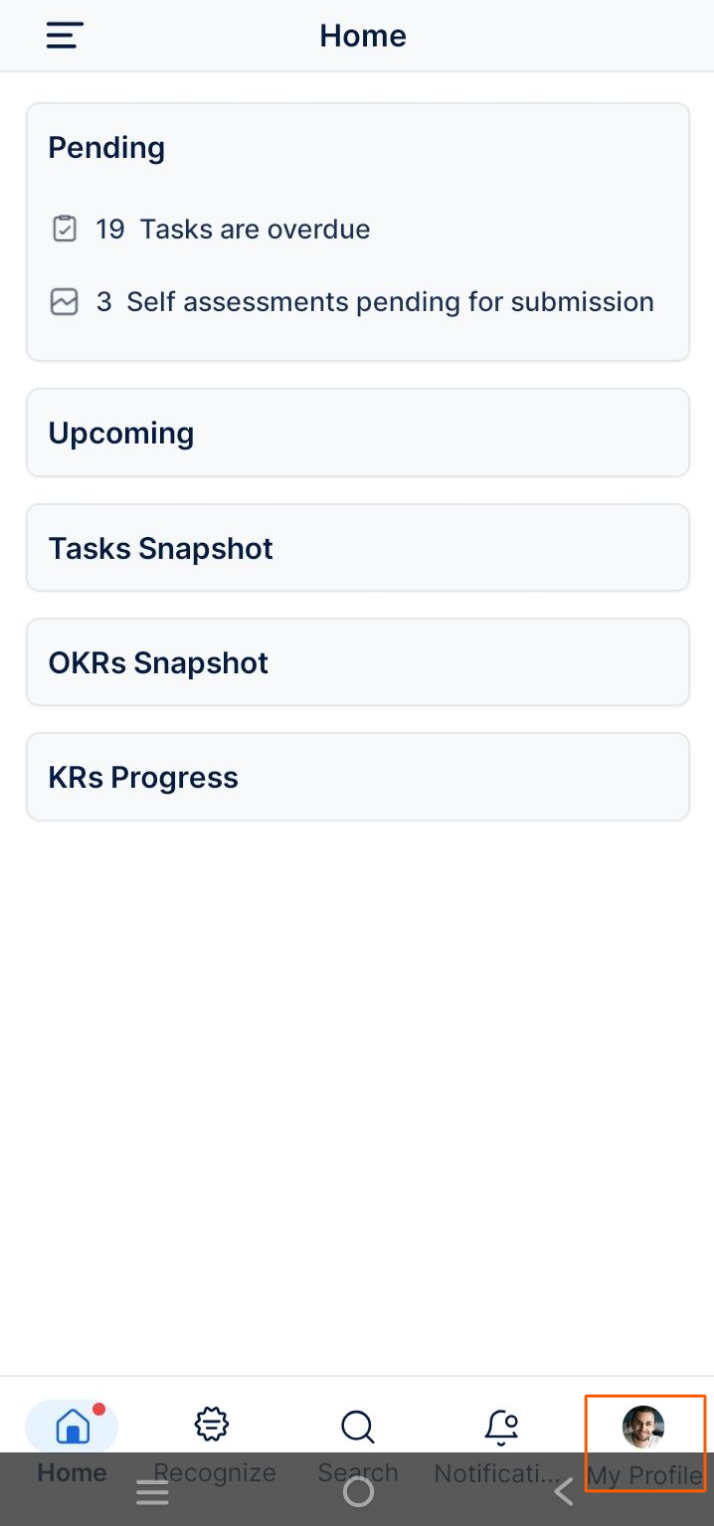
Tap the Profile icon from the bottom-right corner of the app.
Step 2:
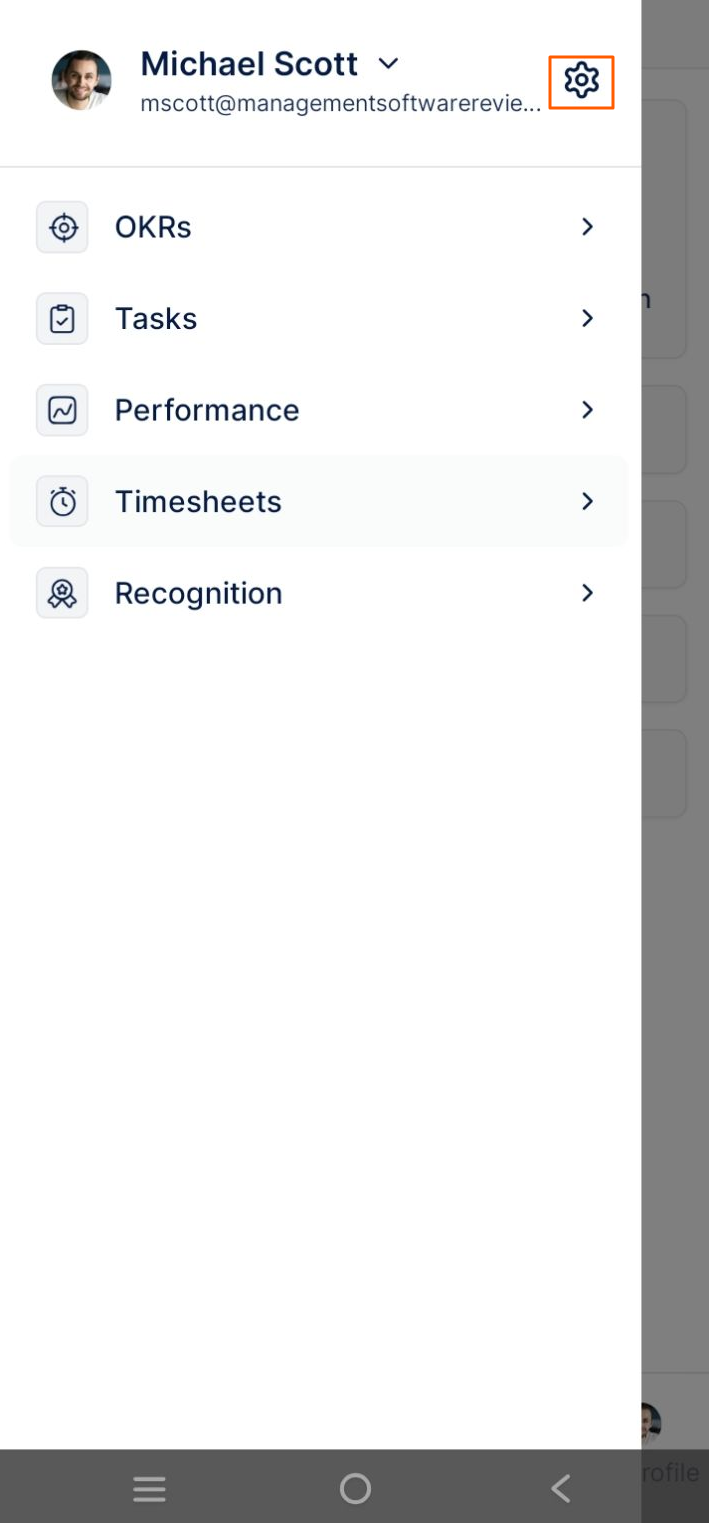
A side panel opens. Tap the Settings (⚙️) icon, where you can manage all available options.
What options can I configure in the Settings section?
When you tap the Settings icon, you can manage the following:
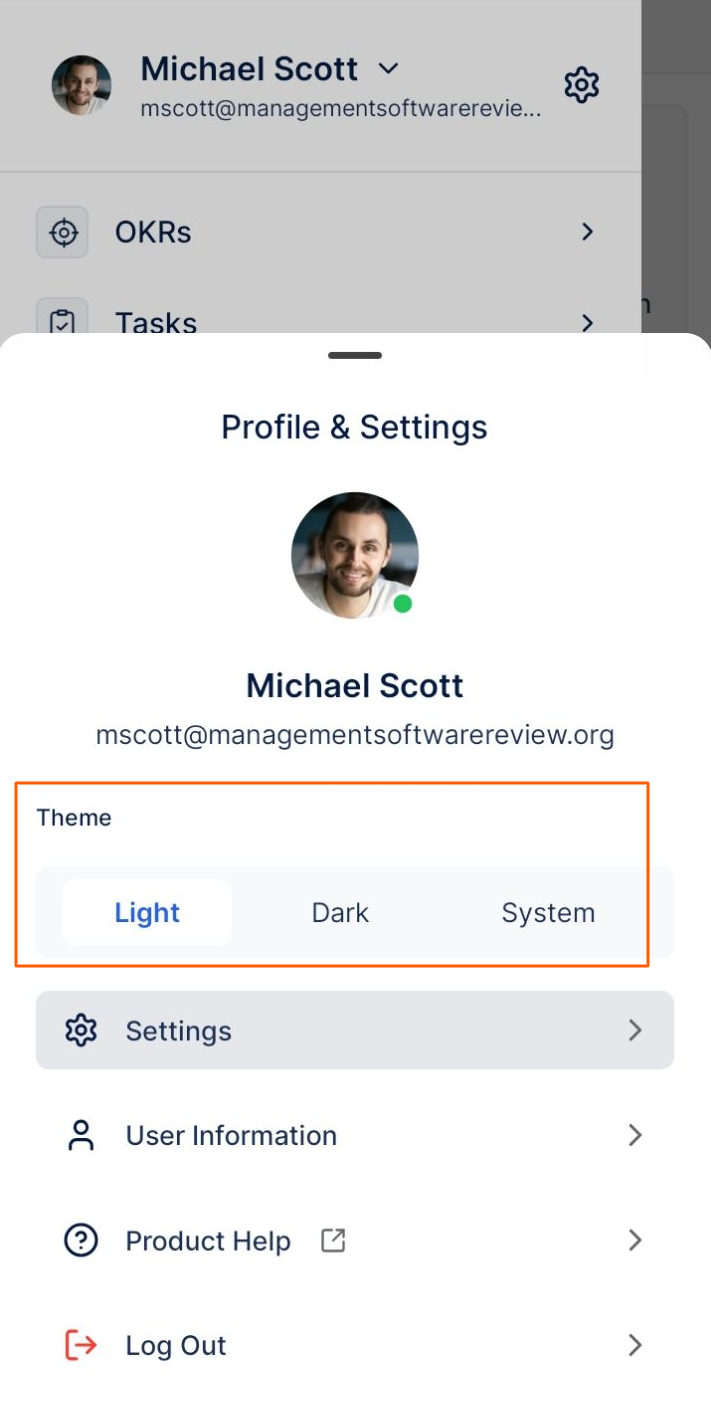
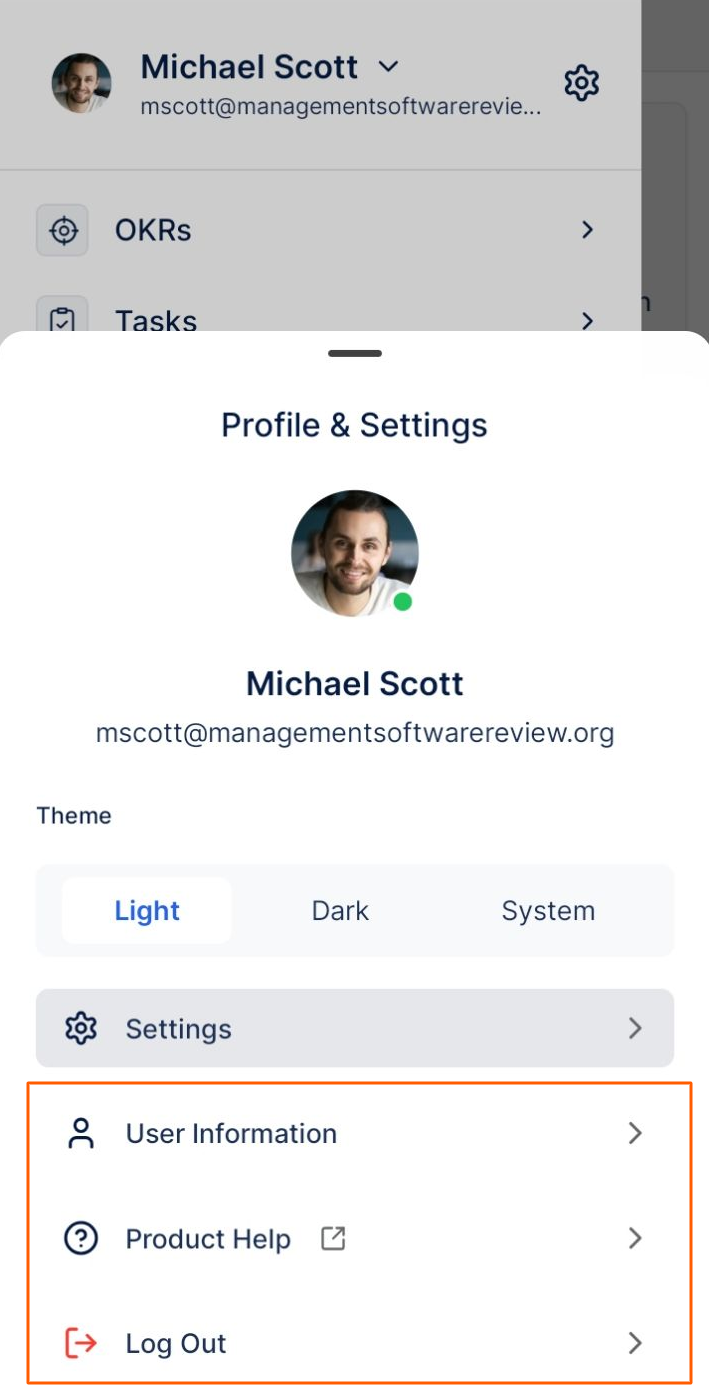
1. Theme
- Choose between Light, Dark, or System Default
- Improves visual comfort based on user preference
2. Settings
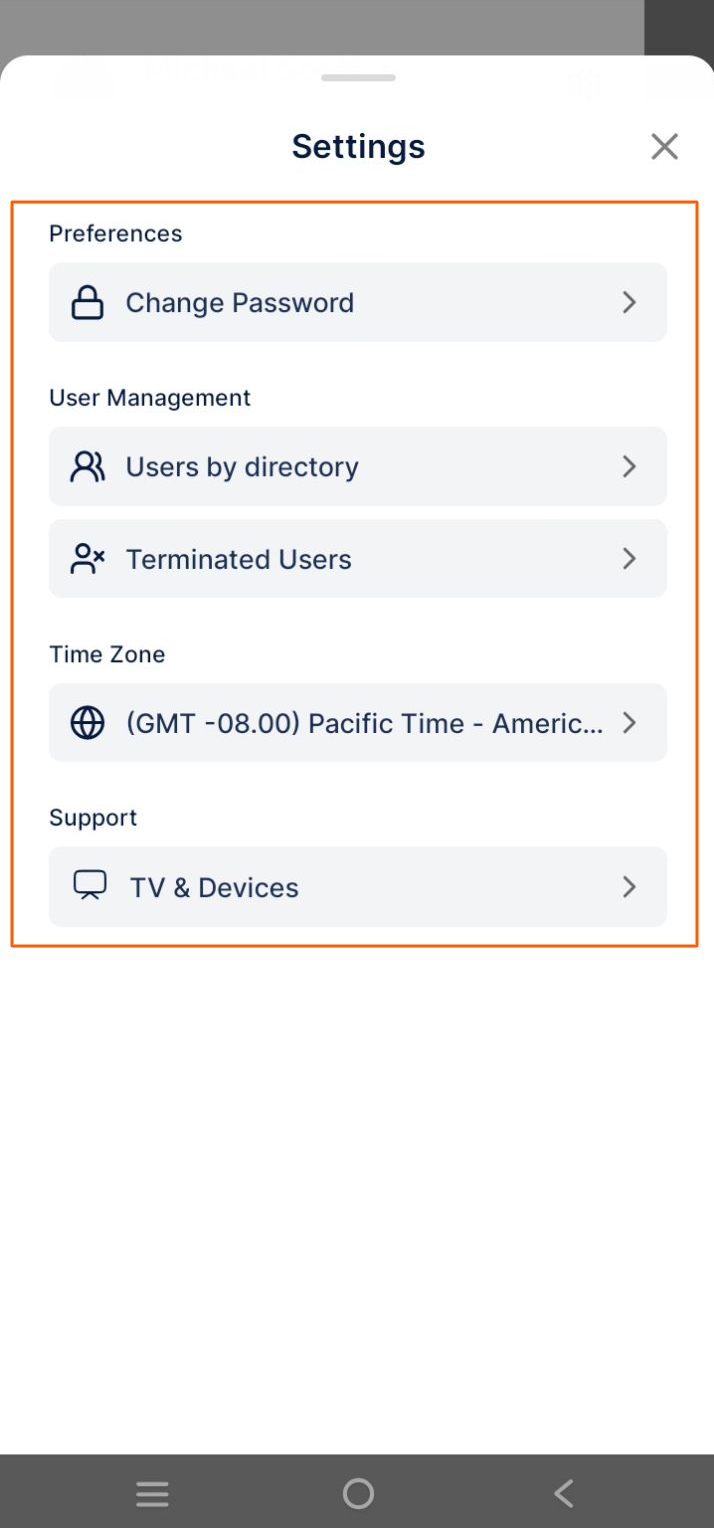
Preferences – Change Password
- Enter your current password
- Set and confirm a new password
- Save changes securely
User Management
Users by Directory
- View the list of all active users
Terminated Users
- View the list of terminated users
Time Zone
- Update your time zone
- Ensures accurate check-ins, reminders, and reports
Support
TV & Devices
- Superusers can set up Profit.co on Apple TV
- Monitor organizational OKRs on large screens
- Access goals from multiple locations and devices
3. User Information
The User Information section displays your basic profile details, including:
- Manager name
- Date of joining
- Department
- Grade
- Other organizational information
This helps users quickly view their employment details without switching platforms.
4. Product Help
- Access help resources related to the Profit.co mobile app
- Useful for understanding features and workflows on the go
5. Log Out
- Log out of the Profit.co mobile application anytime
- Recommended when using shared or public devices
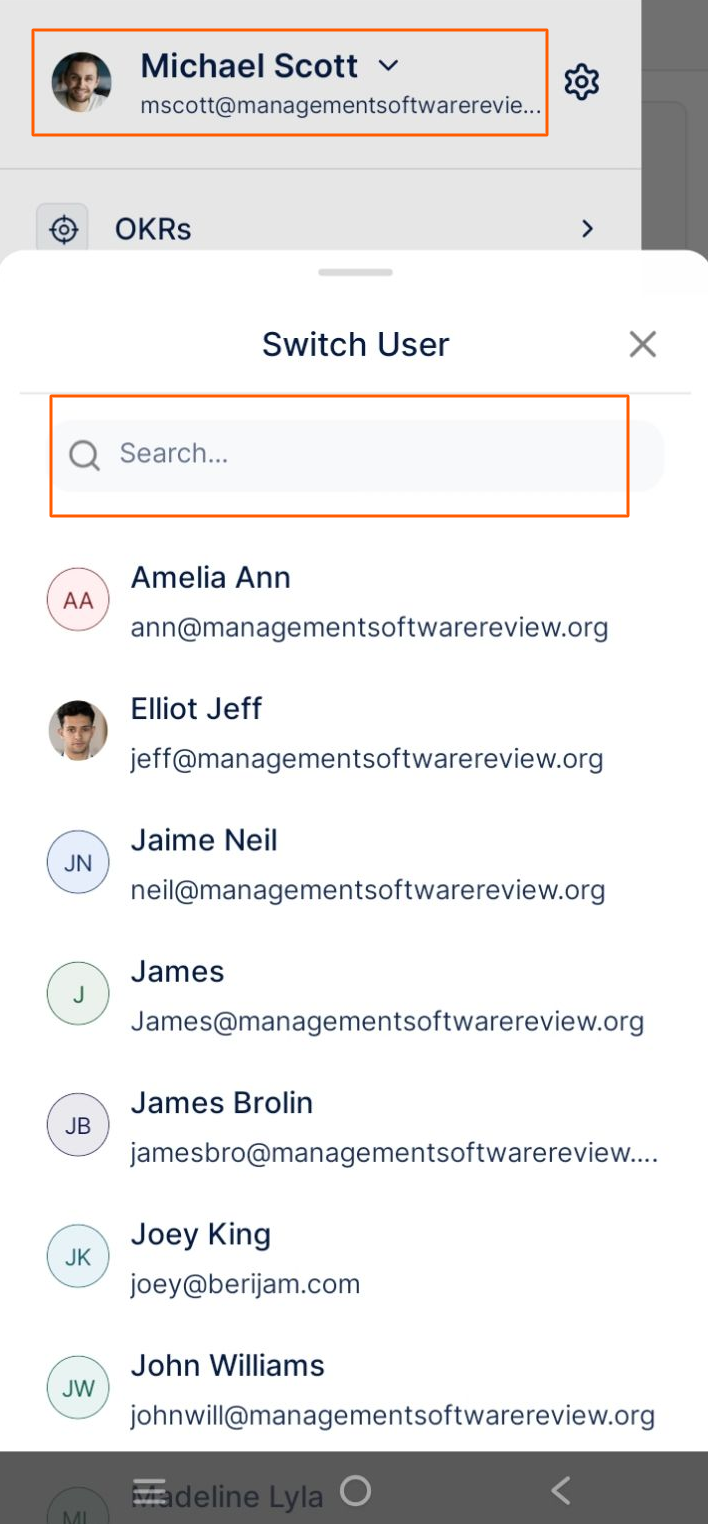
Switch User
- If assigned as a Proxy, you can switch to another user’s account
- Click the Profile again at the top and select the users to switch accounts.
- Helps track and manage activities on behalf of that user
Best practices for using the Settings section in Profit.co mobile app
- Update your time zone to ensure accurate check-ins
- Use strong passwords and change them regularly
- Assign proxy access only when necessary
- Choose themes that reduce eye strain
- Log out when accessing from shared devices
Frequently Asked Questions
Tap the Profile icon (bottom-right) → Settings icon from the side panel.
Yes. Go to Settings → Preferences → Change Password.
Yes. All basic details are available under User Information.
