
In Profit.co, you can download task reports directly from any Workspace or Board, making it easy to share progress, analyze task distribution, and present data in business reviews.
Table of Contents
What is the Task Dashboard report in Profit.co?
The Task Dashboard report in Profit.co is a downloadable export of task data from a specific Workspace or Board. It captures key information such as task distribution by stage and by tags, allowing users to analyze progress, identify bottlenecks, and share task performance data with stakeholders outside the platform.
Note: Only users who are members of the corresponding Workspace can download its task reports.
How to download a report from the Task Dashboard in Profit.co?
Follow these steps to export and download a report from the Task Dashboard:
Step 1
- Go to Tasks from the left navigation panel.
- Open the specific Workspace or Board whose report you want to download.
- Click on the More Options icon at the top of the Workspace or Board view.
- Choose the Export option from the dropdown menu.
- The report will begin downloading automatically.

How to manage downloads using Export History in Profit.co?
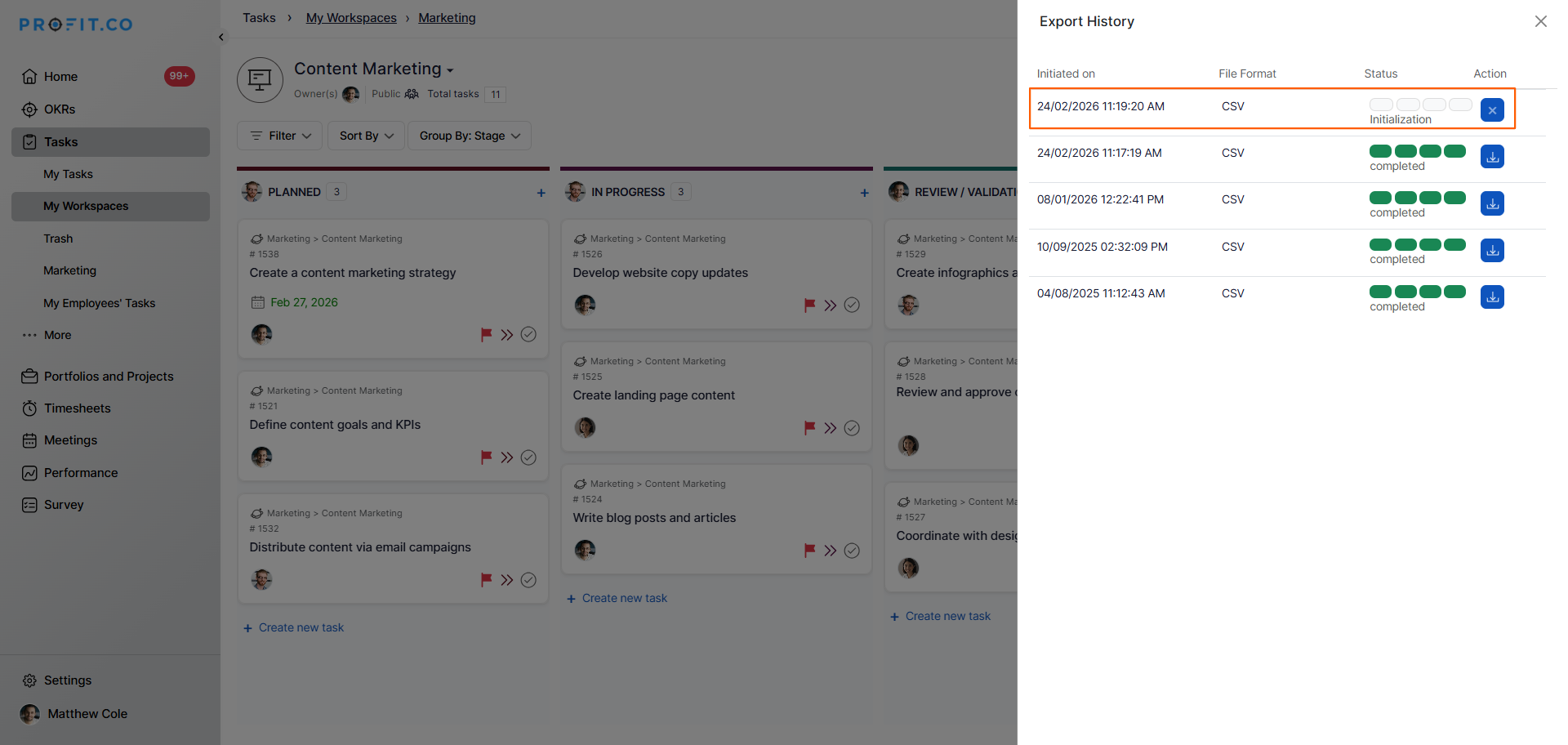
Profit.co provides an Export History section that allows you to track and manage your report downloads.
- After initiating an export, you can view its status in the Export History panel.
- Completed exports are listed in Export History for reference.
Best practices for downloading Task Dashboard reports in Profit.co
- Download reports at the end of each sprint or review cycle to maintain a consistent record of task progress over time.
- Use the Tasks by Stage chart in your report to identify workflow bottlenecks before team reviews or stakeholder presentations.
- Use the Tasks by Tags chart to assess how work is distributed across different task categories or project labels.
- Ensure you are a member of the Workspace before attempting to export — non-members will not have access to the export option.
- Use Export History to confirm that your download completed successfully before sharing the report externally.
Related Questions
Click here to learn more about how to create Workspaces and Boards in Profit.co.
Frequently Asked Questions
Navigate to the required Workspace or Board, click the More Options icon, select Export, and the report will be downloaded automatically.
Super Users can download reports from any Workspace. Regular users can download reports only from the Workspaces they are members of.
Yes. You can cancel an ongoing export from the Export History section within the Task Dashboard.
