

In Profit.co, users can move tasks from one board to another within or across workspaces to keep work properly aligned as priorities, team structures, or project scopes evolve.
Table of Contents
- What does moving a task between Boards mean in Profit.co?
- What are the two ways to move a task between Boards in Profit.co?
- How to move a task using the Switch Board option in Profit.co?
- How to move a task using the More Options menu in Profit.co?
- Best practices for moving tasks between Boards in Profit.co
- Related Questions
- Frequently Asked Questions
What does moving a task between Boards mean in Profit.co?
Moving a task between boards in Profit.co means reassigning a task from its current Board to a different board, either within the same workspace or in a different workspace entirely. This allows teams to reorganize work without deleting and recreating tasks, preserving the task's details while placing it under the correct board for ongoing tracking and execution.
What are the two ways to move a task between Boards in Profit.co?
Profit.co provides two methods to move a task to a different Board:
| Method | How to Access | Best For |
|---|---|---|
| Switchboard | Via the task's dropdown menu in the Board or List view | Quick moves directly from the task card |
| Move (More Options) | Via the More Options (⋯) menu within the task | Moving tasks from within the task detail view |
Both methods accomplish the same outcome; the task is relocated to the selected Board.
How to move a task using the Switch Board option in Profit.co?
Step 1
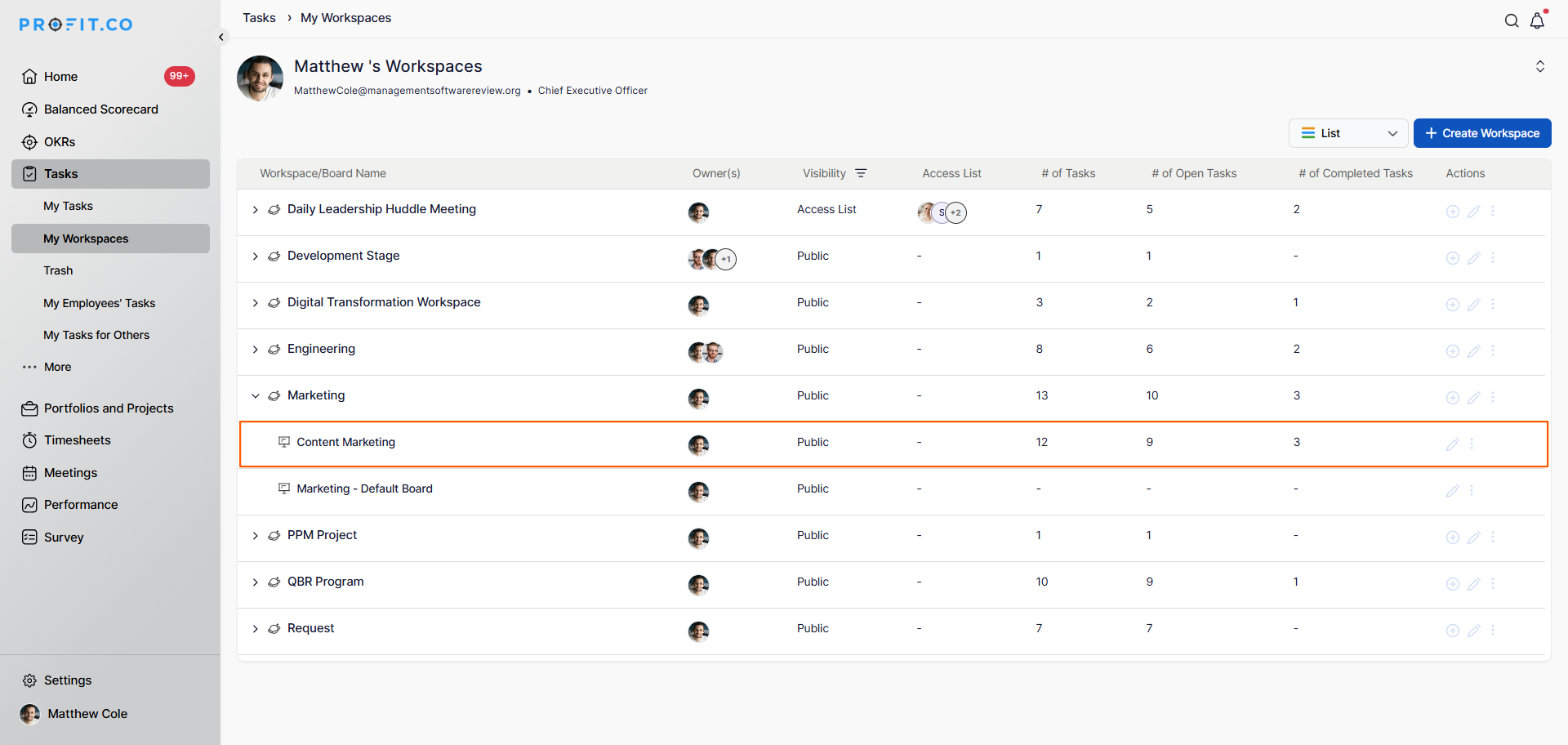
- Go to Tasks → My Workspace (or any required Workspace) from the left navigation panel.
- Click your preferred Board name to open the Board view.
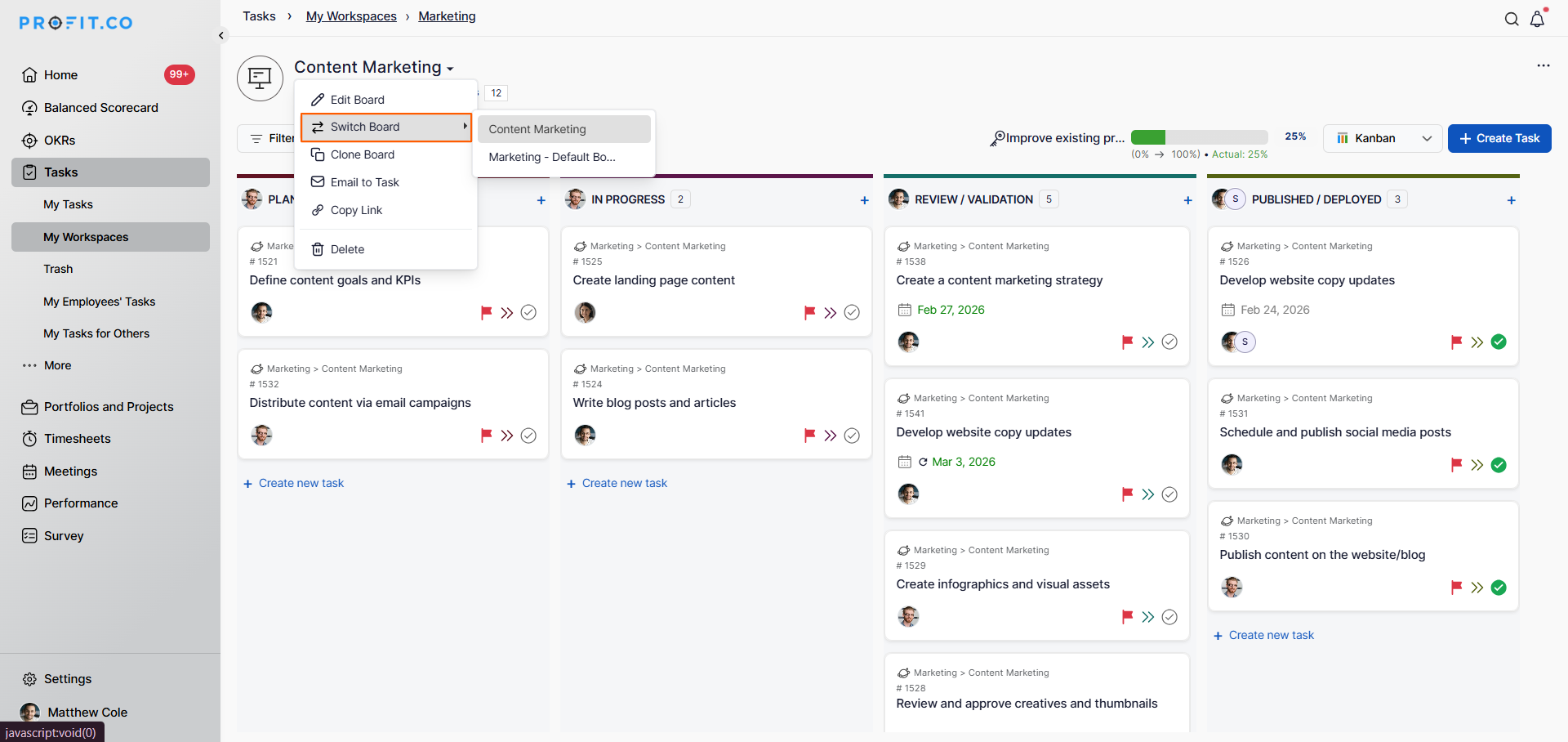
- Click the Switch Board option from the dropdown menu.
- A list of available Boards will appear.
- Choose the Board name where you want to move the task.
- The task will be immediately relocated to the selected Board.
How to move a task using the More Options menu in Profit.co?
Step 1
- Go to Tasks → My Workspace (or any required Workspace) from the left navigation panel.
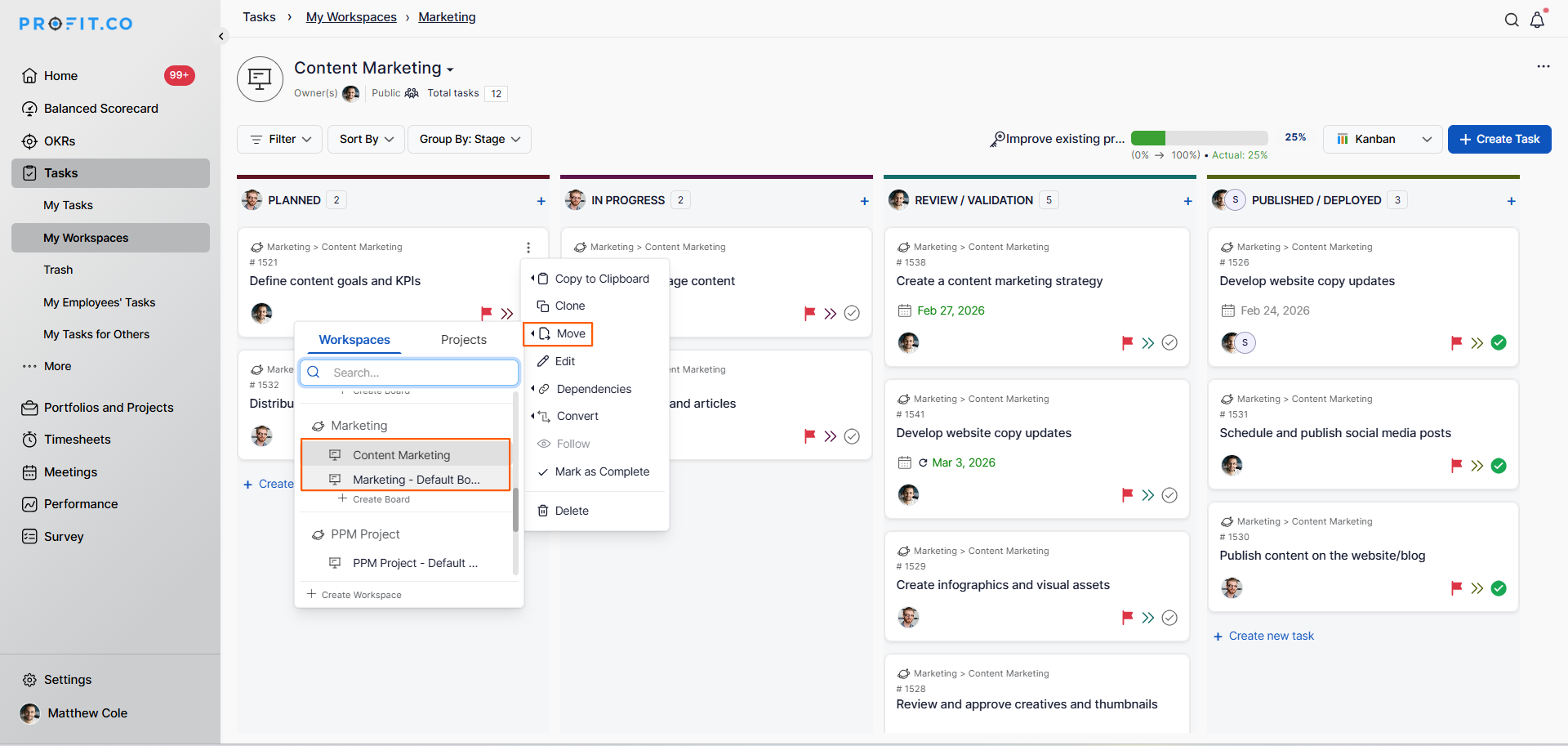
- Locate the task and click the More Options (⋯) icon on the task card or task row.
- From the More Options menu, click the Move option.
- A selection panel will appear listing available Boards.
- Choose the Board name where you want to move the task.
- The task will be relocated to the selected Board.
Note: Both the Switch Board option and the Move option in the More Options menu achieve the same result. Use whichever method is most accessible based on where you are in the task view.
Best practices for moving tasks between Boards in Profit.co
- Move tasks promptly when ownership or scope changes to prevent work from being tracked in the wrong Board and skewing Board-level reports.
- Notify the relevant team members after moving a task to a new Board so that the new Board's assignees are aware the task has been added to their workspace.
- Review the task's stage assignment after moving it to a Board with different stage configurations to ensure it is correctly placed within the destination Board's workflow.
Related Questions
Click here to learn more about how to create a new task in Profit.co.
Frequently Asked Questions
Open your Workspace, locate the task in the Board or List view, click the dropdown menu on the task card and select Switch Board, then choose the destination Board. Alternatively, use the More Options (⋯) menu on the task and select Move.
Both options move the task to a different Board and produce the same result. Switch Board is accessible directly from the task card dropdown, while Move is accessible from the More Options (⋯) menu on the task.
Yes. When selecting the destination Board using the Switch Board or Move option, you can choose a Board from a different Workspace.
