

Bulk Follow lets you select multiple Objectives and Key Results from an OKR list view and follow them in a single action, instead of following each one individually.
Table of Contents
What is Bulk Follow for OKRs?
Bulk Follow is a list-view capability that lets you check multiple Objectives and Key Results and follow all of them with one confirmation, rather than opening each record separately. A selection count in the action bar tracks how many OKRs you have chosen before you confirm.
Note
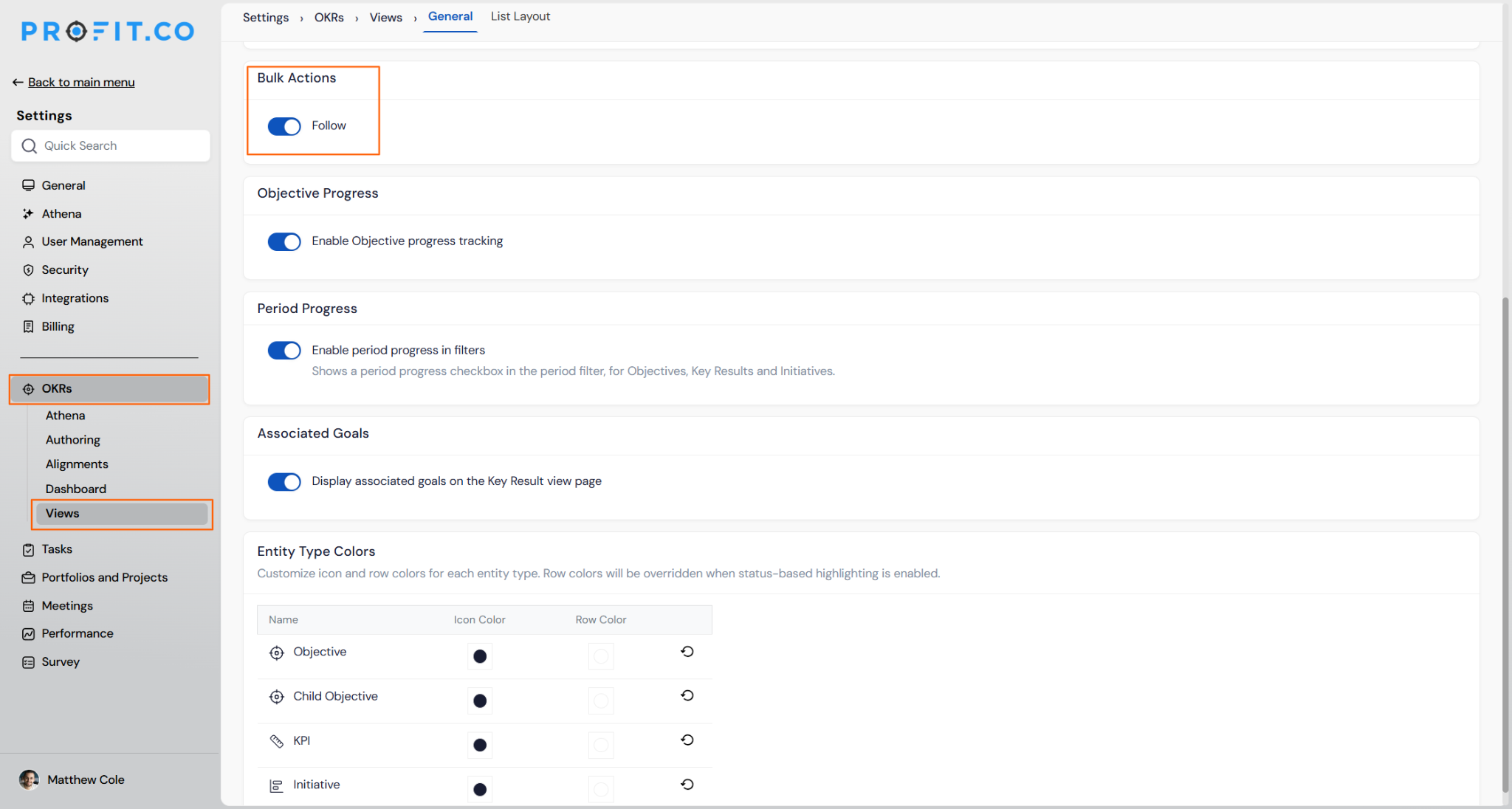
The Follow option only appears in the list view action bar when the Bulk Actions → Follow toggle is enabled in Settings → OKRs → Views → General.
Why Bulk Follow Matters
Following OKRs one at a time forces managers, OKR Champions, and cross-functional leads to repeat the same click sequence for every objective or key result they track. Bulk Follow collapses that repetition into a single action across an entire selection.
This matters most for anyone monitoring OKRs that span multiple owners or departments. It keeps the Following OKRs view current as tracking priorities shift, without adding setup work every time a new record needs monitoring.
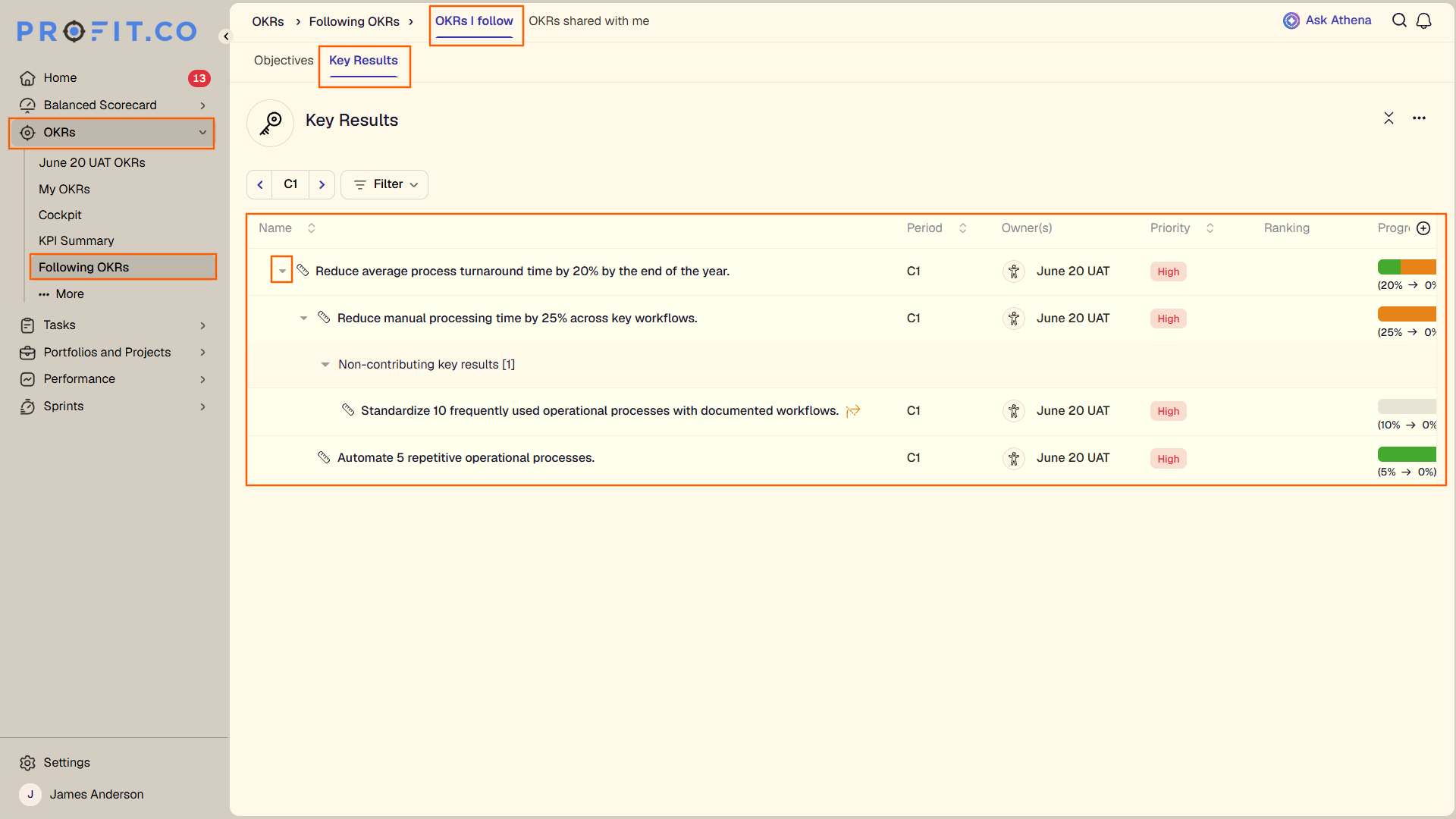
The expand and collapse controls on followed key results add this same efficiency to the Following OKRs view itself. You can see where a followed key result sits within its parent Objective hierarchy, switch between a focused and a full-context view as needed, and confirm that context without leaving the page.
How It Works
Step 1
- Navigate to Settings → OKRs → Views → General
- Locate the Bulk Actions section and enable the Follow toggle
Step 2
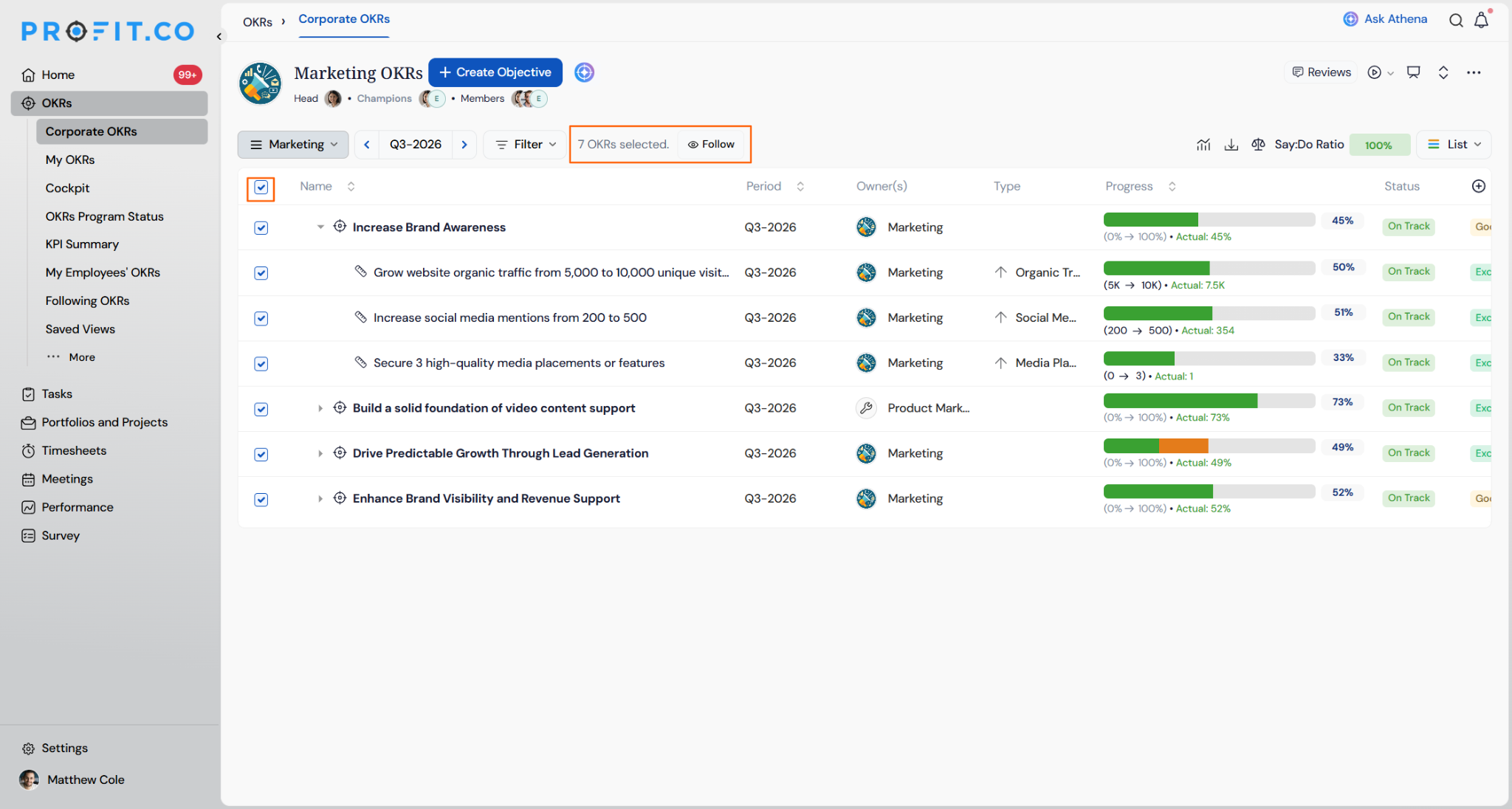
- Navigate to OKRs and open a list view
- Use the checkboxes on the left of each row to select the Objectives or Key Results you want to track
- A selection count appears in the action bar at the top, confirming how many OKRs are selected
Step 3
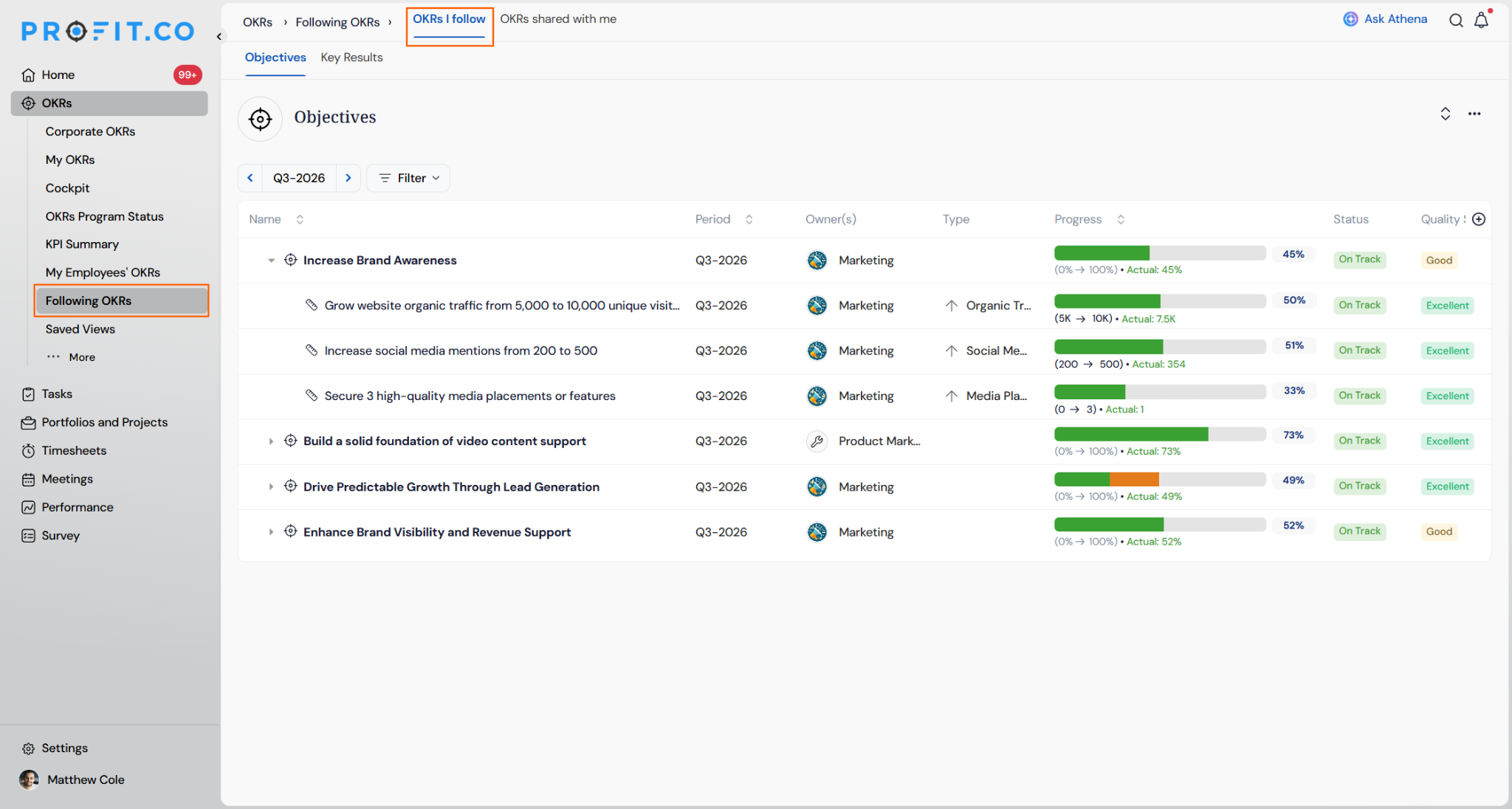
- Navigate to OKRs → Following OKRs → OKRs I Follow
- Switch between the Objectives and Key Results tabs to view each record type separately
- Use this view to track progress without opening each OKR from its owner's list
Step 4
- Reorder the Objectives and Key Results tabs to match your preferred viewing priority; Profit.co saves that order as your default for the page
- Export your Following OKRs list as a CSV from the Objectives tab's ... menu → Export as CSV, choosing All Fields, the Current View, or a Custom Selection of fields; past exports are available from Export History in the same menu
- Expand a followed key result to view its full OKR hierarchy, then click collapse to return to the compact view
Bulk Follow Scenarios and Their Outcomes
| Scenario | Options You Have | What Happens |
|---|---|---|
| You select Objectives and Key Results from different owners in a list view and confirm Follow. | Mix record types and owners in a single selection. | Profit.co adds every selected item to your Following OKRs list, split across the Objectives and Key Results tabs. |
| You follow an OKR owned by a colleague in another department. | View progress, status, and check-in history on the followed OKR. | You gain read access to the OKR through Following OKRs, but you cannot edit the OKR, its check-ins, or its owner. |
Caution
Disabling the Follow toggle removes bulk following organization-wide. Existing Following OKRs lists remain intact, but no user can select and follow OKRs in bulk until it is re-enabled.
Best Practices for Bulk Follow
- Restrict the Bulk Actions → Follow toggle to roles that genuinely need cross-team visibility; not every user requires this capability.
- Confirm your selection count in the action bar before clicking Follow, especially when scrolling through a long list view.
- Check both the Objectives and Key Results tabs in Following OKRs after a bulk action, since the two record types populate separately.
- Revisit your Following OKRs list at the start of each new period and remove closed or rolled-over items to keep the view relevant.
- Apply Period and Owner filters before selecting OKRs, so your bulk selection stays scoped to the goals you actually need to track.
- Expand a followed key result when you need to confirm its place in the broader Objective hierarchy, and collapse it again afterward to keep your Following OKRs list scannable.
Related Articles
- How do I follow the OKRs of my subordinates?
- How can I stop following my subordinates' OKRs?
- How to share OKRs to other employees?
Frequently Asked Questions
Yes. The list view checkboxes apply to both record types, and Profit.co sorts your selection into the Objectives and Key Results tabs under Following OKRs automatically.
Bulk Follow is available from the OKR list view, where the row checkboxes and action bar appear. The feature does not extend to other view types.
Only Super Users can enable or disable the Follow toggle under Settings → OKRs → Views → General → Bulk Actions.
No. Following only adds the OKR to your Following OKRs list for tracking. It does not affect the OKR's progress, owner, or check-in schedule.
Execute your strategy with confidence
Connect OKRs, tasks, and teams in one place with Profit.co
