

Profit.co's PPM module lets you control how project progress is calculated, either by distributing weight equally across all milestones and tasks, or by assigning custom weights to reflect each element's true impact. Weightage can be applied at the project level and at the milestone level independently.
Profit.co's PPM software gives teams full control over how project completion is measured, whether by distributing weight equally across milestones and tasks or by assigning custom weights based on each element's actual business impact.
Table of Contents
What is project weightage in Profit.co?
Project Weightage in Profit.co determines how each milestone, sub-portfolio, and task contributes to the overall project progress calculation. You choose between two modes, Equal Weighting and Manual Weighting, to match how your organization measures delivery.
| Mode | How It Works | Best For |
|---|---|---|
| Equal Weighting | Weight is distributed equally across all milestones and standalone tasks. | Projects where all milestones carry comparable importance |
| Manual Weighting | Weights are manually assigned to each milestone and standalone task. | Projects where certain deliverables carry significantly more impact than others |
How to Configure Progress Calculation Mode
Step 1
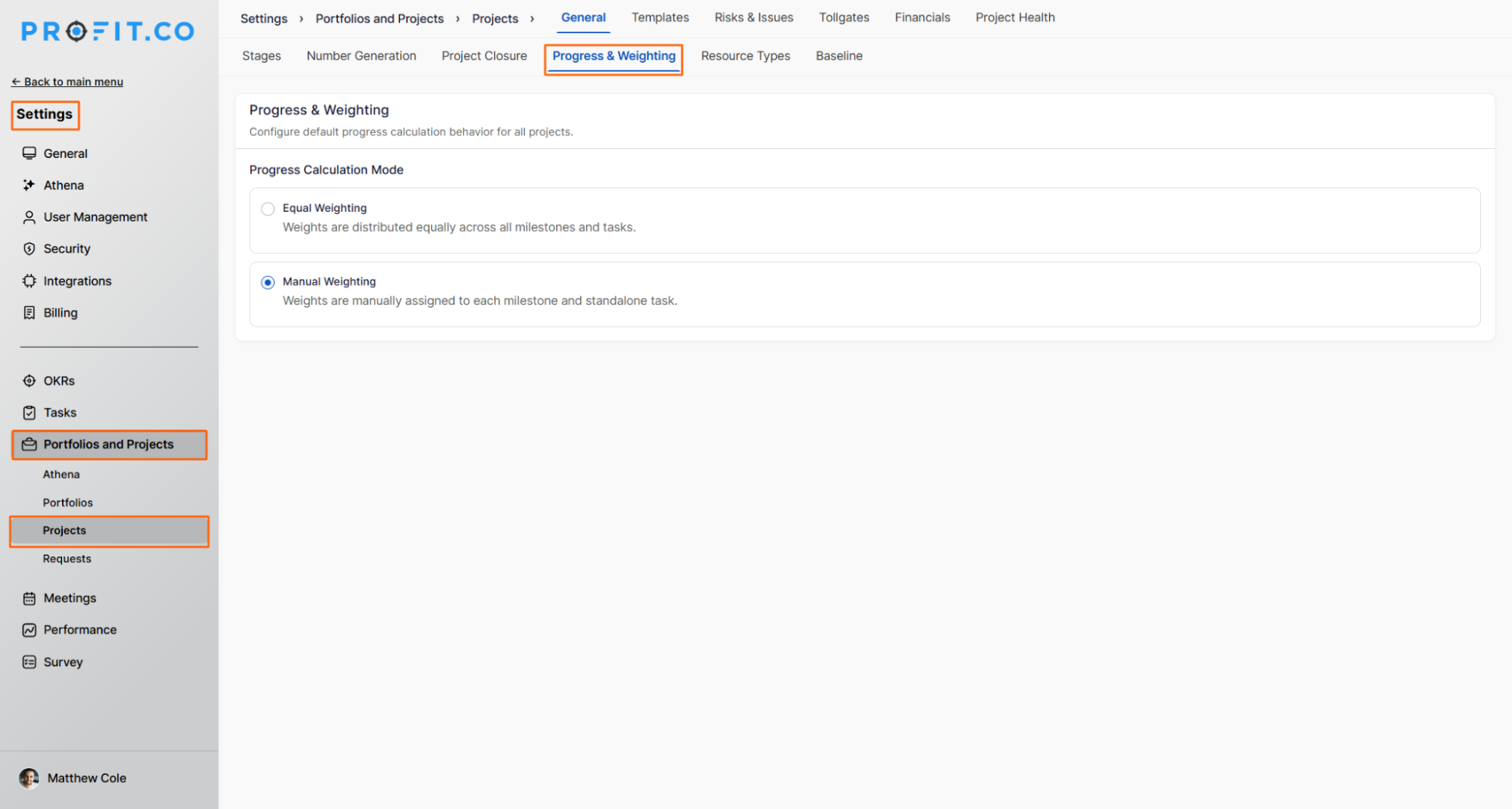
- Go to Settings → Portfolios and Projects → Projects → General from the left navigation panel.
- Switch to the Progress & Weighting tab.
- Under Progress Calculation Mode, choose your preferred option:
- Equal Weighting — Weights are distributed equally across all milestones and tasks.
- Manual Weighting — Weights are manually assigned to each milestone and standalone task.
How to Define Weights at the Project and Milestone Levels
At the Project Level
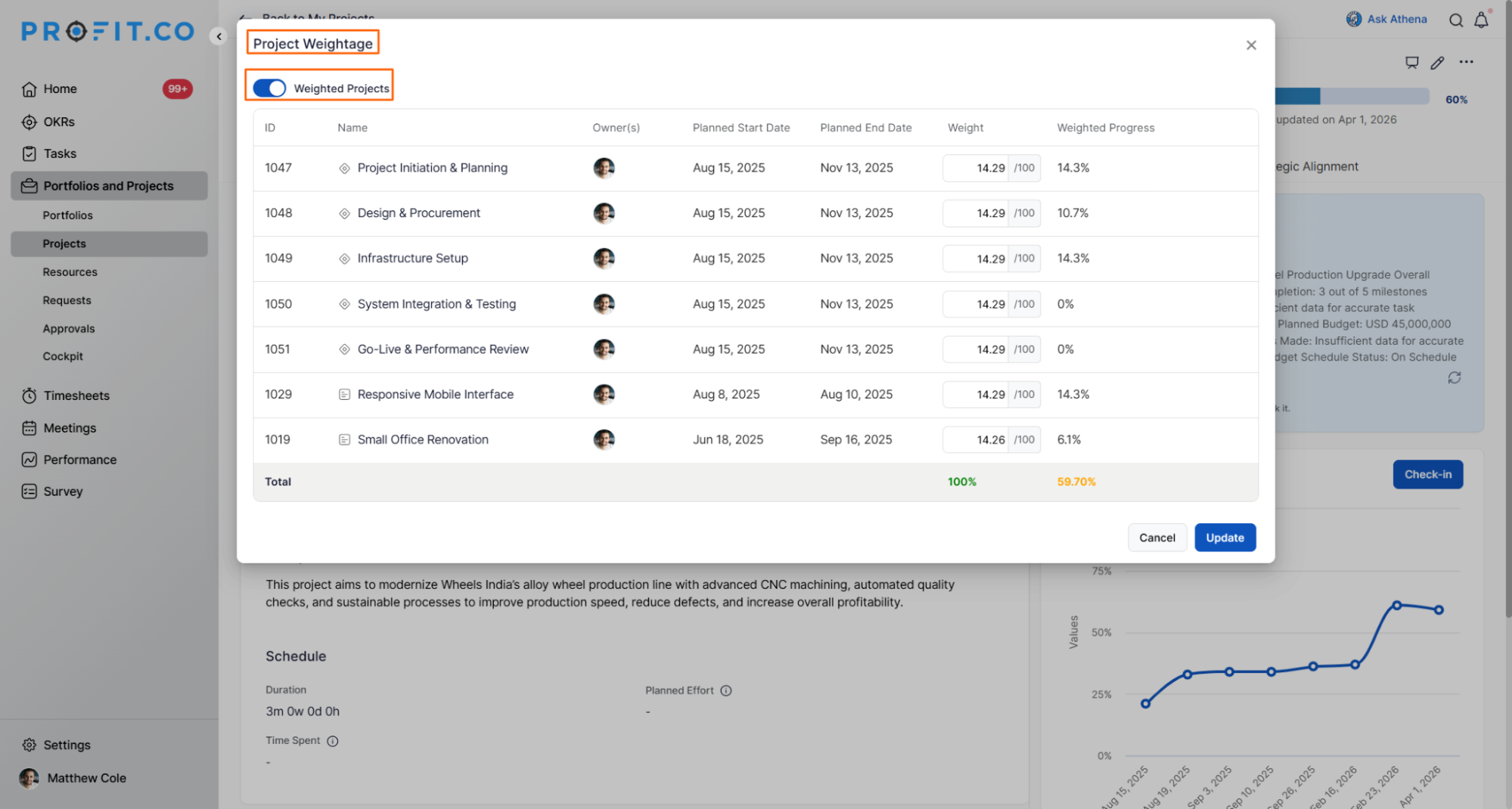
- Open your project and click the Weightage option.
- Enable the toggle for weighted projects.
- Once enabled, assign weights to milestones and sub-portfolios as required.
At the Milestone Level
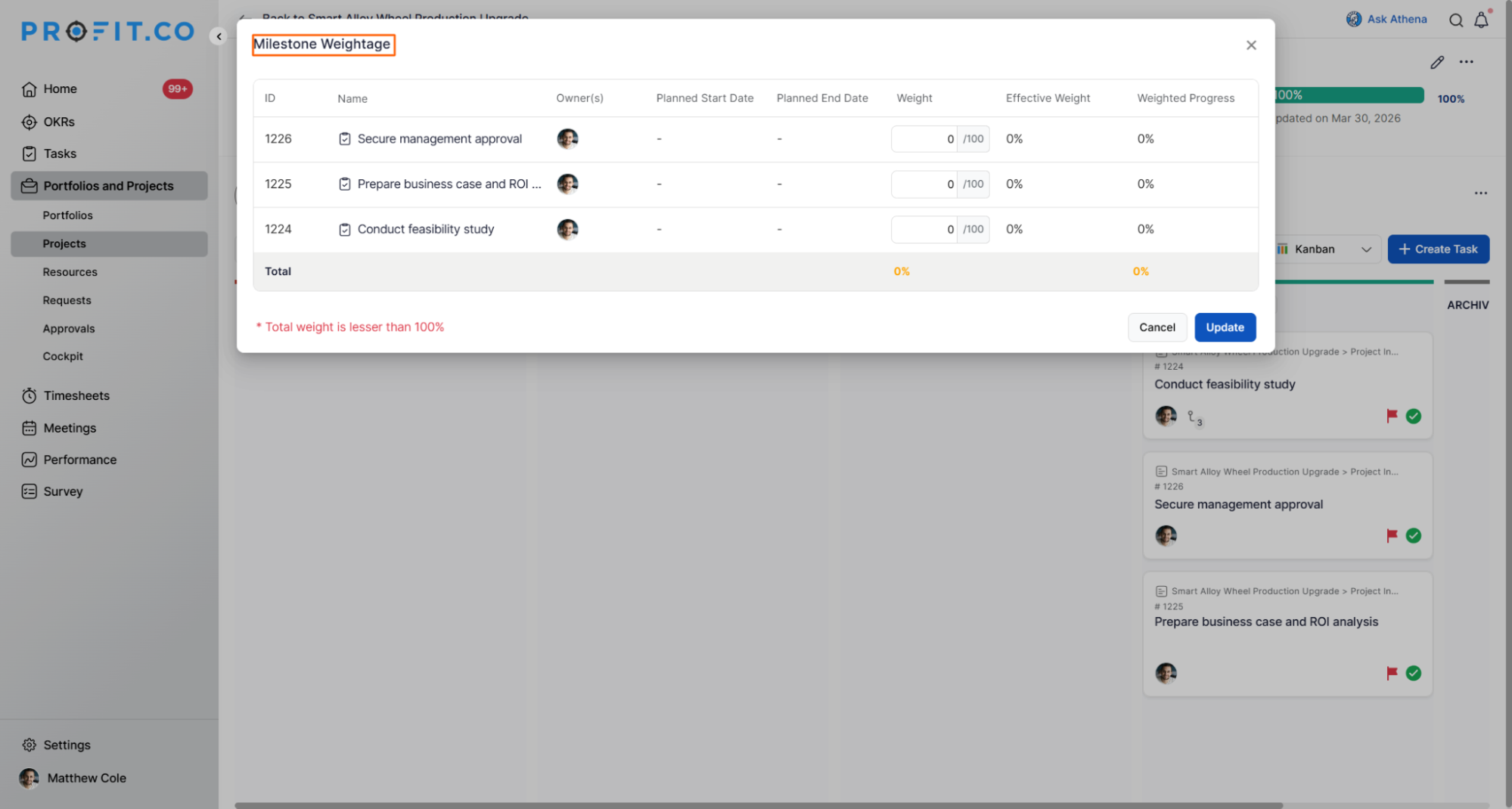
- Navigate to the desired milestone within your project.
- Click the Weightage option at the milestone level.
- Assign weights to individual tasks within that milestone.
Weightage Hierarchy and Scope Rules
Weightage in Profit.co operates within strict hierarchy boundaries. Understanding this prevents misconfiguration and ensures weights are applied where they take effect.
| Level Where Weightage is Enabled | Elements That Can Receive Weights |
|---|---|
| Project Level | First-level hierarchy only: Milestones and Sub-Portfolios |
| Milestone Level | First-level tasks only: Tasks directly under that milestone |
Best Practices for Defining Project Weights
- Use Equal Weighting for projects with uniform sprint-based or phase-based structures where no single milestone outweighs another.
- Reserve Manual Weighting for projects with unequal delivery phases for example, weighting a go-live milestone at 40% when it represents the bulk of the project's value.
- When applying milestone-level weightage, ensure the total assigned weights across all tasks within a milestone sum correctly to avoid skewed milestone completion percentages.
- Revisit weightage assignments at the start of each quarter or project phase to confirm they still reflect current delivery priorities, especially after scope changes.
Related Questions
- Click here to learn more about How to create a Project in the PPM module?
- Click here to learn more about What is the Project Health Score in Profit.co?
Frequently Asked Questions
Yes, you can change the Progress Calculation Mode at any point via Settings → Portfolios and Projects → Projects → General → Progress & Weighting. However, switching modes on an in-progress project will recalculate existing progress figures, which may change the displayed completion percentage.
Both milestones and sub-portfolios are treated as first-level hierarchy elements at the project level. When project-level weightage is enabled, you can assign weights to either. There is no differentiated behavior between the two; both receive and contribute weights the same way.
Access to Settings → Portfolios and Projects is restricted to Super Users and PPM Admins. Standard project users and project owners can apply weightage within individual projects and milestones if the toggle has been enabled, but they cannot modify the global calculation mode.
