

Per-milestone status tracking colors each milestone on a Milestone Tracked Key Result based on that milestone's own completion outcome, instead of the Key Result's overall health. Administrators enable it and choose between a two-state or three-state color model.
Table of Contents
- What is Per-Milestone Status Tracking?
- Why Does Per-Milestone Status Tracking Matter?
- How Does Per-Milestone Status Tracking Work?
- What Happens When You Use Per-Milestone Status Tracking?
- What Are the Best Practices for Per-Milestone Status Tracking?
- Related Articles
- What Are Some Frequently Asked Questions About Per-Milestone Status Tracking?
What is Per-Milestone Status Tracking?
Per-milestone status tracking is a setting on Milestone Tracked Key Results that colors each milestone by its own completion outcome rather than inheriting the Key Result's overall health status. Administrators enable it under the Milestone Tracked KPI/Initiative settings and choose one of two status models.
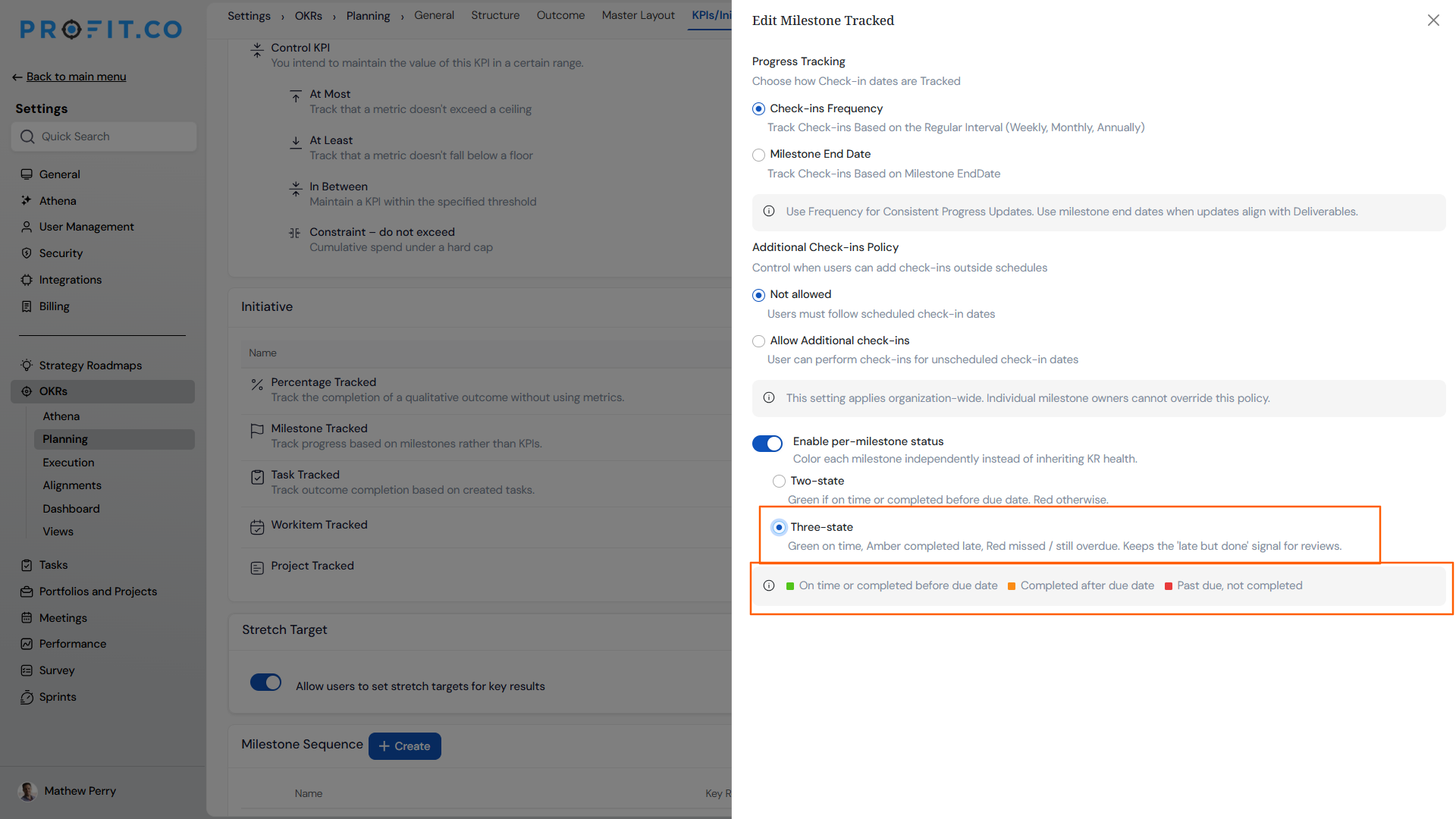
The two-state model, Met or missed, uses green and red only. The three-state model, Met, late or missed, adds amber to distinguish milestones completed during the grace period from those completed on time.
| Color | Met or missed | Met, late or missed |
|---|---|---|
| Green | On plan, or finished within the grace period | On plan, or finished by the due date |
| Amber | Not applicable | Finished during the grace period |
| Red | Not finished by the end of the grace period | Not finished by the end of the grace period |
Why Does Per-Milestone Status Tracking Matter?
Before this, a milestone's color reflected the Key Result's overall health, so a completed milestone could flip to red if later check-in data changed the Key Result's health status. Per-milestone status tracking colors each milestone by its own outcome, so completed milestones keep their original color regardless of what happens afterward.
The three-state model lets administrators separate grace-period completions from on-time completions, so review sessions can spot slippage without marking late work as missed. Because colors lock once a milestone's window closes and are never recomputed, milestone history stays a stable reference across every review cycle.
How Does Per-Milestone Status Tracking Work?
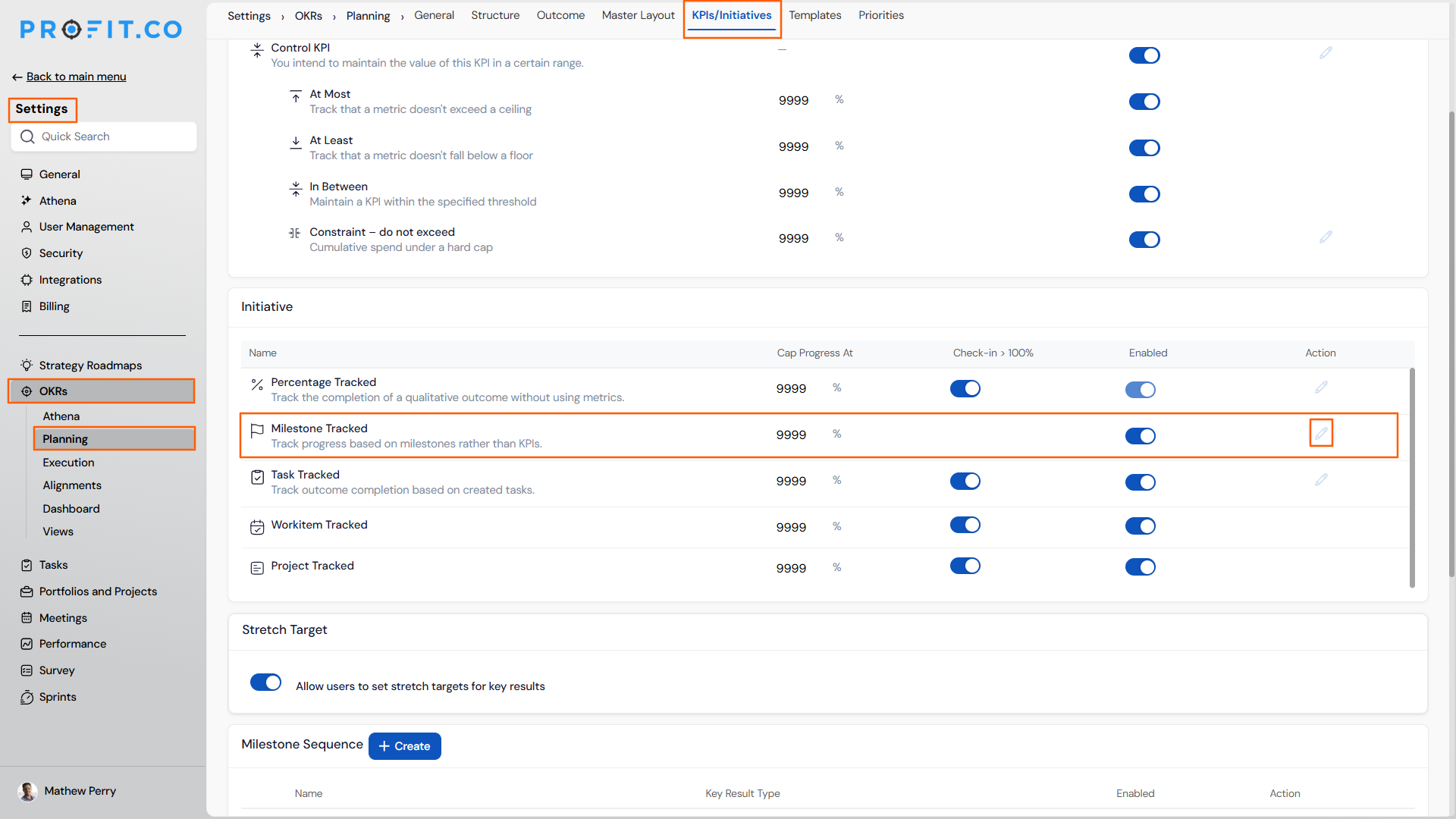
Step 1: Open Milestone Settings
- Navigate to Settings → OKRs → Planning → General.
- Switch to the KPIs/Initiatives tab and edit the Milestone Tracked type.
Step 2: Enable Per-Milestone Status
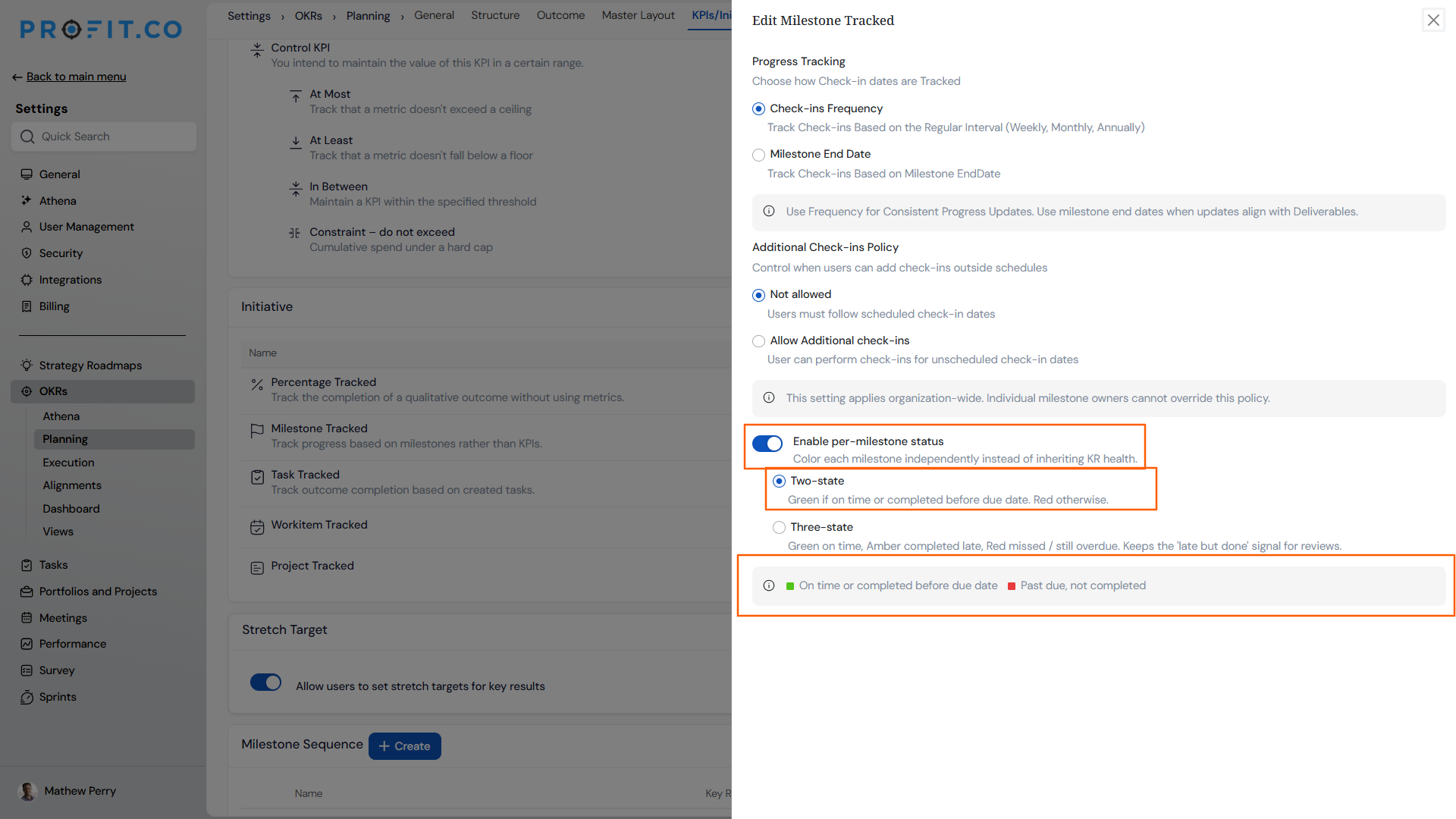
- Toggle on Enable per-milestone status.
Step 3: Select a Status Model
- Choose Met or missed for the two-state green and red model.
- Choose Met, late or missed for the three-state model that adds amber.
What Happens When You Use Per-Milestone Status Tracking?
| Scenario | What Happens |
|---|---|
| You enable per-milestone status tracking on a Milestone Tracked Key Result. | Profit.co colors each milestone by its own completion outcome instead of inheriting the Key Result's overall health status. |
| You select the Met or missed status model. | Profit.co shows green for milestones on plan or finished within the grace period, and red for milestones not finished by the end of the grace period. |
| You select the Met, late or missed status model. | Profit.co shows green for milestones on plan or finished by the due date, amber for milestones finished during the grace period, and red for milestones not finished by the end of the grace period. |
| You reach the end of a milestone's grace period window. | Profit.co locks that milestone's color permanently and does not recompute it on later check-ins, even if the Key Result's overall health changes afterward. |
| You configure per-milestone status colors on a Key Result. | Profit.co displays those colors consistently across the check-in panel, List view, Details view, Bowler Chart, and Summary view. |
What Are the Best Practices for Per-Milestone Status Tracking?
- Choose the three-state model if your team distinguishes grace-period completions from on-time ones during reviews, since the two-state model merges both into a single green indicator.
- Decide on a status model before milestones start closing, since colors lock permanently once a milestone's window ends and are never recomputed afterward.
- Cross-check milestone colors in the check-in panel against the List or Details view when reviewing progress, since Profit.co displays the same colors consistently across all of these surfaces.
- Use the locked, permanent colors as your historical record during retrospectives, since they won't change even if a Key Result's overall health shifts later.
- Reserve the two-state model for Key Results where grace-period nuance doesn't matter to reviewers, since it collapses on-time and grace-period completions into a single green indicator.
Related Articles
- How Does the Check-in Grace Period Work in Profit.co?
- How do you define a key result of Milestone tracked in Profit?
- How does the automatic propagation of Key Result Status work in Profit.co?
What Are Some Frequently Asked Questions About Per-Milestone Status Tracking?
No. It applies to Milestone Tracked Key Results, since it colors milestones within a milestone sequence.
No. Administrators must toggle on Enable per-milestone status. Until then, milestones continue to reflect the Key Result's overall health status.
No. Both models reference the same grace period window. The three-state model simply gives grace-period completions their own amber color instead of grouping them with on-time completions.
Execute your strategy with confidence
Connect OKRs, tasks, and teams in one place with Profit.co
