
The Dependencies tab shows all waiting-on, blocking, and linked relationships for an Objective or Key Result on a single visual canvas centred on that item. Upstream, downstream, and linked items appear as connected cards around it.
Table of Contents
What is the Dependencies Tab?
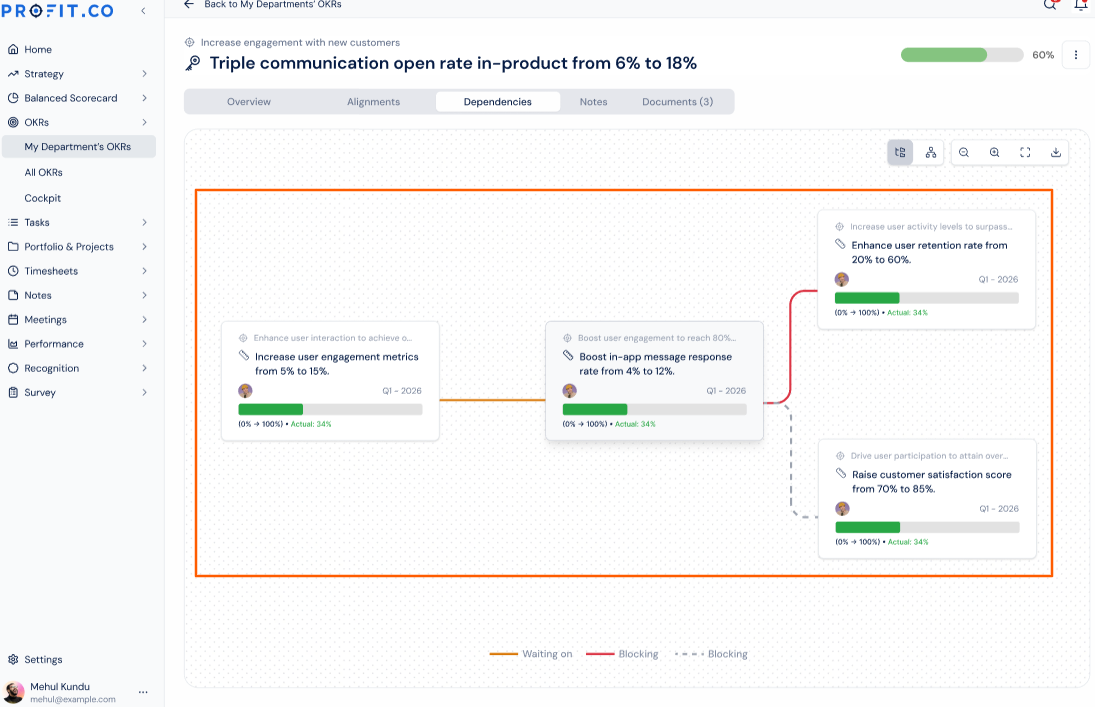
The Dependencies tab is a view-only visualization on Objective and Key Result detail pages, placed next to the existing Alignments tab. It consolidates all three dependency types, what an item is waiting on, what it is blocking, and what it is linked to, into a single graph centred on the current item.
Creating or modifying a dependency still happens through the existing row-level menu on the OKR list. The tab only displays relationships that already exist.
| Dependency Card Field | What It Shows |
|---|---|
| Owner | The person assigned to the related Objective or Key Result |
| Name | The OKR or Key Result name |
| Progress Bar | Visual progress indicator, matching the Alignment view card |
| Percentage | Numeric progress percentage |
| Start and Target Values | The defined starting point and goal value |
| Actual Value | Current recorded value |
| Level | Objective or Key Result level of the related item |
| Period | Review period the related item belongs to |
Why Does the Dependencies Tab Matter?
Previously, checking an item's dependencies meant opening the row-level menu for each relationship type separately, with no way to see waiting-on, blocking, and linked items together. The Dependencies tab consolidates all three into one canvas, so you can review an item's full relationship picture without switching between menus.
The upstream and downstream layout makes it immediately clear what is holding back progress on an item and what would be affected if it slips, which supports faster calls during planning and review cycles. Because the tab reuses the Alignment view's card layout and toolbar, teams already familiar with that surface can read dependency graphs without learning a new interface.
How Does the Dependencies Tab Work?
Step 1: Open the Dependencies Tab
- Navigate to any Objective or Key Result detail page.
- Select the Dependencies tab, positioned next to the Alignments tab.
- Locate the current OKR or Key Result at the centre of the canvas.
- Identify upstream items, what it is waiting on, and downstream items, what it is blocking.
- Identify linked items, shown connected by a dashed line.
- Use the fit, zoom, refresh, or fullscreen controls to adjust the canvas.
- Scroll horizontally when more dependencies exist than fit on screen.
What Happens When You Use the Dependencies Tab?
| Scenario | What Happens |
|---|---|
| You open the Dependencies tab for an Objective or Key Result. | Profit.co displays existing waiting-on, blocking, and linked relationships without changing progress, values, or status on any related item. |
| You open the Dependencies tab for an item with no dependencies. | Profit.co displays an empty state instead of a blank canvas. |
| You open the Dependencies tab for an item with more dependencies than fit the visible canvas. | Profit.co lets you scroll the canvas horizontally, and cards do not overlap. |
What Are the Best Practices for the Dependencies Tab?
- Check the Dependencies tab before changing an OKR's target dates, since it is the only place you can see waiting-on and blocking items together without opening the row-level menu for each one.
- Treat the empty-state screen as confirmation that an item genuinely has no dependencies, rather than assuming the canvas failed to load.
- Use the fullscreen and zoom controls when an item has enough dependencies to trigger horizontal scrolling, so the cards stay easy to compare side by side.
- Keep creating and editing dependencies through the row-level menu on the OKR list, since the Dependencies tab itself only displays existing relationships.
- Review the Dependencies tab during planning and review cycles for OKRs with many blocking relationships, since the upstream and downstream layout surfaces risk faster than checking each row individually.
Related Articles
- How to enable and add OKR Dependencies?
- How to enable and add KR Dependencies?
- How do I view the assigned and aligned OKRs and key results in a single place?
What Are Some Frequently Asked Questions About the Dependencies Tab?
Yes. It is available on both, positioned next to the Alignments tab in either case.
No. It is a separate tab that sits next to Alignments, and both remain available on the detail page.
Yes. The row-level menu on the OKR list remains the way to create and modify dependencies. The Dependencies tab only adds a consolidated view of relationships that already exist.
Execute your strategy with confidence
Connect OKRs, tasks, and teams in one place with Profit.co
