

Profit.co lets Administrators and Department Champions rename standard fields on Objectives, Key Results, Child Objectives, and Check-ins, and mark any of them as mandatory. The change is made once, through the master layout, and applies to every user filling in that entity type.
Table of Contents
- What is Configurable Standard Fields in Master Layouts?
- Why Does Configurable Standard Fields Matter?
- How Does Configurable Standard Fields Work?
- What Happens When You Use Configurable Standard Fields?
- Who Can Configure Standard Fields in Master Layouts?
- What Are the Best Practices for Configurable Standard Fields?
- Related Articles
- What Are Some Frequently Asked Questions About Configurable Standard Fields?
What is Configurable Standard Fields in Master Layouts?
Configurable Standard Fields in Master Layouts is a master layout setting that lets you rename any standard field on Objectives, Key Results, Child Objectives, or Check-ins, and mark it as mandatory. It works at the entity level, so a change to a field on Key Results has no effect on that same field's configuration on Objectives or Check-ins.
For Check-ins specifically, the Master Layout option only becomes available after the Check-in Review setting is enabled. For Objectives, Key Results, and Child Objectives, the Master layout tab is available directly under the Planning settings.
Why Does Configurable Standard Fields Matter?
Standard field labels were previously fixed to Profit.co's default terminology, so a team using different internal language for the same concept had to build a custom field just to match its own vocabulary. Renaming existing standard fields removes that workaround entirely.
Marking a field Mandatory closes a specific gap: previously nothing stopped a user from submitting an Objective, Key Result, or Check-in with that field left blank. Because both Administrators and Department Champions can manage this configuration, terminology and completeness rules can be handled at the department level instead of routing through a central admin.
How Does Configurable Standard Fields Work?
Step 1: Open the Master Layout Tab
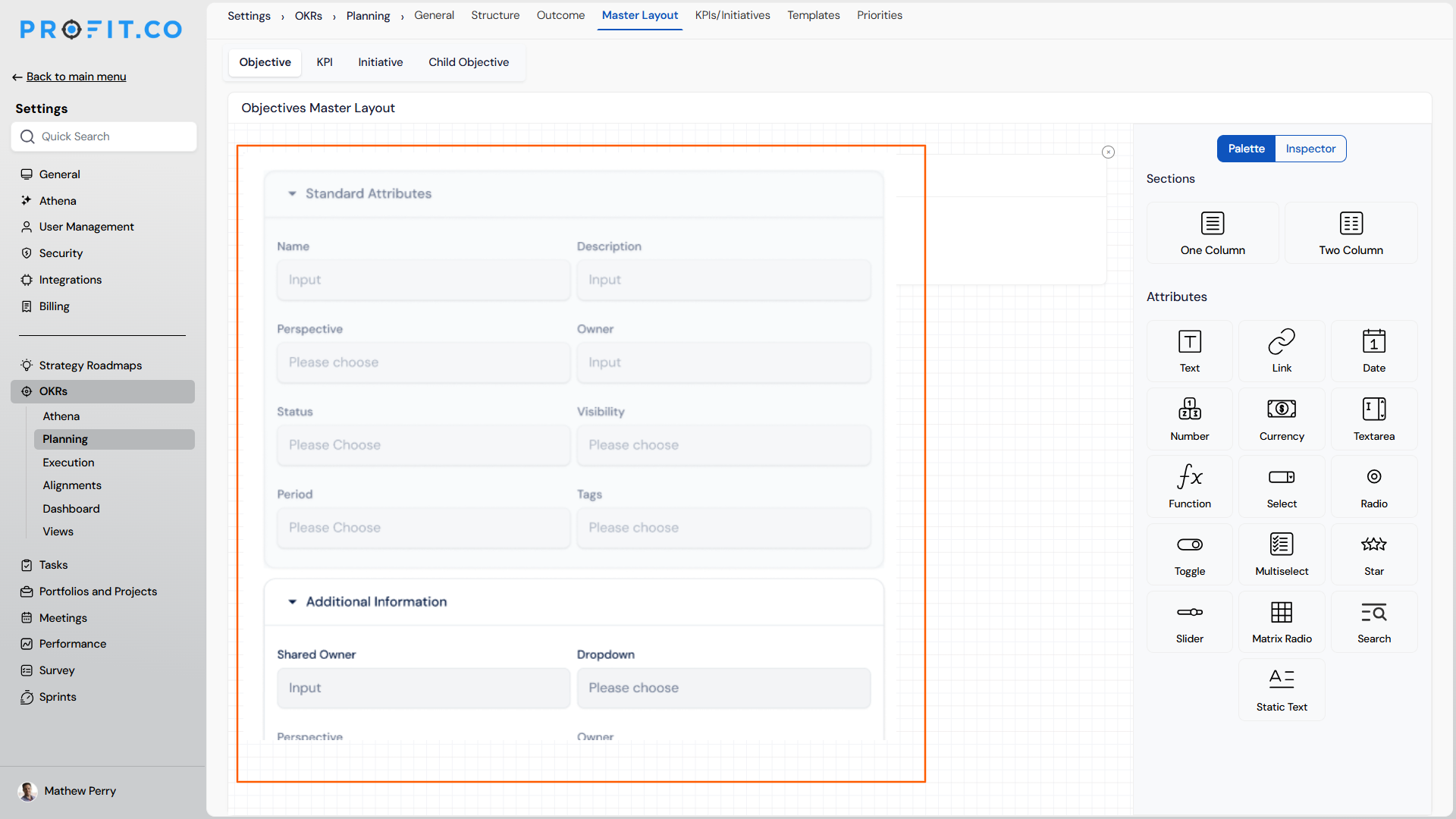
- For Objectives, Key Results, and Child Objectives: navigate to Settings → OKRs → Planning and switch to the Master layout tab.
- For Check-ins: navigate to Settings → OKRs → Execution, switch to Reviews, and enable Check-in Review.
- For Check-ins, choose the Master Layout option once Check-in Review is enabled.
Step 2: Select the Entity and Field
- Select the entity to configure: Objectives, Key Results, Child Objectives, or Check-ins.
- Locate the standard field to update under the fields list.
Step 3: Rename or Mark Mandatory
- Edit the field label to rename it.
- Toggle the Mandatory setting to make the field required for all users.
- Save the layout to apply the change.
What Happens When You Use Configurable Standard Fields?
| Scenario | What Happens |
|---|---|
| You rename a standard field's label on an entity. | Profit.co updates the label everywhere that field appears for that entity, and the field's already-recorded values stay unchanged. |
| You mark a standard field as Mandatory for one entity type, such as Key Results. | Profit.co blocks users from submitting that entity type without a value in the field, and doesn't apply the requirement to the same field on other entity types. |
| You save changes to a master layout. | Profit.co applies the rename or Mandatory setting immediately, and every user interacting with that entity type sees the update right away. |
| You close the master layout page without clicking Save. | Profit.co discards the pending label or Mandatory change, and the field keeps its previous configuration. |
Who Can Configure Standard Fields in Master Layouts?
Two roles can configure standard fields through the master layout: Administrators and Department Champions. Administrators can configure fields across the organization, while a Department Champion can configure the same rename and Mandatory options for their own department only, without needing administrator access.
What Are the Best Practices for Configurable Standard Fields?
- Coordinate field renames across departments before applying them, since a label change on Key Results takes effect for every user checking in on Key Results, not just your own team.
- Mark a field Mandatory only after confirming your team's data-entry habits, since it blocks submission of that entity type entirely until the field is filled in.
- Enable Check-in Review before trying to configure Check-in fields, since the Master Layout option for Check-ins only appears once that setting is turned on.
- Let Department Champions own field configuration for their own department's terminology, since they can rename and require fields without needing administrator access.
- Treat renaming as a low-risk change and Mandatory as a higher-risk one, since renaming only changes the label while Mandatory changes what users can submit.
Related Articles
- How to add OKR Champions in a department?
- How to enable and conduct Check-in Review for OKRs in Profit.co?
What Are Some Frequently Asked Questions About Configurable Standard Fields?
Yes. Renaming and marking a field Mandatory are separate controls in the master layout, and you can use either one on its own.
No. The master layout configures each entity type separately, so a change made for Key Results does not carry over to Objectives, Child Objectives, or Check-ins.
The Master Layout option for Check-ins only appears after Check-in Review is enabled under Settings → OKRs → Execution → Reviews.
No. A Department Champion's configuration access is limited to their own department; configuring fields organization-wide requires administrator access.
Execute your strategy with confidence
Connect OKRs, tasks, and teams in one place with Profit.co
