

A Constraint KPI tracks whether a metric stays within a defined not-to-exceed cap, making it the right choice when a team's goal is to keep a value from crossing an upper boundary rather than pushing it higher or lower.
Table of Contents
- What is a Constraint KPI?
- Why Does a Constraint KPI Matter?
- How Do I Create and Configure a Constraint KPI?
- What Happens When You Use a Constraint KPI?
- What Are Common Constraint KPI Examples?
- How Does a Constraint KPI Compare to Other KPI Types?
- What Are the Best Practices for Constraint KPIs?
- Related Articles
- Frequently Asked Questions
What is a Constraint KPI?
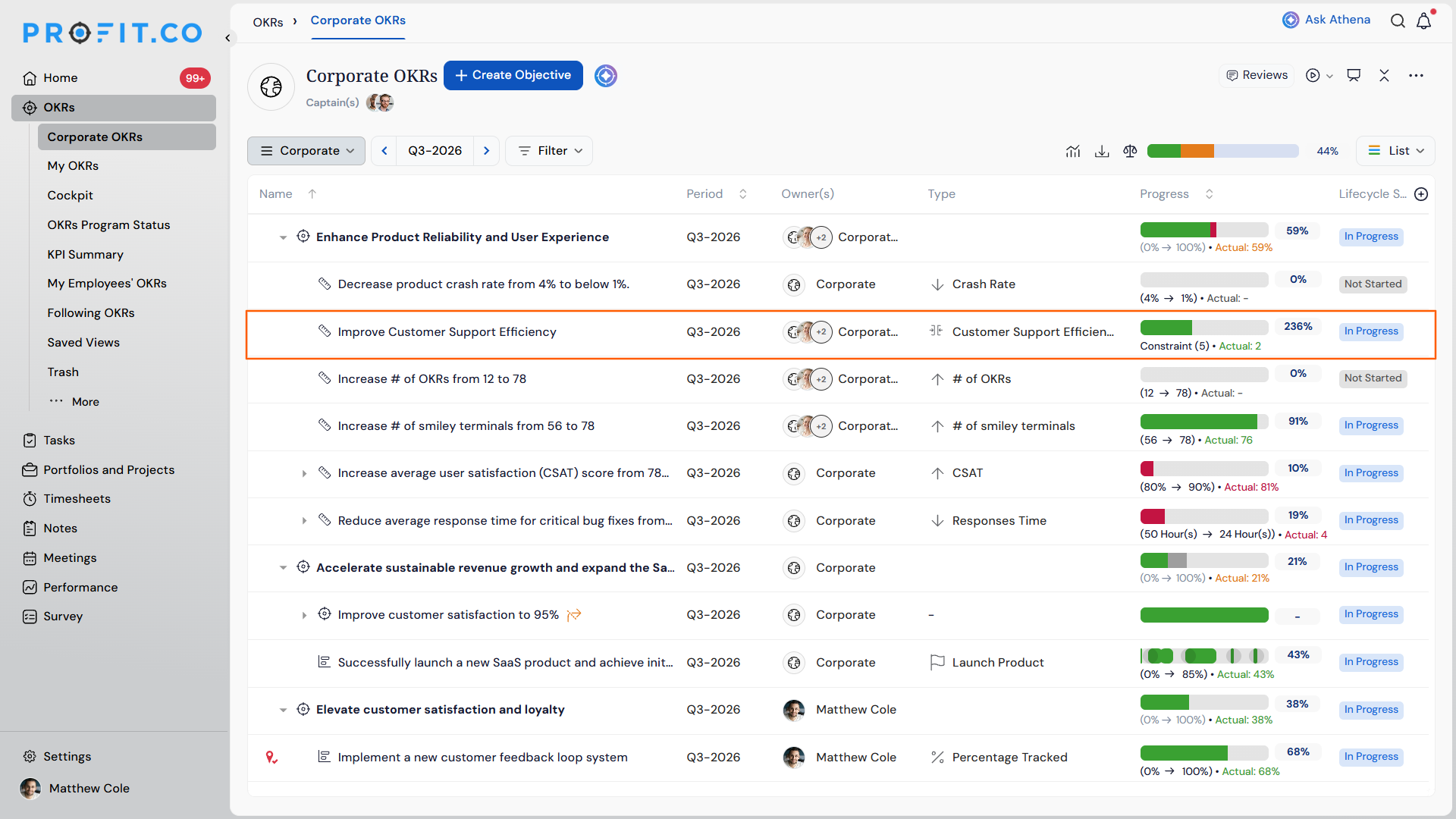
A Constraint KPI is a key result type in Profit.co that sets a not-to-exceed cap on a metric. You define the cap, and Profit.co evaluates each check-in against it. A check-in is successful only when the actual value stays at or below the defined cap. If the actual value exceeds the cap, the check-in is recorded as unsuccessful.
It is different from Increase and Decrease KPI types, which track movement toward a numeric target. A Constraint KPI does not measure growth or reduction. It measures whether a boundary is being respected. Use it when exceeding a limit is the risk, not falling short of a goal.
Note
The Constraint KPI type is selected from the Type dropdown on the Key Result creation form. The field that appears alongside it is labeled Not-to-exceed cap, where you enter the upper boundary value.
Why Does a Constraint KPI Matter?
Many operational and compliance metrics are not about achieving a target. They are about staying within a limit. Before the Constraint type, teams had to model these situations using Decrease KPIs with a workaround target, which made progress reporting misleading. A Constraint KPI represents the boundary directly, so the check-in status reflects the actual situation without distortion.
This gives managers an accurate read on whether a team is operating within acceptable limits each check-in period, and surfaces breaches as they happen rather than at the end of a quarter.
How Do I Create and Configure a Constraint KPI?
Note
You must have an active Objective in the current period before creating a Constraint KPI Key Result. The KPI you want to track must also exist in Profit.co's KPI library or your organization's custom KPI list.
Step 1: Navigate to the Objective
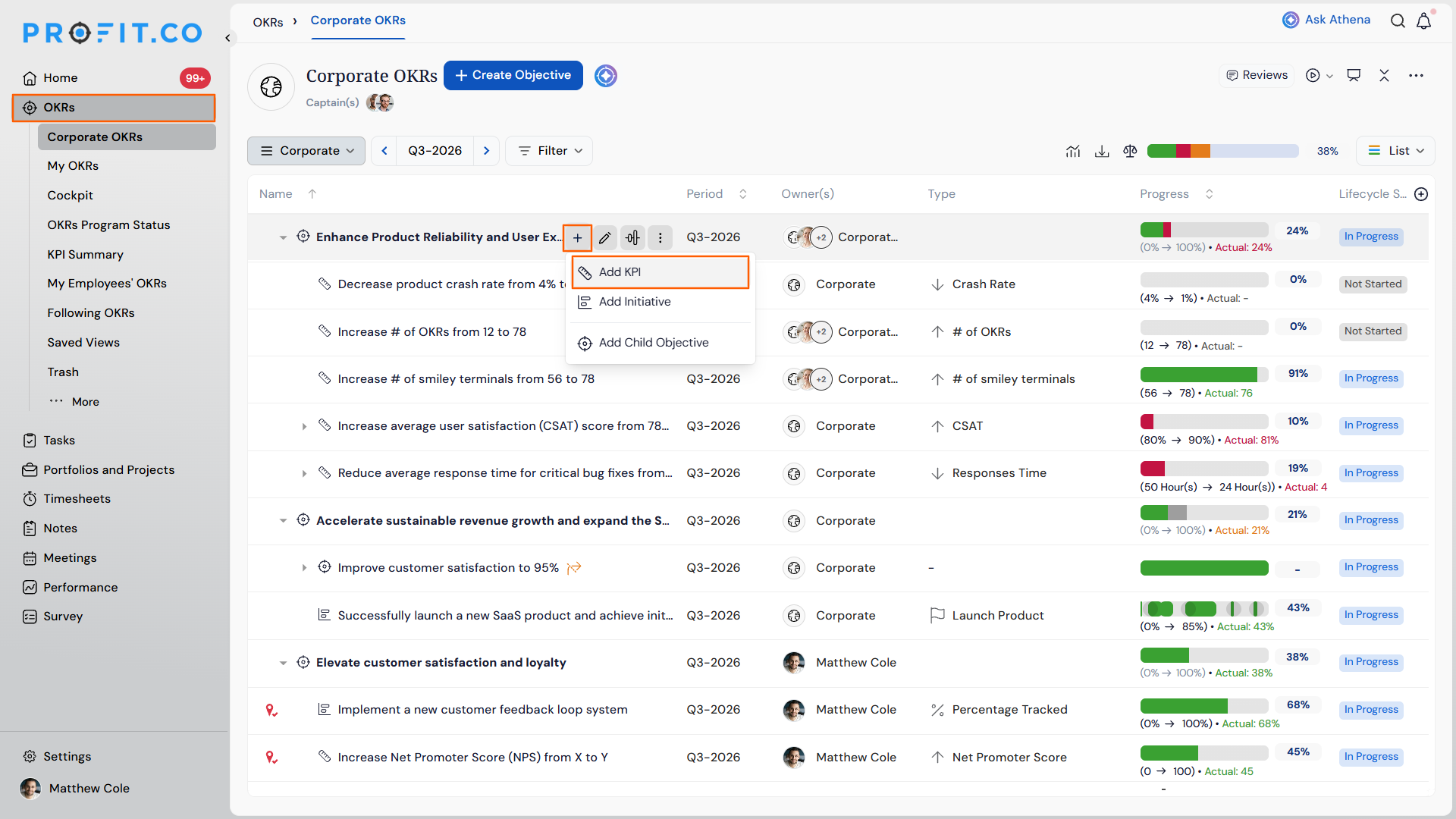
- Navigate to OKRs from the left navigation panel.
- Open the Objective for which you want to add a Constraint KPI as a Key Result.
- Click + Add KPI.
Step 2: Enter the KPI Name
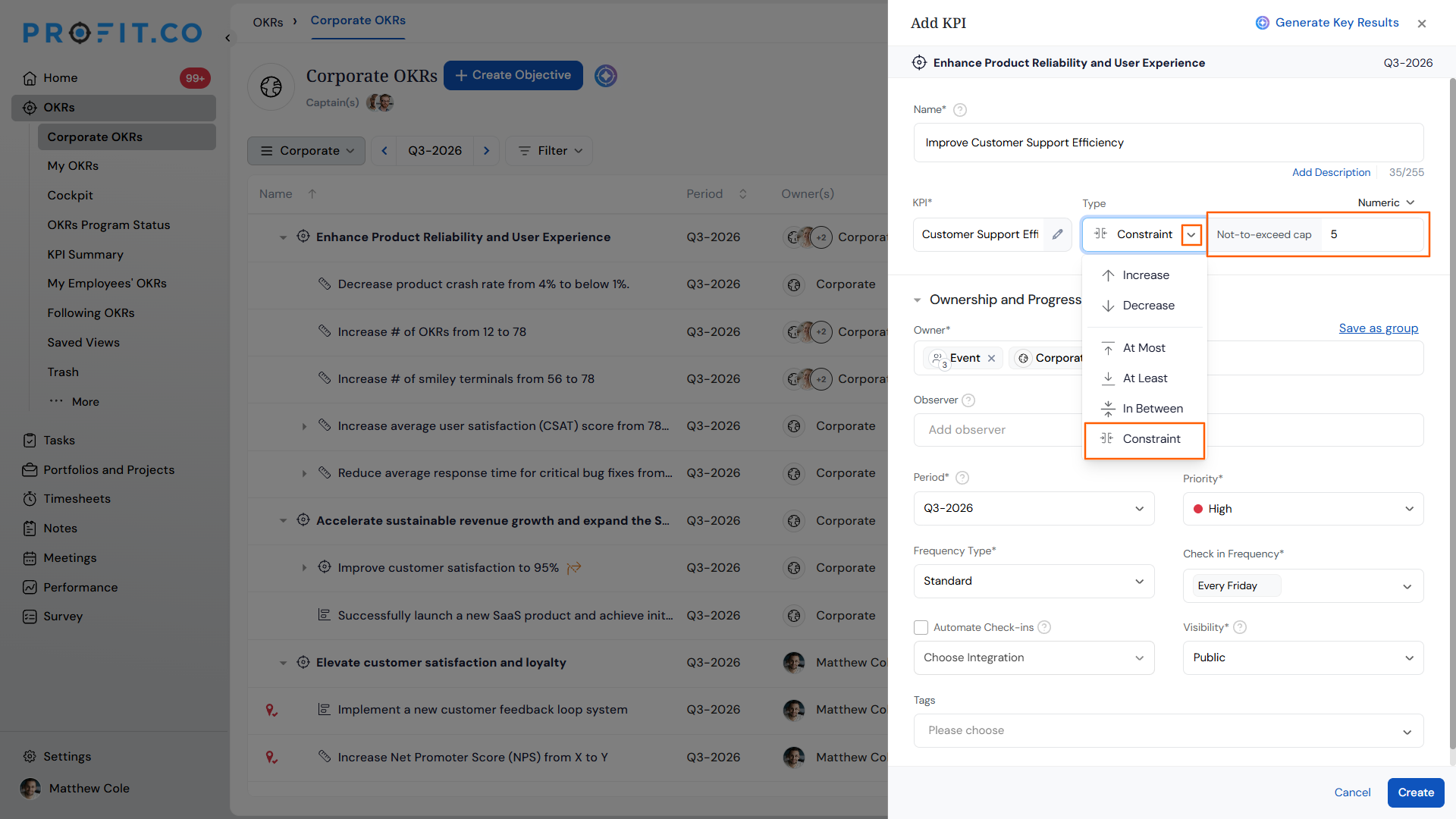
- In the Name field, enter a clear name that describes the boundary being tracked (for example, "Do not exceed support ticket backlog").
- Search for and select the relevant KPI from the KPI field.
- Open the Type dropdown and select Constraint.
- The Not-to-exceed cap field appears to the right of the Type dropdown.
- Enter the upper boundary value in the Not-to-exceed cap field. This value represents the maximum the actual metric can reach before the check-in is considered a breach.
Step 3: Complete Ownership and Schedule Details
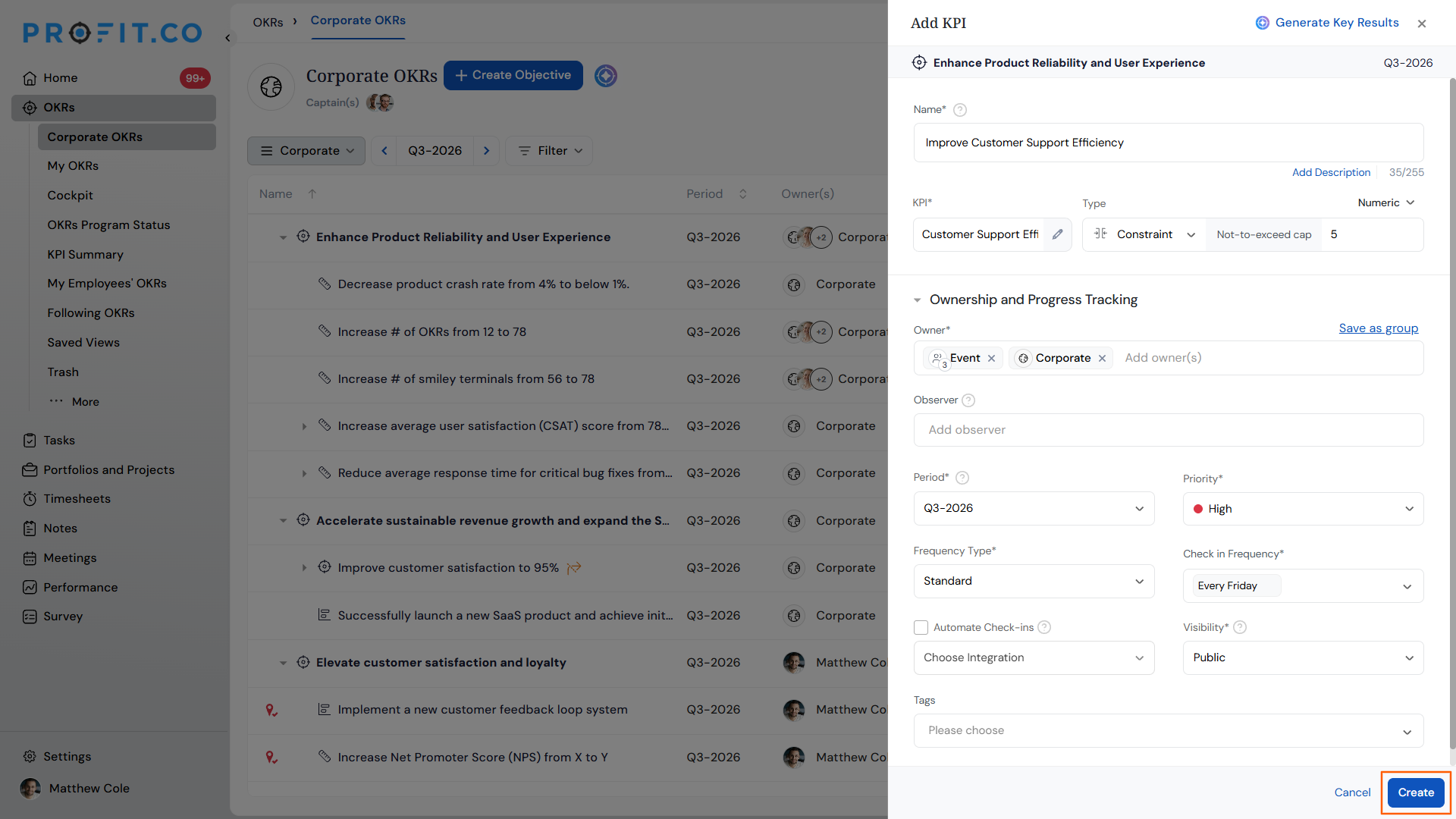
- Expand Ownership and Progress Tracking to assign an owner and set the check-in frequency.
- Expand Additional Information to add any supporting context if needed.
- Click Create to save the Key Result.
Step 4: Perform a Check-in
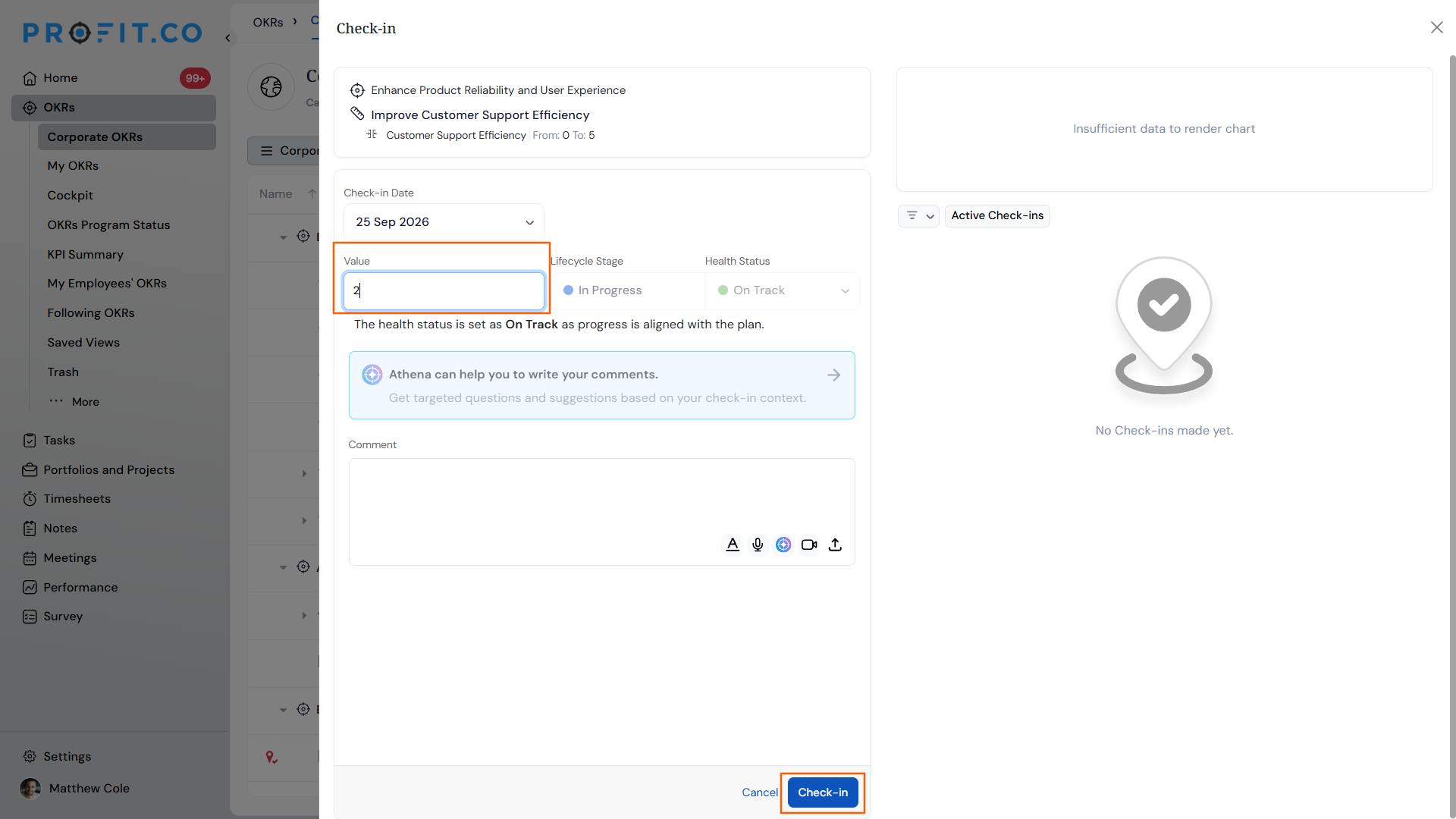
- Open the Key Result and click Check-in when a check-in is due.
- Enter the actual value observed for that period.
- Profit.co compares the actual value against the not-to-exceed cap and records the check-in as successful if the actual value is at or below the cap.
What Happens When You Use a Constraint KPI?
| Scenario | What Happens |
|---|---|
| You check in with an actual value at or below the not-to-exceed cap. | Profit.co records the check-in as successful and updates progress accordingly. |
| You check in with an actual value that exceeds the not-to-exceed cap. | Profit.co records the check-in as unsuccessful. The breach is visible in the check-in history and reflected in the Key Result's progress calculation. |
| You miss a scheduled check-in period without entering a value. | Profit.co marks that period as a pending check-in. Progress for that period is not counted until a value is entered. |
| You track the Key Result over multiple periods. | Profit.co calculates overall progress based on the proportion of successful check-ins (actual at or below cap) against total check-ins across the period. |
What Are Common Constraint KPI Examples?
Constraint KPIs apply wherever the risk is exceeding a limit rather than failing to reach a target. The table below shows practical examples by team.
| Team | KPI Name | Not-to-Exceed Cap |
|---|---|---|
| Customer Support | Unresolved ticket backlog | 50 tickets |
| Quality | Defect rate per production batch | 2% |
| Operations | Order processing time | 48 hours |
| Finance | Project expenses | $50,000 |
| IT / Security | System downtime per month | 4 hours |
How Does a Constraint KPI Compare to Other KPI Types?
Use the table below to decide which KPI type fits the metric you are tracking.
| KPI Type | Use When | Example |
|---|---|---|
| Constraint | The metric must not exceed a defined cap | Project spend must not exceed $50,000 |
| Increase | You want the metric to grow toward a higher target | Increase monthly revenue from $80K to $100K |
| Decrease | You want the metric to fall toward a lower target | Reduce employee attrition from 18% to 10% |
| Control (At Least) | The metric must not fall below a minimum threshold each period | Publish at least 4 blog posts per week |
| Control (At Most) | The metric must not exceed a ceiling each recurring period | Cost per click must stay at most $1 each week |
| Control (In Between) | The metric must stay within a defined range each period | Maintain customer satisfaction score between 4.0 and 5.0 |
Tip
Use Constraint when the boundary applies to a cumulative or one-time value across the whole period (such as total spend). Use Control At Most when the ceiling applies to each recurring check-in independently (such as weekly cost per click).
What Are the Best Practices for Constraint KPIs?
- Define the cap based on a real operational or financial limit, not an aspirational one. A cap that is too tight turns every check-in into a breach and makes the KPI unreadable over time.
- Name the Key Result in terms of the boundary it enforces, such as "Project spend must not exceed $50,000", so the intent is clear to every stakeholder who views it.
- Set a check-in frequency that matches how often the metric can realistically be measured. A weekly check-in on a metric that is only available monthly will always produce pending check-ins and distort progress.
- Review the cap at the start of each new period. Operational limits change with team size, budget cycles, and process improvements. A cap inherited from a previous quarter may no longer reflect the actual boundary.
- Check in consistently each period. Missed check-ins count as pending and reduce the accuracy of the progress calculation. Assign a clear owner for each Constraint KPI to ensure check-ins happen on schedule.
Related Articles
Frequently Asked Questions
No. A Constraint KPI only enforces an upper boundary via the not-to-exceed cap. If your metric must stay within a range (both a floor and a ceiling), use the Control KPI type with the In Between value setting instead.
Please verify this with the product team, as the impact of editing the cap on already-recorded check-ins is not confirmed in the current documentation.
Check-in permissions follow the ownership and access settings of the parent Objective. The Key Result owner is the primary check-in responsible party, but access settings on the Objective determine who else can submit check-ins.
The Constraint type is available when creating a Key Result on an Objective in Profit.co's OKR module. Please confirm with the product team whether it is also available as a standalone KPI type on KPI Boards.
Execute your strategy with confidence
Connect OKRs, tasks, and teams in one place with Profit.co
