

Bottom-up alignment lets an individual, team, or department connect its own Objective or Key Result upward so its progress contributes directly to a broader OKR.
Table of Contents
What is Bottom-Up Alignment?
Bottom-up alignment is the ground-up counterpart to Profit.co's cascading approach. Instead of a higher-level OKR being pushed down, an individual, team, or department connects its own Objective or Key Result upward so its progress feeds into a broader goal. The Align option inside the Align/Unalign action is how you execute that connection on a record that already exists.
You open it from the more-options menu on any OKR row, and it applies whether the record you are aligning is an Objective or a Key Result. The parent OKR you search for can belong to any department, not only your own.
Why Bottom-Up Alignment Matters
Bottom-up alignment lets execution detail surface without every level's OKRs being recreated from a shared template. An individual's Key Result can contribute to a department Objective, and a department's Objective can contribute to a corporate Key Result, without anyone retyping the same target at each level.
Because the connection is initiated by the OKR owner rather than pushed down from above, each level keeps its own wording and detail while still rolling up into the goal it supports. This also holds across departments: aligning to a Key Result that another department created and assigned to you keeps the connection intact even though the two records did not originate on the same team.
How It Works
The steps below walk through connecting your own Objective or Key Result upward to a parent OKR, including a parent that another department created and assigned to you.
Step 1
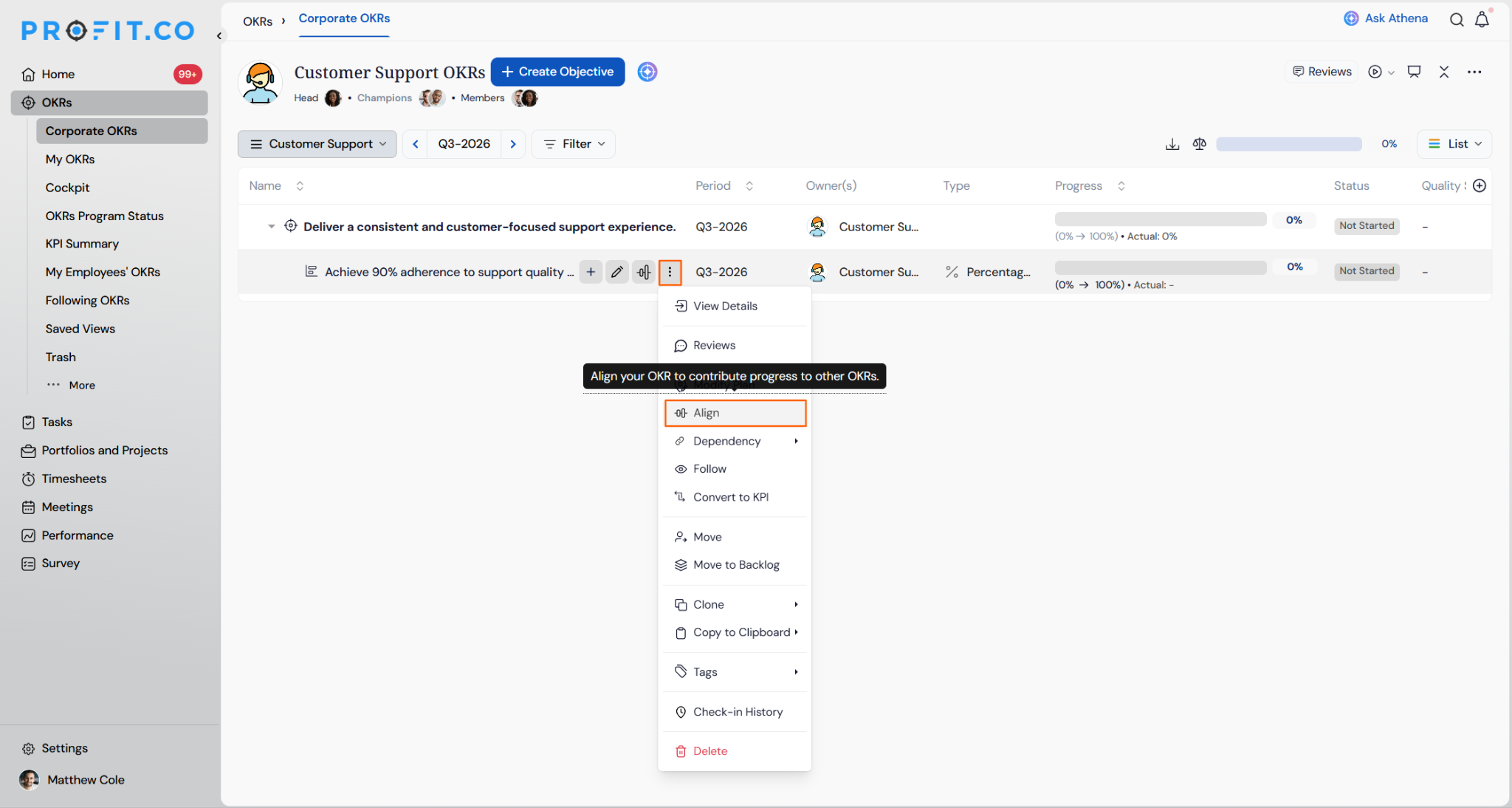
- Navigate to OKRs and open the Objective or Key Result you want to connect to a parent.
- Click the More options (•••) icon on the record's row.
- Select Align from the menu.
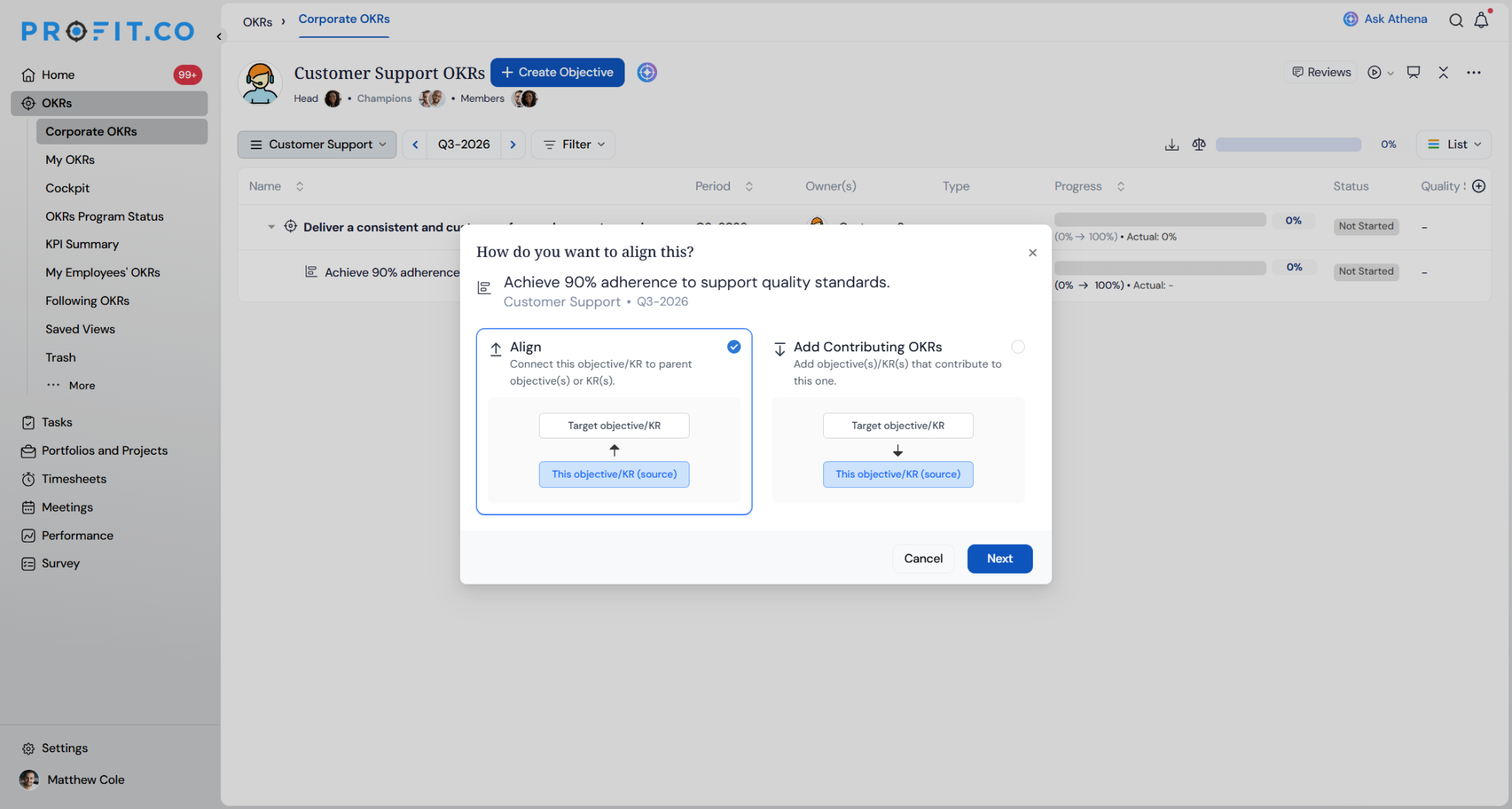
- Select the Align card. Click Next.
Step 2
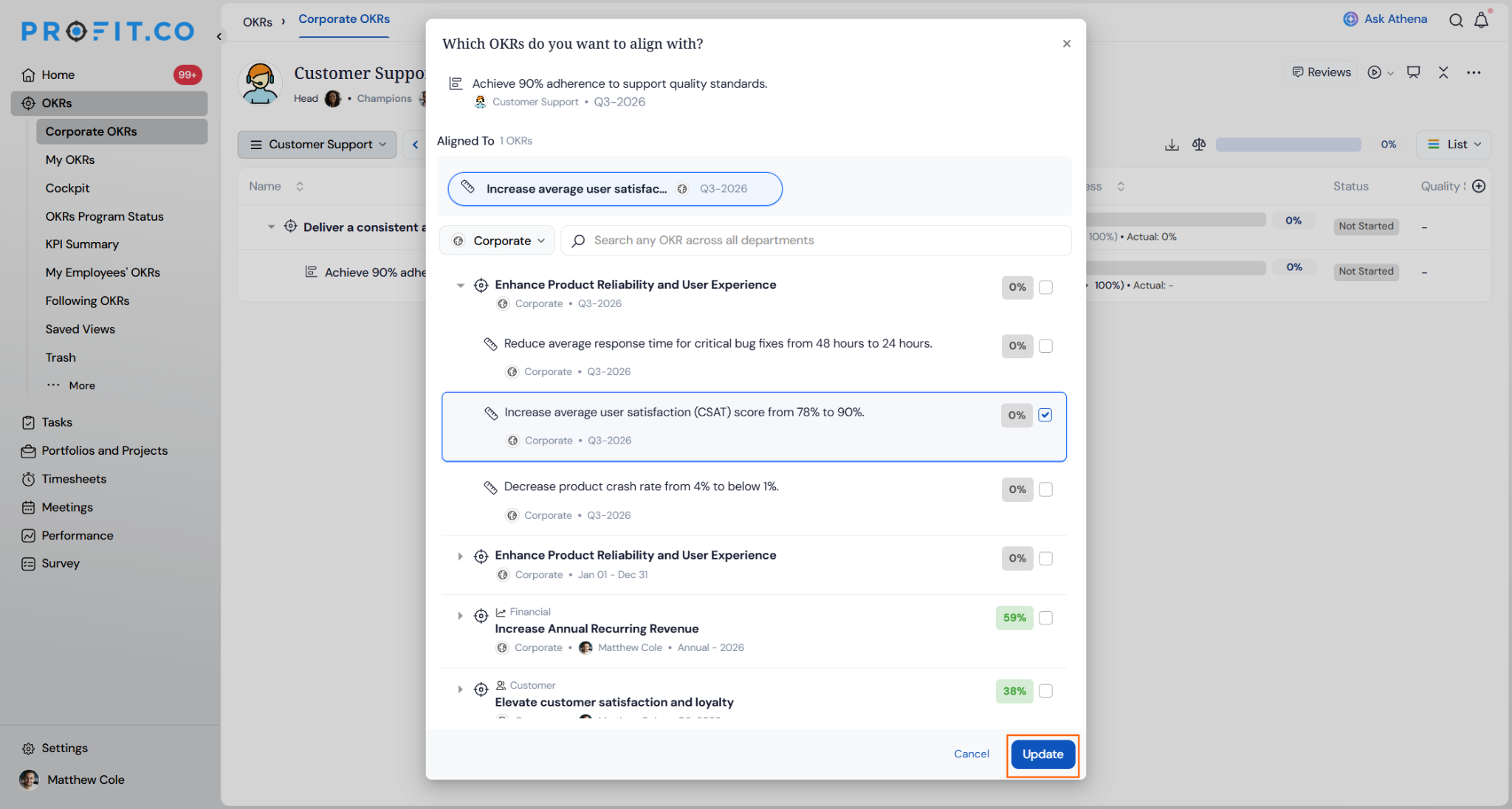
- On the Which OKRs do you want to align with? screen, search or filter by department to find the parent OKR, including one assigned to you by another department.
- Check the box next to the parent OKR.
- Click Update to confirm the selection.
- Click Cancel instead if you want to close the screen without saving.
Note
You can now align upward to a Key Result assigned to you by another department. This supports accurate cross-departmental alignment even when the parent KR did not originate on your team.
Bottom-Up Alignment Scenarios and Their Outcomes
| Scenario | What Happens |
|---|---|
| You align your Objective or Key Result to a parent OKR, including one assigned to you by another department. | Profit.co records the connection under Aligned To on the parent OKR, and your record's progress feeds into the parent's progress calculation from that point forward. |
| You have an active alignment to a parent Key Result that its owner later deletes. | Profit.co removes your alignment link to that Key Result and recalculates your OKR's progress without that contribution. |
| You delete a weighted Key Result while other Key Results in the same Objective also carry assigned weights. | Profit.co opens a Modify Key Results Weightage table showing current and proposed weights for the remaining Key Results, and requires the total to equal 100% before the deletion proceeds. |
| You choose to proceed with current weight instead of proposed weight during that deletion. | Profit.co deletes the Key Result but leaves the remaining Key Results at their original percentages, which no longer total 100%. |
| You cancel the Align/Unalign flow before clicking Update. | Profit.co discards the selection and creates no alignment link. |
Types of Bottom-Up Alignment
The Align option covers more than one structural relationship, depending on what you are connecting and what you are connecting it to.
| Alignment Type | What It Looks Like |
|---|---|
| Objective aligned as a Key Result | Your Objective is linked in as a Key Result under a broader Objective, so completing your Objective directly advances that parent's Key Result. |
| Key Result aligned as a Key Result | Your Key Result is linked in as a Key Result under a different Objective, redirecting its contribution to that Objective. |
| Key Result aligned as a Sub-Key Result | Your Key Result is linked in underneath another Key Result as a Sub-Key Result, becoming a supporting metric for that parent KR. |
| Objective aligned as a Sub-Key Result | Your Objective is linked in underneath a Key Result as a Sub-Key Result, so achieving your Objective contributes to that specific KR. |
Best Practices for Bottom-Up Alignment
- Confirm you are selecting Align, not Add Contributing OKRs, when the dialog opens. Align connects your OKR upward to a parent, while the other card pulls other OKRs in as contributors to yours.
- When aligning to a Key Result assigned to you by another department, check the KR's title and owner on the Which OKRs do you want to align with? screen before confirming, since it was not created on your team.
- Before deleting a weighted Key Result, review the Modify Key Results Weightage table and choose proceed with proposed weight if you want the remaining Key Results to still total 100%.
- Use the department filter on the Which OKRs do you want to align with? screen before searching by name, especially when multiple departments have similarly named OKRs.
- Check the Aligned To count on your own OKR periodically, since a parent Key Result you aligned to can be deleted by its owner without any action on your part.
Related Articles
Frequently Asked Questions
Yes. The How do you want to align this? dialog applies to any of the three, and the objective/KR labels in the dialog cover both record types.
Yes. The Which OKRs do you want to align with? screen searches across all departments, and this includes Key Results that another department created and assigned to you.
No. Align/Unalign is a standalone action available from the OKR list view at any time, while the older assignment options ran only when a new Objective or Key Result was first created.
Execute your strategy with confidence
Connect OKRs, tasks, and teams in one place with Profit.co
