

Profit.co offers the option to establish multi-stage approval workflows for project requests, ensuring proper governance and authorization.
Table of Contents
- What is a multi-stage approval workflow?
- Why are approval workflows important for requests?
- How do I set up approval workflows for request stages?
- How do I configure approval flows for a stage?
- How do I set up multi-level approval sequences?
- Best Practices for Approval Workflows
- Related Questions
- Frequently Asked Questions
What is a multi-stage approval workflow?
A multi-stage approval workflow is a structured process in which project requests move through defined stages, with approval requirements at specific stages that must be met before progressing.
Why are approval workflows important for requests?
Multi-stage approval workflows ensure proper governance, accountability, and strategic alignment before projects are initiated. Here's why this feature matters:
- Governance and Control: Ensures project requests go through proper review and authorization before receiving resources
- Strategic Alignment: Allows leadership to evaluate if requests align with organizational priorities and strategy
- Resource Protection: Prevents unauthorized projects from consuming limited organizational resources
- Accountability: Creates clear audit trail of who approved what and when
How do I set up approval workflows for request stages?
Follow these steps to configure multi-stage approvals:
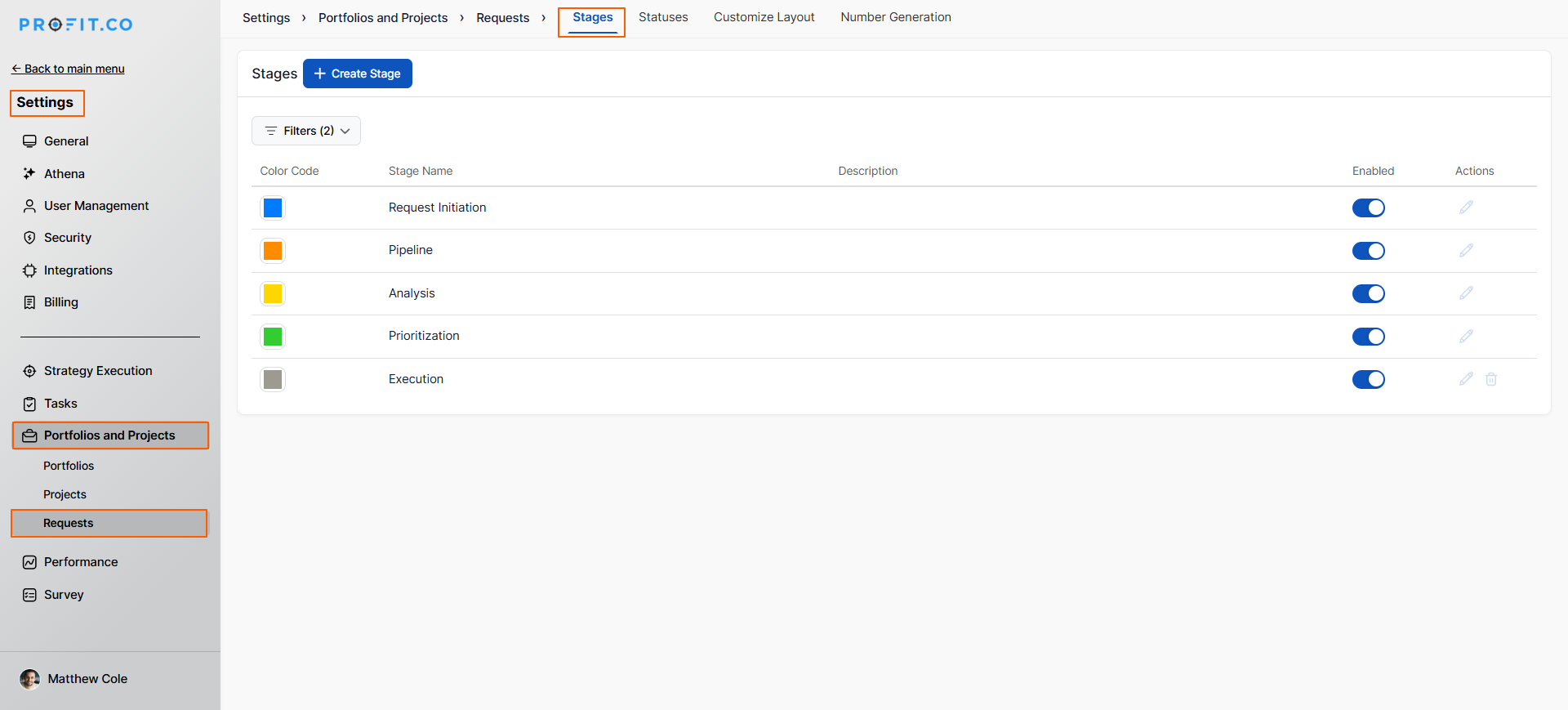
- Navigate to Settings → Portfolios and Projects → Requests from the left navigation panel
- On the Request page, switch to the Stages tab
- Under this tab, you can create different stages for your request workflow
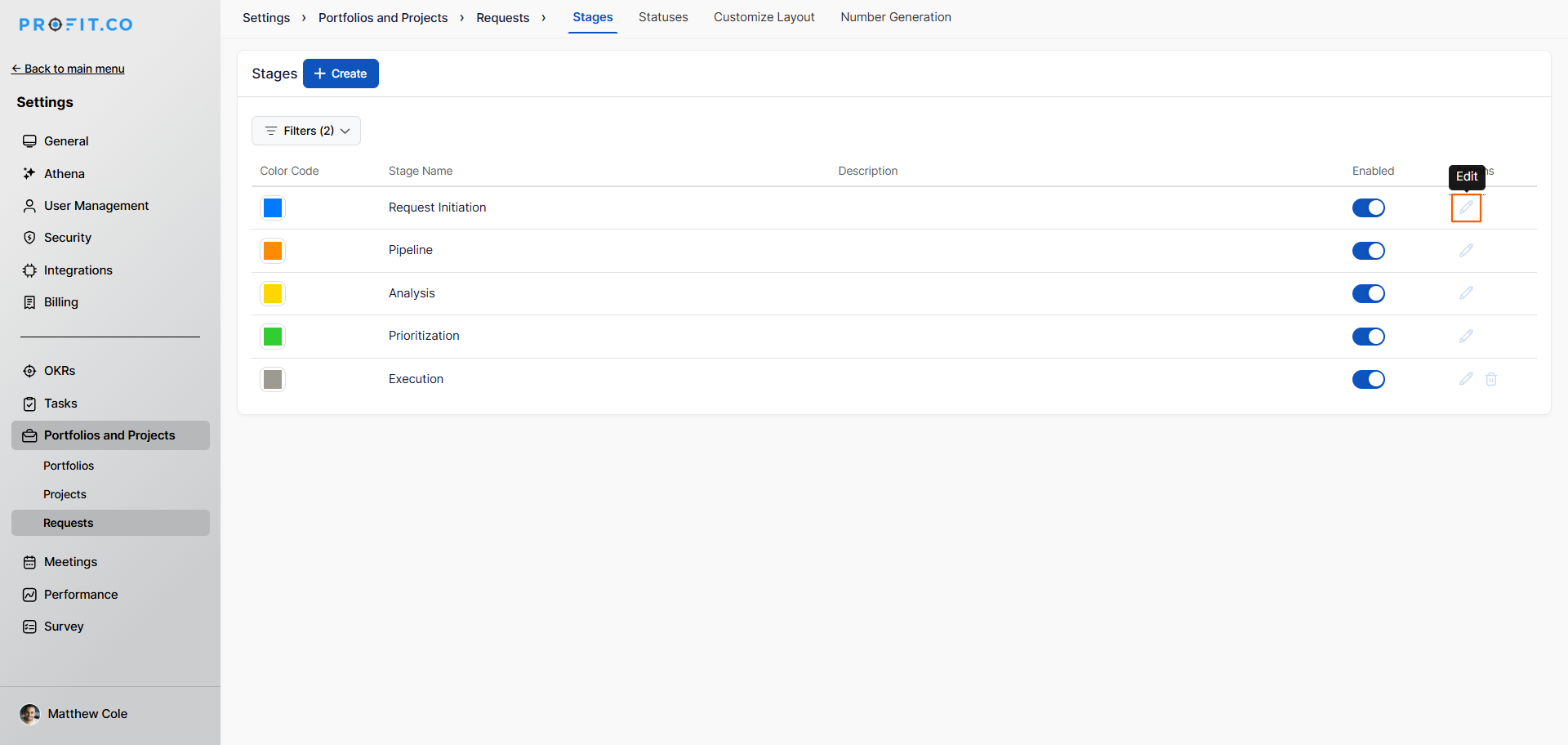
- Click "Edit" on the request stage.
- A side panel will open, showing the sequence details.
How do I configure approval flows for a stage?
Set up approval workflows for each stage in your tollgate sequence:
Step 1
- In the request stage side panel, choose the stage name you want to configure.
- Each stage can have its own unique approval workflow.
- Click the Edit option for the selected stage.
- In the side panel, switch to the Approval Flow tab.
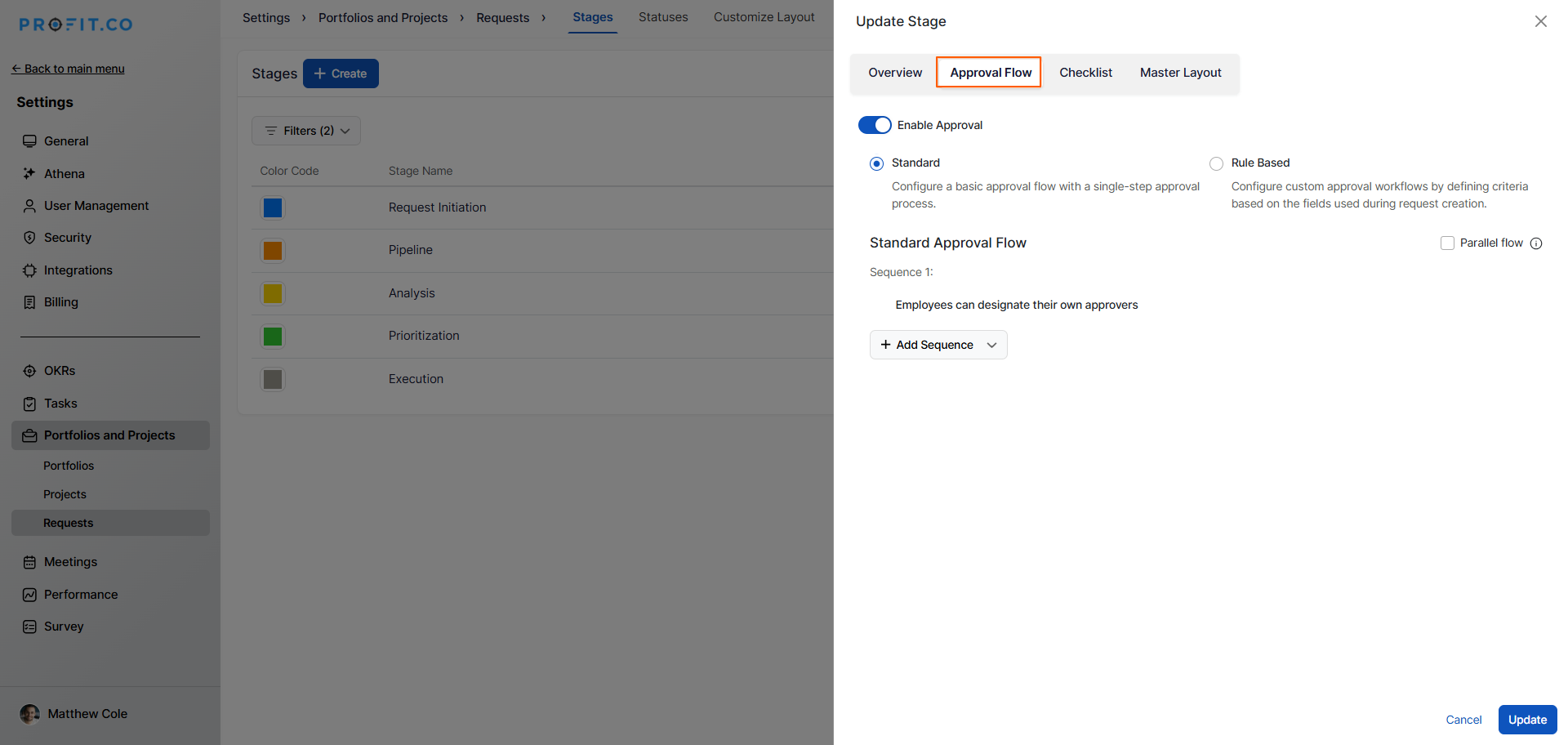
- This displays the approval configuration options.
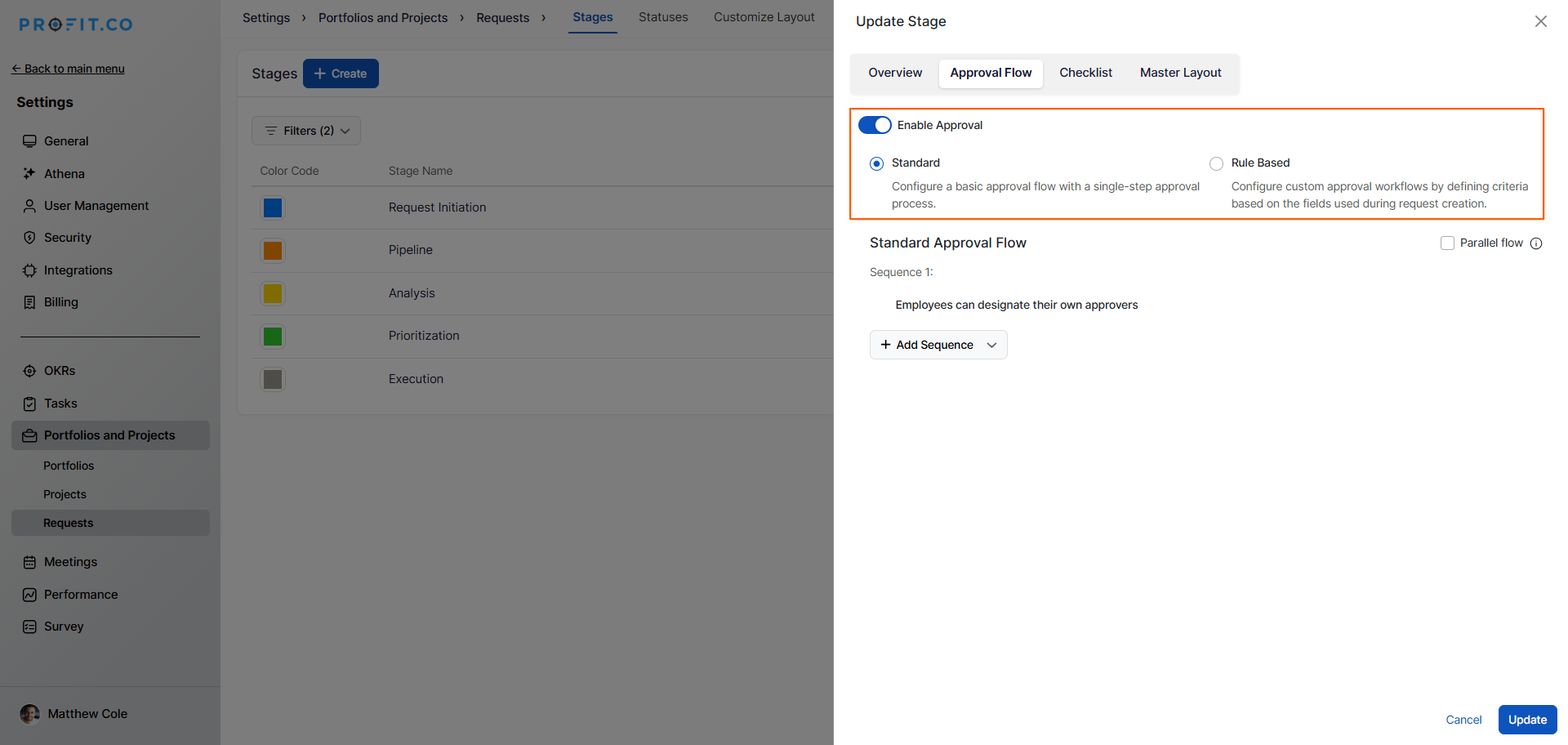
- Choose between a standard or rule-based approval flow.
How do I set up multi-level approval sequences?
Create a sequential approval workflow with multiple approval levels using a real business scenario.
Business Use Case Example:
The 4-Level Approval Flow:
- Technical Expert (Self-Designated) - Product Manager selects appropriate technical reviewer to validate feasibility
- PM's Direct Manager (Employee's Manager) - Validates team capacity and resource availability
- VP of Product (Department Head) - Ensures strategic alignment with department goals
- PMO (PPM Admin) - Final portfolio governance and prioritization check
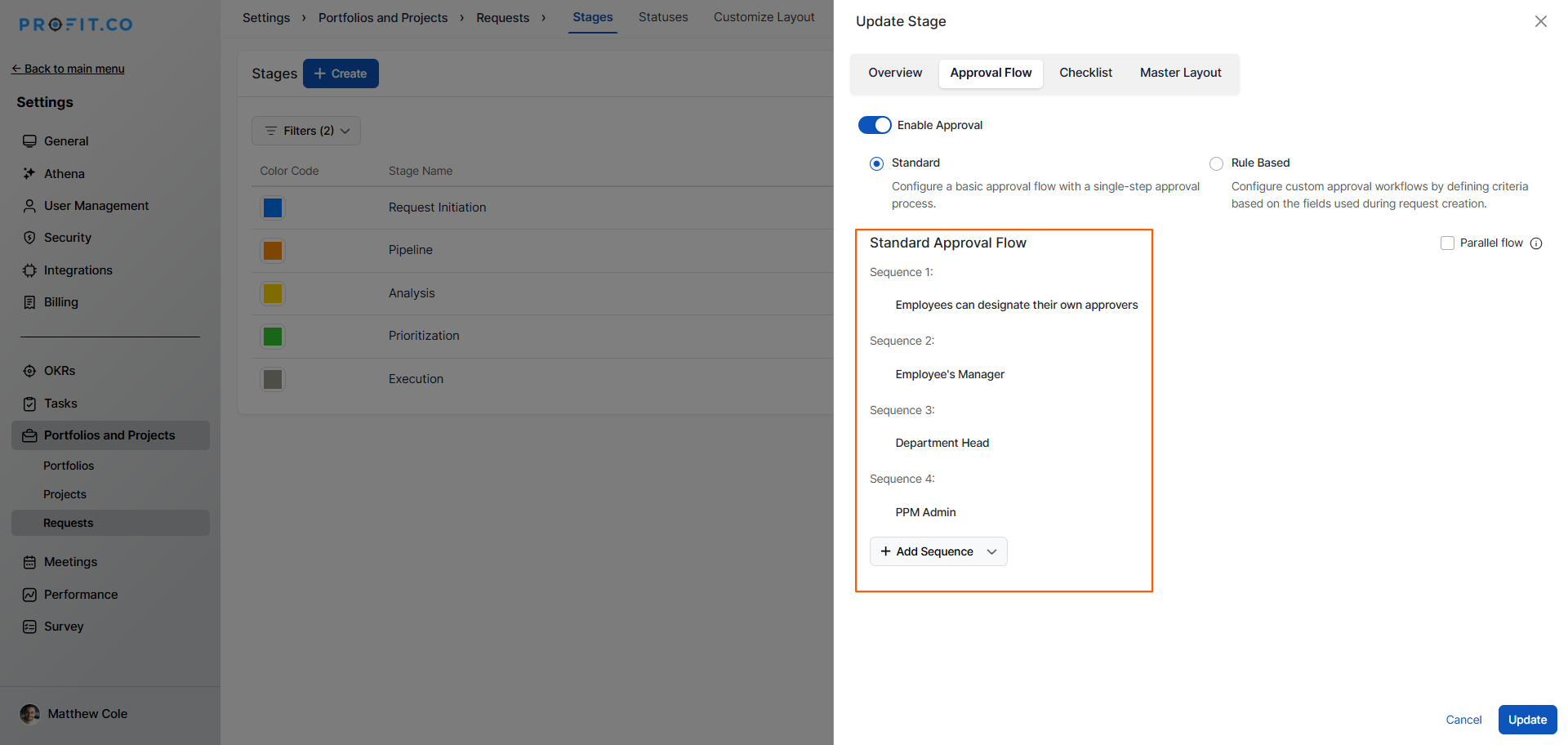
Configuration Steps:
- In the Approval Flow tab, click Add Sequence
- Select first approver type: Employees can designate their own approvers
- Click "Add Approver" again for the second level
- Select: Employee's Manager
- Continue adding levels: Department Head, then PPM Admin
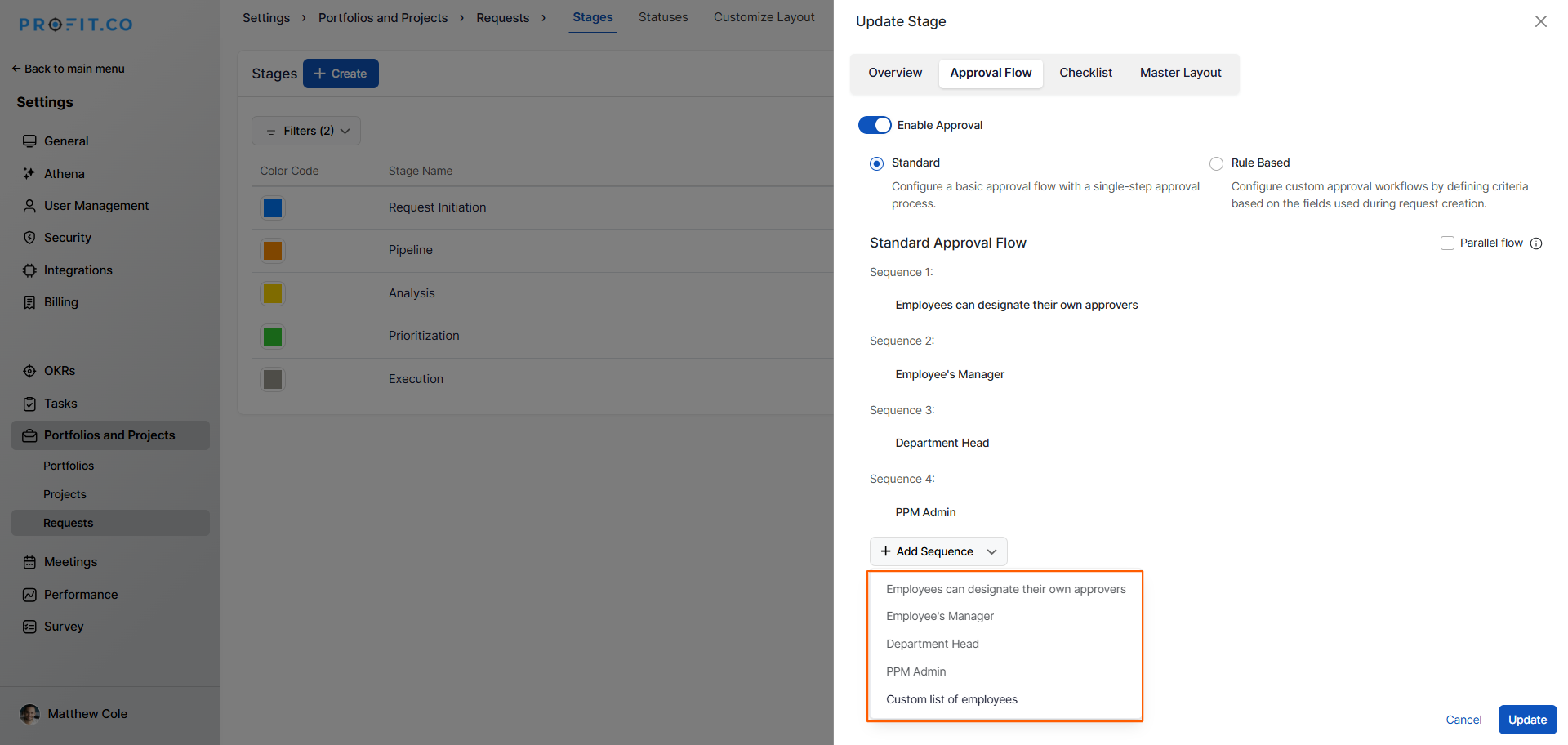
Result: Projects must progress through all four approval levels sequentially before advancing to the next stage.
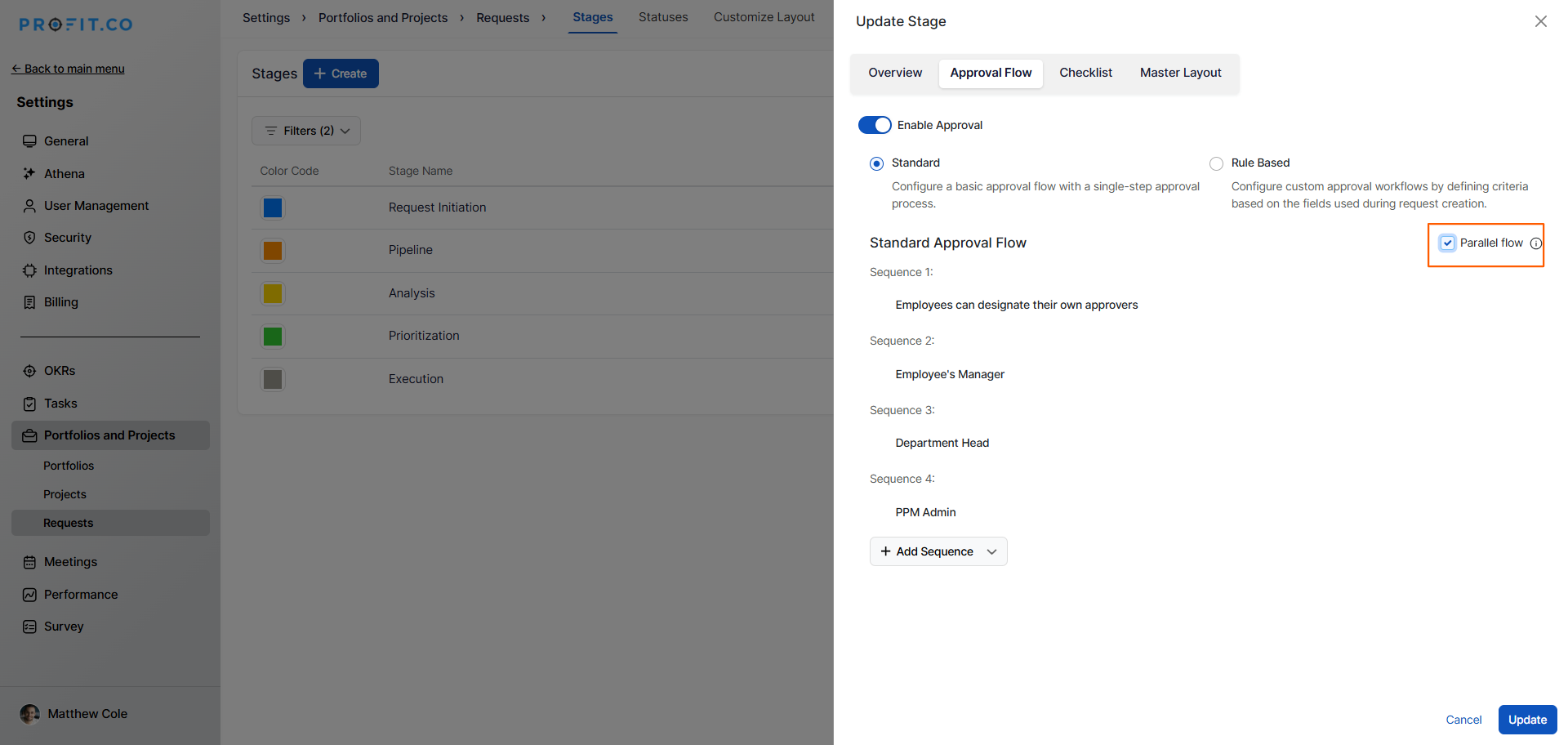
Note: Once you enable the Parallel Flow option, the approvers complete the approval process in parallel rather than sequentially.
Best Practices for Approval Workflows
To maximize the effectiveness of multi-stage approval workflows:
- Keep Approval Stages Minimal: Limit approval points to 2-4 stages maximum. Too many approvals slow down decision-making and frustrate requesters without adding value.
- Match Approver to Stage Purpose: Assign approvers with relevant expertise and authority for each stage manager for feasibility, finance for budget, and executives for strategic alignment.
- Set Clear Approval Criteria: Documenting what approvers should evaluate at each stage. This provides consistency, reduces approval time, and helps requesters prepare
Related Questions
- How to create a project request in the PPM module: Click Here
Frequently Asked Questions
The request typically moves to a rejected stage and returns to the requester with rejection comments. The requester can revise and resubmit, or the request may be closed depending on configuration.
This depends on your governance policies. Administrators may have override capabilities, but all exceptions should be logged for audit purposes. Consider creating expedited approval workflows for urgent situations.
Yes, the request detail view typically shows current stage, designated approver(s), and approval status so requesters have visibility into the process.
