

Multi-Project Task Association lets you connect a single task to more than one project or milestone, so the same task lives across several project plans at once instead of existing as separate copies.
Table of Contents
What is Multi-Project Task Association?
Multi-Project Task Association is a task-level setting that links one task record to additional projects or milestones through the Associated with panel on the task detail page. Once linked, the task keeps one ID, one progress value, and one status that Profit.co displays identically wherever it appears.
You choose an association type, either Projects or Milestones, each time you add a new link, so a task can be tied to project-level and milestone-level records at the same time.
| Association Type | What It Links To |
|---|---|
| Projects | Connects the task to another project, so it appears in that project's task list as the same shared record. |
| Milestones | Connects the task to a milestone within a project, so it appears under that milestone as the same shared record. |
Why Multi-Project Task Association Matters
Multi-Project Task Association removes the need to keep parallel task copies in sync whenever a single piece of work belongs to more than one initiative.
| Benefit | What Changes |
|---|---|
| One record, no duplication | Teams working on a shared deliverable stop maintaining separate task copies per project, so a status update made in one place never has to be repeated in another. |
| Accurate cross-project visibility | A project manager opens any linked project and sees the task's real progress and status, instead of reconciling separate records that may have drifted apart. |
| Reduced administrative overhead | Users stop creating, updating, and closing identical tasks in multiple projects, cutting the manual work of keeping project plans consistent. |
How It Works
Associating a task with another project takes five steps, starting with a one-time setting that has to be turned on before the option appears.
Step 1
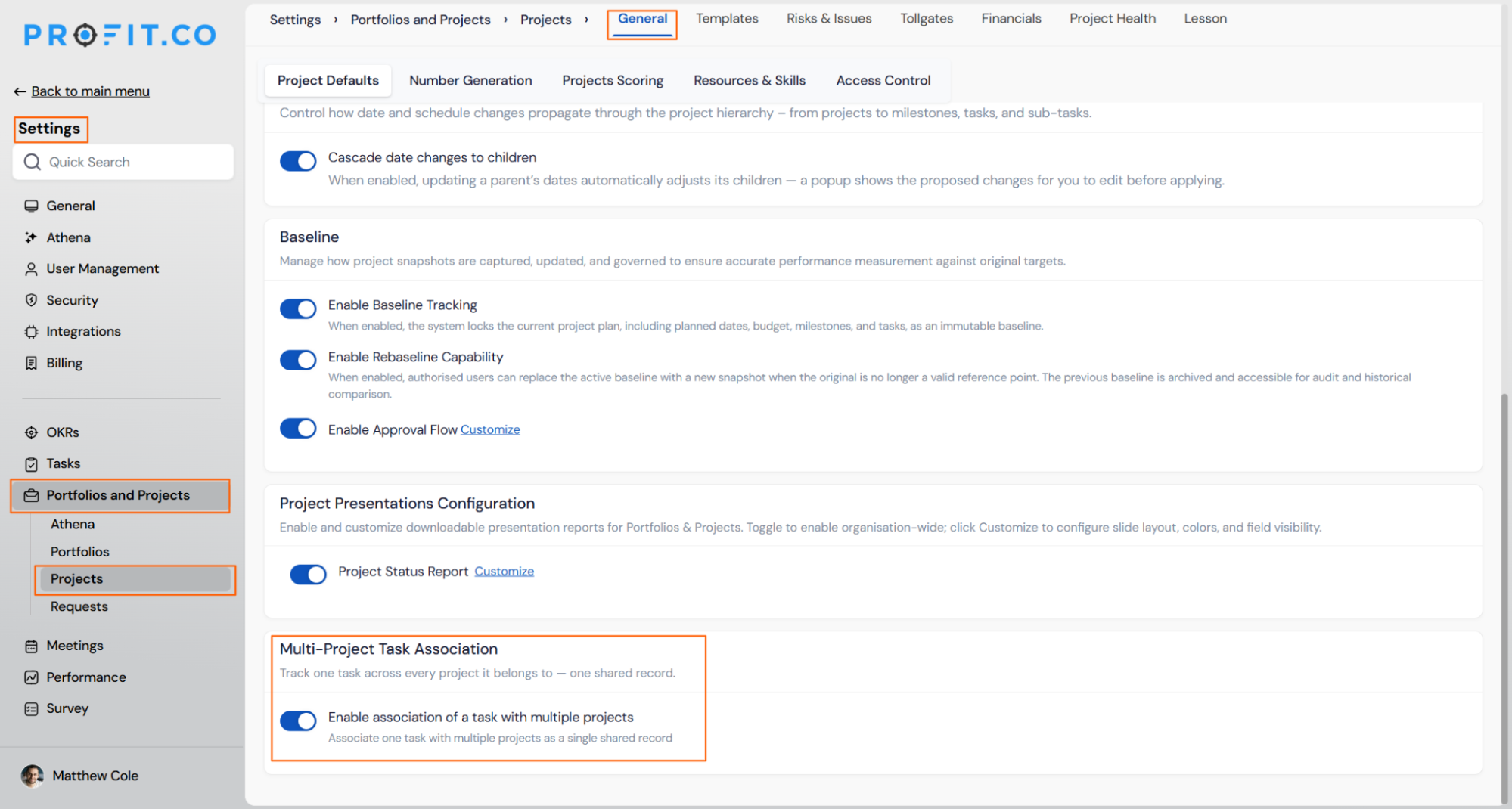
- Navigate to Settings → Portfolios and Projects → Projects → General → Project Defaults
- Enable the Enable association of a task with multiple projects toggle under the Multi-Project Task Association section
Step 2
- Open any task within a project
- Locate the Associated with section on the task detail page
- Click + to open the Association with panel
- Select Projects or Milestones as the association type
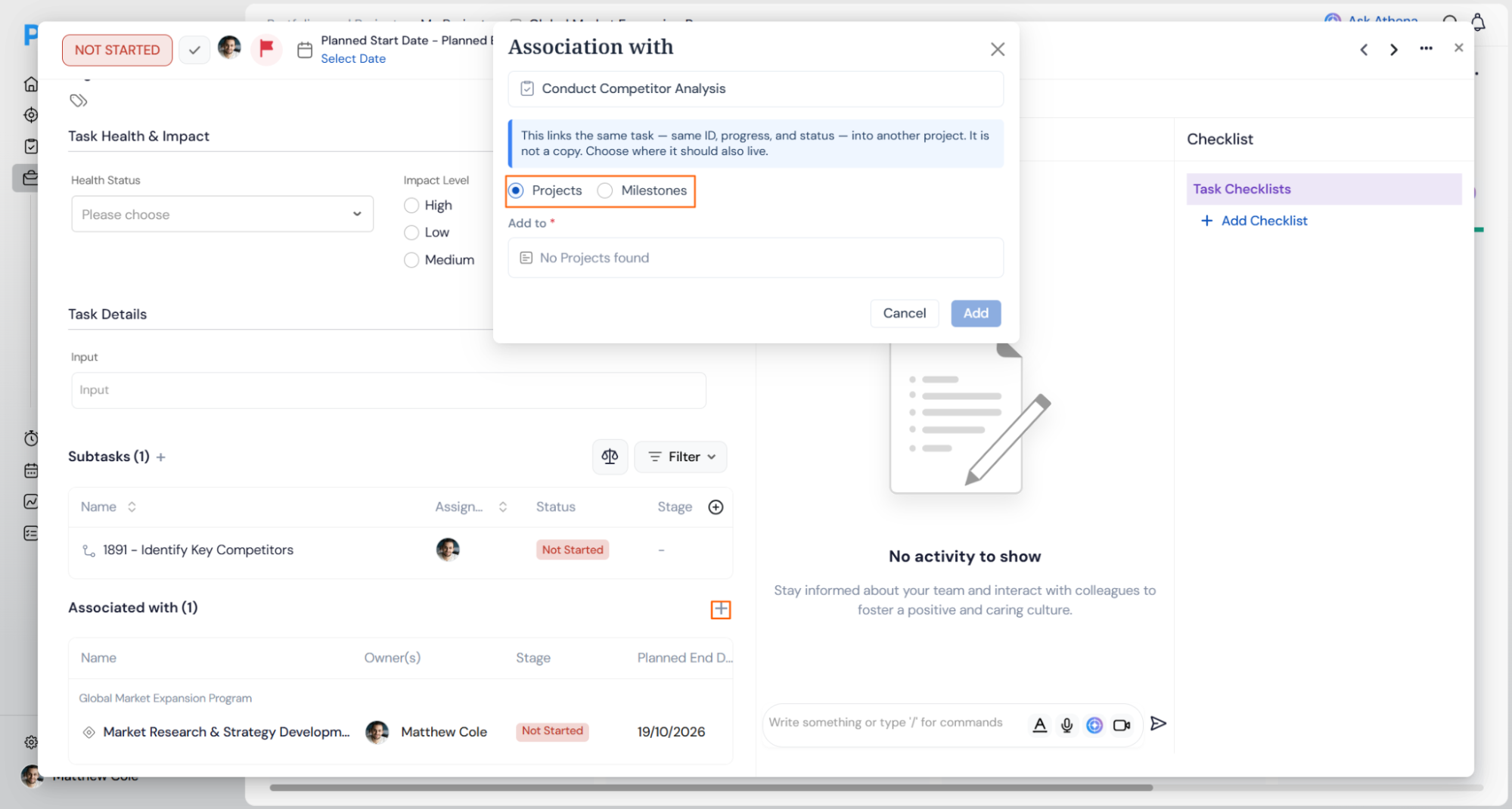
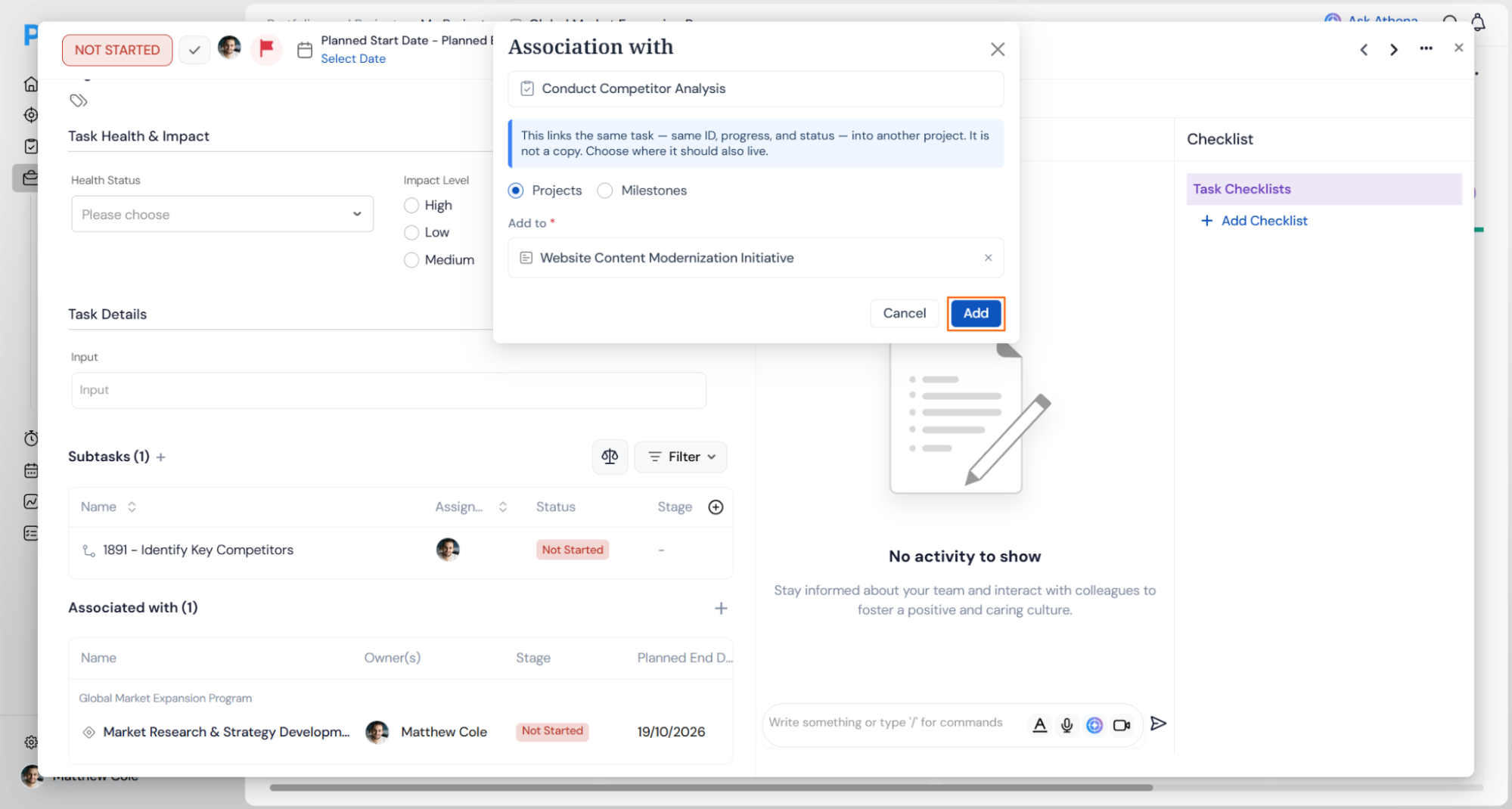
- Search for the project or milestone to link the task to
- Click Add to complete the association
Multi-Project Task Association Scenarios and Their Outcomes
These outcomes describe what happens to the task's data and visibility once it's linked to more than one project.
| Scenario | What Happens |
|---|---|
| You update the task's progress, status, or ID after associating it with another project. | Profit.co syncs the update to the shared record immediately, so every linked project and milestone shows the same values. |
| You associate a task that already has checklists, comments, or activity history with another project. | Profit.co keeps the checklists, comments, and activity history unified across every linked project, so nothing splits or duplicates per project. |
| You associate a task with a new project or milestone. | Profit.co does not send a notification to the newly linked project's team or to the task owner, so the association only becomes visible when someone opens the task or the linked project. |
| You open the Association with panel and click Cancel instead of Add. | Profit.co closes the panel without creating an association, leaving the task exactly as it was before you opened it. |
Note
This article doesn't cover removing an existing association once it's created. Confirm current unlink behavior with your Profit.co admin before removing a project or milestone link.
Best Practices for Multi-Project Task Association
- Confirm the Enable association of a task with multiple projects toggle is turned on under Settings → Portfolios and Projects → Projects → General → Project Defaults before your team tries to use it, since the Associated with option doesn't work until the setting is active.
- Update progress or status from whichever linked project you're already working in. Profit.co syncs the shared record everywhere, so there's no need to repeat the update in every project.
- Since associating a task doesn't send a notification to the newly linked project's team, message them directly if you want them aware of the change right away.
- Choose Milestones as the association type when the shared work belongs to a specific milestone rather than the whole project, so the task surfaces at the right level in each plan.
- Reference the task by its shared ID when discussing it across teams, since the same ID appears in every linked project and prevents confusion with separate task numbers.
Related Articles
- How do I assign Tasks to multiple assignees in Profit.co?
- How to create sub tasks for an already existing task?
Frequently Asked Questions
No. The task keeps a single ID, and Profit.co displays the same shared record in every project or milestone it's linked to.
Yes. Each association you create through the Association with panel is typed as either Projects or Milestones, so a task can carry both types of association at once.
No. Profit.co doesn't cap the number of projects or milestones a single task can be linked to.
Execute your strategy with confidence
Connect OKRs, tasks, and teams in one place with Profit.co
