

AI Status Report Templates give portfolio owners a choice of format when sending an AI-generated status report for a portfolio. You select the layout that fits the recipient before the email goes out.
Table of Contents
- What Are AI Status Report Templates?
- Why Do AI Status Report Templates Matter?
- How Do I Use AI Status Report Templates?
- What Happens When You Use AI Status Report Templates?
- What Are the Best Practices for AI Status Report Templates?
- Related Articles
- What Are Some Frequently Asked Questions About AI Status Report Templates?
What Are AI Status Report Templates?
AI Status Report Templates control the format of the AI-generated email you send from a portfolio's Send Summary panel. Previously, Send Summary produced a single fixed text layout for every recipient.
Two templates are available today, and super users decide which ones stay active, which one is the default, and which sections appear in each. Template management applies at the portfolio level, not to meeting or task summaries.
| Template | What It Includes |
|---|---|
| Text Summary | Structured, section-based email covering portfolio status, timeline, risks, issues, and budget |
| Dashboard | Visual email with KPI summary cards, project health breakdown, stage distribution, and a needs-attention section |
Note
A single Send Summary email supports up to 50 recipients, regardless of which template you choose.
Why Do AI Status Report Templates Matter?
Before this feature, every recipient received the same fixed text layout, so portfolio owners had to reformat content by hand to suit leadership versus working teams. Now you pick the format at send time, with no manual reformatting.
Super users define the available templates centrally, so every portfolio status report follows the same structure regardless of who sends it. Report content still generates automatically from live portfolio data, while admins control exactly which sections each template shows.
How Do I Use AI Status Report Templates?
Method 1: Manage Report Templates (Super User)
Step 1
- Navigate to Settings → Portfolios and Projects → Portfolios → Templates.
- Edit a template to show or hide individual sections.
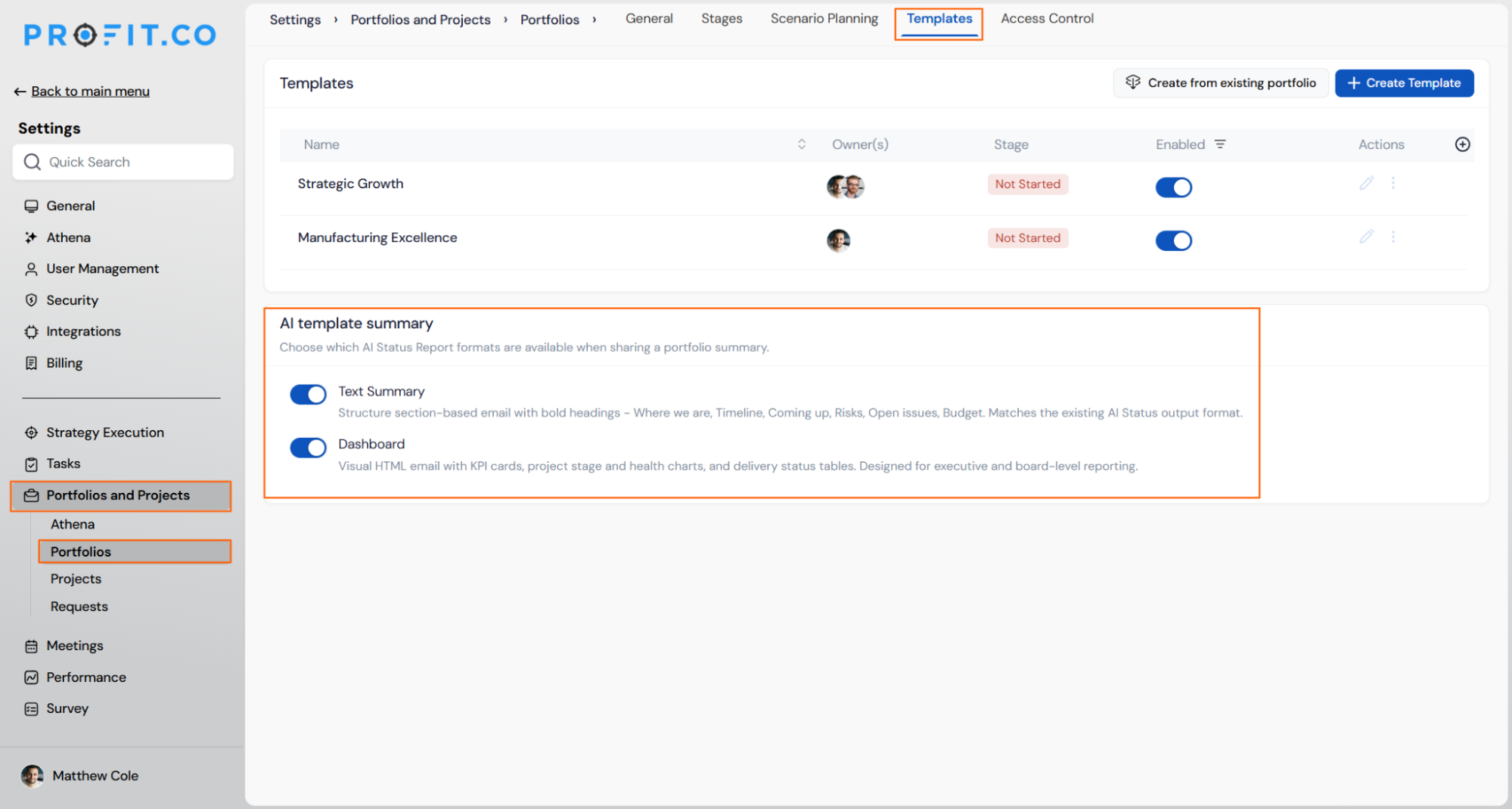
- Set a default template.
- Activate or deactivate templates to control what senders see in their selector.
Method 2: Send an AI Status Report
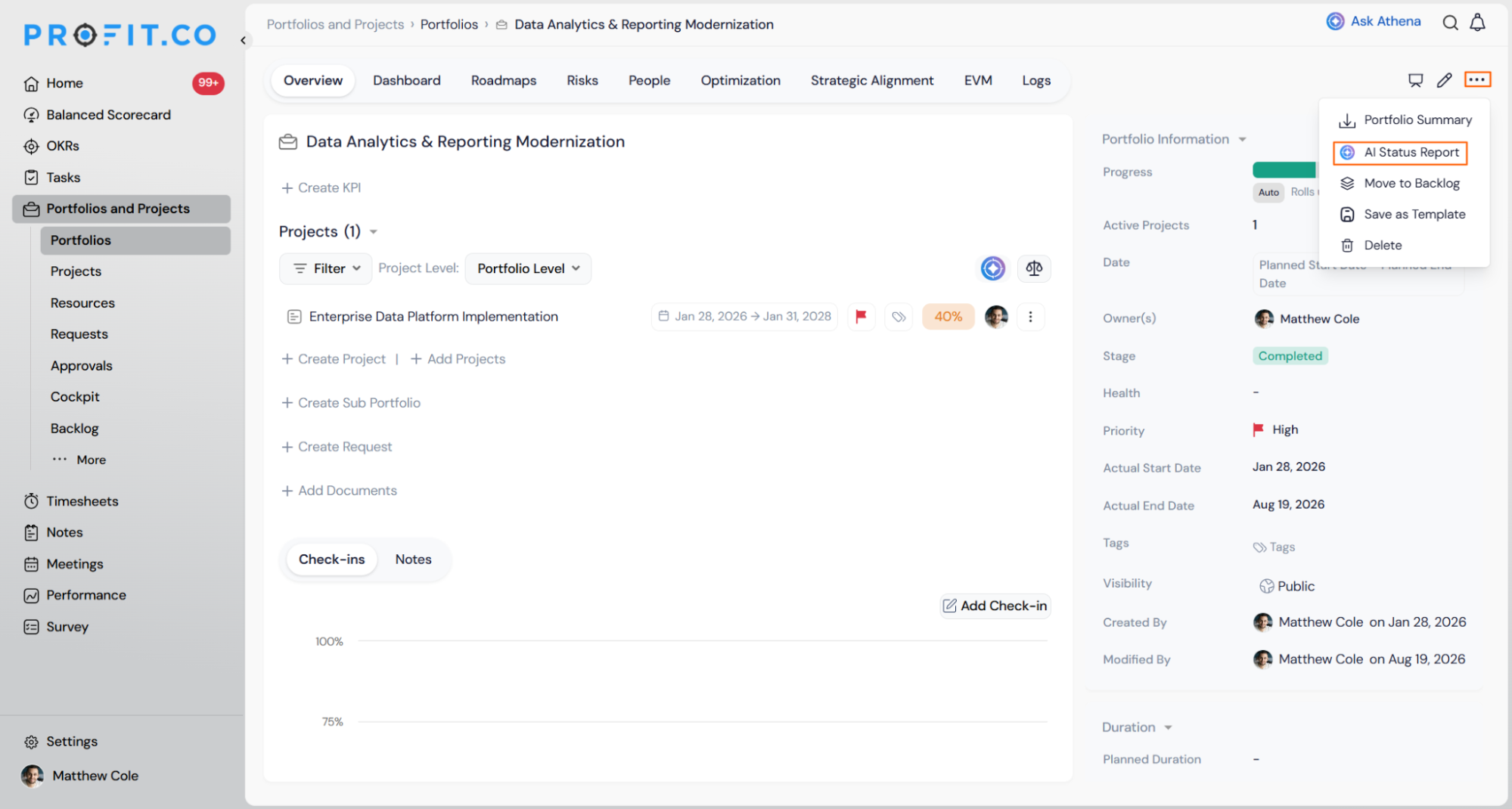
- Open the relevant portfolio and click the ⋮ menu.
- Select AI Status Report.
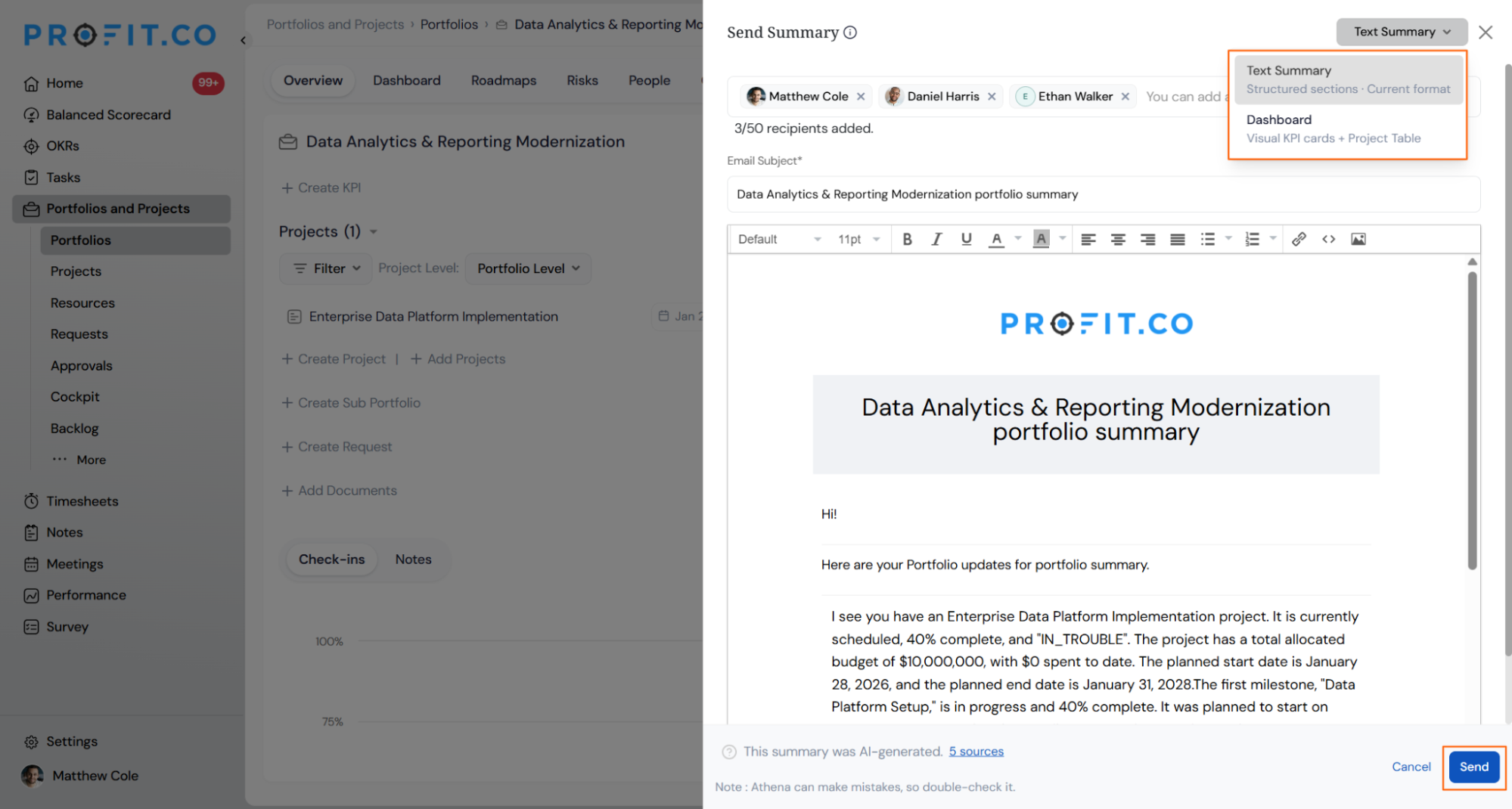
- The Send Summary panel opens on the right with a live email preview.
- In the top right of the panel, click the template selector.
- Choose between Text Summary and Dashboard.
- Add recipients, up to 50 per email.
- Edit the email subject and check Copy to me if needed.
- Click Send to deliver the report.
What Happens When You Use AI Status Report Templates?
| Scenario | What Happens |
|---|---|
| You select a different template in the Send Summary panel. | Profit.co immediately updates the live email preview to reflect the newly selected format. |
| You check Copy to me before sending. | Profit.co adds your own email address to the recipient list so you receive a copy of the report. |
| You click Cancel instead of Send in the Send Summary panel. | Profit.co discards the report without sending it, and no draft is saved. |
| A super user deactivates a template. | Profit.co removes that template from the sender's selector so it can no longer be chosen for new reports. |
| A super user hides a section within a template. | Profit.co excludes that section from every report sent using that template afterward. |
What Are the Best Practices for AI Status Report Templates?
- Set a default template that matches your most common audience, so senders rarely need to switch formats manually before sending.
- Review which sections are hidden in each template before assigning it to a portfolio, since hidden sections won't appear even though the underlying data still exists.
- Deactivate templates that are no longer in active use, since deactivating only removes them from the sender's selector and doesn't affect anything else in the portfolio.
- Confirm your recipient list and the Copy to me setting before clicking Send, since Cancel discards the report entirely with nothing saved to resume from.
- Assign the Dashboard template to portfolios reported to leadership and Text Summary to ones read by working teams, so each audience gets a format built for how they consume the update.
Related Articles
- How do I View Portfolio Health Metrics and Heatmaps in Profit.co?
- How to create a new portfolio in profit.co?
What Are Some Frequently Asked Questions About AI Status Report Templates?
No. The template only changes how existing portfolio data is presented in the email; the KPI figures, health status, and stage counts come from the same live portfolio data regardless of format.
No. AI Status Report Templates apply to portfolio-level reports sent through the Send Summary panel, not to project-level reporting.
No additional permission is needed to select a template. Any portfolio owner can choose between whichever templates the super user has left active for the organization.
Execute your strategy with confidence
Connect OKRs, tasks, and teams in one place with Profit.co
