

Mandatory Attachment lets Super Users flag individual tollgate checklist items as requiring a supporting file, so project teams see a persistent prompt until they upload a document. It applies at the checklist item level within any tollgate stage.
Table of Contents
- What is Mandatory Attachment for Tollgate Checklists?
- Why Mandatory Attachment for Tollgate Checklists Matters
- How It Works
- Mandatory Attachment for Tollgate Checklists Scenarios and Their Outcomes
- Best Practices for Mandatory Attachment for Tollgate Checklists
- Related Articles
- Frequently Asked Questions
What is Mandatory Attachment for Tollgate Checklists?
Mandatory Attachment is a per-item setting inside a tollgate stage's Checklist tab. Super Users check the Mandatory Attachment box on any individual checklist item, so some items in a stage can require a file while others don't.
Once set, the item shows an attachment icon instead of a plain checkbox wherever project teams view that tollgate stage. The requirement is a visual flag and tooltip, not a system lock: how it affects completion and submission is covered under Scenarios and Their Outcomes below.
Note
The Enable Checklist toggle must be turned on for a tollgate stage before its checklist items, including any Mandatory Attachment settings, become visible to project teams.
Why Mandatory Attachment for Tollgate Checklists Matters
Before this setting, a checklist item's checkbox did not indicate what documentation a stage expected, so teams could mark deliverables done with no shared proof attached to the item itself. Mandatory Attachment puts that expectation directly on the checklist item, instead of leaving it to comments or side conversations.
Because the setting is scoped to individual items, Super Users decide exactly which deliverables need a file rather than forcing the same requirement across an entire stage. Items that genuinely don't need documentation can stay as plain checkboxes.
How It Works
Step 1
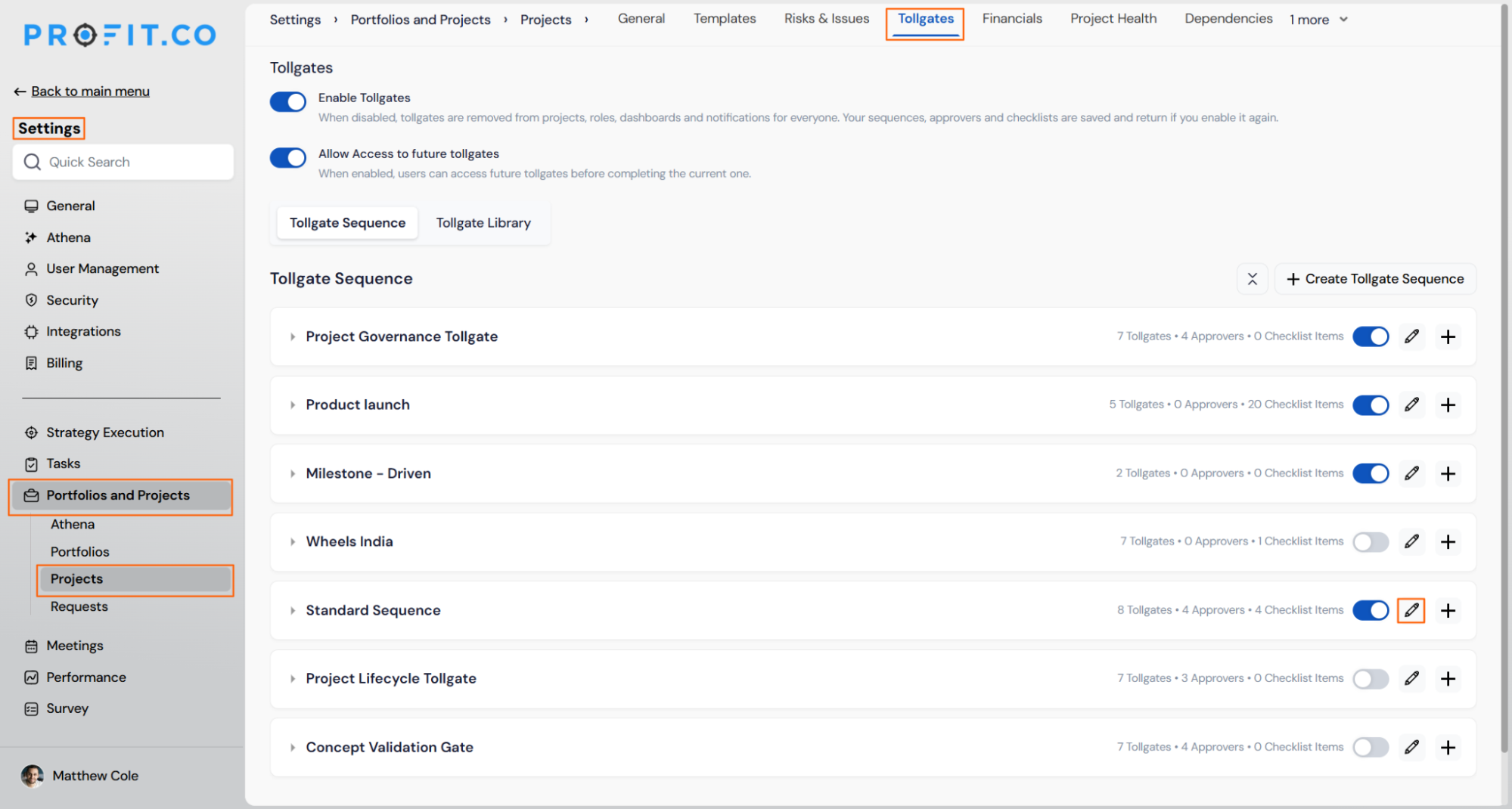
- Navigate to Settings → Portfolios and Projects → Tollgates
- Select the relevant Tollgate Sequence
- Click the tollgate stage you want to configure
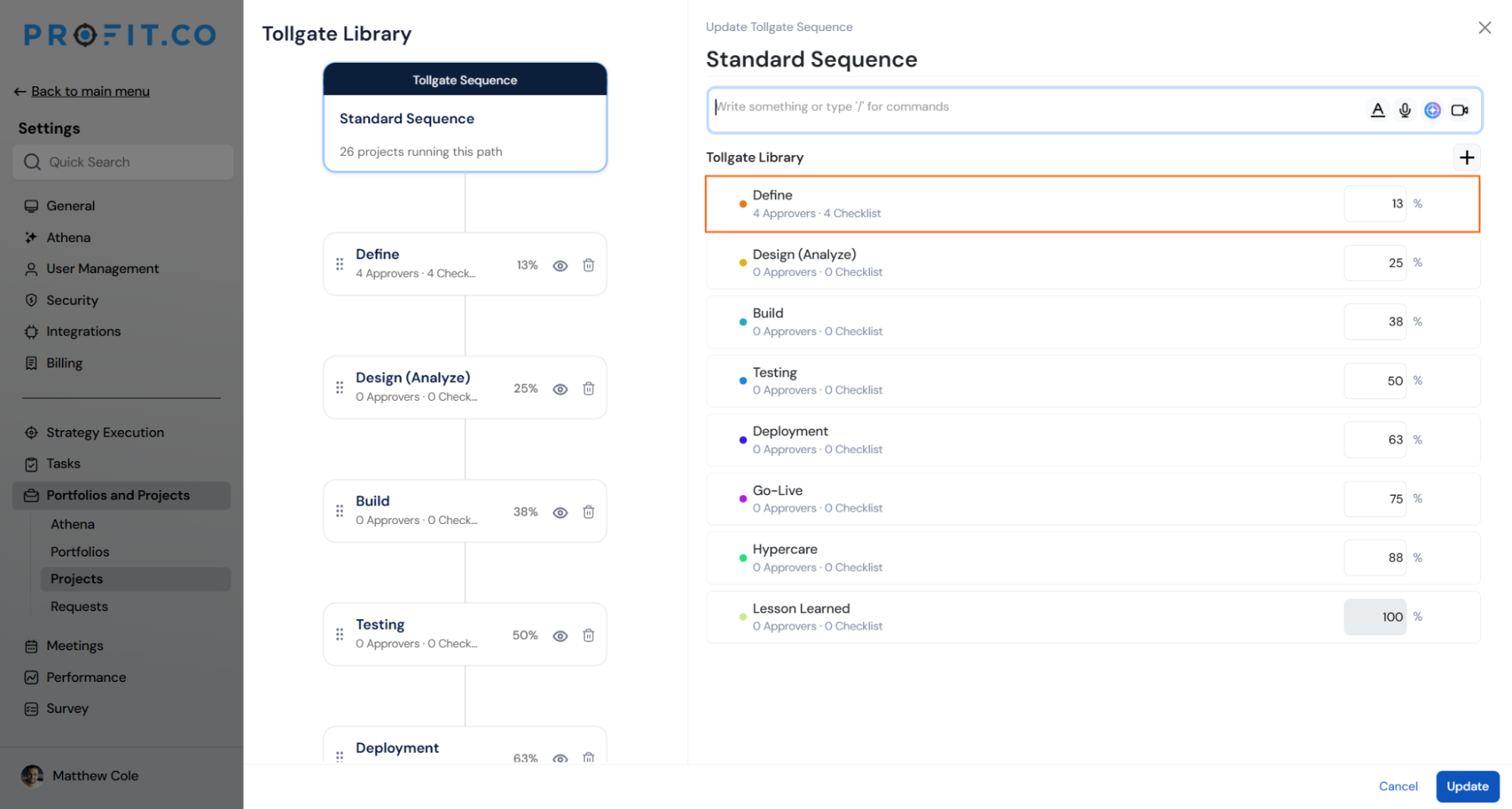
Step 2
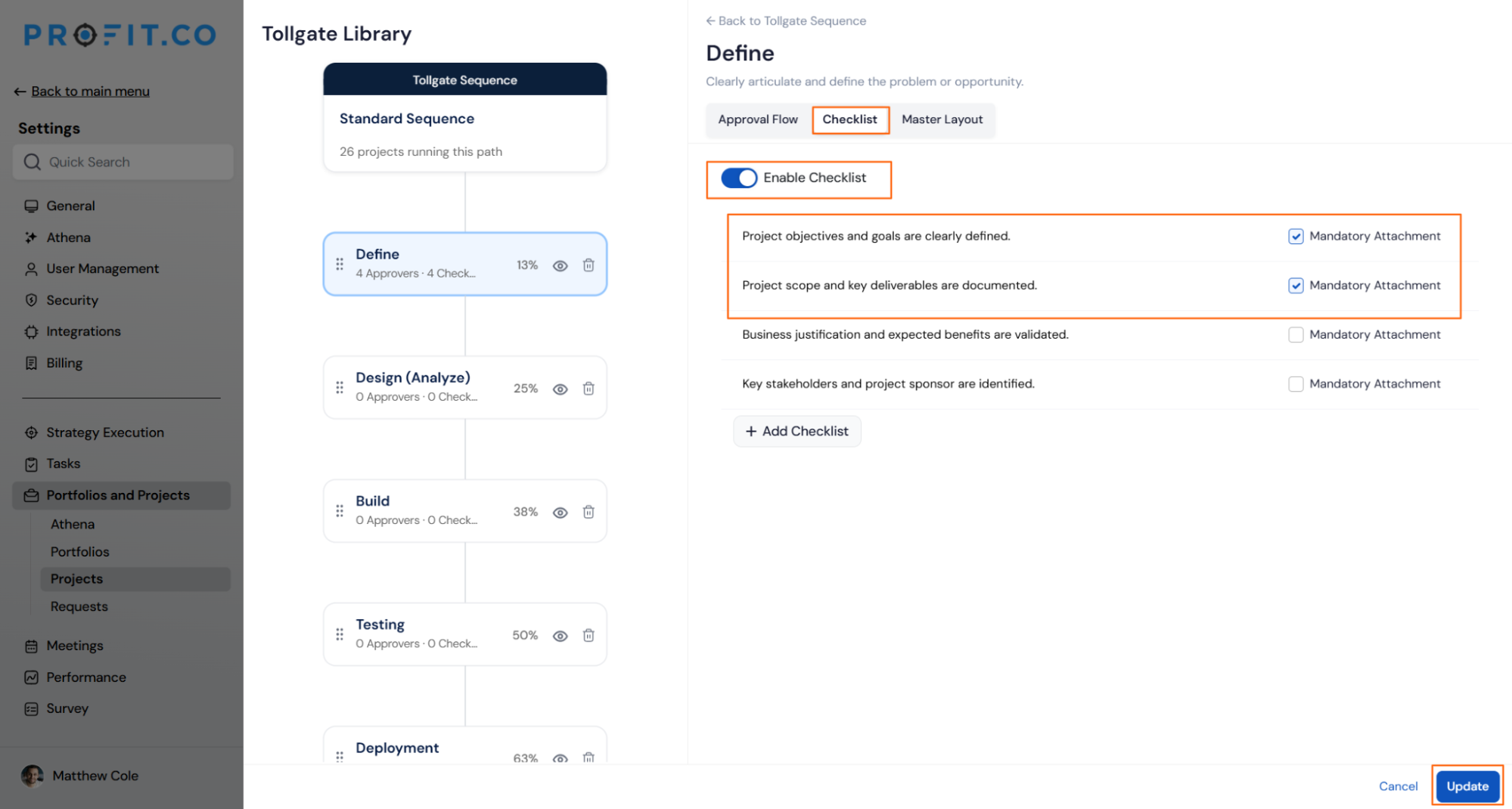
- Open the Checklist tab in the stage's configuration panel
- Turn on the Enable Checklist toggle if it isn't already on
- Check the Mandatory Attachment box next to each checklist item that requires a file
- Leave items unchecked where a document isn't required
- Click Update to save the configuration
Step 3
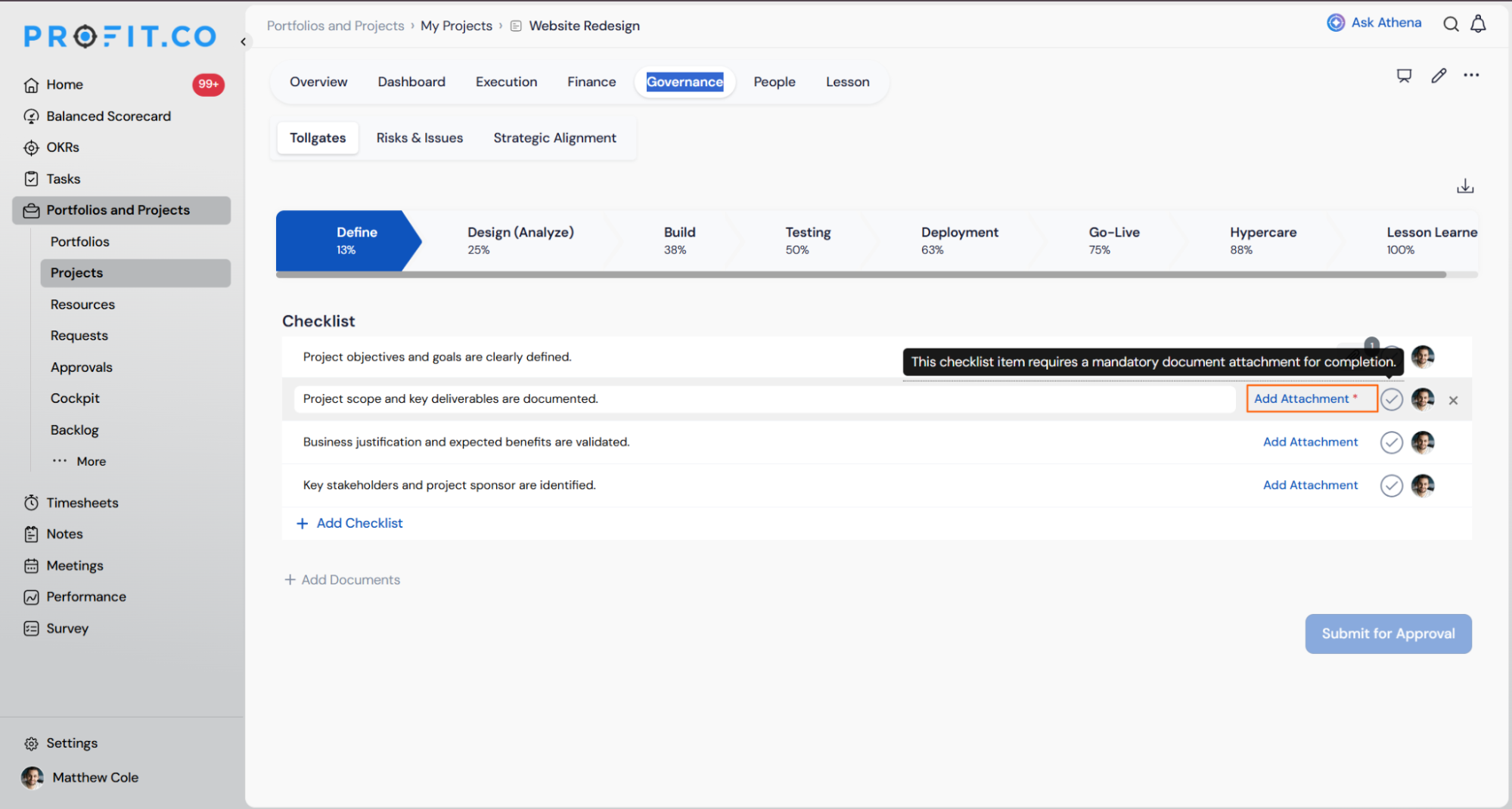
- Open Governance → Tollgates on the relevant project
- Locate the checklist item under the active stage
- Hover over the attachment icon to see the tooltip confirming a document is expected
- Click the attachment icon on the checklist item
- Choose From Computer or Add Link to add a file, or review existing uploads
Mandatory Attachment for Tollgate Checklists Scenarios and Their Outcomes
The table below covers what actually happens to completion, approval, and visibility once Mandatory Attachment is set, not the steps to configure it.
| Scenario | What Happens |
|---|---|
| You mark a Mandatory Attachment checklist item complete without uploading a file. | Profit.co lets you mark the item complete and move ahead to Submit for Approval; the attachment icon and tooltip keep flagging the file as missing. |
| You submit a tollgate stage for approval while a Mandatory Attachment item has no file uploaded. | Profit.co processes the submission normally; the missing attachment does not delay or block the approval request. |
| You upload a file against a Mandatory Attachment checklist item. | Profit.co stores the file with its name, size, uploader, and upload date; anyone who opens the attachment icon can view that upload history. |
| You disable Enable Checklist or uncheck Mandatory Attachment on a sequence already running on active projects. | Profit.co keeps completed and approved stages unchanged and updates only the stages not yet reached; a confirmation prompt shows how many projects currently use that sequence before you save. |
| You leave a Mandatory Attachment checklist item without an uploaded file. | Profit.co does not notify any user about the missing file; the attachment icon and tooltip remain the only indicators on the checklist item. |
Best Practices for Mandatory Attachment for Tollgate Checklists
- Reserve Mandatory Attachment for items where the file genuinely matters for governance, since the flag is a visual prompt and won't stop a stage from being submitted without it.
- Before disabling Enable Checklist or unchecking Mandatory Attachment on a sequence already in use, check the project count in the confirmation prompt, since every stage not yet reached picks up the change.
- Tell project teams about the mandatory-attachment expectation during stage kickoff, since Profit.co doesn't send a notification when a required file is missing.
- Treat the attachment icon's upload history, including uploader and date, as your audit trail instead of tracking documentation separately.
- Apply Mandatory Attachment to specific deliverables rather than every item in a stage, so the requirement stays tied to items that actually need proof.
Related Articles
Frequently Asked Questions
No. Mandatory Attachment is a per-item setting. Super Users check the box individually for each checklist item that needs a required file, leaving other items in the same stage unaffected.
Yes. The attachment icon on a checklist item lists every file uploaded against it, including each file's name, size, uploader, and upload date.
Profit.co saves the checklist with no attachment requirement on those items; they keep behaving as a plain checkbox with no attachment icon.
Execute your strategy with confidence
Connect OKRs, tasks, and teams in one place with Profit.co
