

The Weighted Scorecard in Profit.co lets you assign percentage-based weights to each perspective within the Balanced Scorecard, so objectives with greater strategic importance carry proportionate influence over overall progress.
This ensures that your scorecard reflects business priorities — not just activity volume — when calculating performance across departments.
⚡ Quick Answer
Navigate to the Balanced Scorecard, select your department, and click the Weight Icon. Enable the Weighted Scorecard toggle, distribute percentage weights across each perspective so the total equals 100, and click Update. The overall progress bar of each objective will automatically reflect the assigned weights.
Table of Contents
What is the Weighted Scorecard?
The Weighted Scorecard is a configuration layer within Profit.co's Balanced Scorecard that allows organizations to assign percentage weights to each scorecard perspective — such as Financial, Customer, Internal Process, and Learning & Growth. These weights determine how much each perspective contributes to the aggregate progress calculation.
Weights must be distributed across all perspectives such that the cumulative total equals exactly 100. Once saved, objective progress is calculated based on both the individual objective's progress and the weight of its parent perspective.
Why Weighted Scorecard Matters
Not all scorecard perspectives carry equal strategic weight at any given time. A company in a growth phase may prioritize the Customer perspective over the Internal Process perspective — and the scorecard should reflect that. The Weighted Scorecard gives leadership the ability to encode those priorities directly into performance reporting.
Without weighting, a scorecard treats every perspective as equally important, which can distort overall progress scores and misrepresent team performance. Assigning weights corrects this by tying the progress bar to actual business intent, not just task completion.
How It Works
Step 1
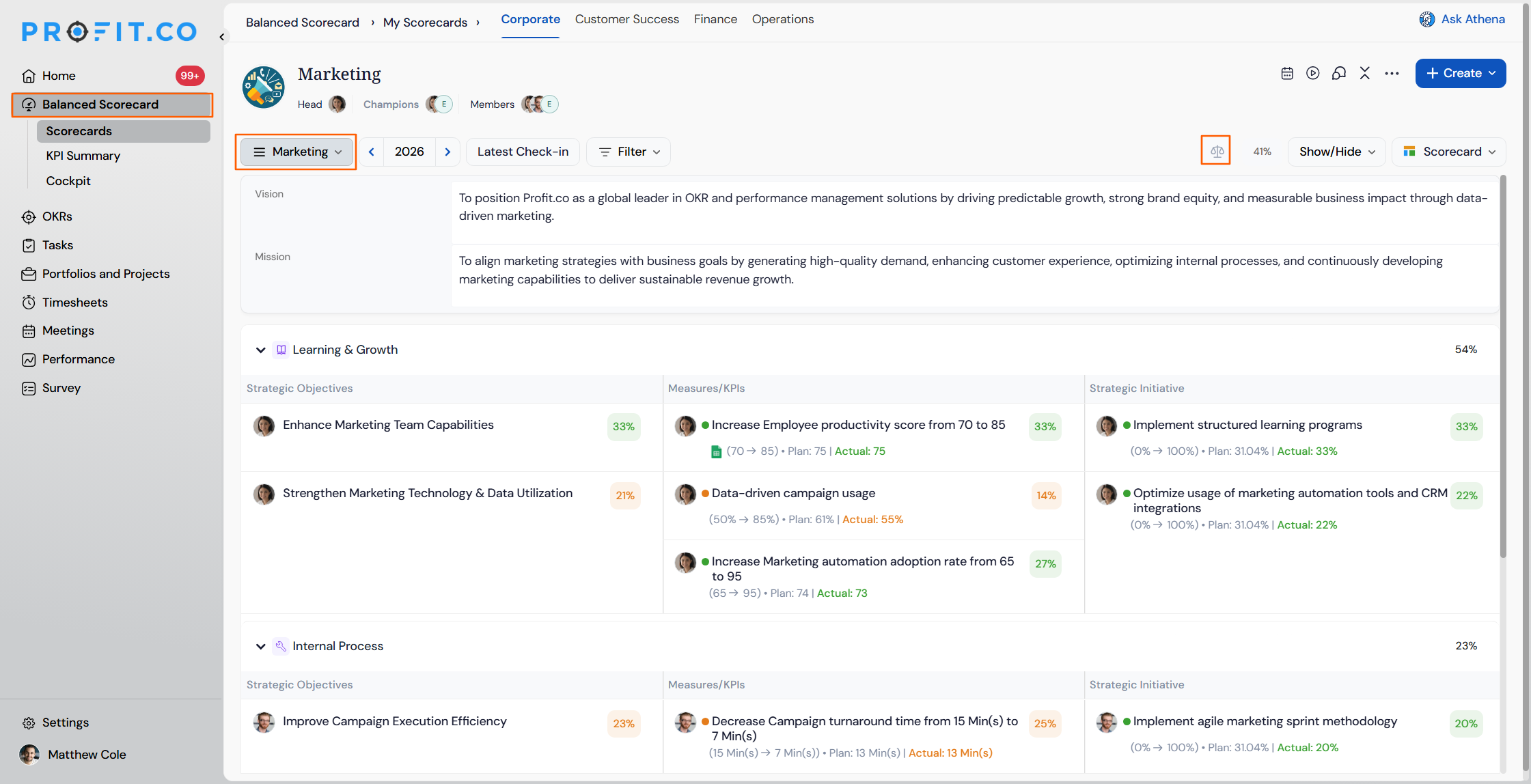
- Go to the Balanced Scorecard module from the main navigation.
- Select the relevant department from the department selector.
- Click the Weight Icon to open the weight configuration panel.
Step 2
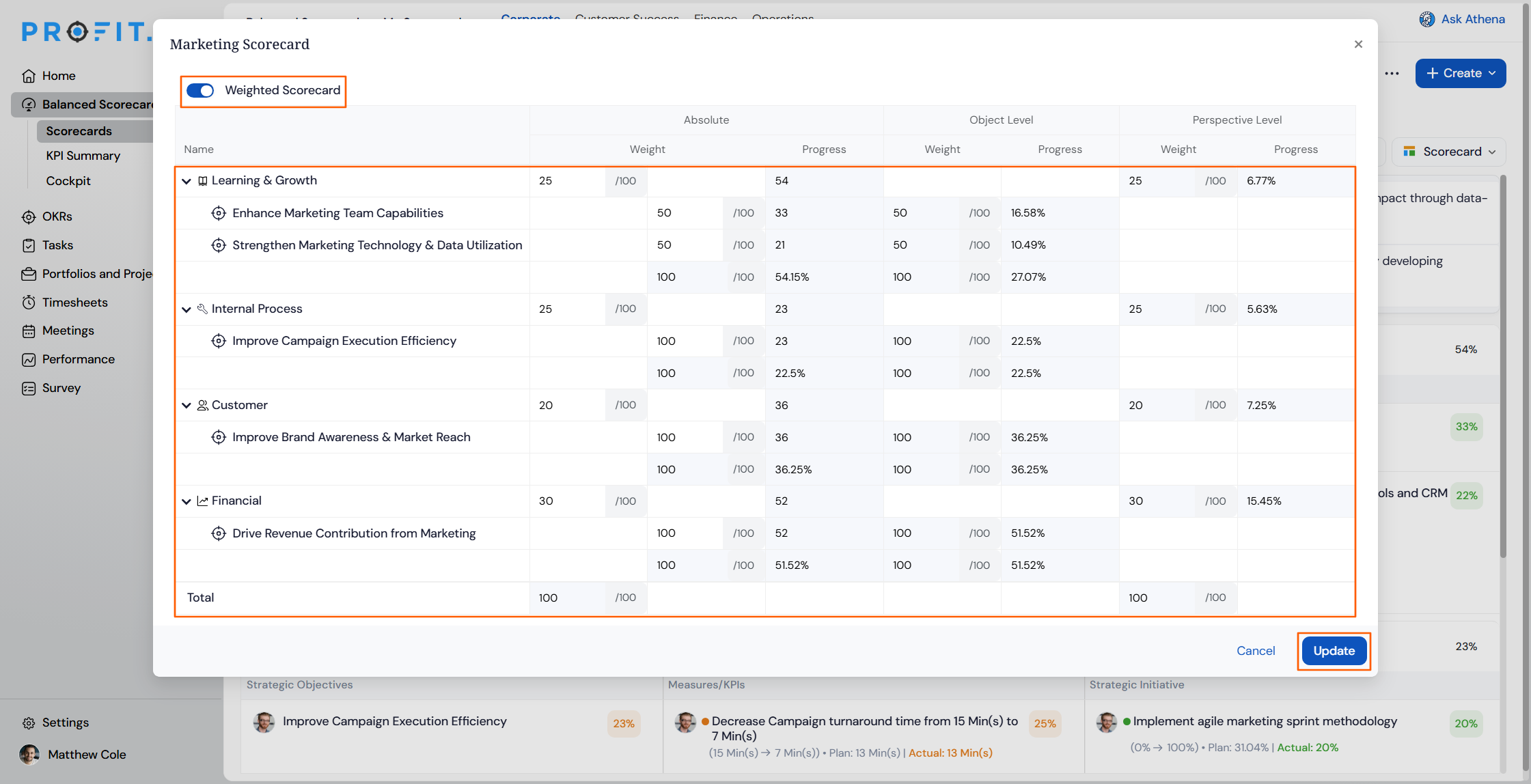
- Toggle on the Weighted Scorecard switch to activate weight assignment.
- Weight input fields will become available for each perspective listed in the scorecard.
- Assign a percentage weight to each perspective (e.g., Financial, Customer, Internal Process, Learning & Growth).
- Ensure the cumulative total of all perspective weights equals exactly 100. Partial totals will not be accepted.
- Adjust individual perspective weights as needed to reflect your department's current strategic priorities.
- Click Update to apply and save the weight distribution.
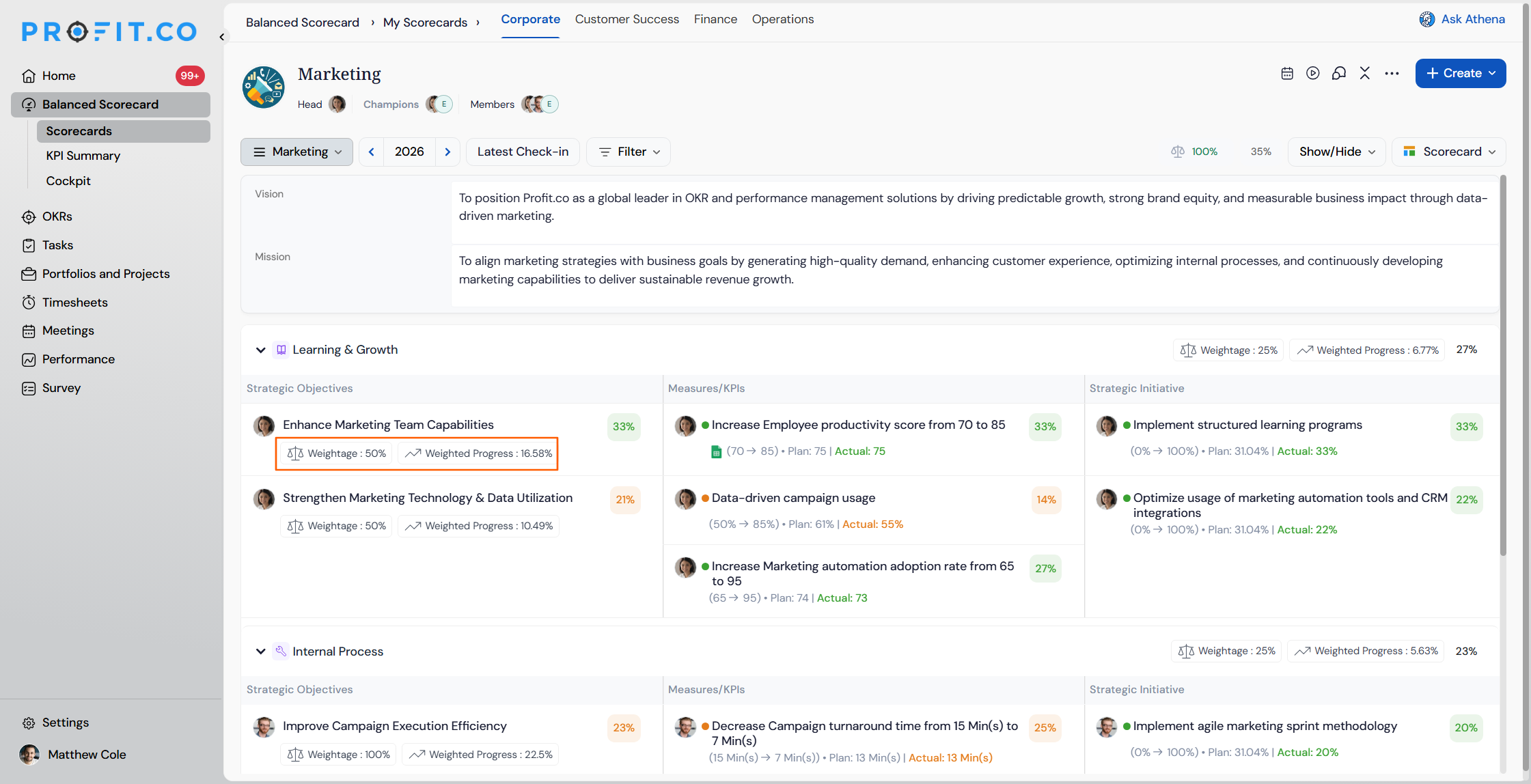
- The overall progress bar for each objective will automatically recalculate based on its progress and the weight of its parent perspective.
Best Practices for Weighted Scorecard
- Align perspective weights with your organization's current strategic cycle — revisit them quarterly as priorities shift.
- Avoid distributing equal weights (25% each) by default — this negates the purpose of weighting. Deliberately assign weights that reflect actual priority differences.
- Coordinate with department heads before finalizing weights to ensure the distribution reflects shared strategic intent, not individual judgment.
Related Questions
Click here to learn more about how to create a BSC in Profit.co
Frequently Asked Questions
The Weighted Scorecard requires all perspective weights to sum to exactly 100. If the total is above or below 100, the configuration will not save correctly. Review each perspective's assigned value and adjust until the cumulative total reaches 100 before clicking Update.
Yes. Weight configuration is applied at the department level, so each department can have its own weight distribution based on its specific priorities. Changing weights for one department does not affect the scorecard of any other department.
Disabling the Weighted Scorecard toggle deactivates weight-based progress calculation and reverts the scorecard to equal contribution across all perspectives. Previously entered weights are retained in the system and will re-apply if the toggle is re-enabled, but progress bars will not reflect them while the feature is off.
Execute your strategy with confidence
Connect OKRs, tasks, and teams in one place with Profit.co
