













Check-in editing lets you correct the value of a check-in you've already logged against a KPI in the Balanced Scorecard. You fix the entry directly instead of submitting a new check-in for that period.
Table of Contents
- What Is Check-In Editing in the Balanced Scorecard?
- Why Does Check-In Editing Matter?
- How Do I Edit a Check-In in the Balanced Scorecard?
- What Happens When You Edit a Check-In in the Balanced Scorecard?
- What Are the Best Practices for Editing Check-Ins in the Balanced Scorecard?
- Related Articles
- What Are Some Frequently Asked Questions About Check-In Editing in the Balanced Scorecard?
What Is Check-In Editing in the Balanced Scorecard?
Check-in editing is the ability to go back into a KPI's logged check-in history and revise a value you already submitted, rather than entering an entirely new check-in for that period. You make the correction from the History tab of that KPI's check-in panel.
The feature is scoped to one check-in entry at a time. It doesn't let you bulk-correct multiple check-ins, and it isn't accessible from the main Balanced Scorecard list or the KPI Summary view.
Note
Editing corrects the value of an existing check-in. It doesn't log a brand-new check-in for that period.
Why Does Check-In Editing Matter?
Before this feature, an incorrect check-in value stayed baked into the KPI's score until the next check-in cycle came around, since there was no way to touch a value once it was logged. Check-in editing lets you fix the entry directly, and the KPI's current score updates immediately to reflect the correction.
Because Profit.co keeps the original entry in the History tab instead of overwriting it, you end up with both the original submission and the corrected value on record, which supports accurate reporting without erasing what was first entered.
How Do I Edit a Check-In in the Balanced Scorecard?
Step 1: Open the KPI's Check-In Panel
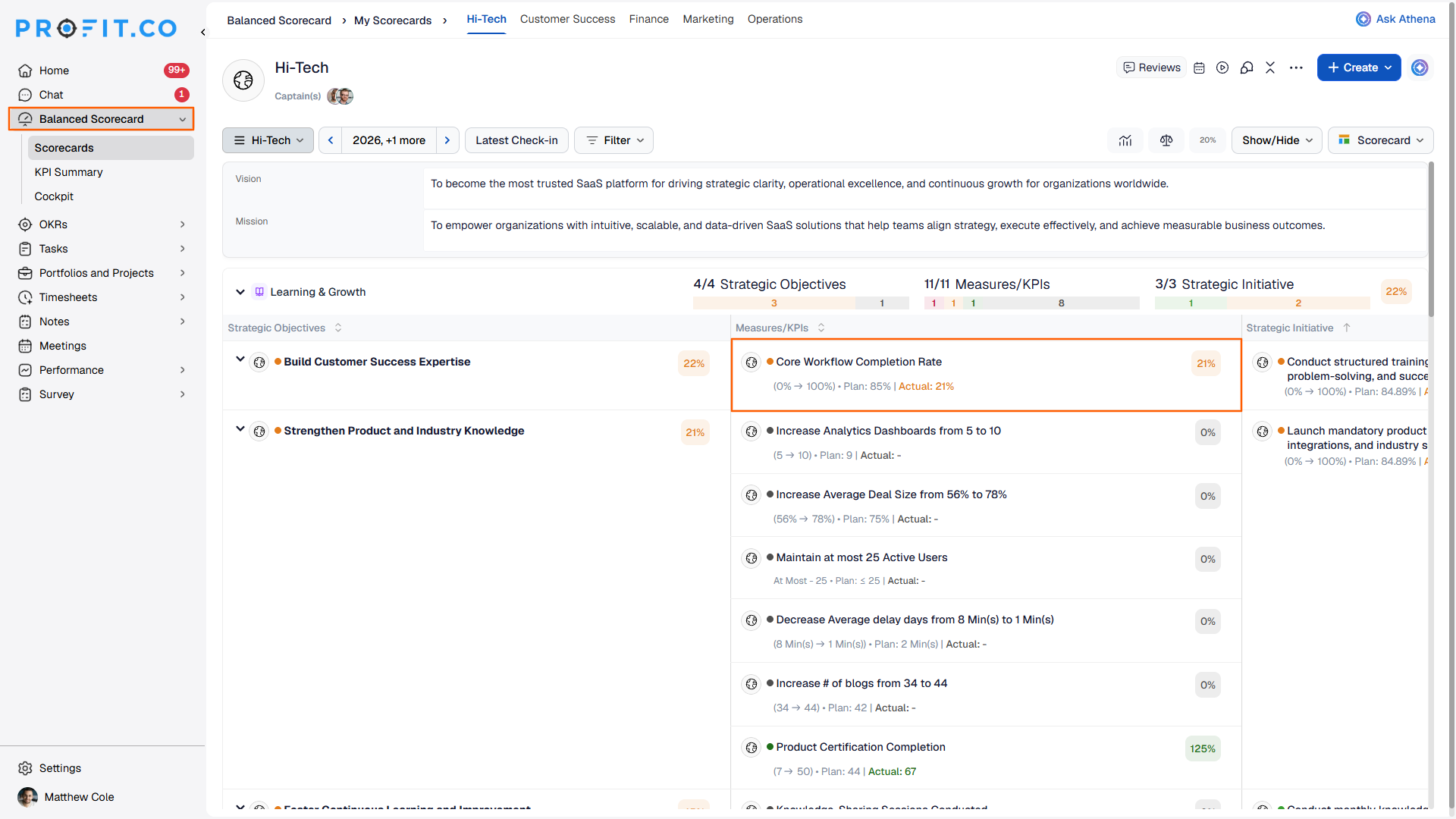
- Navigate to Balanced Scorecard → My departments from the left navigation panel.
- Select the KPI you wish to edit a check-in for.
Step 2: Edit and Save the Check-In
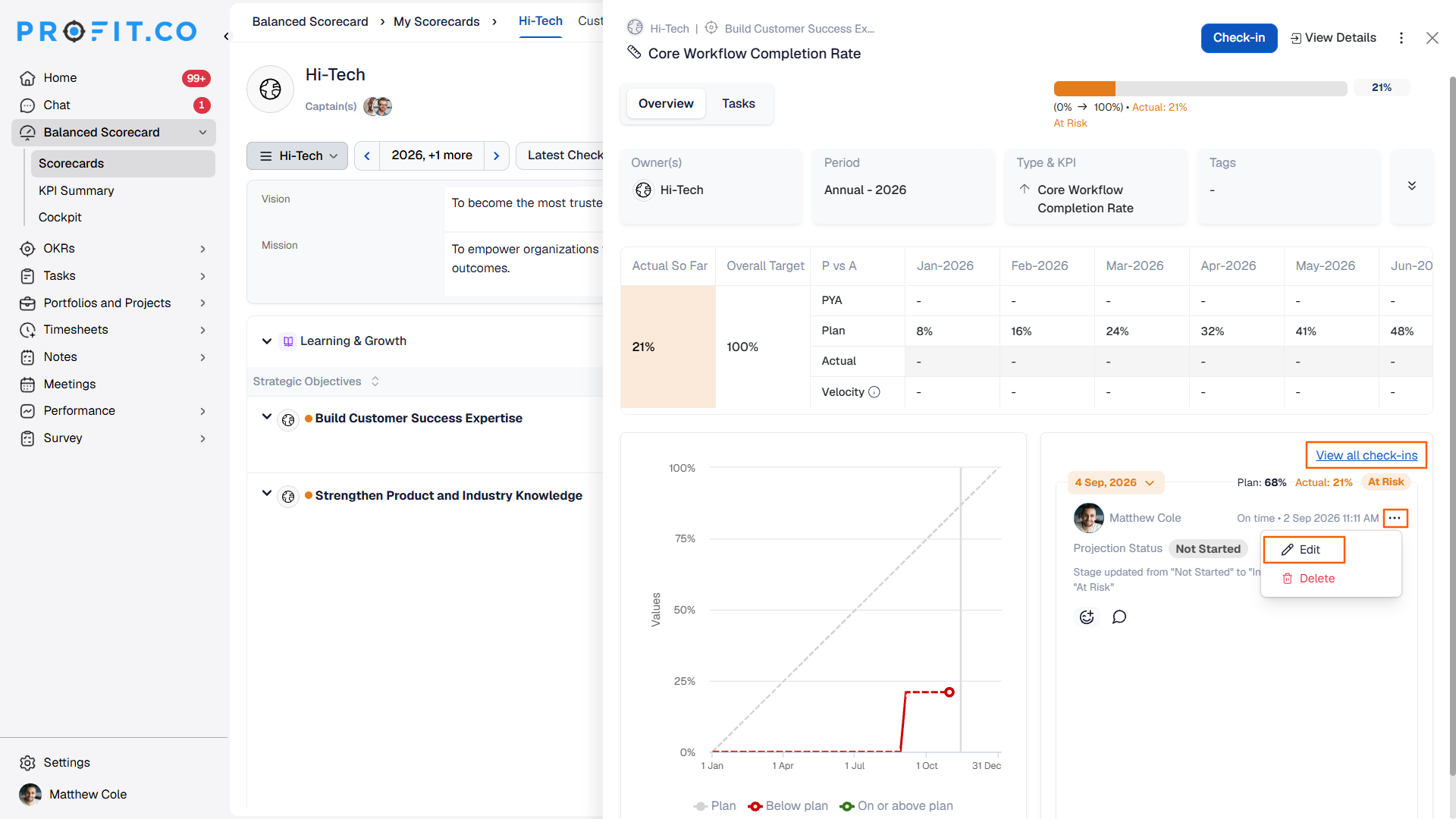
- On the side panel, under View all Checkins, click on the more option and choose Edit.
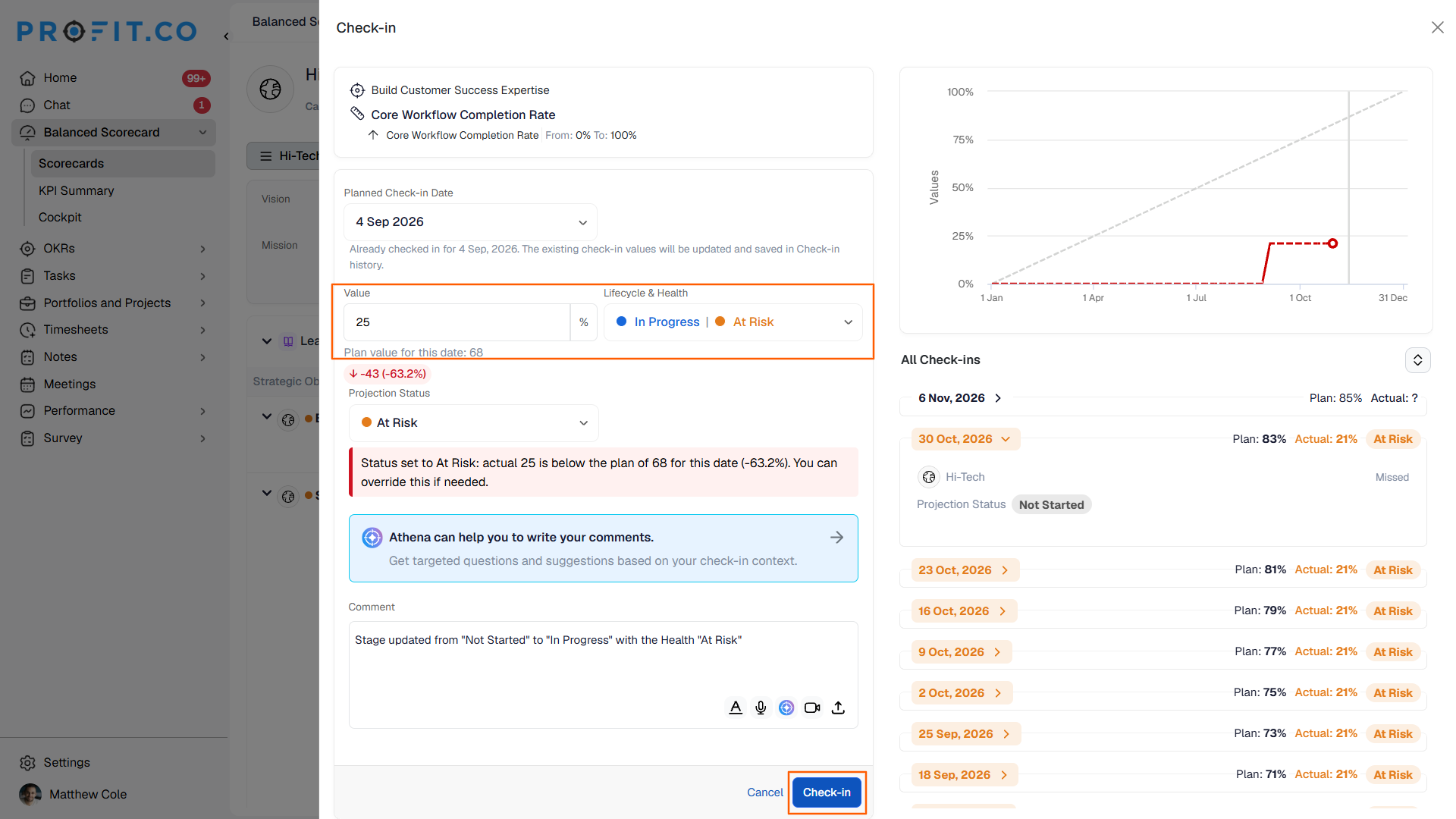
- Make your changes, then click Update to save them.
What Happens When You Edit a Check-In in the Balanced Scorecard?
| Scenario | What Happens |
|---|---|
| You edit a check-in's value and click Update. | Profit.co recalculates the KPI's current score to reflect the updated value. |
| You edit a check-in's value and click Update. | Profit.co adds a new entry to the History tab and keeps the original entry instead of replacing it. |
| You edit a check-in's value and click Update. | Profit.co does not notify anyone else. The person who made the edit is the only one aware of it unless they share it directly. |
| You edit a check-in's value but leave the check-in page without clicking Update. | Profit.co discards the change and keeps the check-in at its previous value. |
What Are the Best Practices for Editing Check-Ins in the Balanced Scorecard?
- Use the History tab to locate the exact check-in you need to correct, since editing targets one logged entry rather than creating a new check-in.
- Confirm the corrected value before clicking Update, since the change recalculates the KPI's current score right away.
- Flag the correction to your team through a separate message if it matters to them, since editing a check-in doesn't notify anyone automatically.
- Review the KPI's current score after making an edit if others rely on it for reporting, since no alert goes out when the score changes.
- Treat the original entry preserved in the History tab as your audit trail rather than relying on memory, since Profit.co keeps it instead of overwriting it.
Related Articles
- How to create a Balanced Scorecard (BSC) in profit.co?
- What is the KPI Summary in a Balanced Scorecard (BSC)?
What Are Some Frequently Asked Questions About Check-In Editing in the Balanced Scorecard?
You need to open that specific KPI's check-in panel from the side panel and switch to the History tab. The Edit icon isn't available directly from the main scorecard list.
You can edit any check-in listed in the History tab for that KPI, not just the latest entry. The Edit icon appears next to each logged check-in there.
The current score alone doesn't flag that an edit happened. Open the History tab for that KPI to see both the original entry and the corrected one.
Execute your strategy with confidence
Connect OKRs, tasks, and teams in one place with Profit.co
