

Profit.co's Add Employee feature lets Super Users create a complete profile for a new hire in a single workflow, covering identity, department, access, and reviewer setup. Each profile can now include more than one Secondary Reviewer and more than one Additional Manager for performance assessments.
Table of Contents
What is the Add Employee Feature?
The Add Employee feature is the workflow Super Users use to create new employee profiles in Profit.co. Only Super Users can create and manage employee profiles, and each profile brings together personal information, department details, access roles, and review configuration under one Create User panel.
The Secondary Reviewer field and the Additional Managers field each accept multiple selections. Earlier versions allowed only one entry in each field, and every assigned reviewer or manager now evaluates the employee independently.
| Section | Configuration Options |
|---|---|
| Personal Information | Name, Email, User ID, Job Title, Grade |
| Department Details | Primary Department, Reporting Manager, Secondary Reviewer(s), Cross-Functional Department |
| Profit Access Information | Role, Proxy User |
| Department-Level Privileges | OKR Champion departments, Check-in User departments |
| Review Configuration | Secondary Reviewers, Additional Managers |
| System Information | Created By and Created On, Modified By and Modified On |
Note
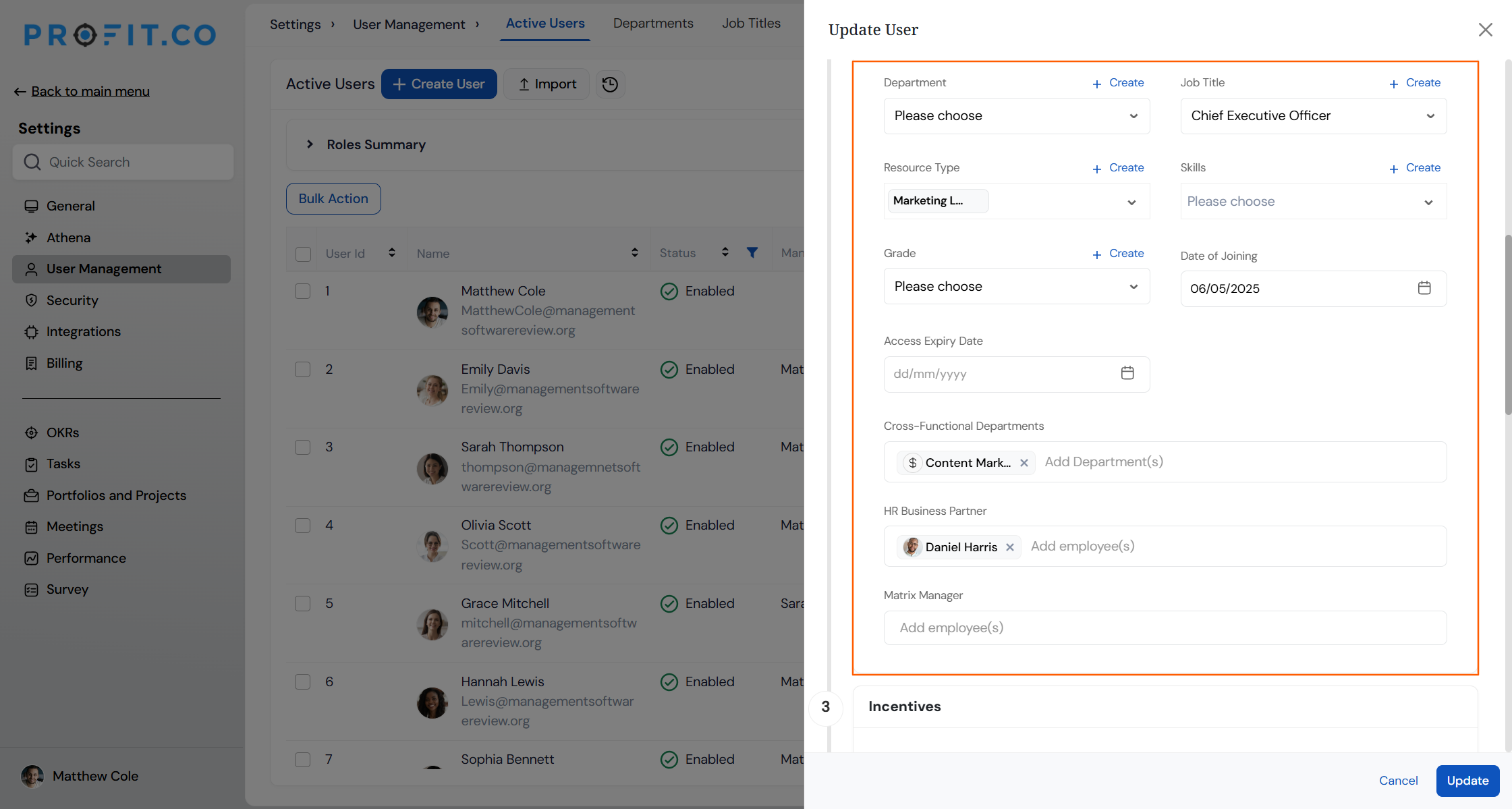
Cross-Functional Departments record additional departments an employee collaborates with beyond their Primary Department. They don't replace the primary department assignment.
Why the Add Employee Feature Matters
| Benefit | What It Solves |
|---|---|
| Single setup workflow | Admins previously configured personal details, access, and department privileges as separate tasks. Create User now handles all three from one panel. |
| Broader review coverage | An employee with one secondary reviewer used to receive input from a single evaluator only. Every assigned secondary reviewer now submits an independent evaluation. |
| Support for matrix reporting | Employees who report to more than one manager previously had only one manager's assessment recorded. Additional Managers now captures input from every reporting line. |
| Reduced per-cycle setup | Configuring reviewers and managers once in User Management, instead of reselecting them for every review cycle, cuts repetitive setup work for HR teams. |
How It Works
Prerequisite
Adding an employee requires a Super User role and an available license. Purchase additional licenses first if none remain.
Method 1: Create a New Employee Profile
Step 1
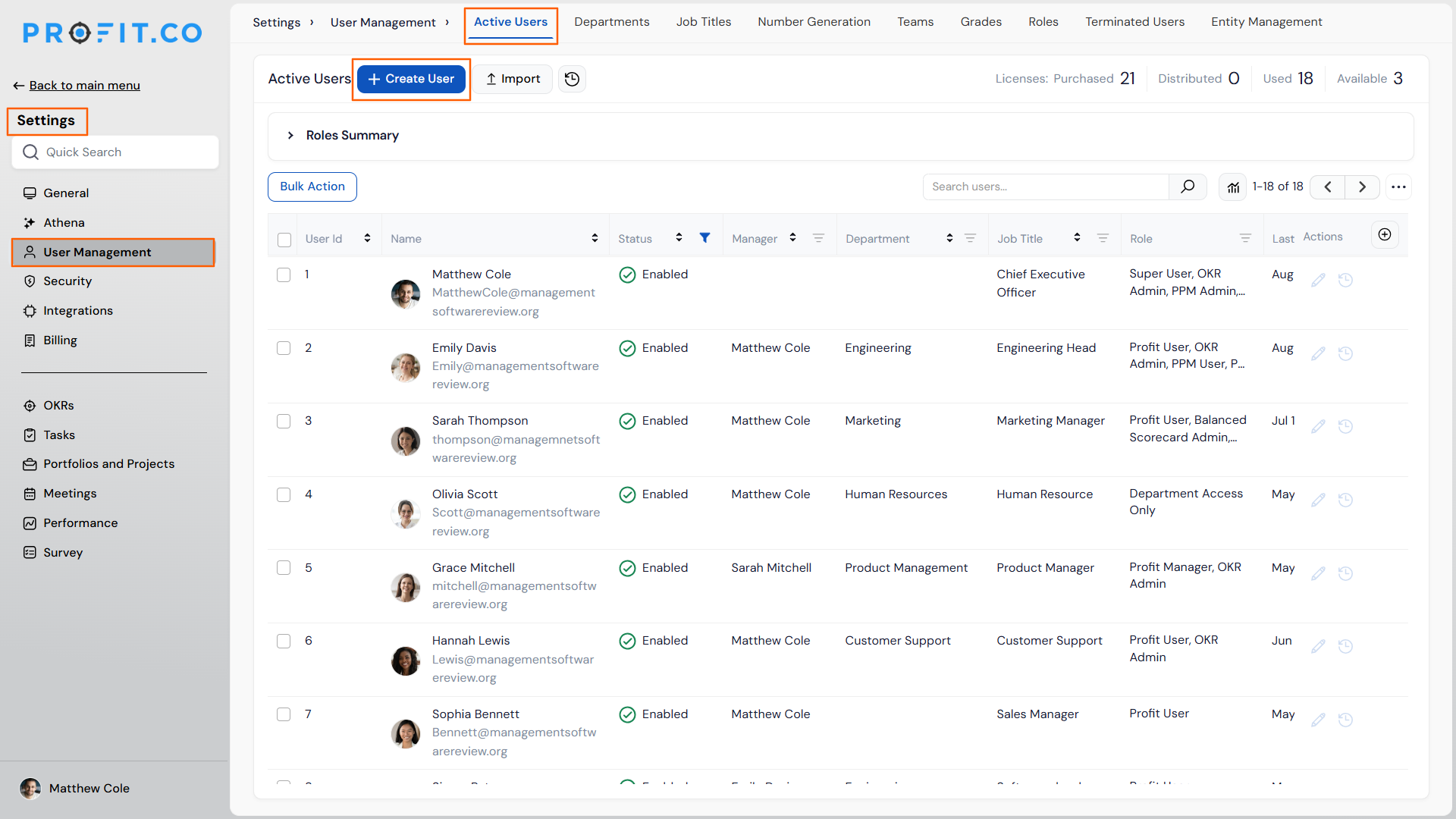
- From the left navigation panel, go to Settings → User Management.
- On the Active Users page, click + Create User.
Step 2
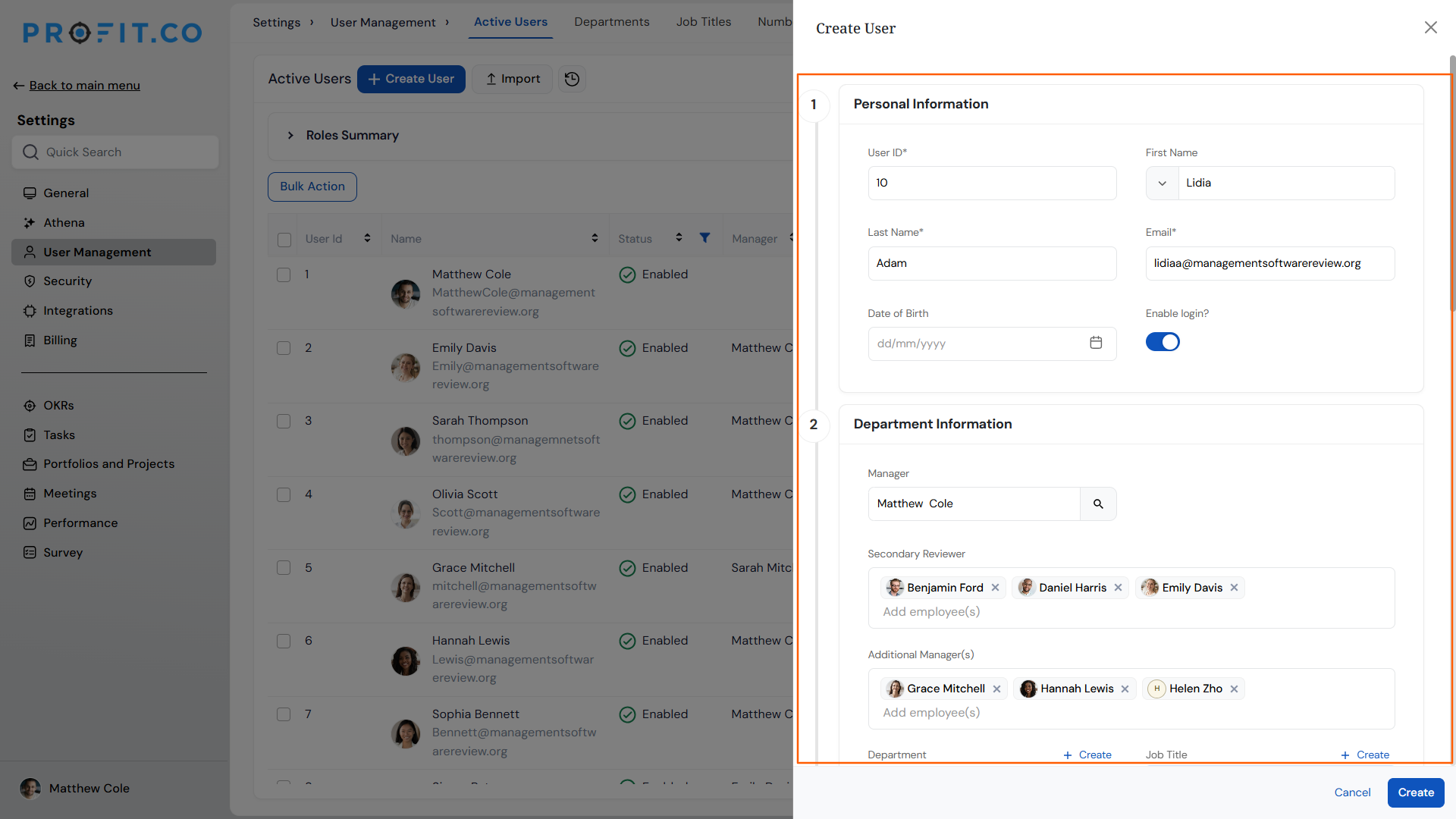
- Fill in Personal Information: Name, Email, Job Title, and Grade.
- Enter Department Details: Primary Department and Reporting Manager.
- Select one or more Secondary Reviewers in the Department Details section. The single-reviewer restriction no longer applies.
- Select one or more Additional Managers for manager assessments. The single-manager restriction no longer applies.
Step 3
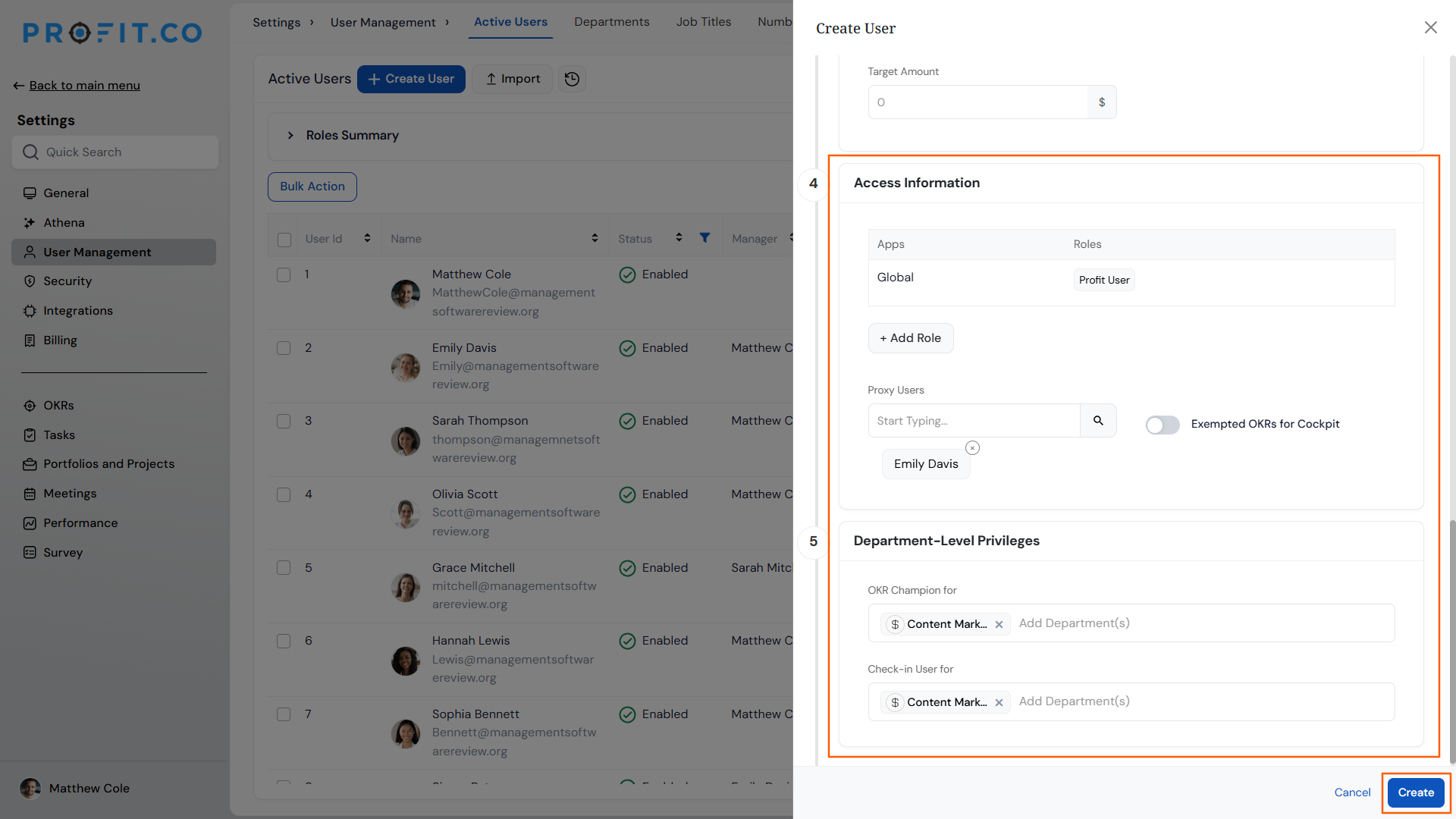
- In Profit Access Information, select the Role and Proxy User.
- Under Department-Level Privileges, set OKR Champion for and Check-in User for departments.
- Click Create.
Method 2: Assign Secondary Reviewers and Managers to an Existing Employee
Step 1
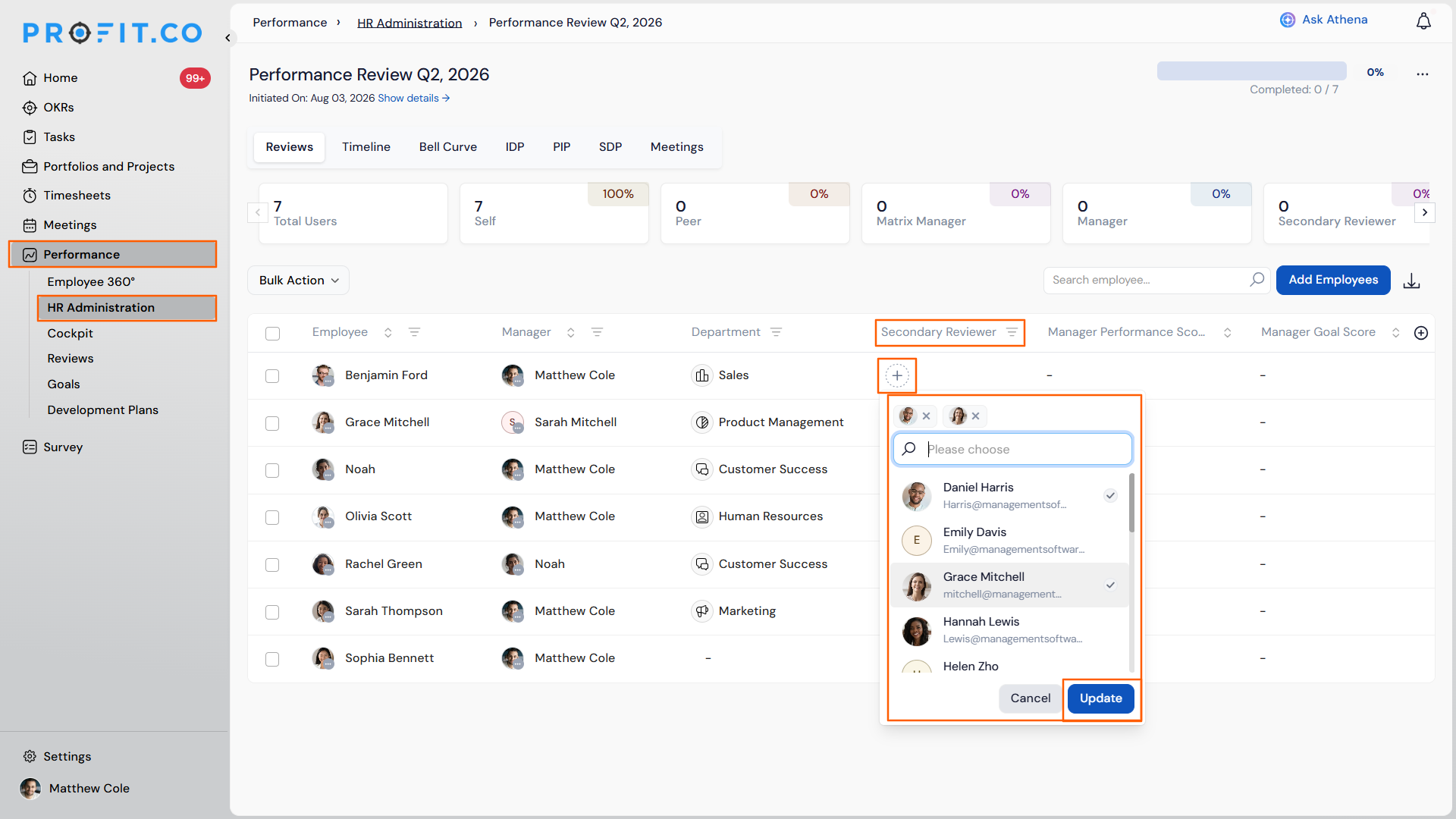
- Navigate to the required Review.
- Locate the Secondary Reviewers field and select multiple users from the dropdown.
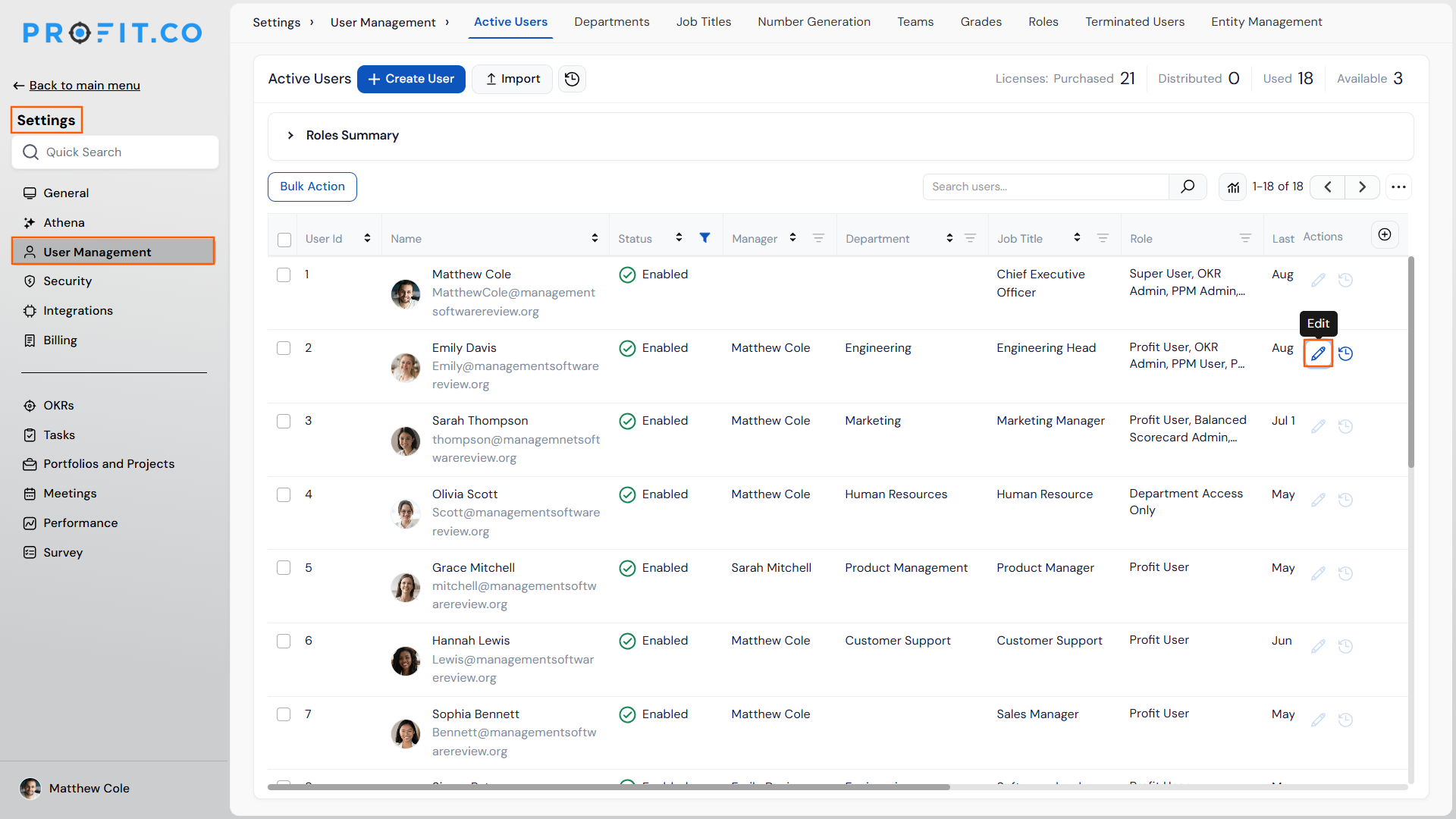
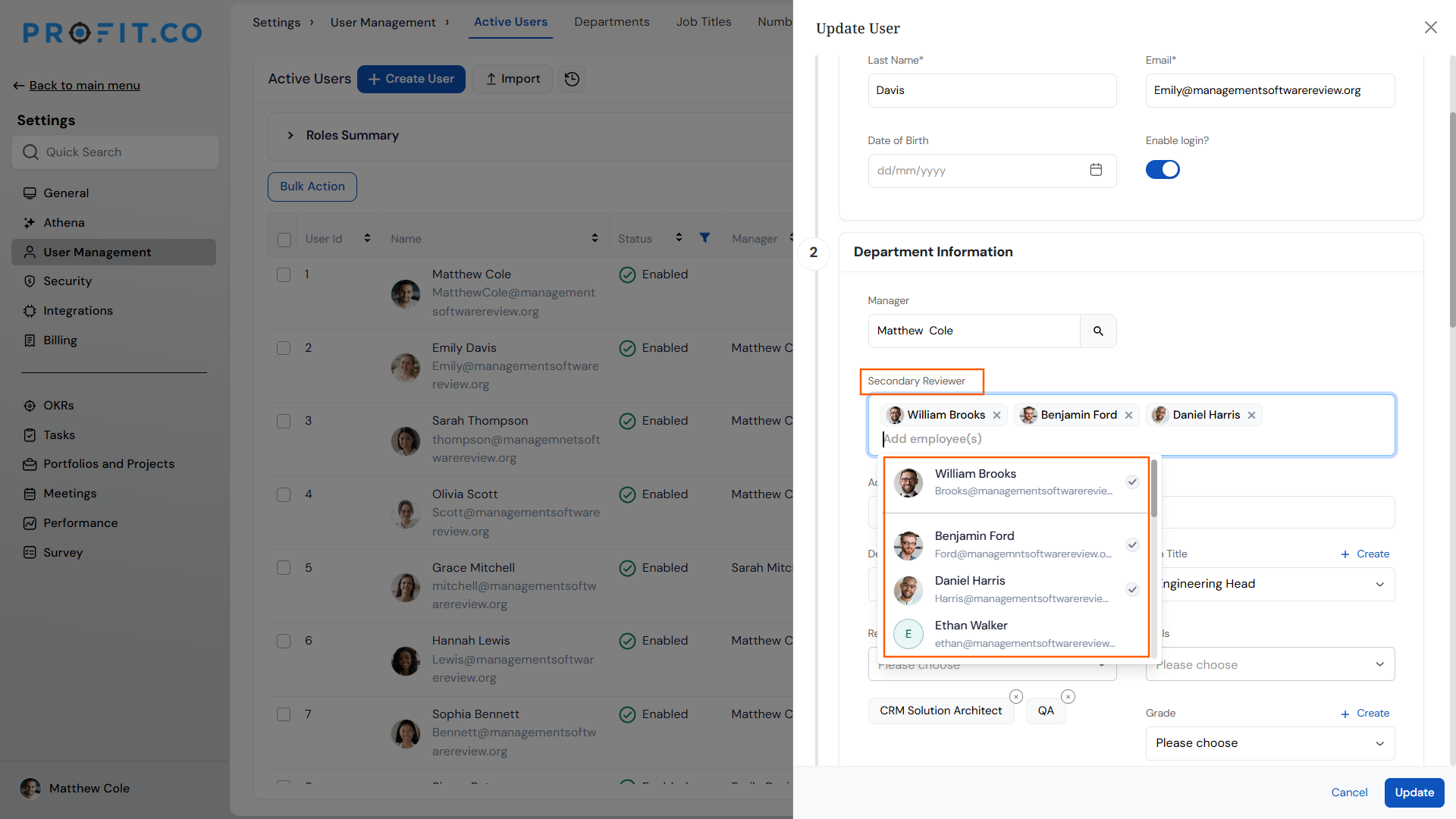
- Navigate to Settings → User Management → Edit User.
- Locate the Secondary Reviewers field on the user's profile and select multiple reviewers.
- Click Save.
Step 3
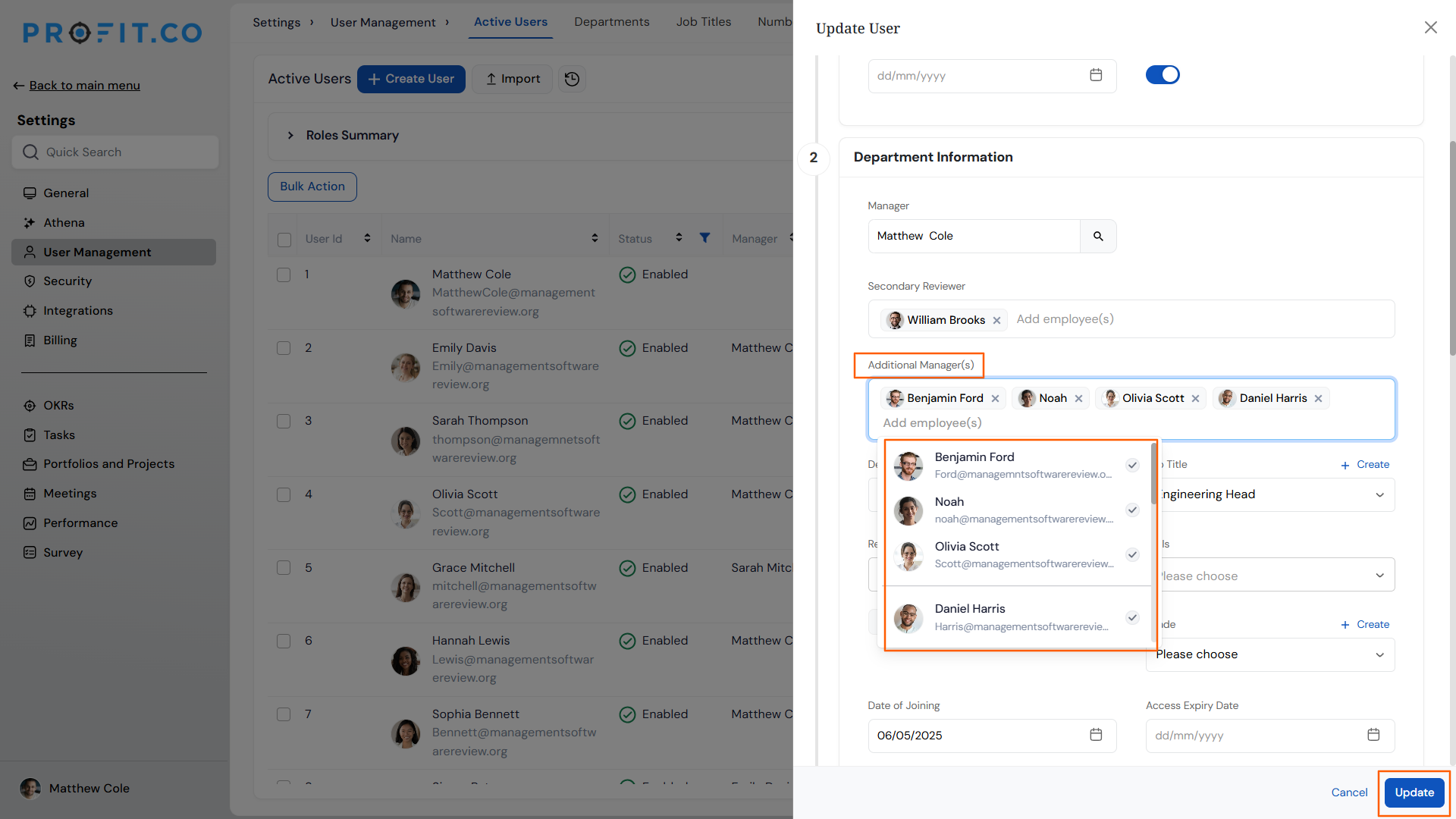
- Navigate to Settings → User Management → Edit User.
- Locate the Additional Managers field on the user's profile and select multiple managers.
- Click Save.
Add Employee Scenarios and Their Outcomes
| Scenario | What Happens |
|---|---|
| You assign multiple secondary reviewers to an employee's review. | Profit.co generates an independent evaluation task for each selected reviewer, and it keeps each reviewer's evaluation hidden from the others. |
| You configure secondary reviewers through User Management instead of a specific review. | Profit.co saves the assignment to the employee's profile, and it adds the same reviewers automatically to every review the employee is part of afterward. |
| You assign multiple managers using the Additional Managers field. | Profit.co generates an independent evaluation task for each assigned manager, and it records a separate assessment for every reporting line the employee has. |
| You remove a secondary reviewer or additional manager while their evaluation is incomplete. | Profit.co discards their partial input immediately, and it stops counting that response toward the employee's review. |
| You select secondary reviewers or managers on the Edit User profile but leave the page without clicking Save. | Profit.co discards the unsaved selections, and it keeps the employee's existing reviewer and manager assignments unchanged. |
Best Practices for Adding Employees
- Assign secondary reviewers and managers through User Management rather than per review, so new hires are configured once and automatically receive their reviewers and managers for every future cycle.
- Confirm every intended secondary reviewer and manager is selected before saving the Edit User profile, since removing one after their evaluation has started discards their input entirely.
- Assign Additional Managers for employees with matrix or dotted-line reporting so every manager's assessment is captured, instead of relying on a single Reporting Manager's view.
- Check the License Summary Dashboard before a bulk onboarding round, since running out of licenses mid-batch stops profile creation until more are purchased.
- Set Department-Level Privileges at the time of employee creation for employees who manage or monitor OKRs across multiple departments, rather than adding this configuration later.
Related Articles
- How to add a matrix Manager to a user in Profit.co?
- What is secondary reviewer assessment in Profit.co?
- What is a License Summary Dashboard and how to view it?
Frequently Asked Questions
Secondary Reviewers can be selected directly in the Department Details section of the Create User panel, and additional reviewers can be added later through Edit User or within a specific review.
No. Reporting Manager is set under Department Details during employee creation, while Additional Managers is a separate field used specifically for manager performance assessments.
Yes. The Secondary Reviewers field within a review's setup accepts multiple selections directly, independent of any assignment made in User Management.
Execute your strategy with confidence
Connect OKRs, tasks, and teams in one place with Profit.co
