

Profit.co's Progress Agent, powered by Athena, transforms OKR check-ins into structured, meaningful updates that drive faster decisions and better alignment across your organization.
Table of Contents
- What is the Progress Agent in Profit.co?
- How to enable the Progress Agent in Profit.co?
- How to use the Progress Agent during an OKR check-in in Profit.co?
- What does the Progress Agent generate after answering its questions in Profit.co?
- Best practices for using the Progress Agent in Profit.co
- Related Questions
- Frequently Asked Questions
What is the Progress Agent in Profit.co?
The Progress Agent is one of Profit.co's 14 Athena AI agents, designed specifically to assist users in writing meaningful and structured OKR check-in comments. Instead of requiring users to compose check-in updates from scratch, the Progress Agent asks a series of targeted questions about the user's progress, challenges, and plans. It then synthesizes the user's responses into a comprehensive check-in summary that captures the full context of the update, and it saves time while improving the quality and consistency of OKR reporting across the organization.
How to enable the Progress Agent in Profit.co?
The Progress Agent must be enabled by a Super User from the Athena settings before it becomes available for use during OKR check-ins.
Step 1
- Go to Settings → OKR → Athena from the left navigation panel.
- On the Athena settings page, click on the Execute tab.
- Click on the Progress Agent tab within the Execute page.
- Enable the toggle for the Progress Agent.
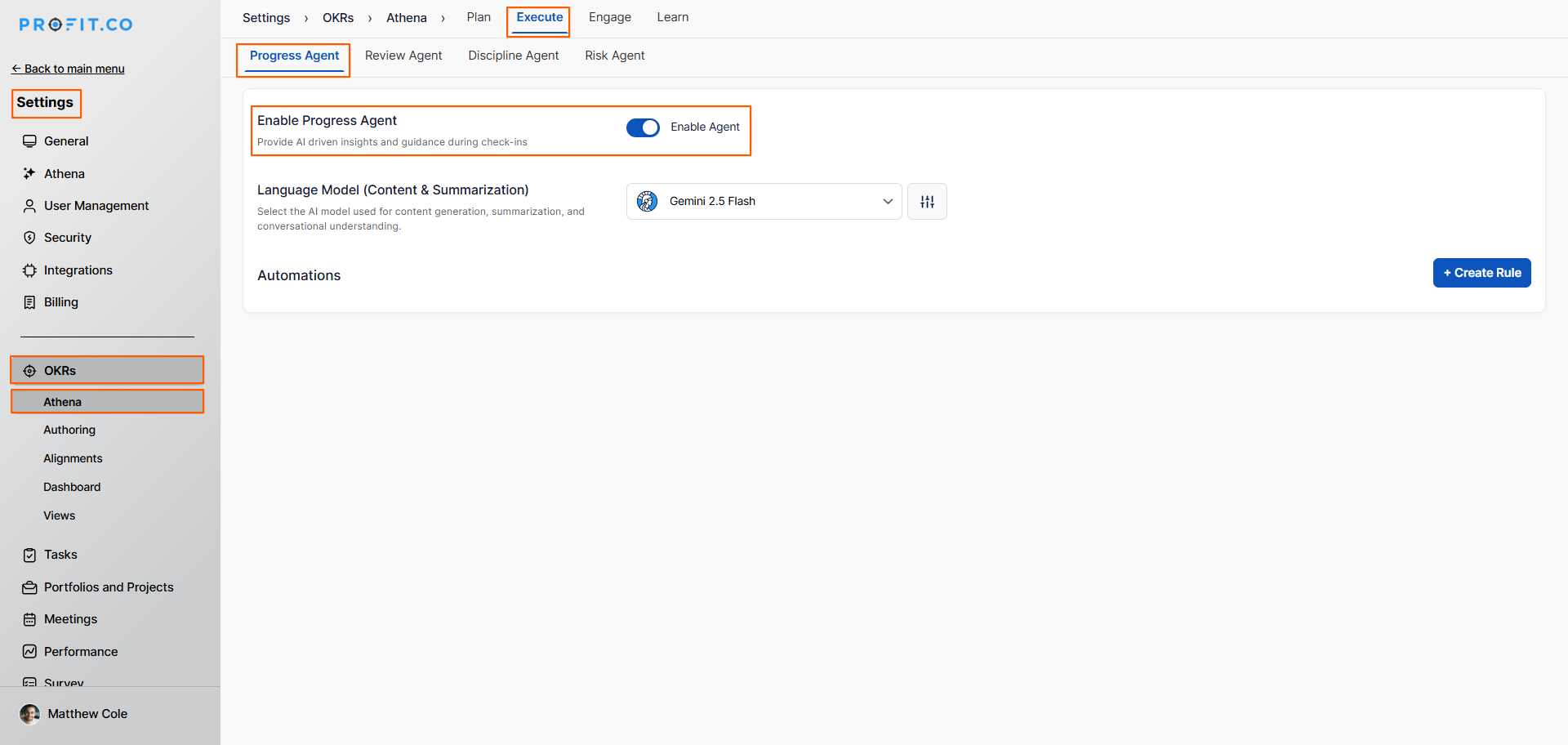
Once enabled, the Progress Agent will be available to all users during their OKR check-in sessions.
How to use the Progress Agent during an OKR check-in in Profit.co?
Step 1
- Open the check-in for the Key Result you want to update.
- In the check-in panel, type your update or notes in the Comment section.
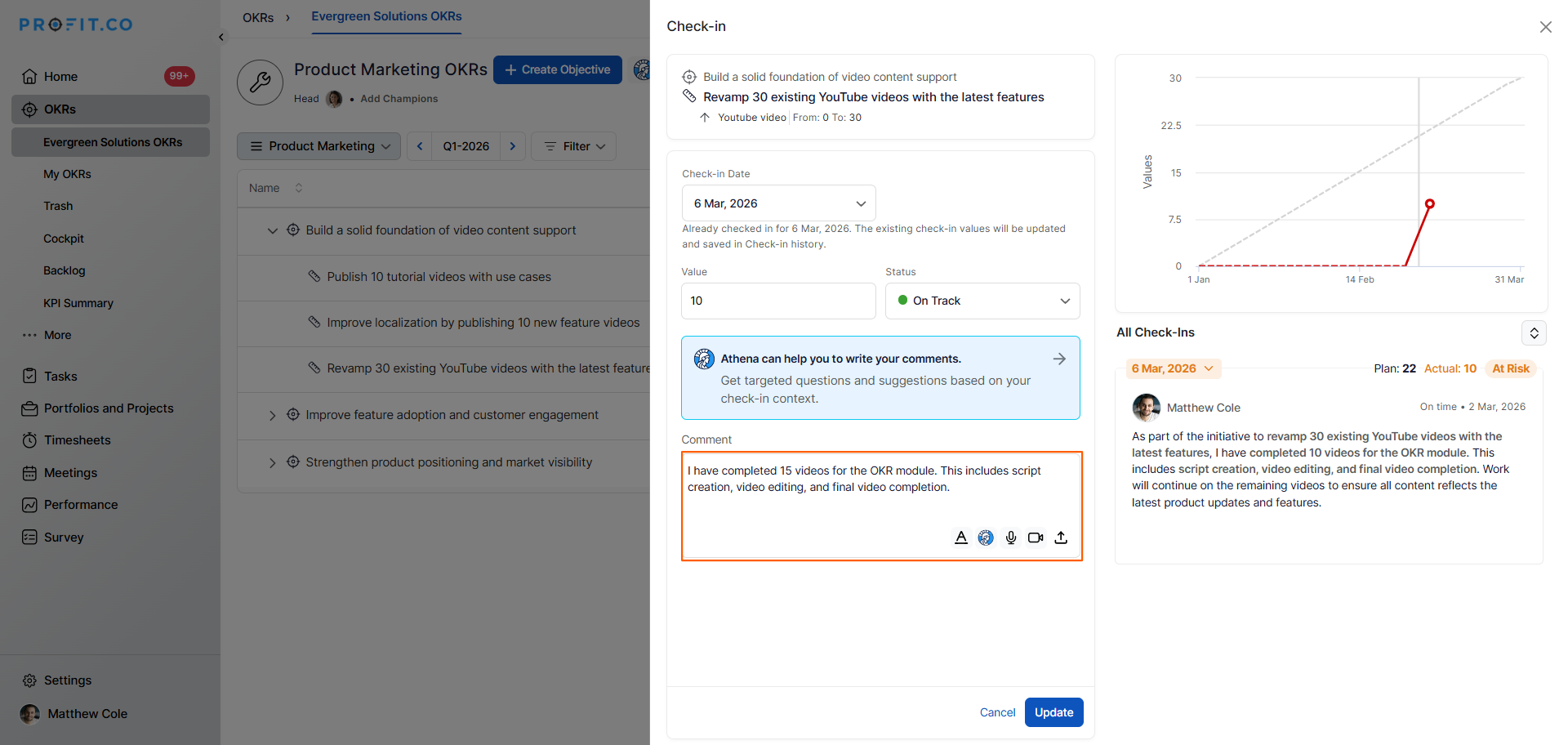
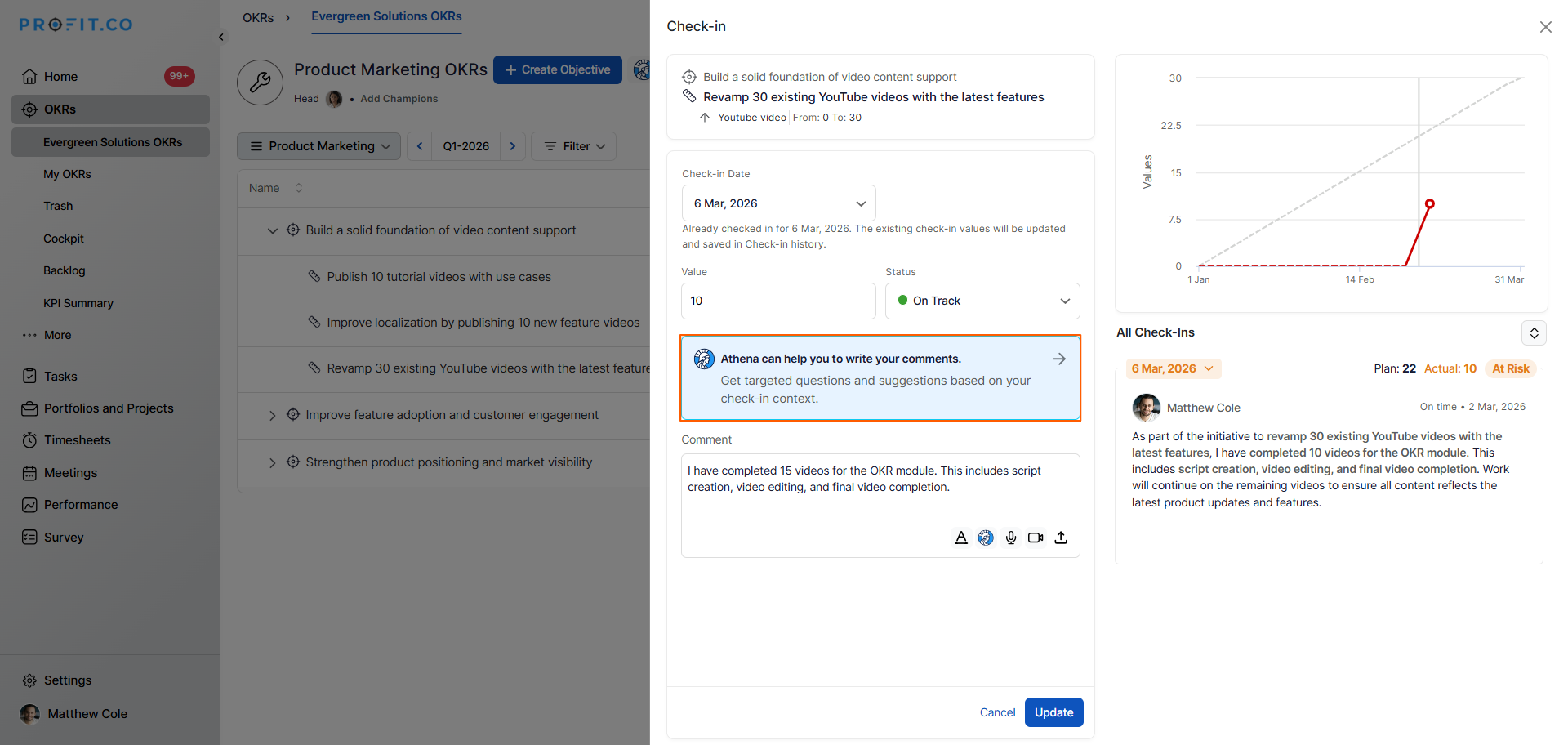
- Click the "Athena Can Help You to Write Your Comments" button within the comment section.
- The Progress Agent will activate and begin asking you a series of guided questions about your progress.
Note: When adding your check-in comment, you can also record your update using the built-in audio or video recording option, making it faster and easier to capture your progress without typing.
Step 2
- Respond to each question the Progress Agent presents.
- Questions are designed to capture key details about your achievements, challenges faced, and plans for the next period.
- Once you have answered all questions, click the Generate button.
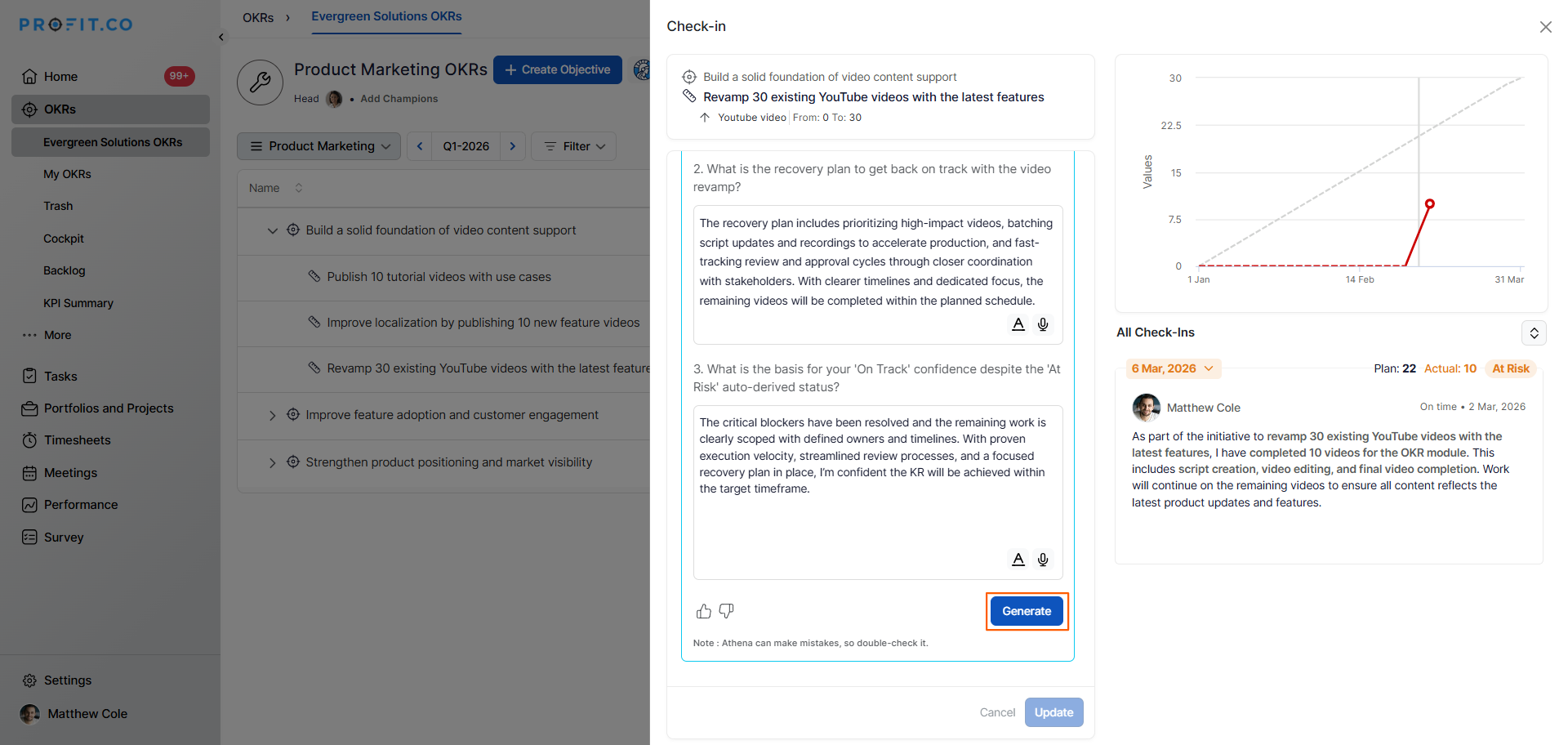
- The Progress Agent will synthesize your responses into a structured check-in summary.
What does the Progress Agent generate after answering its questions in Profit.co?
After the user answers all guided questions and clicks Generate, the Progress Agent produces a structured check-in comment that includes:
| Section | Content |
|---|---|
| Achievements | A summary of what was accomplished during the check-in period based on the user's responses |
| Challenges | Key obstacles or blockers identified from the user's input that impacted progress |
| Plans | Next steps and actions the user intends to take in the upcoming period |
The generated summary is inserted directly into the check-in comment field, where the user can review it, make any edits if needed, and then submit the check-in.
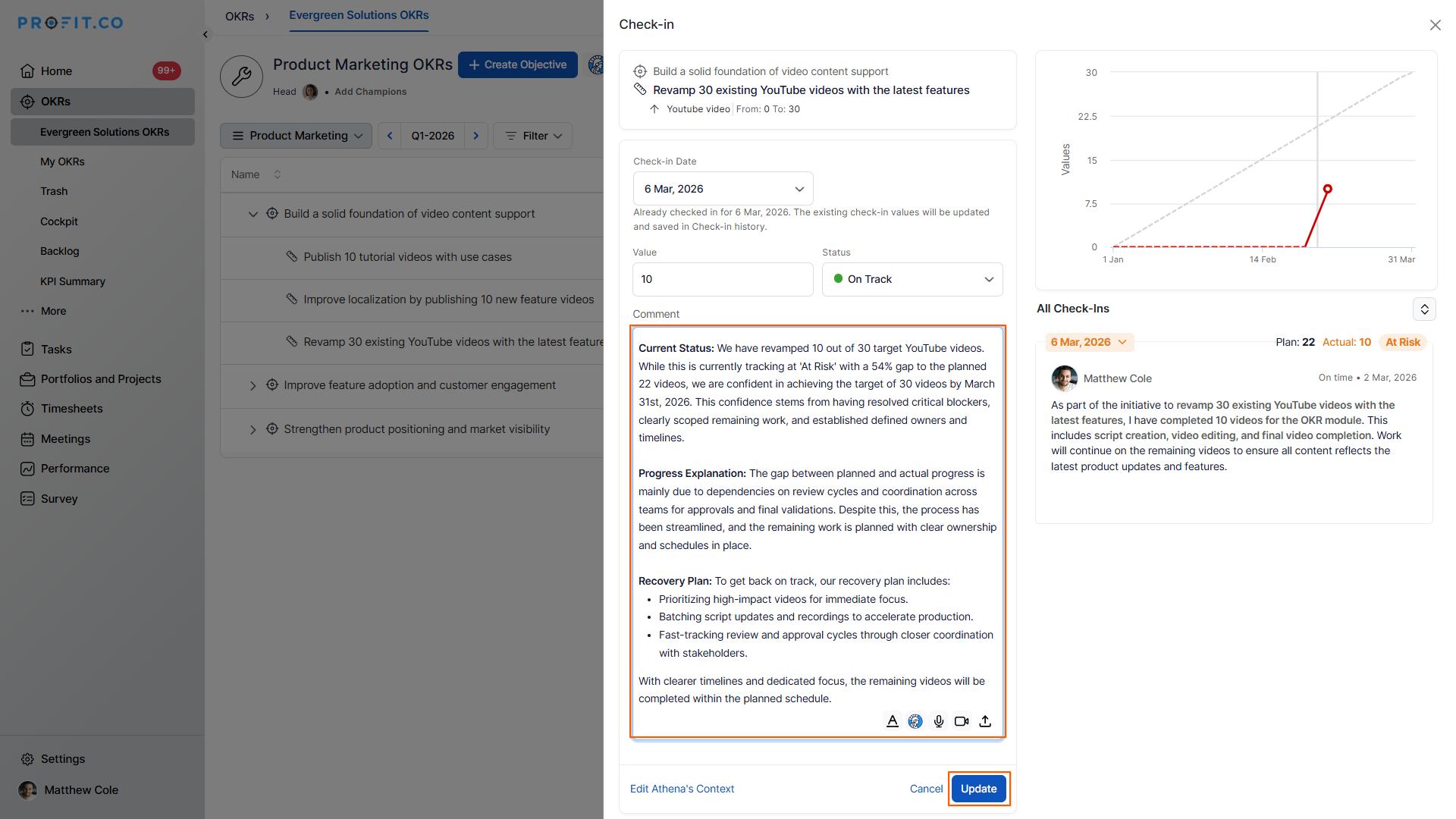
Note: When a project-tracked Key Result is selected and its progress is updated, the Progress Agent automatically picks up that update and generates an appropriate check-in comment based on the progress. There is no manual input required.
Note: The same automatic behavior applies to integrated Key Results. When progress is updated on an integrated KR, the Progress Agent will automatically detect the update and generate a corresponding check-in comment accordingly.
Best practices for using the Progress Agent in Profit.co
- Be specific in your responses. Include quantified results, named blockers, and concrete next steps to ensure the generated summary is meaningful and actionable.
- Use it consistently. Apply the Progress Agent across all OKR check-ins to build a standardized history that's easy for managers and stakeholders to review.
- Enable it at the start of a cycle. Activate the Progress Agent at the beginning of each OKR period so every check-in benefits from AI-assisted structuring from day one.
- Roll it out teamwide. Encourage all team members to use it, improving overall update quality and making review meetings more productive.
Related Questions
Click here to learn more about other AI agents in Profit.co.
Frequently Asked Questions
Yes. Once enabled by a super user, the Progress Agent is available to all users across the organization during their OKR check-ins; no individual setup is required.
Absolutely. The generated summary is inserted into the comment field as a draft. You can review and modify any part of it before submitting.
No, check-ins are stored the same way. However, using it consistently creates a standardized history that's easier for managers and stakeholders to review over time.
