

Profit.co lets administrators grant or revoke a specific user's ability to sign in, without changing any of their other account settings.
Table of Contents
What Is Login Access in Profit.co?
Login Access is a per-user toggle on the Edit User page that controls whether a specific employee can sign in to Profit.co. Enabling it grants the user access to their personalized workspace, and disabling it blocks sign-in without deleting or reassigning any of their existing data.
Login Access is separate from Terminate, which is a more complete offboarding action. The table below shows the distinction.
| Action | What It Does |
|---|---|
| Login Access toggle | Blocks or restores a user's ability to sign in only |
| Terminate | Revokes access and lets you reassign the user's tasks and OKRs to someone else |
Why Does Login Access Matter?
Without a lightweight way to pause access, an admin would have to fully terminate a user, complete with task and OKR reassignment, just to temporarily block someone from signing in. The Login Access toggle blocks or restores sign-in for a single user in two clicks, without touching their assigned work or historical records.
This matters for leave-of-absence and role-review situations: an admin can suspend access the moment someone goes on extended leave, then restore it later without recreating the account or losing their OKR history.
How Do I Enable Login Access for a User in Profit.co?
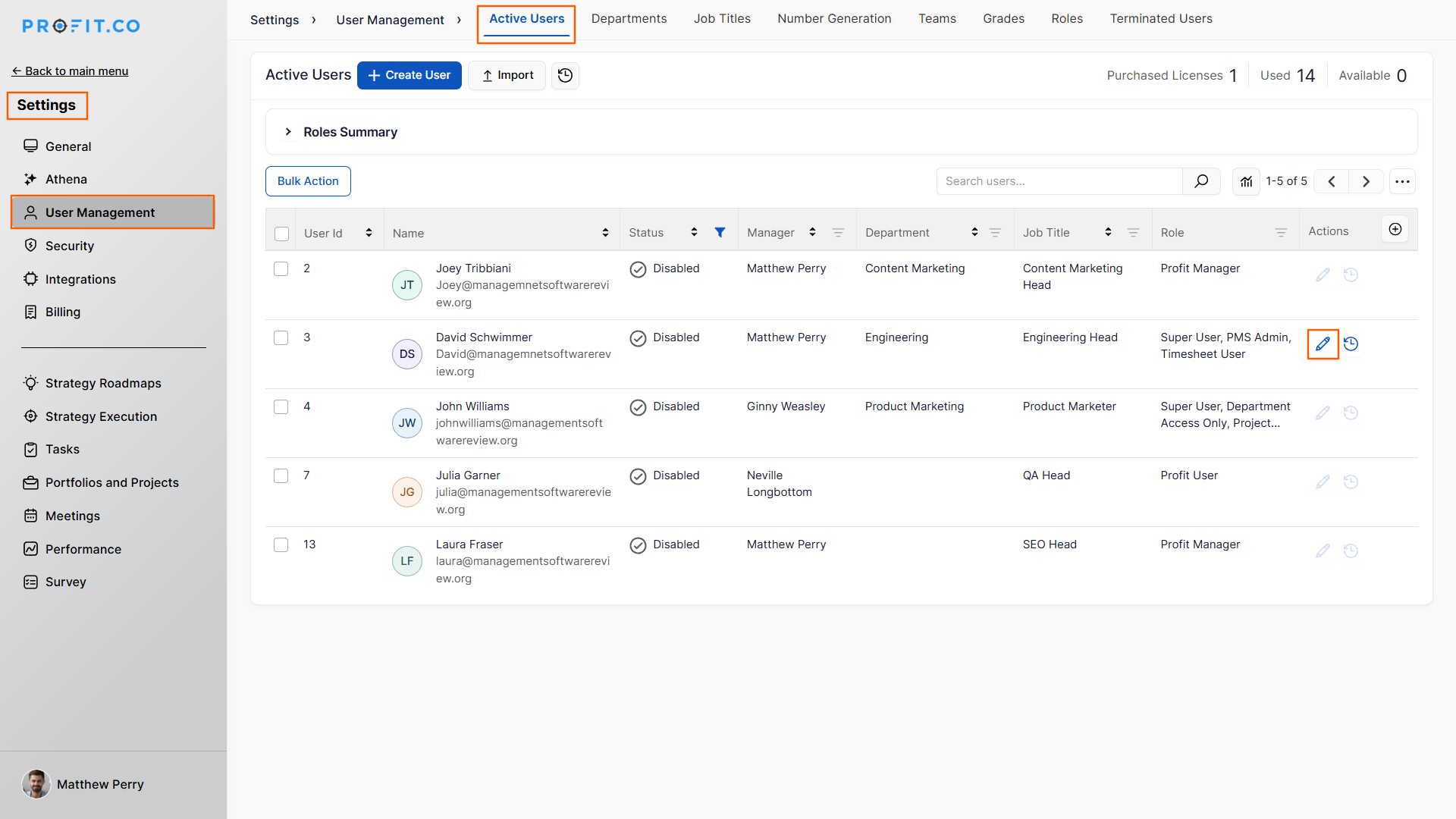
Step 1: Open the User Management Page
- Navigate to Settings → User Management
- Click the Edit icon next to the user on the Active Users page
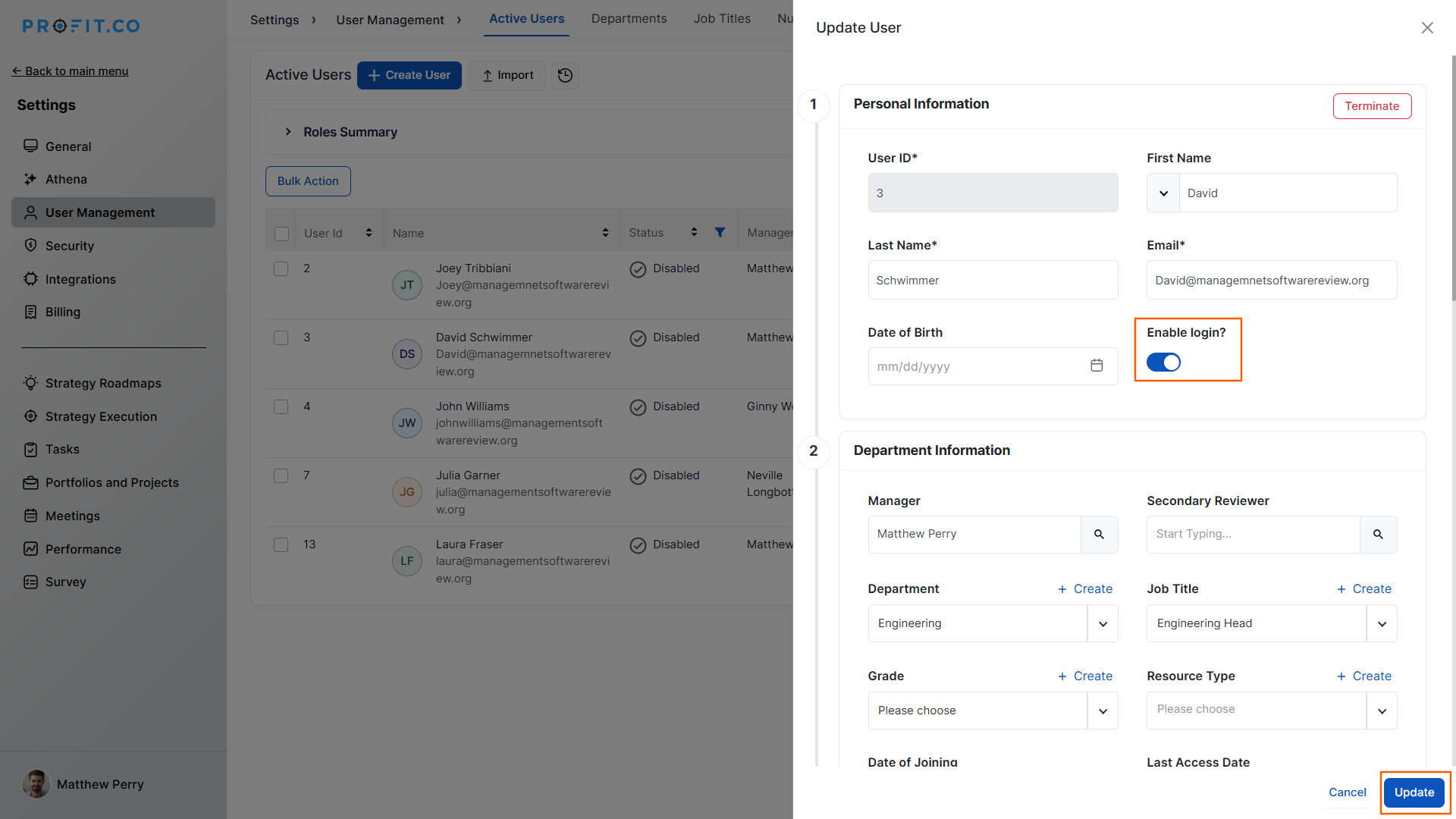
Step 2: Enable Login Access
- Turn on the Enable Login? toggle
- Click Update to save the change
What Happens When You Use Login Access?
| Scenario | What Happens |
|---|---|
| You disable the Enable Login? toggle for a user. | Profit.co notifies the user that their login access has changed. |
| You disable the Enable Login? toggle for a user without using Terminate. | Profit.co leaves the user's existing tasks, OKRs, and records assigned to them, since reassignment only happens through the separate Terminate action. |
| You re-enable a previously disabled user's login access. | Profit.co restores the user's ability to sign in right away, the same way it does for a restored terminated user. |
| You leave the Edit User page without clicking Update. | Profit.co discards the toggle change, and the user's login access remains exactly as it was before you opened the page. |
What Are the Best Practices for Login Access?
- Use the Login Access toggle instead of Terminate for temporary situations, since Terminate is the only action confirmed to prompt task and OKR reassignment.
- Click Update immediately after toggling access, since Profit.co discards the change if you navigate away first.
- Expect the affected user to be notified when you change their login access, and give them context beforehand if the change is disciplinary or sensitive.
- Confirm you're editing the correct user on the Active Users page before saving, since the toggle takes effect the moment you click Update.
- Re-enable access through the same Enable Login? toggle rather than recreating the user's account, since restoring access this way doesn't require setting up the profile again.
Related Articles
- How can I edit user information?
- How to view the login status of active users in Profit.co?
- How to terminate/revoke users from Profit?
What Are Some Frequently Asked Questions About Login Access?
It sits under Personal Information, alongside the user's name and email, on the same Edit User page used for other profile updates.
Only Superusers or users with admin-level permissions can edit the Enable Login? toggle, since it's part of the same Edit User page used for all user record changes.
No. Disabling Login Access keeps the user in the Active Users list under a Disabled status. Only Terminate moves a user to the Terminated Users list.
Execute your strategy with confidence
Connect OKRs, tasks, and teams in one place with Profit.co
