
Profit.co lets Super Users create tags and attach them to Objectives, Key Results, Tasks, and other records to categorize and filter data.
Table of Contents
What is a Tag in Profit.co?
A tag is a labeled attribute that Super Users attach to Objectives, Key Results, Tasks, and other records to make them easier to categorize and search. Each tag carries a color code, a name, and an optional description.
Why Tags Matter
Tags help categorize and quickly locate related items, making it easier to filter, track, and manage data efficiently across your OKRs and Tasks.
Tags enable flexible grouping, allowing you to generate insights and build custom views tailored to your team's specific needs.
How to Create a Tag
Create a Tag from Settings
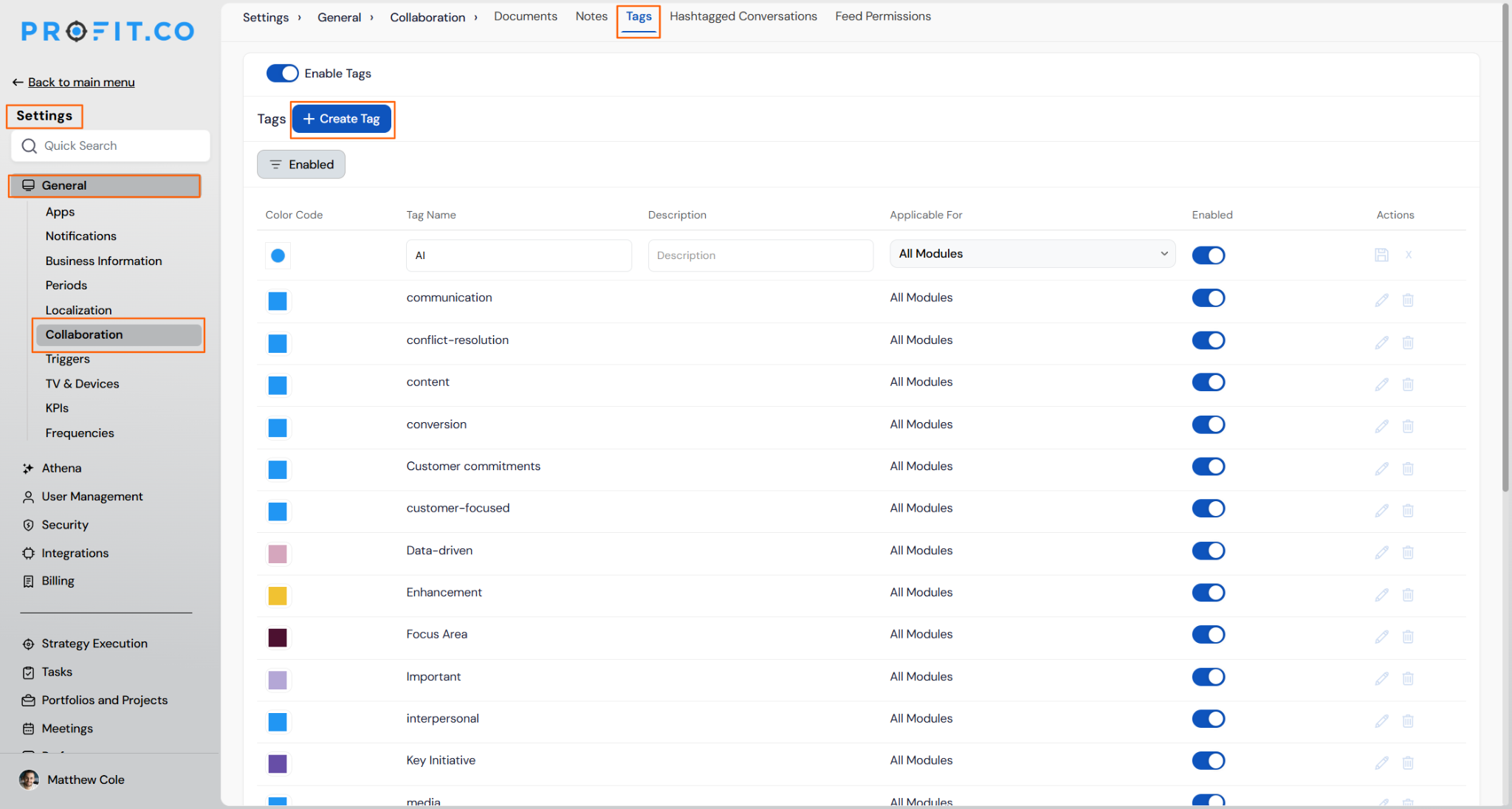
- Navigate to Settings → General → Collaboration from the left navigation panel
- Switch to the Tags tab
- Click + Create Tag
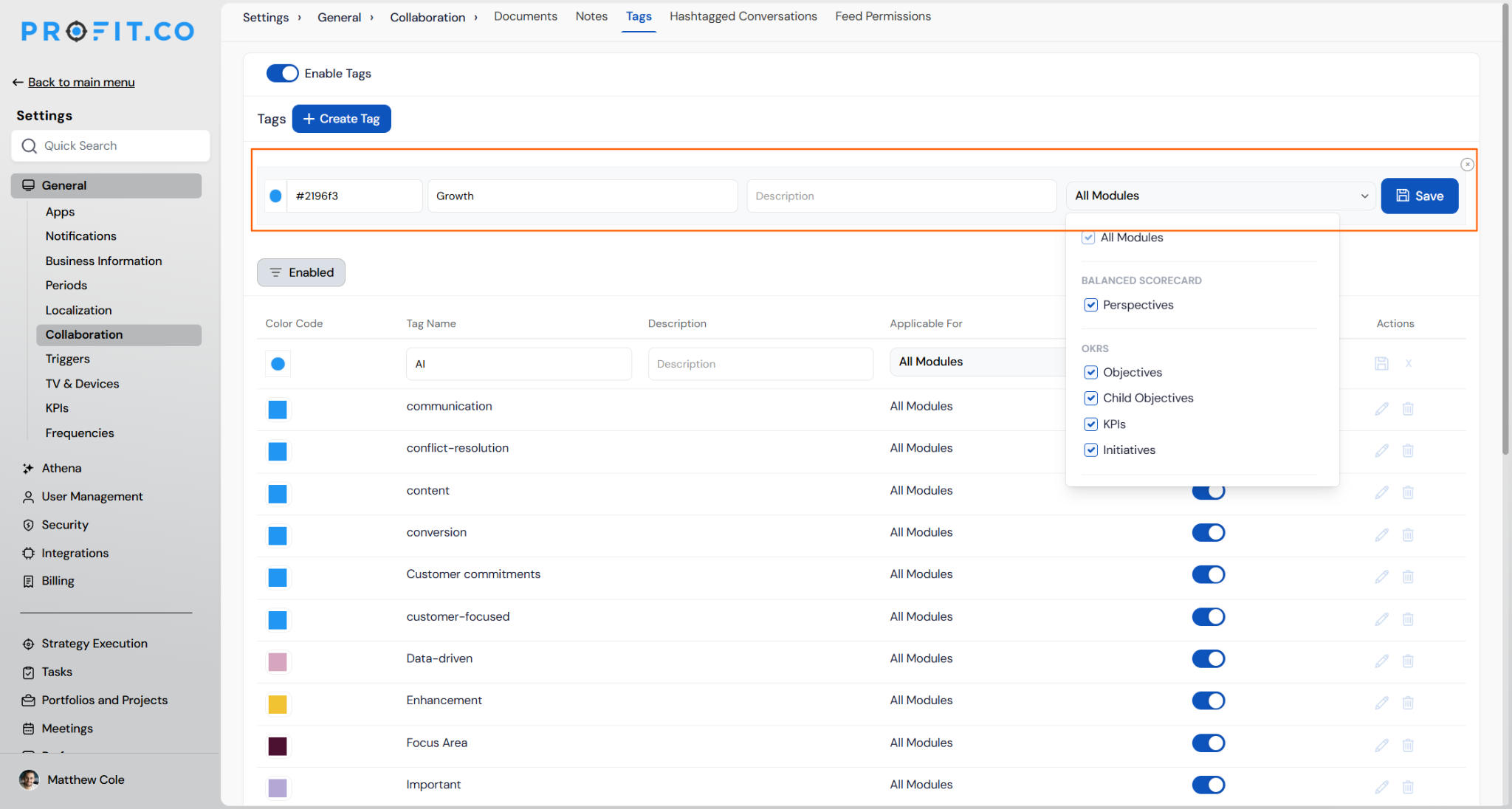
- Assign a color, name, and optional description
- Open Applicable For and select All Modules, or expand a group like OKRs and check the entity types you need, then click Save
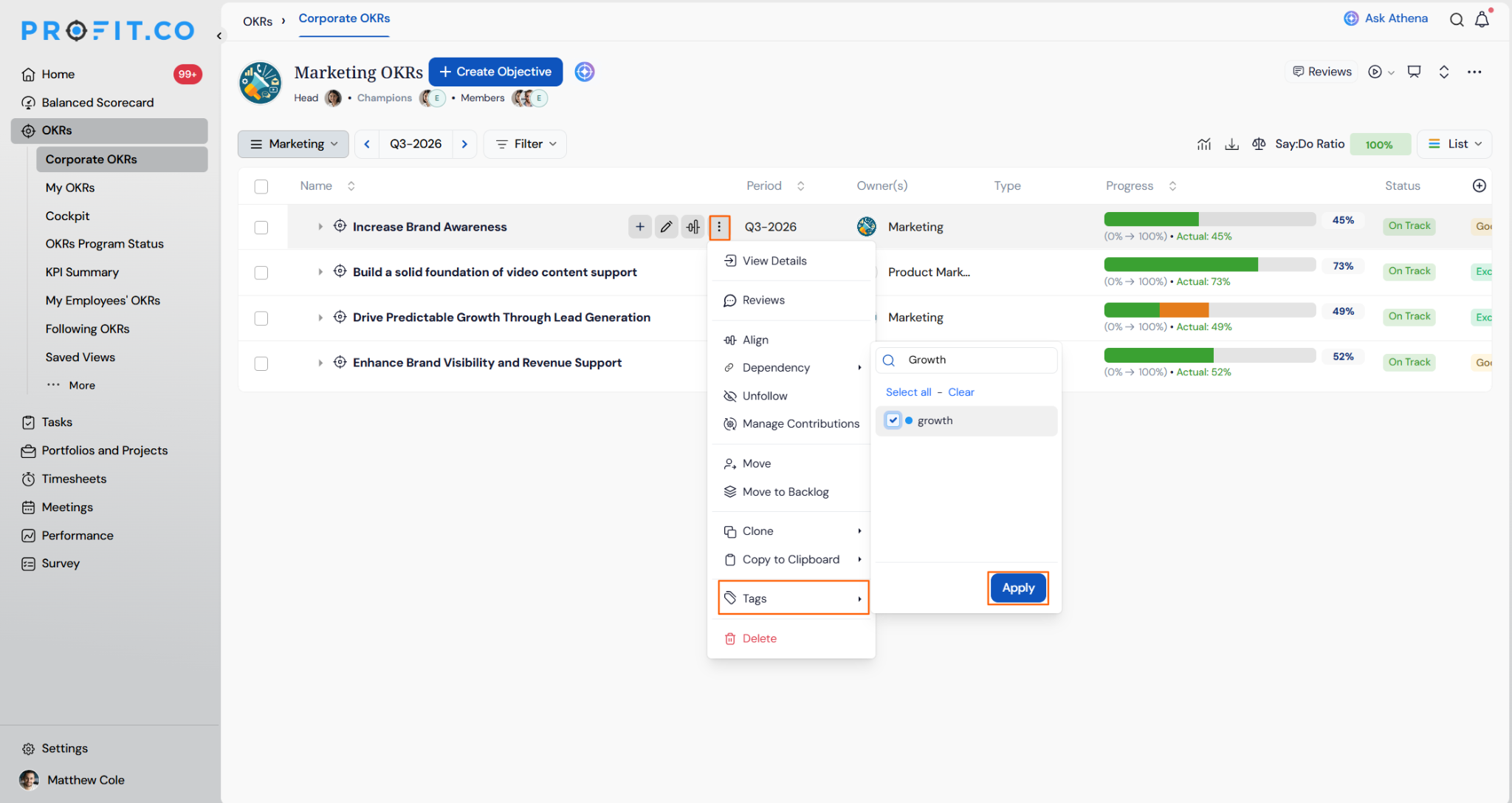
- Choose the required Objective for which you want to add a tag
- Click the More icon, select Tags, choose the required one, and click Apply
- The tag now appears on the OKR list page
Create a Tag from the Creation Panel
- While creating an Objective or Project, click the Tag field in the creation panel
- Super Users see a Manage Tag option above the existing tag list
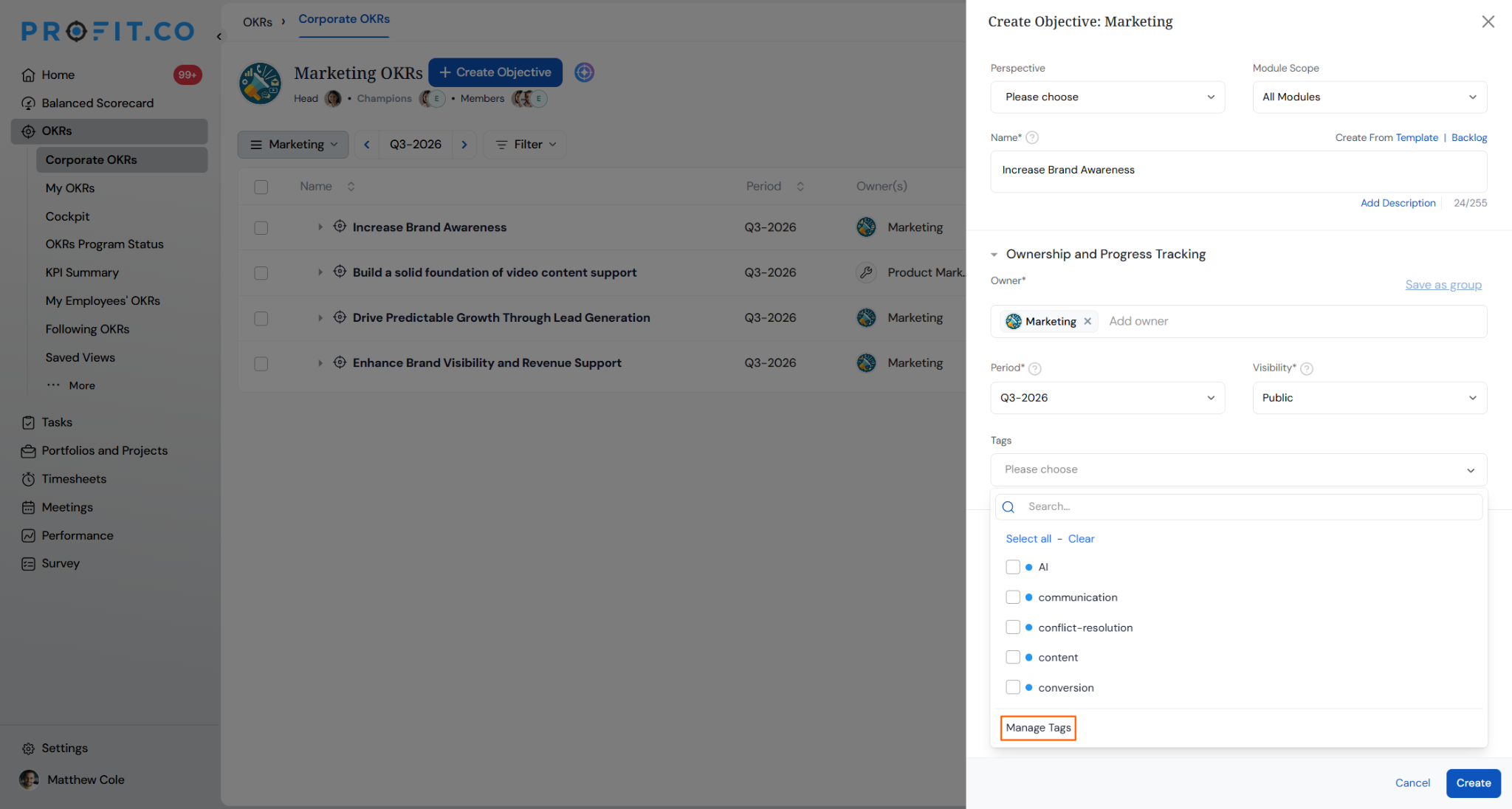
- Click Manage Tag to open the tag setup panel
- Assign a color, name, and Applicable For scope, then click Save
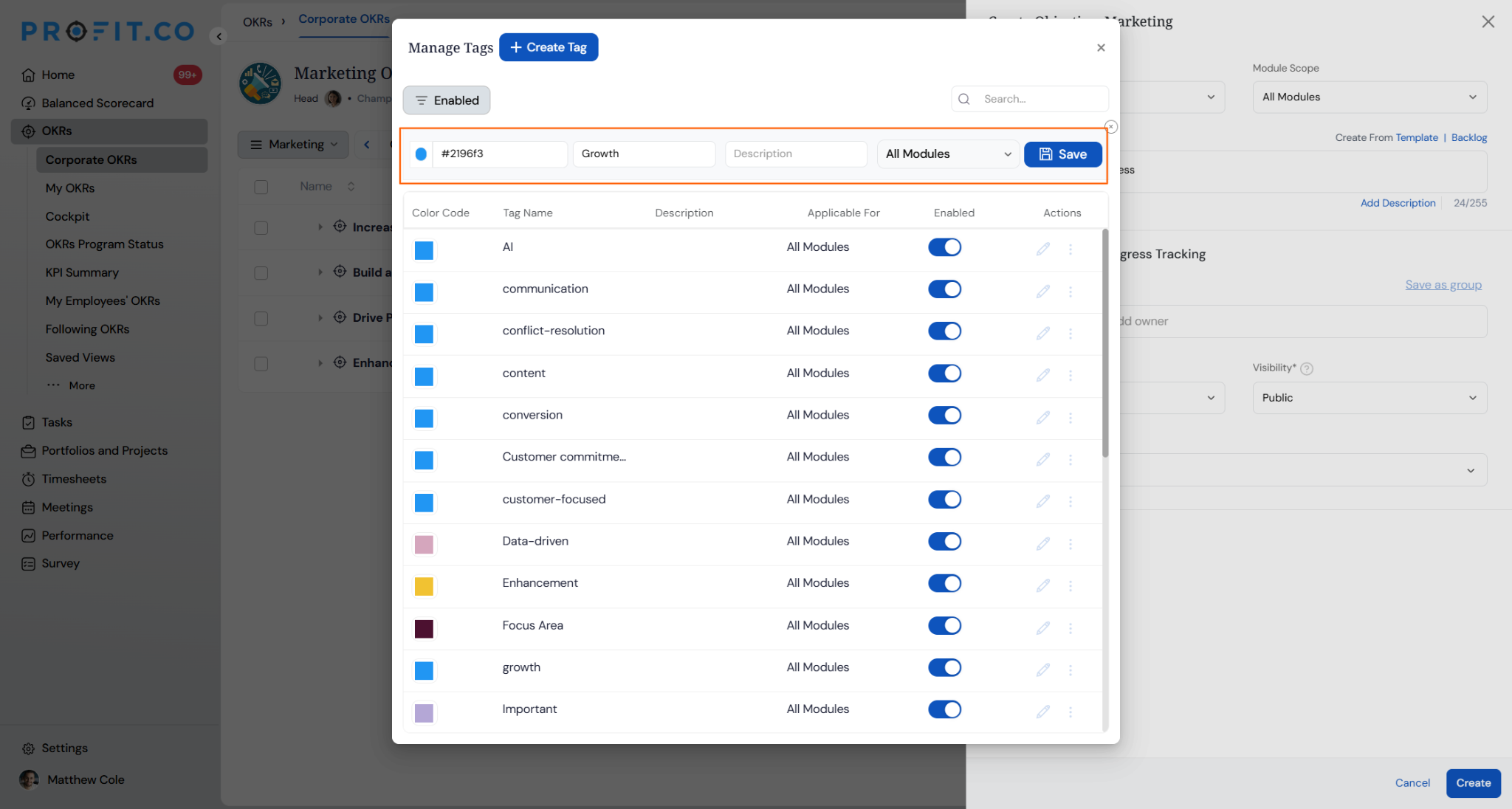
- The tag saves directly to Settings → General → Collaboration → Tags and is ready to apply immediately
Tip
Only a Super User can create a new tag mid-workflow using Manage Tag. It skips a trip to Settings but doesn't extend tag creation to other roles.
Tag Configuration Scenarios and Their Outcomes
| Scenario | Options You Have | What Happens |
|---|---|---|
| Scoping a new tag to specific OKR items | You check only the items you need, such as KPIs and Initiatives, under OKRs in the Applicable For dropdown. | The tag becomes selectable only for the items you checked. It does not appear for the other items or modules. |
| Closing Manage Tag before saving | You exit the panel without clicking Save. | Profit.co does not create the tag. The tag list in Settings stays the same, and the Objective or Project you were creating is unaffected. |
| A regular user opens the Tag field | The user can select only from tags that are already available for that Objective or Project. | The Manage Tag option does not appear for this user. Only a Super User can create or rescope a tag. |
Caution
Applicable For changes apply organization-wide the moment you click Save. Every user with tag access sees the updated scope immediately.
Best Practices for Tag Creation
- Use clear, consistent tag names, such as Committed or Aspirational, so teams recognize their purpose at a glance.
- Create tags on the fly with Manage Tag when building an Objective or Project, instead of stopping to visit Settings.
- Limit tag creation and rescoping to Super Users to keep tag data consistent across the organization.
Related Articles
- How to filter OKRs by Tags in All my OKR page?
- How to add tags while creating an objective?
- How to add and view the tasks using Tags?
Frequently Asked Questions
Only Super Users can create tags. Other users can apply existing tags to their records but cannot create new ones.
Yes. Click the Tag field in the creation panel and select Manage Tag. The tag saves to Settings → General → Collaboration → Tags and is available to apply right away.
No. Removing a tag from an Objective, Task, or other record only removes that specific application.
Execute your strategy with confidence
Connect OKRs, tasks, and teams in one place with Profit.co
