

Profit.co can automatically email designated recipients whenever a user submits an OKR Review. Once set up, every review submission triggers an in-app alert and an email with a direct link to the review.
Table of Contents
What is Review Submission Email Notification?
Review Submission Email Notification is a configurable alert under the OKR Reviews action type in the Action Center. It sends an in-app notification, an email, or both, to selected roles the moment a user submits a PPP-format OKR Review.
The setup lives entirely in Settings, so an admin decides who gets notified without depending on engineering or support to make the change.
| Recipient Type | Where You Configure It | What It Controls |
|---|---|---|
| In-App Recipients | Recipient roles list on the Review Submitted menu group | Roles who see the alert inside Profit.co's Action Center |
| Email - To | Email Notification toggle → To field | Primary recipients who receive the review-submission email |
| Email - Cc | Add Cc option | Additional recipients who get a copy without being the main addressee |
Why Review Submission Notifications Matter
Reviewers and stakeholders often learn a PPP review is ready only when someone manually messages them, which slows down feedback. Automated notifications close that gap: Champions, Captains, and Department Heads see the update the moment it happens and can open the review straight from the alert.
For teams running frequent review cycles, this removes the manual follow-up that otherwise falls on OKR admins after every submission.
How It Works (Step-by-Step Guide)
Step 1
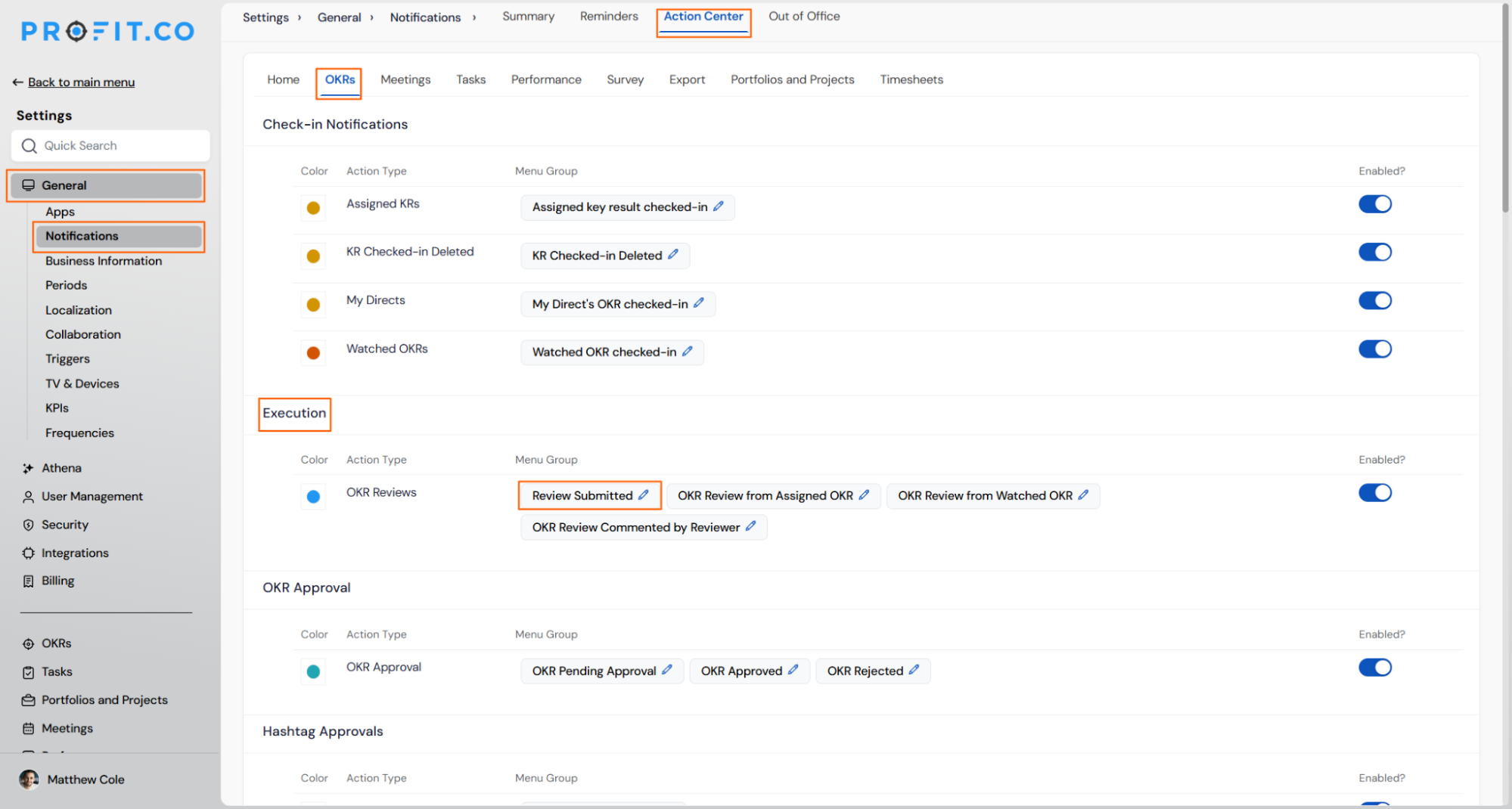
- Navigate to Settings → General → Notifications → Action Center → OKRs
- Locate the OKR Reviews action type
- Click the edit icon on the Review Submitted menu group
- This opens the notification configuration panel for that event
Step 2
- Under In-App Recipients, select the roles that should receive in-app notifications
- Example roles include Champions, Captains, and Department Head
- Toggle Email Notification on
- Configure the To recipients for the email
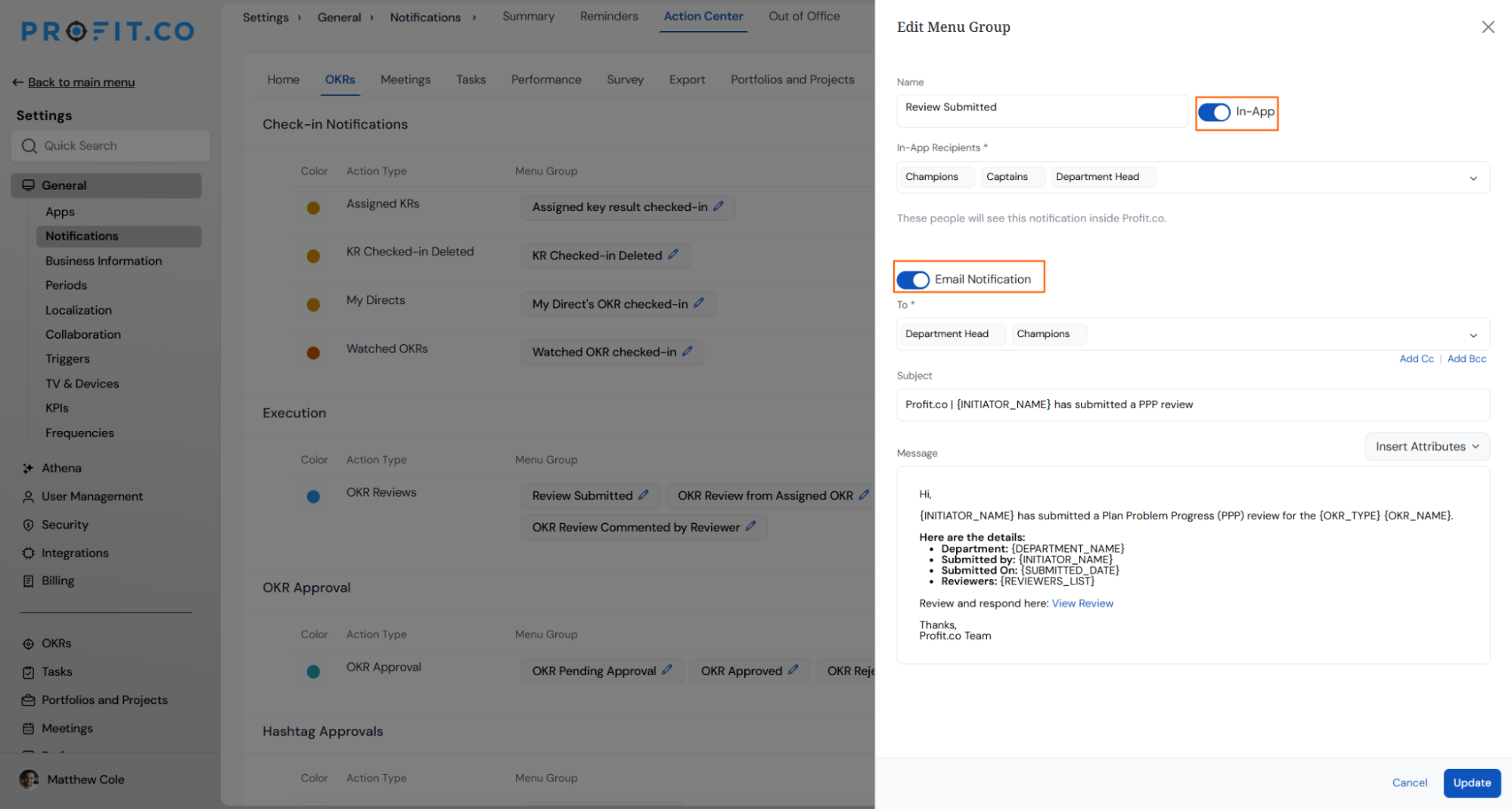
- Use Add Cc to include additional recipients
- Cc recipients receive a copy without being the primary addressee
Tip
Reserve Cc for roles that only need visibility, such as an auditing Department Head, so the To field stays limited to recipients expected to act on the review.
Step 3
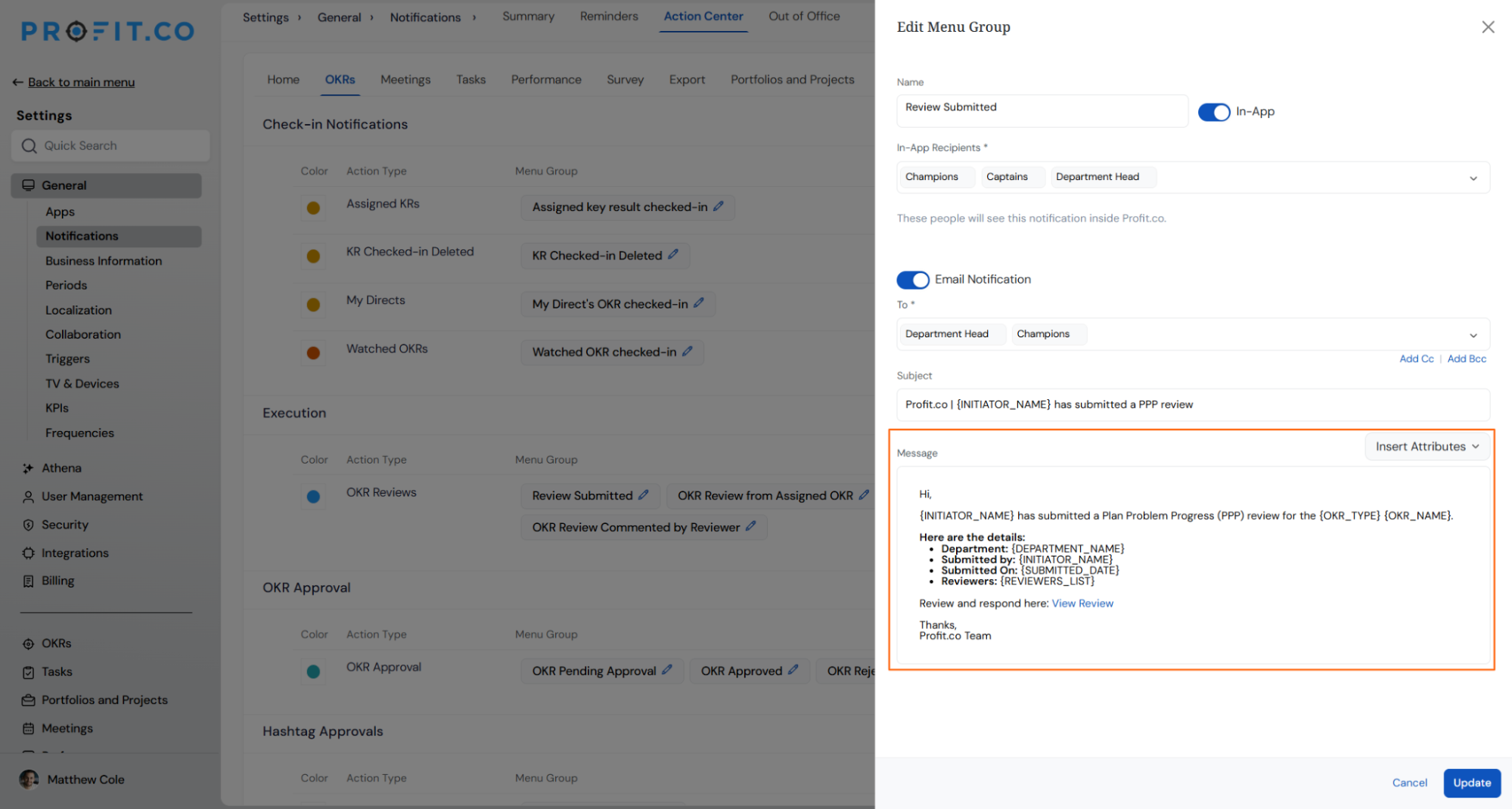
- The subject and message body are pre-populated with dynamic attributes: initiator name, department, submission date, and reviewer list
- Edit the surrounding text as needed, then save the configuration
Review Submission Notification Scenarios and Their Outcomes
| Scenario | Options You Have | What Happens |
|---|---|---|
| You submit a PPP review with Email Notification fully configured. | To, Cc, and In-App Recipients are all set up. | Profit.co emails everyone under To and Cc with the initiator's name, department, submission date, and reviewer list, plus a View Review link. In-App Recipients get the same alert in the Action Center at the same time. |
| You select roles under In-App Recipients but leave Email Notification toggled off. | Toggle Email Notification on or leave it off. | Those roles receive the in-app alert only. Profit.co sends no email when the review is submitted, so recipients who check email rather than the Action Center miss the update. |
| A configured role, such as Department Head, was not chosen as a Reviewer on this specific PPP review. | Recipients are set by role, independent of that review's Reviewer list. | Profit.co still notifies them, since recipients are tied to the role configuration rather than the review's own Reviewer list — giving oversight roles visibility beyond the reviewers the submitter selected. |
Note
In-App Recipients and Email Notification are independent controls — enabling one does not automatically enable the other.
Best Practices for Review Submission Notifications
- Assign In-App Recipients and Email recipients based on who needs to act versus who only needs visibility, instead of adding every role to both lists.
- Reserve the Cc field for oversight roles like Department Head so the To field reflects only recipients expected to respond.
- Check the pre-populated dynamic attributes before editing the template so you don't overwrite fields like reviewer list that update automatically per submission.
- Revisit the Review Submitted configuration whenever your OKR role structure changes, so that notifications continue to reach the right Champions, Captains, or Department Heads.
- Test the configuration with a sample submission before rolling it out organization-wide, since incorrect To or Cc entries can send review content to the wrong recipients.
Related Articles
- How to conduct OKR Reviews using the Progress, Plan, and Problems (PPP) approach?
- How do I enable and disable action center and email notifications?
Frequently Asked Questions
Yes. To and Cc email recipients are configured separately from In-App Recipients, so a role like Department Head can be included in one list without appearing in the other.
The subject and body pull in the initiator's name, department, submission date, and reviewer list. You can edit the surrounding template text without affecting these dynamic values.
The Review Submitted event sits under the OKR Reviews action type in the Execution section, so it triggers for review submissions within that action type, including PPP-format reviews.
Yes. The View Review link opens the review inside Profit.co, so recipients need an active account and the appropriate access to that record to view or comment on it.
Execute your strategy with confidence
Connect OKRs, tasks, and teams in one place with Profit.co
