

Profit.co provides an option to customize the Assignees name and icon in All my OKRs page.
Why this feature?
This feature allows you to customize the Assignee name field in the All My OKRs page. Based on your preference, you can customize the assignee name as icons only, names only, or a combination of both.
Note: Only Super User can customize the Assignee Name field.
Step 1:
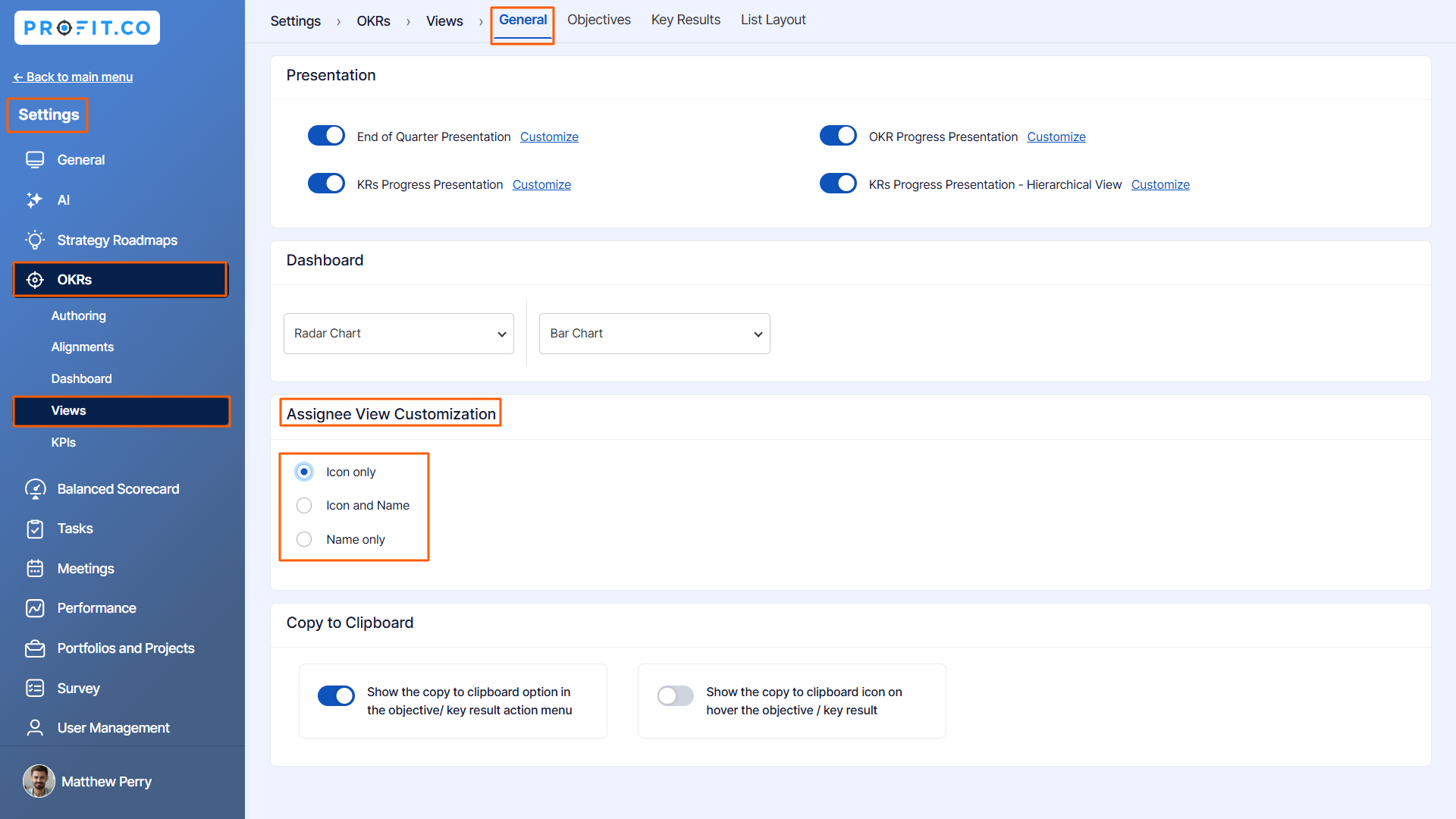
Go to Settings → OKRs → Views from the left navigation panel and switch to the General tab.
Scroll down to the category Assignee View Customization. Here, you can customize the views based on your preference like Icon only, Icon and Name, Name only.
Step 2:
If you select the option as Icon only, you’ll be able to see only the Assignees’ image icon in the All OKR Page.

If you select the option as Name only, y ou’ll be able to see only the Assignees’ names in the All OKRs Page.

If you select the option as Icon and Name, you’ll be able to see both Assignees' names and icons.

Related Answer Post:
To know more about how to filter the Assignees in OKRs list Page, click here
