

Admins can permanently pin any OKR entity to the sidebar for every applicable user and set the exact view it opens to. This removes the need for users to navigate the OKR module tree each time they want to reach that view.
Table of Contents
What is Auto-Pin for OKR Sidebar Views?
Auto-Pin is an admin-level setting that attaches a specific OKR entity to the sidebar for every applicable user and routes every click on it to one configured view. It is configured per entity, so admins choose which OKR entities get this treatment rather than applying it globally.
The setting is org-wide once turned on: it does not require any per-user action, and every applicable user sees the identical sidebar entry and the identical destination view.
Why Does Auto-Pin Matter?
Before Auto-Pin, users had to click through the OKR module tree every time they wanted to reach a specific view, with no persistent shortcut and no guaranteed landing page. Auto-Pin puts that view one click away in the sidebar, accessible from any module the user is currently in.
Because the configuration is set once by an admin, the whole team lands on the same view without anyone having to repeat individual setup steps.
How Does Auto-Pin Work?
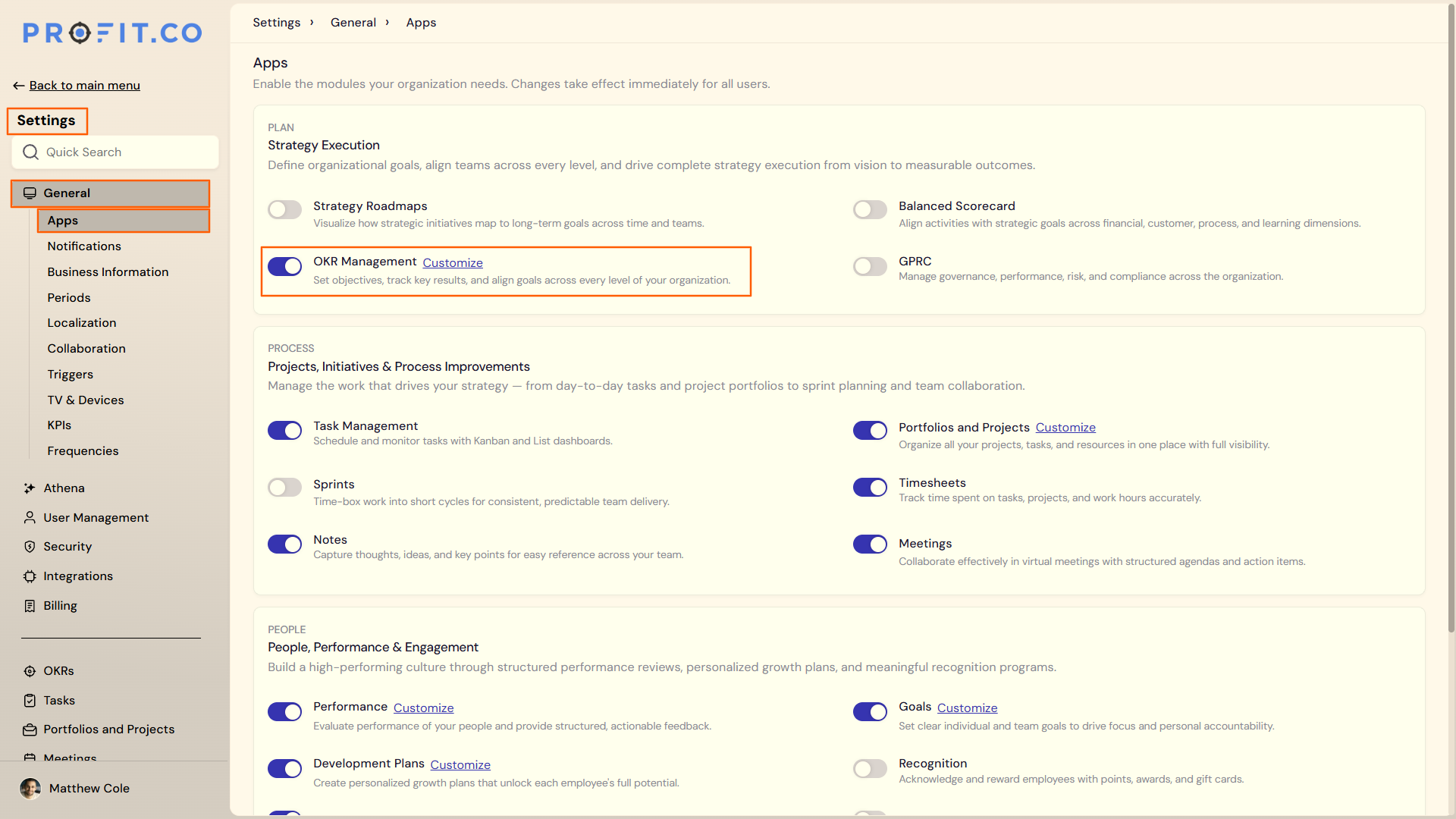
Step 1: Open OKR Management Customize
- Navigate to Settings → General → Apps from the left navigation panel.
- Select OKR Management.
- Click Customize.
Step 2: Enable the OKR Entity
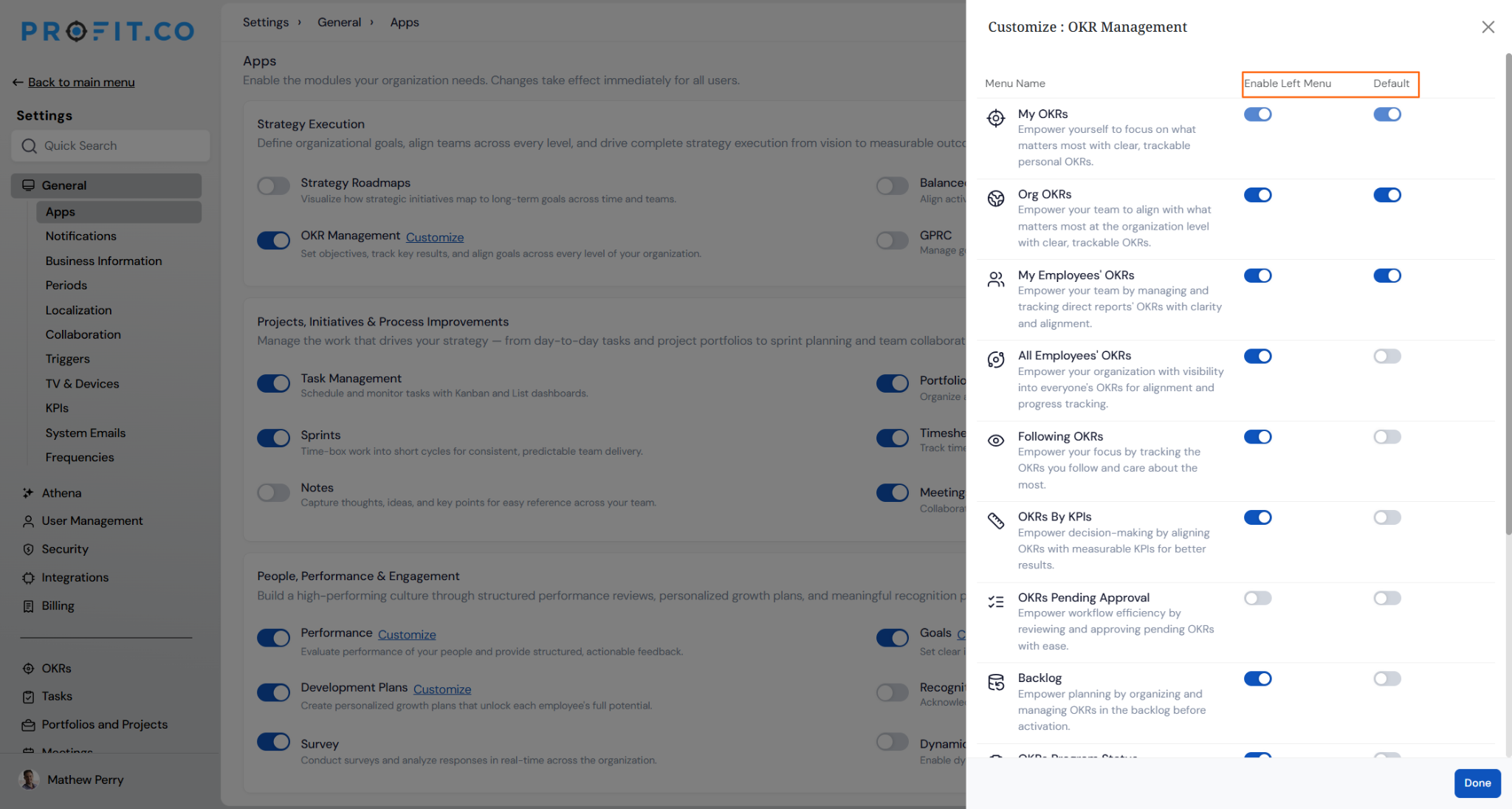
- Find the OKR entity you want to configure.
- Enable the Default (Auto Pinned) option to place the entity permanently in the sidebar for every applicable user.
- Set the entity's Landing Page to the specific OKR view it should open to.
Prerequisite
Only users with admin access to Settings can configure Auto-Pin. Users cannot enable or disable it for themselves.
What Happens When You Use Auto-Pin?
| Scenario | What Happens |
|---|---|
| You turn on Enable and Default (Auto Pinned) for an OKR entity. | Profit.co pins the entity to the sidebar for every applicable user with no individual setup required, and the entry stays visible from any module. |
| You set a Landing Page for a pinned entity. | Profit.co directs every click on that sidebar entry to the configured view, regardless of which module the user is currently in. |
| You turn off Default (Auto Pinned) after users already have the entity pinned. | Profit.co removes the sidebar entry from every applicable user immediately. |
| You change the Landing Page on an entity that is already pinned. | Profit.co updates the destination for the existing sidebar entry right away, so the next click opens the new view. |
What Are the Best Practices for Auto-Pin?
- Confirm the exact Landing Page before turning on Default, since the change takes effect for every applicable user the moment it goes live, not just for new users.
- Reserve Auto-Pin for OKR entities the whole team checks routinely. Pinning low-traffic views adds sidebar clutter without saving anyone real navigation time.
- Review pinned entities periodically against current review periods or cycles, since a Landing Page that made sense last quarter may no longer be the view your team needs first.
- Coordinate Landing Page changes with your team before making them, since updating the destination changes what every user sees the next time they click, with no separate confirmation step for them.
Related Articles
What Are Some Frequently Asked Questions About Auto-Pin?
Admins enable it individually per entity from the OKR Management Customize page, so only the entities you turn on Enable for appear as candidates for pinning.
No. Auto-Pin is configured only by admins in Settings → General → Apps → OKR Management → Customize; individual users have no option to enable or disable it.
No. Enable and Default (Auto Pinned) are separate toggles. Enable makes the entity available to configure; Default (Auto Pinned) is the toggle that actually pins it for every applicable user.
Execute your strategy with confidence
Connect OKRs, tasks, and teams in one place with Profit.co
