

A Super User can now open the Bowler Chart view to the BSC Admin, OKR User, OKR Admin, Profit User, and Profit Manager roles, and set it as their default OKR view. Previously, Bowler Chart was limited to the Super User and Admin roles only.
Table of Contents
- What is Bowler Chart Access for Standard User Roles?
- Why Does Bowler Chart Access for Standard User Roles Matter?
- How Does Bowler Chart Access for Standard User Roles Work?
- What Happens When You Use Bowler Chart Access for Standard User Roles?
- What Are the Best Practices for Bowler Chart Access for Standard User Roles?
- Related Articles
- What Are Some Frequently Asked Questions About Bowler Chart Access for Standard User Roles?
What is Bowler Chart Access for Standard User Roles?
Bowler Chart Access for Standard User Roles is a role-level permission that lets a Super User expose the Bowler Chart view, and set it as the default OKR view, for the BSC Admin, OKR User, OKR Admin, Profit User, and Profit Manager roles. It's configured once per role, not per individual user.
Previously, Bowler Chart was visible only to the Super User and Admin roles, so users on these five roles could never open a view their organization had standardized on. This permission removes that restriction without touching any other view already available to those roles.
Why Does Bowler Chart Access for Standard User Roles Matter?
Before this permission existed, users on these five roles were locked out of Bowler Chart even when their organization had standardized on it for tracking OKRs, leaving them to interpret progress through a different view than their leads and admins used. Enabling Bowler Chart for a role gives every user on that role the same visualization.
New hires used to need Bowler Chart configured individually before they could see it. Once a Super User enables it for a role, every new team member assigned that role lands on Bowler Chart automatically, and existing views like List or Gantt remain one click away.
How Does Bowler Chart Access for Standard User Roles Work?
Note
You must have the Super User role to enable Bowler Chart access for other roles.
Step 1: Open Roles Settings
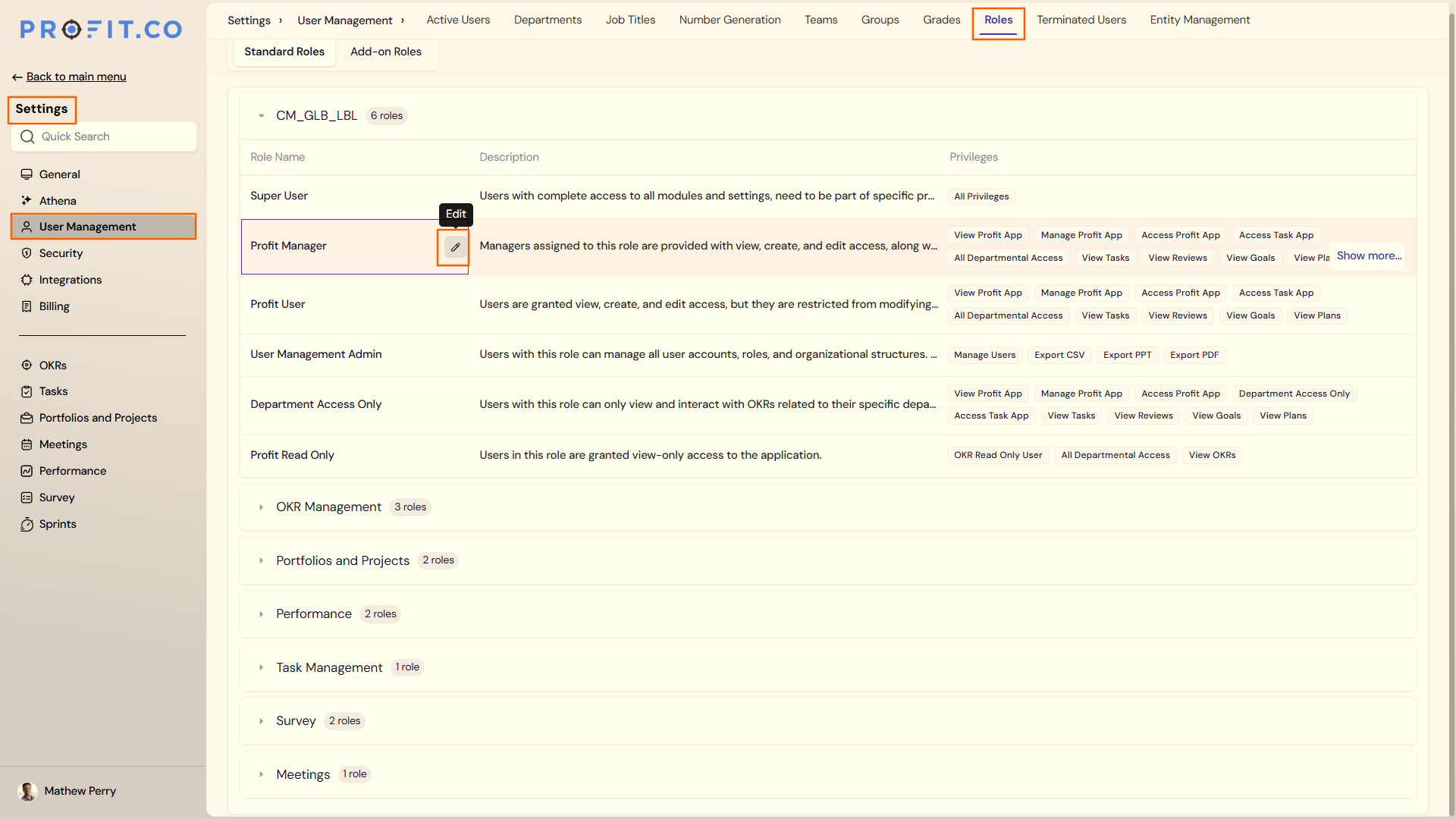
- Navigate to Settings → User Management from the left navigation panel and switch to the Roles tab.
Step 2: Select a Role
- Select the role to update: BSC Admin, OKR User, OKR Admin, Profit User, or Profit Manager
Step 3: Enable Bowler Chart
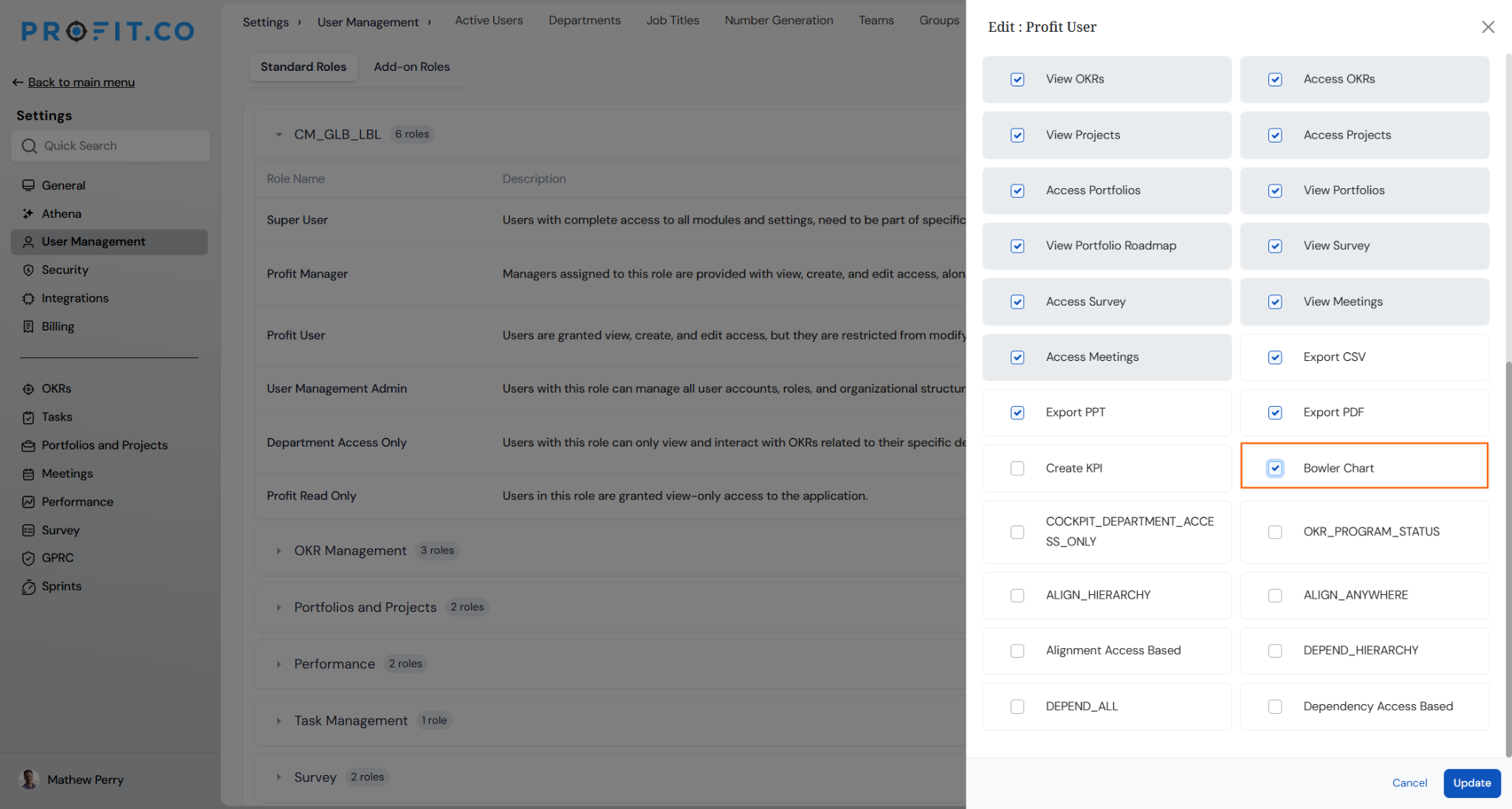
- Turn on the Bowler Chart permission for the selected role
What Happens When You Use Bowler Chart Access for Standard User Roles?
| Scenario | What Happens |
|---|---|
| You enable Bowler Chart for a role such as OKR User. | Profit.co adds Bowler Chart to the OKR view switcher for every user with that role and sets it as their default view. |
| You assign a new team member to a role with Bowler Chart enabled. | Profit.co opens Bowler Chart automatically for that user and requires no individual setup. |
| You switch away from Bowler Chart to another view such as List or Gantt. | Profit.co keeps every other view available in the switcher and removes none of them. |
| You leave a role without Bowler Chart enabled. | Profit.co keeps Bowler Chart out of the OKR view switcher for users in that role and leaves their existing default view unchanged. |
What Are the Best Practices for Bowler Chart Access for Standard User Roles?
- Enable Bowler Chart only for roles that will actually use it day-to-day, since it becomes the default view for every user assigned that role, not just an available option.
- Confirm which of the five roles, BSC Admin, OKR User, OKR Admin, Profit User, or Profit Manager, matches your team's structure before enabling, since the permission applies per role, not per individual user.
- Announce the change to existing team members before enabling it for their role, since Bowler Chart becomes what they see by default the next time they open OKRs.
- Check how many users currently hold the role you're about to update, since the change to the default view applies to everyone under that role at once, not gradually.
Related Articles
- How do I manage Key Results directly in the Bowler Chart View in Profit.co?
- How do I set up a Stretch Plan in the Bowler Chart?
What Are Some Frequently Asked Questions About Bowler Chart Access for Standard User Roles?
BSC Admin, OKR User, OKR Admin, Profit User, and Profit Manager, the five roles a Super User can enable Bowler Chart for.
No. Only the Super User role can enable Bowler Chart access for other roles in Settings.
No. Enabling Bowler Chart for one role, such as OKR User, doesn't change access for roles that haven't been enabled.
Execute your strategy with confidence
Connect OKRs, tasks, and teams in one place with Profit.co
