

Row Actions lets admins choose which action buttons appear on hover and in the More menu for each row in List view, instead of every account seeing the same fixed set. Admins configure each action independently, so different orgs can expose different shortcuts.
Table of Contents
What is Row Actions?
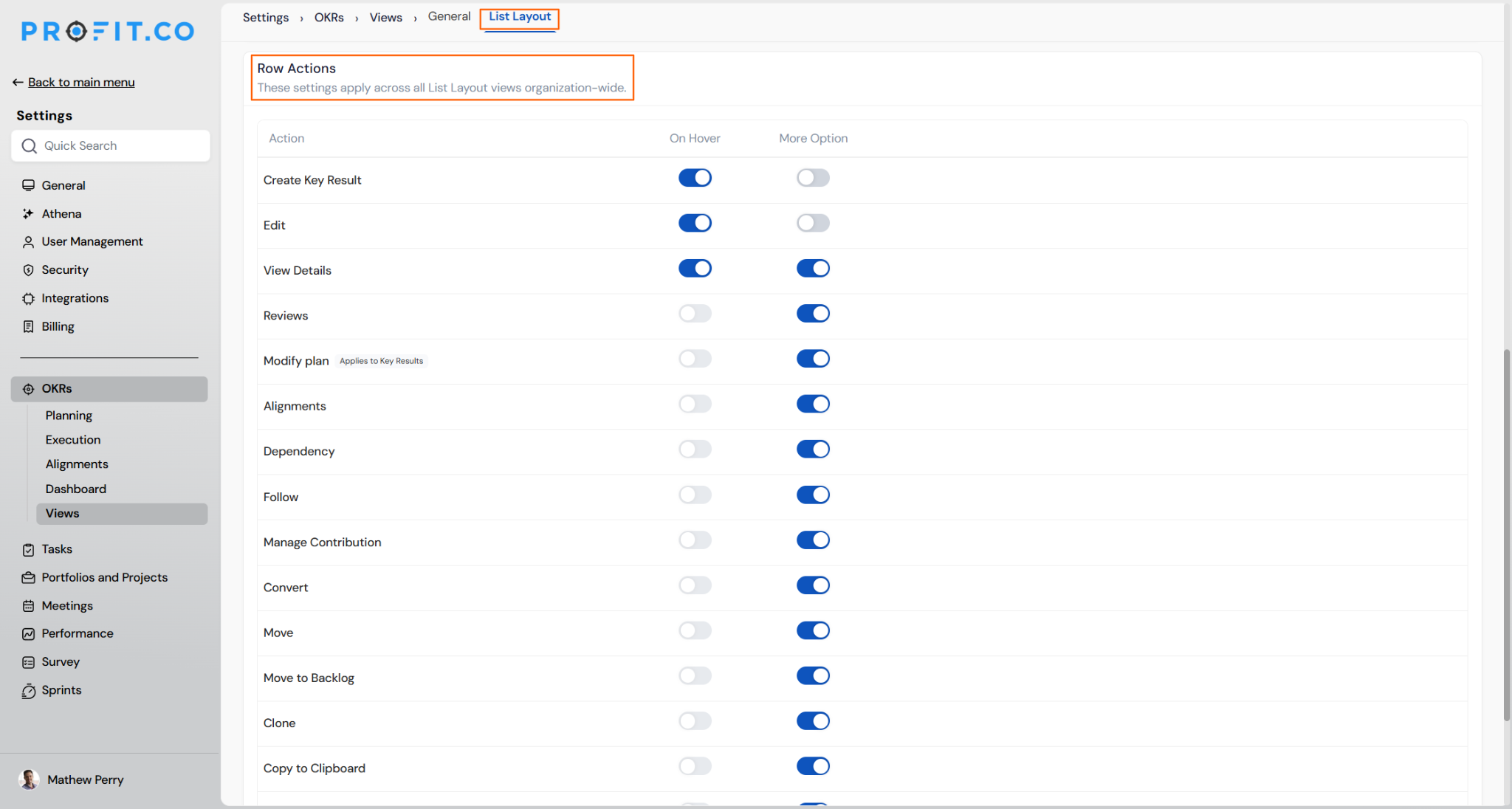
Row Actions is an admin-level setting that controls which action buttons appear on each List view row, independently for the hover state and the More menu. Each action, including Create, Edit, Check-in, Alignment, Move, Clone, Delete, and others, can be toggled on or off in either location.
The setting applies at the row-action level, not per record type. Key result-only actions like Check-in stay hidden on objective rows even when the matrix enables them, and at least one action must remain available in the More menu at all times.
Why Does Row Actions Matter?
Before this setting, every account saw the same fixed set of row actions regardless of which ones a team actually used, so users scrolled past entries like Clone or Move to reach the one action they needed. Admins can now turn on Check-in for hover access, so a user checks in on a key result directly from the List view without opening the record.
Admins can also turn off actions their org never touches, keeping each row down to the entries people actually click. Because the shipped default reproduces existing behavior, no account needs to be reconfigured for this change to take effect quietly.
How Does Row Actions Work?
Step 1: Open Row Actions Settings
- Navigate to Settings → OKRs → Views from the left navigation panel.
- Switch to the List Layout tab and locate the Row Actions matrix.
Prerequisite
You need admin access to Strategy Execution settings to open and change the Row Actions matrix.
Step 2: Configure Each Action
- Locate each action in the matrix: Create, Edit, Check-in, Alignment, Move, Clone, Delete, and others.
- Toggle On Hover to control whether the action shows when a user hovers a row.
- Toggle More Option to control whether the action shows in the row's More menu.
What Happens When You Use Row Actions?
| Scenario | What Happens |
|---|---|
| You turn on On Hover for an action. | Profit.co turns on More Option for that same action automatically, since hover access requires the action to also live in the fuller menu. |
| You try to turn off every action in More Option for a row. | Profit.co keeps at least one action enabled in More Option, so the row is never left without an available action. |
| You enable Check-in in the matrix for objective rows. | Profit.co keeps Check-in hidden on objective rows regardless, since it is a key result-only action. |
| You save a change to the Row Actions matrix. | Profit.co applies the change immediately across the org, so every user sees the updated row actions on their next visit to List view without a refresh or re-login. |
| You have an existing account that has never opened Row Actions settings. | Profit.co keeps the shipped default in place, reproducing today's row-action behavior exactly until an admin opens the setting. |
| You turn off an action such as Check-in in Row Actions. | Profit.co keeps all existing check-in history and other record data untouched, since the setting only controls which action buttons display on the row. |
What Are the Best Practices for Row Actions?
- Turn on hover for actions used constantly, like Check-in on key results, so users update progress without opening a menu for routine work.
- Turn off actions your team never uses, such as Clone or Move, to shorten the row and keep frequently used actions visible without scrolling.
- Leave more than one action enabled in More Option even though only one is required, since a single-action menu leaves no fallback if that action doesn't apply to a specific row.
- Review the Row Actions matrix against how your team actually works rather than assuming the default fits, since the shipped default only matches historical behavior, not necessarily what your team needs going forward.
- Confirm which actions are key result-only before enabling them broadly, since actions like Check-in stay hidden on objective rows no matter how the matrix is set.
Related Articles
- What is the use of the "OKRs list view" option on the OKRs settings page in Profit.co?
- How do I check-in for Key Results?
What Are Some Frequently Asked Questions About Row Actions?
Yes, as long as at least one other action stays enabled in More Option for that row. Profit.co always keeps one action available in More Option, so a row is never left without any way to act on it.
Row Actions is configured once per org and applies across List views, not to one view at a time. Any change an admin makes rolls out org-wide immediately.
Row Actions is admin-only. Admins configure it under Settings → Strategy Execution → Views → List Layout → Row Actions, and the resulting setup applies to every user, with no separate personal override.
Execute your strategy with confidence
Connect OKRs, tasks, and teams in one place with Profit.co
