

Legacy check-ins preserve a Key Result's earlier progress history whenever its tracking setup changes. You can now also see the exact date of each legacy check-in and delete individual entries directly from that history.
Table of Contents
What is a Legacy Check-In?
A legacy check-in is a preserved record of a Key Result's earlier check-in history that Profit.co keeps whenever certain tracking settings change, so past progress isn't lost when the setup changes. Profit.co preserves this history whenever any of the following changes:
- Key Result type
- KPI
- From value
- Target Period
Each legacy check-in entry also displays the date it was made, and any individual entry can be deleted directly from the history list.
Why Legacy Check-Ins Matter
Legacy check-ins keep a Key Result's story intact across configuration changes, and now give you more control over that record.
How It Works
Step 1
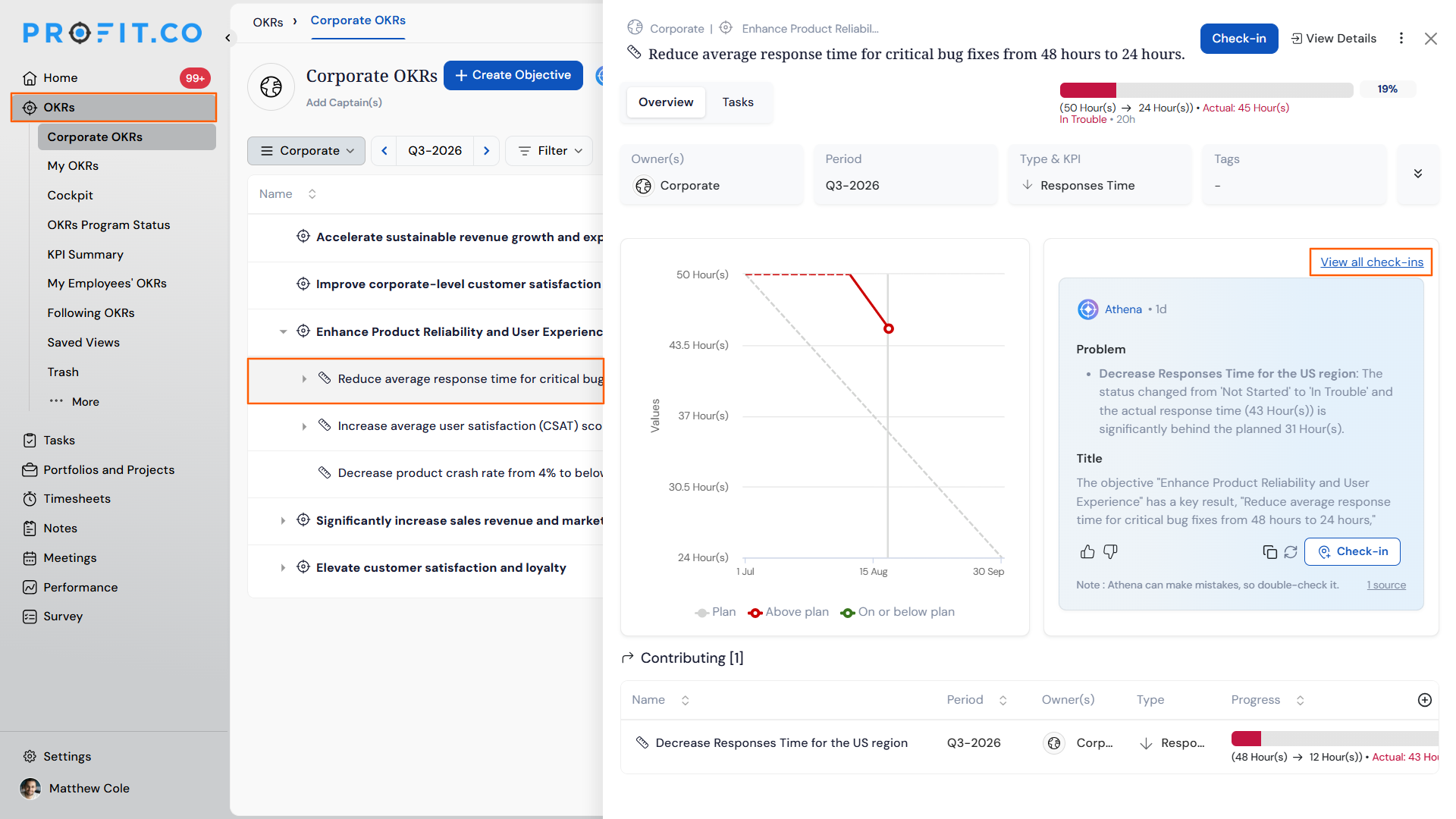
- Navigate to the Key Result whose check-in history you want to review.
- Click on the Key Result.
- Click on the View all check-ins option.
Prerequisite
The Key Result must have had its type, KPI, From value, or Target Period changed at least once. If none of these apply, no Legacy Check-in history will be available to view or manage.
Step 2
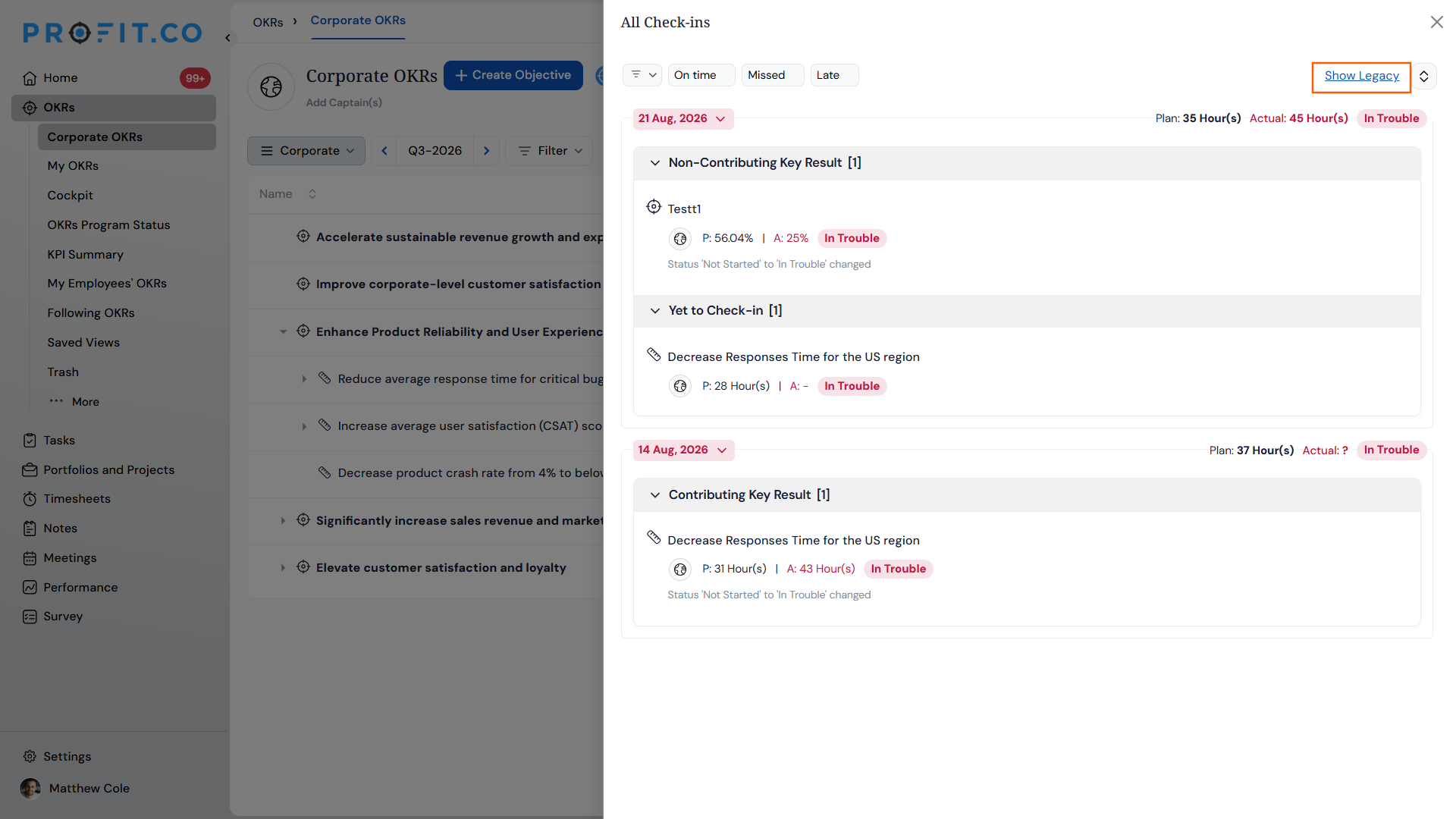
- In the Check-in section, select the Show Legacy option.
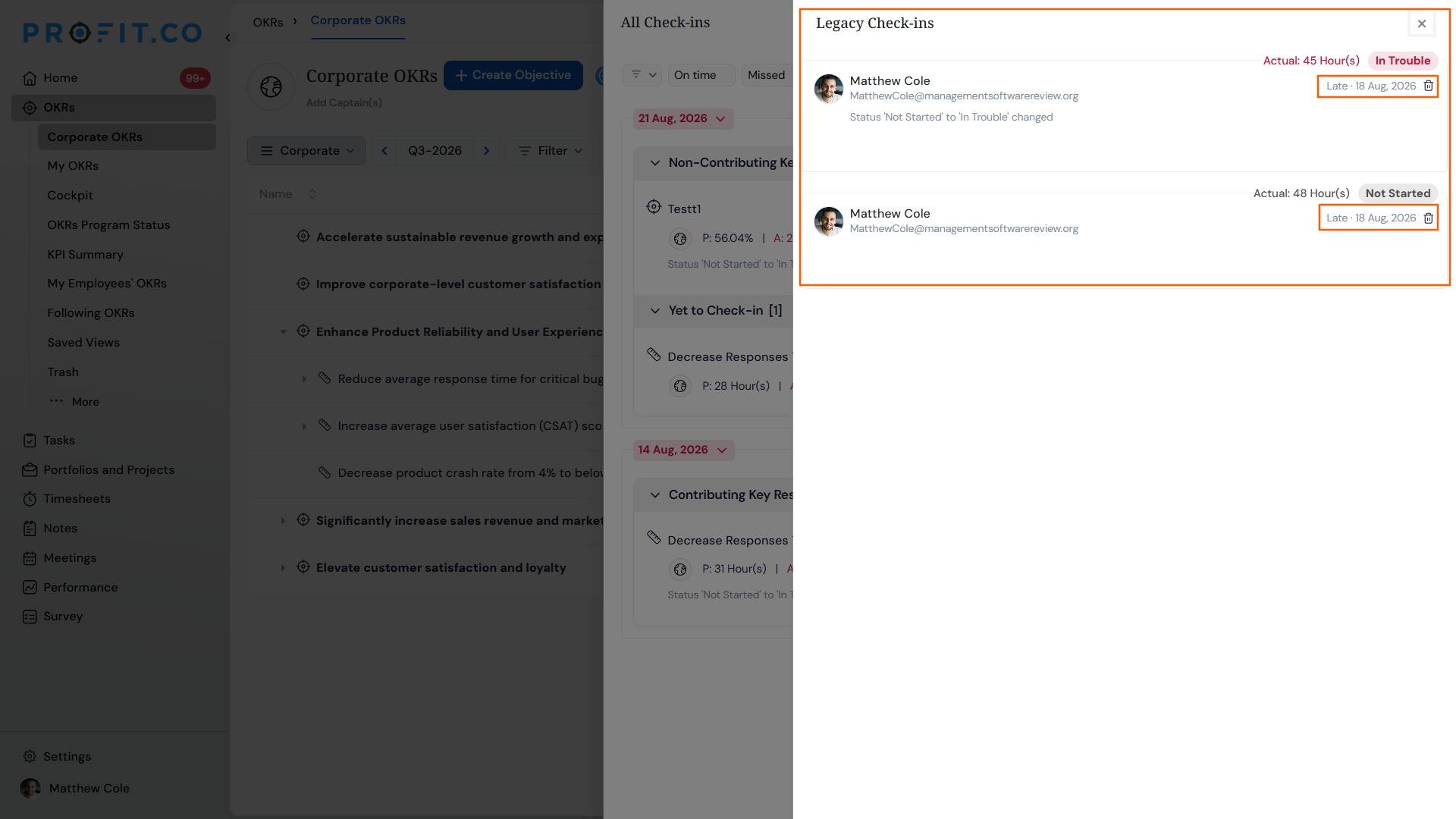
- Locate a legacy check-in entry in the list.
- View the check-in date displayed alongside the entry.
- Use the delete option next to a legacy check-in entry to remove it.
Note
Each legacy entry also displays a scheduled date chip identifying its check-in cycle, in your account's date format.
Legacy Check-In Scenarios and Their Outcomes
| Scenario | What Happens |
|---|---|
| You delete a legacy check-in entry. | Profit.co removes that entry from the history log, and the Key Result's current value and progress stay exactly the same. |
| You delete a legacy check-in entry. | No notification is sent to the Key Result owner or any other user. |
| You view a Key Result's check-in history with legacy entries. | Profit.co displays the check-in date next to each legacy entry, alongside the value already shown. |
Best Practices for Legacy Check-Ins
- Before deleting a legacy check-in, confirm it's actually outdated or incorrect, since removing it only clears the log entry and won't adjust the Key Result's current progress.
- Don't rely on a notification to catch a legacy check-in deletion. Since no alert is sent, tell your team directly if the removal affects a review they rely on.
- Use the check-in date now shown on each legacy entry to confirm the sequence of past updates before making decisions based on that history.
- Review a Key Result's Legacy Check-in history whenever its KPI, From value, or Target Period changes, since that's when Profit.co creates a new legacy record.
- Reserve deletion for genuinely incorrect entries. Legacy check-ins otherwise document a Key Result's history across configuration changes.
Related Articles
Frequently Asked Questions
No. The delete option removes legacy check-ins individually, one entry at a time.
No. Legacy check-in history previously showed only the recorded value; the check-in date was not displayed until now.
It filters the list. Selecting Show Legacy in the Check-in section narrows the view to just the legacy entries.
Execute your strategy with confidence
Connect OKRs, tasks, and teams in one place with Profit.co
