
Role-based widget access control lets Super Users decide which of the 60 dashboard widgets a given role can see, add, and arrange on Portfolio and Project dashboards. Configuration happens once per role from Access Control settings, and every user holding that role inherits the same visibility rules.
Table of Contents
- What is Role-Based Widget Access Control?
- Why Does Role-Based Widget Access Control Matter?
- How Does Role-Based Widget Access Control Work?
- What Happens When You Use Role-Based Widget Access Control?
- What Are the Best Practices for Role-Based Widget Access Control?
- Related Articles
- What Are Some Frequently Asked Questions About Role-Based Widget Access Control?
What is Role-Based Widget Access Control?
Role-based widget access control is the permission layer that determines which dashboard widgets and summary cards a role can view on Portfolio and Project dashboards. It sits underneath the existing View Dashboard privilege: a role must already be allowed to open the dashboard before its widget-level permissions apply.
Every widget carries a default visibility tier, and Financial or EVM widgets carry an additional finance gate on top of that tier.
| Tier | Who Sees It by Default |
|---|---|
| Core | All roles |
| Analytical | Managers and above |
| Executive | Senior roles only |
| Finance-gated (FIN) | Only roles with financial access permissions, regardless of tier |
Note
Portfolio-only widgets are never offered on the Project dashboard, regardless of a role's tier or explicit grants.
Why Does Role-Based Widget Access Control Matter?
Before this control existed, every role with dashboard access saw the identical widget set, including budget, IRR, NPV, and EVM variance figures meant only for finance roles. Financial and EVM widgets now stay hidden from every role by default until an administrator explicitly grants them.
Users previously had no way to focus their own view among 60 widgets and 28 summary cards. They can now show, hide, and arrange whichever widgets their role permits, without administrators losing control over what that role can ever see.
How Does Role-Based Widget Access Control Work?
Configure Widget Access by Role (Administrators)
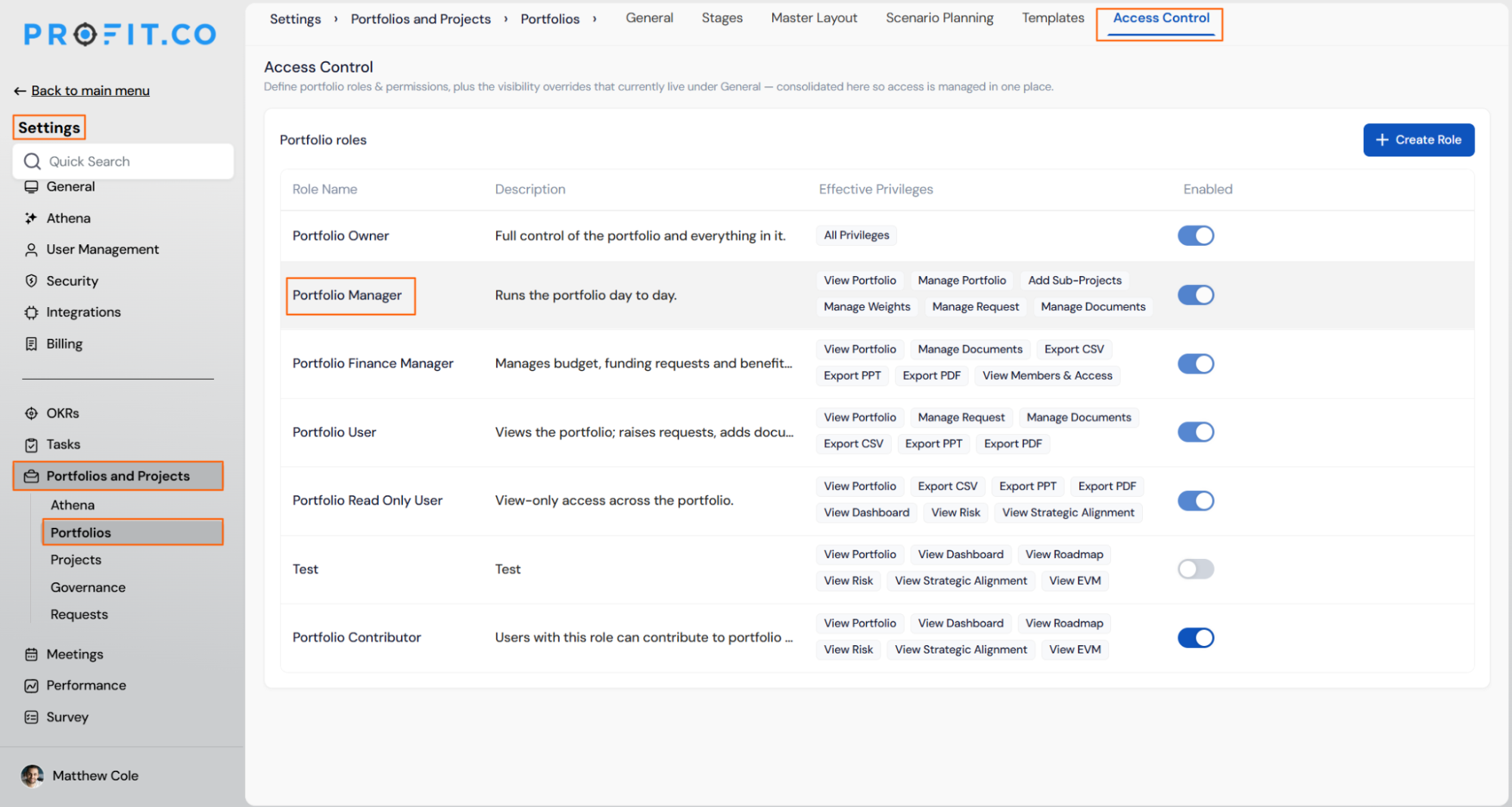
Step 1
- Navigate to Settings → Access Control
- Review the list of configured dashboard roles, for example Portfolio Owner, Portfolio Manager, Portfolio Finance Manager, and Portfolio User
- Click Edit on the role you want to configure
Step 2
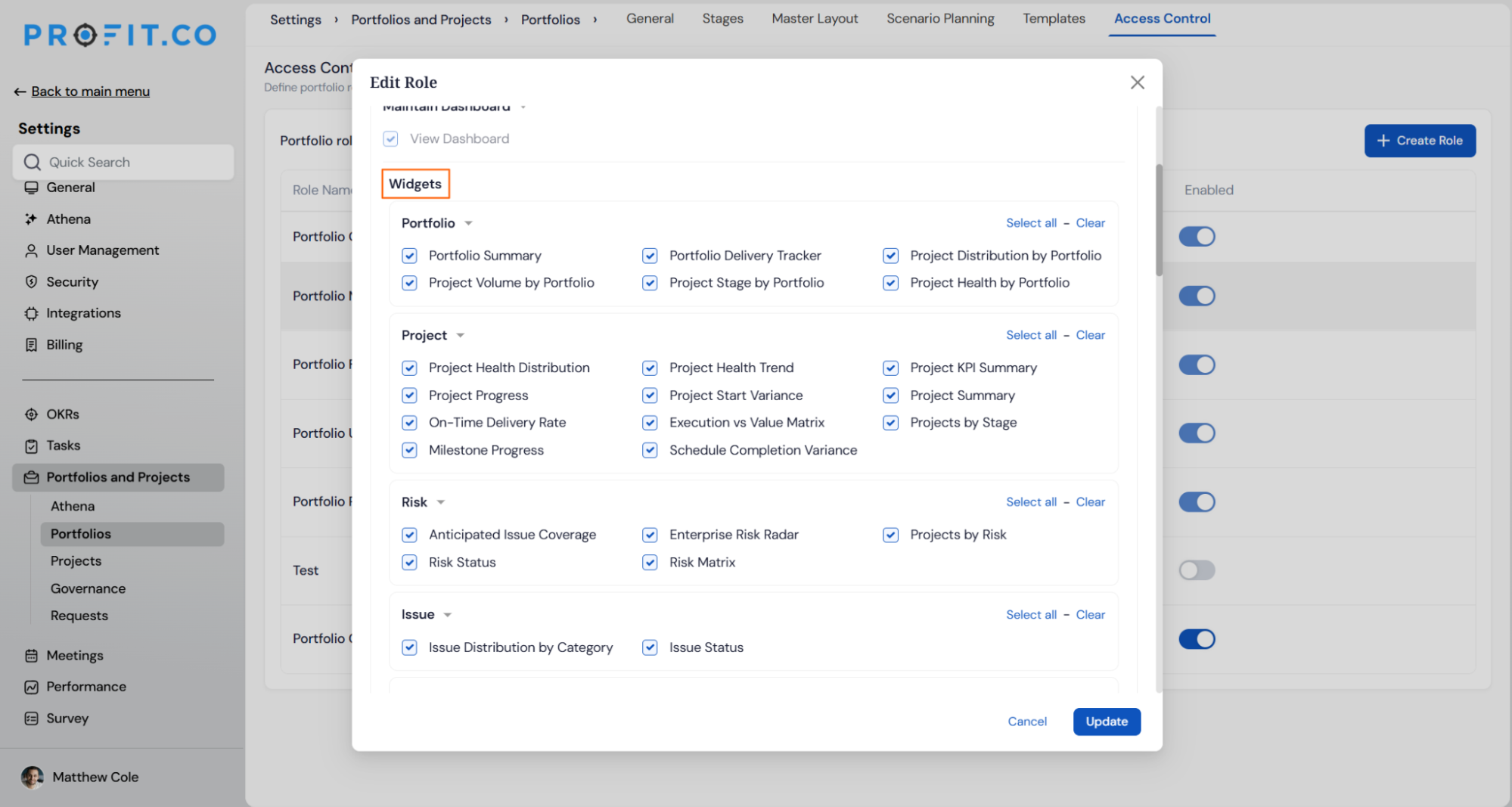
- In the role's permission panel, locate the Maintain Dashboard section
- Confirm View Dashboard is enabled for the role, since widget access has no effect if the role can't open the dashboard
- Expand Widgets to see all categories: Project, Portfolio, Risk, Issue, Task, Resource Management, Lesson Learned, Strategic Alignment, Tollgate, Financial, and EVM
Prerequisite
You must hold the Super User or PPM Admin role to edit another role's Access Control permissions.
Step 3
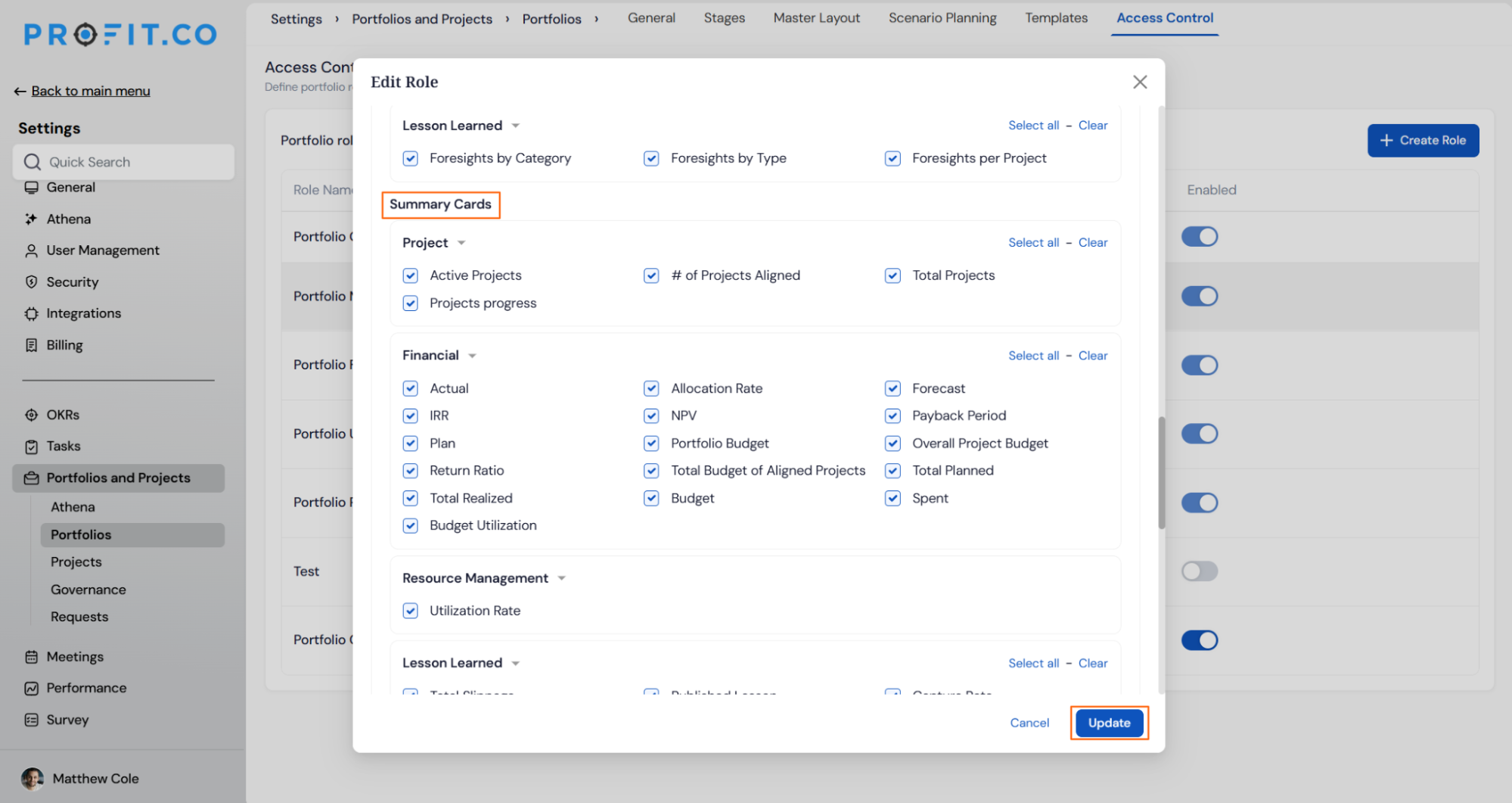
- Check or uncheck individual widgets within each category, or use Select all or Clear per category
- Repeat for the Summary cards tab, which is grouped by card feature instead of widget feature
- Click Update to save the role's widget access
Personalize Your Own Dashboard (End Users)
Step 1
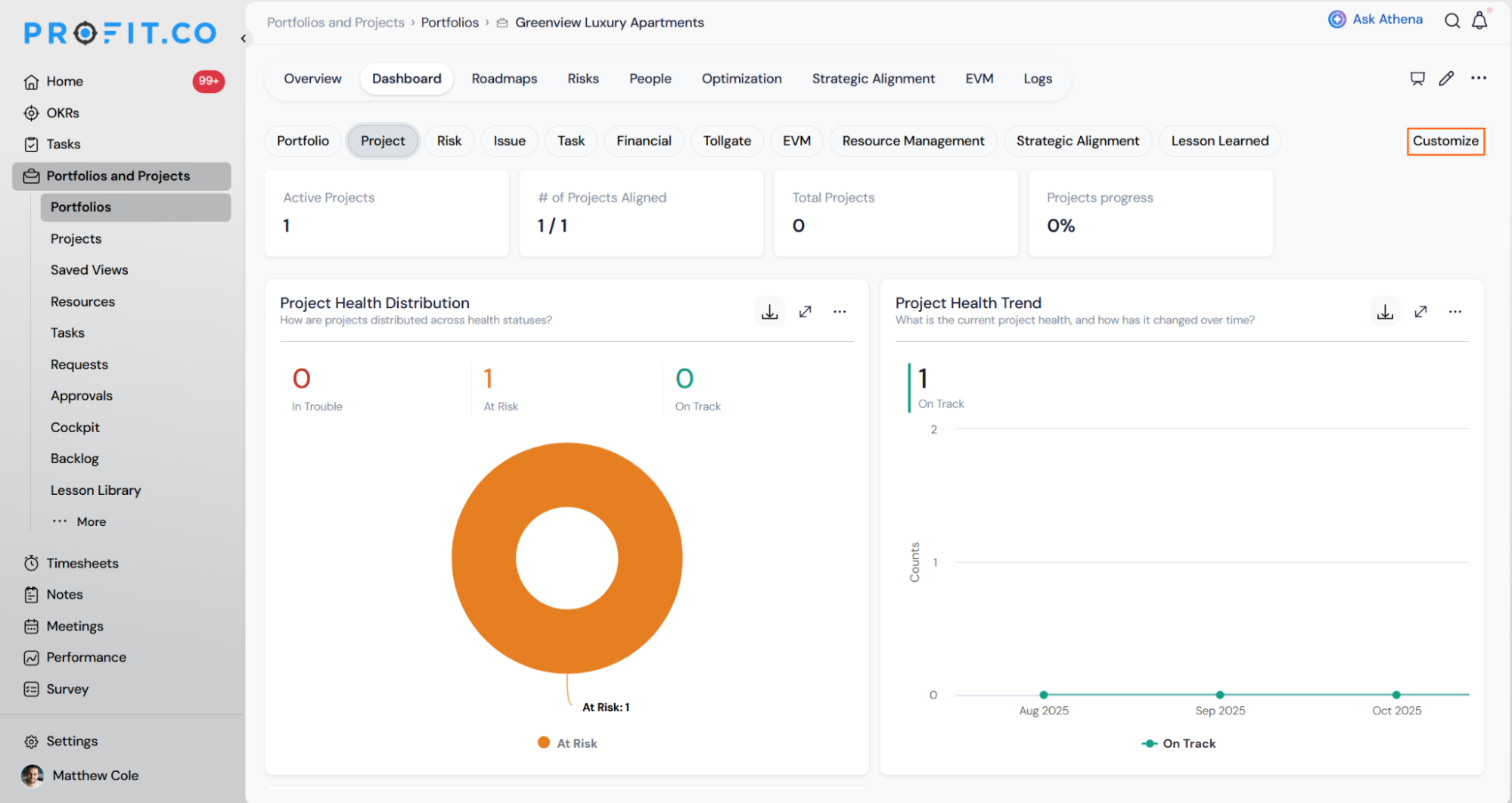
- On your Portfolio or Project dashboard, click Customize
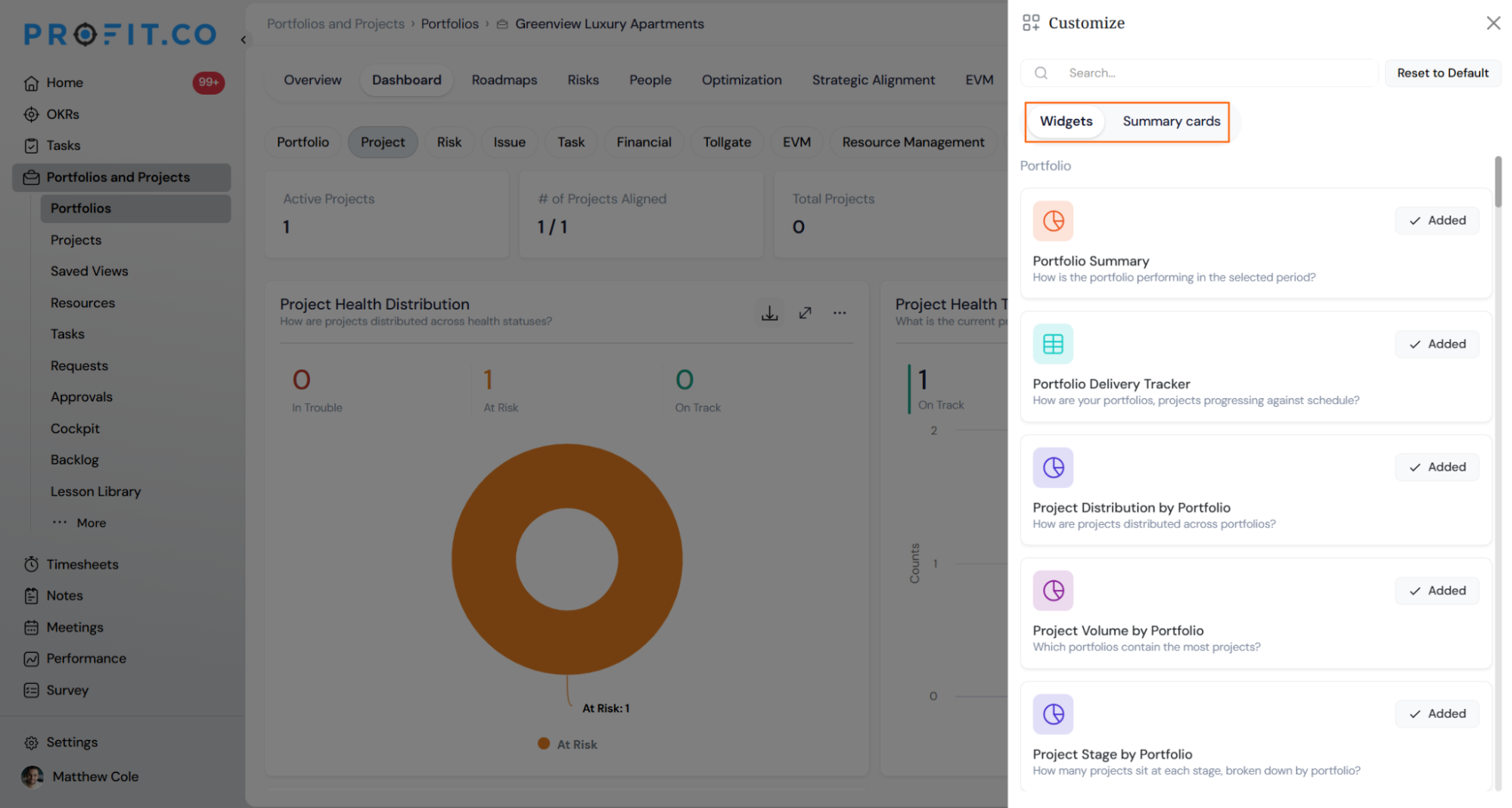
- Switch between the Widgets and Summary cards tabs
Step 2
- Toggle Added on any widget or summary card your role permits
- Hover a widget or card on the dashboard to reveal its drag handle, then drag to reorder it within your permitted set
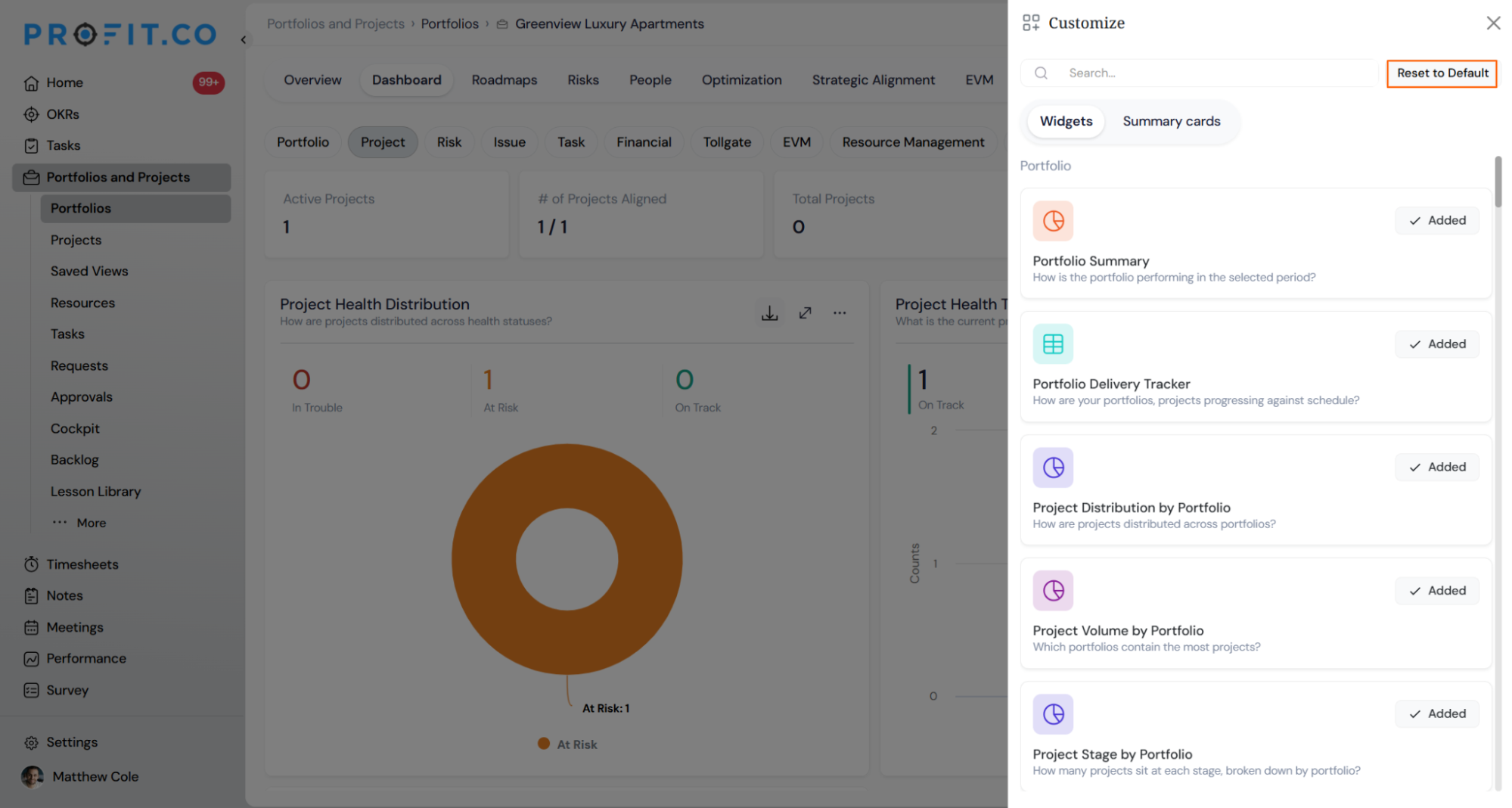
- Click Reset to Default to restore your role's default layout and widget order
What Happens When You Use Role-Based Widget Access Control?
| Scenario | What Happens |
|---|---|
| You enable or disable a widget for a role. | Profit.co changes only that widget's visibility for the role and leaves every widget's underlying data and calculations unchanged. |
| You revoke a widget that was previously granted to a role. | Profit.co hides the widget completely for the role and does not display it in a disabled or greyed-out state. |
| You revoke a widget a user had already added to their personalized dashboard. | Profit.co removes the widget from the user's dashboard immediately and the role's access setting overrides the user's personal layout choice. |
| You add a new widget to a feature that is already granted to a role. | Profit.co grants the new widget to the role automatically and requires no additional configuration from the administrator. |
| You use Enforce to All after users have personalized their own dashboard layout. | Profit.co applies the enforced layout as the role's new default and still lets each user personalize their own view away from it afterward. |
| You close the Edit Role panel without clicking Update. | Profit.co discards the unsaved widget selections and keeps the role's previous widget access configuration active. |
What Are the Best Practices for Role-Based Widget Access Control?
- Configure Financial and EVM features deliberately, since finance-gated widgets stay hidden from every role by default until you explicitly grant them, even senior roles outside finance.
- Use the feature-level toggle before touching individual widgets. Enabling a feature grants every current and future widget in it, so start broad and use per-widget unchecking only for the exceptions you actually need.
- Save widget access changes before running Enforce to All, since enforcing pushes whatever layout is currently active for the role to every user in it.
- Review the Read-Only role's widget set alongside its paired User role. Both see the same permitted set, so a widget added for one appears for the other automatically.
- Re-check role permissions after adding new widgets to an existing feature. Because feature-level grants inherit future widgets automatically, a widget you intended to restrict can become visible to a role without any new admin action.
Related Articles
- What are the various roles available for users in Profit.co?
- How does the new PPM Settings access help PPM Admins?
- How do I View Portfolio Health Metrics and Heatmaps in Profit.co
What Are Some Frequently Asked Questions About Role-Based Widget Access Control?
No. Read-Only roles see the same permitted widget set as their peer User role but cannot configure widget access or personalize their layout.
No. Portfolio-only widgets and features are excluded from the Project dashboard's permitted set entirely, regardless of role or tier.
Yes. A custom widget defaults to restricted, is granted to its creator's role automatically, and follows the same per-role access controls as any standard widget.
Only roles holding the Create Custom Widget capability privilege see the Create Custom Widget option, and granting or revoking that privilege takes effect immediately without a reload.
Execute your strategy with confidence
Connect OKRs, tasks, and teams in one place with Profit.co
