













MCP (Model Context Protocol) is an open standard that lets an AI tool connect securely to an outside application. Profit.co MCP uses it to link your Profit.co workspace to Claude. Open Customize → Connectors in Claude, search for Profit.co MCP, connect and sign in once. You can then create objectives and key results, check in on progress, build projects and portfolios, run tasks, ask questions about your live data and download a board-ready deck, all in plain language and all inside the permissions your role already has.
What Is MCP?
MCP stands for Model Context Protocol. It is an open standard that gives an AI assistant a secure, structured way to read from and write to another application.
Without MCP, an AI tool can only talk about your work. With MCP, it can act on it, inside the permissions you already have.
| Without MCP | With MCP |
|---|---|
| You switch tabs to update an OKR | You type the update in the chat |
| The AI guesses from what you paste | The AI reads your live workspace |
| Updates get delayed or forgotten | Check-ins happen as progress happens |
What Is Profit.co MCP?
Profit.co MCP is Profit.co's connection built on that standard. One server URL connects your Profit.co workspace to any MCP-compatible AI tool.
- MCP server URL: https://integrations.profit.co/mcp
- Supported tools: Claude, ChatGPT, Cursor, Antigravity and any other MCP-compatible tool
- Not read-only: you can create, update and complete work, not just view it
Note
You need a Claude Pro, Team or Enterprise plan to use MCP connectors. Any Profit.co user can connect their account.
How to Connect Profit.co MCP in Claude
Step 1
- Open claude.ai.
- In the chat, click the tools icon, or go to Settings → Connectors.
- Search for Profit.co.
- Click Connect.
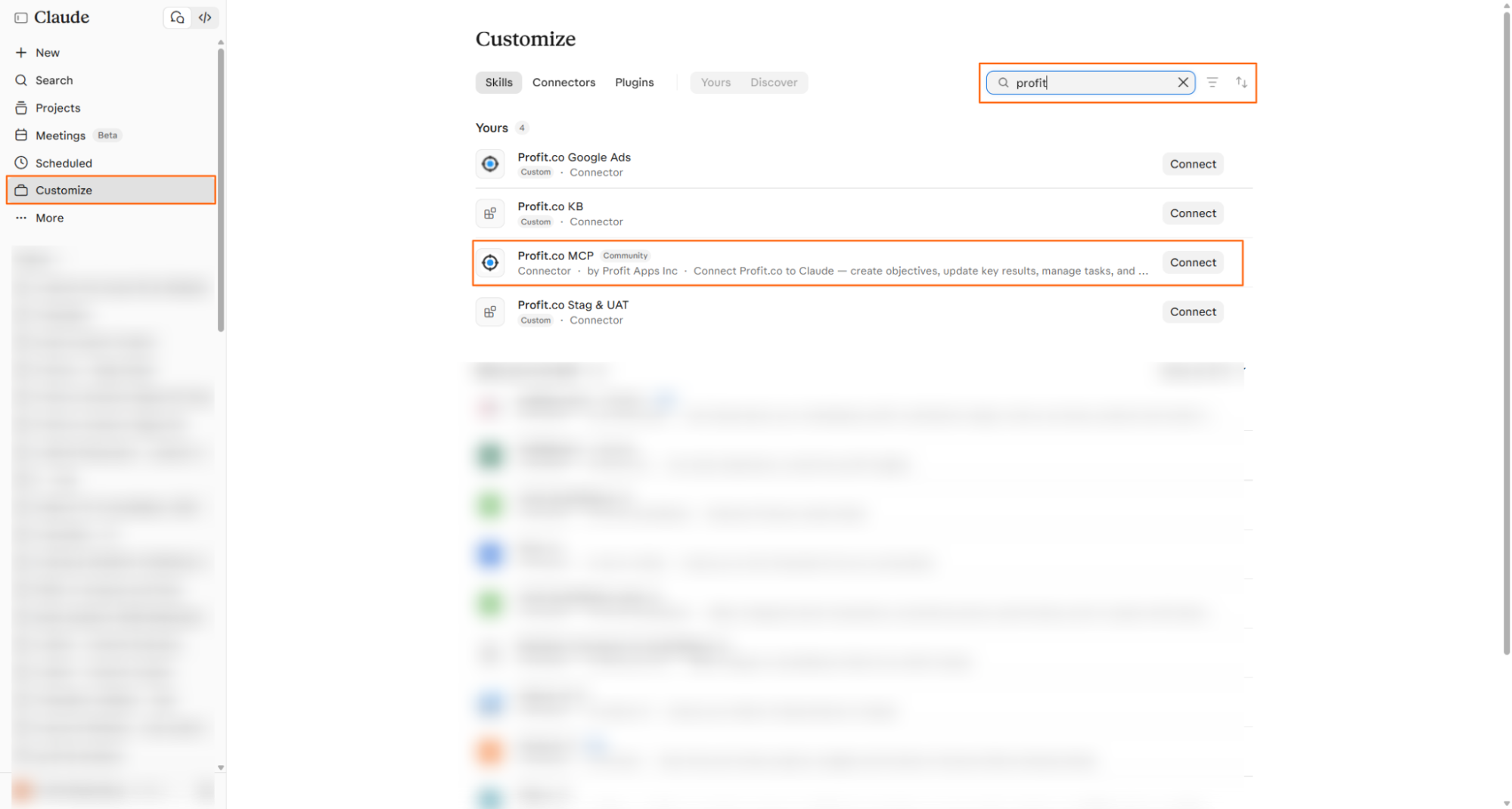
Step 2
- A pop-up opens. Click Sign in with Profit.co.
- Claude redirects you to the Profit.co login page.
- Enter your Profit.co credentials to authenticate.
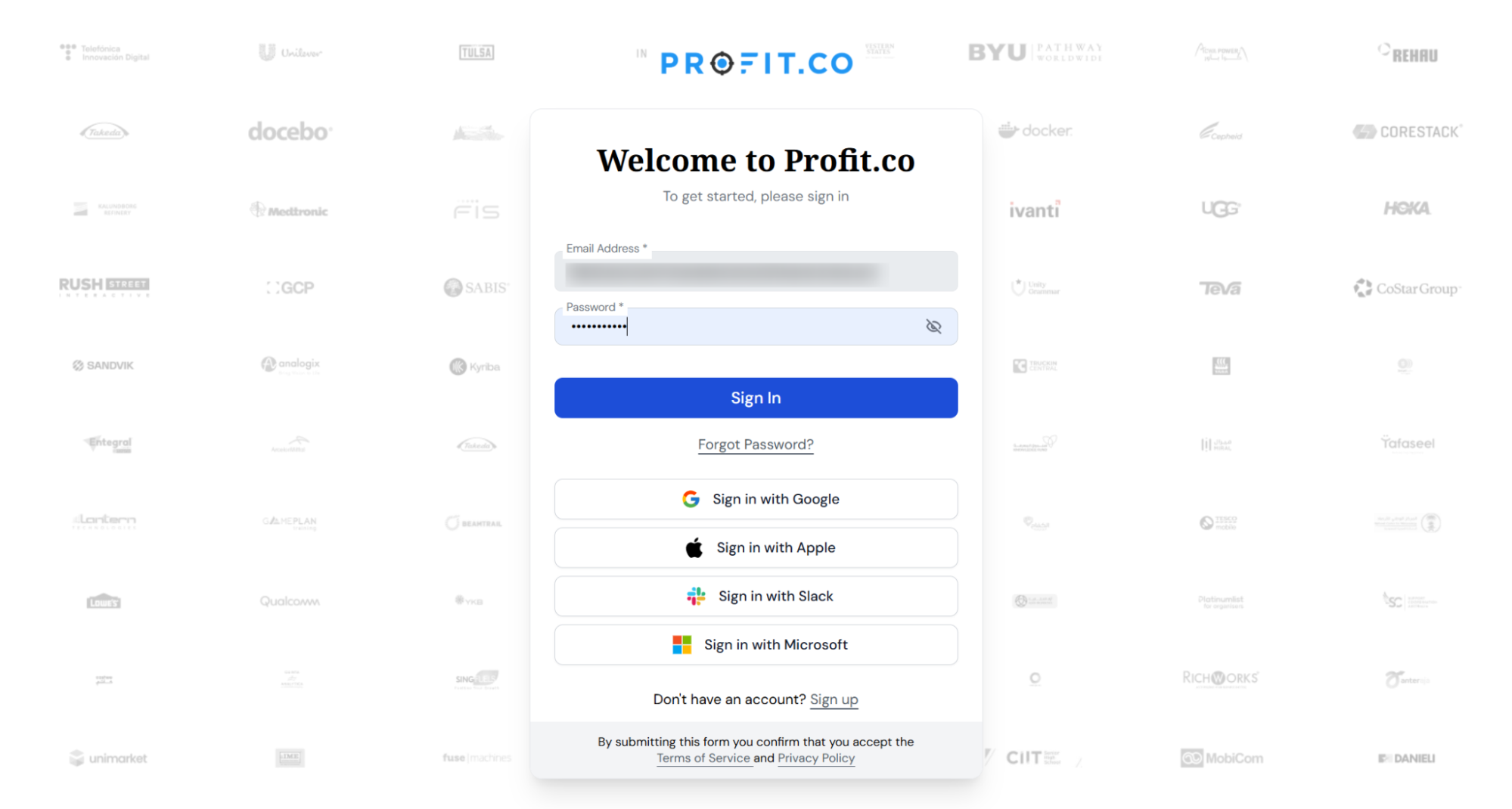
Step 3
- Once connected, you see the tools Profit.co adds to Claude: creating objectives, key results, check-ins, tasks and more.
- Open a new chat and type your request in plain language. No special command or prefix is needed.
- Claude picks the right Profit.co tool automatically.
- Nothing is saved until you review the preview and confirm.
What You Can Do with OKRs
| Action | What it does | Example prompt |
|---|---|---|
| Create objective | Creates an objective with level, period, and owner | Create a corporate-level objective "Grow enterprise revenue by 25%" for Q4 2026, owned by Matthew Cole |
| Create key result | Adds a percentage-tracked key result with start and target values | Add key result: Improve onboarding completion to 90% |
| Check in | Submits progress and status on a key result you own | Check-in for Q2 marketing OKR: 25% complete, on track |
| Create task | Creates a task with due date, status and priority | Create task: Draft Q2 product roadmap, due March 15, high priority |
| Update task | Changes name, due date, status, priority, description or comments | Update task "Draft Q2 roadmap", due March 20, mark in progress |
| View your OKRs | Shows your objectives and key results with current progress and risk | Show me my OKRs |
| Pending actions | Shows overdue tasks, blocked items and urgent updates | What's pending for me? |
| Chart or table | Returns any answer in the format you ask for | Chart my department's progress |
| Build a deck | Produces a board-ready deck from live OKR data | Build a board deck on Engineering this quarter |
Claude asks for anything missing before it writes, then shows a preview. Click Create, Check-in or Update to confirm, and the change is live in Profit.co.
What You Can Do with Projects and Portfolios
If your role allows it, you can build project work from Claude too.
- Create portfolios and projects. Describe what you need, for example a new product launch over three months.
- Review the full plan first. Claude drafts the complete structure, with milestones, dates, tasks and subtasks, before anything is created.
- Approve before it builds. Claude asks for your approval, then creates the project in Profit.co. A single launch plan can come through with six milestones, twenty-seven tasks and eighteen subtasks, ready for your team.
- Manage what you own. A project owner can update dates, add check-ins and manage project details.
What You Can Ask
Ask in plain language and Claude answers from your live Profit.co data.
Status and risk
- What's at risk this quarter?
- Which of my key results need attention?
- What's behind schedule?
- What should I prioritize?
Ownership and progress
- What do I own?
- How is Marketing doing?
- What does the Engineering team own?
- Compare Engineering and Sales.
Projects and tasks
- Which projects are overdue?
- Which milestones are at risk?
- What tasks are assigned to me?
- How is Project-101 tracking against its linked OKR?
Format and follow-ups
- Show that as a chart.
- Sort by progress.
- Just show mine.
- Add a slide on at-risk milestones.
How Your Role Decides What You Can Change
Claude follows your Profit.co permissions exactly. You only see and change what your role allows.
Before making any change, Claude checks the record and who is allowed to change it. If you are not permitted, it tells you why and makes no change.
| Situation | What happens |
|---|---|
| You have access to Marketing and create a Marketing OKR | The objective is created |
| You have access to Marketing and try to create a Sales OKR | Claude tells you it is outside your access |
| You are a PPM Admin creating a project | Claude drafts the plan and builds it after your approval |
| You are a basic user changing a portfolio you don't own | Claude declines. Changing a portfolio needs a Super User, PPM Admin or Manage Projects role, or ownership |
| You check in on a key result you don't own | Claude declines. No check-in is recorded and progress stays as it is |
| You view an OKR or portfolio you don't own | You can see it, but not change it |
How to Disconnect
- In Claude, go to Customize → Connectors.
- Find Profit.co MCP.
- Click Disconnect.
Disconnecting removes the connector from Claude only. Your Profit.co data is unaffected.
Questions and Answers
| Scenario | What Happens |
|---|---|
| You ask Claude to create an objective without a level or period. | Claude asks for the missing details before creating it. |
| You ask for a project plan. | Claude drafts milestones, dates, tasks and subtasks for review, and builds it only after you approve. |
| You try to change a portfolio you don't own as a basic user. | Claude declines and explains which role or ownership is required. |
| You check in on a key result that isn't yours. | No check-in is recorded. The progress stays exactly as it is. |
| You create an OKR for a department you don't have access to. | Claude tells you it is outside your access. |
| You ask a follow-up like "just show mine." | The previous answer is narrowed to your items. You don't repeat the question. |
| You ask for a deck. | Claude builds one from your live OKR or project data. |
| You disconnect the connector. | It is removed from Claude. All your data remains in Profit.co. |
Related Questions
- Profit.co in Claude: full setup guide
- Profit.co MCP overview
- Profit.co in ChatGPT
- View all Profit.co integrations
Frequently Asked Questions
Model Context Protocol, an open standard that lets AI tools connect securely to applications like Profit.co.
Go to Customize, open Connectors, and search for Profit.co MCP.
Yes. With the right role you can create portfolios and projects, and Claude drafts the full plan for your approval first.
No. Only the owner can check in. Others can view it.
Super User, PPM Admin or Manage Projects, or ownership of the portfolio.
Yes. Every action shows a preview, and you can require your approval before Claude uses a tool.
No. The data stays in Profit.co.
Execute your strategy with confidence
Connect OKRs, tasks, and teams in one place with Profit.co
