

In Profit.co, you can assign global roles and app-specific roles to users to control what each person can see, create, and manage across the platform. Only a Super User can assign roles, and you can set them platform-wide or per module to match each person's responsibilities.
Table of Contents
- What Are User Roles in Profit.co?
- Why Is User Role Management Important in Profit.co?
- What Global Roles Are Available in Profit.co?
- What Are the App-Specific Privilege Levels in Profit.co?
- What Does Each App-Specific Role Do in Profit.co?
- How to Assign a Role to a User in Profit.co?
- Best Practices for User Role Management in Profit.co
- Related Questions
- Frequently Asked Questions
What Are User Roles in Profit.co?
User roles in Profit.co define the scope of access and action available to each individual within the platform. Roles fall into two categories: Global Roles, which apply across the entire system, and App-Specific Roles, which are scoped to individual modules such as OKRs, Balanced Scorecard, or PPM.
Only a Super User can add new employees and assign roles to users. Each user can hold multiple roles simultaneously, including a global role combined with one or more app-specific roles to precisely match their responsibilities.
Note
By default, the account creator is automatically assigned Super User access upon signing up in Profit.co.
Why Is User Role Management Important in Profit.co?
Assigning the right role to each user ensures individuals interact only with the modules and data relevant to their work.
- Limits access: Each user sees only the modules and data relevant to their work, which eliminates access sprawl.
- Protects data integrity: Restricted permissions reduce the risk of accidental edits.
- Creates accountability: When permissions are tied to responsibilities, managers can monitor progress with confidence that data reflects actual team activity, not inadvertent changes from users with unconstrained access.
What Global Roles Are Available in Profit.co?
Profit.co has 6 global roles, which govern a user's baseline access across the entire platform: Super User, Profit Manager, Profit User, User Management Admin, Department Access Only, and Profit Read Only.
| Global Role | Access Level | Description |
|---|---|---|
| Super User | Full system access | Users with complete access to all modules and settings, need to be part of specific programs to access certain functions. |
| Profit Manager | View, create, edit + custom permissions | Managers assigned to this role are provided with view, create, and edit access, along with customized permissions for reports and selected settings options. |
| Profit User | View, create, edit (no settings) | Users are granted view, create, and edit access, but they are restricted from modifying any settings. |
| User Management Admin | User Management settings only | Users with this role can manage all user accounts, roles, and organizational structures. Access is limited to User Management settings only. |
| Department Access Only | Department-scoped view | Users with this role can only view and interact with OKRs related to their specific department. |
| Profit Read Only | View only | Users in this role are granted view-only access to the application. |
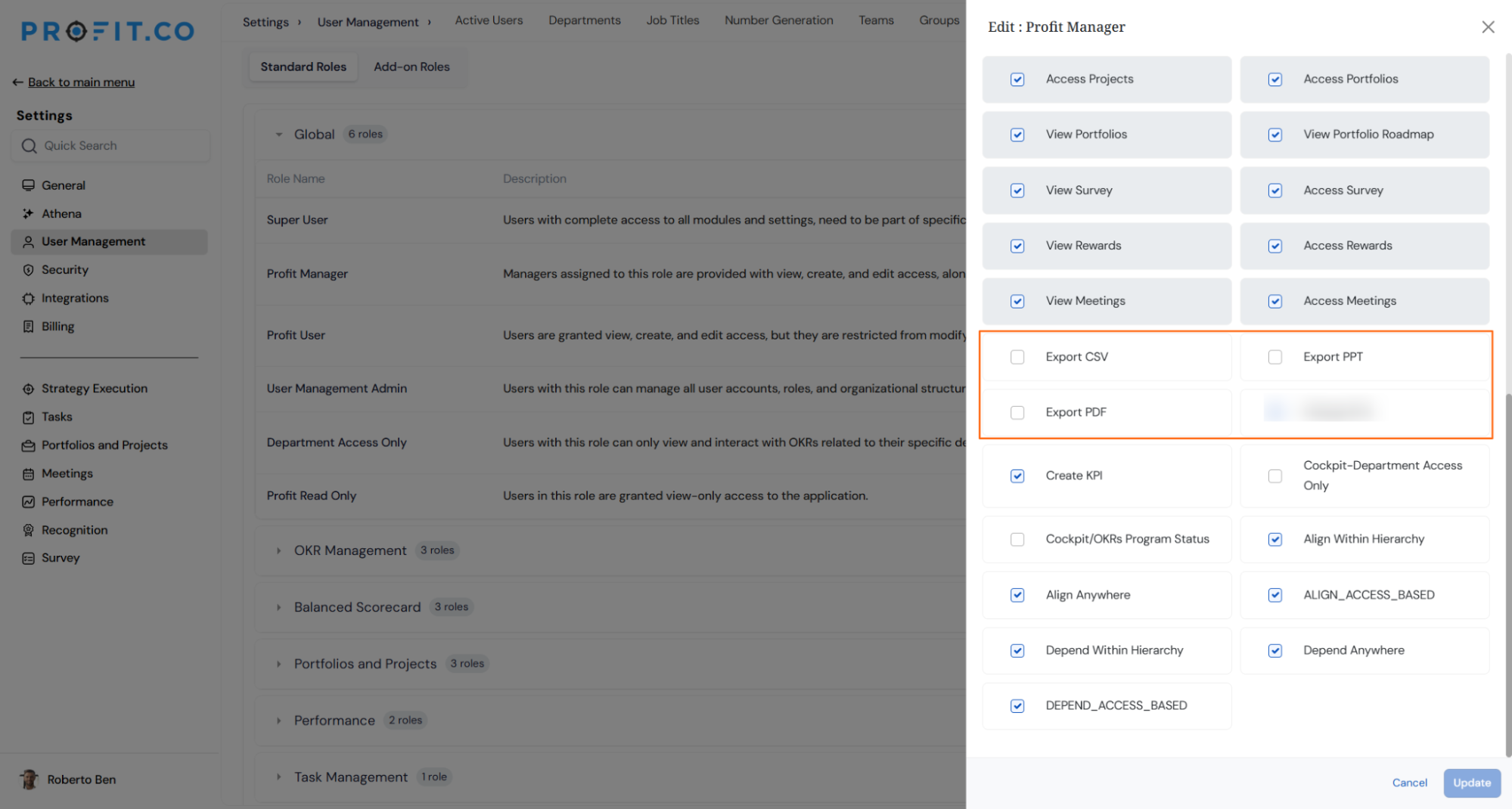
How Do I Configure Export Privileges for the Profit Manager Role?
You can enable or disable export privileges for the Profit Manager role by editing the role:
- Navigate to Roles → Profit Manager role and edit the role.
- Configure export privileges such as Export CSV, Export PDF, and Export PPT.
- Enable or disable permissions based on your organization's requirements.
What Are the App-Specific Privilege Levels in Profit.co?
App-specific roles provide granular, module-level control beyond the global role baseline. Each module supports up to three privilege levels: Manage (full oversight), Access (department or assigned scope), and View (read-only).
| App-Specific Role | Manage | Access | View |
|---|---|---|---|
| OKR Admin | ✓ | ✓ | ✓ |
| OKR Captain | ✓ | ✓ | ✓ |
| OKR User | – | ✓ | ✓ |
| Strategy Roadmap Admin | ✓ | ✓ | ✓ |
| Strategy Roadmap Read Only | – | – | ✓ |
| Strategy Roadmap User | – | ✓ | ✓ |
| Balanced Scorecard Admin | ✓ | ✓ | ✓ |
| Balanced Scorecard Read Only | – | – | ✓ |
| Balanced Scorecard User | – | ✓ | ✓ |
| Task User | ✓ | ✓ | ✓ |
| PPM Admin | ✓ | ✓ | ✓ |
| PPM User | – | ✓ | ✓ |
| PPM Read Only | – | – | ✓ |
| PMS Admin | ✓ | ✓ | ✓ |
| PMS User | – | ✓ | ✓ |
| Rewards Admin | ✓ | ✓ | ✓ |
| Rewards User | – | ✓ | ✓ |
| Survey Admin | ✓ | ✓ | ✓ |
| Survey User | – | ✓ | ✓ |
| Meetings User | – | ✓ | ✓ |
| Notes User | – | ✓ | ✓ |
What Does Each App-Specific Role Do in Profit.co?
App-specific roles are available for OKRs, Strategy Roadmap, Balanced Scorecard, Task, Portfolios & Projects, Performance Management, Recognition, Survey, Meetings, and Notes. The table below outlines each role's capabilities and the recommended personas for each assignment.
| Module | App-Specific Role | Description | Recommended For |
|---|---|---|---|
| OKRs | OKR Admin | Users assigned this role can create, view, and manage OKRs and have the ability to create KPIs, enabling comprehensive oversight and control of organizational performance metrics. | Chief Executive Officers (CEOs), Chief Operating Officers (COOs) |
| OKRs | OKR Captain | Users with this role can create, view, and manage Corporate OKRs, while also having full access to the cockpit for monitoring overall progress and alignment across the organization. | Strategy Leaders, Department Heads, and Program Managers |
| OKRs | OKR User | Users assigned this role can create, view, and manage their own OKRs independently, with full control over their objectives and key results. | Managers and Team Leaders responsible for setting team goals |
| Strategy Roadmap | Strategy Roadmap Admin | Users with this role can create, view, and manage all strategy roadmaps with full control over strategic plans, allowing for efficient tracking and management. | Executive Leadership (CEO, CFO, CTO) |
| Strategy Roadmap | Strategy Roadmap Read Only | This role enables users to view strategy roadmaps and expand or collapse them for easier navigation and better visibility. | Board Members |
| Strategy Roadmap | Strategy Roadmap User | Users in this role can modify their designated strategy roadmaps and manage them to ensure alignment with strategic objectives. | Department Heads |
| Balanced Scorecard | Balanced Scorecard Admin | Users with this role can create, view, and manage all scorecards across every department, providing comprehensive oversight and control. | Executive Leadership |
| Balanced Scorecard | Balanced Scorecard Read Only | This role enables users to view the Balanced Scorecard with the ability to expand and collapse sections for easier navigation. | Board Members |
| Balanced Scorecard | Balanced Scorecard User | Users holding this role can create, view, and manage their department's scorecards exclusively; other departments are view-only. | Department Heads |
| Task | Task User | Users in this role have exclusive access to the Task module, ensuring focused task management and productivity. | Individual Contributors, Team Members, Project Coordinators, Task Owners, Contractors |
| Portfolios & Projects | PPM Admin | Users in this role can create, view, and manage portfolios, roadmaps, projects, and tasks, with access to the cockpit for comprehensive oversight. | PMO Director, Chief Operating Officer |
| Portfolios & Projects | PPM User | Users in this role can access only their assigned portfolios, roadmaps, projects, and tasks, ensuring focused project management. | Project Managers, Program Managers |
| Portfolios & Projects | PPM Read Only | Users have view-only access to portfolios, cockpit dashboards, and projects they are members of or have been granted access to. | Executive Stakeholders, Auditors, External Reviewers |
| Performance Management | PMS Admin | Users in this role can initiate reviews, set goals, and propose development plans for employees, supporting a culture of continuous improvement. | HR and HRBP |
| Performance Management | PMS User | Users in this role can submit reviews, advance goals, and progress development plans, contributing to personal and organizational growth. | Employees, Team Leads, Supervisors |
| Recognition | Rewards Admin | This role enables users to give and receive rewards while managing the full rewards program, incentivizing high performance across the organization. | HR, Compensation and Benefits Manager, Executive Leadership |
| Recognition | Rewards User | This role enables users to give and receive rewards, promoting a culture of recognition and motivating individuals to contribute to team success. | Employees, Team Leads, Managers, Department Heads |
| Survey | Survey Admin | Users in this role can submit surveys and initiate new ones, enabling efficient data collection and targeted feedback. | HR Manager, Training and Development Manager, Employee Engagement Manager |
| Survey | Survey User | Users in this role can submit surveys, contributing valuable feedback and insights for data-driven improvements. | Employees, Team Members, Customers, Vendors, Partners |
| Meetings | Meetings User | Users in this role can create, view, and manage their meetings, ensuring efficient scheduling and personal accountability. | Employees, Team Leaders, Project Managers, Department Heads, Executives |
| Notes | Notes User | Users in this role can create, view, and manage their notes, ensuring personalized organization and productivity. | Employees, Team Leaders, Project Managers, Department Heads, Executives |
How to Assign a Role to a User in Profit.co?
Follow these steps to assign a role to a user in Profit.co:
Note
Only a Super User can assign roles to other users in Profit.co.
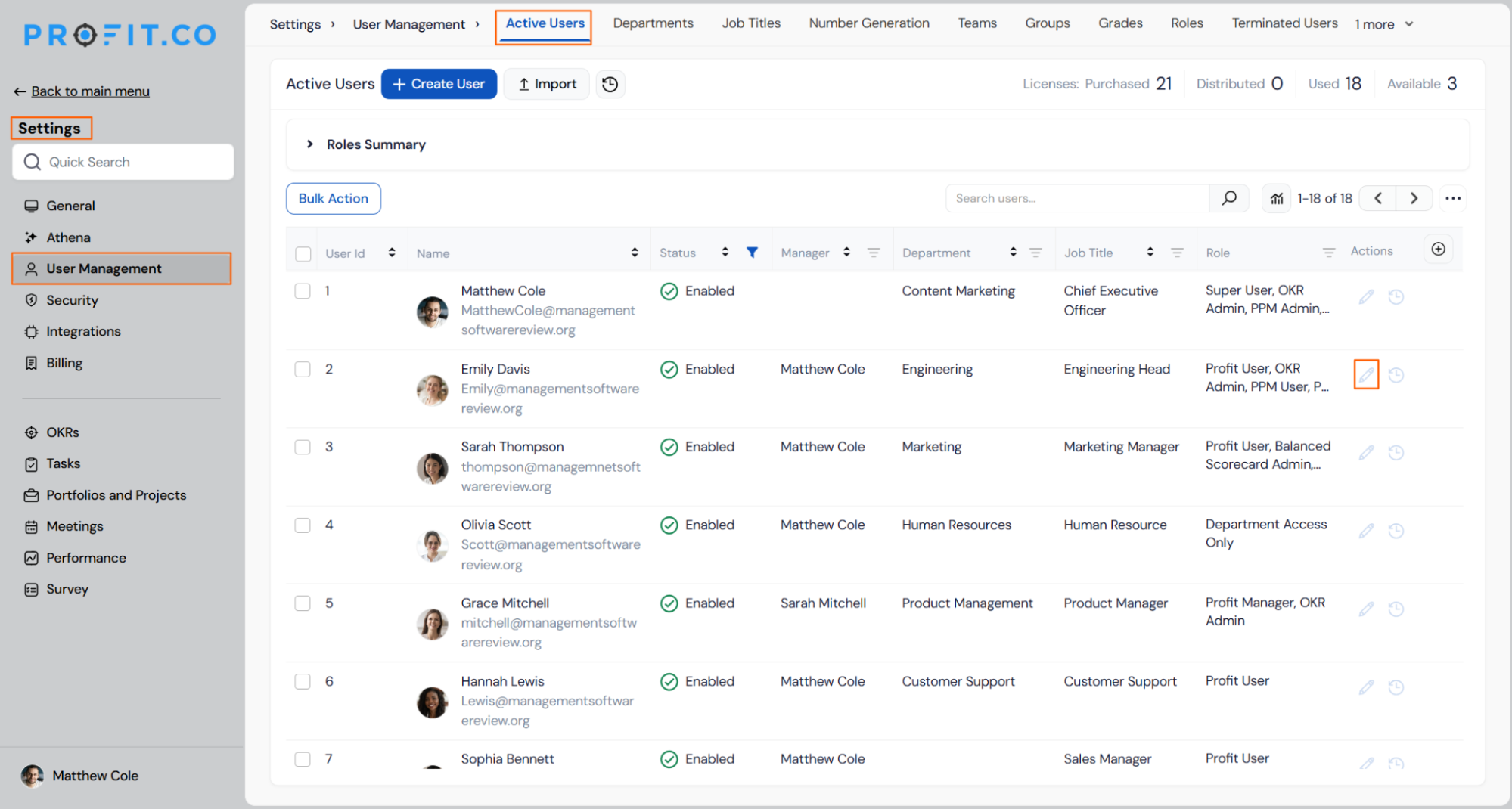
Step 1
- Go to Settings from the left navigation panel.
- Select User Management to open the Active Users page.
- Locate the employee you want to assign a role to, then click the Edit icon next to their name to open their user profile.
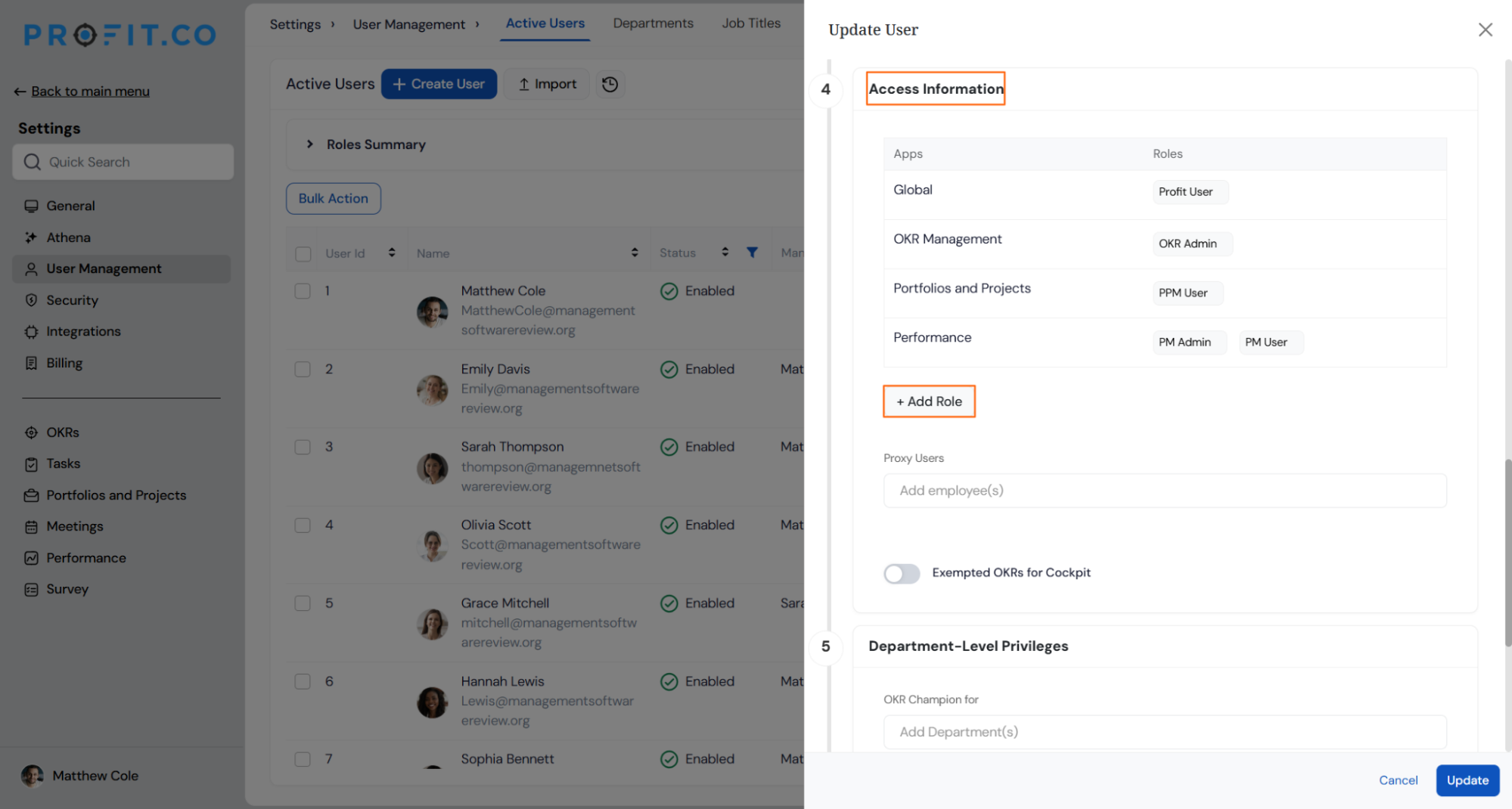
Step 2
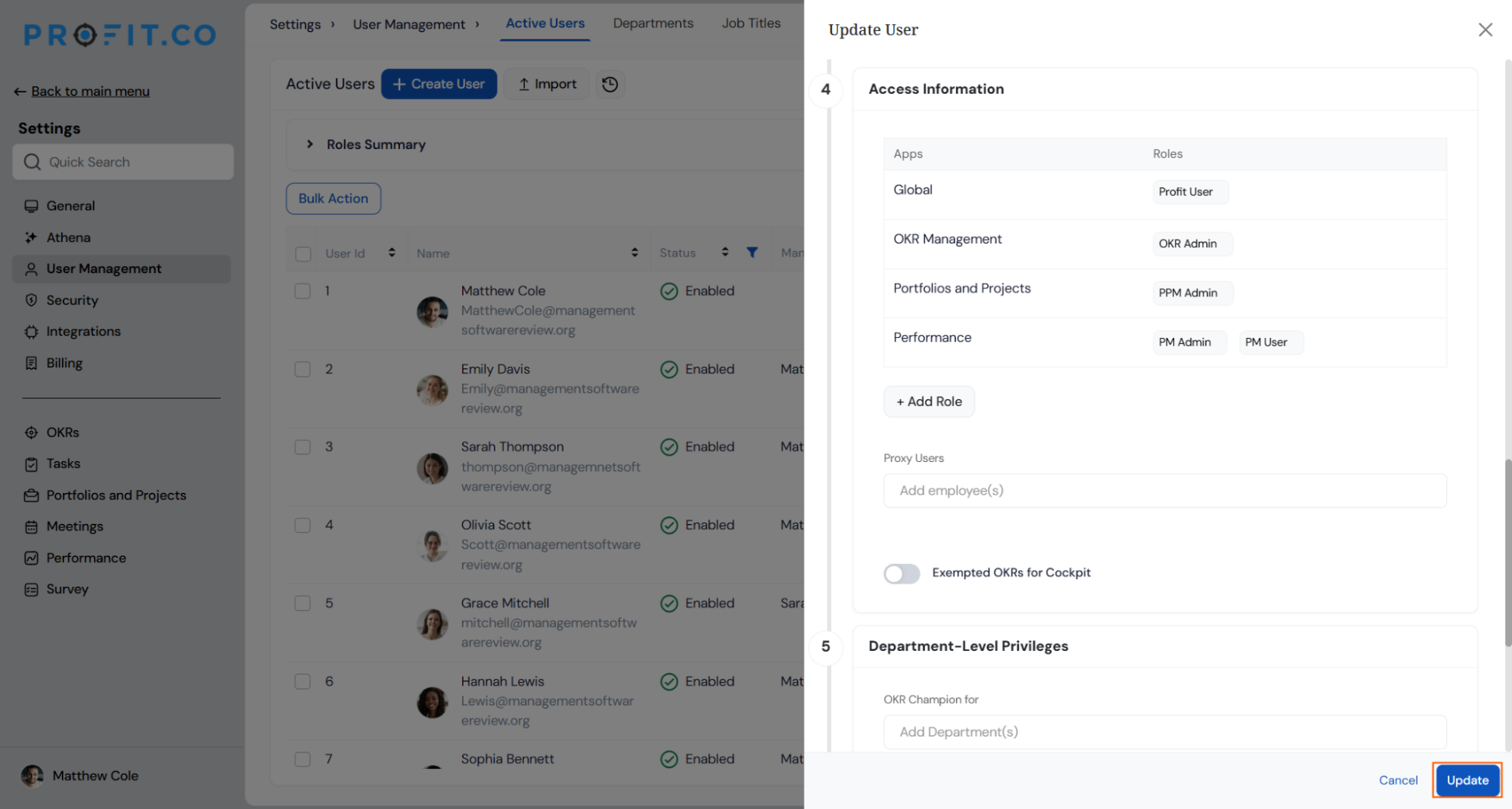
- In the user profile, navigate to the Access Information tab.
- Click the + Add Role button.
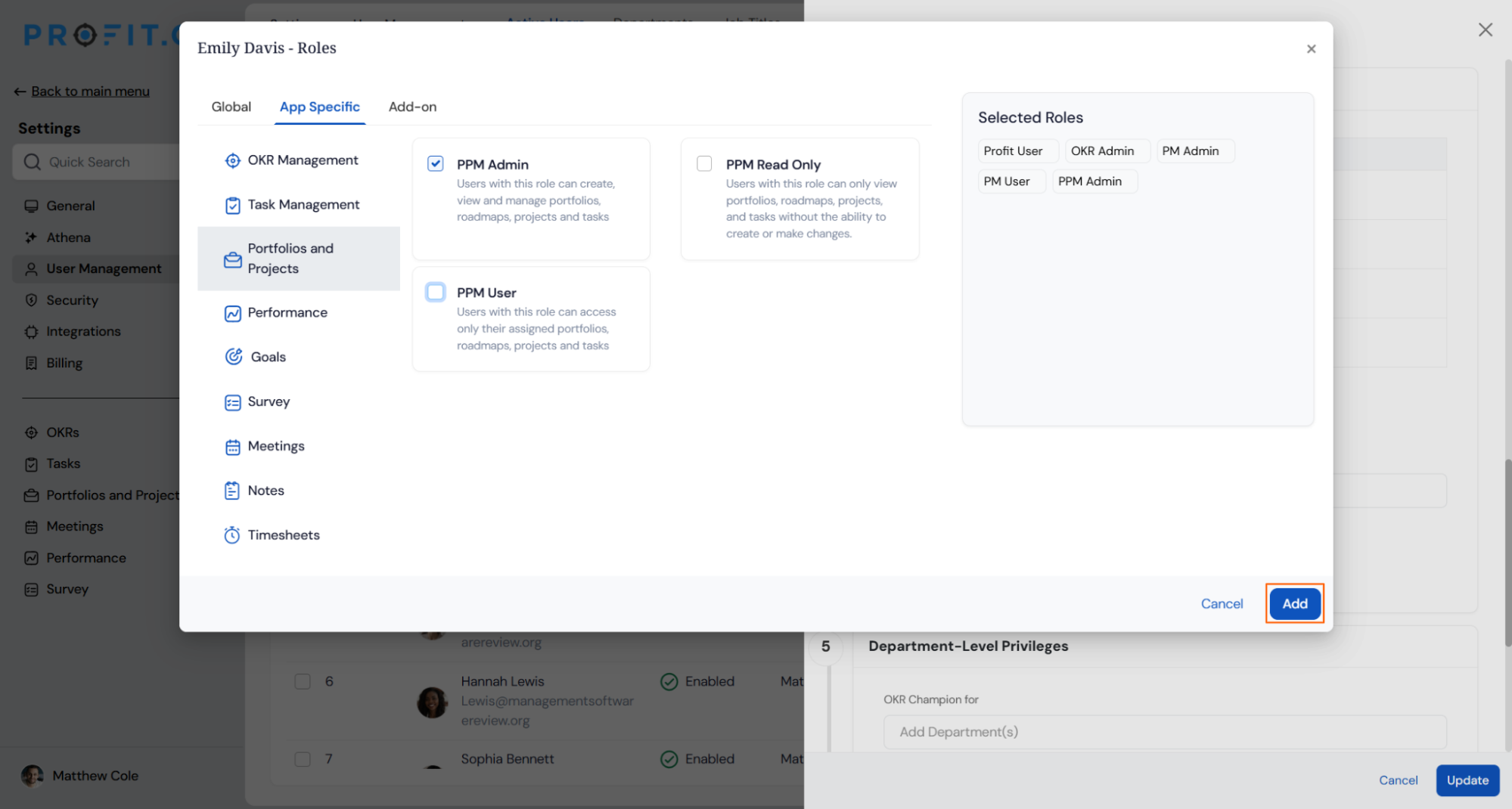
- Choose the required role from the list and click Add.
- Click the Update button.
- The selected role is added to the user.
Note
You can also create Add-on Roles to provide access or privileges limited to a specific feature only.
Best Practices for User Role Management in Profit.co
- Assign the most restrictive global role that still allows the user to complete their work, and escalate only when needed.
- Use app-specific roles to extend module access without elevating a user's global permissions across the entire platform.
- Reserve Super User access for a small group of administrators, and avoid assigning it broadly as a convenience measure.
- Create Add-on Roles when a user needs access or privileges limited to a specific feature only.
Related Questions
Frequently Asked Questions
Yes. A user can hold one global role alongside multiple app-specific roles. For example, a department head can hold the Profit Manager global role with OKR Captain and Balanced Scorecard User for their specific modules.
Add-on Roles provide access or privileges limited to a specific feature only. Only a Super User can assign roles to users in Profit.co.
No. The Profit Read Only global role grants view-only access to the application, so users with this role cannot create or edit records.
Execute your strategy with confidence
Connect OKRs, tasks, and teams in one place with Profit.co
