

Bulk Out of Office Request Creation lets you create out-of-office entries for multiple team members in a single action from Preferences.
Table of Contents
What is Bulk Out of Office Request Creation?
Bulk Out of Office Request Creation is an option on the Out of Office page that applies one out of office period to a group of selected users at once. It replaces the earlier process, where an administrator had to open the Out of Office panel and submit a request for each user separately.
Note
The pause applies only to check-ins scheduled within the selected date range. Tasks, meetings, and other work items on the user's calendar are not affected.
Why Bulk Out of Office Requests Matter
The bulk option removes repetitive, one-by-one entry when an entire team or department is off at the same time, such as during a holiday closure.
| Benefit | Description |
|---|---|
| Faster coverage setup | Create out-of-office entries for an entire team in one action instead of repeating the process per user |
| Automatic check-in pause | Profit.co identifies and pauses every check-in scheduled within the period across all selected users |
| User autonomy preserved | Each user is notified and can opt out individually, keeping the process visible and reversible per person |
How It Works: Creating a Bulk Out of Office Request
Step 1
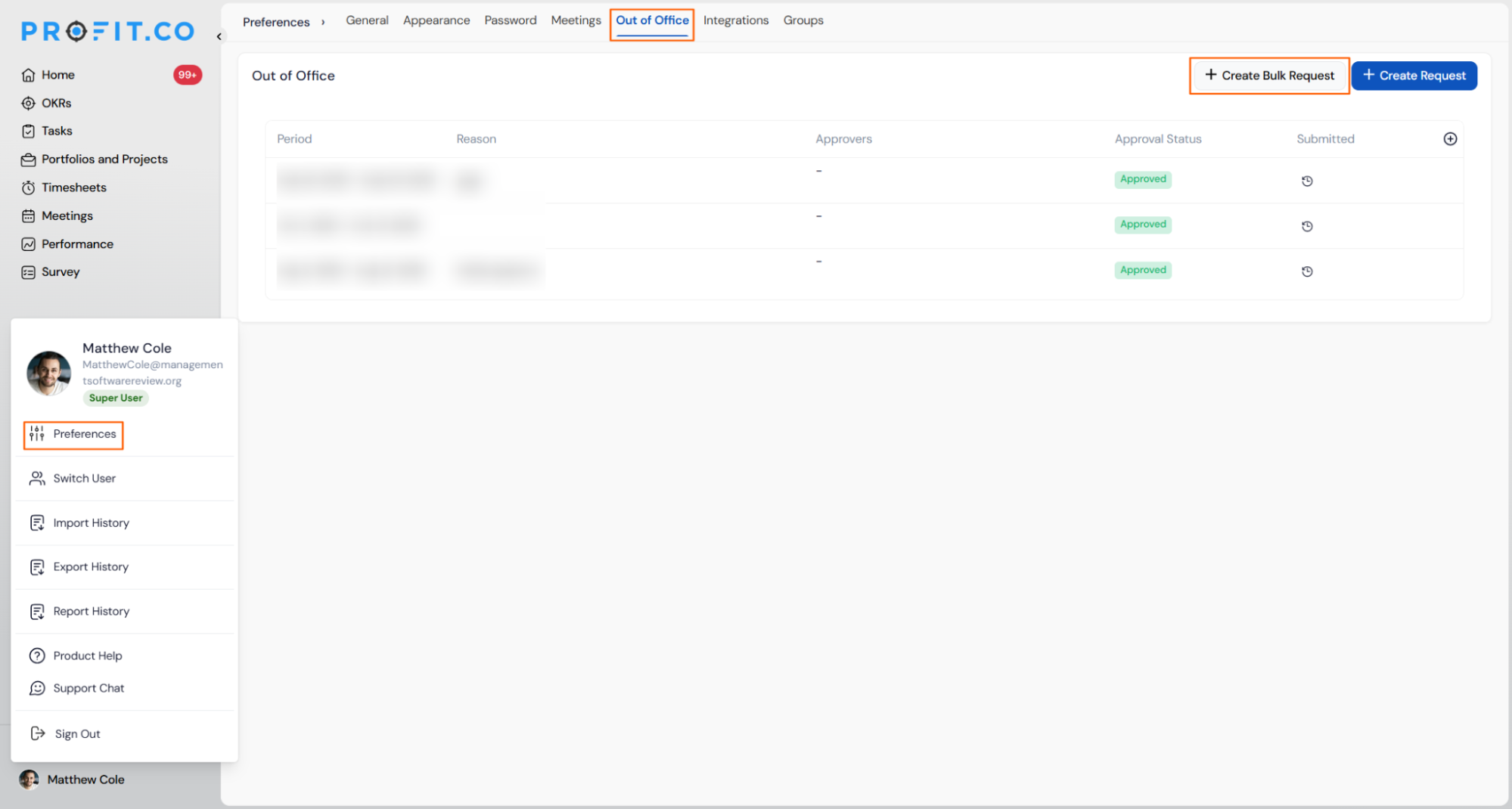
- Go to Preferences → Out of Office.
- Click + Create Bulk Request in the top-right corner of the page.
Step 2
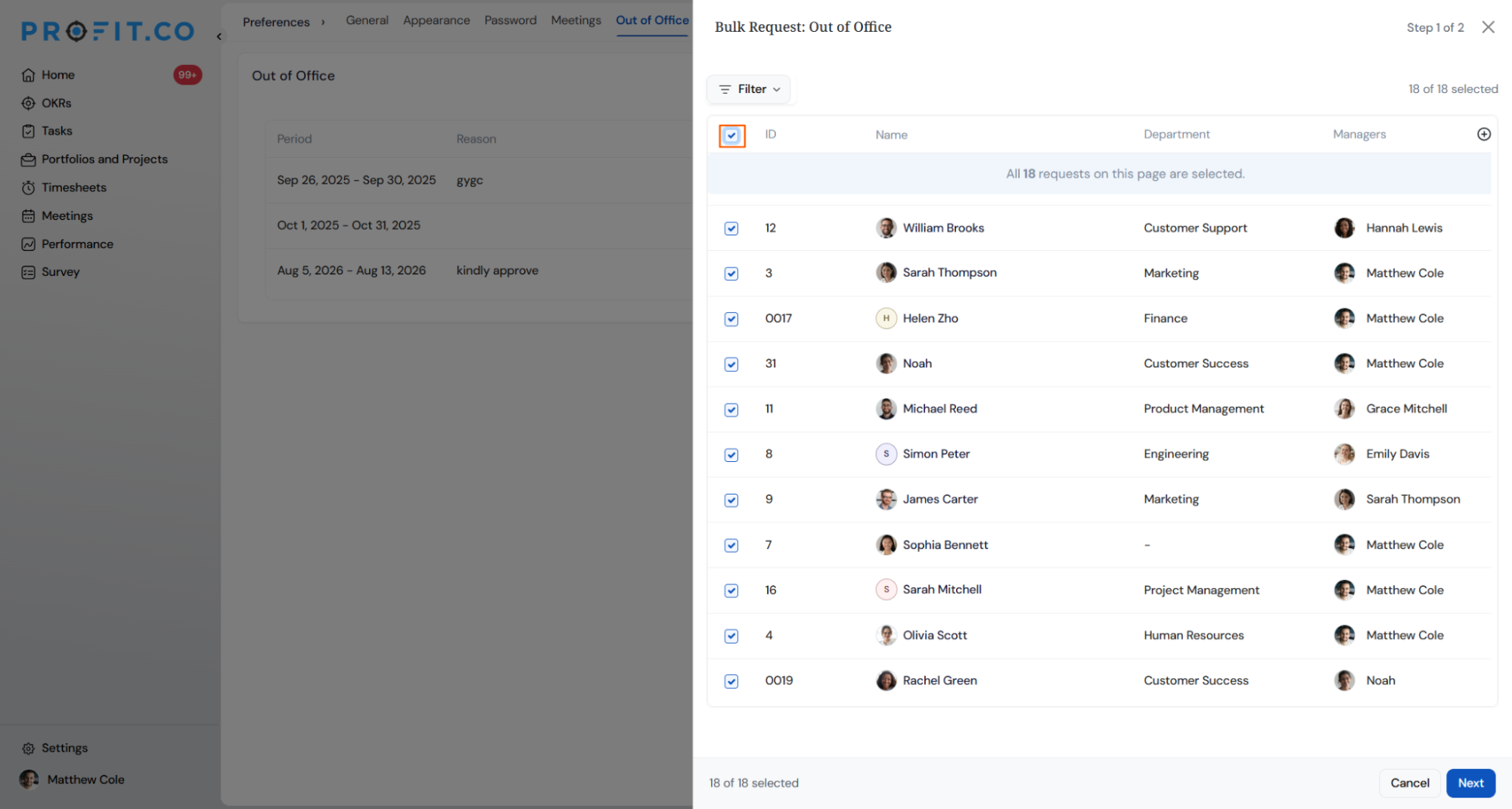
- Select the users to include in the bulk request. Click on the Next button.
- Use Filter to narrow the list by department or manager before selecting.
Step 3
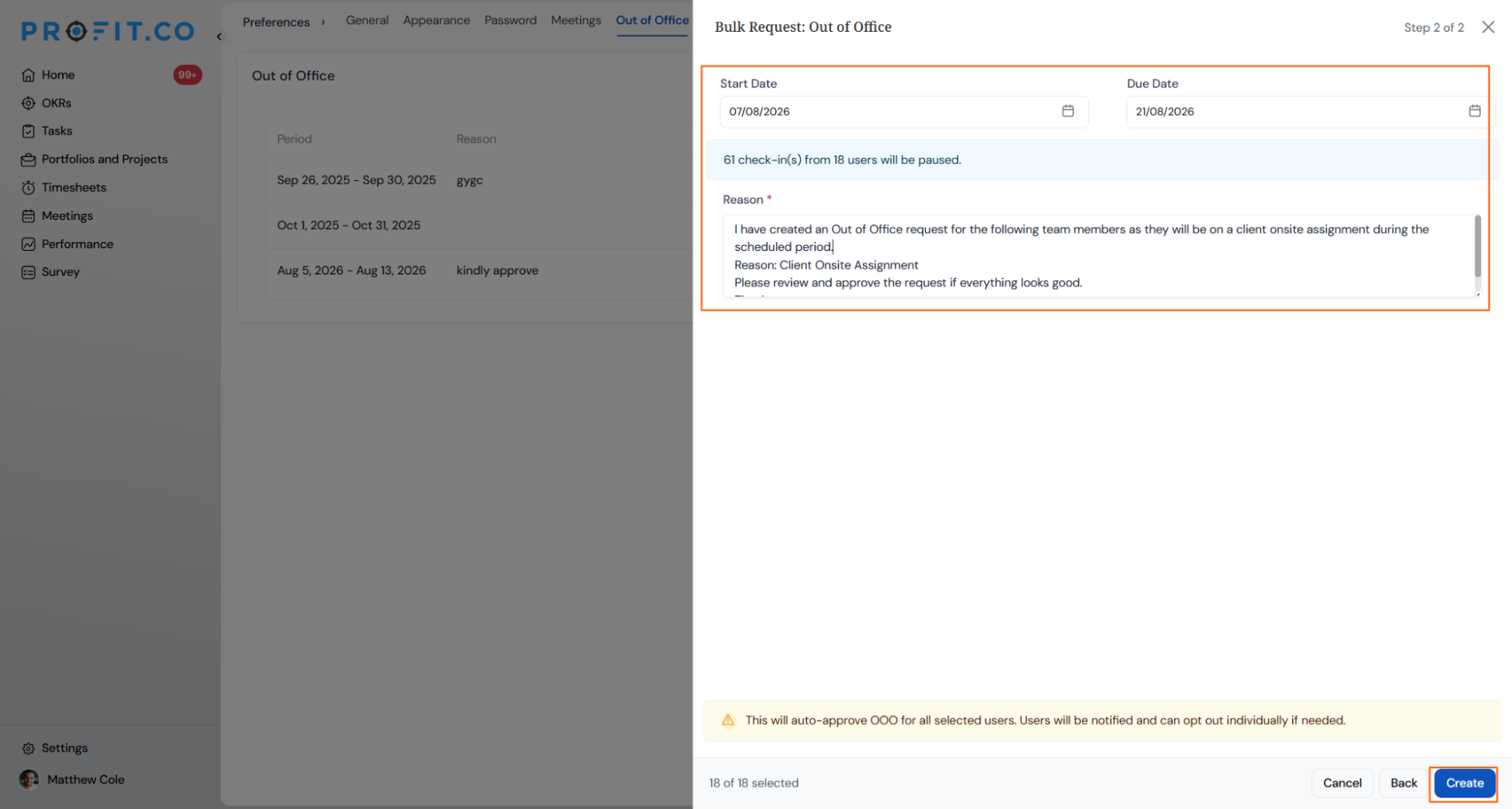
- Set the Start Date and Due Date for the out-of-office period.
- Enter a Reason for the request.
- Click Create to submit — the out of office is auto-approved for all selected users, and each user receives a notification with the option to opt out individually.
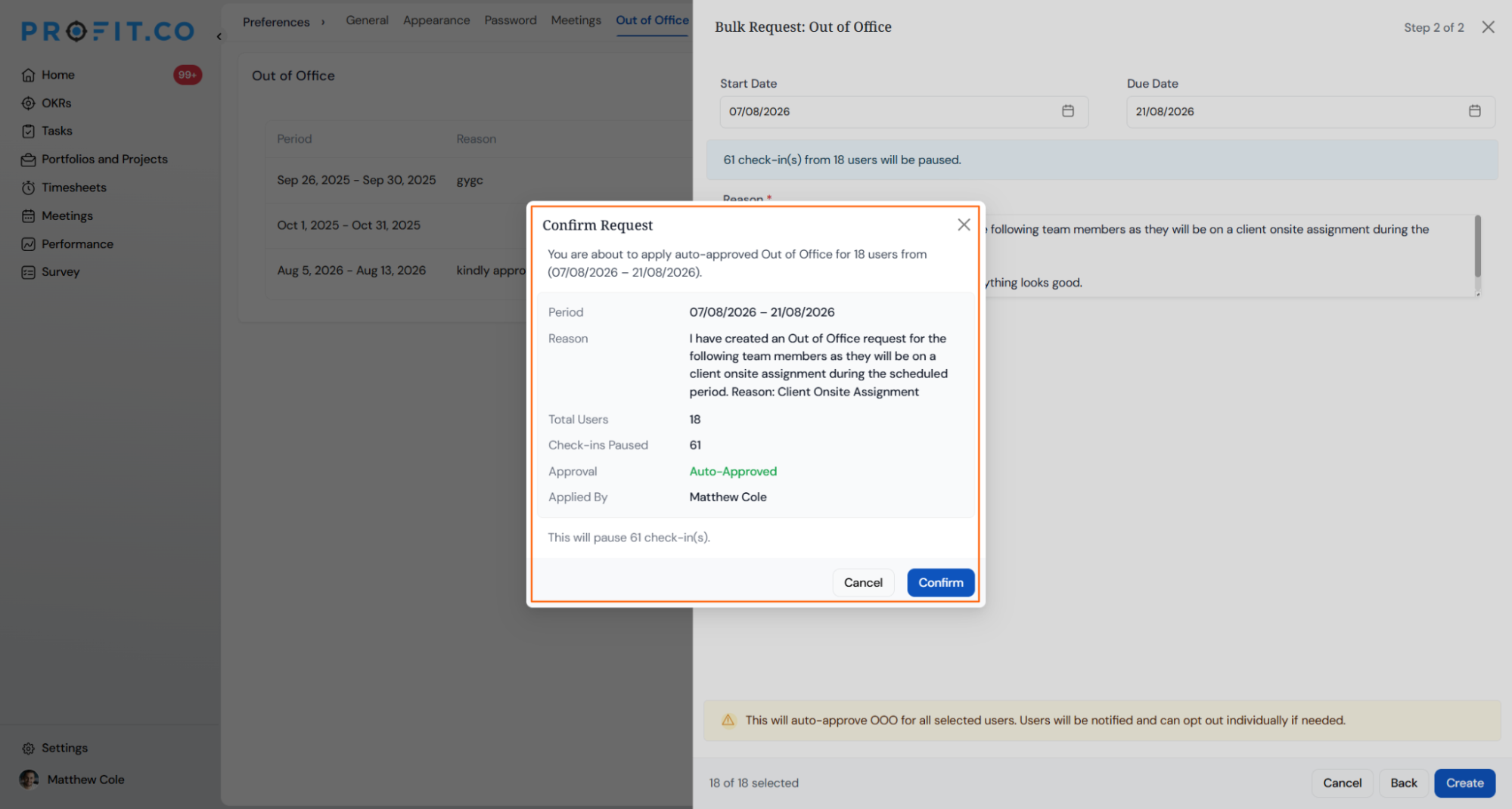
A confirmation pop-up appears. Click Confirm to proceed.
Bulk Out of Office Request Scenarios and Their Outcomes
| Scenario | Options You Have | What Happens |
|---|---|---|
| You select multiple users, set the period, and click Create. | Choose any combination of users, filter by department or manager, and set one shared Start Date, Due Date, and Reason for the group. | Profit.co auto-approves the out-of-office entry for every selected user and pauses all check-ins scheduled for that date range for each user. |
| You select users but leave the Reason field empty before clicking Create. | You can still adjust the user selection or dates, but you cannot submit the panel without a Reason. | Profit.co blocks the Create action. No out-of-office entries are saved for any user in the batch, and their check-ins remain active as scheduled. |
Caution
Creating a bulk request immediately auto-approves the period for every selected user. There is no single bulk-undo action — each affected user must opt out individually to reverse it for themselves.
Best Practices for Bulk Out of Office Requests
- Filter the user list by department or manager before selecting all, so the request doesn't sweep in team members who aren't actually taking the same leave.
- Check the check-in pause summary in Step 2 before clicking Create — it's the only place that shows exactly how many check-ins across how many users will be affected.
- Write a specific Reason, such as "Company holiday closure — Dec 25–26," since every included user sees this text in their notification.
- Match the Start Date and Due Date to the actual absence window; a wider range pauses check-ins that would otherwise still be due.
- Tell affected teams the request will auto-approve, so users know to check their notifications and opt out promptly if the dates don't apply to them.
Related Articles
- How to enable the Out of Office option in Profit.co?
- How does the check-in discipline process work in Profit.co?
- How do I check in for Key Results?
Frequently Asked Questions
No. Bulk requests are auto-approved for every selected user the moment you click Create, so the Approval Status column shows Approved immediately without a separate manager sign-off step.
Yes. The user selection table displays Department and Managers alongside each Name, so you can combine users across multiple departments in one bulk request.
No. Only check-ins scheduled within the Start Date and Due Date you set are paused. Check-ins due before or after that window continue on their normal schedule.
Execute your strategy with confidence
Connect OKRs, tasks, and teams in one place with Profit.co
