

Profit.co lets performance admins configure the Final Overall Rating on a Review Template to reflect an employee's performance across multiple review cycles, not just the current one. Once historical averaging is enabled, Profit.co automatically averages the Final Overall Rating across a set number of past cycles, adjusting the weight given to each period based on how many reviews the employee actually has on record.
Table of Contents
What is historical review averaging?
Historical review averaging is a custom formula option on the Final Overall Rating field in a Review Template. Instead of the Final Overall Rating reflecting only the ratings submitted in the current review cycle, it can be configured to average an employee's rating across a set number of consecutive review cycles — including the current one.
Why use historical review averaging instead of just the current cycle?
Previously, the Final Overall Rating only ever reflected the current review cycle, with no visibility into how an employee's performance compared to prior periods. That makes a single unusually strong or weak cycle look like the employee's whole trend.
Averaging across multiple cycles smooths that out, giving a rating that reflects sustained performance rather than a single review period in isolation — while still adjusting automatically for employees who don't yet have a long review history.
How do I enable historical review averaging?
Step 1
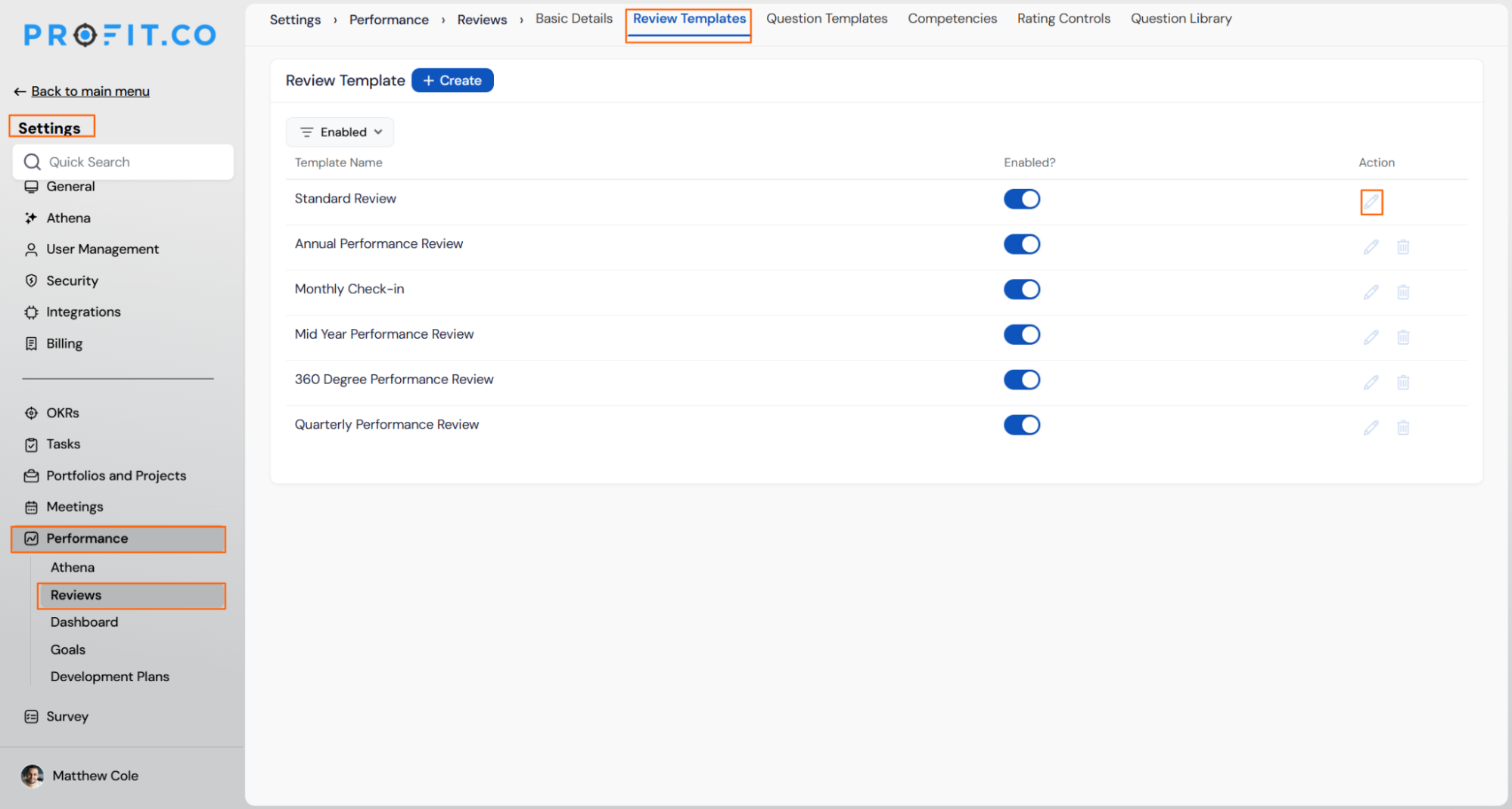
- Navigate to Settings → Performance → Reviews → Review Templates, open the template you want to configure, and go to the Summary Info Tab.
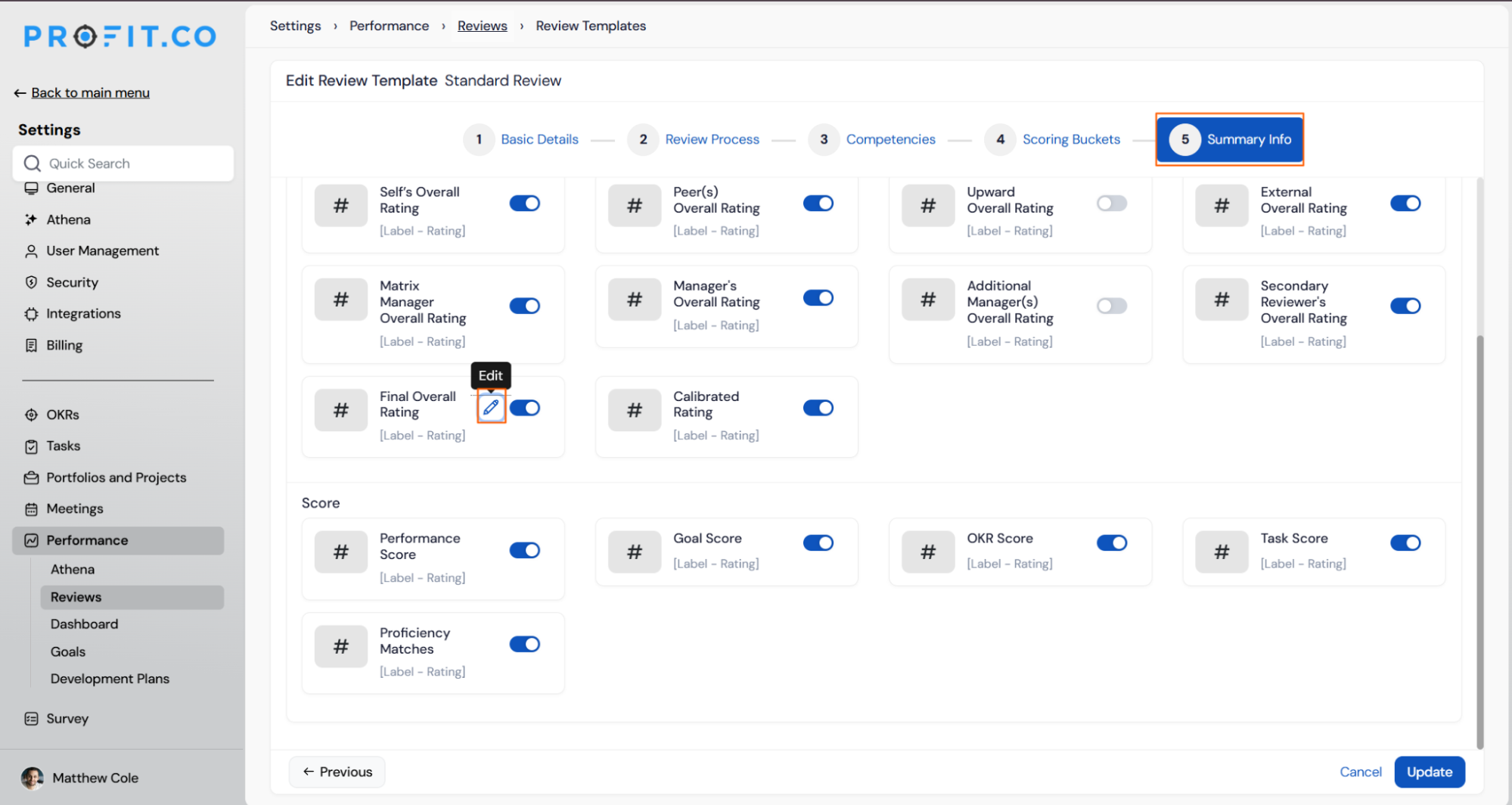
- Click the configuration icon on the Final Overall Rating field to open the View: Final Overall Rating panel.
Step 2
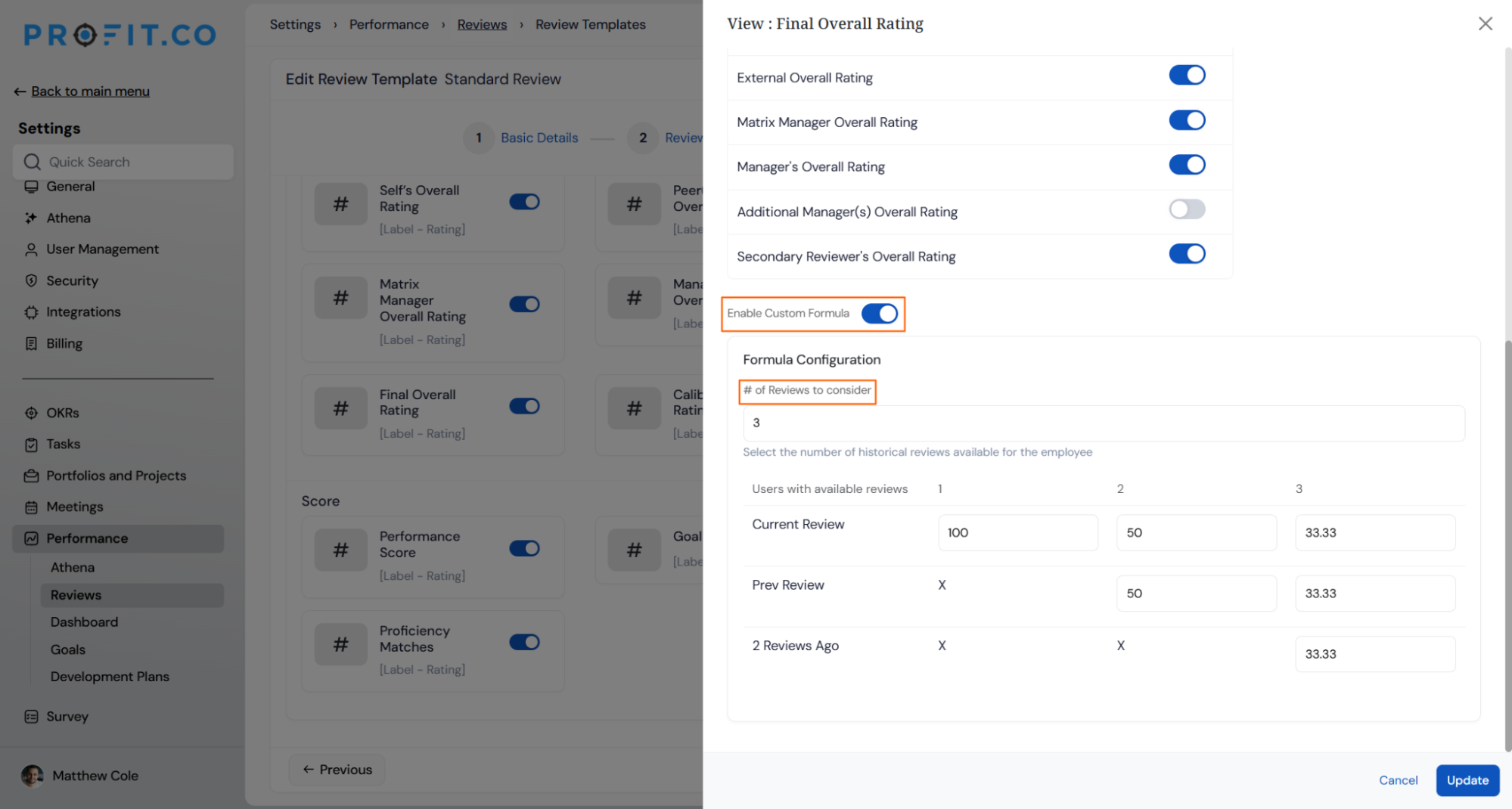
- Enable the Enable Custom Formula toggle to activate historical averaging.
- Under Formula Configuration, set # of Reviews to consider. This is how many consecutive review cycles — including the current one — contribute to the average.
Note
The panel shows a live preview matrix of how weight is distributed across review periods, based on how many historical reviews are actually available for the employee.
- Click Update to save the configuration.
How is the weight for each review period calculated?
Profit.co adjusts the weighting automatically per employee, based on how many past reviews they actually have on record — not just the number you configured:
| Reviews available for the employee | Weight distribution |
|---|---|
| 1 review on record | 100% on the current review |
| 2 reviews on record | 50% current review, 50% previous review |
| 3 or more reviews on record | Equal weight across the configured number of cycles (for example, 33.33% each across 3 cycles) |
Because the weighting adapts to each employee individually, someone with only one or two reviews on file isn't penalized with an artificially diluted average — they simply get 100% or 50% weight until they build up enough review history to match the configured cycle count.
Where does the result appear?
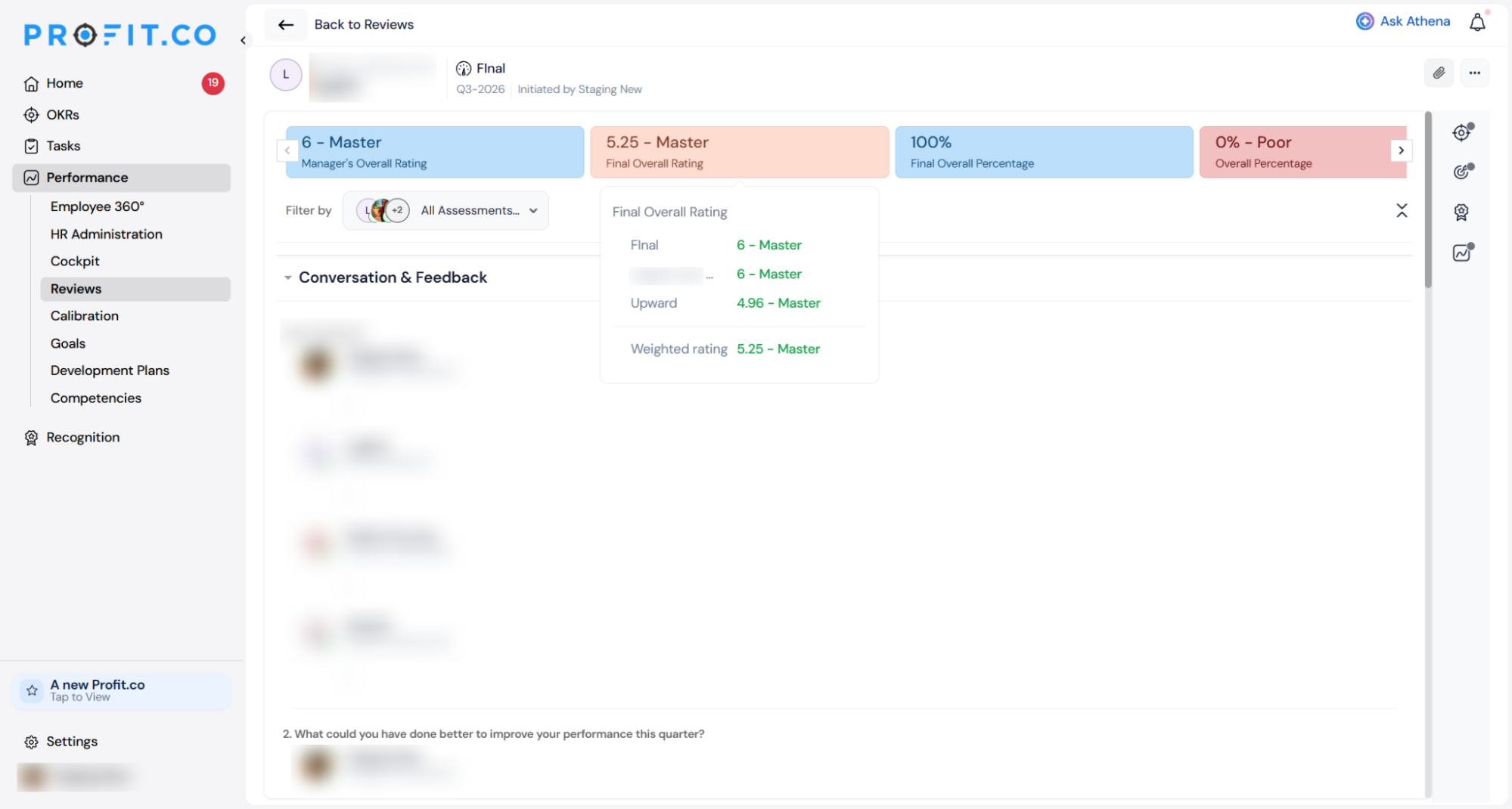
The weighted average populates the Final Overall Rating field shown in the review summary, alongside the individual reviewer ratings (Manager's Overall Rating, Final Overall Percentage, and so on) that feed into it.
Best practices
- Match "# of Reviews to consider" to your actual review cadence. If reviews run twice a year, setting this to 3–4 cycles captures roughly 1.5–2 years of history; setting it too high can dilute recent performance changes with outdated cycles.
- Decide reviewer inclusion before turning on the custom formula. Toggling reviewer types (Self, Peer(s), Manager, etc.) changes what feeds into every historical cycle in the average, not just the current one — set this deliberately rather than adjusting it mid-cycle.
- Expect new employees to start at 100% weight on their first review. This is expected behavior, not a gap in configuration — the formula fills in additional weighted periods automatically as more reviews accumulate.
- Review the preview matrix before saving. The panel shows exactly how weight will be split for employees with different review counts — use it to confirm the distribution matches what you expect before rolling it out broadly.
- Communicate the change to managers and employees. Since the Final Overall Rating will now reflect multiple cycles instead of just the current one, let reviewers know before their first calibration cycle under the new formula to avoid confusion over an unfamiliar number.
Related Questions
Frequently Asked Questions
The formula automatically adjusts to however many reviews the employee actually has. For example, if the template is set to consider 3 reviews but the employee only has 1 on record, that employee's Final Overall Rating is based 100% on their current review — not diluted by missing history.
Yes. In the same configuration panel, you can toggle on or off Self, Peer(s), Upward, External, Matrix Manager, Manager, Additional Manager(s), and Secondary Reviewer ratings independently of the historical averaging setting.
The custom formula changes how the Final Overall Rating is calculated going forward on the template it's configured on. Check with your administrator on how it applies to reviews already in progress versus new cycles initiated after the change.
Yes, for employees with three or more reviews on record, weight is distributed equally across the configured number of cycles (for example, 33.33% each for 3 cycles). Employees with only one or two reviews get 100% or 50/50 weighting respectively, since there aren't yet enough cycles to split evenly across the full configured count.
Under Settings → Performance → Reviews → Review Templates, inside a template's Review Process step, via the configuration icon on the Final Overall Rating field.
Execute your strategy with confidence
Connect OKRs, tasks, and teams in one place with Profit.co
