

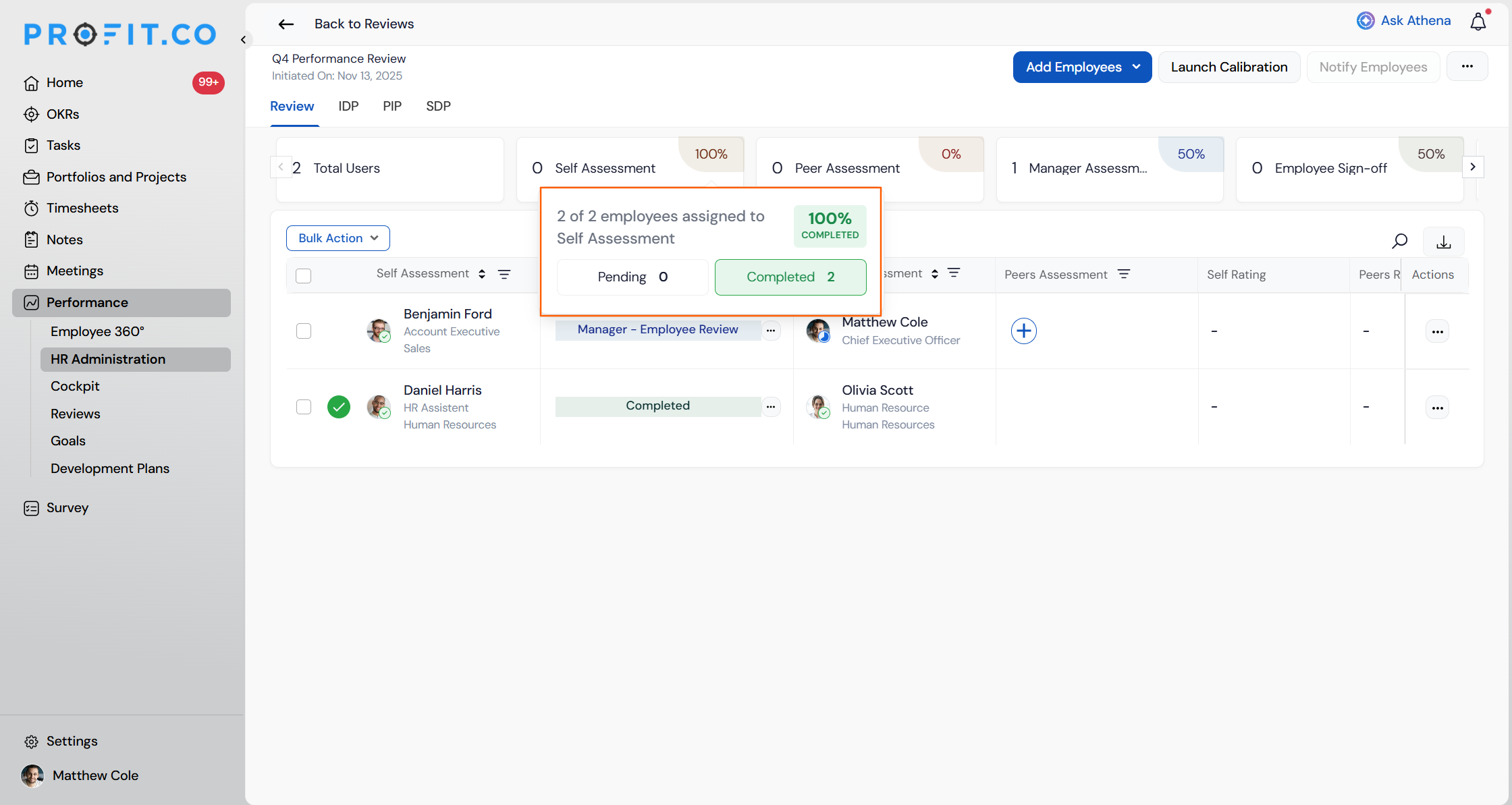
Every assessment stage in a review cycle now displays its own completed count, pending count, and completion percentage, so you can see exactly how far a stage has progressed without doing the math yourself.
Table of Contents
- What is the Review Cycle Summary?
- Why Does the Review Cycle Summary Matter?
- How Does the Review Cycle Summary Work?
- What Happens When You Use the Review Cycle Summary?
- How Is the Completion Percentage Calculated?
- What Are the Best Practices for the Review Cycle Summary?
- Related Articles
- What Are Some Frequently Asked Questions About the Review Cycle Summary?
What is the Review Cycle Summary?
The review cycle summary bar is the stage-level progress display inside a review cycle's admin view. For each stage in the cycle, it shows three separate, labelled metrics: a completed count, an awaiting count, and a completion percentage badge, each backed by its own value rather than one combined figure.
Why Does the Review Cycle Summary Matter?
Because completed and awaiting counts appear as separate labelled numbers, you can see how many employees are done and how many remain for any stage without subtracting one figure from another.
How Does the Review Cycle Summary Work?
Step 1
- Go to Performance → HR Administration → Reviews.
- Select the review cycle you want to track.
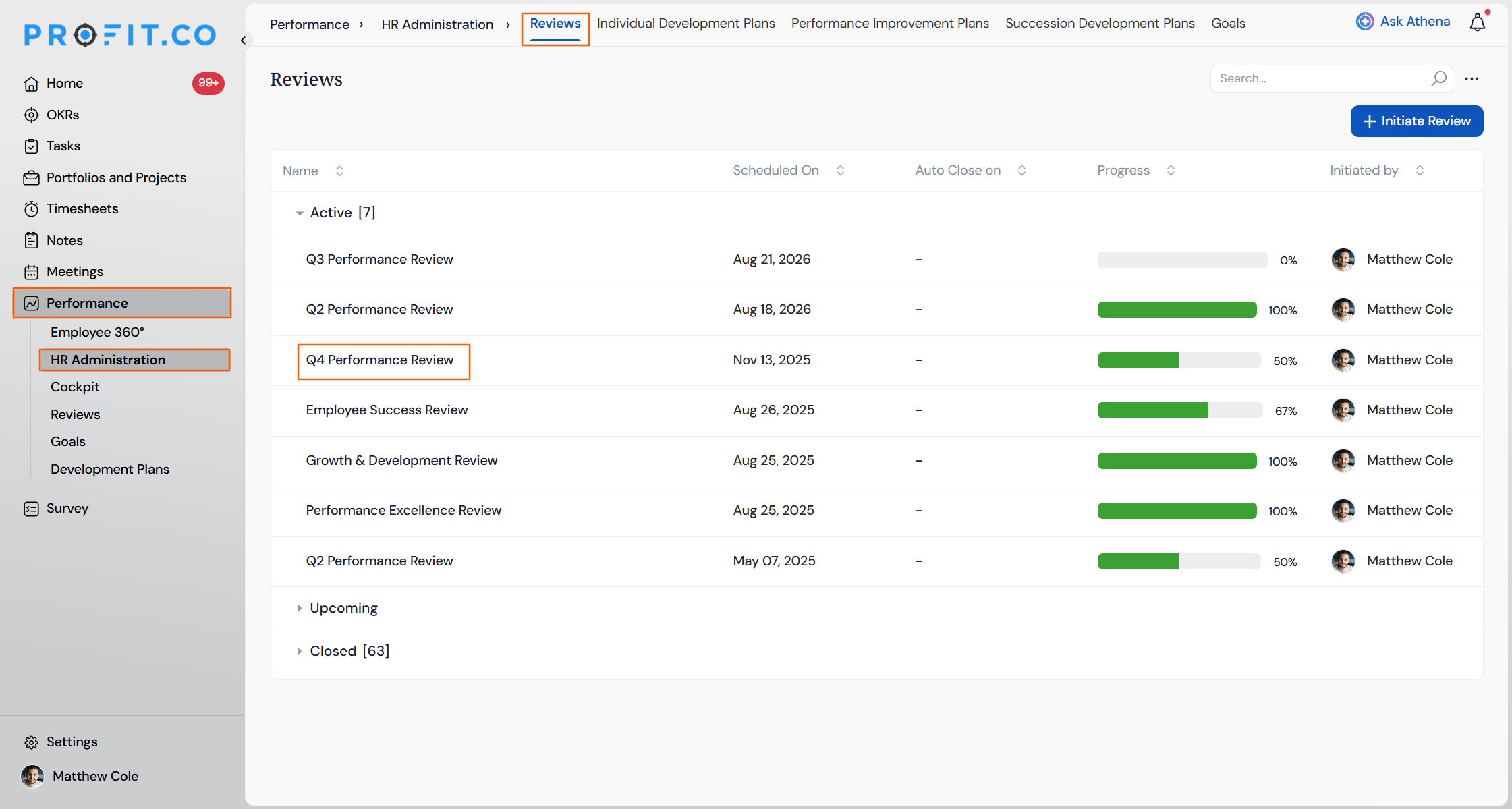
- Switch to the Reviews tab.
- Locate the stage you want to check in the summary bar.
- Check the completion percentage badge next to the counts.
What Happens When You Use the Review Cycle Summary?
| Scenario | What Happens |
|---|---|
| You open a stage with zero enrolled participants. | Profit.co shows a dash in the completion badge and leaves the progress bar empty instead of displaying 0%. |
| You reach a stage where every active participant has completed it. | Profit.co displays a 100% badge in green and fills the progress bar completely. |
| You view a stage where a participant's mandatory reviewer slot is orphaned. | Profit.co adds the blocked count in red to the awaiting label, showing it as "N awaiting (M blocked)." |
| You view a stage where a participant's non-mandatory reviewer slot is orphaned. | Profit.co adds the vacated count to the awaiting label, showing it as "N awaiting (M vacated)," without the red blocked styling. |
| You take a Reassign, Waive, or Remove action on a participant. | Profit.co recalculates every stage's metrics and updates the summary bar within 500 milliseconds, without a page refresh. |
| You exclude every enrolled participant from the cycle. | Profit.co shows a dash across all stage badges and displays a banner stating that all participants are currently excluded. |
How Is the Completion Percentage Calculated?
The completion percentage badge is calculated as completed divided by active, so it reflects real progress in the stage rather than a distribution of where participants currently sit.
What Are the Best Practices for the Review Cycle Summary?
- Check the awaiting label for a blocked count before assuming a stalled stage needs a reminder. A high awaiting number with a blocked flag means a reviewer assignment needs fixing, not that participants are ignoring the request.
- Confirm that pms_excluded_users_panel is enabled alongside this flag, since both features share the same Active denominator and toggling them independently can produce mismatched percentages.
- Treat a dash badge as not applicable rather than 0% progress. A stage showing a dash has no enrolled participants, so there is nothing to chase.
- Use the hover tooltip's Not Yet Started figure when the awaiting count alone doesn't explain the gap between completed and active participants.
- Let the summary bar's real-time update finish before manually refreshing after a Reassign, Waive, or Remove action. It updates within 500 milliseconds on its own, so an immediate refresh can show mid-recalculation data.
Related Articles
What Are Some Frequently Asked Questions About the Review Cycle Summary?
It's visible to any HR Admin who has access to the review cycle from Performance → HR Administration → Reviews.
No. The order matches each cycle's configured stage sequence, so cycles with different stage setups display their own order rather than a hardcoded one.
No. A stage a cycle skips entirely, for example a cycle configured without Peer Assessment, is omitted from the summary bar rather than showing a zero count.
No. The overall cycle progress bar's formula stays as-is; only the individual stage metrics inside the summary bar change.
Execute your strategy with confidence
Connect OKRs, tasks, and teams in one place with Profit.co
